vnc远程桌面系统配置
VNC 远程桌面配置,(Debian,Ubuntu都适用)
步骤1 安装服务
sudo apt install x11vnc
(sudo apt-get install x11vnc   # Ubuntu使用这个)
// VNC服务端:  x11vnc可以让访问者控制本地的实际显示器,
步骤2 设置远程密码
sudo x11vnc -storepasswd /etc/x11vnc.pass   //设置密码 保存在/etc/x11vnc.pass
Enter VNC password:                    	//输入登录vnc密码;
Verify password:                        //重复密码
 written to: /etc/x11vnc.pass  [y]/n y      //成生密码文件,y 生成
Password written to: /etc/x11vnc.pass
步骤3 让x11vnc系统自动启动
root@debian:~#sudo vi /lib/systemd/system/x11vnc.service

[Unit]
Description=Start x11vnc at startup.
After=multi-user.target

[Service]
Type=simple
ExecStart=/usr/bin/x11vnc -auth guess -forever -loop -noxdamage -repeat –rfbauth /etc/x11vnc.pass -rfbport 5900 -shared -capslock -nomodtweak

[Install]
WantedBy=multi-user.target
注意:/etc/x11vnc.pass 为设置密码文件保存的路径
步骤4. 启动自启动服务
root@debian:~# systemctl daemon-reload
root@debian:~# systemctl enable x11vnc.service
root@debian:~# systemctl start x11vnc.service
步骤5. 设置盒子远程桌面的分辨率
盒子使用时如未接显示器,远程桌面不能从外部获取分辨率; 需要手工指定远程时窗口大小(分辨率);
vim /etc/X11/xorg.conf

Section "Device"
       Identifier      "Default Device"
       Option  "NoLogo"        "True"
 EndSection

 Section "Monitor"
       Identifier    "Configured Monitor"
 EndSection

 Section "Screen"
       Identifier    "Default Screen"
       Monitor        "Configured Monitor"
       Device        "Default Device"
       SubSection "Display"
       Depth    24
       Virtual 1920 1080
 EndSubSection
 EndSection
注意: xorg.conf这个配置分辨率文件已编辑配置好了(分辨率使用1920*1080), 可复制到/etc/X11/目录下直接使用
步骤6. 启动
RK3588 启动后,需要手动启动 VNC 服务
x11vnc -display :0 -auth /var/run/lightdm/root/:0
步骤7. 连接
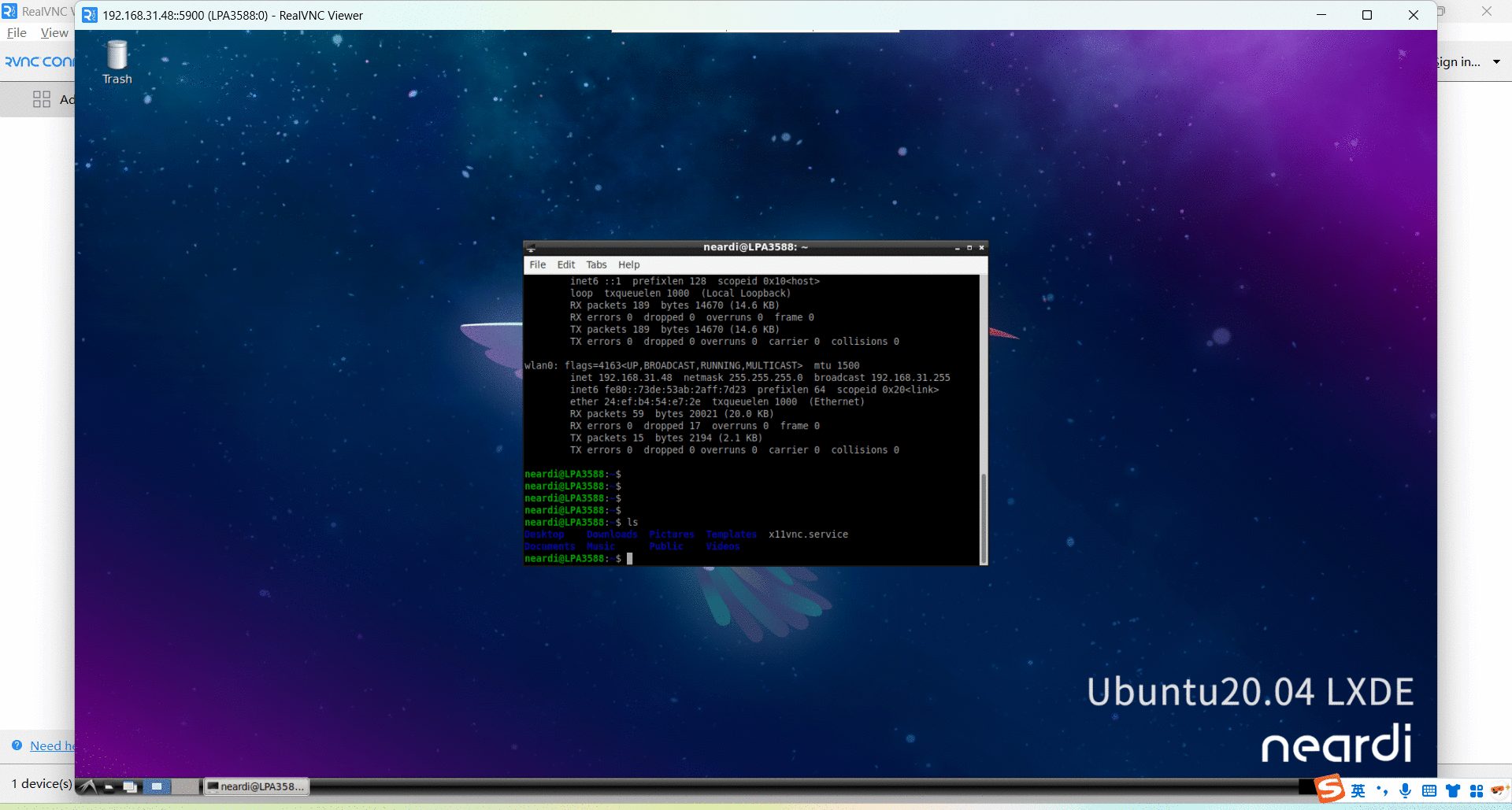
连接 VNC 服务器,输入 IP 地址和端口号 5900,即可连接到 RK3588 盒子的远程桌面。