VSCode使用
VSCode使用1、VSCode下载2、VSCode安装2.1、打开安装包2.2、同意协议2.3、安装位置2.4、安装选项2.5、完成安装3、VSCode使用3.1、基础使用3.2、拓展使用3.2.1、基础拓展PythonC/C++Material Icon Theme3.2.2、Remote-SSHssh安装ssh使用
教程演示Windows平台安装VSCode和SSH远程步骤。
用户可以根据这个方法远程树莓派、Jetson等主板
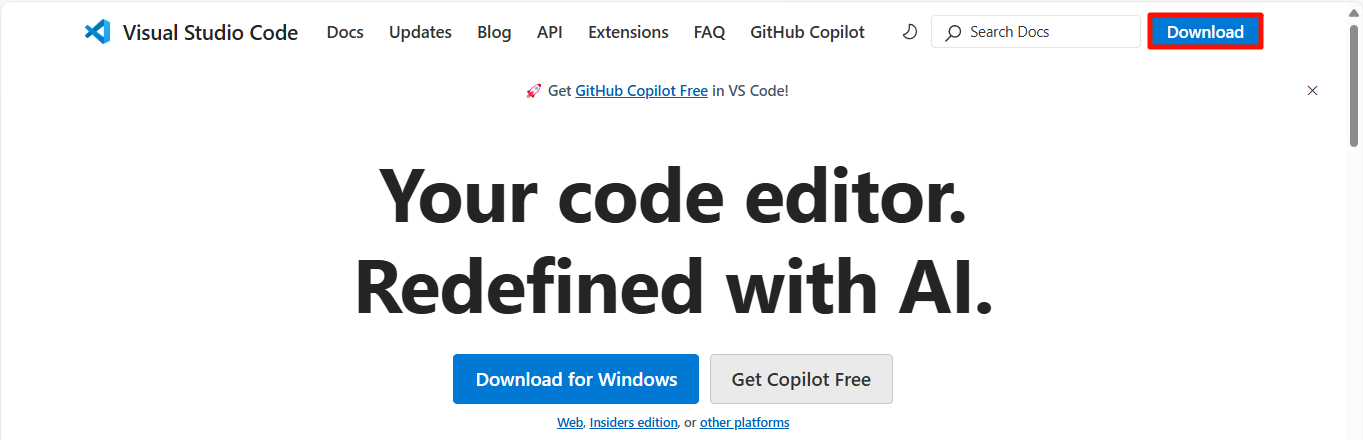
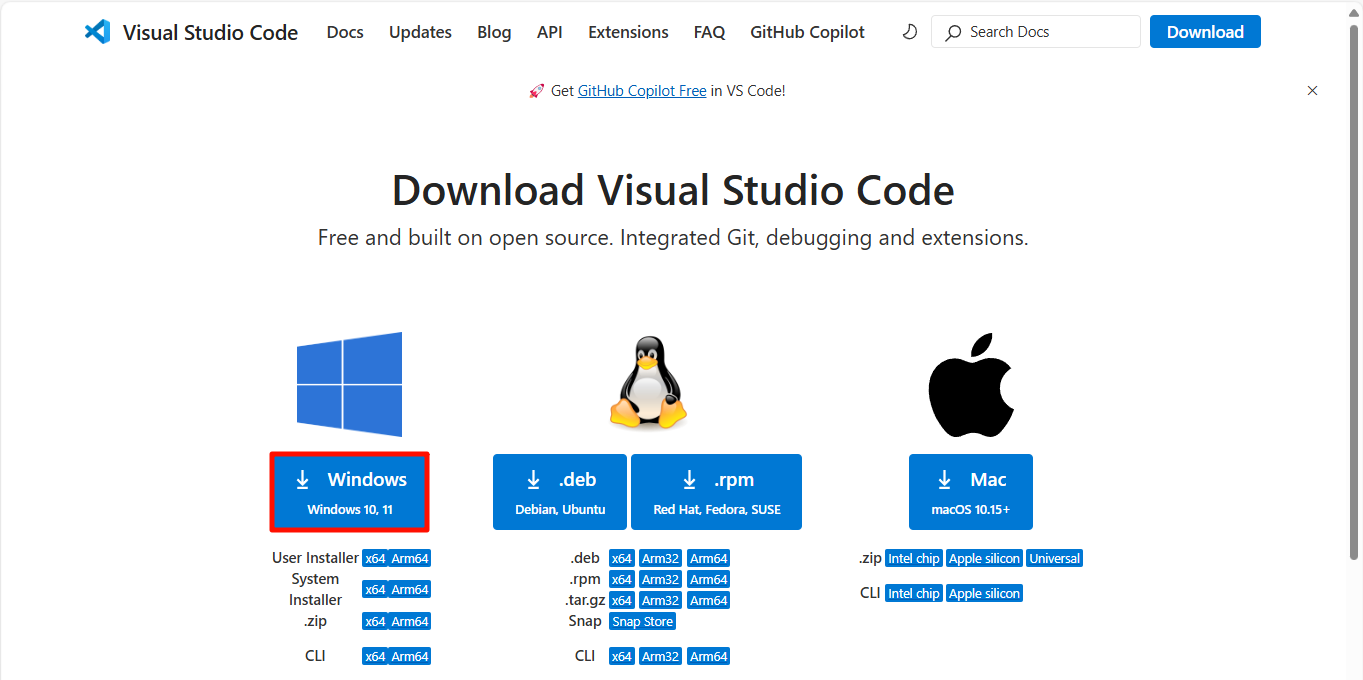
1、VSCode下载
官网网址:https://code.visualstudio.com/
2、VSCode安装
2.1、打开安装包
以管理员身份打开VSCodeUserSetup-x64-xxx.exe

2.2、同意协议
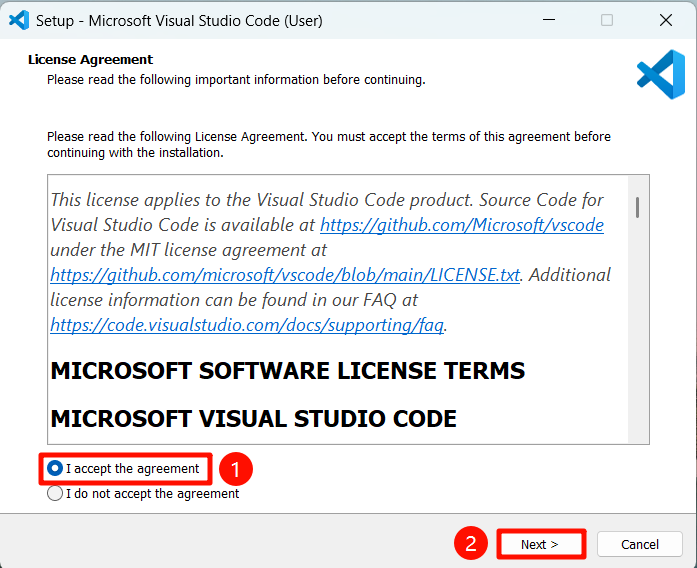
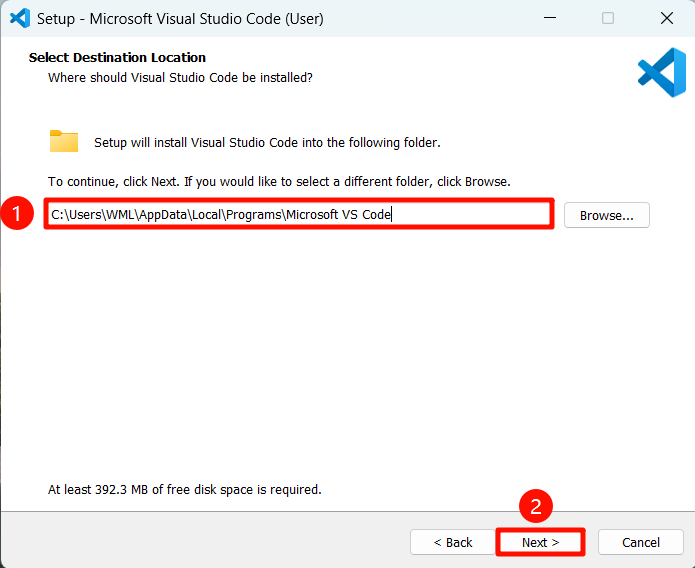
2.3、安装位置
建议选择软件默认的安装位置:
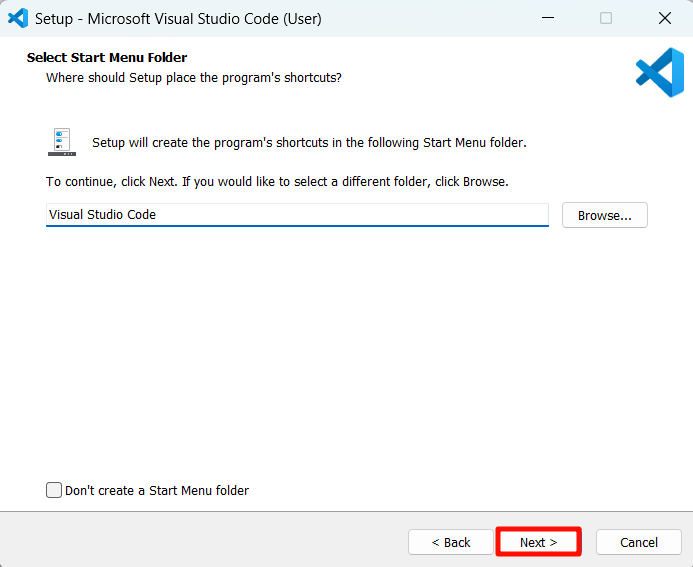
2.4、安装选项
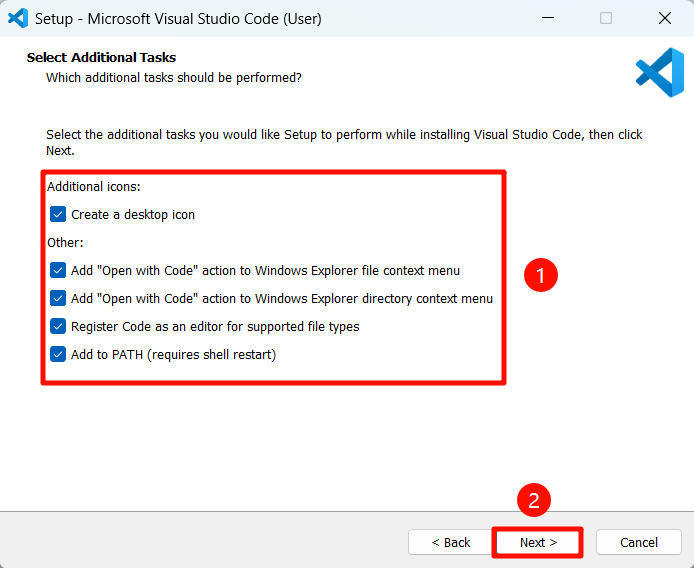
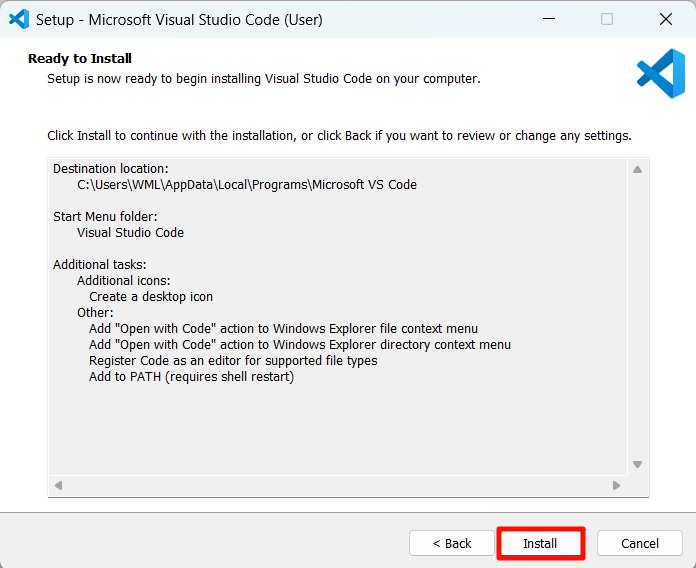
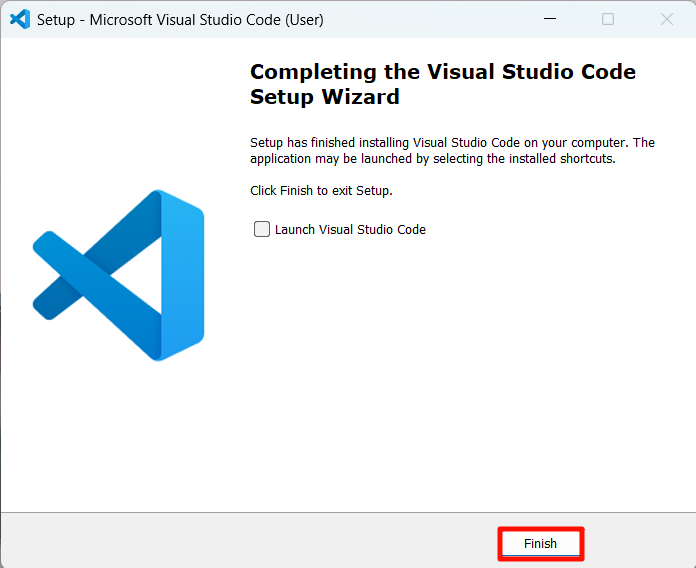
2.5、完成安装
3、VSCode使用
3.1、基础使用
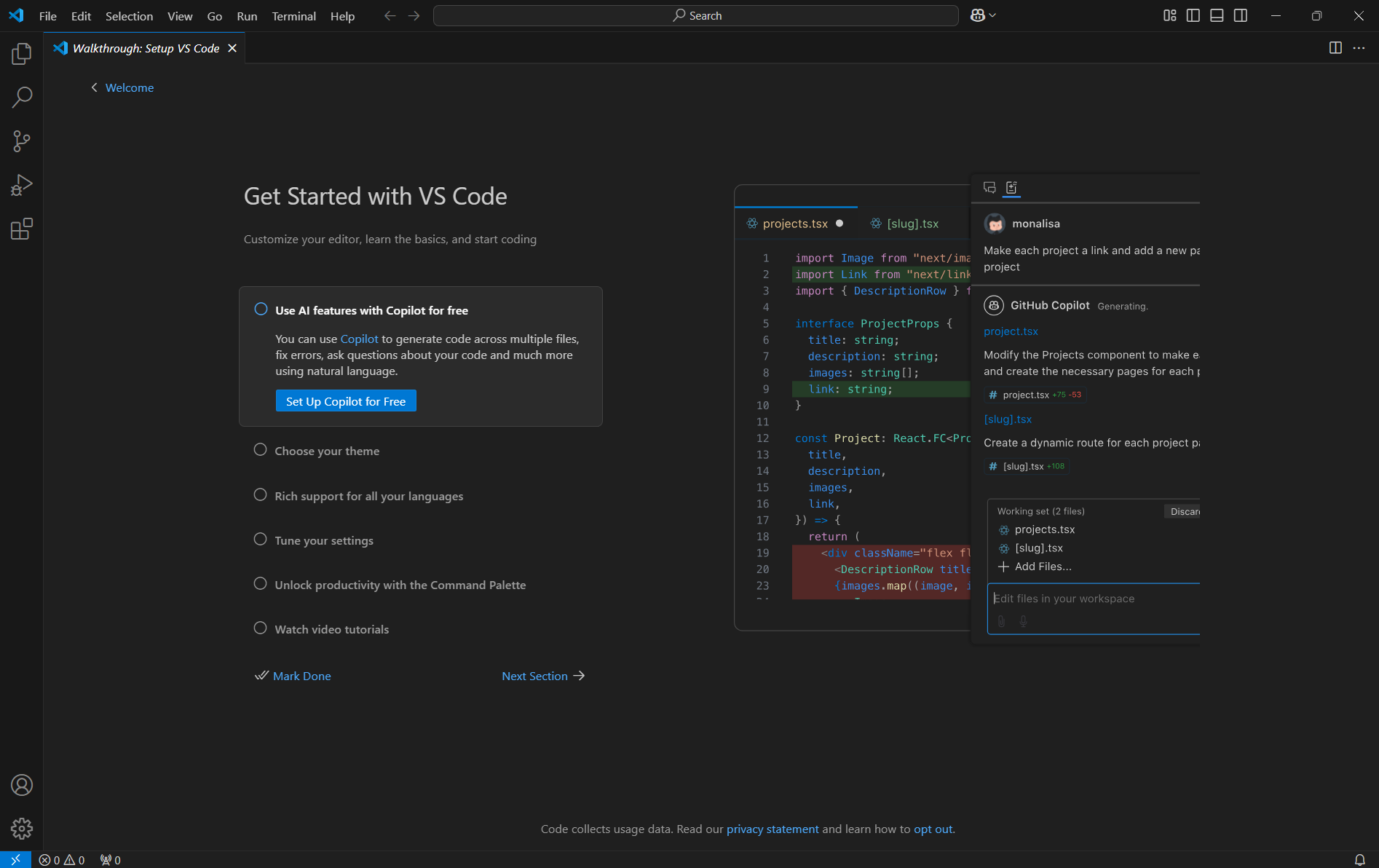
双击“Visual Studio Code”图标打开应用:

3.2、拓展使用
3.2.1、基础拓展
Python
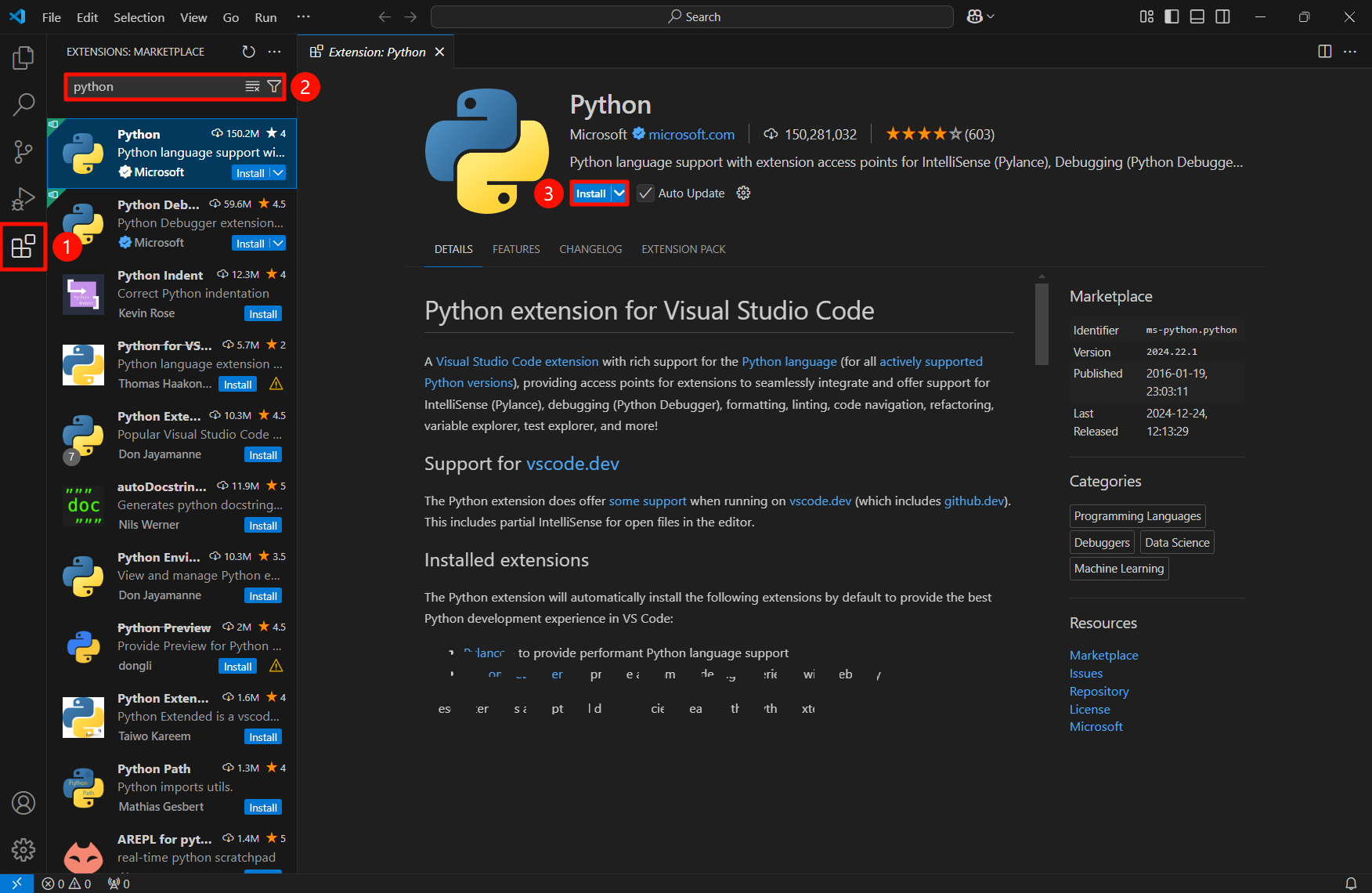
拓展搜索栏搜索“python” ,选择Python进行安装:
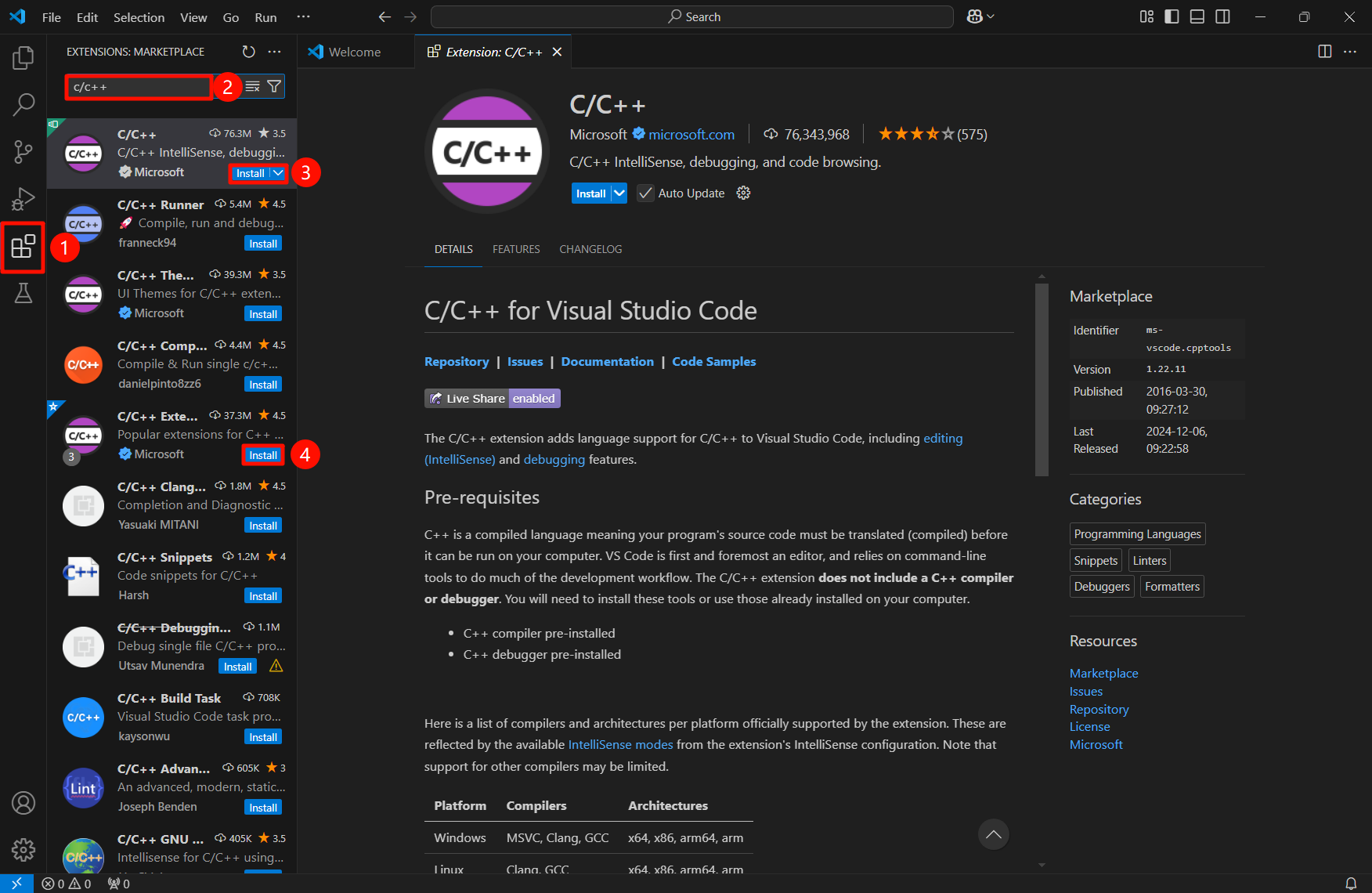
C/C++
拓展搜索栏搜索“c/c++” ,选择C/C++、C/C++ Extension Pack进行安装:
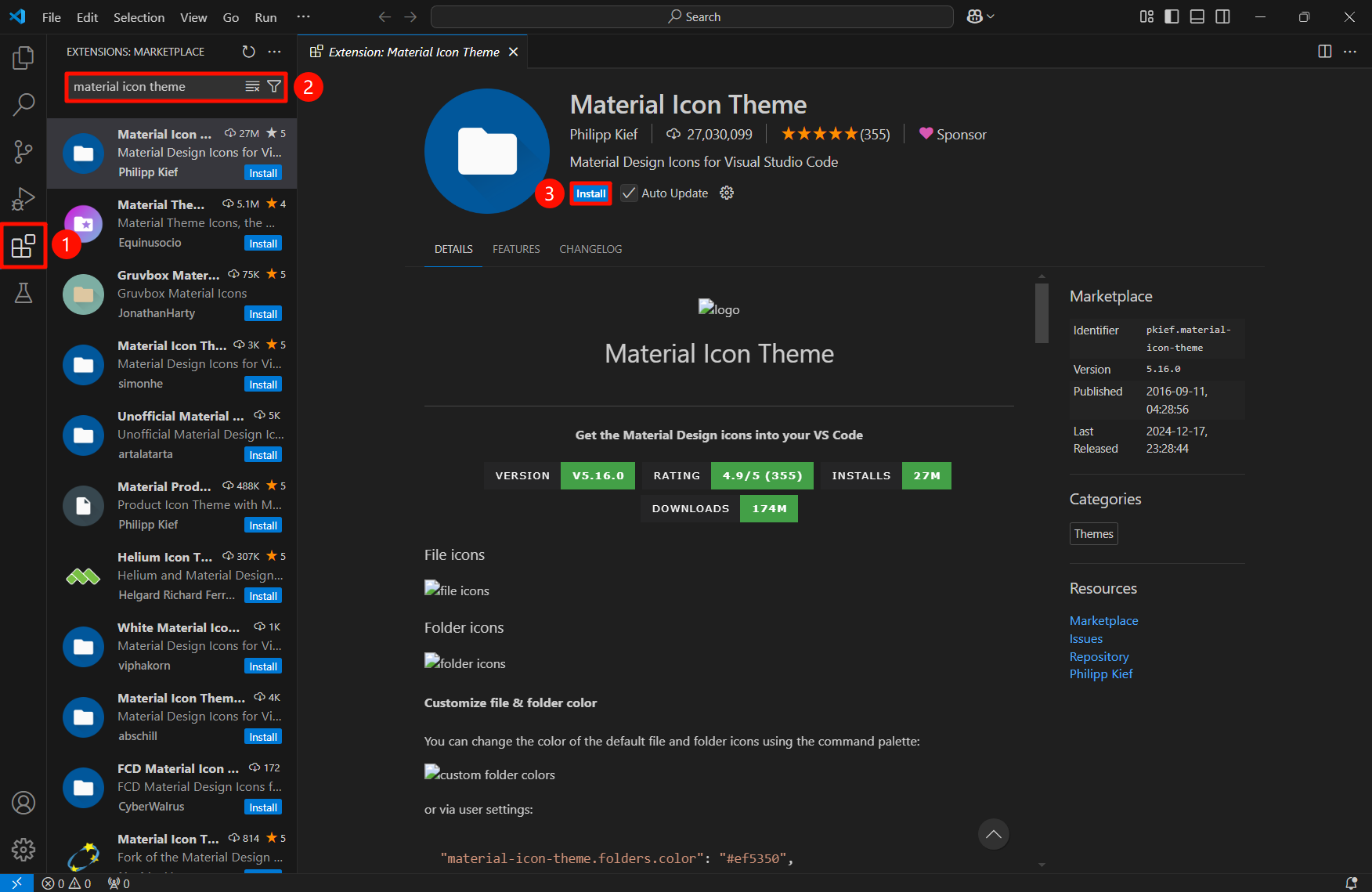
Material Icon Theme
拓展搜索栏搜索“material icon theme” ,选择Material Icon Theme进行安装:
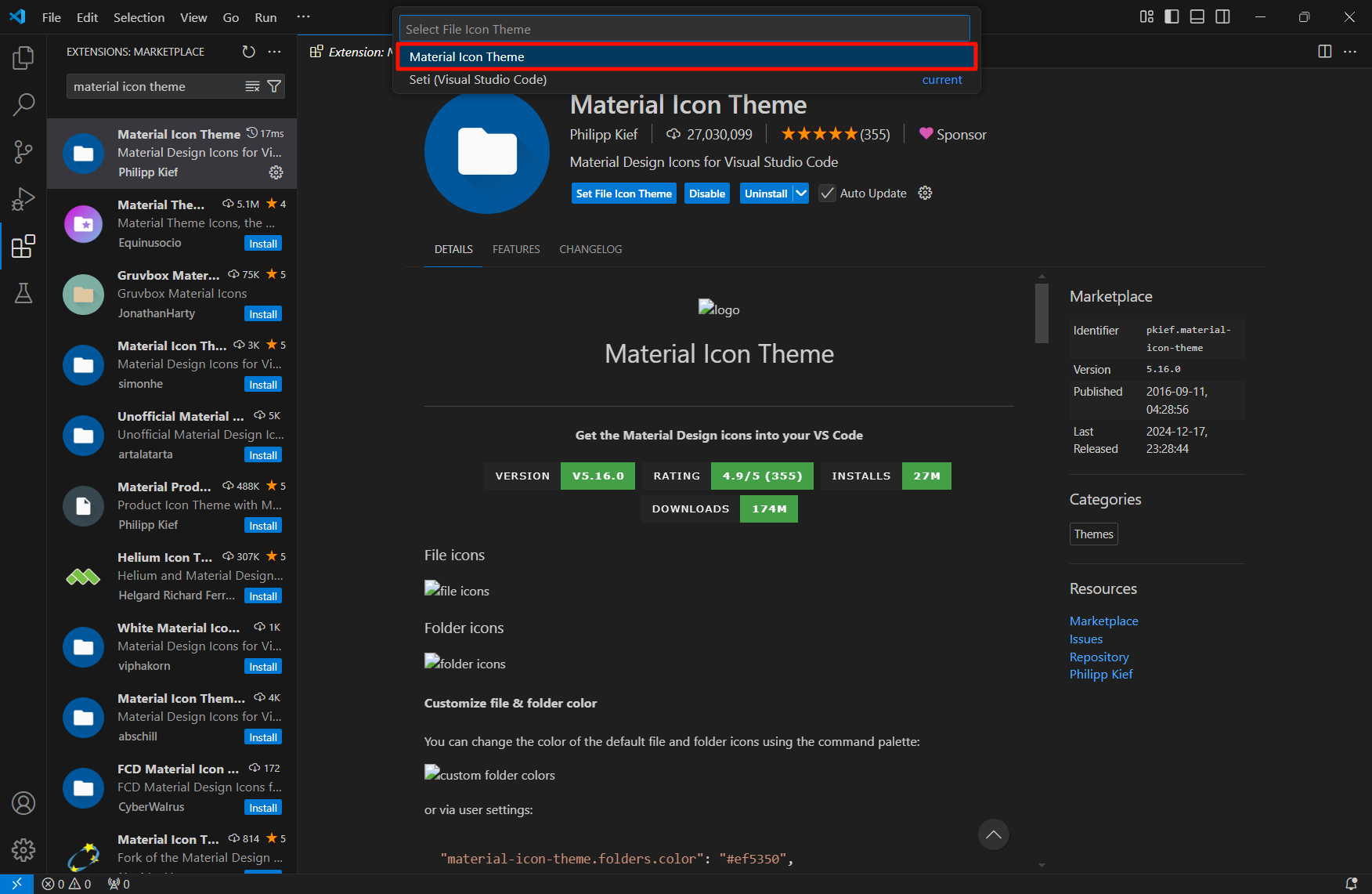
3.2.2、Remote-SSH
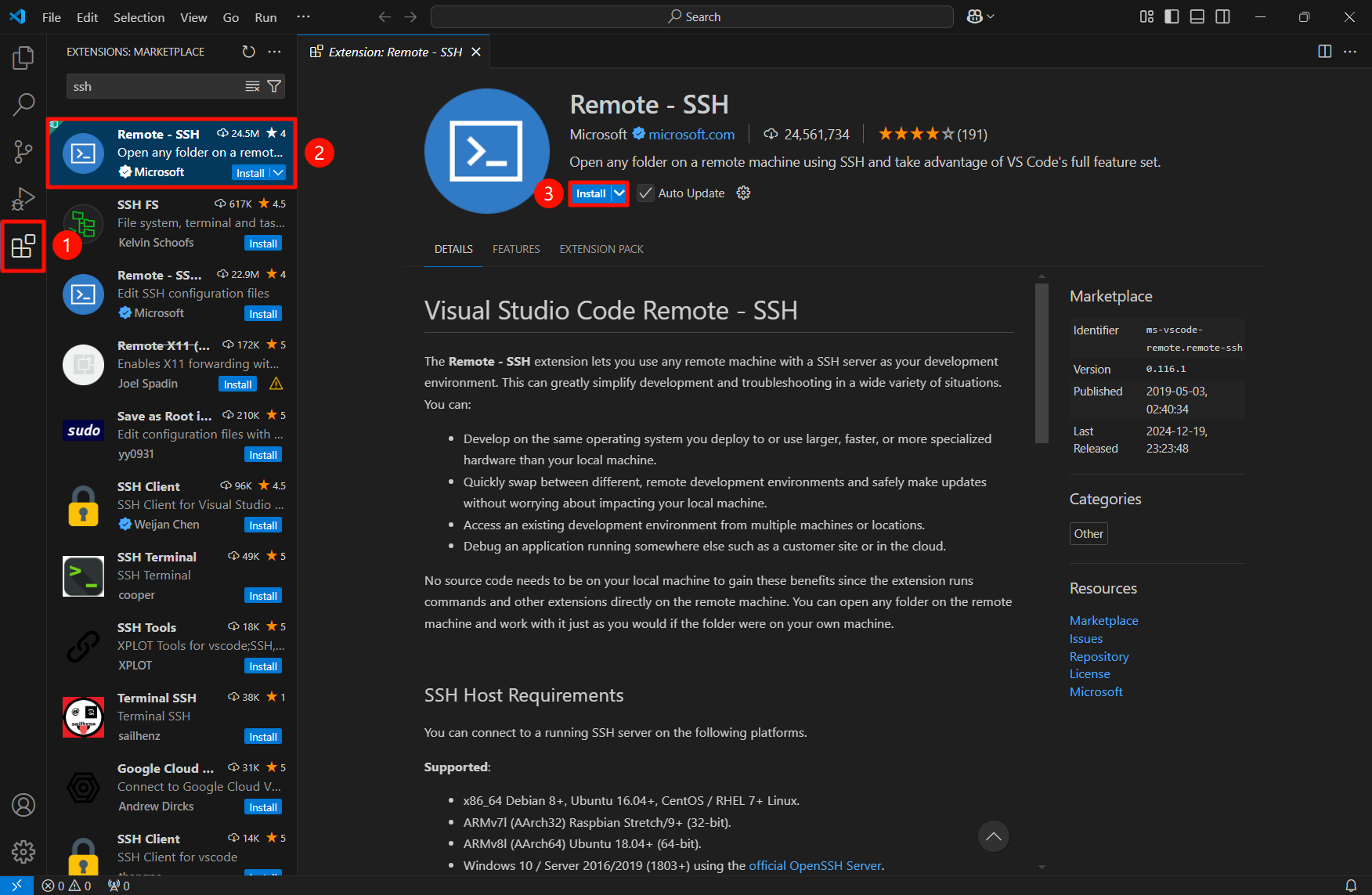
ssh安装
拓展搜索栏搜索“ssh” ,选择Remote-SSH进行安装:
ssh使用
Remote-SSH安装完成后,可以直接通过左侧状态栏进行使用!
xxxxxxxxxx 不同的用户可能配置文件中的路径用户名不一致,并没有任何印象
配置远程:修改配置文件
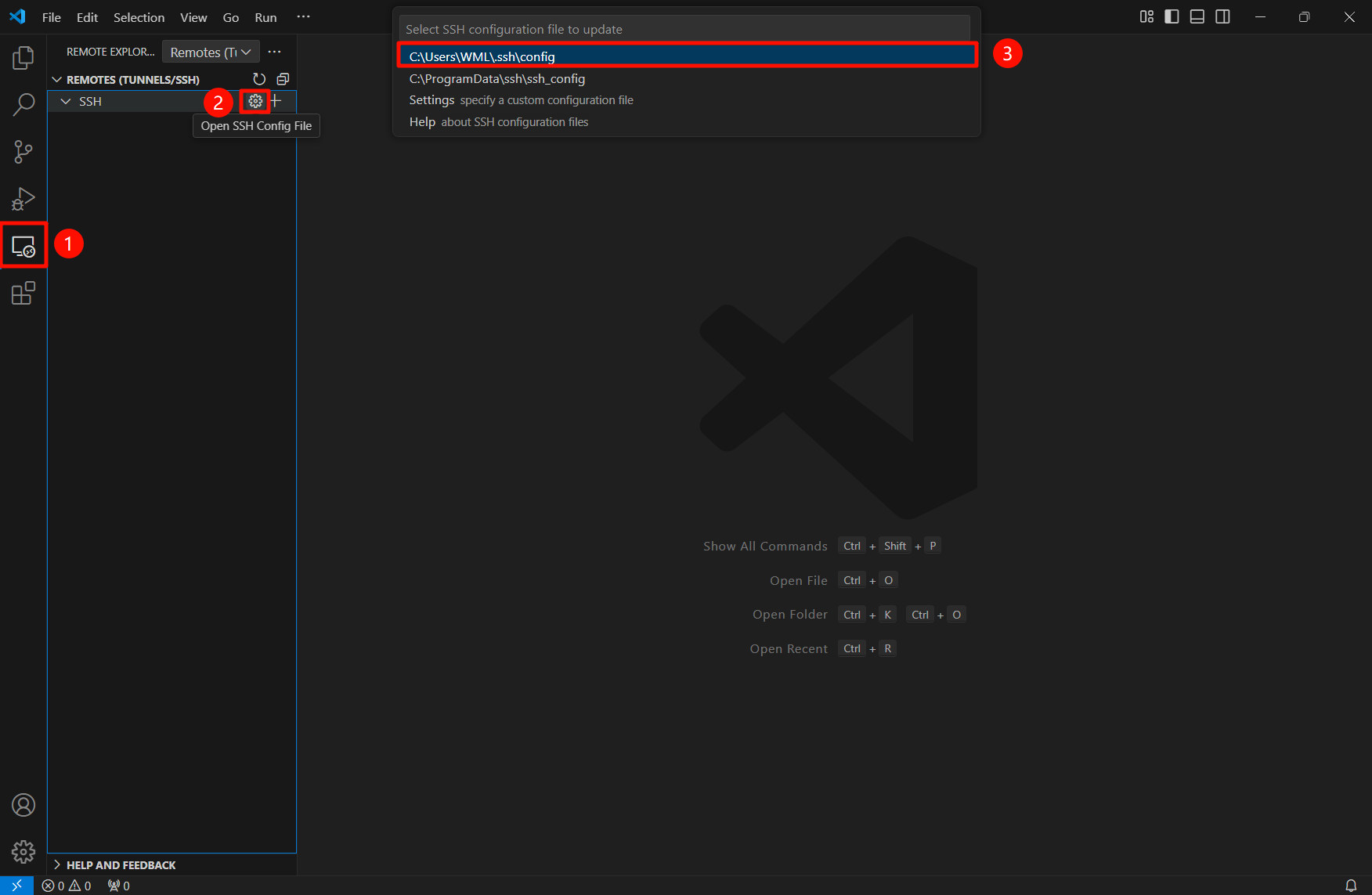
配置远程:修改配置文件
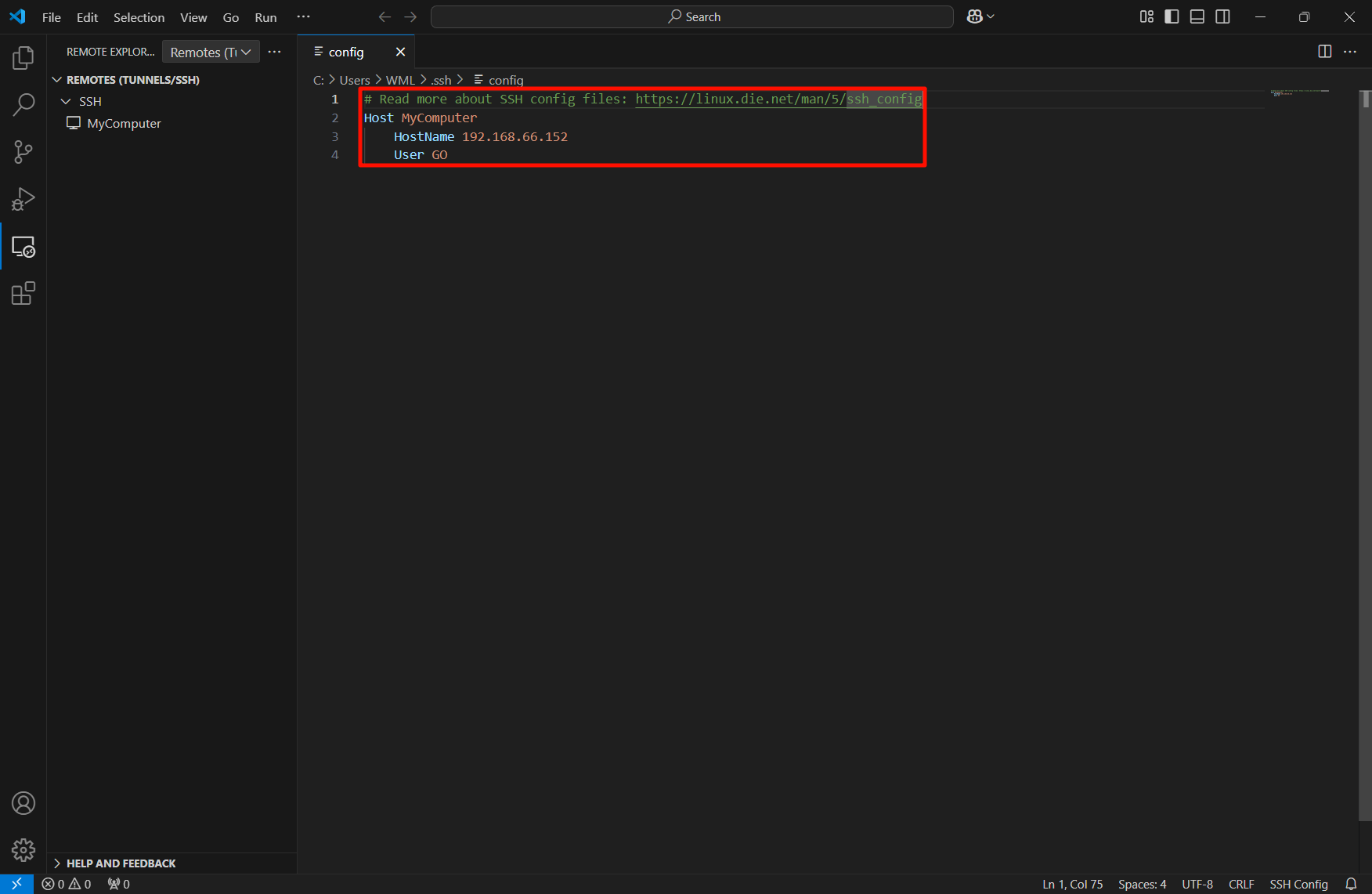
填写需要远程的设备信息,被远程的设备需要配置好SSH服务并且支持SSH远程;填写后使用Ctrl+S快捷键保存,左侧会自动添加对应的SSH远程设备。
xxxxxxxxxx # Read more about SSH config files: https://linux.die.net/man/5/ssh_config Host MyComputer # 远程设备别名 HostName 192.168.66.152 # 远程设备IP User GO # 远程设备用户名
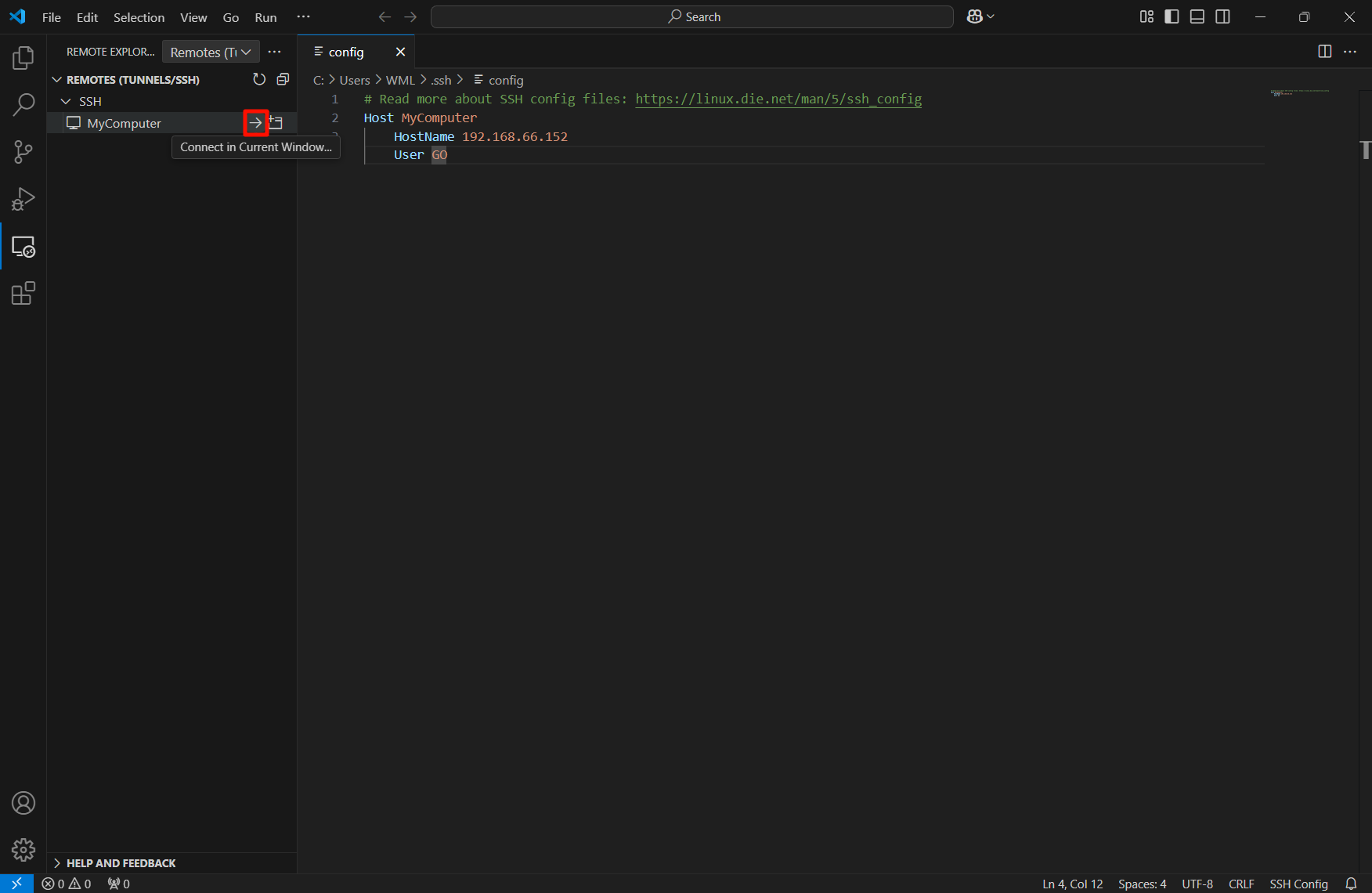
远程
选择远程设备进行SSH远程:
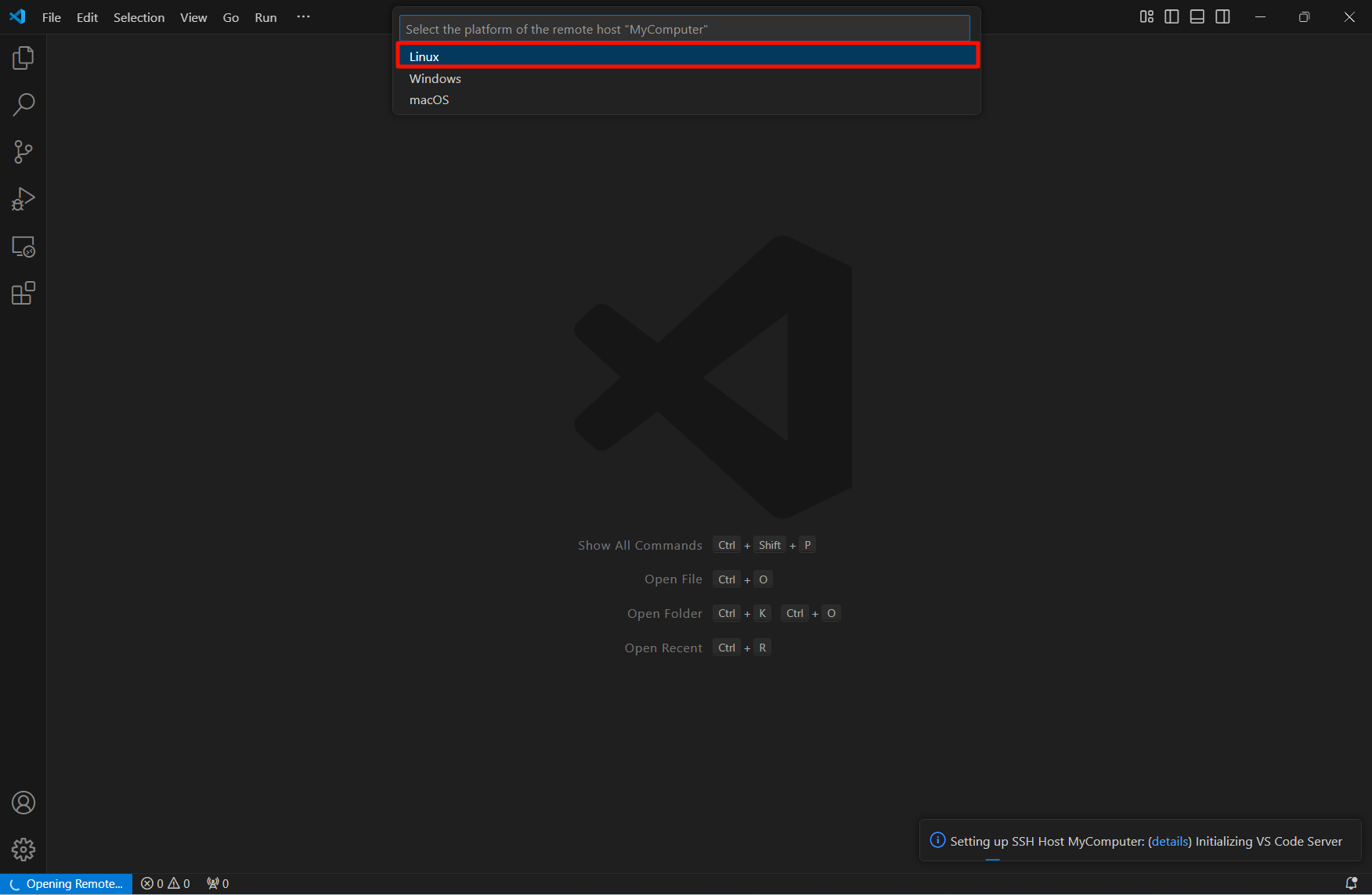
选择被远程设备平台:根据实际平台填写
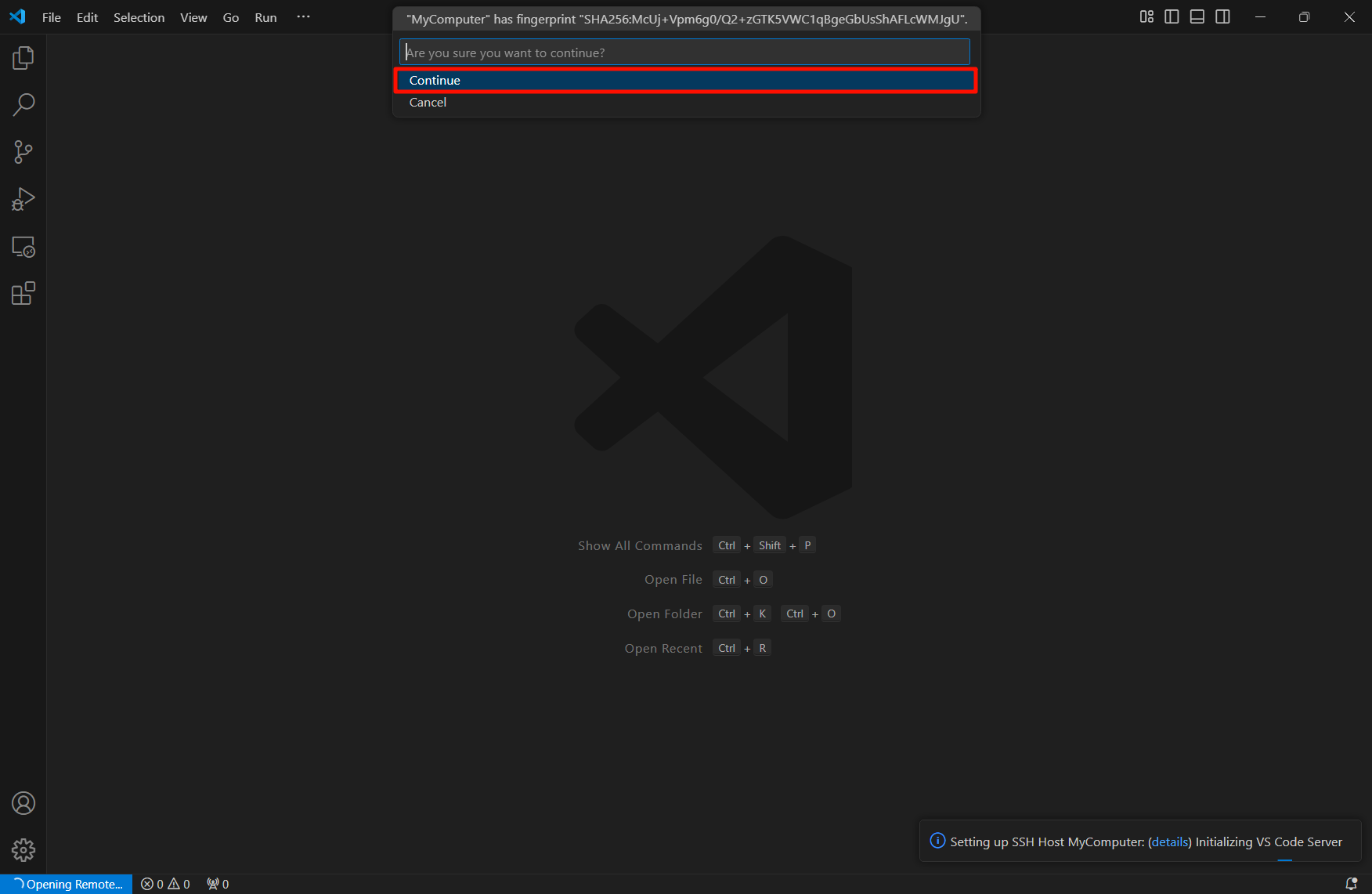
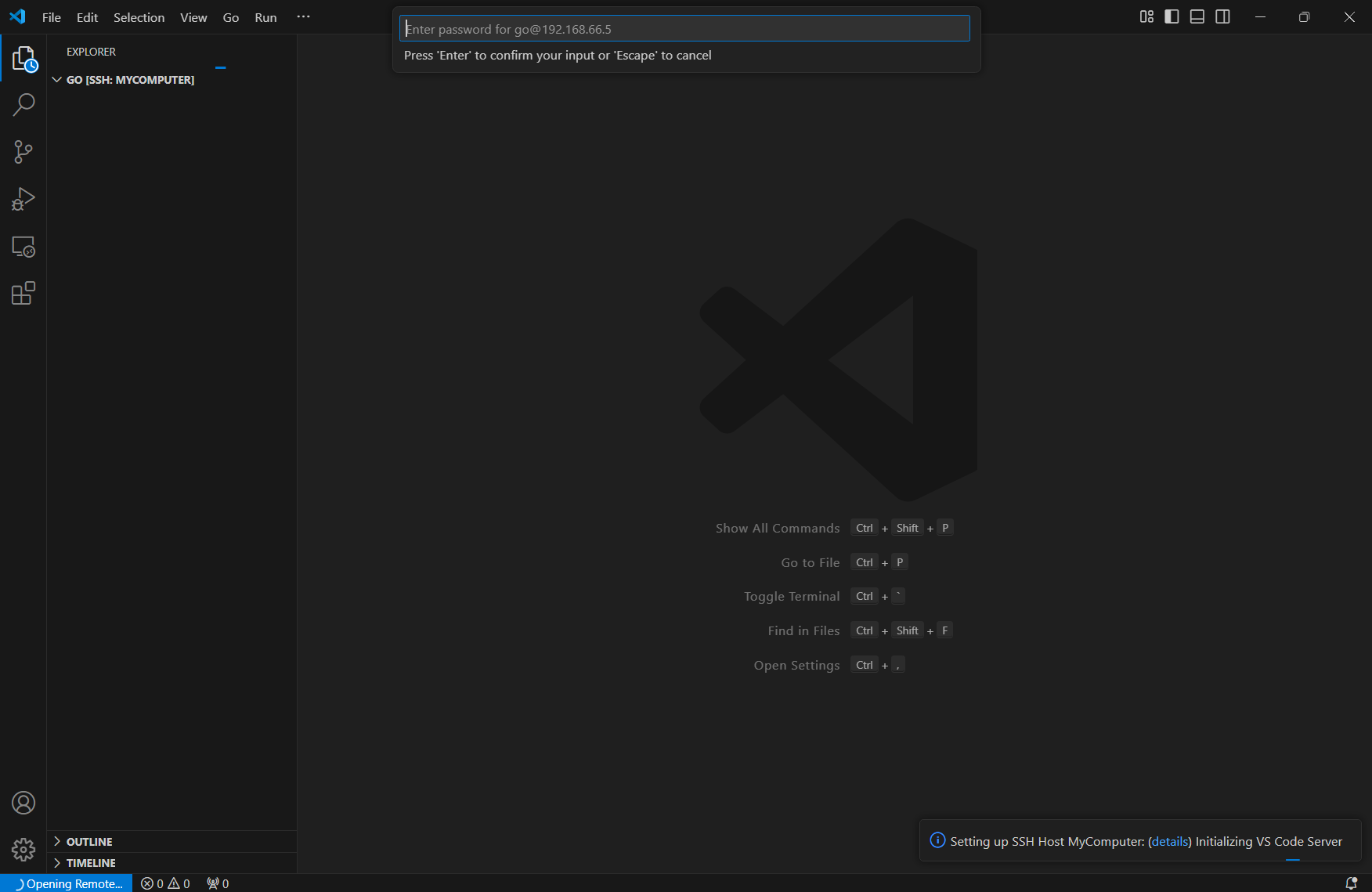
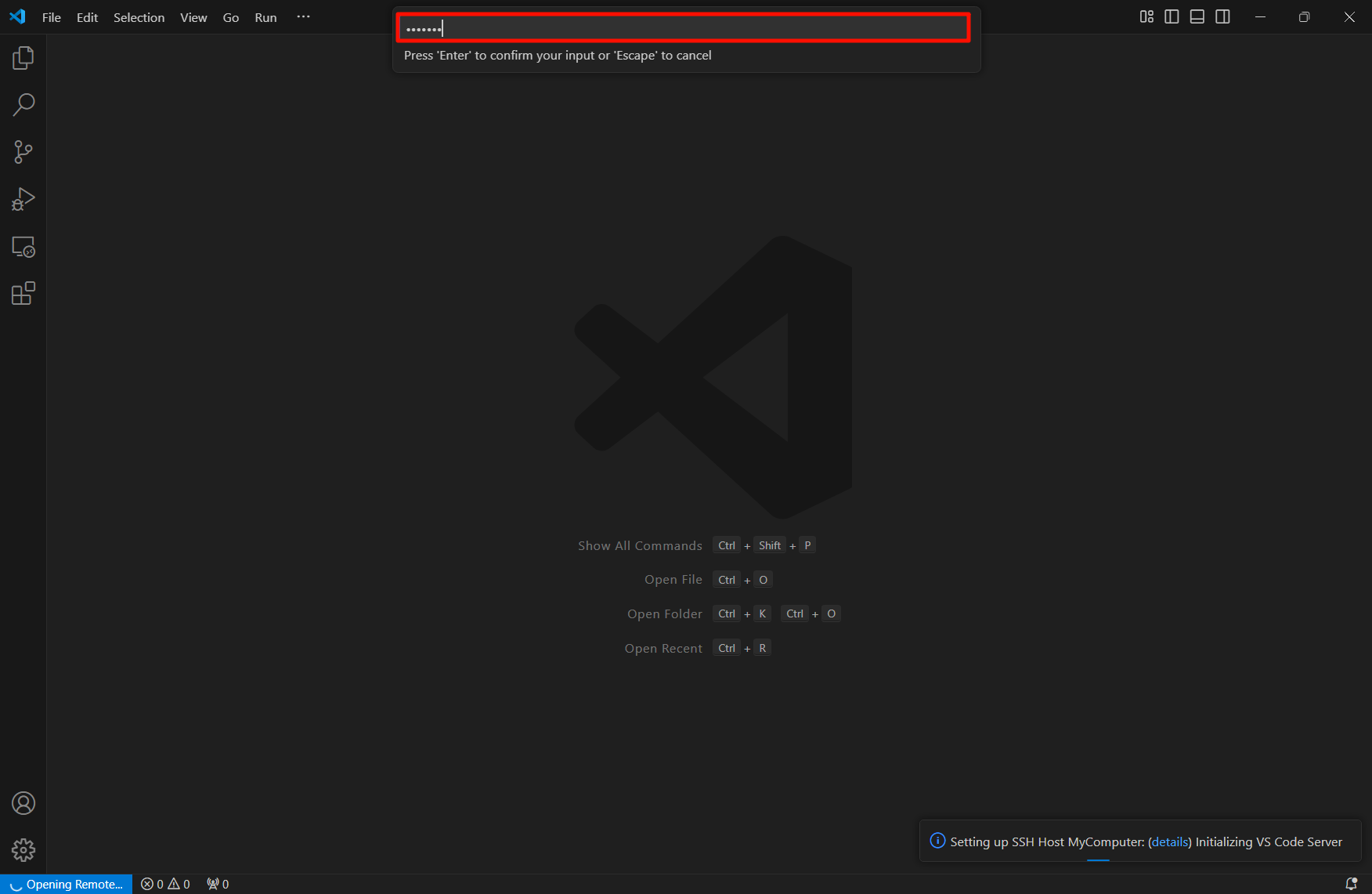
填写密码:填写密码后回车确认
远程使用
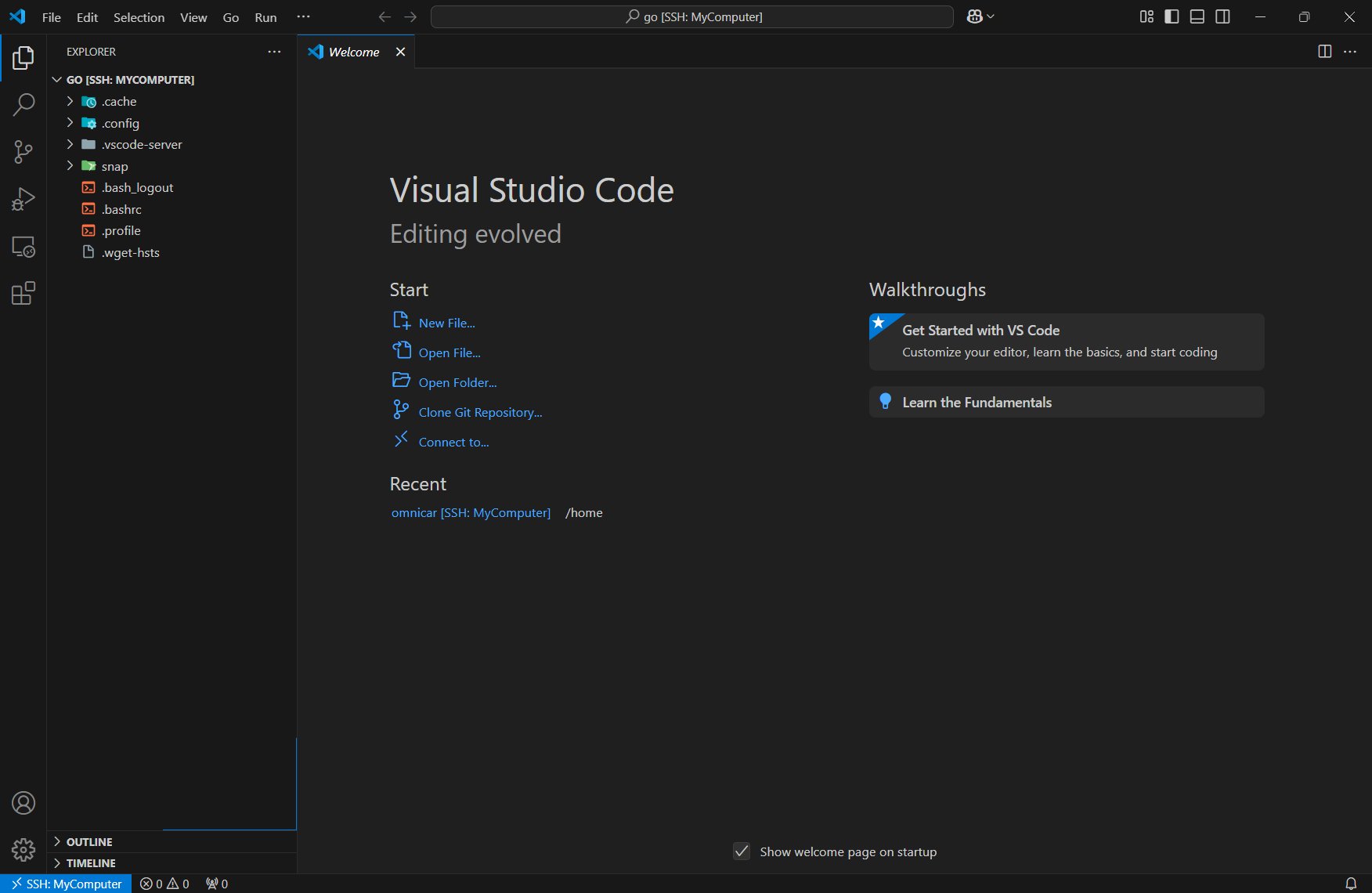
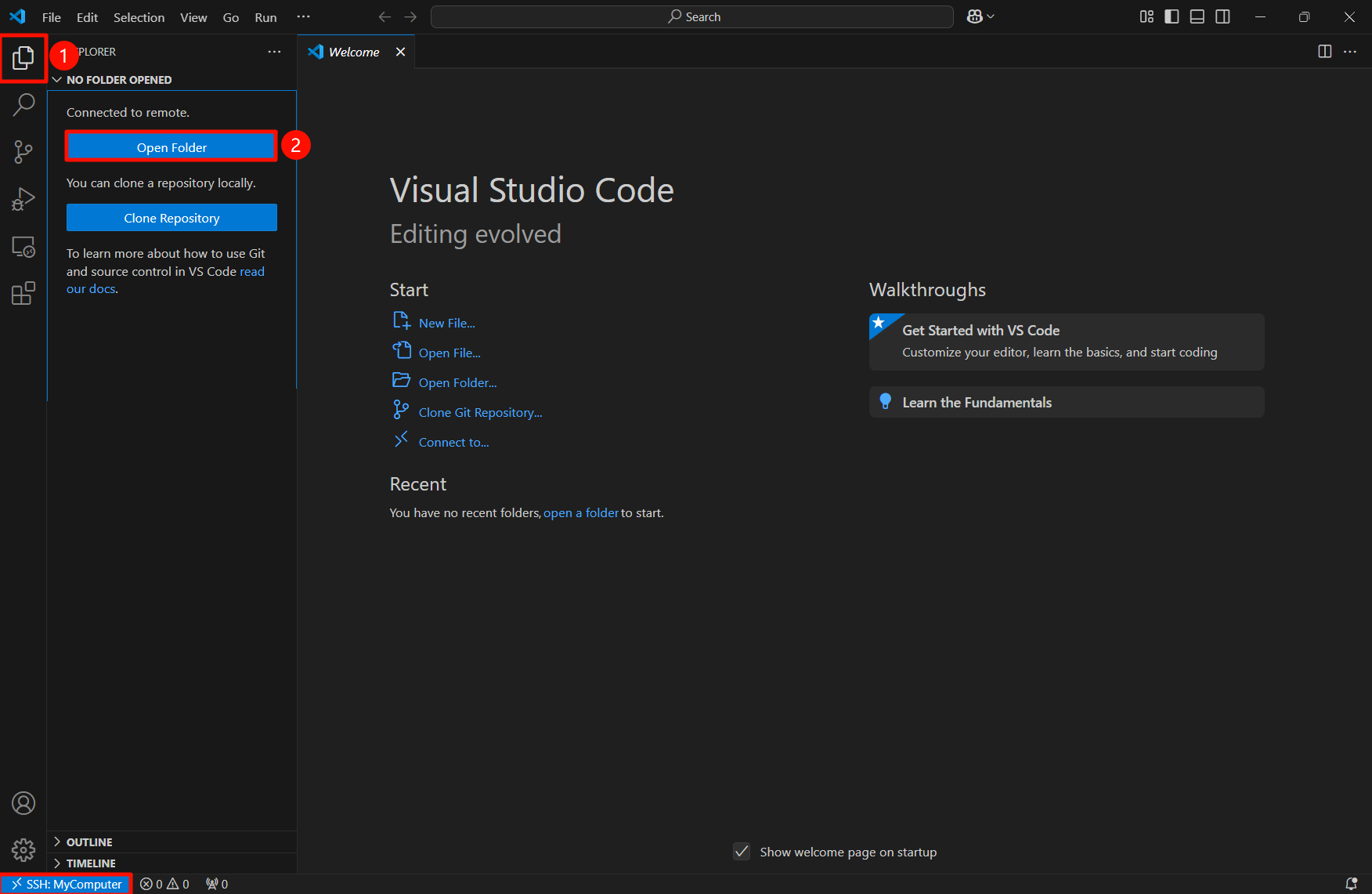
远程成功后,左下角有提示;我们可以通过VSCode打开被远程设备的文件夹
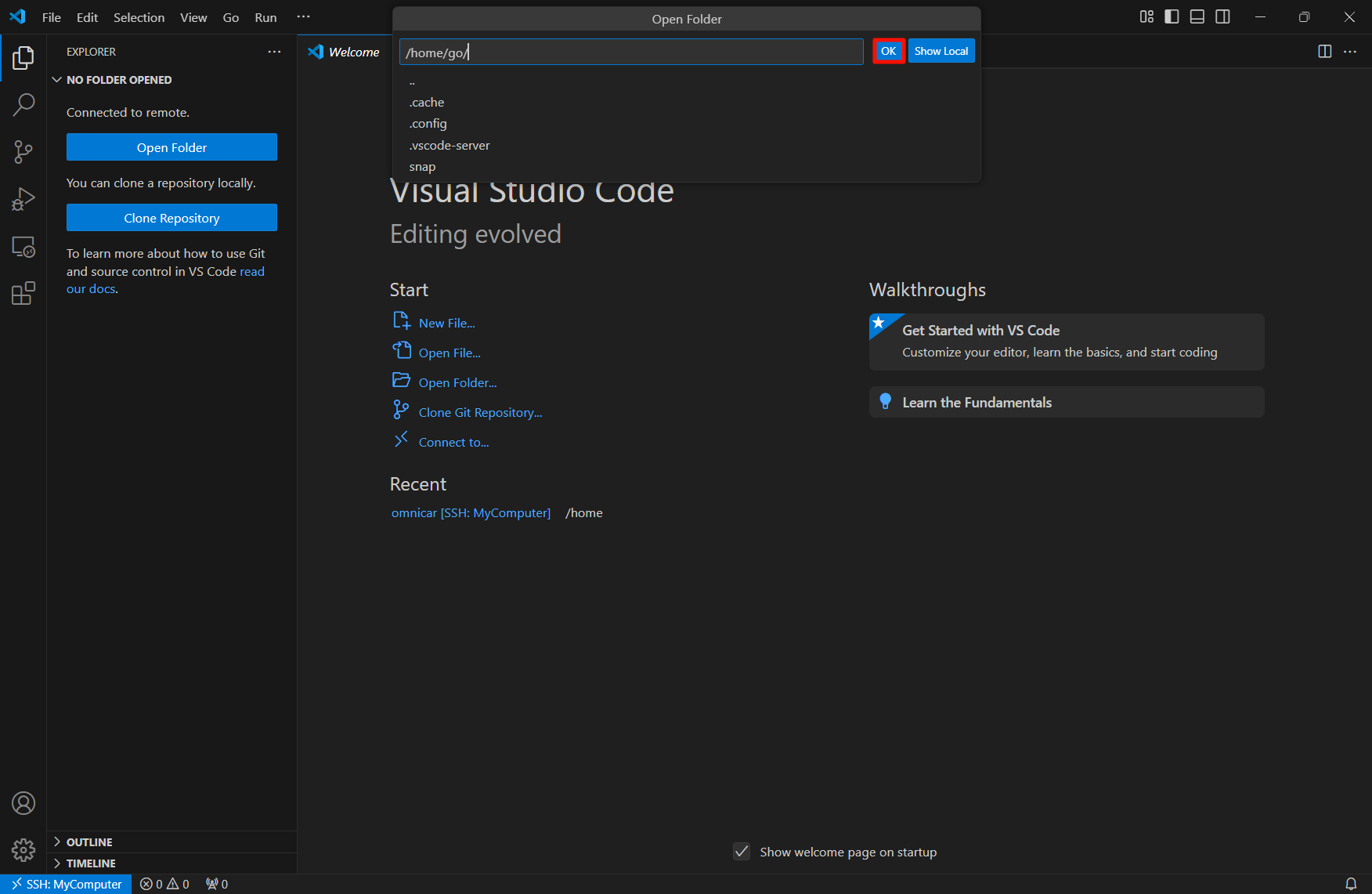
再次输入密码: