Multi-Stream Video Analysis (YOLO Demo)
Multi-Stream Video Analysis (YOLO Demo) is a real-time, locally deployed video analytics application for the SpacemiT K3 RISC-V platform. It processes 4, 9, or 12 video streams simultaneously, using the K3 VPU, GPU, and AI acceleration capabilities for video decoding, image preprocessing, YOLO inference, and result display. All inference data is processed locally on the device, making the application suitable for edge-vision scenarios such as smart campuses, traffic monitoring, retail analytics, and industrial inspection.
Key Features
- Parallel multi-stream analysis: Supports 4-, 9-, and 12-stream grid layouts with per-channel statistics
- Hardware acceleration: Uses MPP/VPU decoding, GPU OpenCL preprocessing, and the SpacemiT Execution Provider for inference
- Low-copy pipeline: Imports NV12 dma-buf frames directly into OpenCL and delivers data to ORT through preallocated tensor slots
- Overload protection: Each channel uses a latest-only queue, while round-robin scheduling across channels prioritizes new frames under high load
- Multiple model types: Supports object detection, face detection, gesture recognition, fire detection, pose estimation, and instance segmentation models
- Real-time monitoring: Displays FPS, detection counts, and end-to-end latency for each channel
- Local operation: Models and inference results do not need to be uploaded to the cloud
Platform Support
| Platform / OS | Supported |
|---|---|
| K1 Buildroot | ❌ No |
| K1 OpenHarmony | ❌ No |
| K1 Bianbu LXQt/GNOME | ❌ No |
| K3 Buildroot | ❌ No |
| K3 OpenHarmony | ❌ No |
| K3 Bianbu LXQt/GNOME | ✅ Yes |
Technical Architecture
Core Technology Stack
- Video decoding
- SpacemiT MPP/VPU
- Supports H.264, H.265, and MJPEG video
- Decodes frames to 640 x 360 NV12 dma-buf buffers
- Image preprocessing
- GPU OpenCL
- Performs NV12-to-RGB/BGR conversion, letterboxing, normalization, and conversion to NCHW layout
- AI inference
- ONNX Runtime
- SpacemiT Execution Provider
- Creates eight parallel ONNX Runtime sessions by default
- User interface
- Qt5 + OpenGL
- 4-, 9-, and 12-stream grids with per-channel runtime statistics
System Architecture Diagram
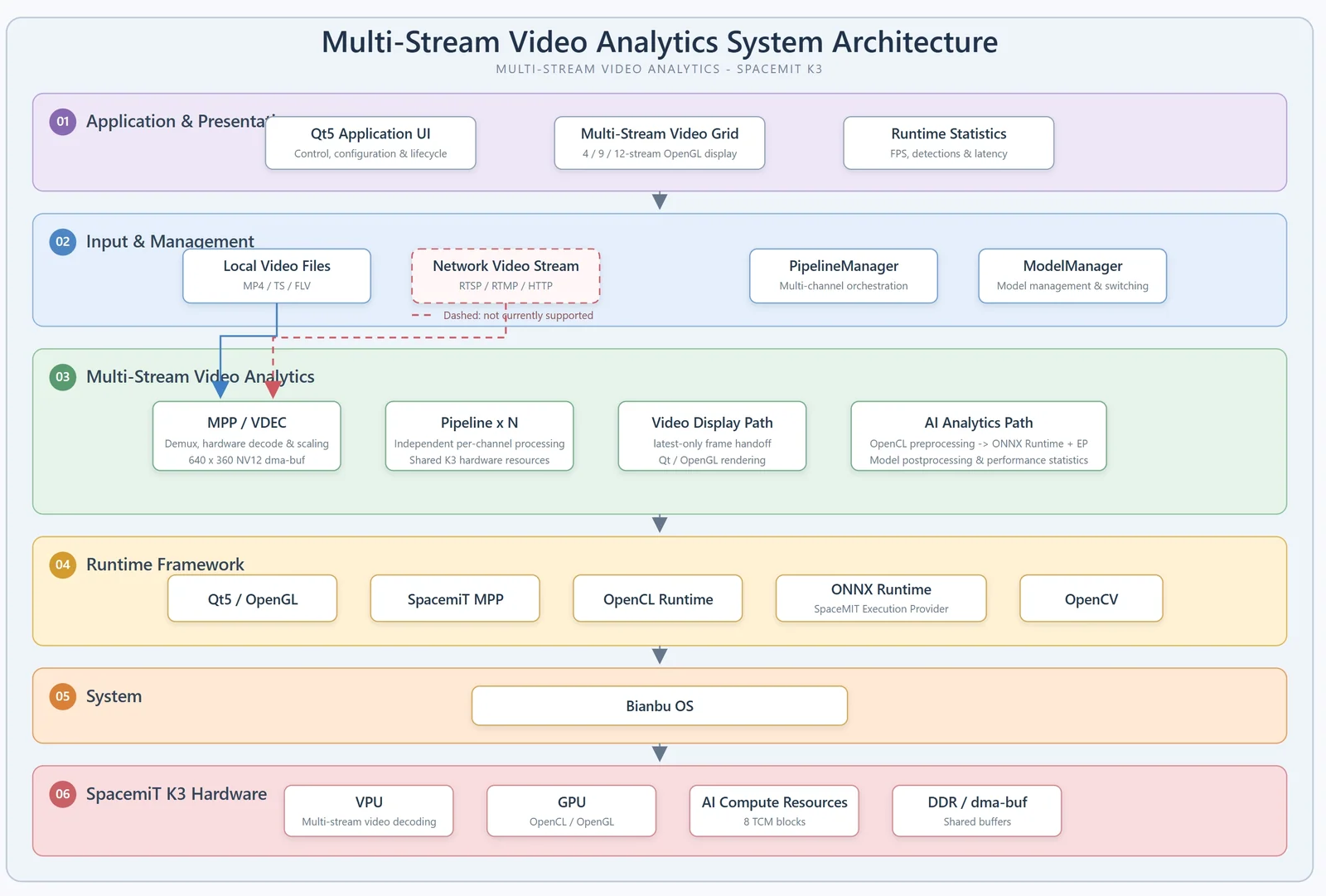
The PipelineManager manages multiple channel instances. Each channel processes one video stream and maintains its own processing state while sharing the K3 VPU, GPU, AI compute resources, and DDR buffers. The UI layer receives video frames, analysis results, and performance statistics through Qt signals and slots.
Workflow
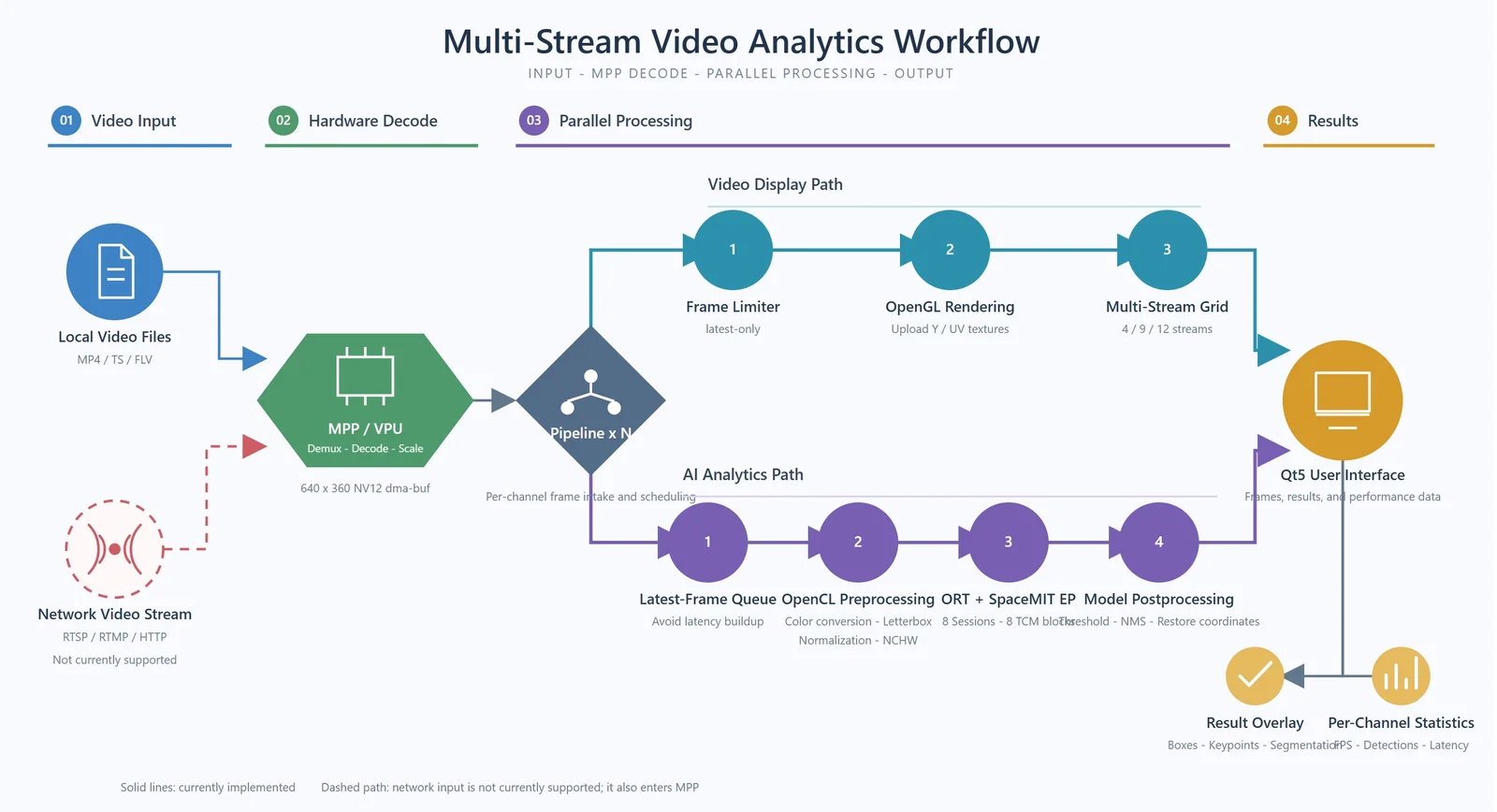
Legend: Solid lines represent data paths implemented in the current repository. Dashed lines represent the network video input path, which is not yet supported. Once network stream input is supported, it will also enter MPP/VPU for hardware decoding.
The application keeps only the latest frame for each channel and distributes inference tasks to multiple sessions in round-robin order. Under high system load, new frames are prioritized to prevent queues from growing continuously and increasing display latency.
Performance Data
The following results were measured with 12 streams using 1920 x 1080 H.264 YUV420P video files as input. Results may vary with the video source, model, system load, and thermal conditions:
| Model | VPU + GPU bandwidth | Total DDR bandwidth | Average FPS per stream | Total FPS |
|---|---|---|---|---|
| YOLOv8n | 2438.97 MB/s | 21716.34 MB/s | 11.19 FPS | 134.29 FPS |
| YOLOv8s | 2137.83 MB/s | 20712.64 MB/s | 6.48 FPS | 77.74 FPS |
| YOLOv8m | 1947.73 MB/s | 18988.03 MB/s | 3.27 FPS | 39.23 FPS |
| YOLOv11n | 2289.96 MB/s | 19085.08 MB/s | 8.48 FPS | 101.81 FPS |
| YOLOv11s | 2083.27 MB/s | 19678.14 MB/s | 5.28 FPS | 63.38 FPS |
| YOLOv12n | 2077.22 MB/s | 18389.45 MB/s | 5.06 FPS | 60.76 FPS |
| YOLO26n | 2304.99 MB/s | 18774.13 MB/s | 8.68 FPS | 104.18 FPS |
| YOLOv5n | 2445.23 MB/s | 20476.51 MB/s | 11.28 FPS | 135.35 FPS |
| YOLOv5s | 2171.69 MB/s | 20613.31 MB/s | 6.87 FPS | 82.46 FPS |
| YOLOv5n-face | 2033.63 MB/s | 21465.51 MB/s | 4.83 FPS | 57.90 FPS |
| YOLOv5-gesture | 2262.16 MB/s | 18901.93 MB/s | 8.11 FPS | 97.33 FPS |
| YOLOv8-fire | 2129.87 MB/s | 19231.10 MB/s | 6.01 FPS | 72.06 FPS |
| YOLOv8n-seg | 2245.16 MB/s | 19178.61 MB/s | 8.21 FPS | 98.56 FPS |
| YOLOv8s-seg | 2053.98 MB/s | 19468.00 MB/s | 4.86 FPS | 58.29 FPS |
| YOLOv8n-pose | 2308.58 MB/s | 21477.32 MB/s | 9.32 FPS | 111.78 FPS |
| YOLOv8s-pose | 2106.10 MB/s | 21119.24 MB/s | 5.80 FPS | 69.59 FPS |
Installation
Method 1: Install with apt (Recommended)
On a K3 Bianbu desktop system, open a terminal and run:
sudo apt update
sudo apt install yolo-demo
After installation, the program, default configuration, models, and sample videos are located at:
/usr/bin/yolo-demo
/usr/share/yolo-demo/configs/default.yaml
/usr/share/yolo-demo/
Method 2: Build from Source (Developers)
Download the source code:
# SSH download; an SSH key must be configured
git clone git@github.com:spacemit-com/multi-stream-vision.git
# HTTP download
git clone https://github.com/spacemit-com/multi-stream-vision.git
Install dependencies:
sudo apt install -y \
  build-essential cmake \
  qtbase5-dev libqt5opengl5-dev \
  libopencv-dev libyaml-cpp-dev \
  opencl-headers ocl-icd-opencl-dev \
  libgles-dev mpp2 \
  spacemit-onnxruntime
From the cloned multi-stream-vision directory, run:
cd /root/release/yolo-demo
cmake -S . -B build
cmake --build build -j8
After compilation, the executable is located at:
/root/release/yolo-demo/build/yolo-demo
Quick Start
1. Start the Application
Open the application menu in the lower-left corner, search for YOLO Demo, and select the application icon. Video analysis starts automatically when the window opens; no additional start button is required.
If the device has recently run another AI inference task, make sure it has exited before clearing leftover TCM allocations. Do not clear TCM while yolo-demo or another inference program is running.
spacemit-tcm-smi -c
Important: Do not clear TCM while
yolo-demoor another inference program is running.
You can also run the application directly from a terminal:
yolo-demo
2. View Analysis Results
By default, the left side of the interface displays the multi-stream video and detection results. The right side contains the control panel and runtime statistics:
- Channel: Video channel number
- FPS: Frame rate at which the channel completes postprocessing and returns results
- Detections: Number of detections retained for the current frame
- Latency (ms): Total time spent by the current frame in decoding queues, preprocessing, inference, and postprocessing
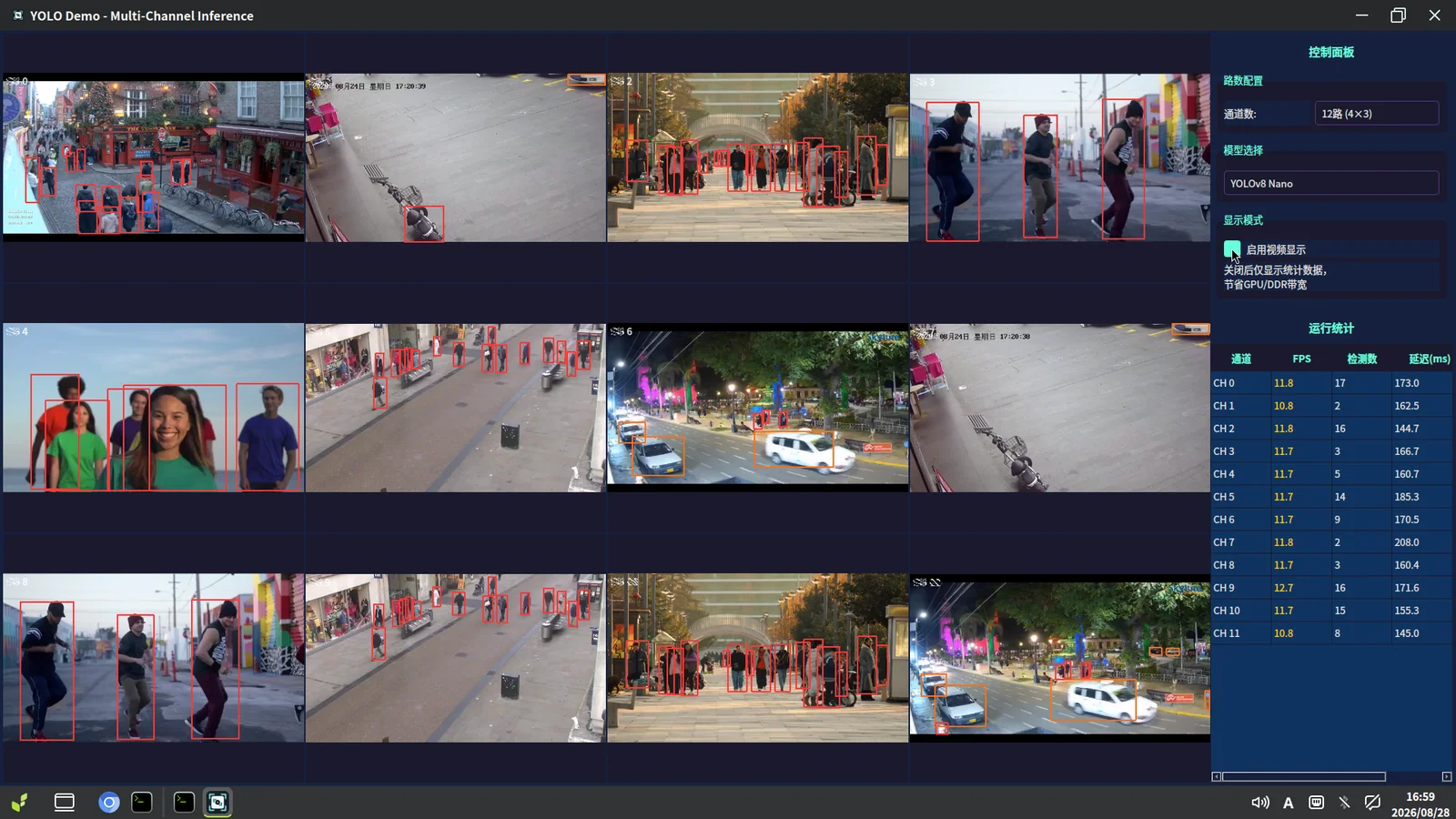
Tip: Statistics vary with the model, video content, number of channels, display mode, system load, and thermal state. The values in the screenshot represent only that particular hardware run.
Using the Application
Change the Number of Channels
In the right-side panel, select the required layout under Layout:
- 4 streams (2 x 2)
- 9 streams (3 x 3)
- 12 streams (4 x 3)
When the number of streams changes, the application automatically stops the current pipeline and restarts it with the new layout.
Change the Analysis Model
In the right-side panel, select a model from the Model dropdown. When the model changes, the application recreates the inference pipeline and loads the selected model.
| Capability | Available models |
|---|---|
| General object detection | YOLOv5 Nano/Small, YOLOv8 Nano/Small/Medium, YOLOv11 Nano/Small, YOLOv12 Nano, YOLO26 Nano |
| Face detection | YOLOv5n Face |
| Gesture recognition | YOLOv5 Gesture |
| Fire detection | YOLOv8 Fire |
| Pose estimation | YOLOv8 Nano Pose, YOLOv8 Small Pose |
| Instance segmentation | YOLOv8 Nano Seg, YOLOv8 Small Seg |
The application includes three models: yolov8m.q.onnx, yolov8n.q.onnx, and yolov8s.q.onnx, corresponding to YOLOv8 Medium, Nano, and Small, respectively.
You can obtain other models from https://archive.spacemit.com/spacemit-ai/model_zoo/vision/ or download them to the target directory with:
sudo ./scripts/download_models.sh /usr/share/yolo-demo
Important: Before switching models, confirm that the corresponding ONNX model is installed under
/usr/share/yolo-demo. Larger models generally provide higher accuracy but reduce the total frame rate for multiple streams.
Use Statistics-Only Mode
Clear Enable Video Display to hide the video grid and show only the control panel and runtime statistics. The inference pipeline continues to run, but it no longer creates display frames or uploads OpenGL textures. This can reduce GPU and DDR bandwidth usage.
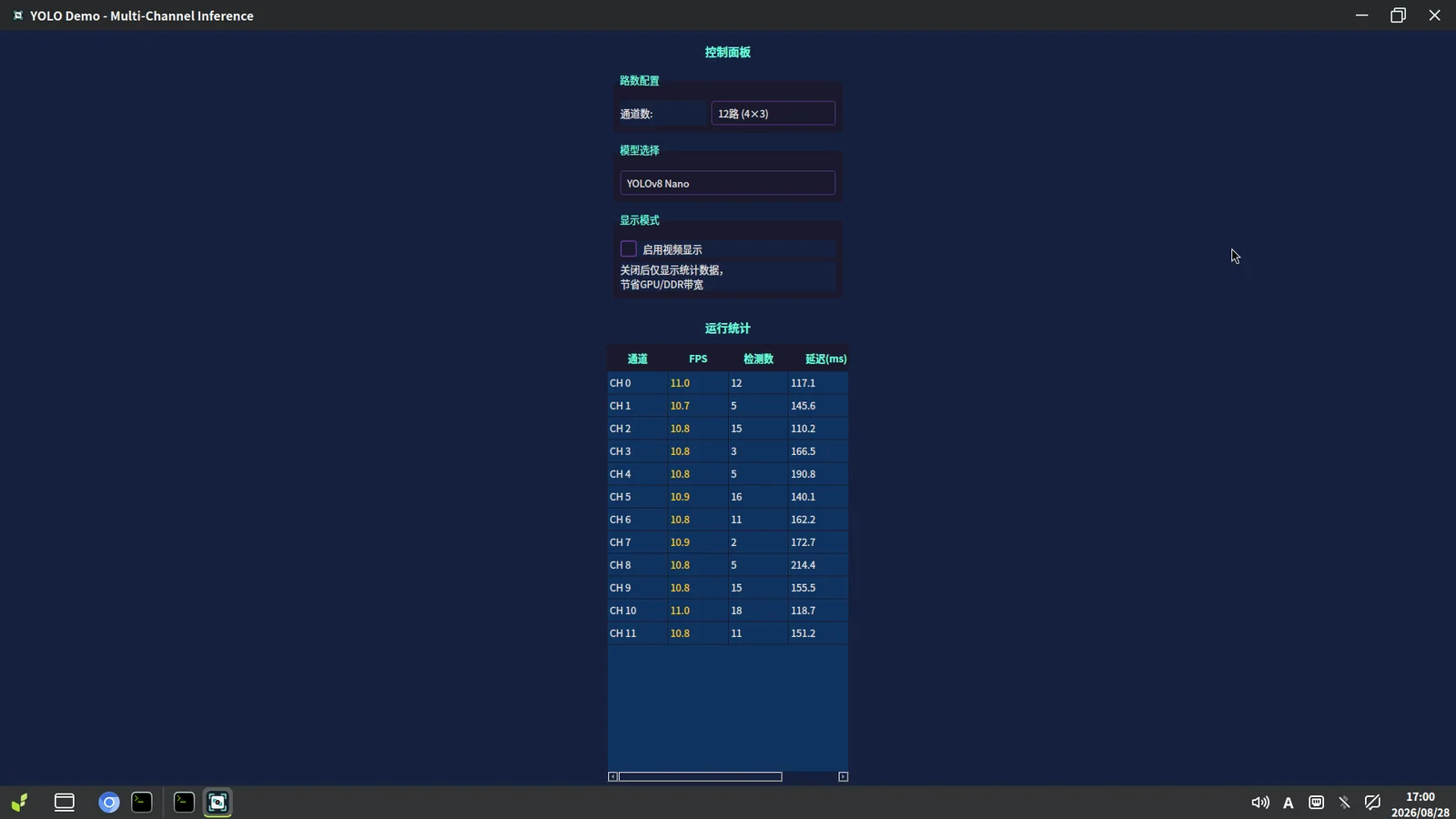
Select Enable Video Display again to restore video display.
Command-Line Usage
Specify the Configuration, Layout, and Model
yolo-demo \
  -c /usr/share/yolo-demo/configs/default.yaml \
  -l 12 \
  -m yolov8n
The common options are:
| Option | Description |
|---|---|
-c, --config <path> | Specify the YAML configuration file |
-l, --layout <num> | Specify the 4-, 9-, or 12-stream layout |
-m, --model <id> | Specify the model ID |
-h, --help | Show help |
-v, --version | Show the version |
To launch the application through SSH in an existing Wayland desktop session, run:
QT_QPA_PLATFORM=wayland \
QT_WAYLAND_SHELL_INTEGRATION=xdg-shell \
WAYLAND_DISPLAY=wayland-0 \
XDG_RUNTIME_DIR=/run/user/1000 \
DBUS_SESSION_BUS_ADDRESS=unix:path=/run/user/1000/bus \
yolo-demo -c configs/default.yaml
If the desktop user's UID is not 1000, update XDG_RUNTIME_DIR and the DBus address accordingly.
Advanced Settings
The default configuration file is:
/usr/share/yolo-demo/configs/default.yaml
Copy the configuration file before editing it:
cp /usr/share/yolo-demo/configs/default.yaml ~/yolo-demo.yaml
yolo-demo -c ~/yolo-demo.yaml
Video Source Configuration
streams:
  layout: 12
  sources:
    - /usr/share/yolo-demo/1.mp4
    - /usr/share/yolo-demo/2.mp4
Local videos loop automatically after playback ends. The number of entries in sources must be at least the number of channels in the selected layout. You can reuse the same file for multiple channels.
Inference Configuration
model:
  id: yolov8n
  conf_threshold: 0.25
  iou_threshold: 0.45

inference:
  num_sessions: 8
  intra_threads: 1
  infer_fps: 25
- conf_threshold: Confidence threshold; increasing it can reduce low-confidence results
- iou_threshold: IoU threshold for NMS
- num_sessions: Number of parallel ONNX Runtime sessions
- intra_threads: Number of SpacemiT Execution Provider threads used by each session
- infer_fps: Target algorithm frame rate; when set to 0, every decoded frame enters the inference path
The SpacemiT Execution Provider allocates TCM for inference threads. The configuration must satisfy:
num_sessions x intra_threads <= 8
The recommended default is eight sessions with one thread per session.
Preprocessing Configuration
preprocess:
  image_size: [640, 640]
  pixel_format: RGB
  normalize: true
  mean: [0.0, 0.0, 0.0]
  std: [1.0, 1.0, 1.0]
  letterbox: true
  letterbox_color: [114, 114, 114]
- image_size: Dimensions of the OpenCL output and ONNX model input
- pixel_format: Required model channel order:
RGBorBGR - normalize: Whether to apply normalization
- mean/std: Three-channel normalization parameters
- letterbox: Whether to preserve the input image aspect ratio
- letterbox_color: Color used for letterbox padding
Display and Performance Configuration
display:
  mode: video
  draw_detections: true

performance:
  decode_fps: 25
  display_fps: 25
  stats_interval_ms: 1000
- display.mode:
videodisplays video;statsdisplays statistics only - draw_detections: Whether to overlay detection results on video
- decode_fps: Local-file decoding rate
- display_fps: Maximum video display refresh rate
- stats_interval_ms: Statistics log refresh interval
Currently Inactive Configuration Fields
The following fields may still appear in YAML files, but are not used by the current execution path:
inference.num_threadsinference.providers: The SpacemiT Execution Provider is always attempted during initializationinference.queue_size: The actual input and ready queues use a fixed latest-only depthinference.skip_framespostprocess.nms_type: OpenCV class-awareNMSBoxesis usedpostprocess.tracker.*display.fps_overlay,display.bbox_thickness,display.label_font_size,display.color_palette
Performance Logs
The application outputs two types of performance logs: PIPE and PERF. Use PIPE to monitor decoding and frame delivery to the inference path:
PIPE ch=0 decoded_fps=... alg_in_fps=... infer_stride=... frame_id=...
- decoded_fps: VDEC output frame rate
- alg_in_fps: Frame rate delivered to the inference path
- infer_stride: Frame-sampling stride used by the inference path
Use PERF to observe preprocessing, inference, and postprocessing stages:
PERF ch=0 fps=... decode_q=... pre_wait=... pre=...
infer_q=... run_active=... infer=... post=... total=... det=...
- fps: Frame rate at which the channel completes postprocessing and returns results
- decode_q / pre_wait: Queue wait after a decoded frame enters the inference path
- pre: OpenCL preprocessing time
- infer_q: Time spent waiting for an available session in the ready queue
- run_active: Number of concurrent inferences when this inference started
- infer: Total time for ORT tensor setup and
Session::Run - post: Time for threshold filtering, NMS, and coordinate restoration
- total: Cumulative end-to-end latency across all stages
- det: Final number of detection boxes for the current frame
To calculate total inference FPS for 12 streams, sum the latest PERF fps value for all 12 channels. Do not use the decoded frame rate as a substitute.
Troubleshooting
The Application Says That the Model Cannot Be Found
Confirm that the model file is installed and check model.cache_dir. For example, the default path for YOLOv8 Nano is:
/usr/share/yolo-demo/yolov8/yolov8n.q.onnx
No Video in the Interface
- Confirm that Enable Video Display is selected
- Confirm that the local video path in the configuration exists
- Confirm that the application is running in a Bianbu graphical desktop session
- When launching through SSH, check
WAYLAND_DISPLAYandXDG_RUNTIME_DIR
Multi-Stream Latency Keeps Increasing
- Use a smaller model
- Lower
infer_fpsordecode_fps - Disable video display to determine whether display bandwidth is the bottleneck
- Check whether another AI inference task is using TCM
tcm buffer acquire failed
First check the TCM status:
spacemit-tcm-smi
Clear TCM with:
spacemit-tcm-smi -c
Do not clear TCM while yolo-demo or another inference program is running.
MPP Reports /dev/videoX is not a M2M device
MPP scans video nodes during startup. These messages do not necessarily indicate a startup failure, provided MPP later finds a valid decoding device and successfully creates a VDEC channel.