SpacemiT Cloud Platform User Guide
This document serves as the official user guide for the SpacemiT Cloud Platform. It is intended for new platform users and developers, and provides a systematic introduction to account registration, instance provisioning, remote access, platform applications, local connectivity, API usage, and development examples. This guide helps users efficiently complete environment setup, resource configuration, and application development.
1. Document Overview
1.1 Scope
This document applies to common usage scenarios of the SpacemiT Cloud Platform, including but not limited to:
- Platform registration and login
- Cloud instance provisioning and management
- Remote access to instances through web-based or local tools
- Use of built-in platform applications and development environments
- Secondary development through instance-exposed APIs
1.2 Platform Access URL
Platform URL: https://gdriscv.com
2. Registration and Sign-In
2.1 Register an Account
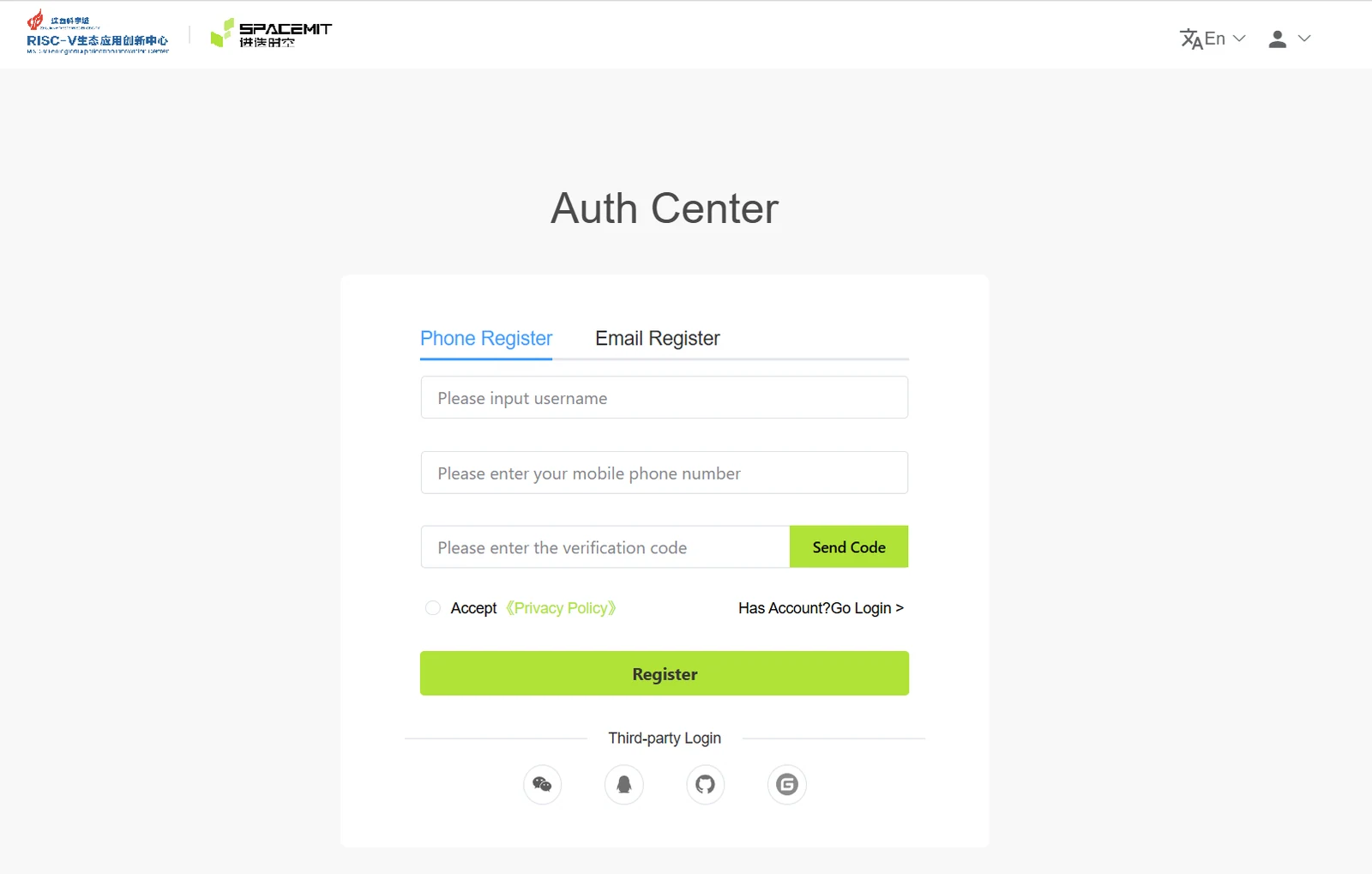
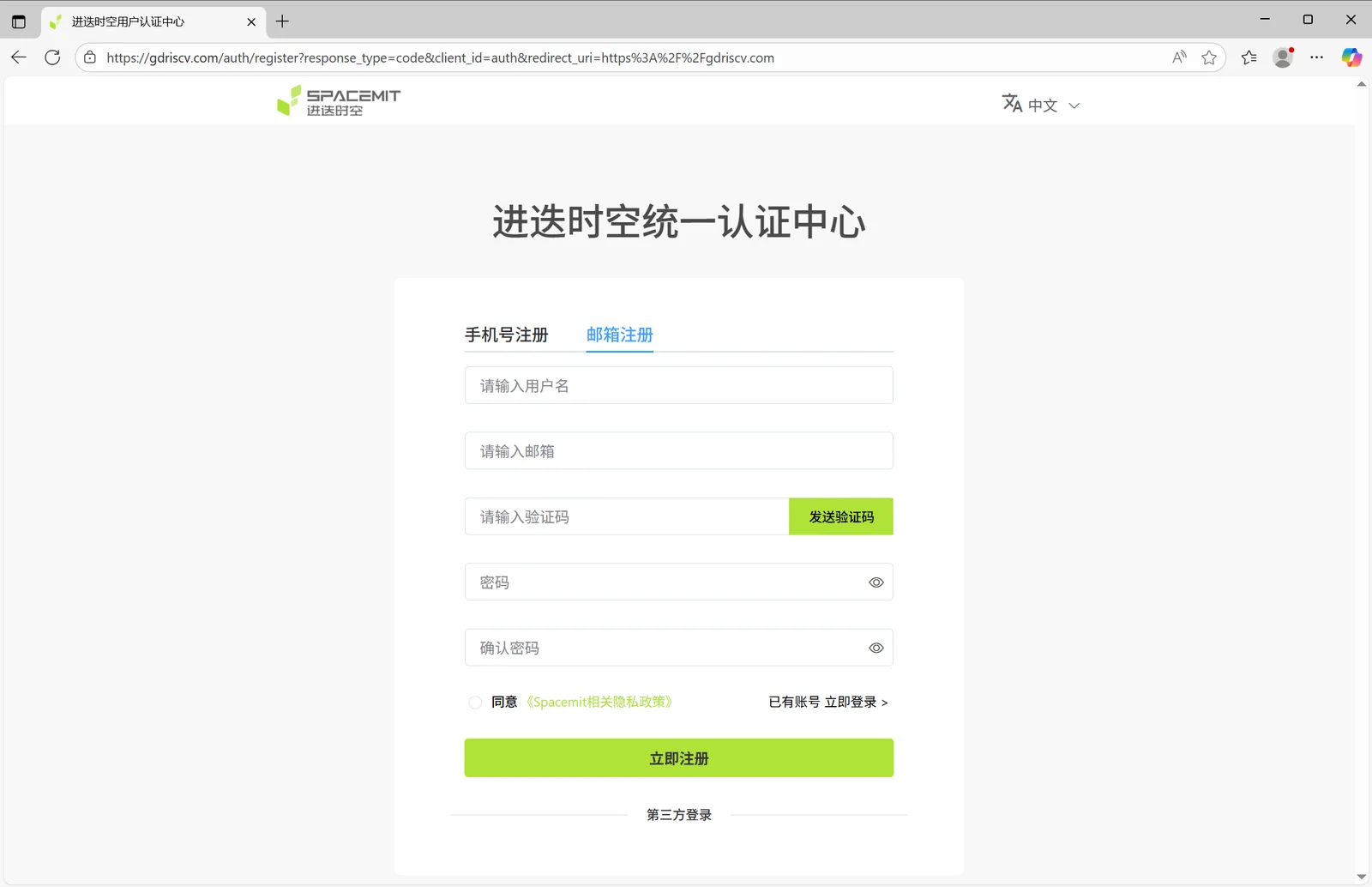
After accessing the official platform website, click Sign Up Now on the homepage to enter the registration process.

The platform currently supports the following registration methods:
- Mobile phone number registration (currently supports mainland China mobile numbers only)
- Email registration
Mobile Phone Registration
Email Registration
2.2 Platform Login
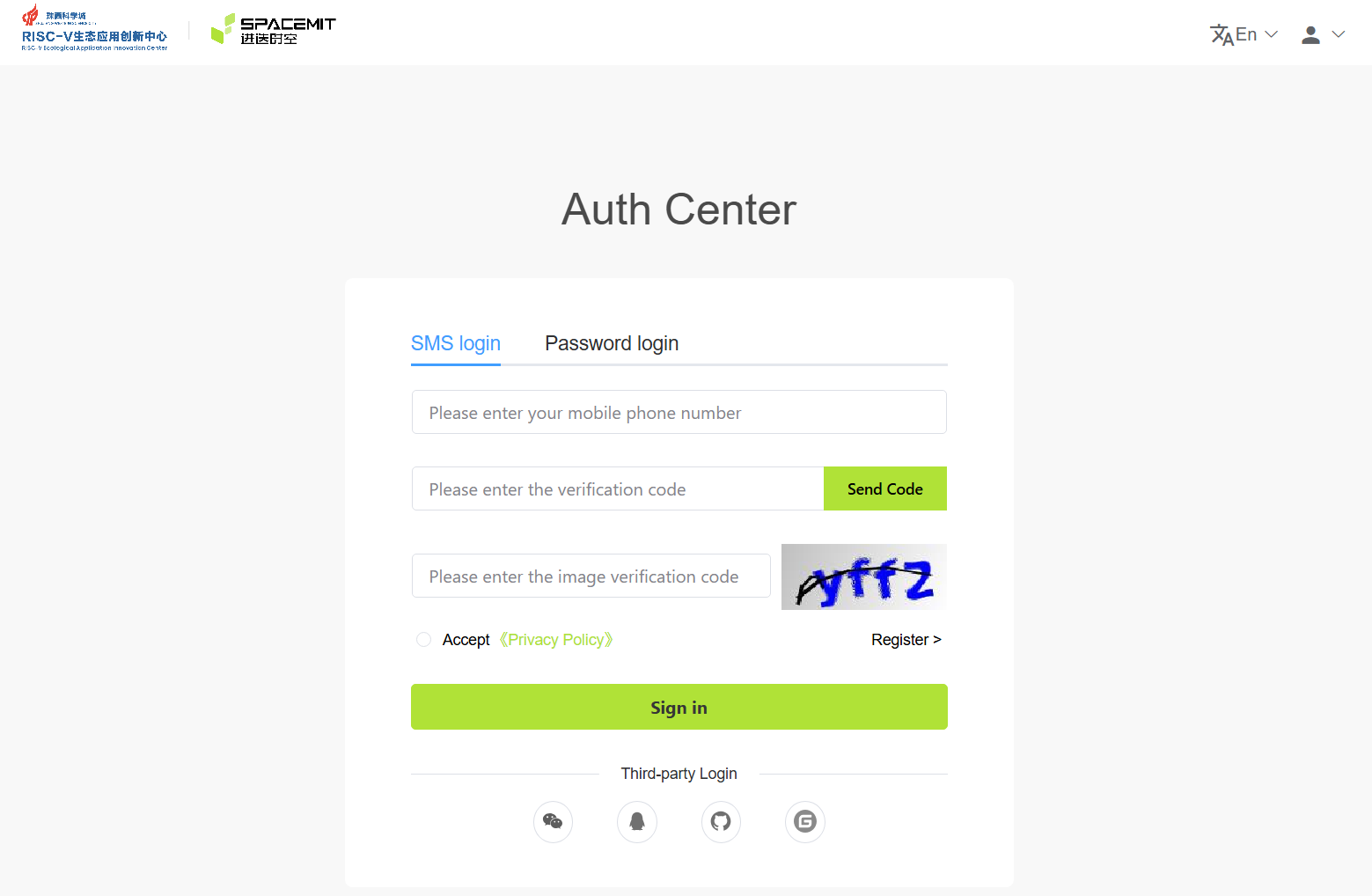
After registration is completed, click Login Now to enter the login page.
The platform supports the following login methods:
- SMS verification login
- Password login
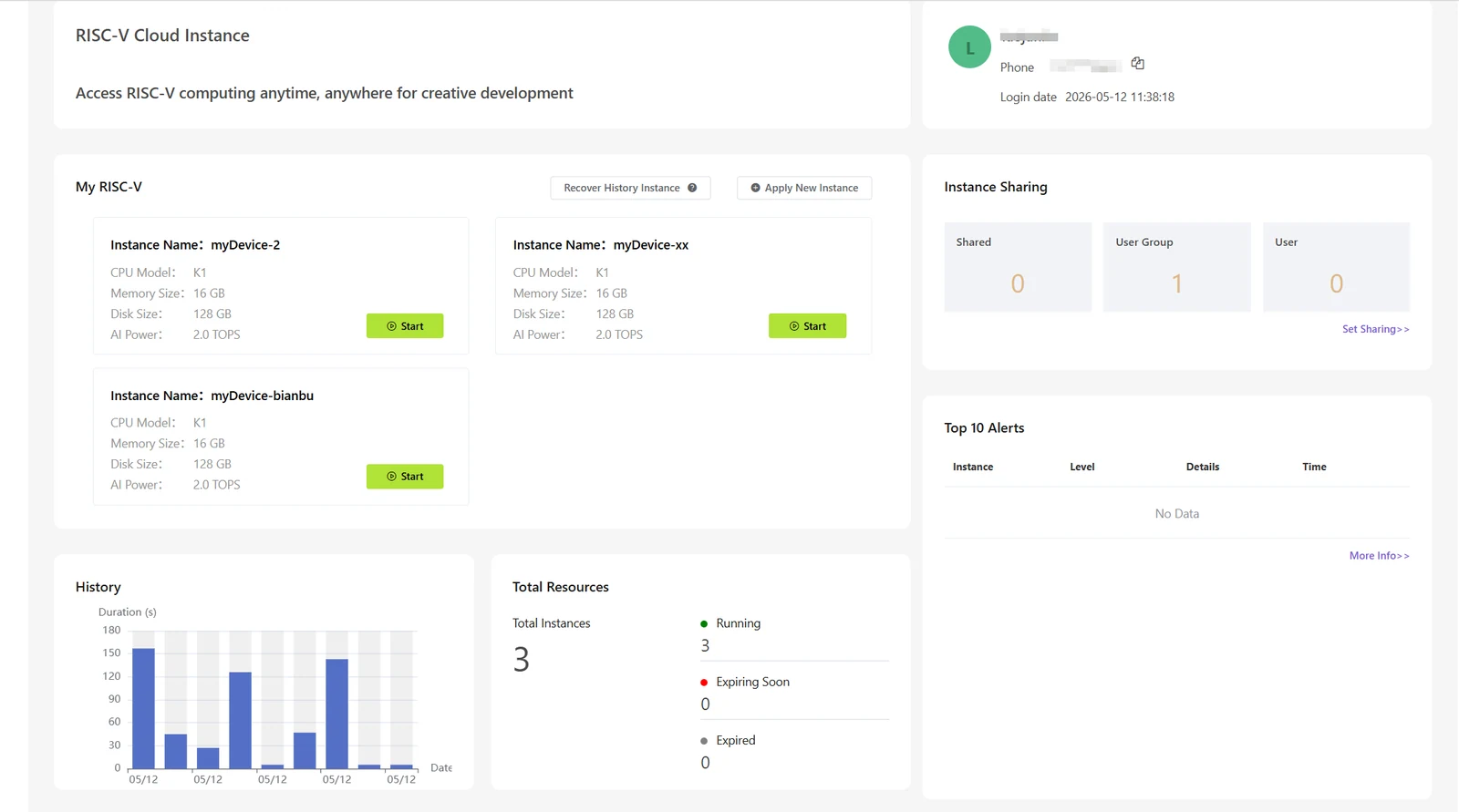
After successful login, the system enters the main platform interface.
3. Instance Provisioning
In the platform main interface, under My Instances:
- For users without instances, click Apply New to launch the instance creation page.
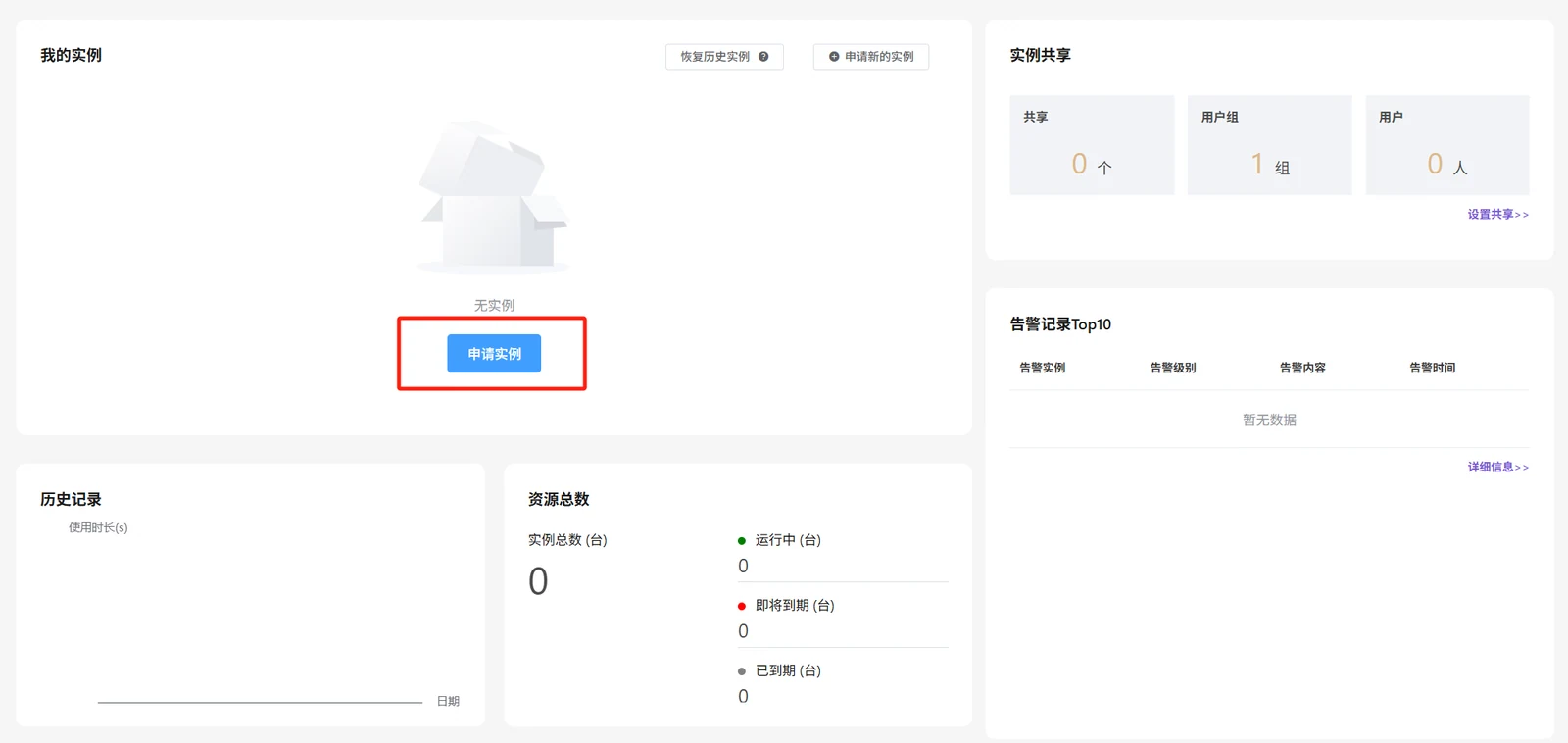 s
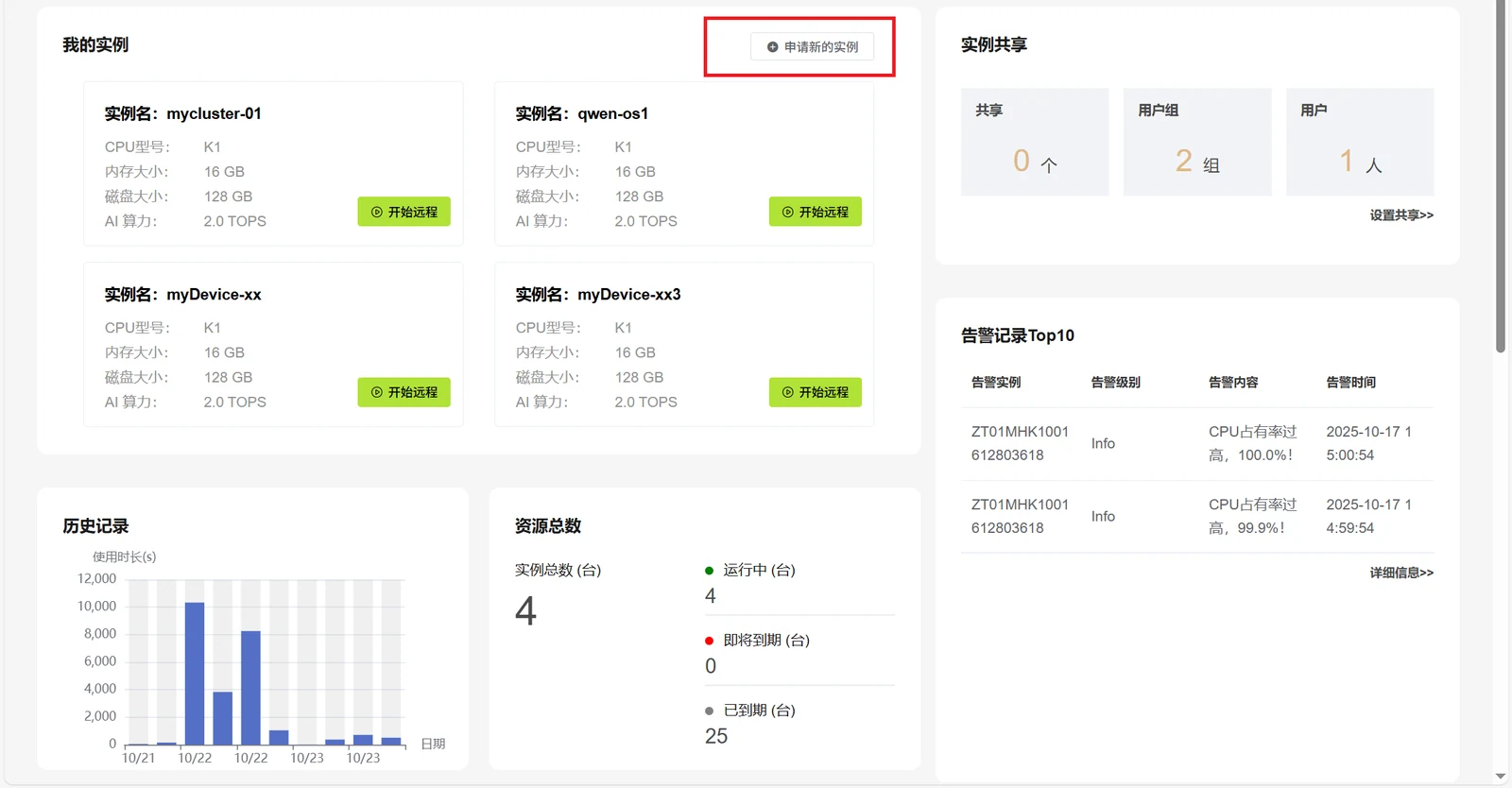
s - For users with existing instances, click Apply New Instance to launch the instance creation page.
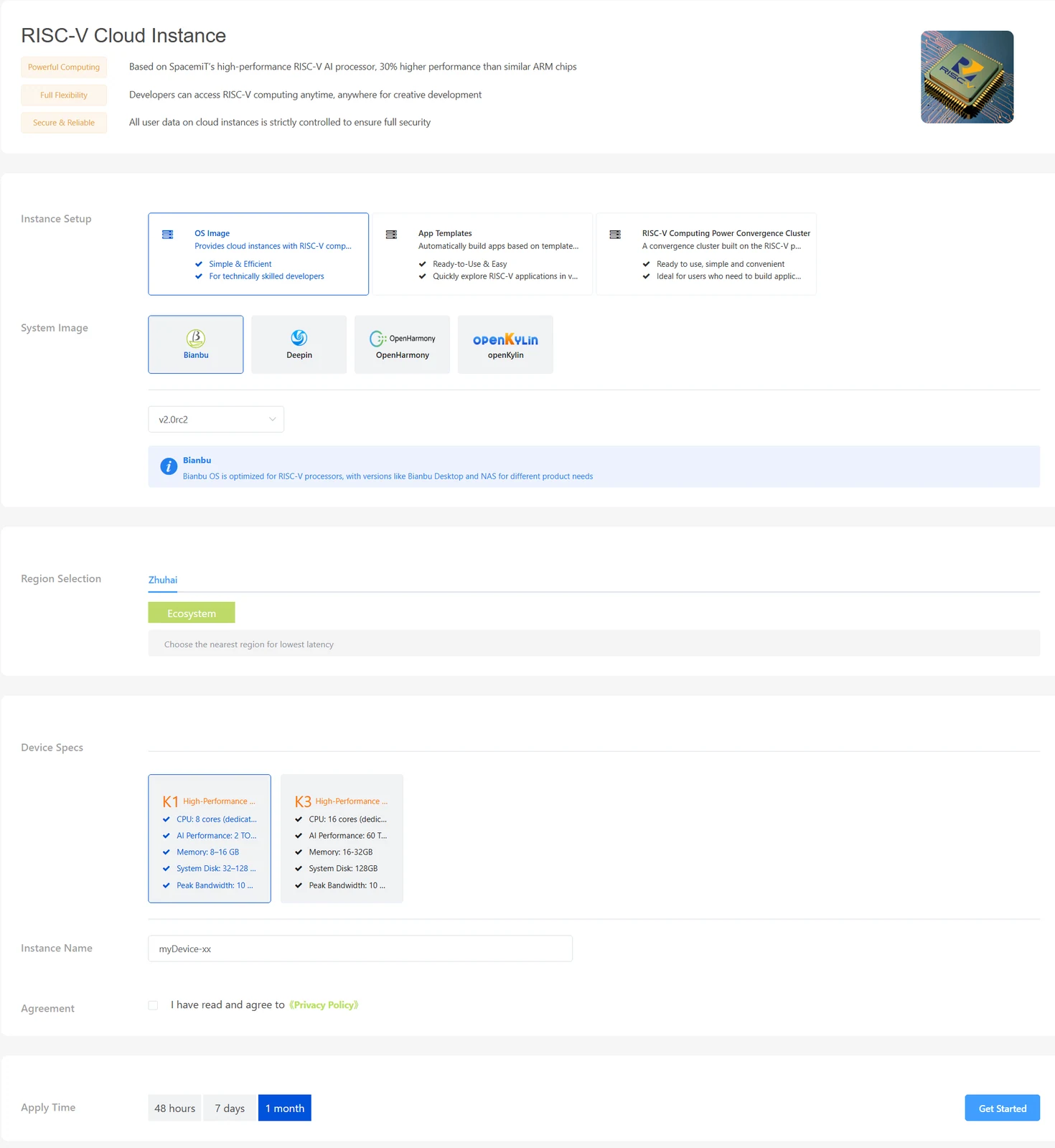
The following figure shows the instance creation page.
3.1 Select Instance Type
The platform provides multiple instance creation methods. Users may select an appropriate instance type according to development requirements, workload requirements, and target application scenarios.
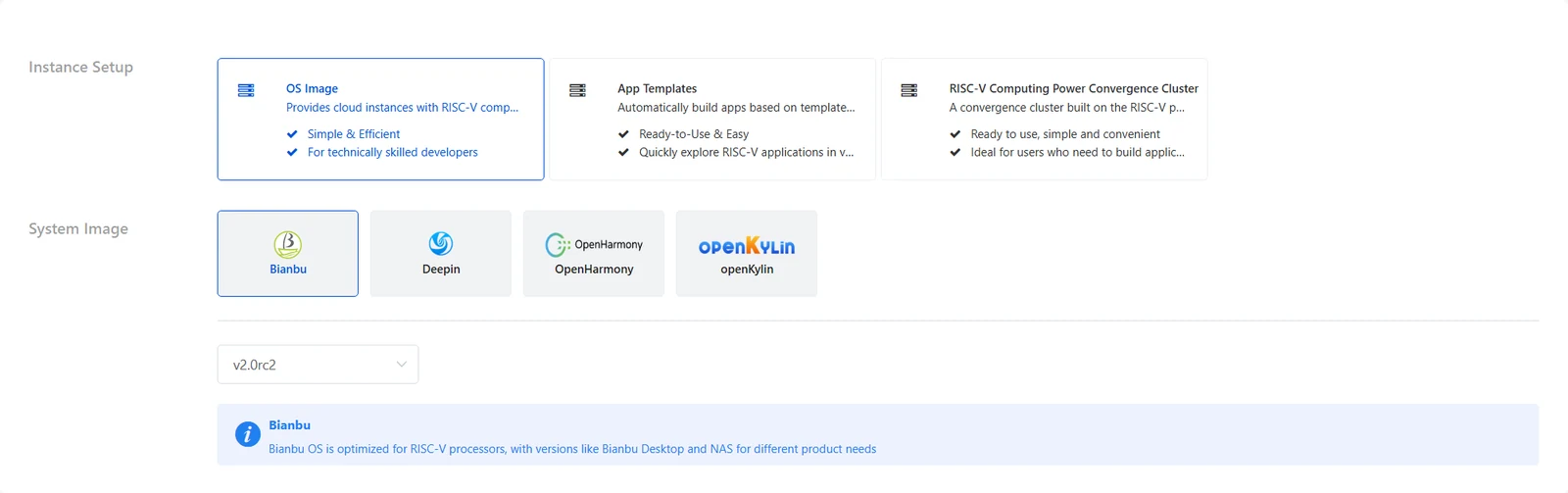
3.1.1 Create from Operating System Image
Supported operating system images include:
- Bianbu
- Deepin
- OpenHarmony
- openKylin
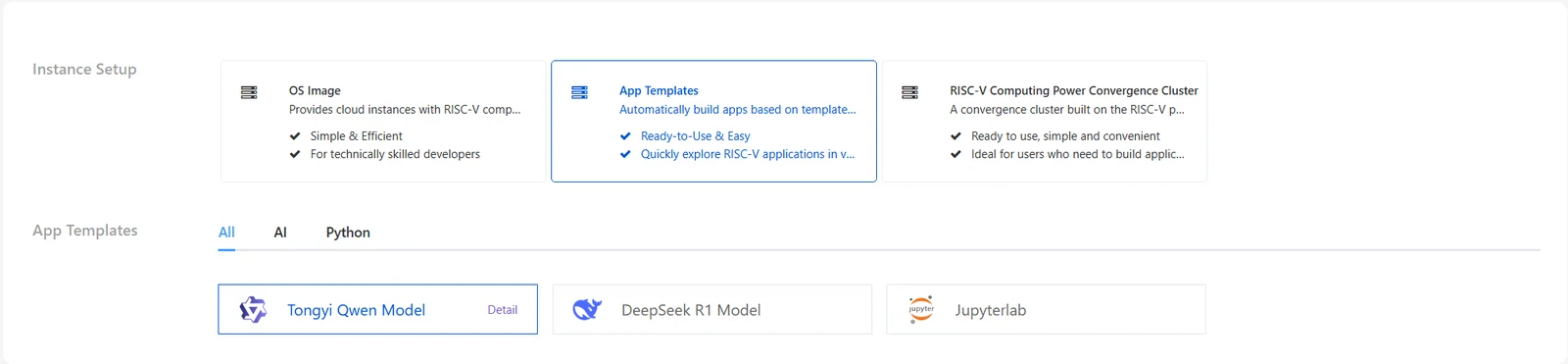
3.1.2 Create from Quick Application Template
Supported quick application templates include:
- Tongyi Qwen large language model
- DeepSeek large language model
- JupyterLab online Python development environment
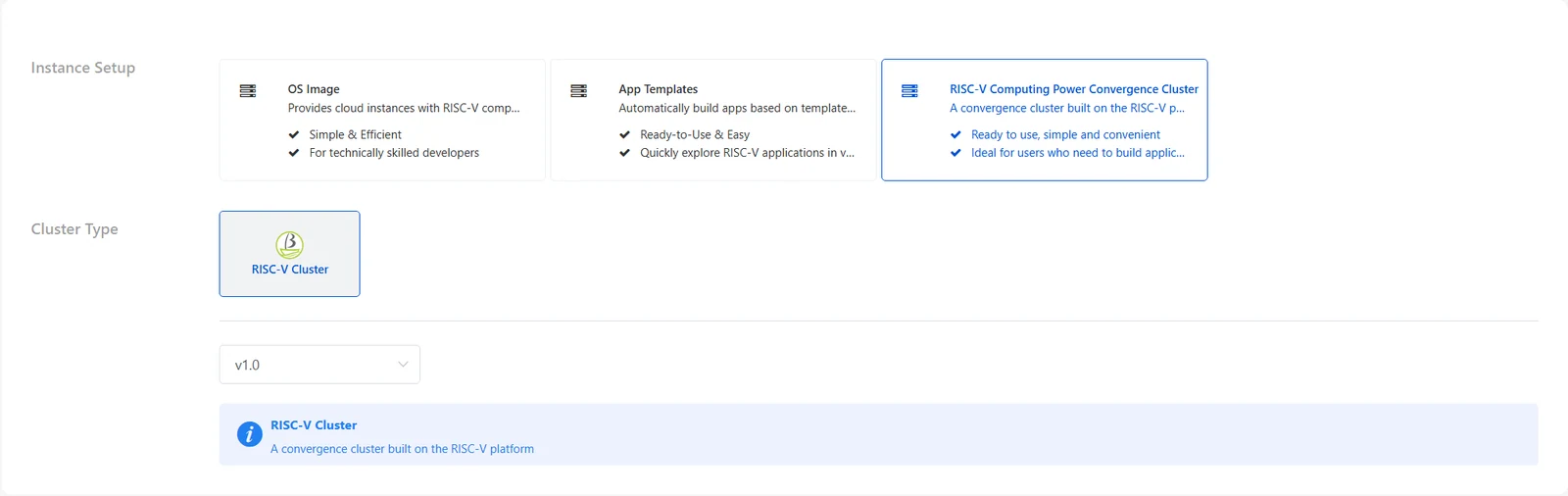
3.1.3 Create from RISC-V Heterogeneous Computing Cluster
This instance type is suitable for development, validation, and computing tasks requiring access to RISC-V heterogeneous computing resources.
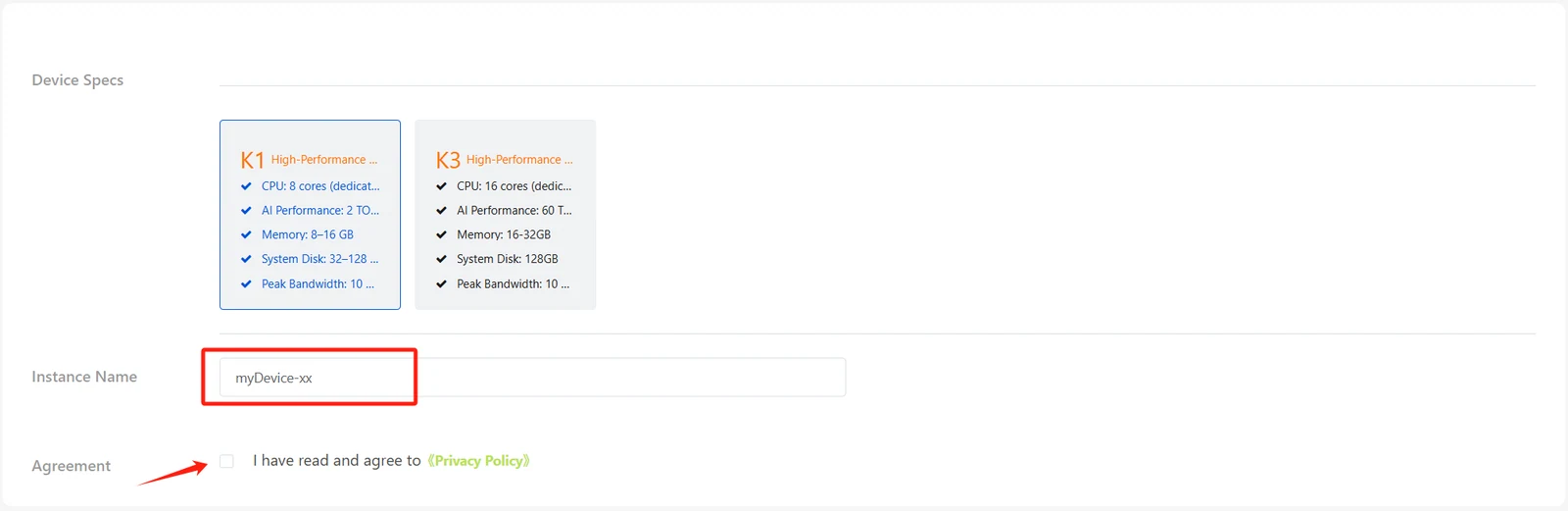
3.2 Configure Instance Name
Enter the instance name and select the relevant agreements before submitting the request.
3.3 Select Instance Duration

- Non-member users: 48 hours, 7 days, or 1 month
- Member users: Up to 3 months
3.4 Create Instance
After configuration is completed, click Get Start to create the instance.

4. Remote Instance Access
After an instance is successfully created, provisioned instance resources under the current account can be viewed.
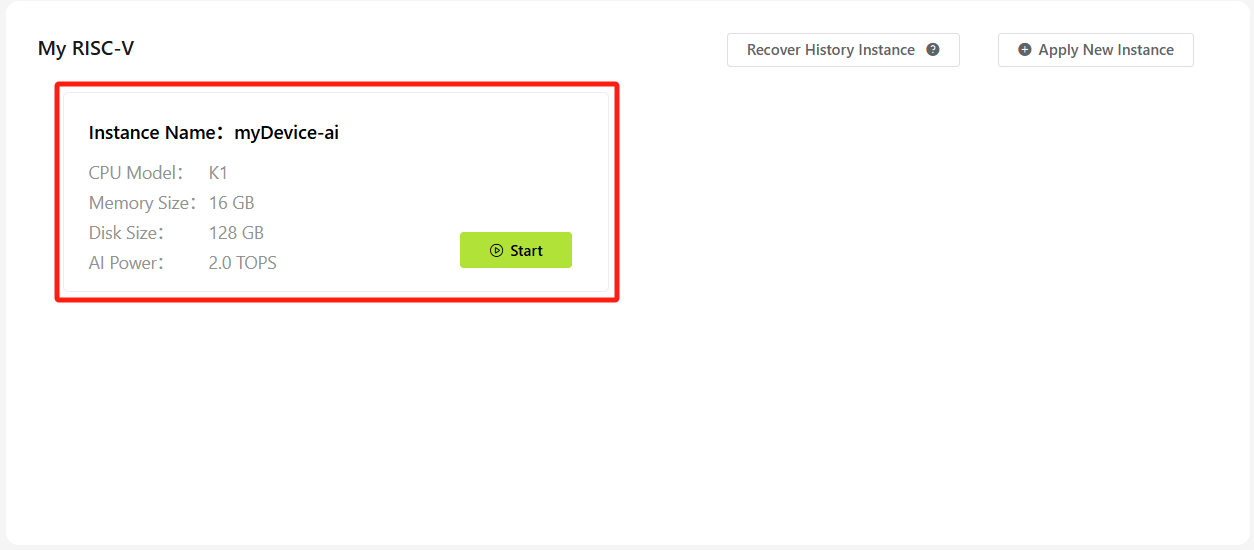
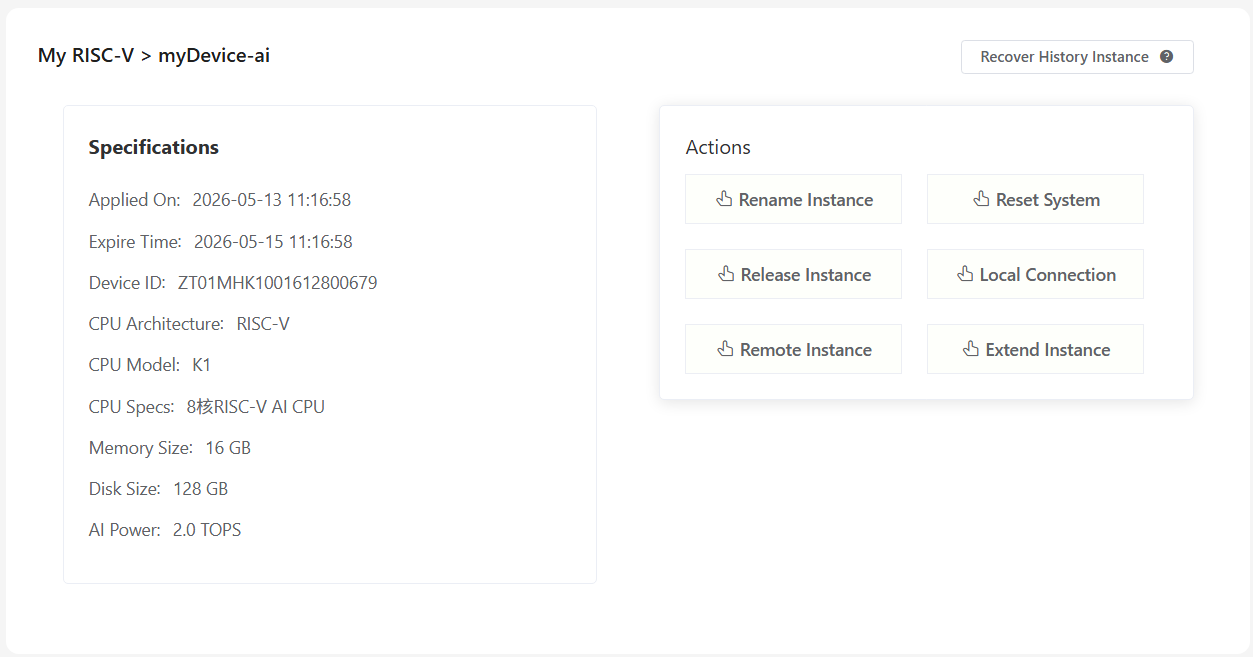
Click an instance card to view instance specification and available functions.
4.1 Command-Line Access
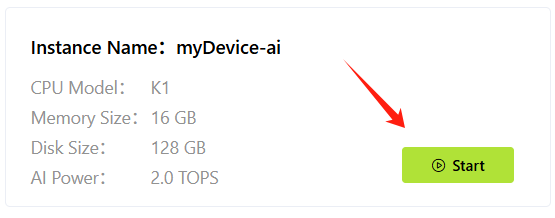
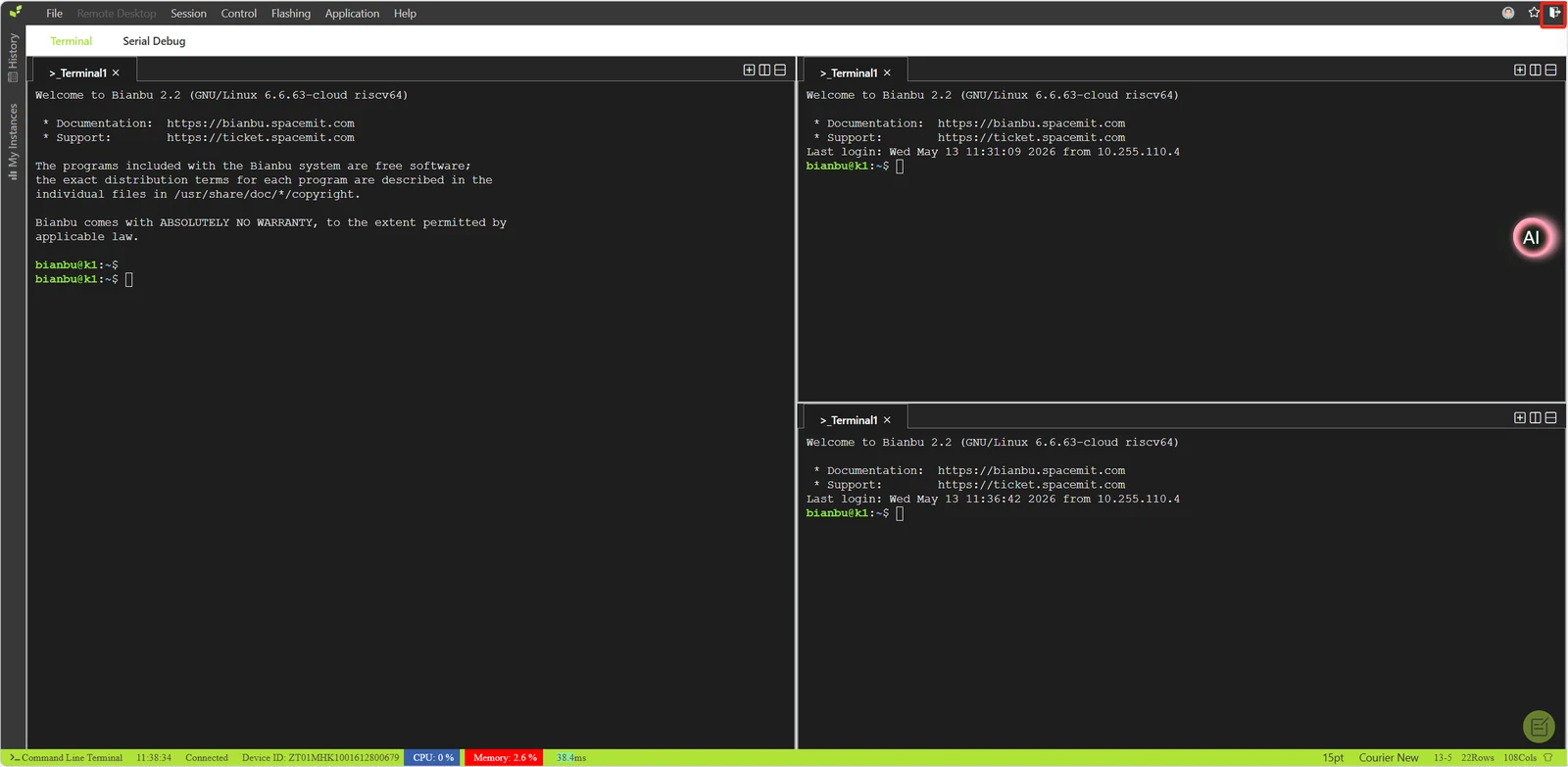
Click Start Remote Access
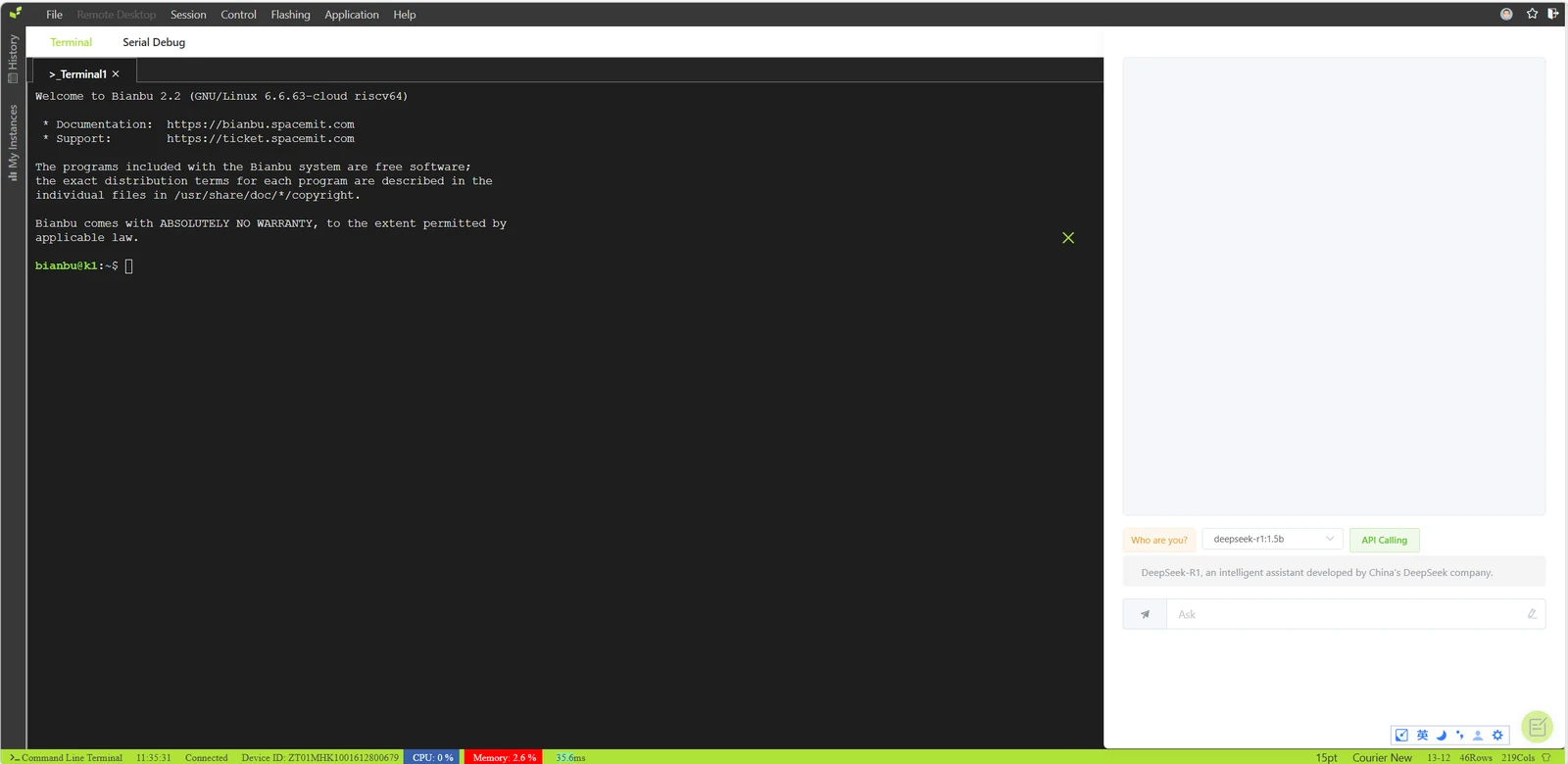
The terminal workspace is displayed.
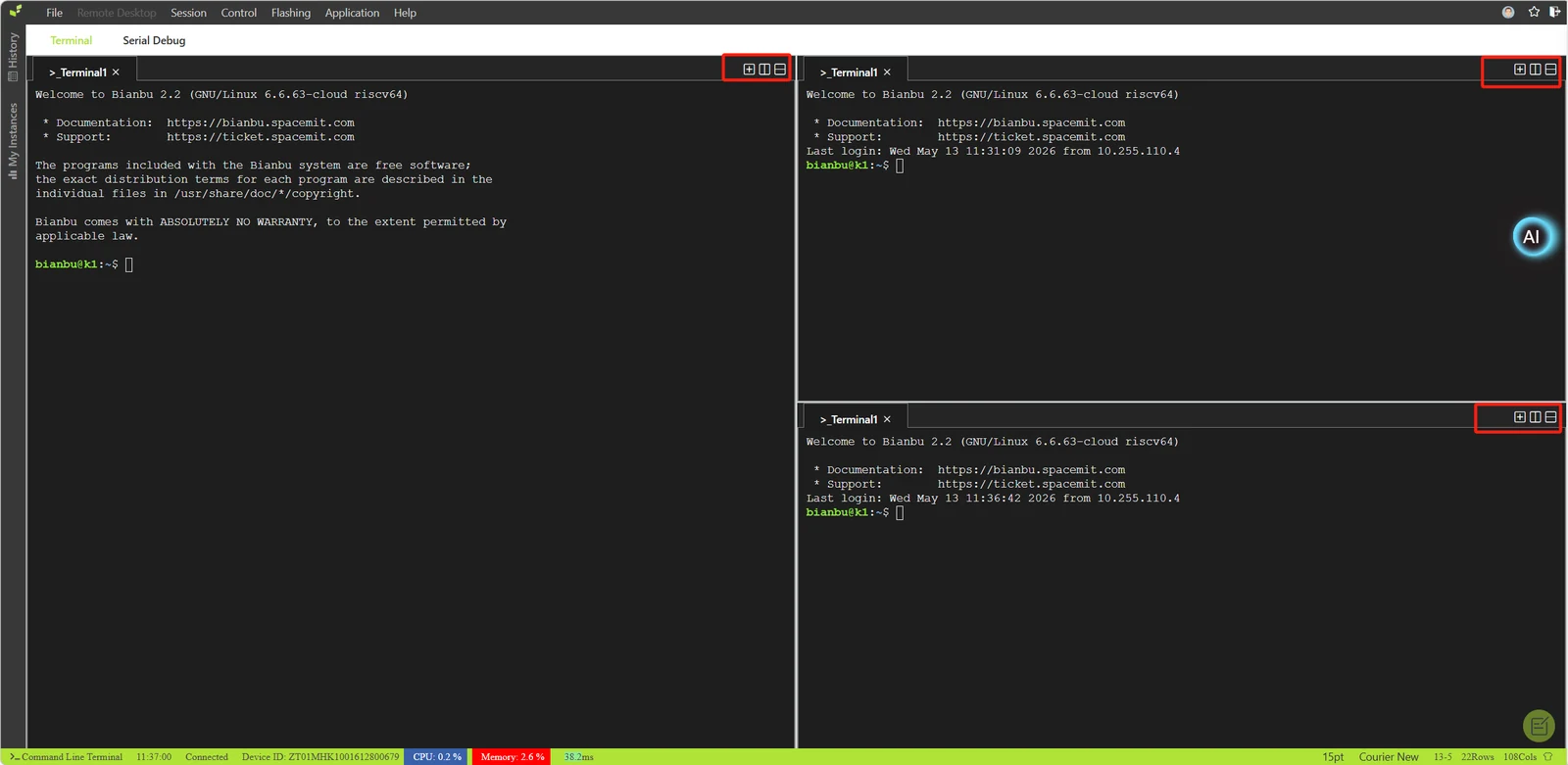
The command-line interface supports:
- Multi-session management
- Split-screen operation
After use, click the Exit icon in the upper-right corner to return to the main platform interface.
4.2 Serial Port Debugging
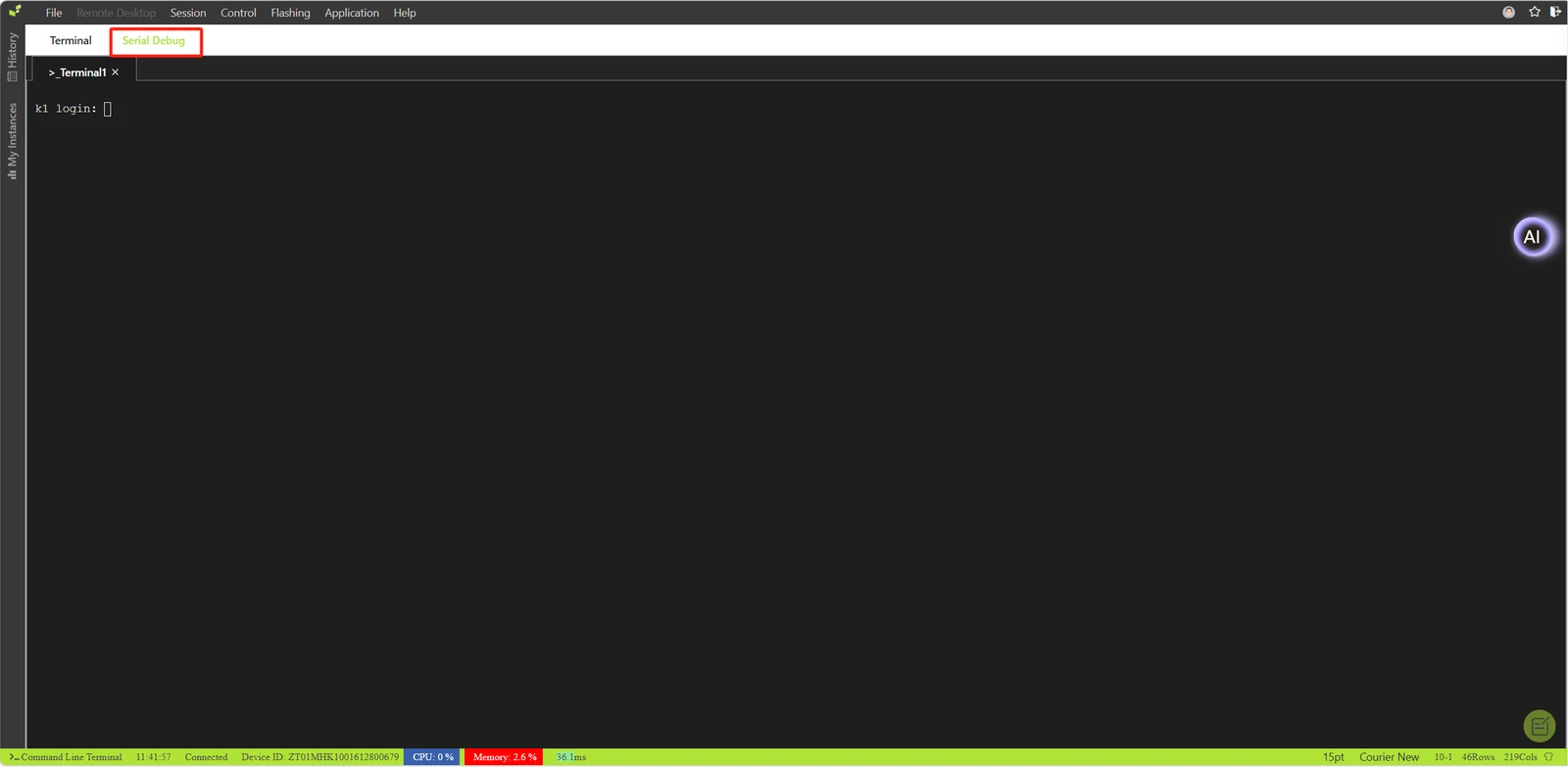
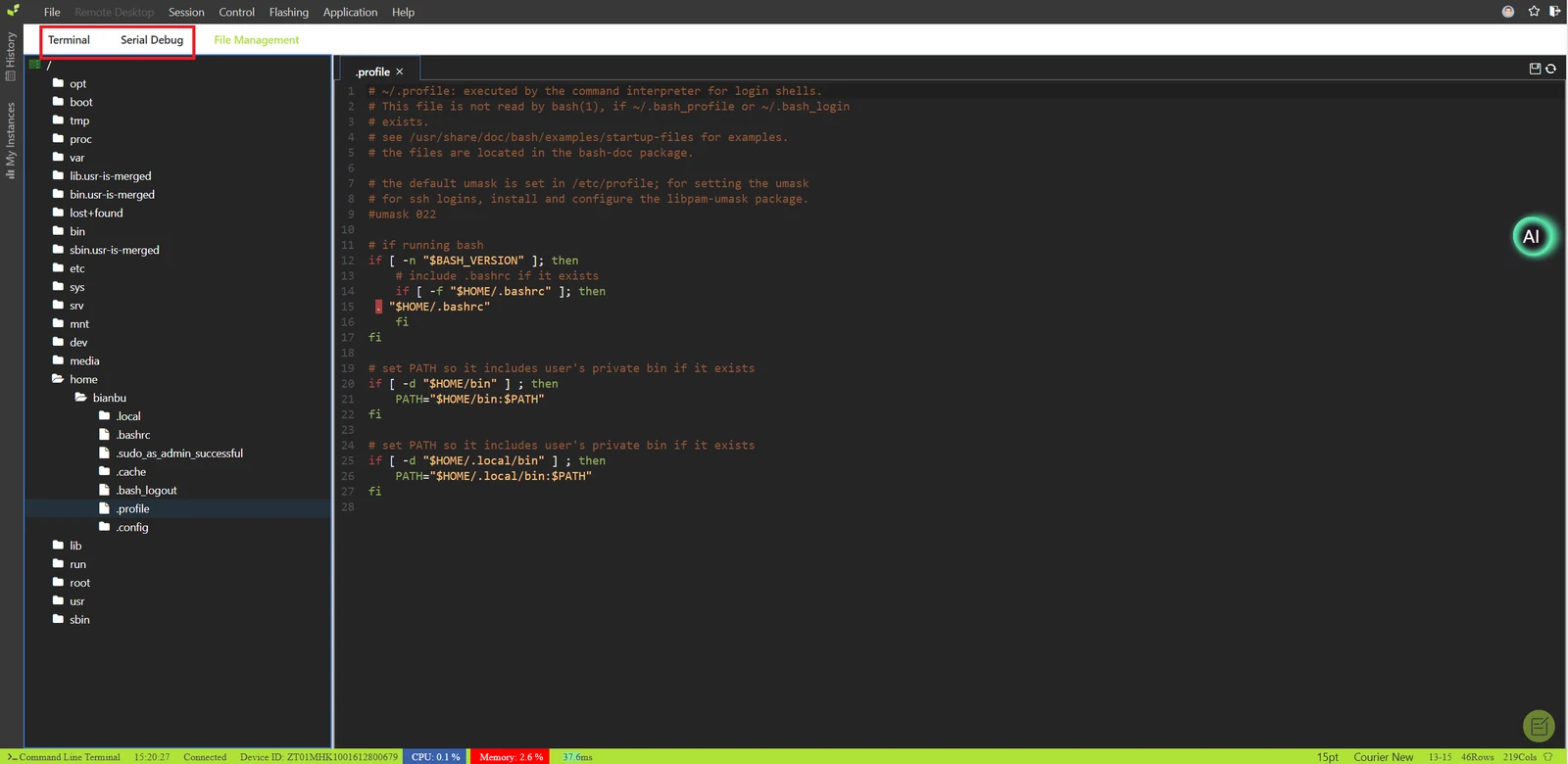
In the workspace, click the Serial Debug button to enter the serial terminal interface.
4.3 File Management and Online Editing
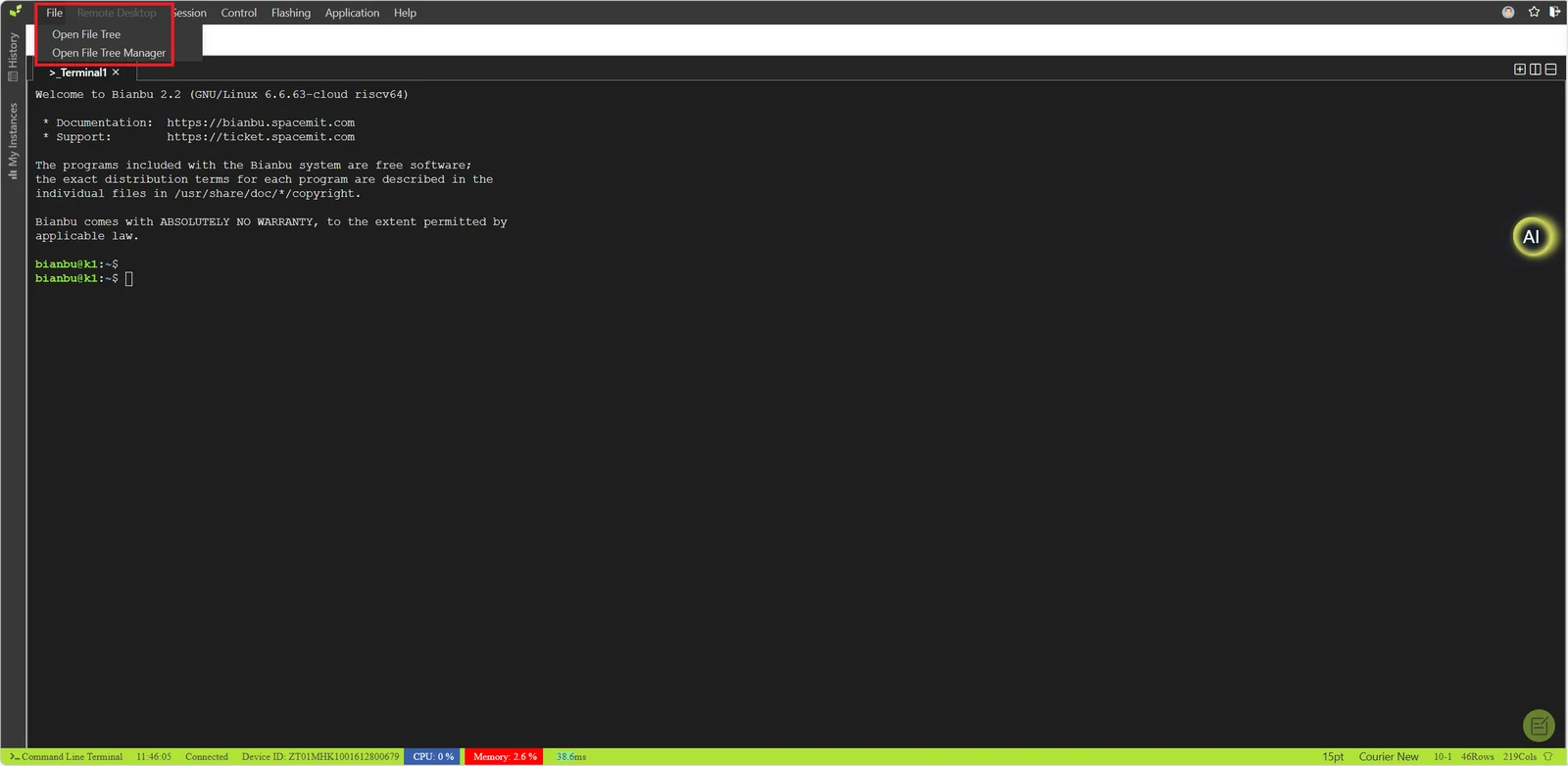
In the upper-left corner of the workspace, click File to open the file tree or file tree management.
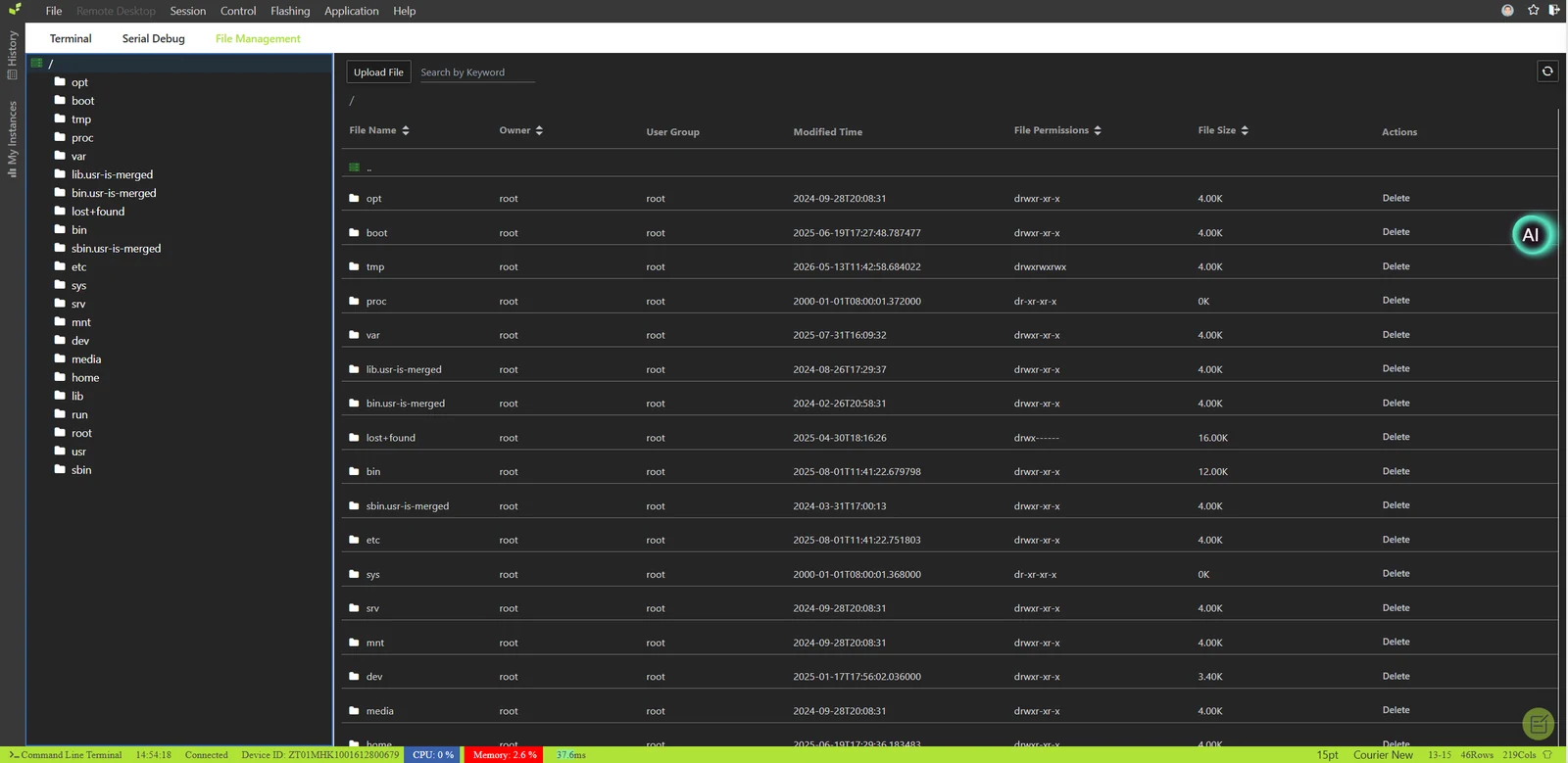
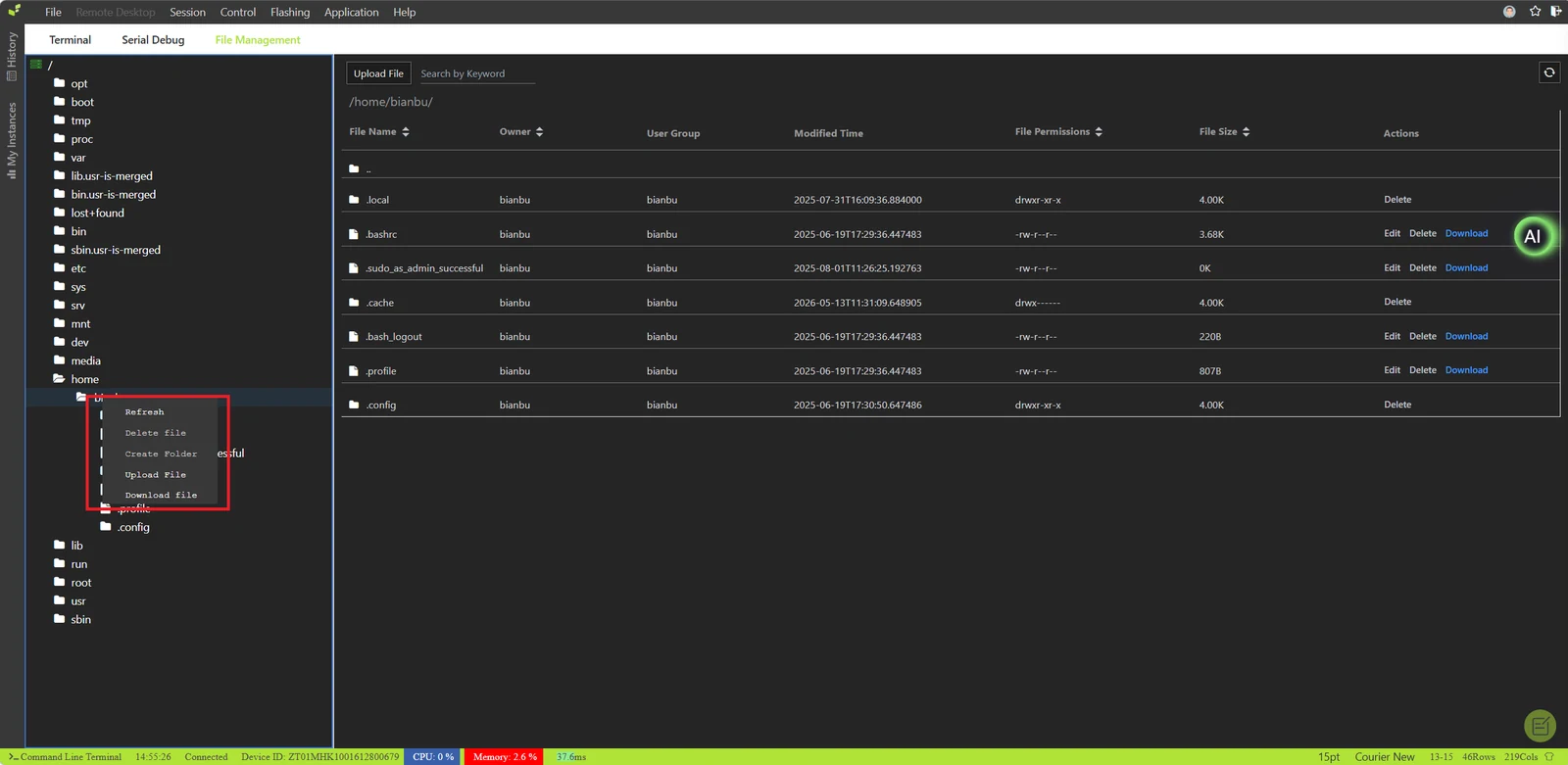
Right-click a directory or file in the file tree to perform the following operations:
- Refresh
- Delete File
- Create Folder
- Upload File
- Download File
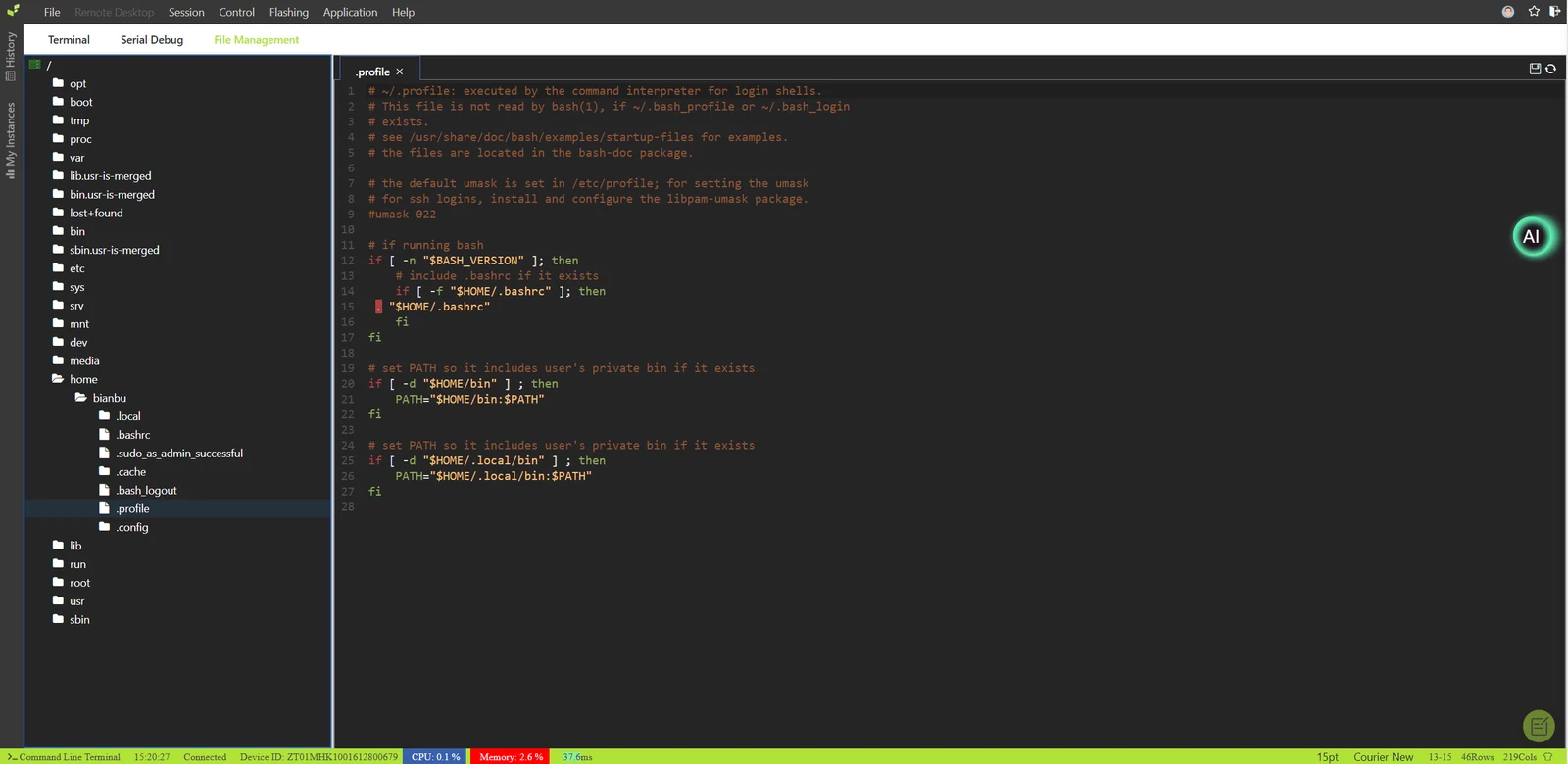
Double-click a file (such as .profile) to edit it directly in the browser.
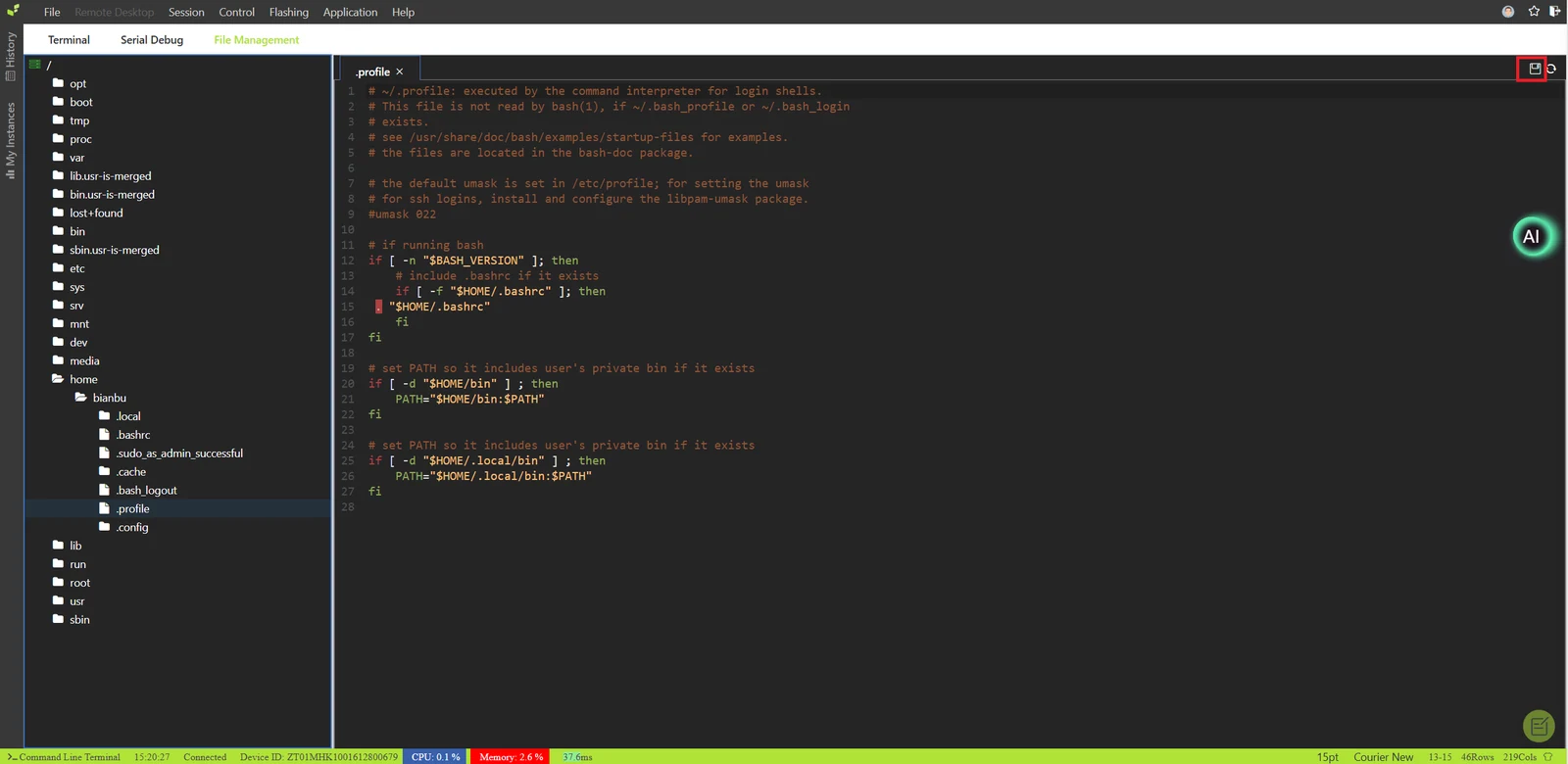
After editing is complete, click the Save icon in the upper-right corner to submit the changes.
4.4 Remote Desktop
Click Remote Desktop at the top of the workspace to enable or disable graphical remote desktop mode.
Note: If this button is not clickable, switch back to the Terminal or Serial Debug first.
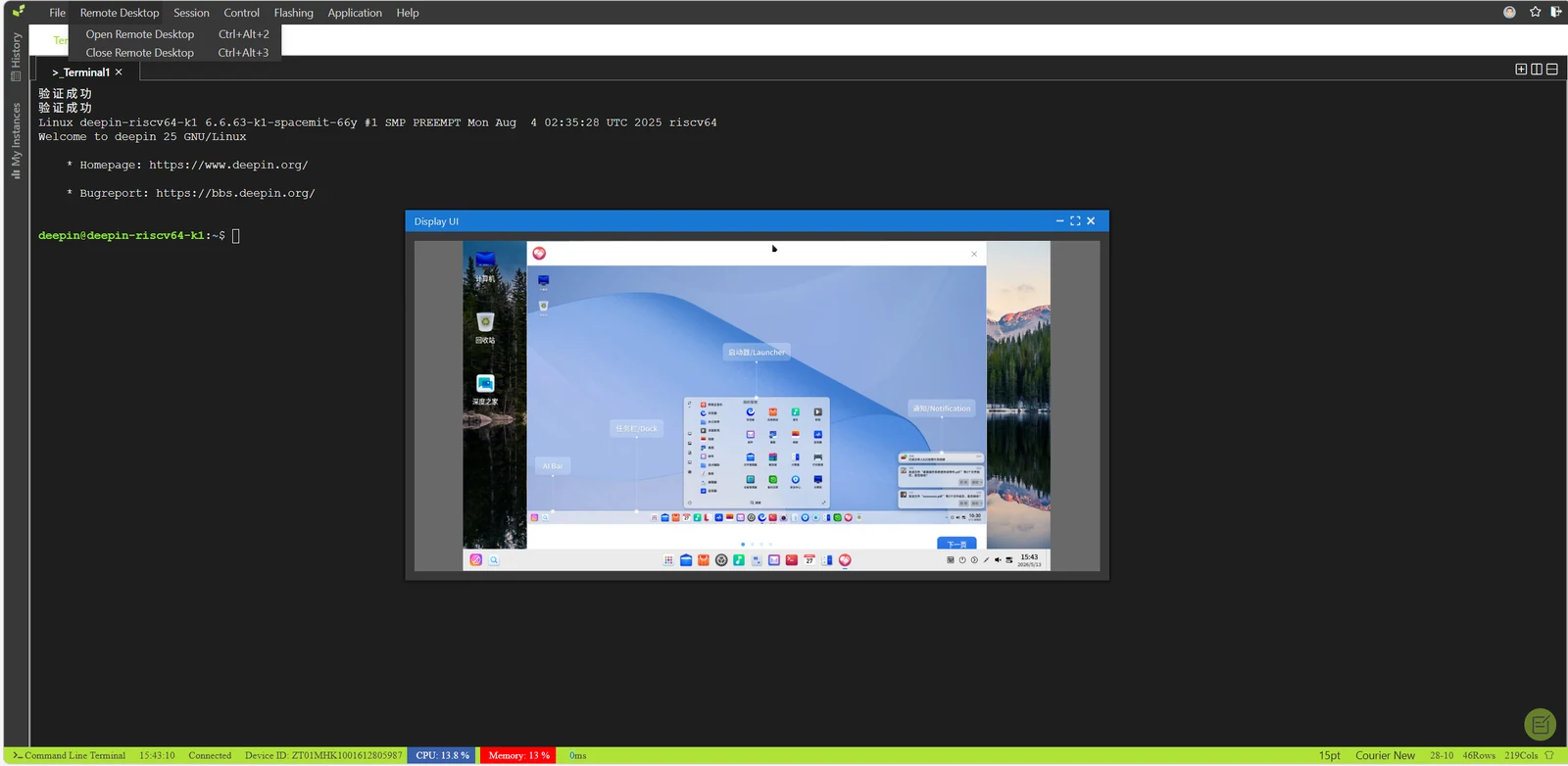
Remote desktop supports the following functions:
- Window resizing
- Full-screen display
4.5 Instance Restart
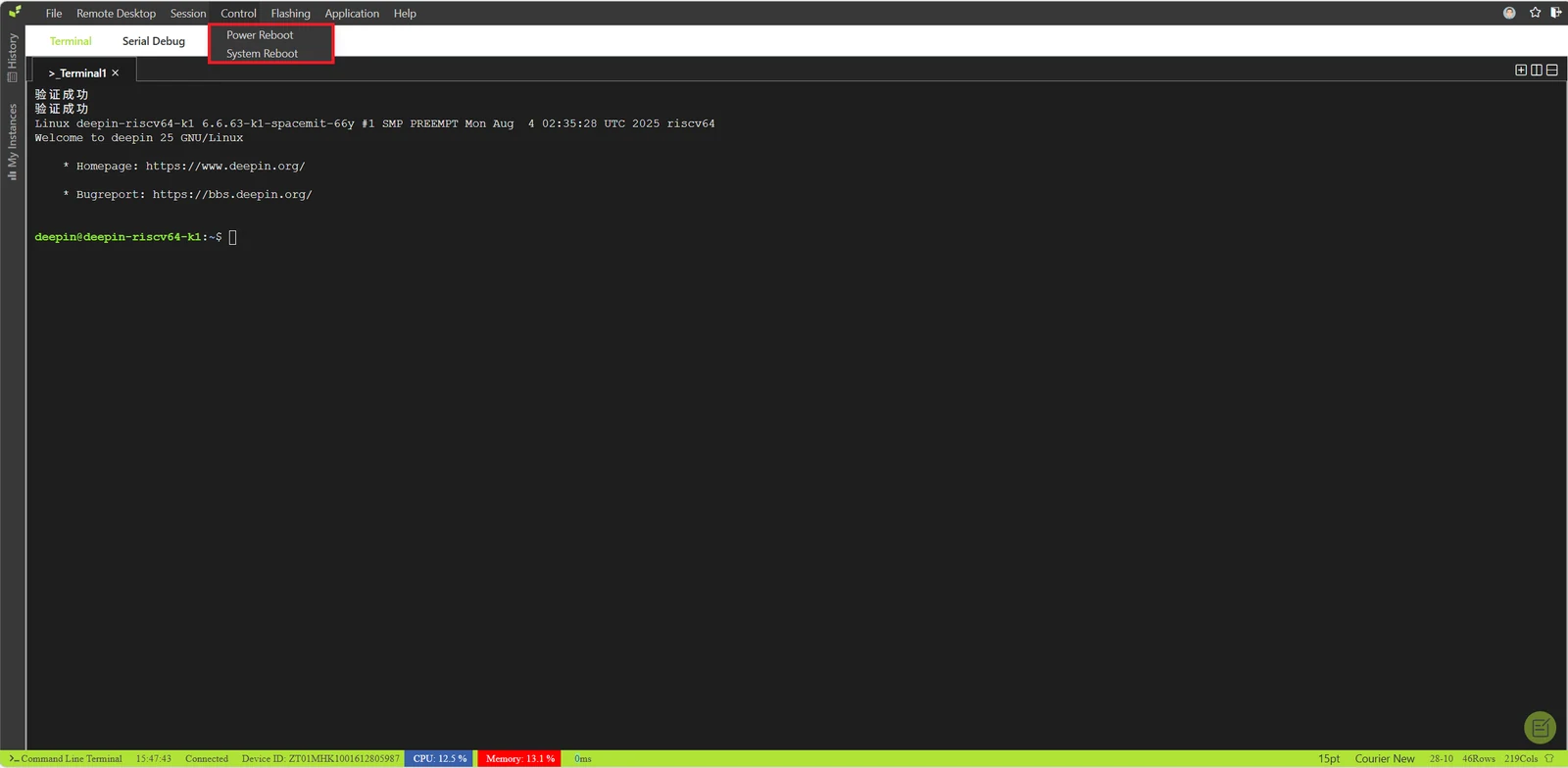
Click Control in the top bar to perform the following management operations:
- Power reboot
- System reboot
4.6 Instance Flashing
Click Flash in the top bar of the workspace to perform the following operations:
- Open the flashing panel
- Close the flashing panel
- Select a target image from the image list on the right and click the Flash icon
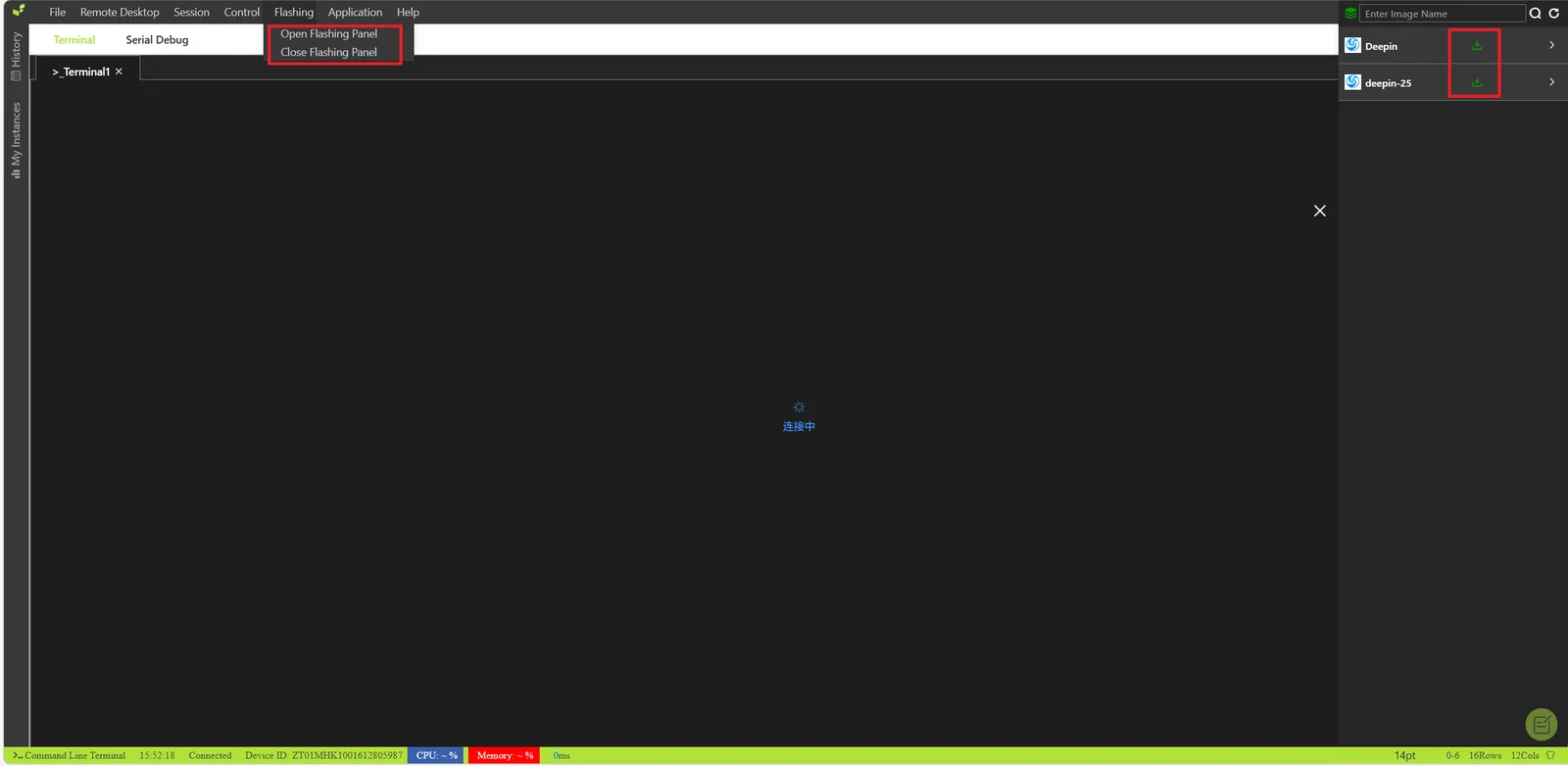
Flashing operations may affect the current instance environment and data. Back up important data before performing flashing operations.
5. Built-In Platform Applications
5.1 code-server
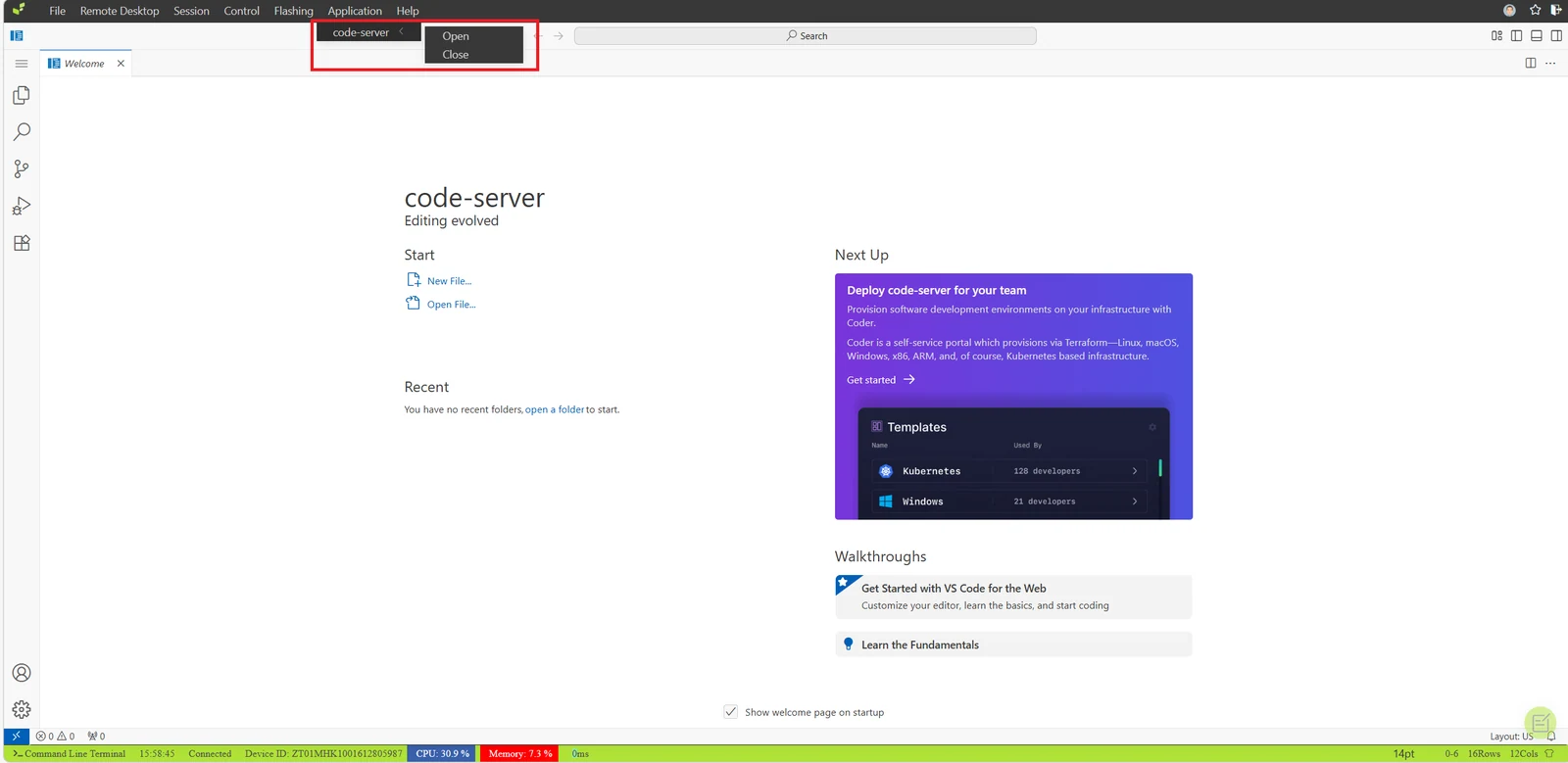
In the top toolbar of the workspace, click Applications → code-server:
- Open: Launch the Code Server online IDE
- Close: Stop Code Server
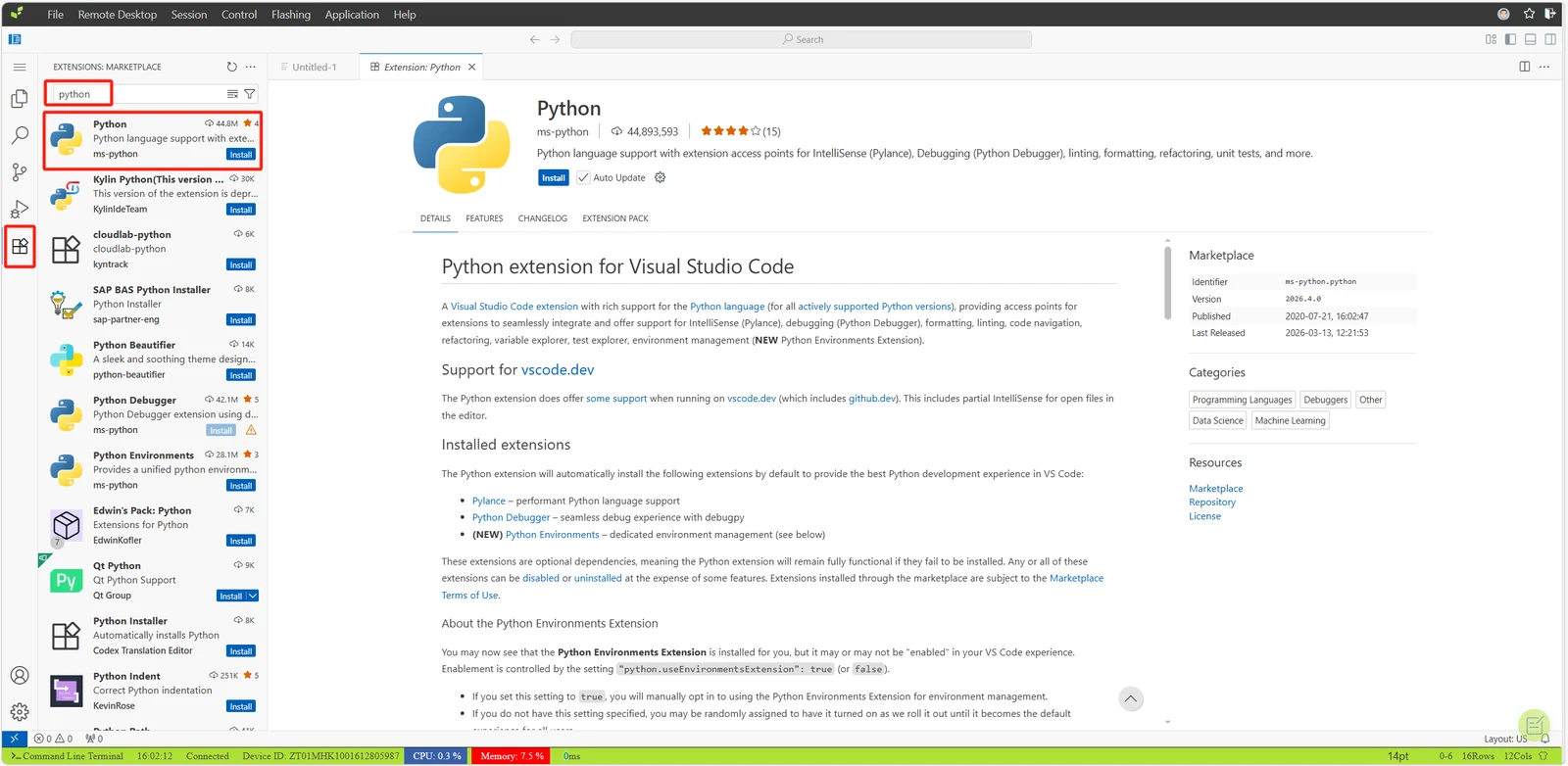
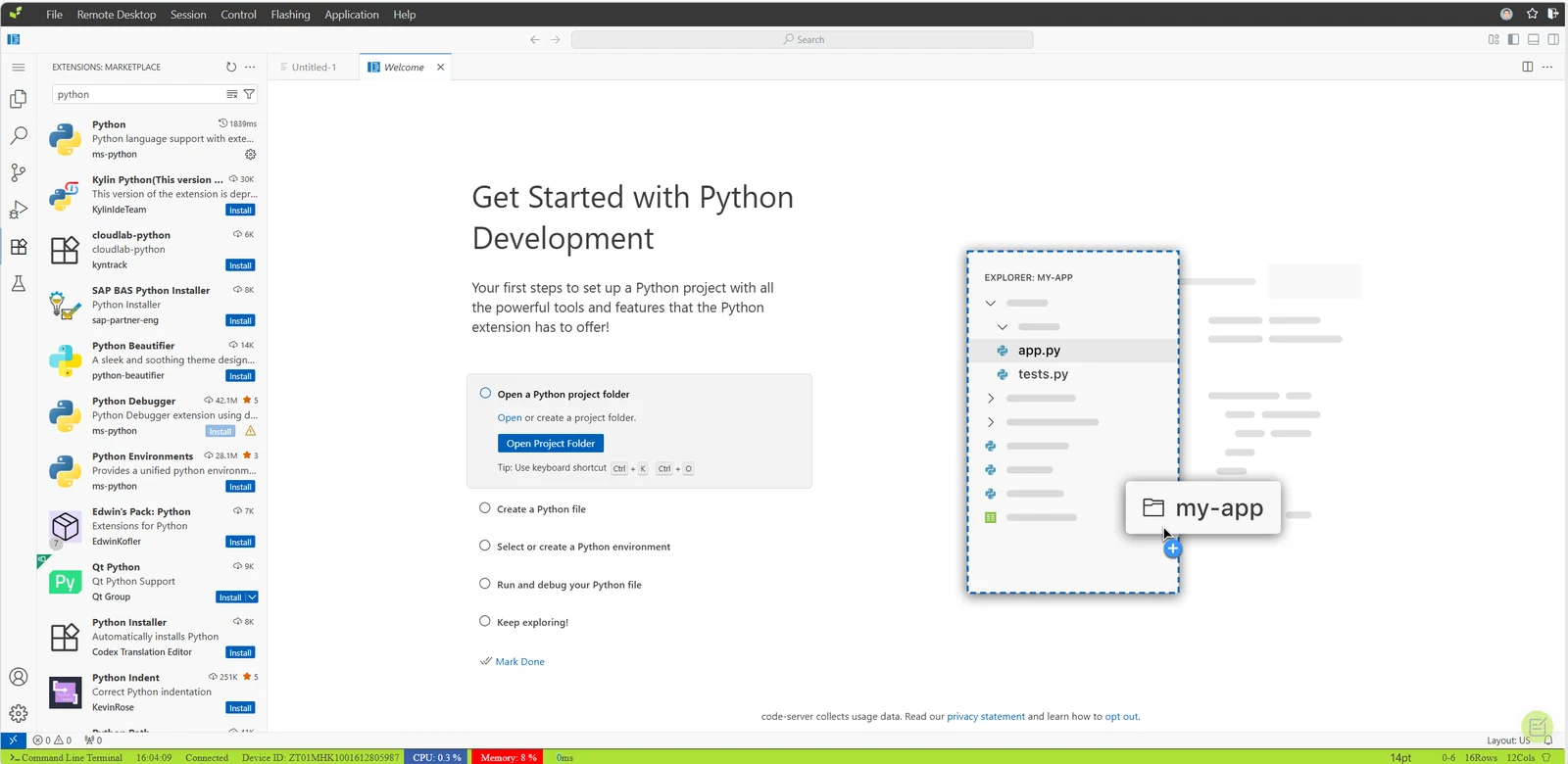
Install Python Extension
Search for python in the extension panel on the left. After the extension is installed, online Python development is available.
5.2 JupyterLab
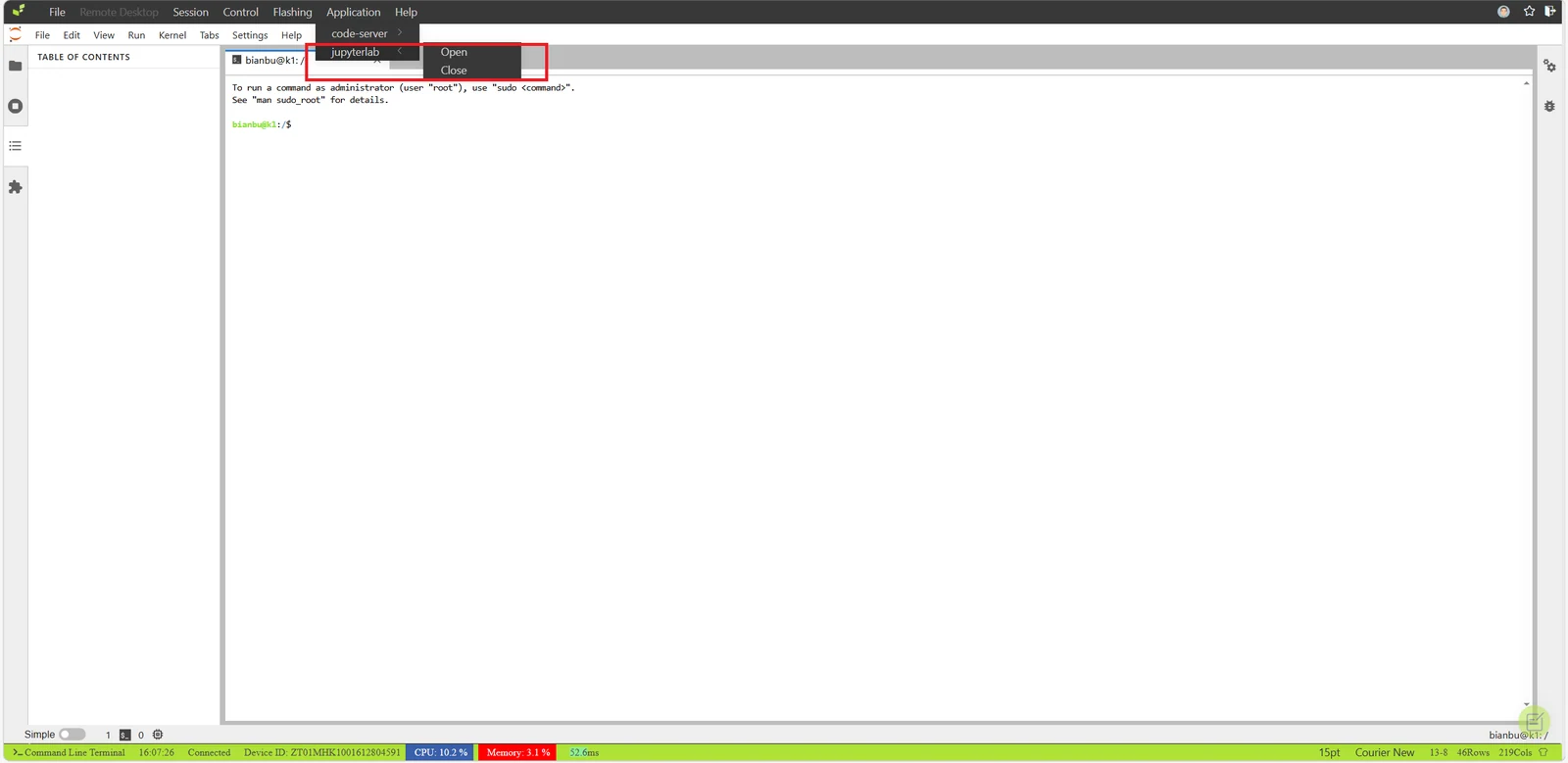
In the top toolbar of the workspace, click Applications → JupyterLab:
- Open: Launch JupyterLab
- Close: Exit JupyterLab
Note: JupyterLab is available only in instances created from the JupyterLab quick application template. Other operating system images and AI images do not provide this application by default.
5.3 Tongyi Qwen Large Model Application
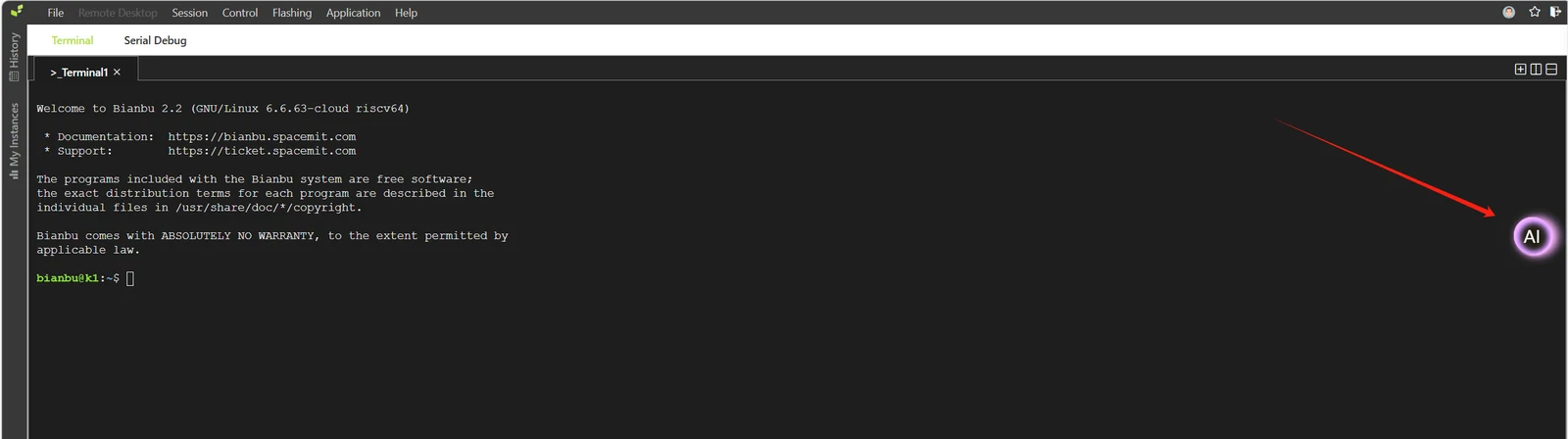
In the top toolbar of the workspace, click Applications → qwen-ai:
- Open: Launch the Qwen application
- Close: Exit the Qwen application
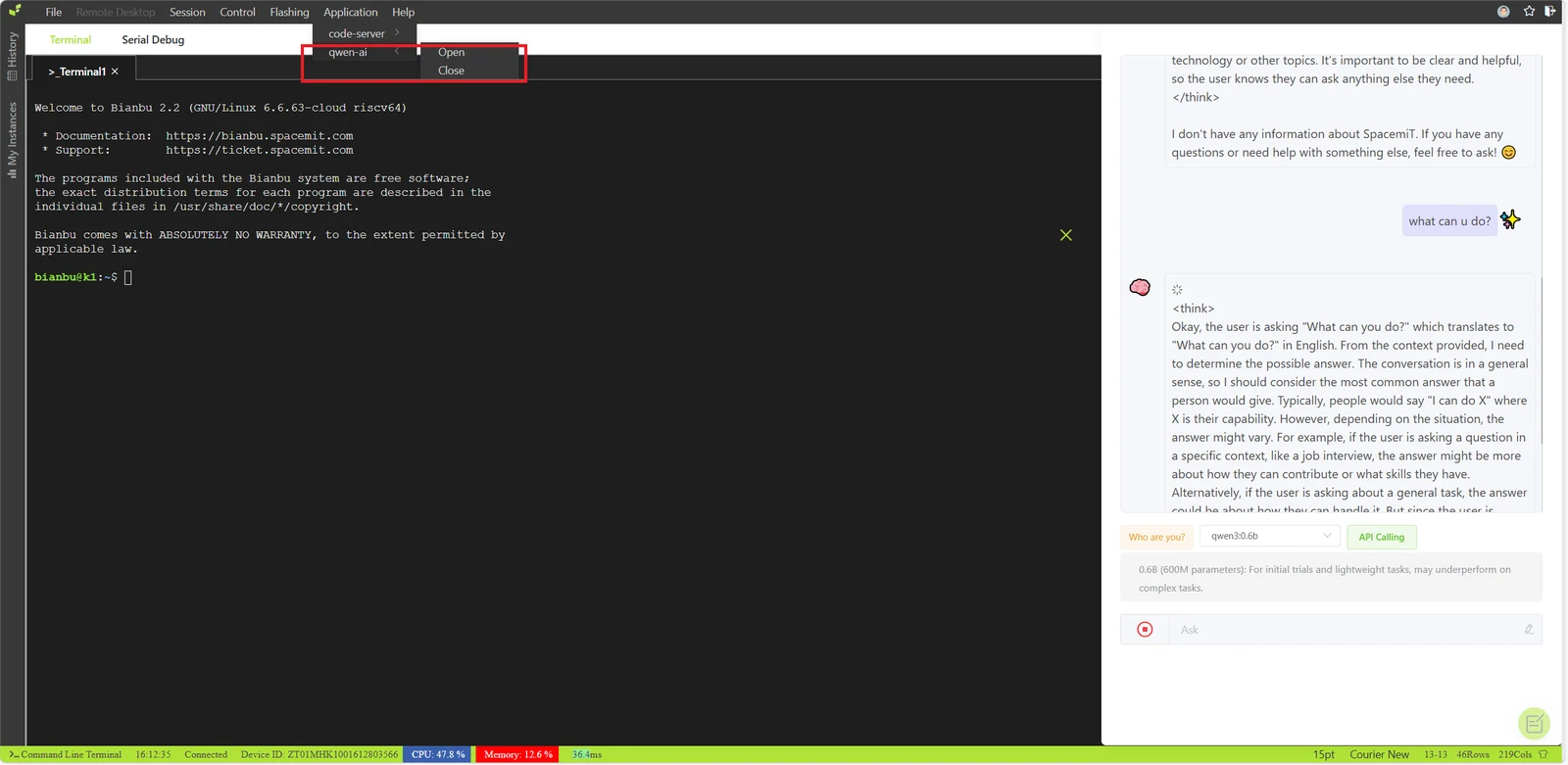
The related AI functions can also be accessed quickly through the AI icon on the right.
5.4 Deepseek Large Model Application
In the top toolbar of the workspace, click Applications → deepseek-ai:
- Open: Launch the DeepSeek application
- Close: Exit the DeepSeek application
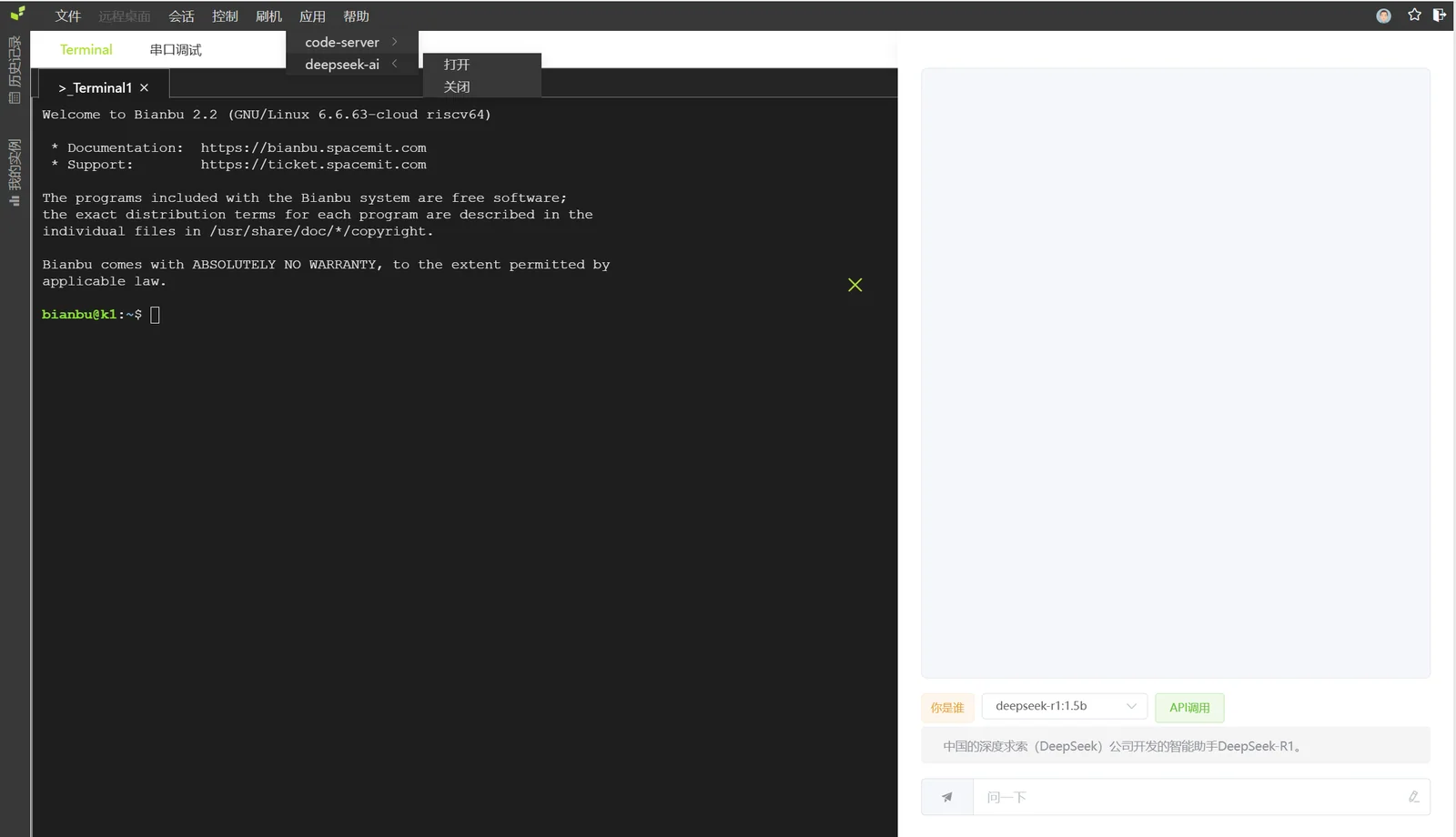
Quick access through the AI icon on the right side is also supported.
6. Account Management
6.1 Modify Personal Information
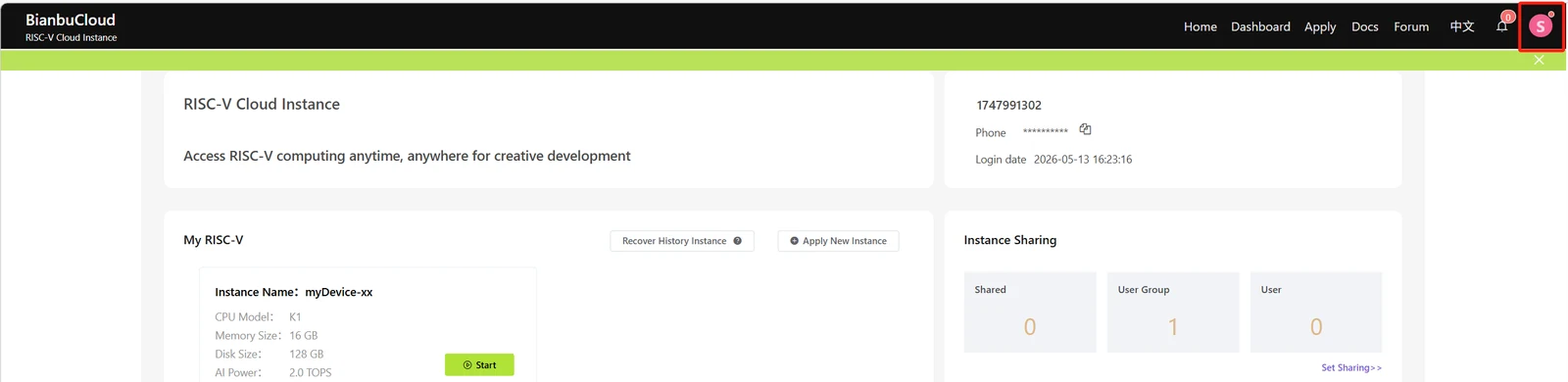
Click the user icon in the upper-right corner of the system page to enter the account management center.
On the account settings page, click Edit Profile.
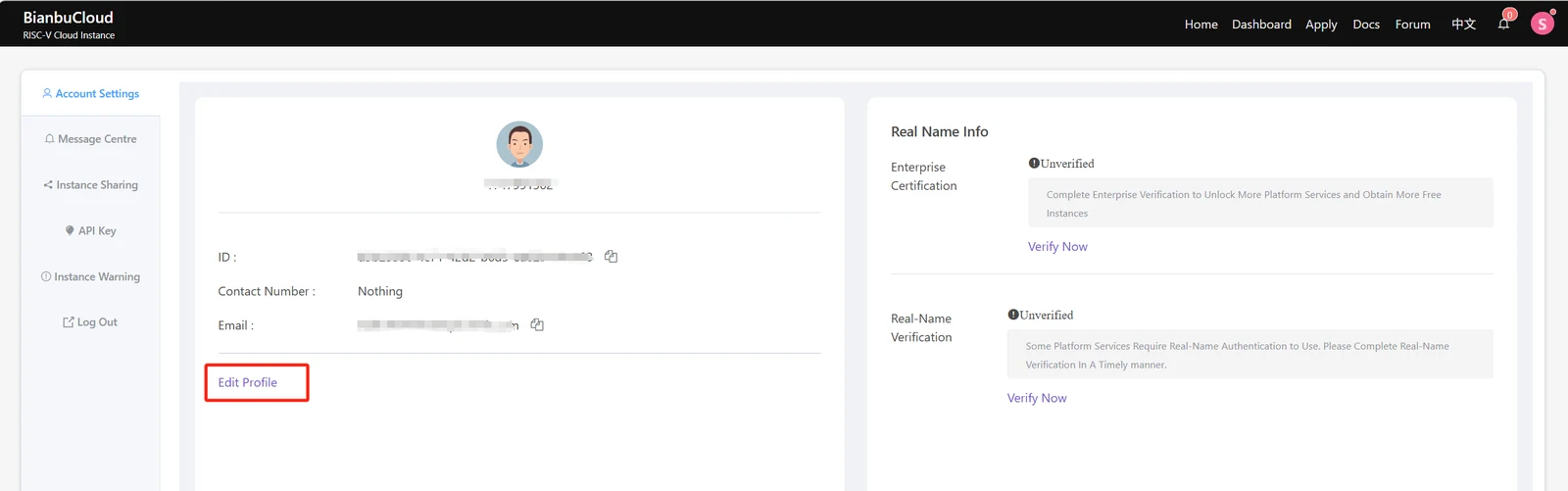
The following account information is currently supported:
- Username
- Password
- Mobile phone number
- Email address
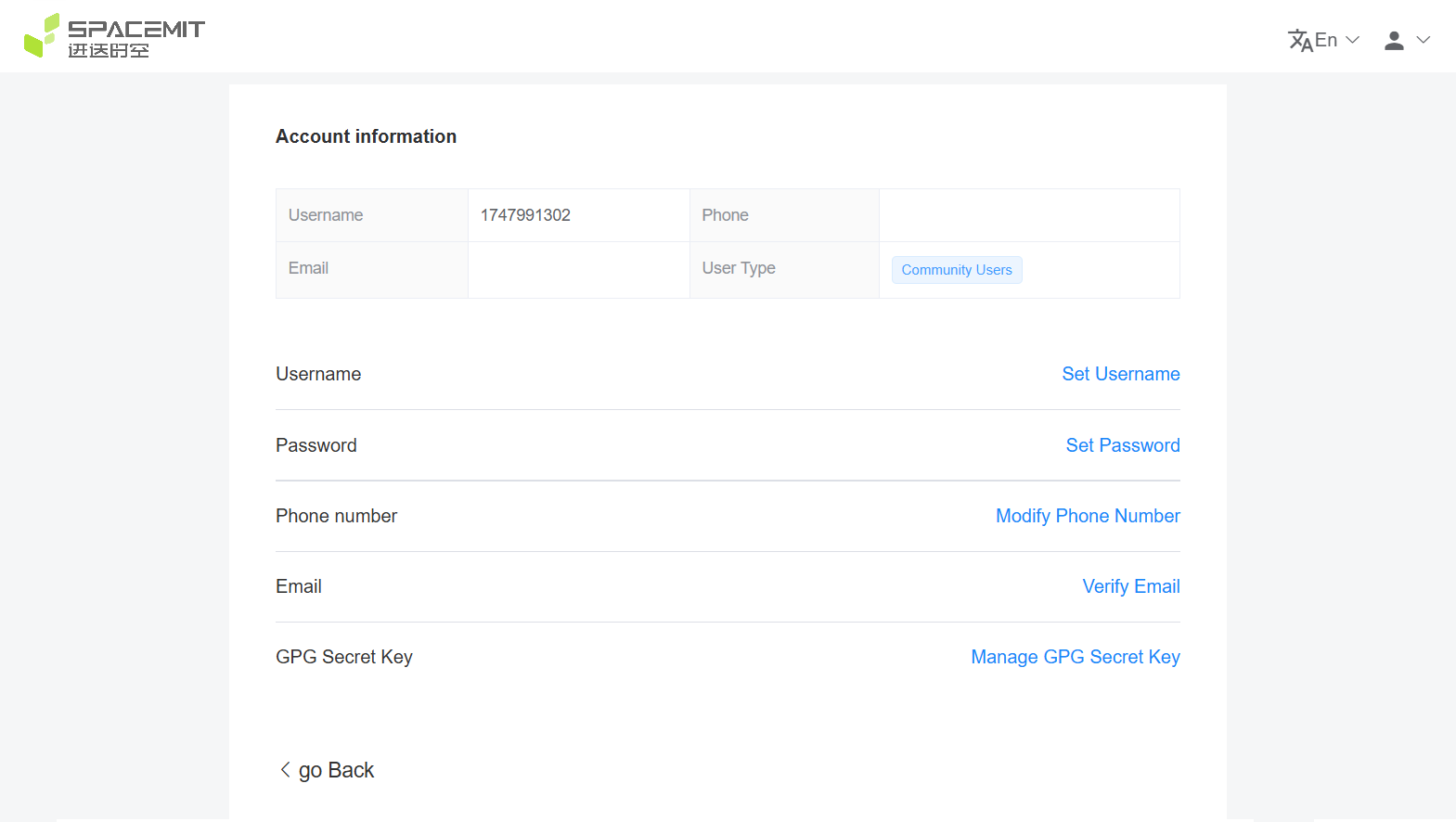
The following example shows the mobile phone number modification page:
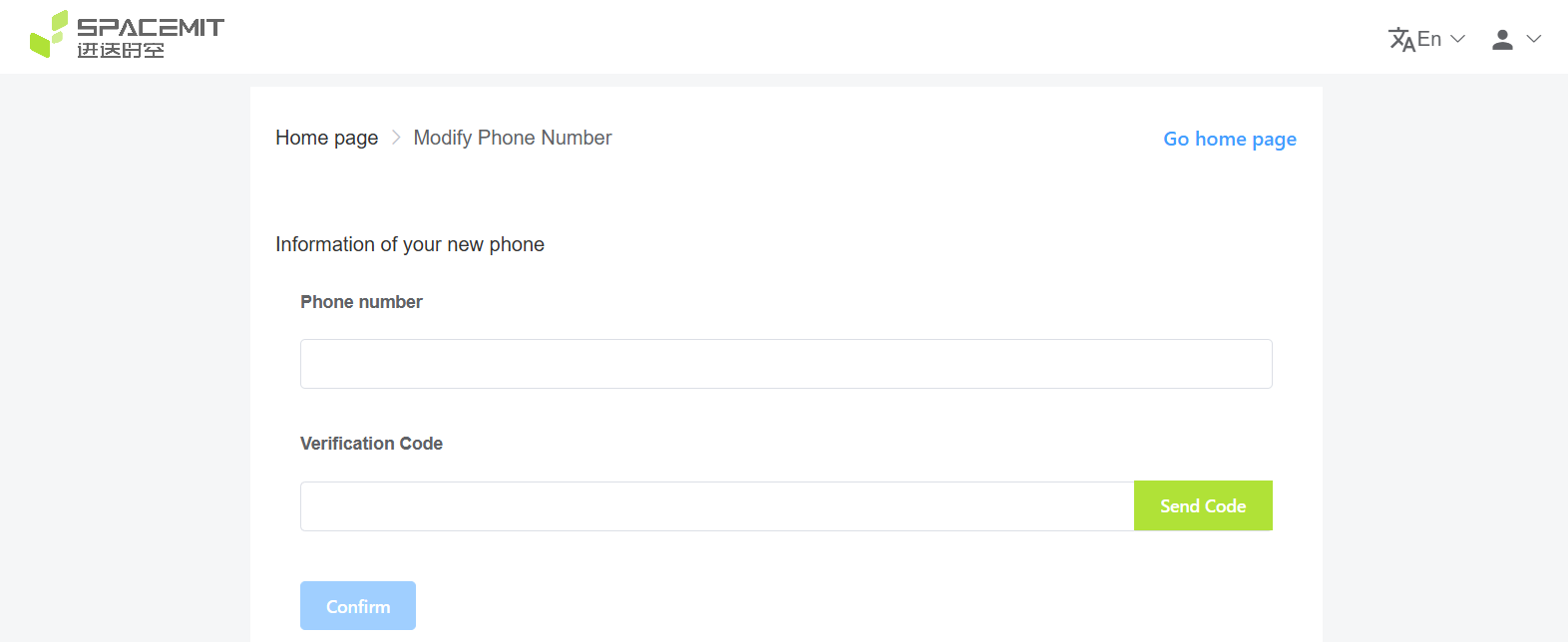
After saving, click Return to System to return to the account management interface.
6.2 Message Center
In the account management interface, click the Message Center tab on the left to view platform notifications centrally.

6.3 Instance Sharing
In the account management interface, click the Instance Sharing tab on the left to share personal instance resources with other users.

6.4 API Key Management
In the account management interface, click the API Key tab on the left to manage API keys.
API keys are primarily used to access APIs exposed by instances remotely.

6.5 Alert Information
In the account management interface, click the Instance Warning tab on the left to view instance-related alert status information.

7. Local Instance Connection
7.1 Direct SSH Connection
The platform supports direct connection to instances through a local SSH client. Before establishing a direct SSH connection, TLS tunneling must be enabled. Stunnel is recommended.
7.1.1 Install Stunnel Client
-
Windows: https://www.stunnel.org/downloads/stunnel-latest-win64-installer.exe
-
Ubuntu/Debian:
sudo apt install stunnel4 -
CentOS/RHEL:
sudo yum install stunnel
7.1.2 Obtain Stunnel Configuration
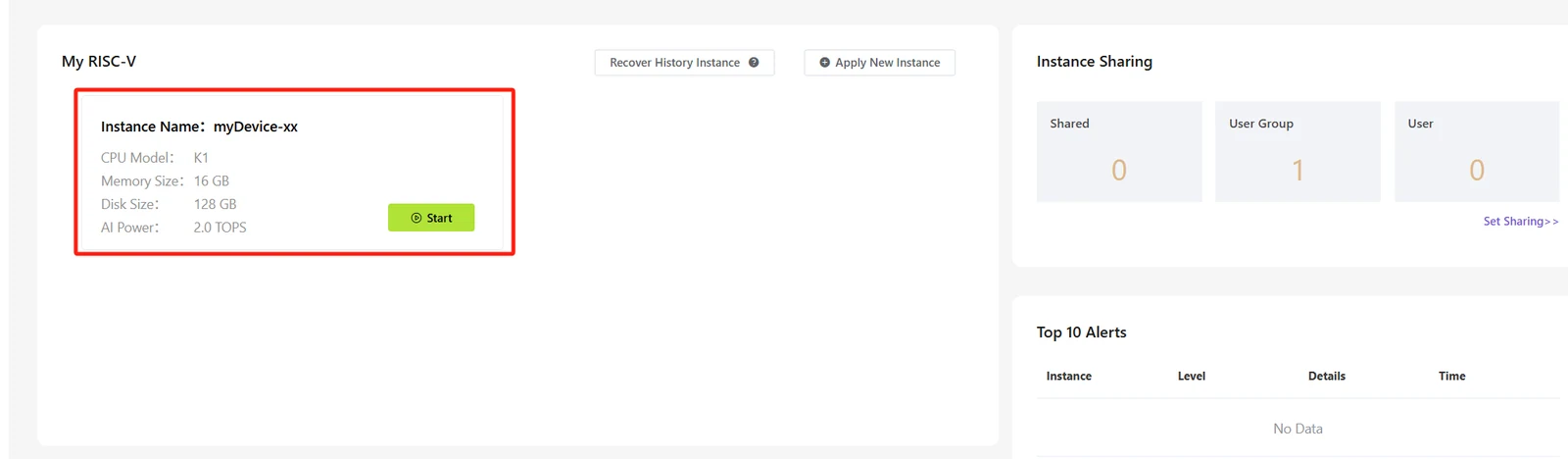
In the console, click the target instance card.
Click Local Connection to open the page containing connection information and operating instructions.
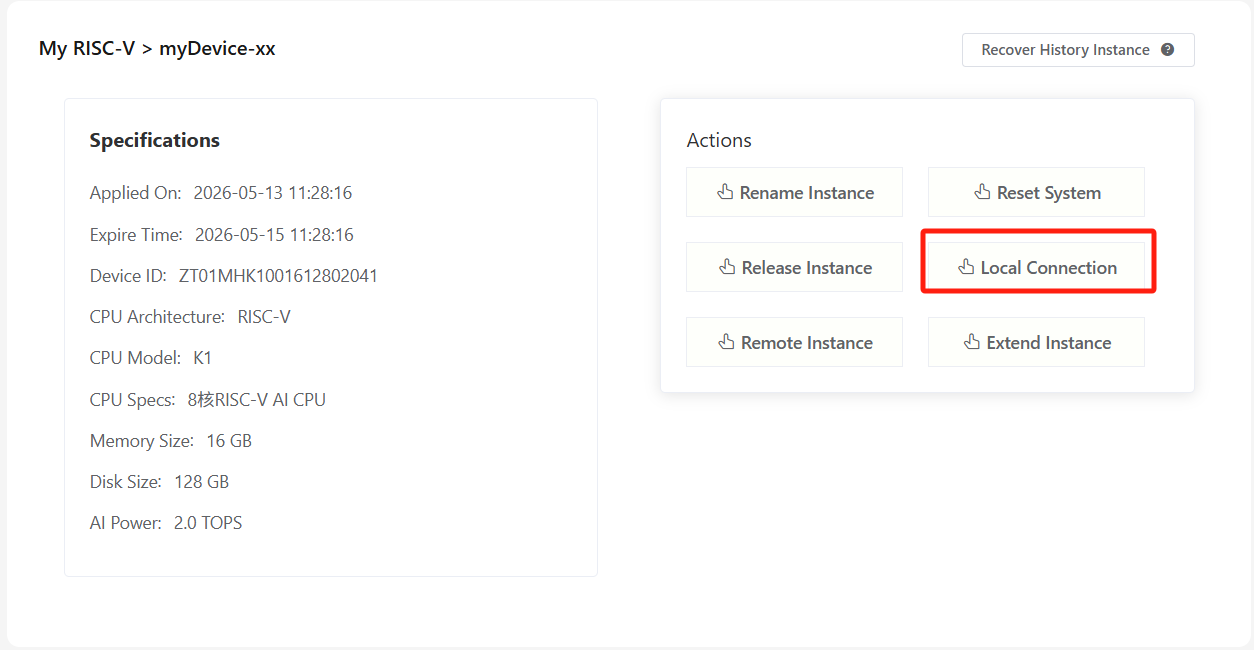
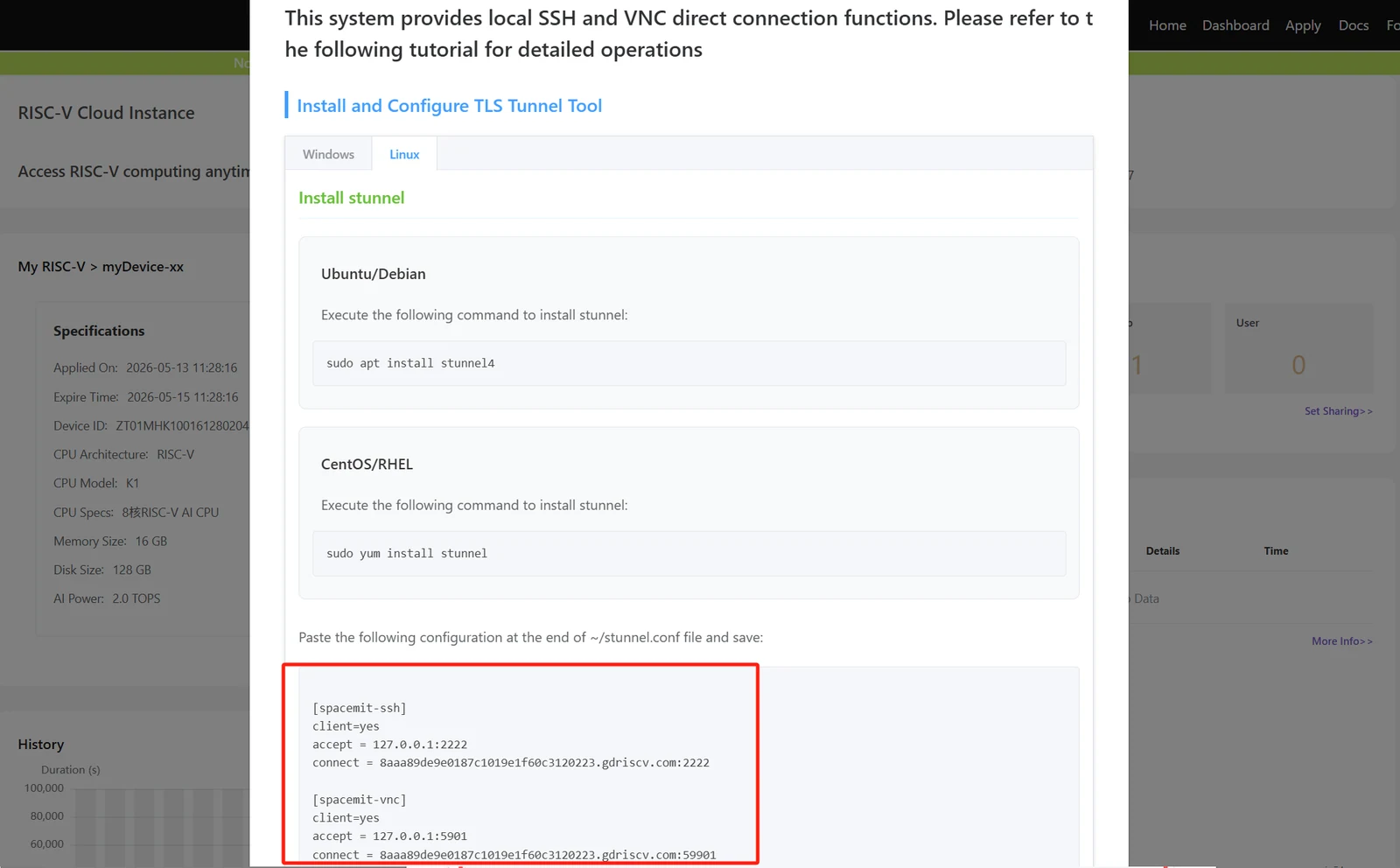
Copy the configuration information shown on the page into the Stunnel client configuration file, then start or reload the Stunnel service.

On Linux systems, the generated Stunnel configuration file can be used directly to start the service.
7.1.3 Connect Through the Command Line
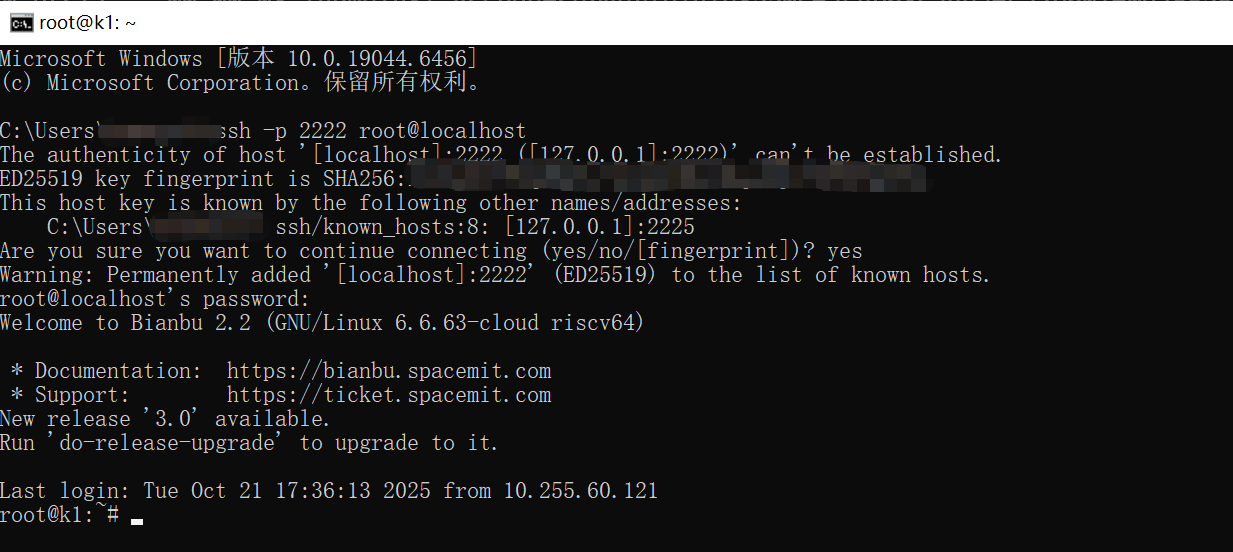
Example command:
ssh -p 2222 root@localhost
7.1.4 Connect Through MobaXterm
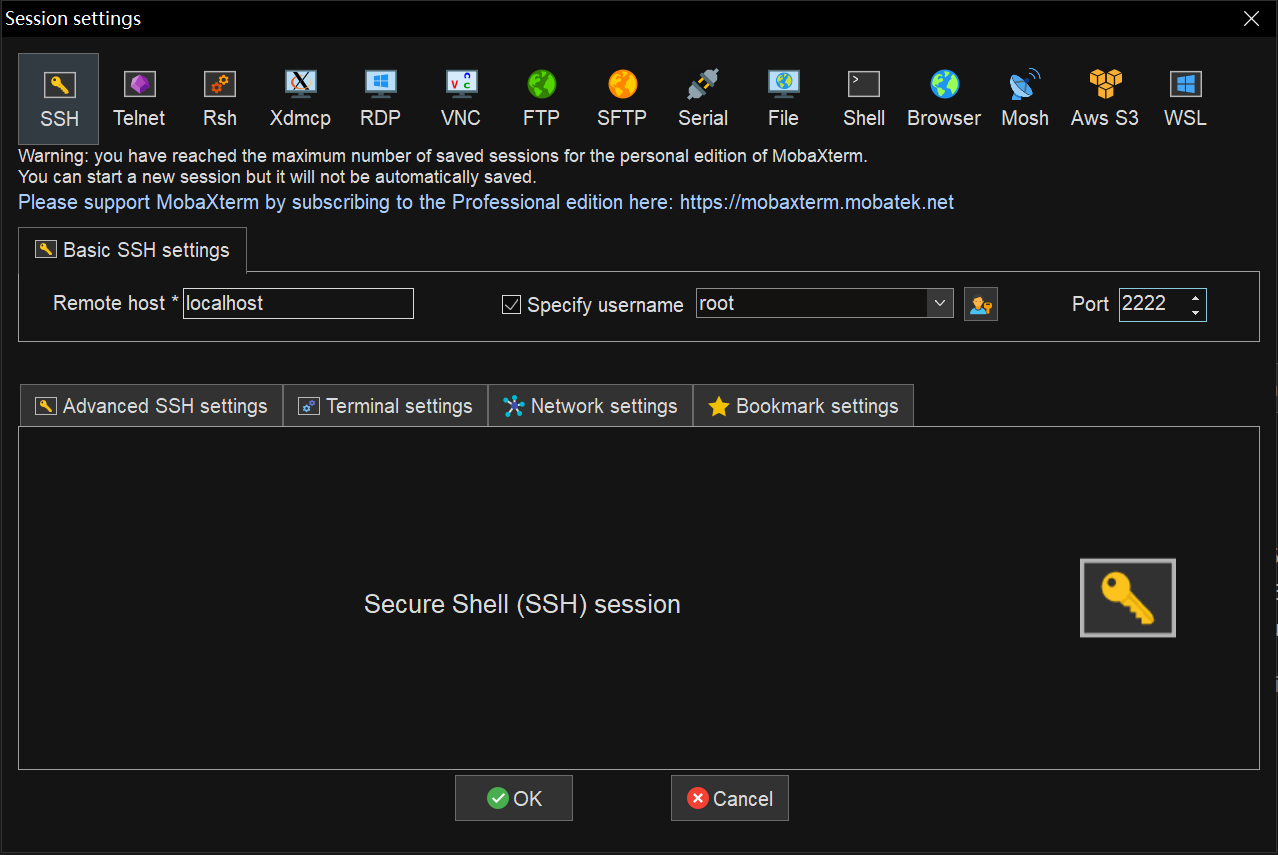
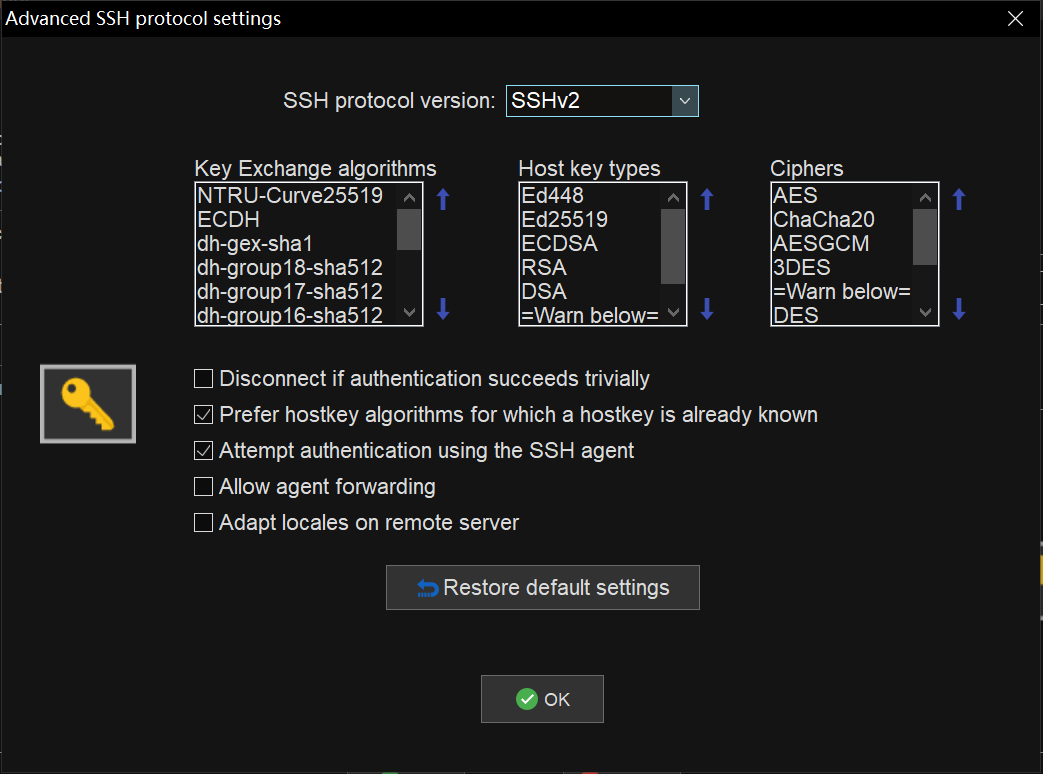
When using MobaXterm, the SSH protocol version must be explicitly specified as SSHv2.
Procedure:
- Select the Advanced SSH settings tab.
- Click Expert SSH settings.
- Set SSH protocol version to SSHv2.
- Click OK to complete the connection.
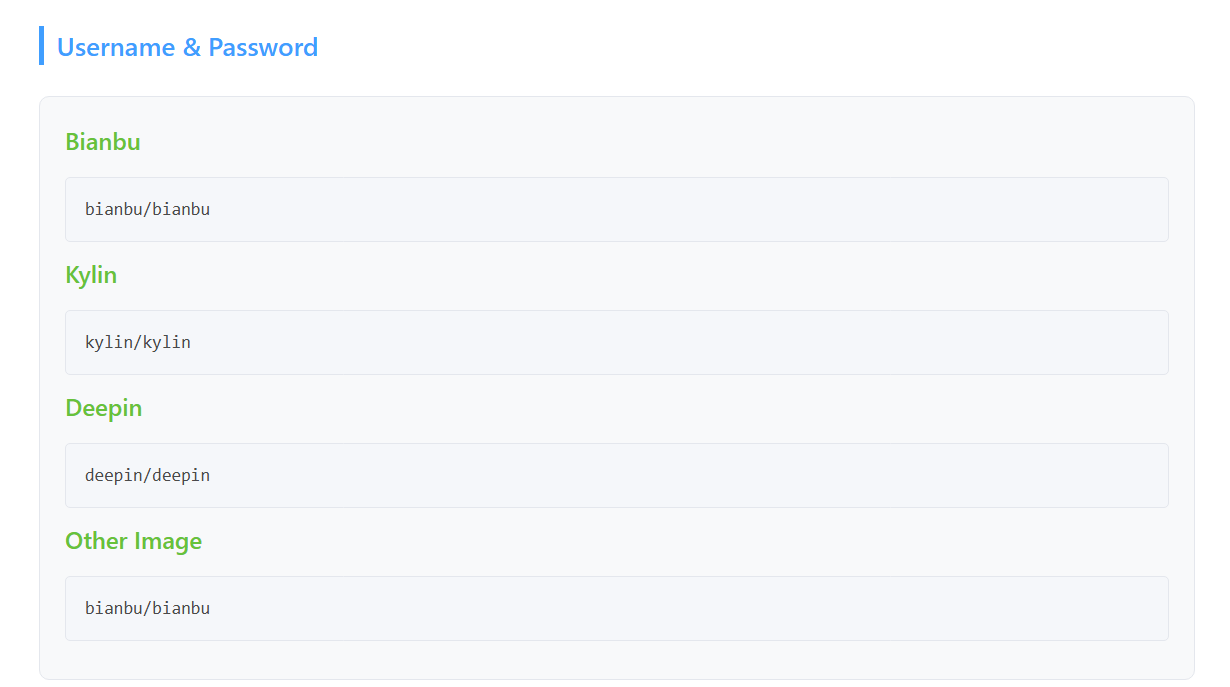
7.1.5 Obtain User Password
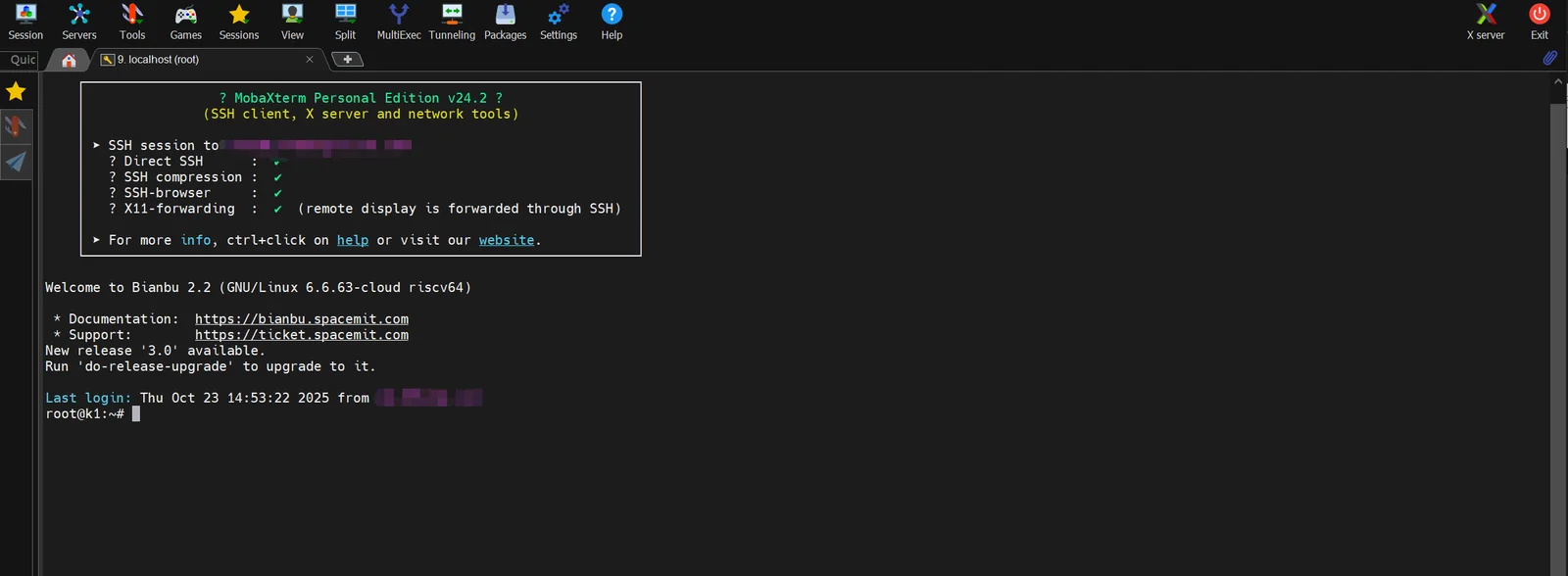
The user password can be found at the bottom of the Connection Information page.
7.2 Direct VNC Connection
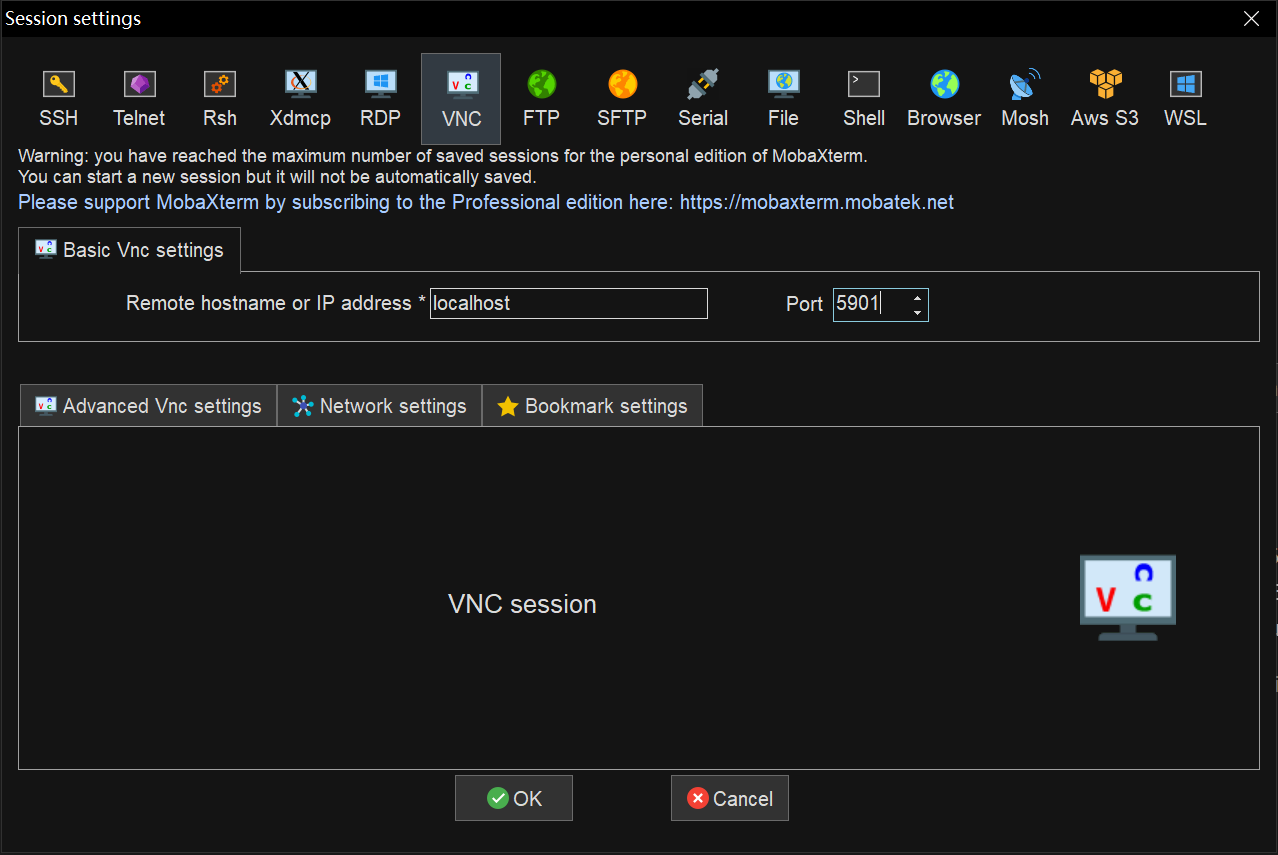
Direct VNC connection is similar to direct SSH connection. Before the connection is established, the Stunnel configuration must also be completed first.
Using MobaXterm as an example:
- Complete the Stunnel configuration.
- Click Session on the left.
- Select VNC.
- Enter
localhostfor the address. - Enter
5901for the port. - Click OK to establish the connection.
If a password is required, refer to User Password section in the previous section.
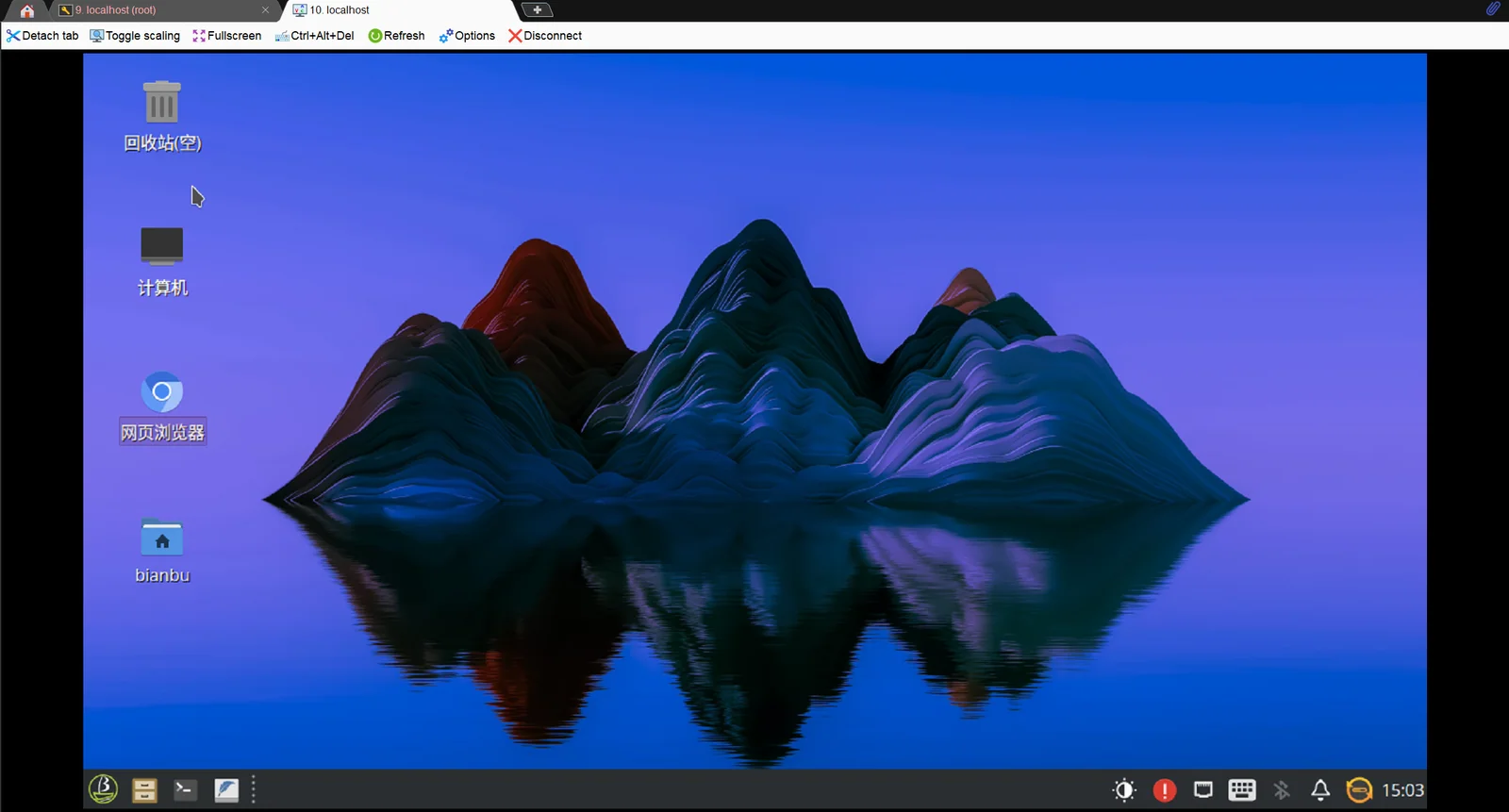
Example interface after successful connection:
8. API Calls
8.1 Ollama API Calls
Currently, only the following instance types are supported:
- Tongyi Qwen large model instances
- DeepSeek large model instances
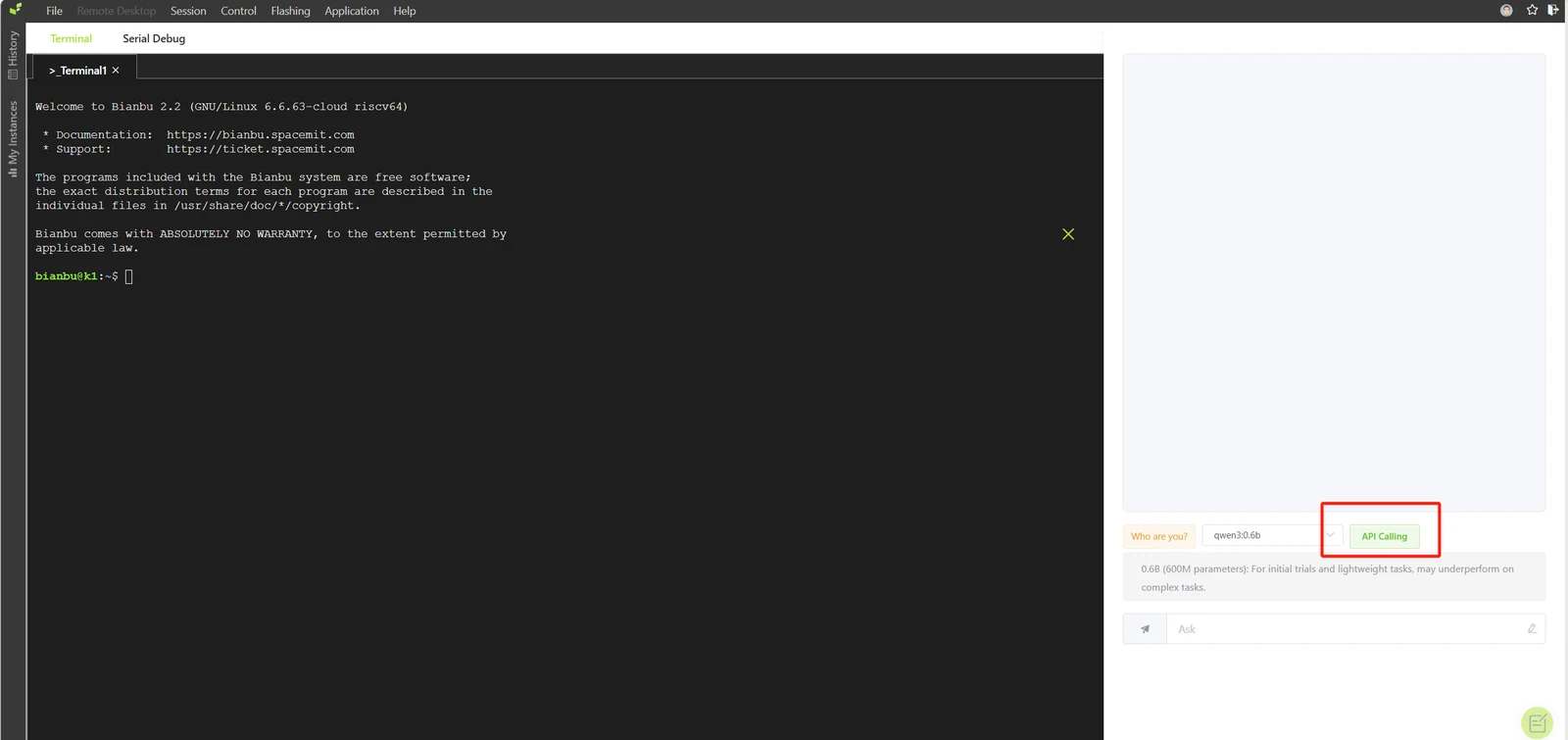
After entering the instance workspace, refer to 4.1 Command-Line Access, then click the API Calling button on the right to access the configuration page.
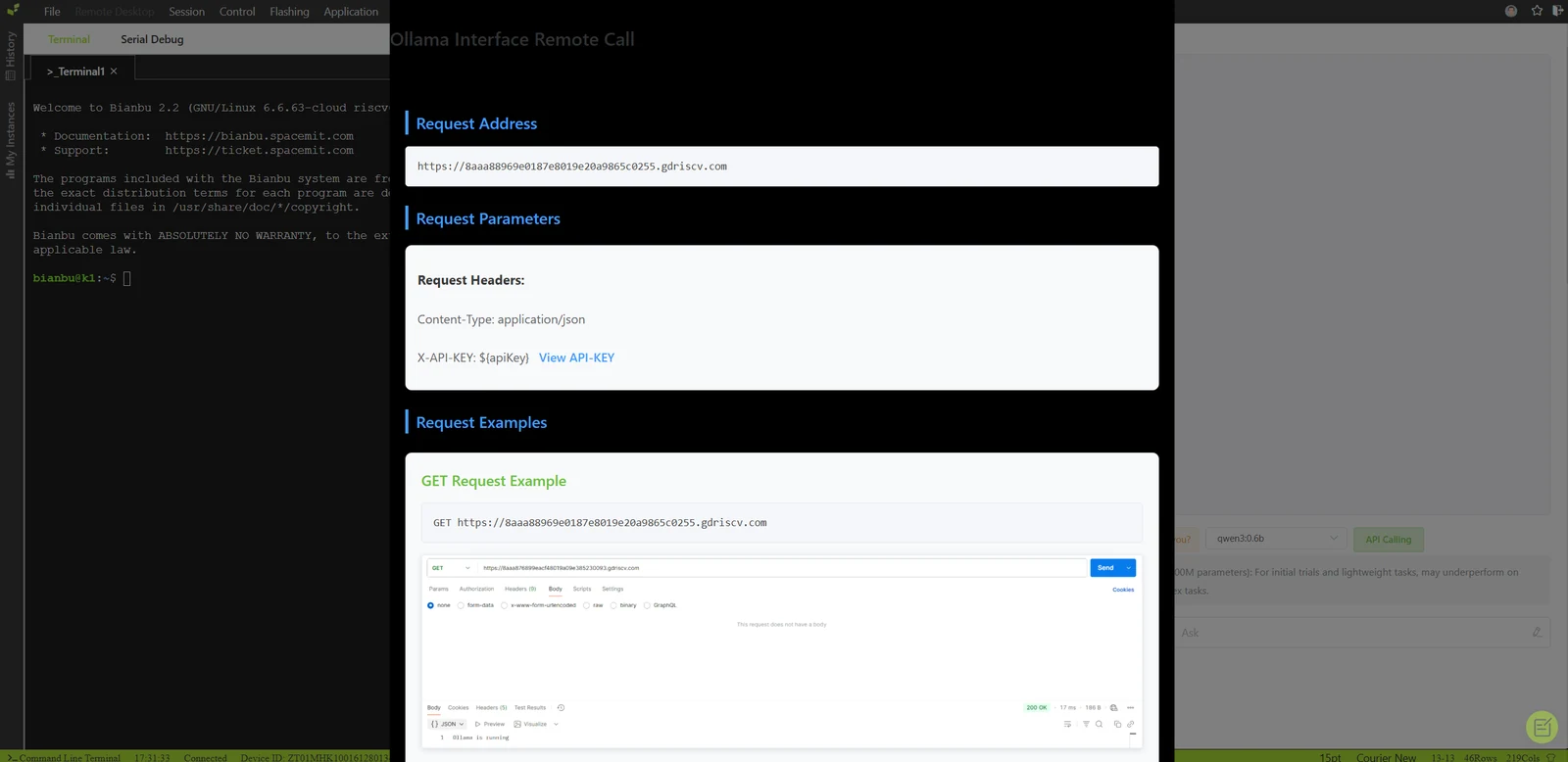
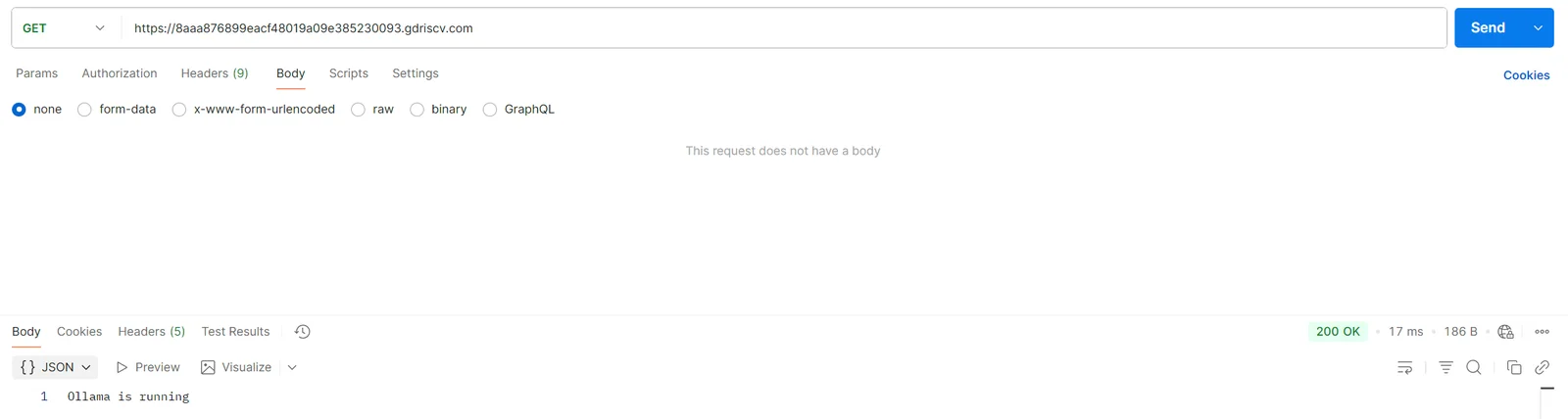
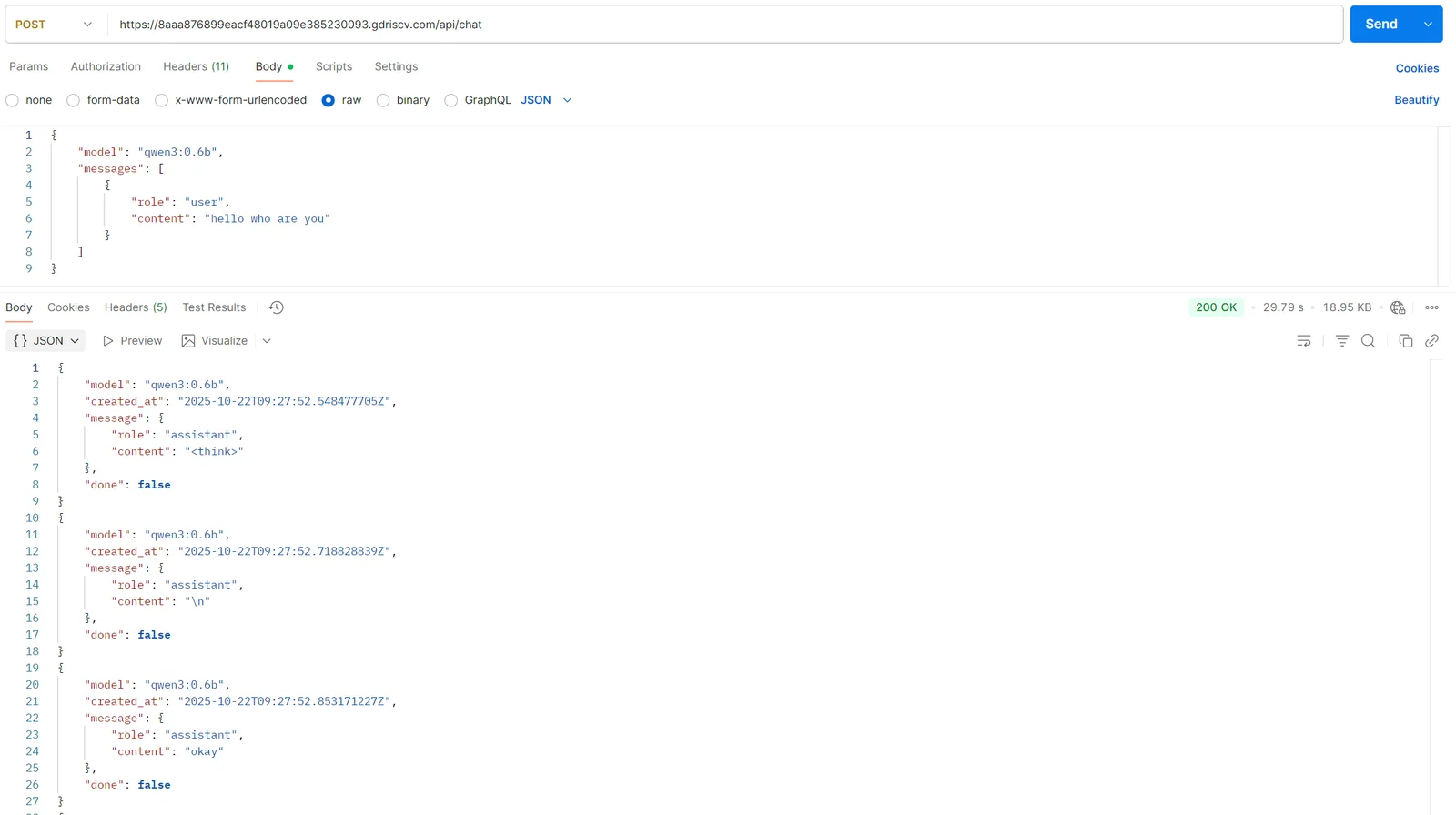
After configuring the request headers, the Ollama API can be invoked using the URL provided on the page.
8.2 Custom API Calls
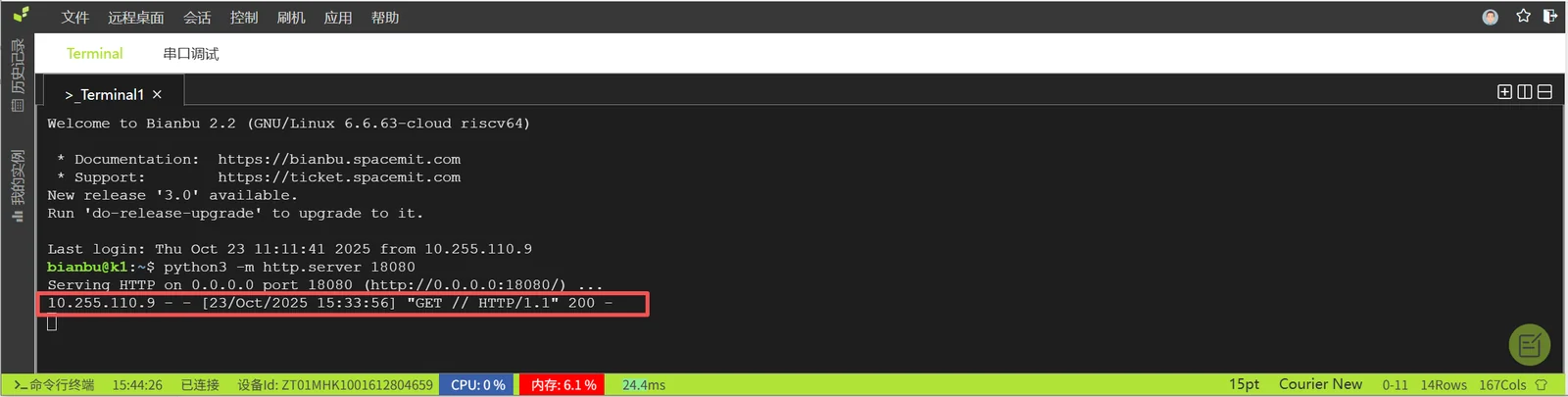
Instances support deployment and external access for custom services through port 18080.
For example, a Python HTTP service can be run inside the instance:
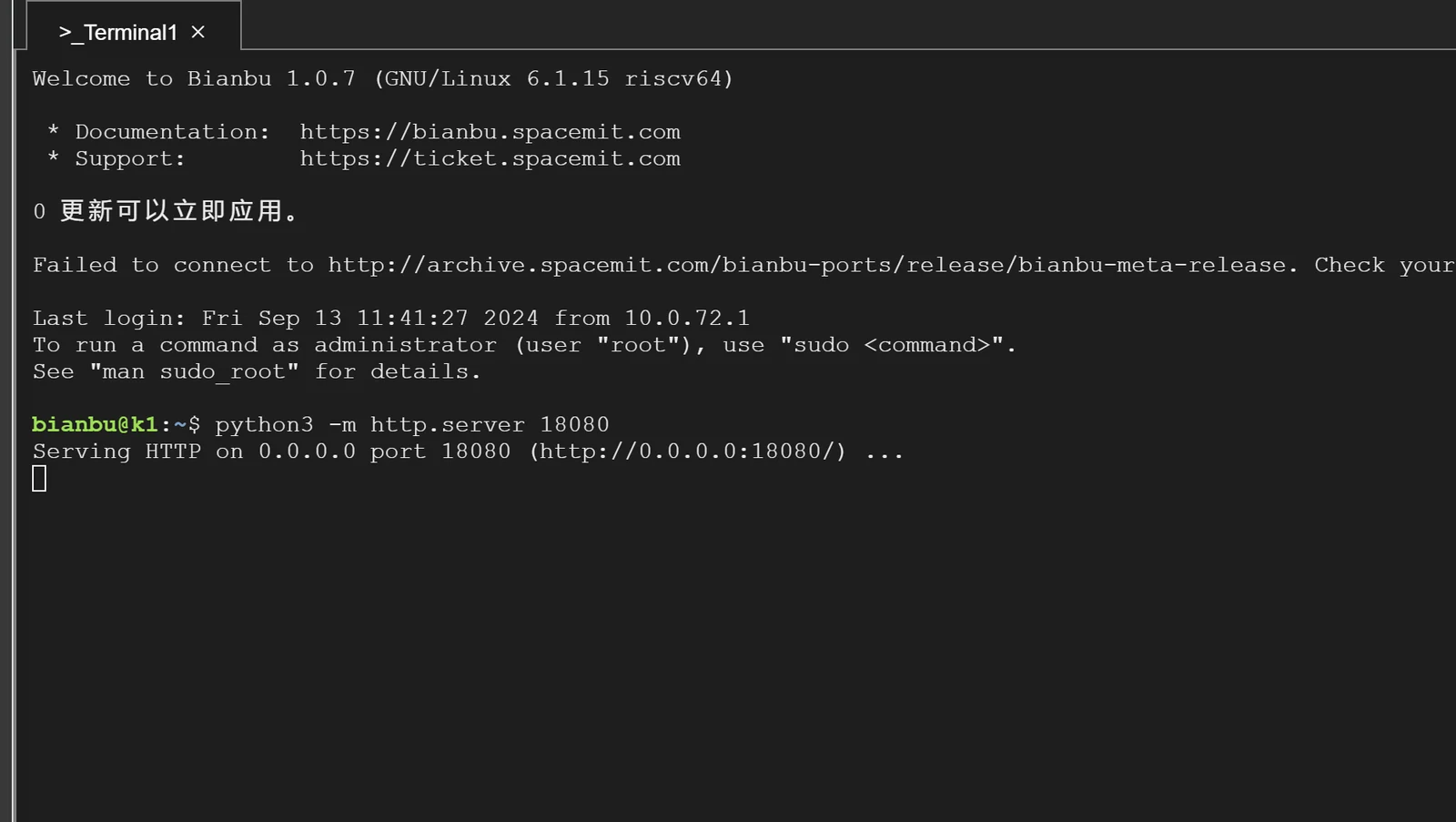
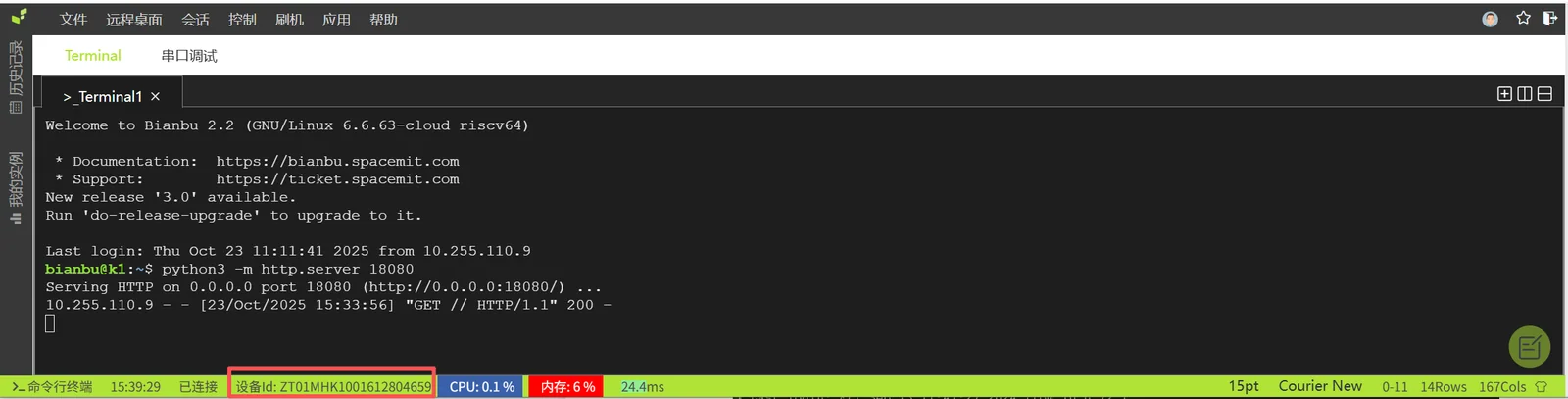
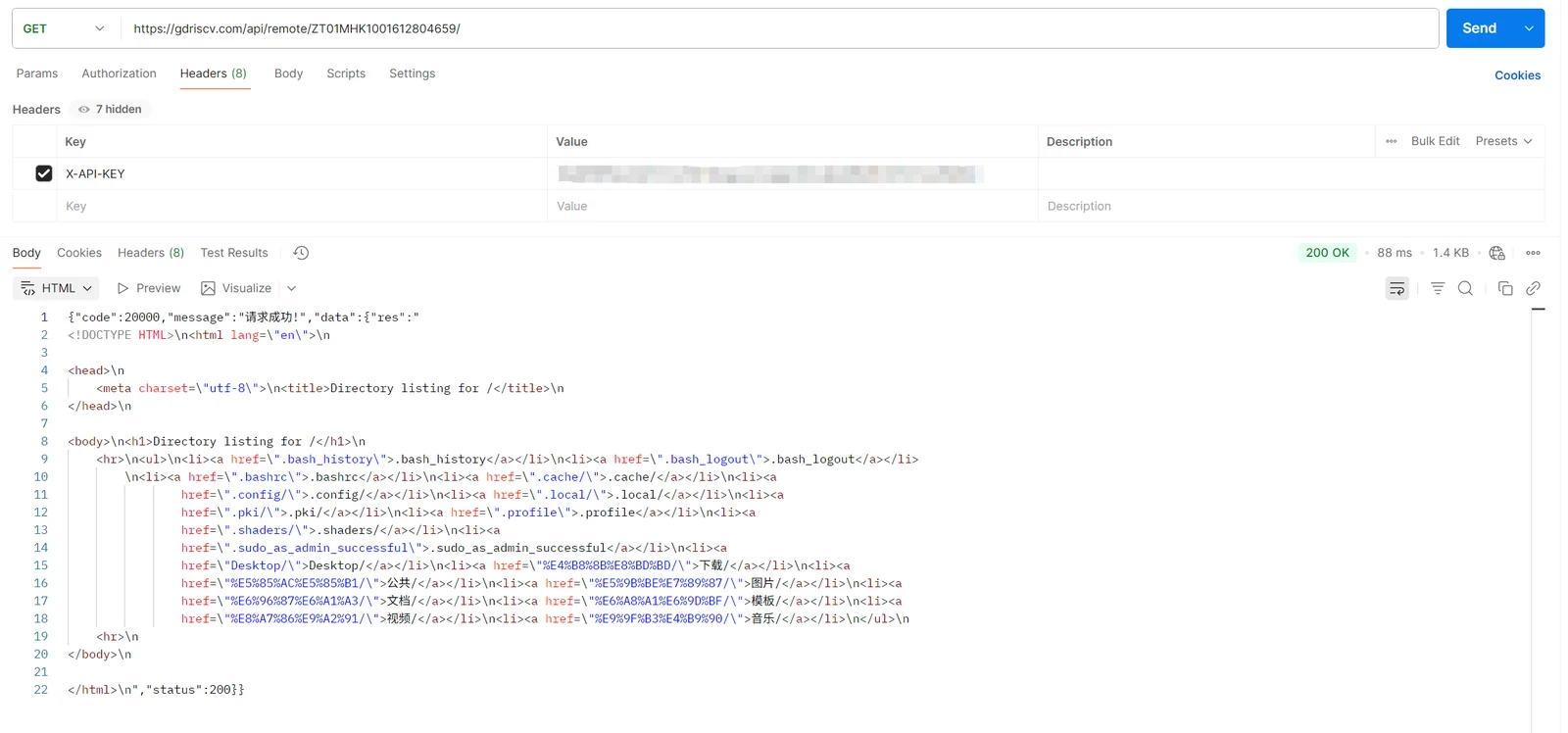
GET or POST requests can then be sent using Postman, where DeviceID is the instance device ID.
For API keys, refer to 6.4 API Key Management.
The request URL format is as follows:
https://gdriscv.com/api/remote/{deviceId}
9. Development Examples
This chapter provides representative development examples to help users quickly understand the platform capabilities and development workflow for RISC-V and AI applications.
9.1 RISC-V Assembly and Vector Development
9.1.1 RVV Programming
RVV (RISC-V Vector) is designed for high-performance vector computing scenarios. Compared with ARM NEON / SVE, RVV provides greater flexibility in vector-length configuration and hardware adaptability.
The following table provides a brief comparison between RVV and ARM SVE:
| Feature | SVE (ARM) | RVV (RISC-V) |
|---|---|---|
| Instruction set architecture | ARM v8/v9 extension | Official RISC-V vector extension (V extension) |
| Design philosophy | Prioritizes hardware transparency and code compatibility | Prioritizes flexibility and configurability, allowing hardware customization |
| Register structure | Independent predicate registers (P0-P15) + Z registers | Vector registers can also be used as mask registers, configurable vector registers |
| Minimum implementation requirement | Must support 128-bit vectors | No fixed minimum length, scalable from 128 bits |
| Programming model | Emphasizes compiler-driven optimization | Better suited to manual optimization based on hardware characteristics |
| Data type support | Supports FP32/FP64, INT8/16/32/64, etc. | Supports FP16/32/64, INT8/16/32/64, etc. |
| Memory Access Pattern | Supports complex addressing | Emphasizes explicit memory operations |
| Application scenarios | High-performance computing in the ARM ecosystem (servers, supercomputers) | Customized RISC-V scenarios (AIoT, edge computing) |
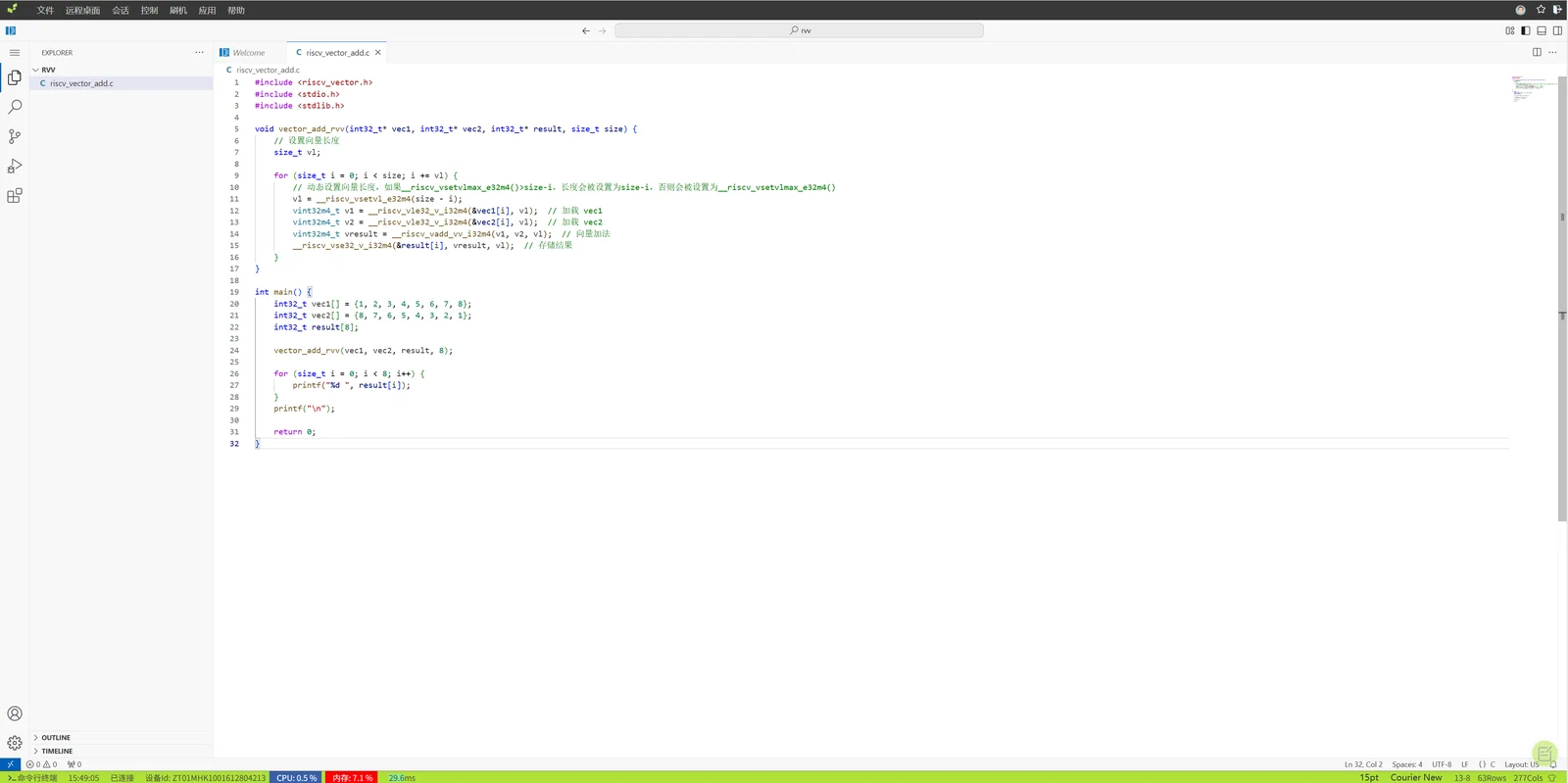
Core code example:
void vector_add_rvv(int32_t* vec1, int32_t* vec2, int32_t* result, size_t size) {
    // Set vector length
    size_t v1;

    for (size_t i = 0; i < size; i += v1) {
        // Set the vector length dynamically. If __riscv_vsetvlmax_e32m4() > size - i,
        // the length is set to size - i; otherwise, it is set to __riscv_vsetvlmax_e32m4().
        v1 = __riscv_vsetvl_e32m4(size - i);

        vint32m4_t v1 = __riscv_vle32_v_i32m4(&vec1[i], v1);  // Load vec1
        vint32m4_t v2 = __riscv_vle32_v_i32m4(&vec2[i], v1);  // Load vec2
        vint32m4_t vresult = __riscv_vadd_vv_i32m4(v1, v2, v1);  // Vector addition
        __riscv_vse32_v_i32m4(&result[i], vresult, v1);  // Store result
    }
}
Inside the cloud instance, code can be edited through Code Server and compiled and validated by using gcc.

9.1.2 RISC-V AI Instruction Programming
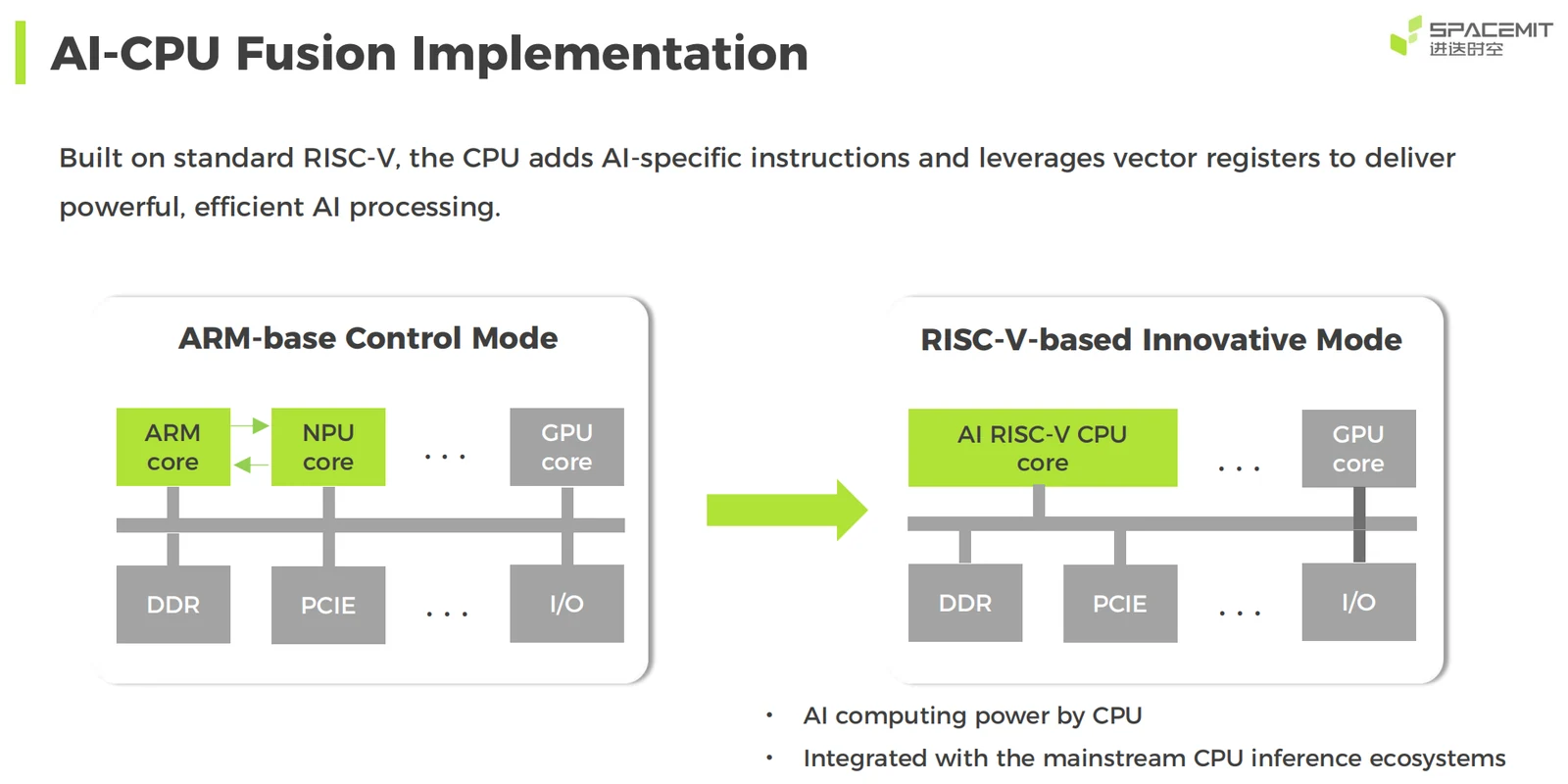
K1 is an 8-core RISC-V AI CPU. Based on the open-source RISC-V instruction set, K1 adds general-purpose AI computing capability and can provide approximately 50 KDMIPS of CPU compute power and 2.0 TOPS of AI compute power.
The chip supports the RISC-V Vector 1.0 standard and provides 256-bit vector compute bandwidth, enabling strong SIMD parallel processing capability for high-performance AI computing.
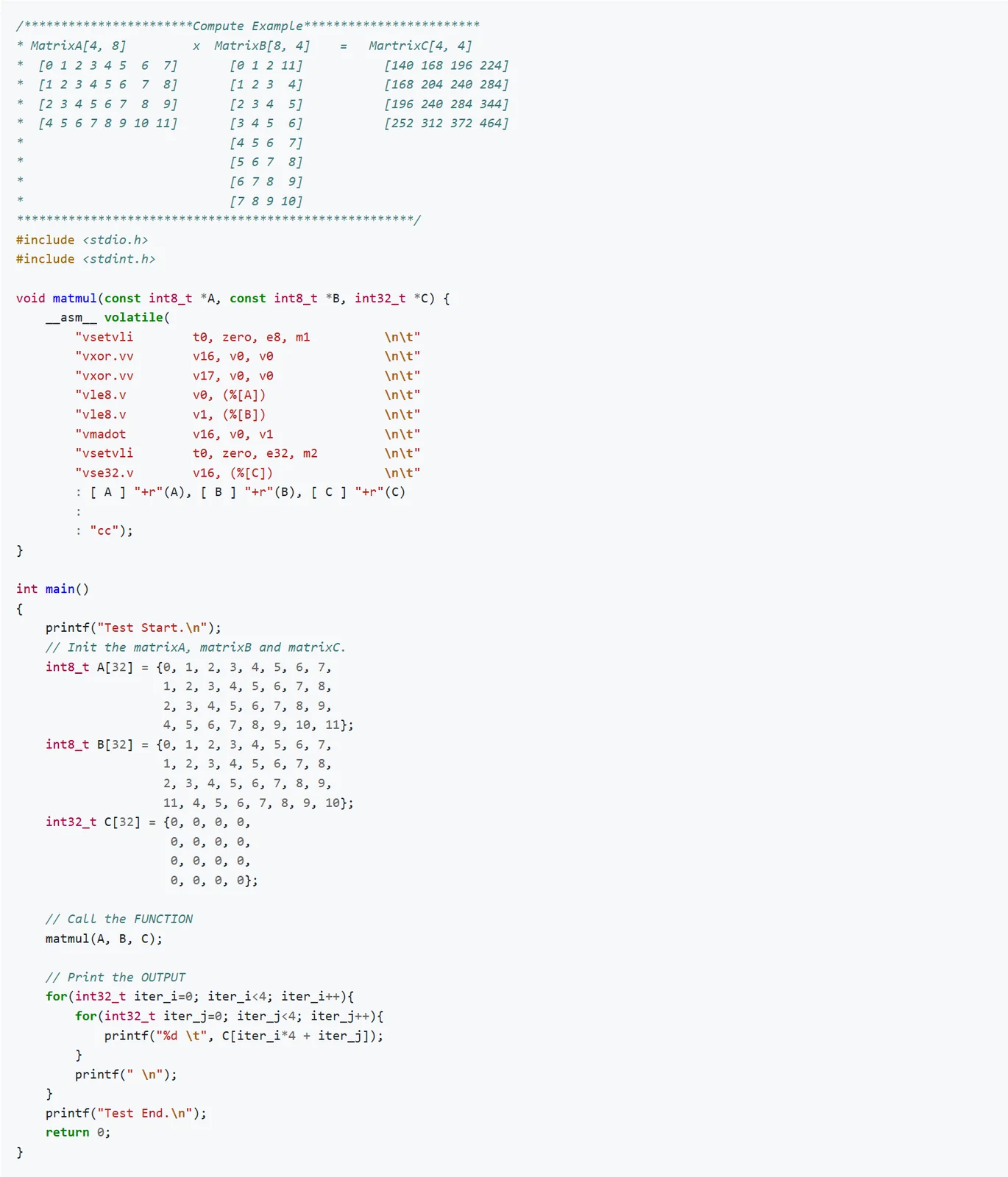
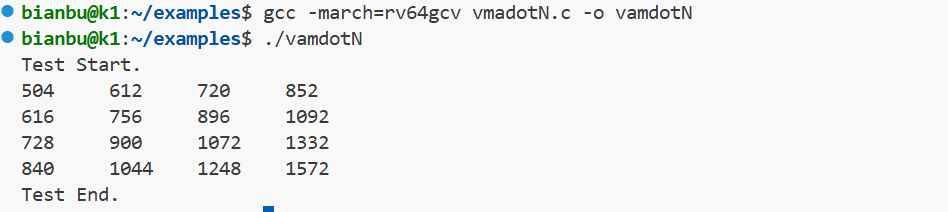
Core example code:
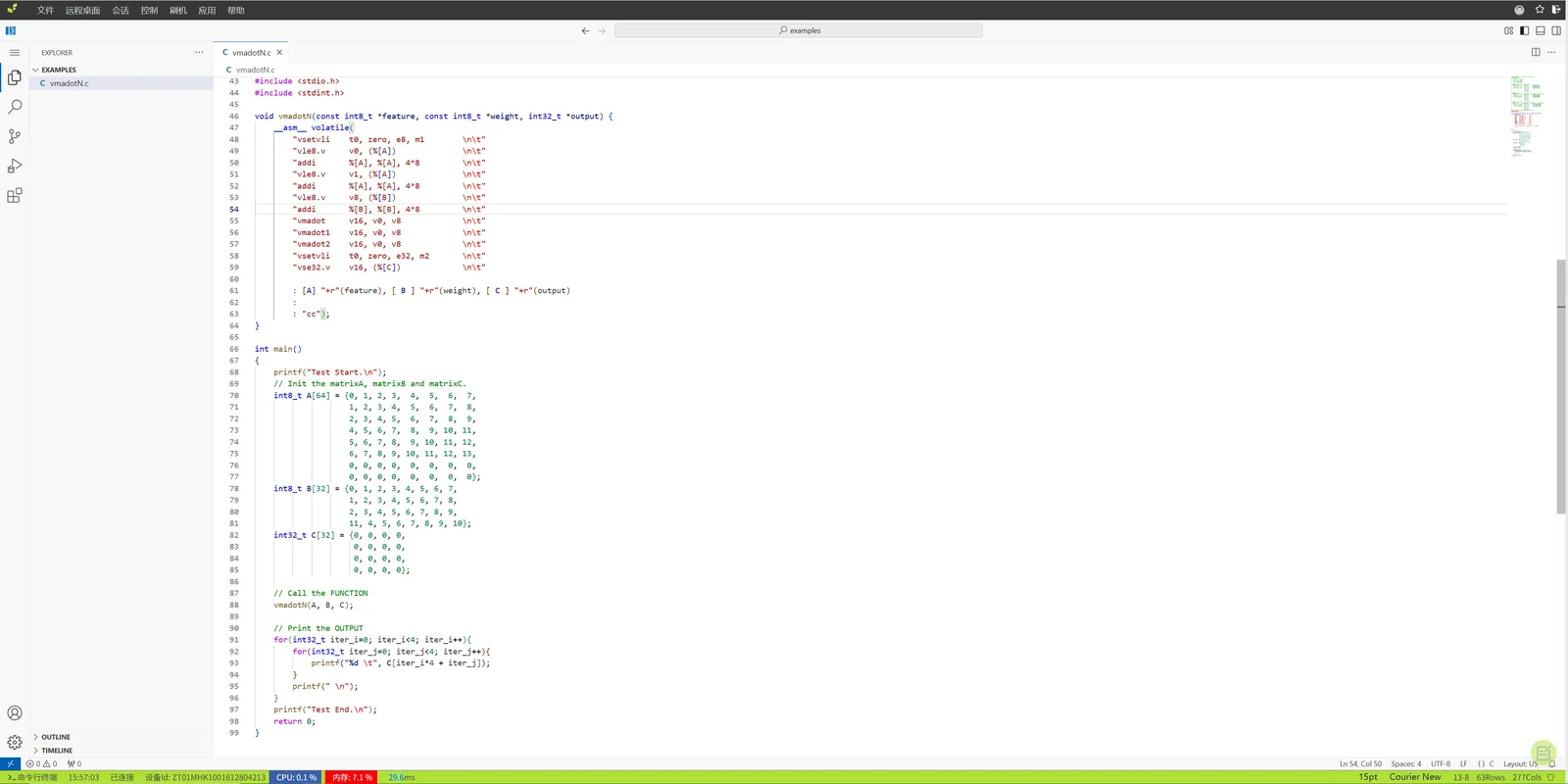
Example of editing and compiling through Code Server:
Execution result:
9.1.3 Convolution Optimization Example
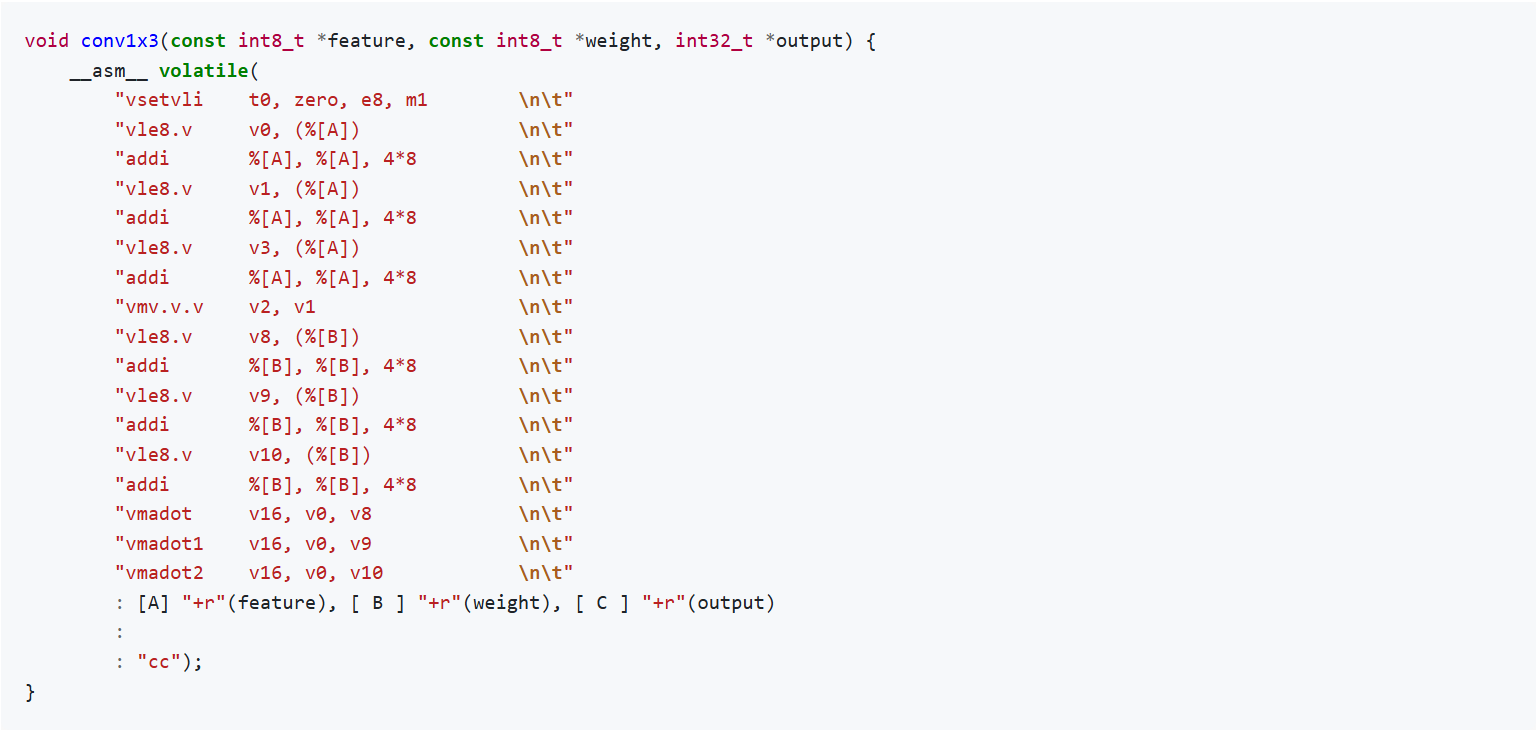
Convolutional neural networks (CNNs) are widely used in image classification, object detection, and image segmentation tasks. Through local perception and parameter sharing, convolution operations effectively reduce model parameter size and improve inference efficiency.
The following is a 1×3 convolution optimization example:
The editing interface in the cloud instance is shown below:
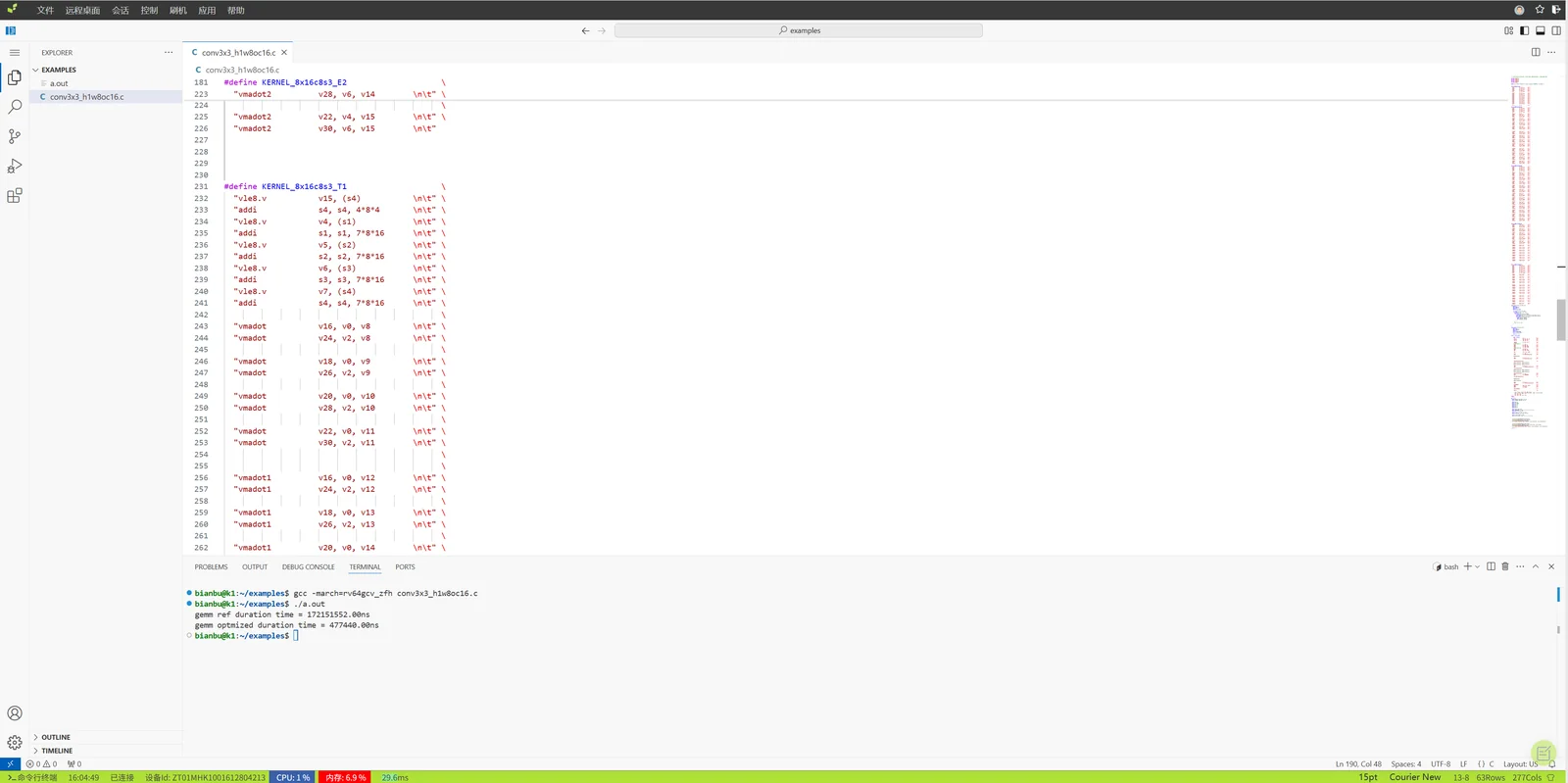
Execution result:

9.2 AI Development Examples
9.2.1 YOLOv8 Pose Estimation
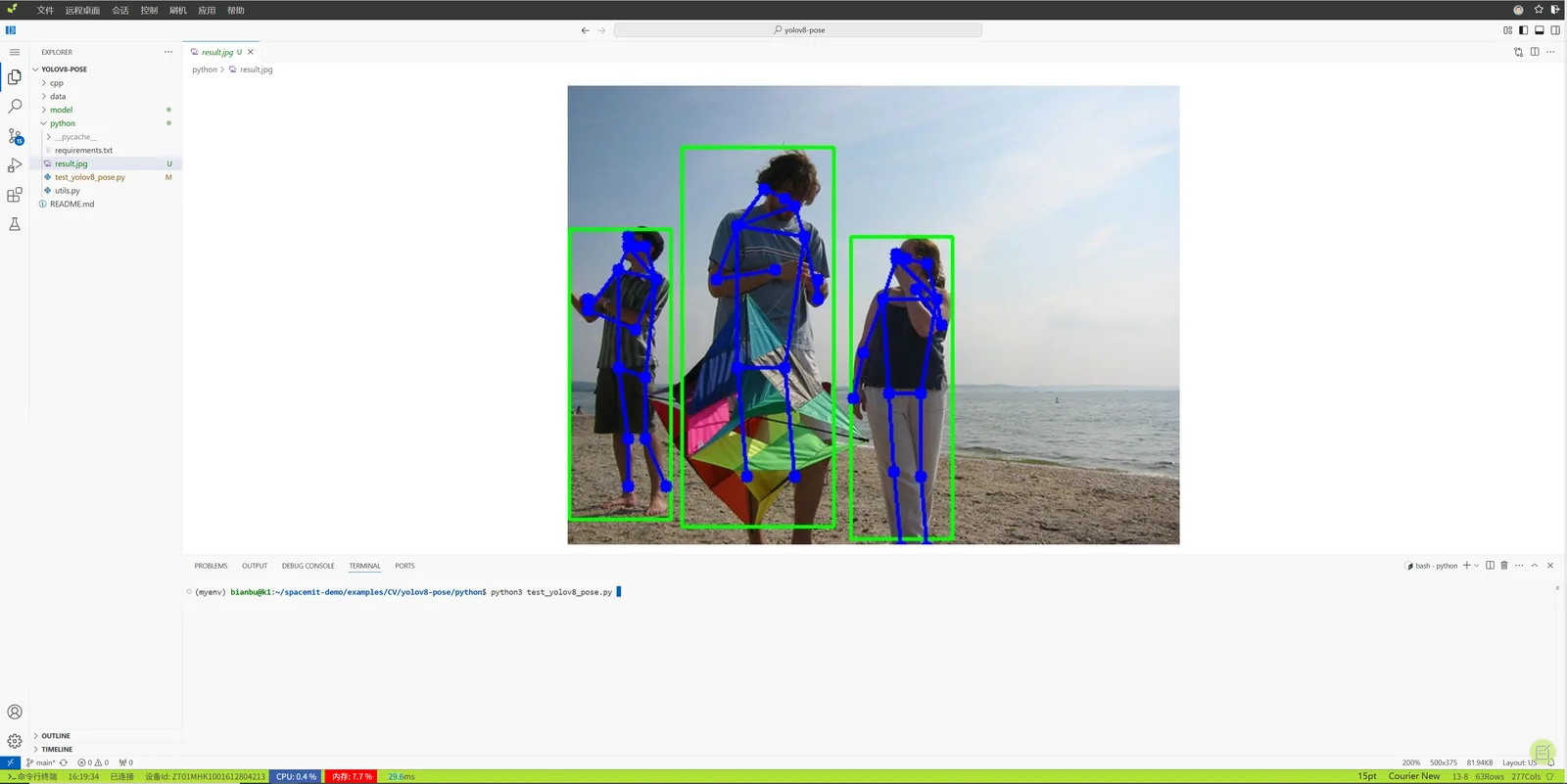
YOLOv8-pose is a human pose estimation model based on YOLOv8. It detects human targets and outputs keypoint locations, making it suitable for action recognition, motion analysis, and human-computer interaction scenarios.
This example demonstrates the basic workflow for pose estimation development in a RISC-V AI computing environment.
Step 1: Download the Code
git clone https://gitee.com/bianbu/spacemit-demo.git
Step 2: Download the Model
cd spacemit-demo/examples/CV/yolov8-pose/model
sh download_model.sh
After the model download is complete, the following files are available:
- FP32 model:
yolov8n-pose.onnx - INT8 model:
yolov8n-pose.q.onnx
Step 3: Create an Environment and Install Dependencies
python3 -m venv <env>
source <env>/bin/activate
pip install -r requirements.txt --index-url https://git.spacemit.com/api/v4/projects/33/packages/pypi/simple
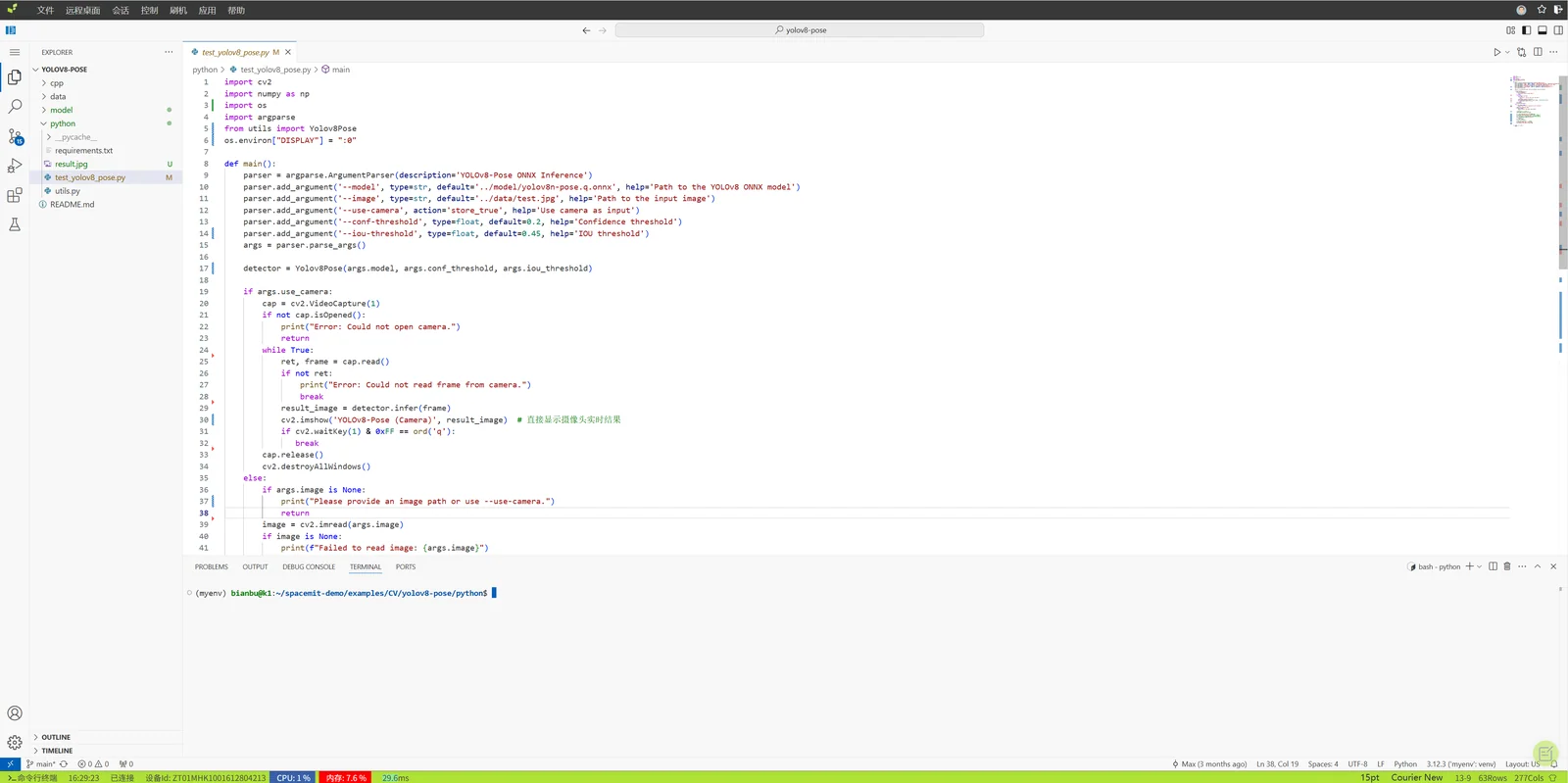
Step 4: Edit the Code
Open Code Server in the cloud instance and edit the relevant code.
Step 5: Run the Example
python test_yolov8_pose.py
Example execution result:
9.2.2 YOLOv5-face Face Detection
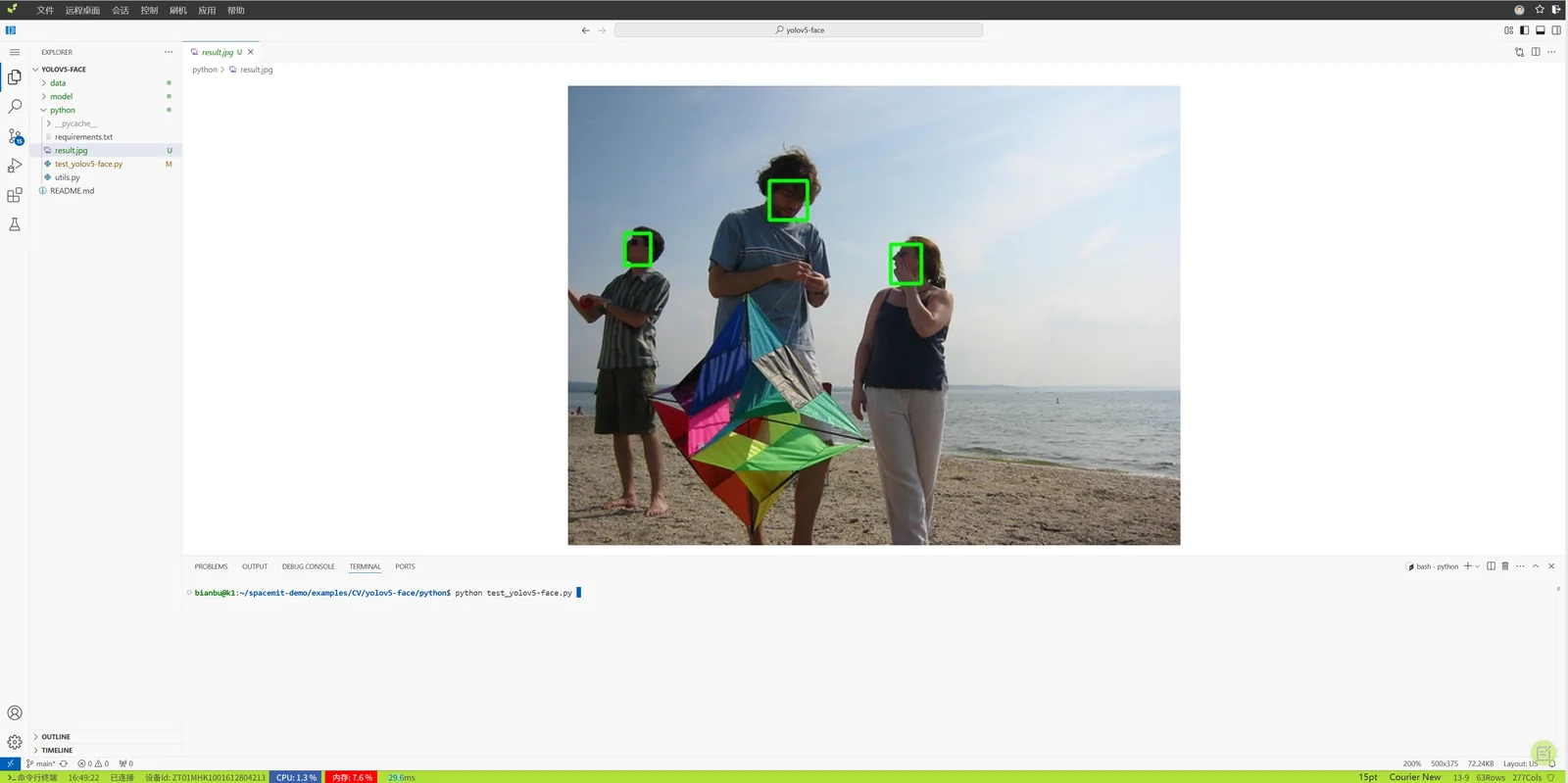
YOLOv5-face is a real-time detection model optimized for face detection scenarios. It is suitable for use cases such as face recognition, security monitoring, and expression analysis.
This example demonstrates the basic workflow for deploying and running a face detection task in a RISC-V AI environment.
Step 1: Download the Example Code and Model
git clone https://gitee.com/bianbu/spacemit-demo.git
cd spacemit-demo/examples/CV/yolov5-face/model
sh download_model.sh
Step 2: Create an Environment and Install Dependencies
python3 -m venv name(virtual environment name)
source name/bin/activate
pip install -r requirements.txt --index-url https://git.spacemit.com/api/v4/projects/33/packages/pypi/simple
Step 3: Edit and Run
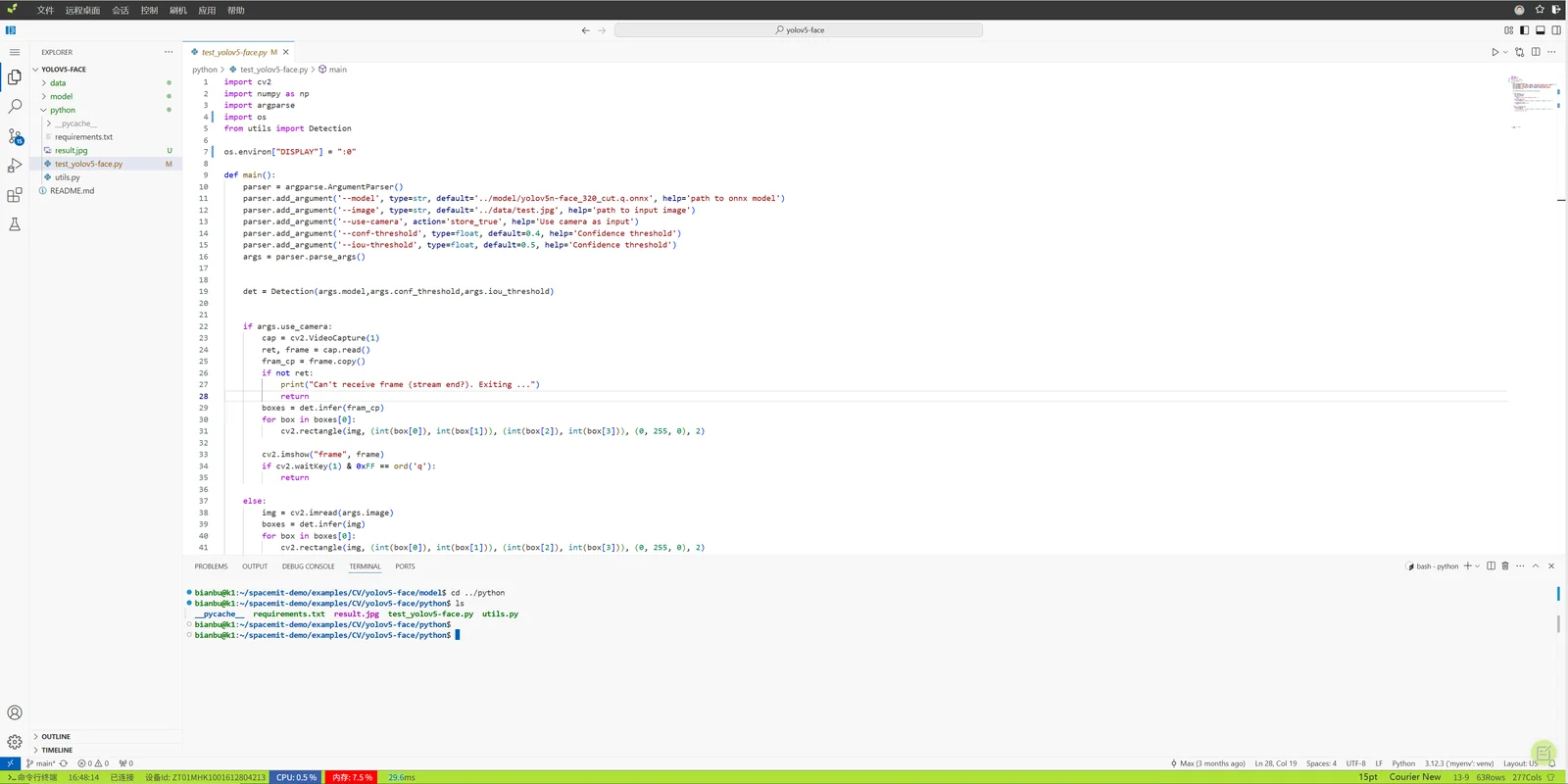
Open and edit test_yolov5-face.py in Code Server.
Example execution result:
9.3 OCR Recognition Example
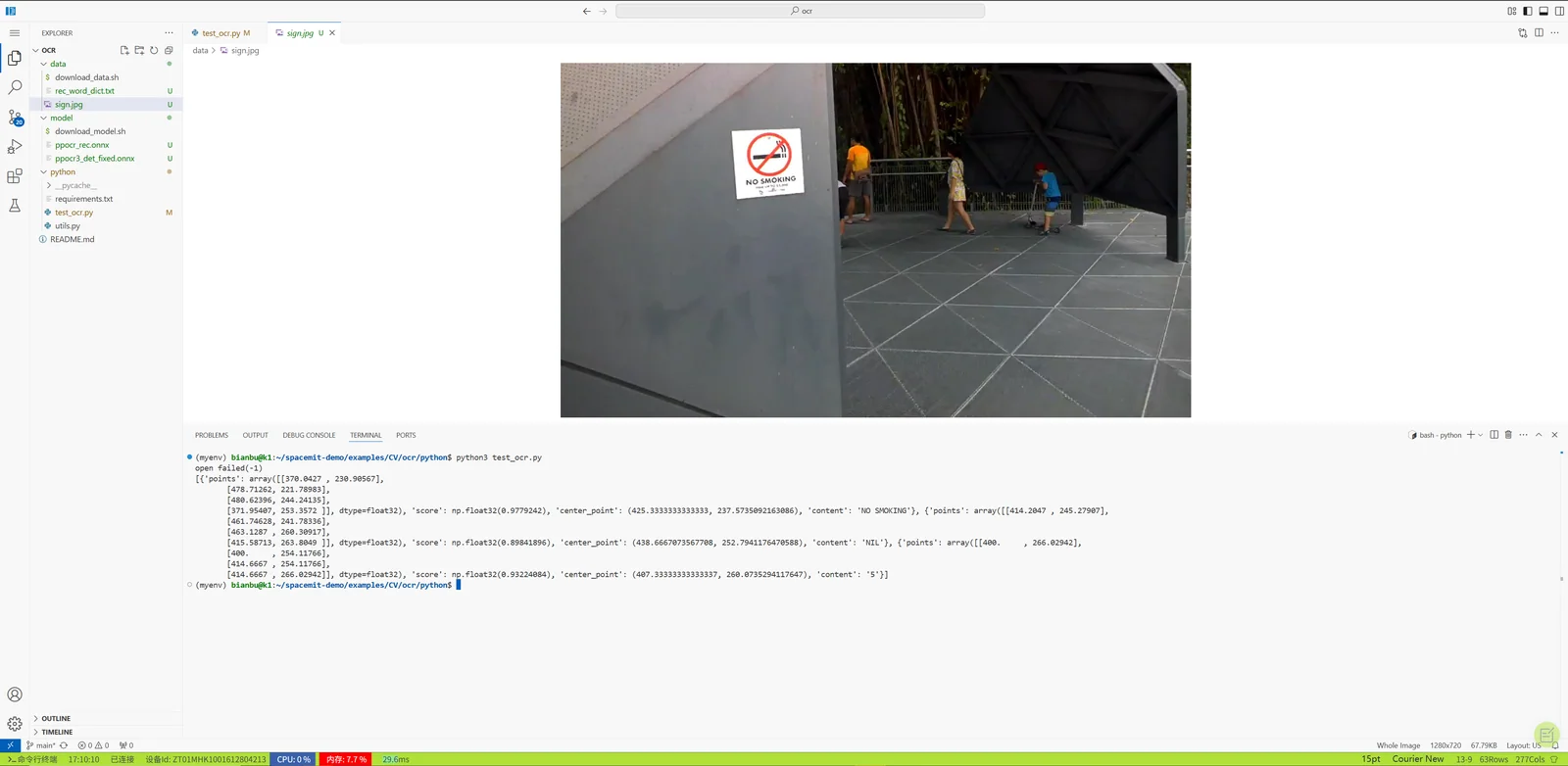
This example describes OCR capability based on OpenCV, deeply optimized for the K1 RISC-V platform.
Step 1: Download the Example Code
git clone https://gitee.com/bianbu/spacemit-demo.git
Step 2: Download the Model and Test Data
Run the model download script:
cd spacemit-demo/examples/CV/ocr/model
sh download_model.sh
Run the test data download script:
cd data
sh download_data.sh
Step 3: Create an Environment and Install Dependencies
python3 -m venv name(virtual environment name)
source name/bin/activate
pip install -r requirements.txt --index-url https://git.spacemit.com/api/v4/projects/33/packages/pypi/simple
Step 4: Edit and Run
Edit test_ocr.py through Code Server in the cloud instance.
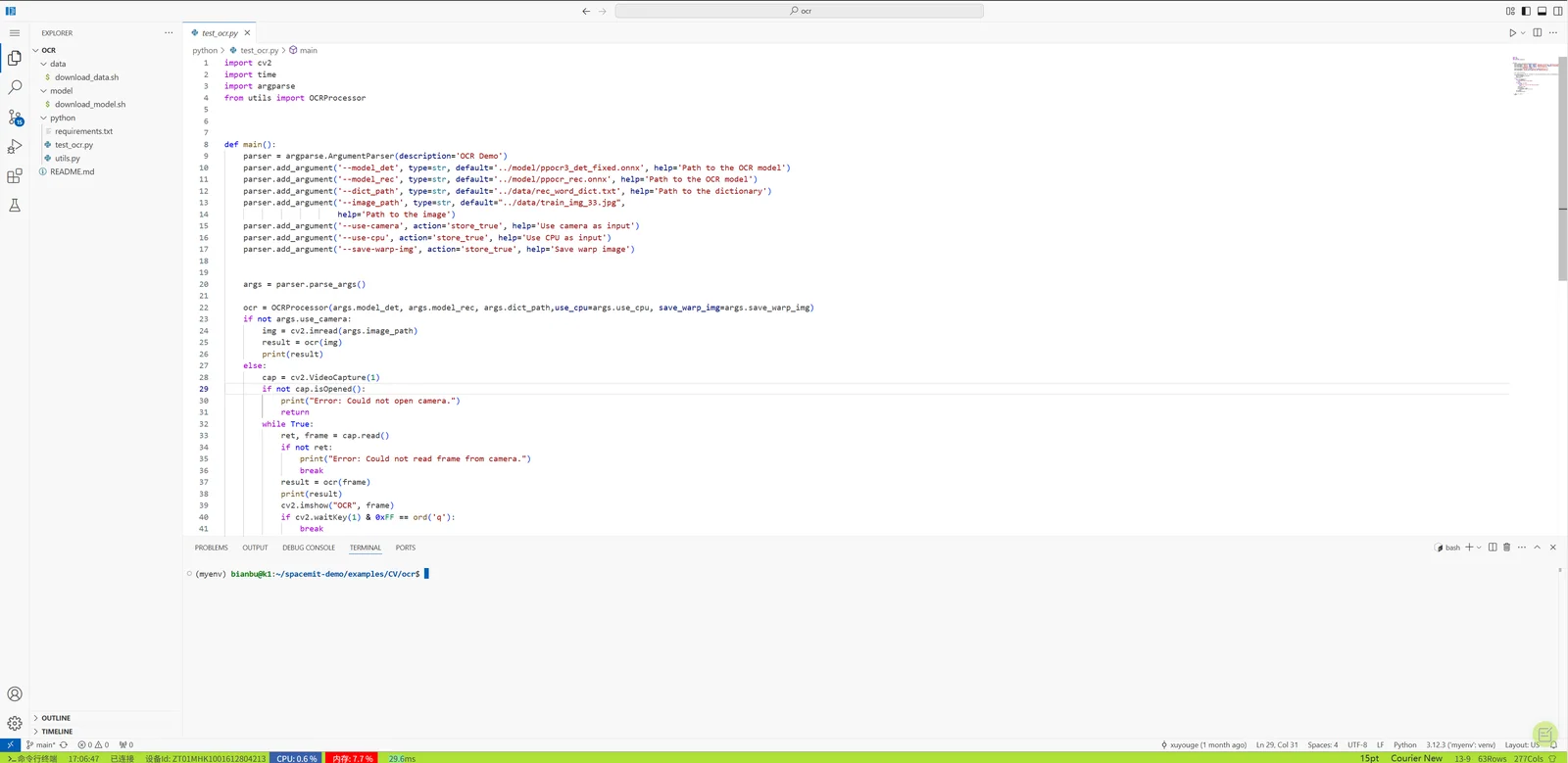
After execution is complete, the recognition results can be viewed in the log output.
9.4 OpenHarmony Debugging
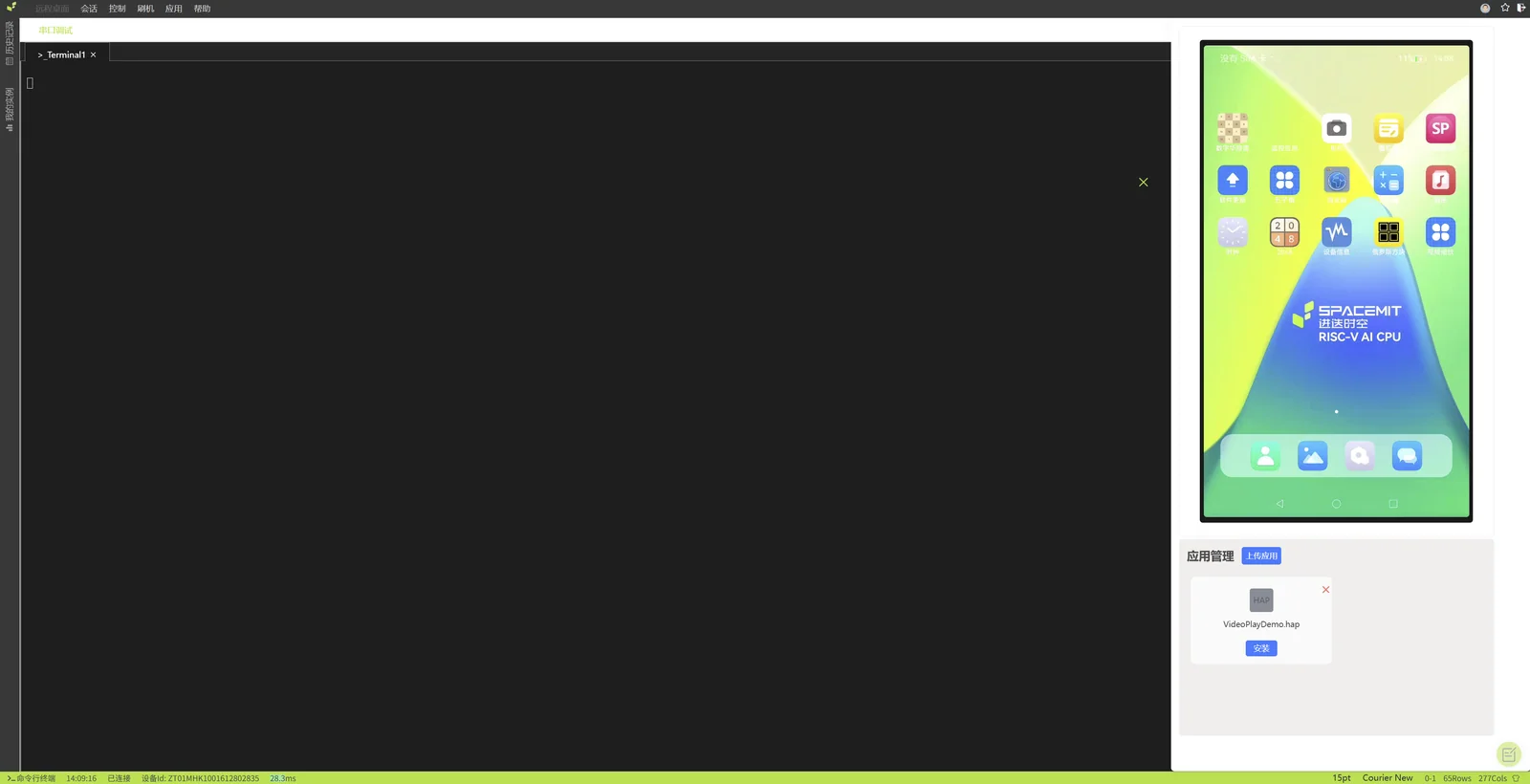
9.4.1 Apply for an Online Instance and Connect Remotely
After applying for an OpenHarmony online instance, application development and debugging can be performed through the remote desktop.
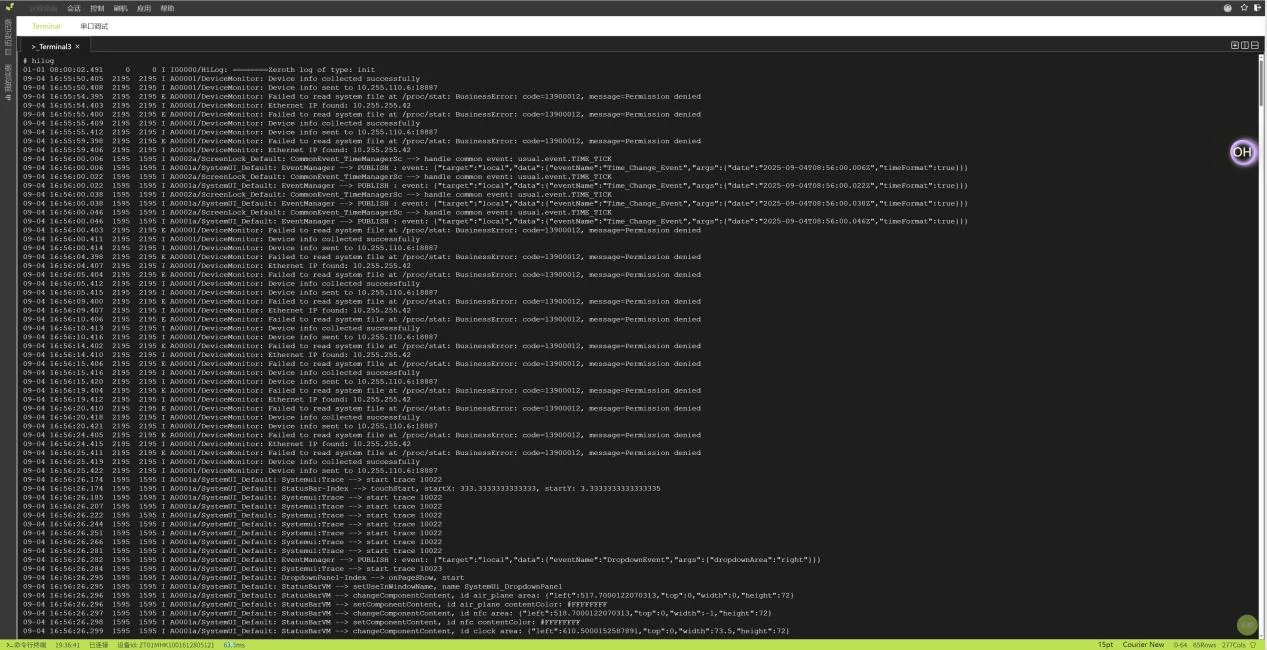
9.4.2 View System Logs (hilog)
Run the following command in the remote environment to view system logs in real time:
hilog
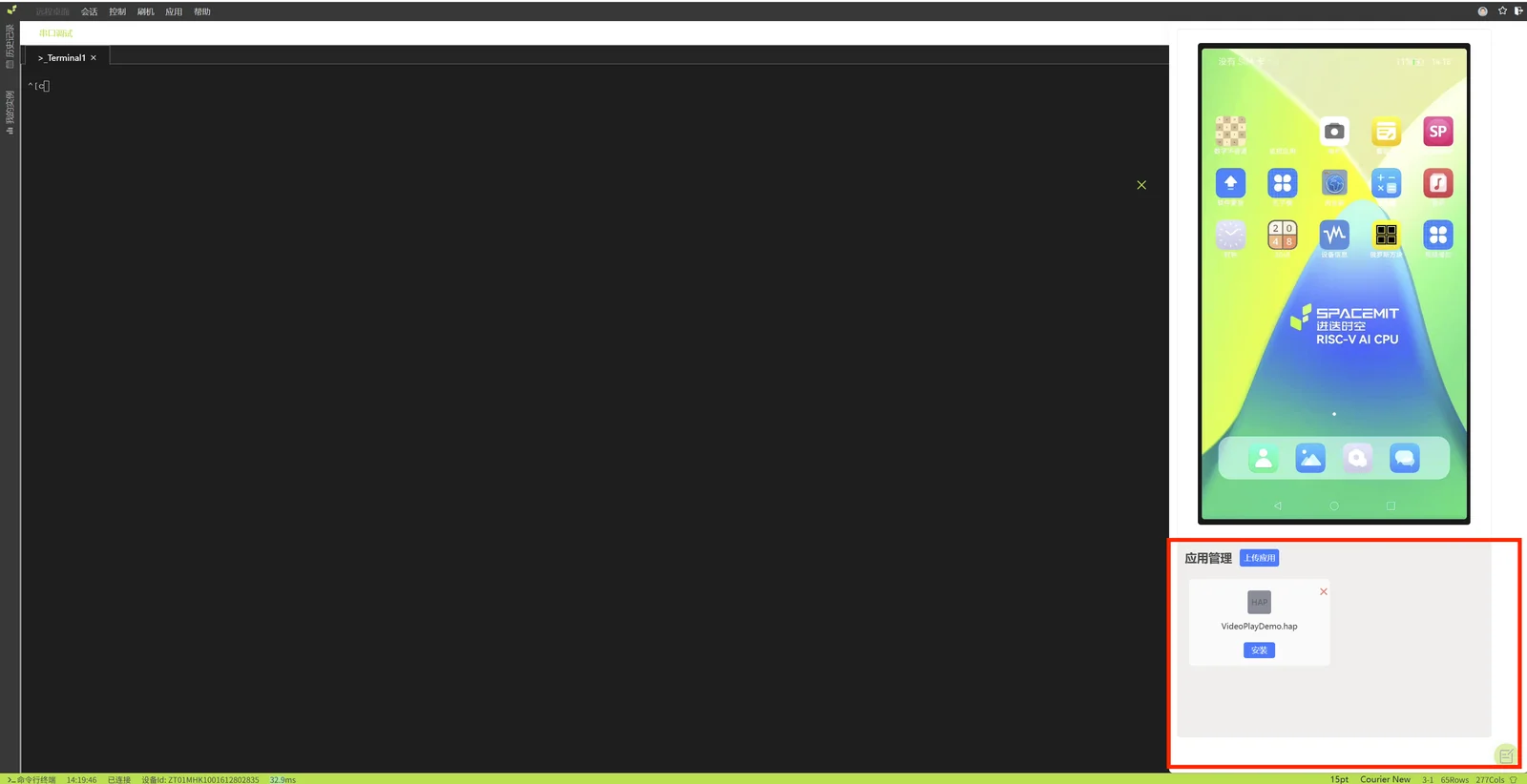
9.4.3 Application File Management
The tool area in the lower-right corner of the remote desktop supports the following file management operations:
- Upload
- Install
- Delete
- View
9.4.4 Uninstall an Application
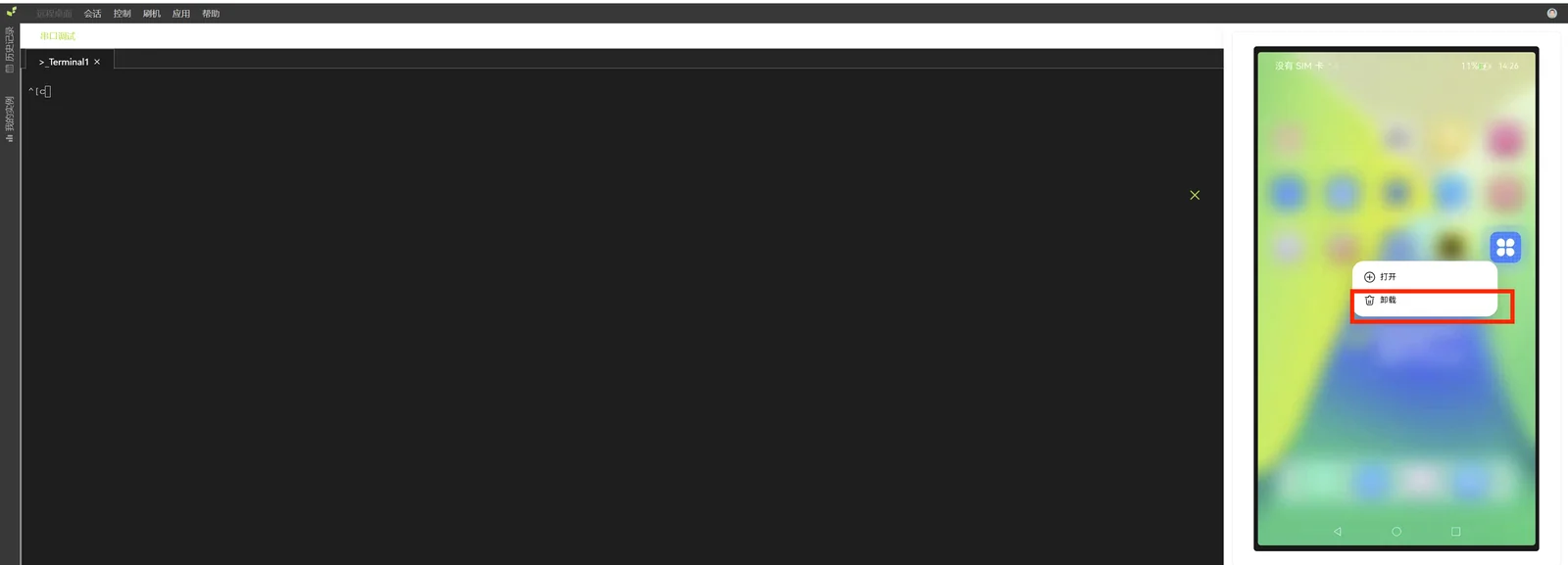
In the remote desktop, select the target application icon and press and hold the left mouse button until the uninstall option appears, then perform the uninstall operation.
9.4.5 Install an Application
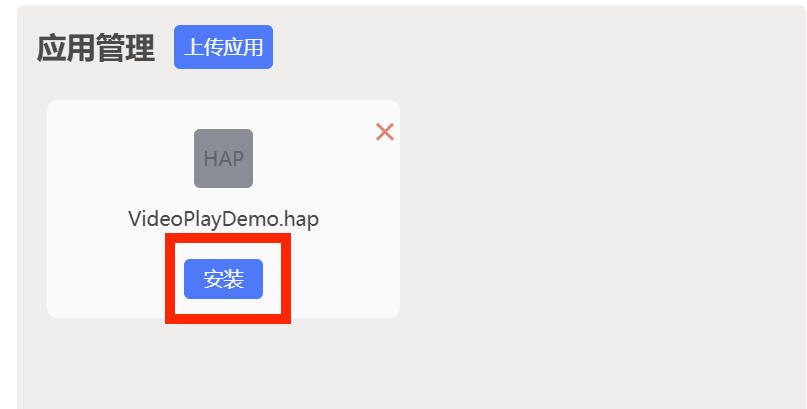
Click the Install button in the tool area, then select the application package to complete the installation.
9.4.6 View Installation Logs
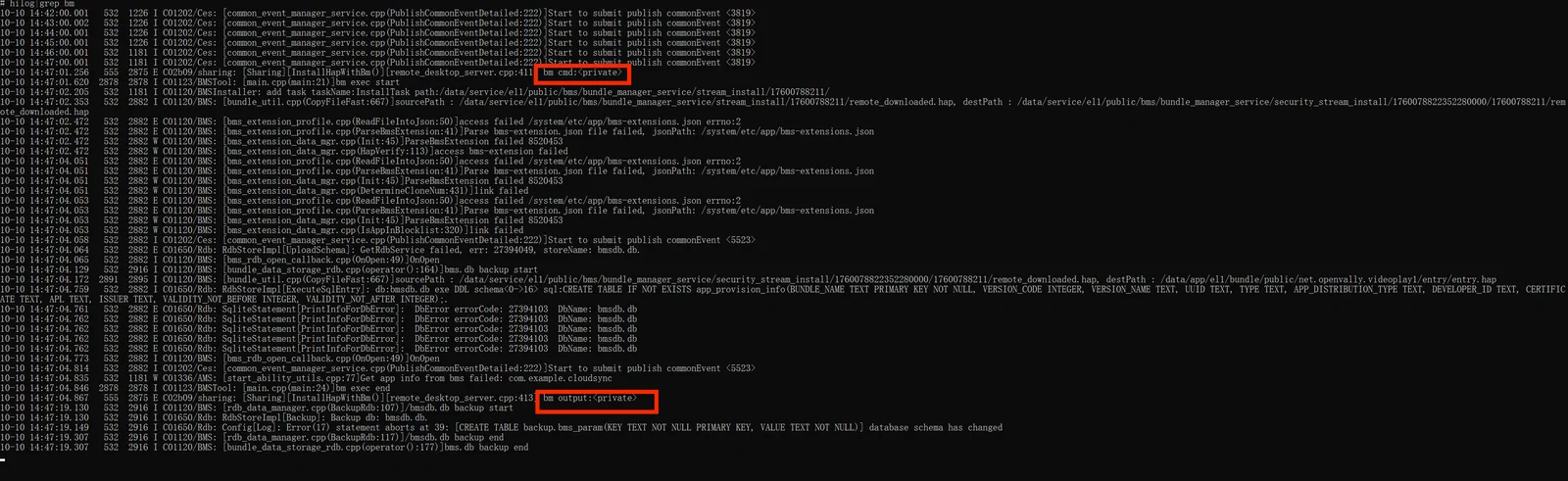
During installation, the following command can be used to view installation-related logs:
hilog | grep bm
If bm output appears in the log, the application is generally considered to have been installed successfully.
9.4.7 View Application Runtime Logs
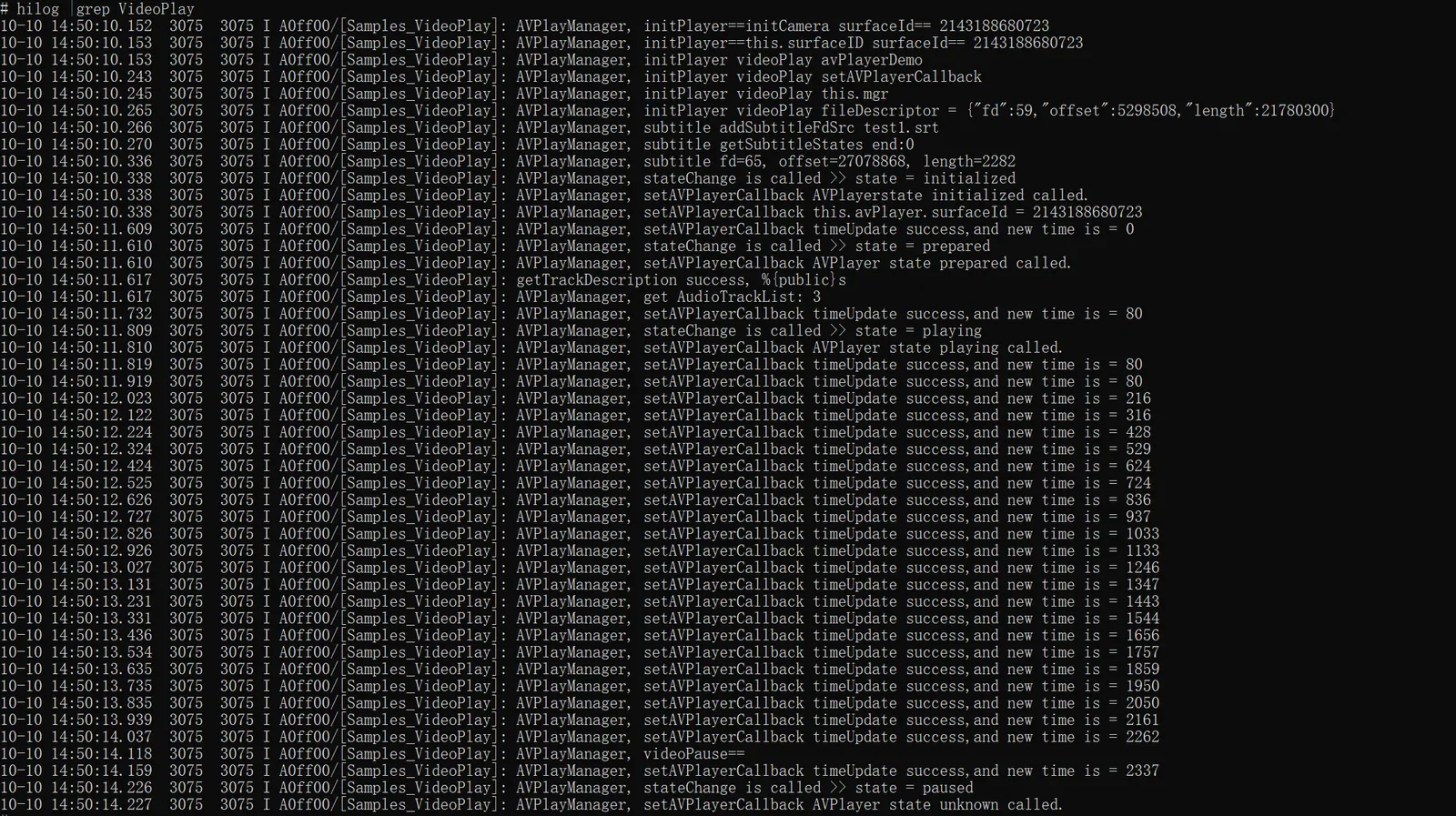
hilog | grep "xxx"
Example:
hilog | grep "VideoPlay"
9.4.8 Future Expansion Directions
- Large model development: Ollama and MCP development capability (to be added)
- GUI development: Qt and Electron development capability based on the RISC-V online environment (to be added)