Frequently Asked Questions (FAQ)
This document summarizes common issues and solutions for the MUSE Pi Pro development board, including flashing, power supply, and WiFi connectivity.
Hardware
Q: What power adapter specification should I use?
Note
- A computer's USB port typically only supplies 5V / 0.5A~0.9A, which may cause boot failures or unstable operation.
- For serial debugging, it is recommended to use an independent power adapter.
Choose based on your actual use case:
| Use Case | Recommended Specification |
|---|---|
| System boot and light workloads | 5V / 2A |
| Full-load operation and multiple peripherals | 12V / 3A |
Flashing
Q: What should be checked before flashing?
Before flashing, confirm the following:
- You have entered flashing mode.
- Titan can recognize the development board.
- You have downloaded the image that matches the board's storage medium.
- You are using a USB cable that supports data transfer.
- The USB cable is securely connected.
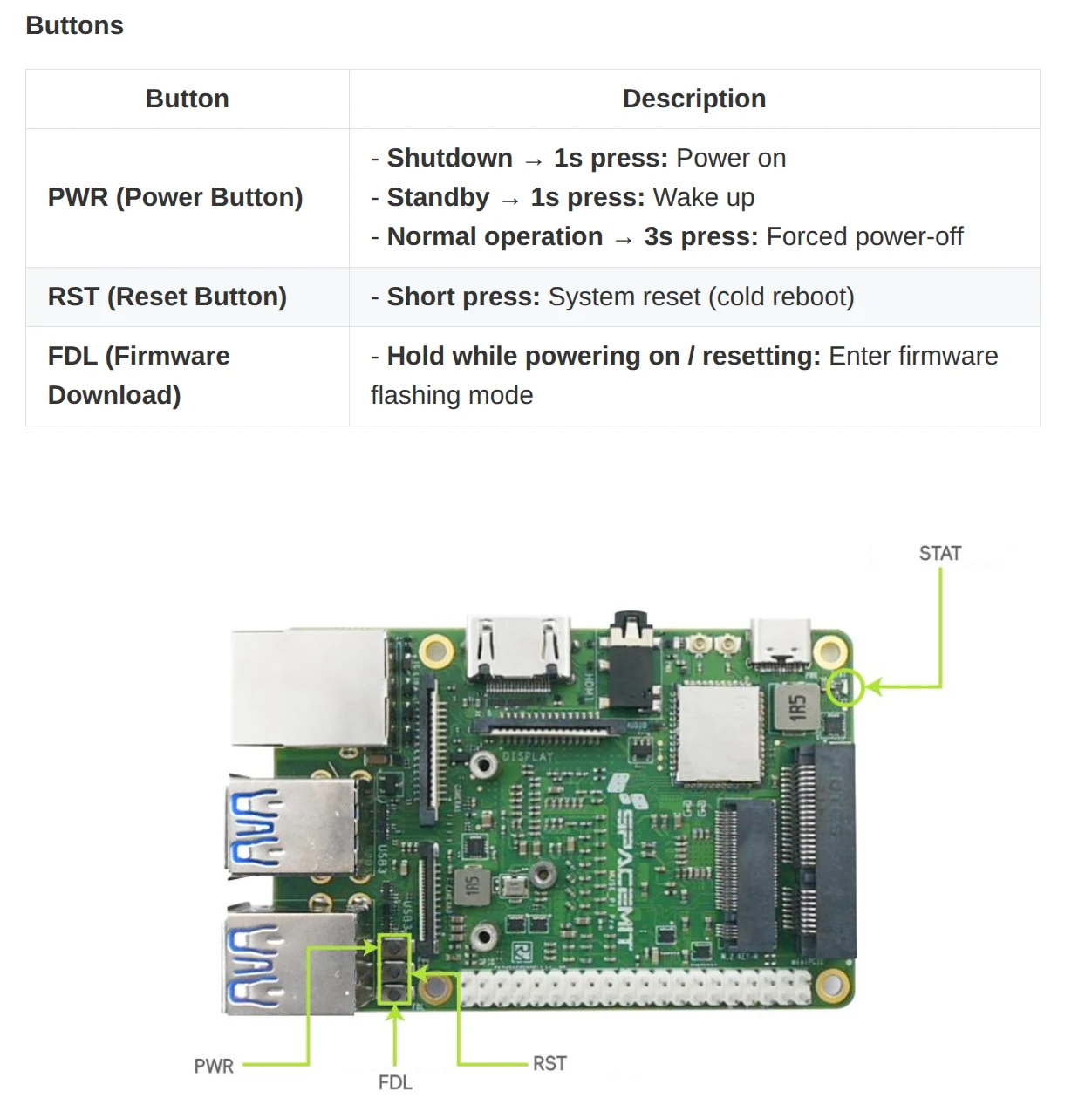
Q: How is flashing mode entered?
Perform the following steps.
When the device is powered off:
- Press and hold the FDL (firmware download) button.
- Connect the Type-C cable to the host computer to power on the device.
- Release the FDL button.
When the device is powered on through the USB Type-C cable:
- Press and hold the FDL (firmware download) button.
- Briefly press the RST (reset) button.
- Release the FDL button.
Q: How can successful entry into flashing mode be confirmed?
Use either of the following methods for confirmation.
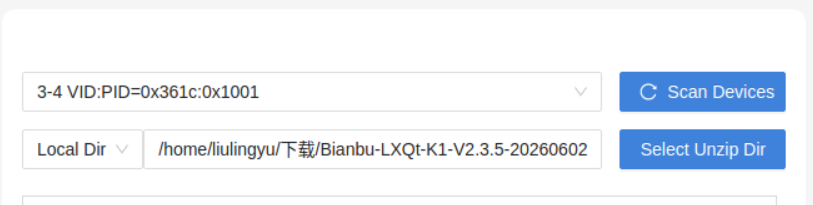
Titan (recommended)
Open Titan and click Refresh Device or Scan Device.
If a device serial number or "Connected" is displayed, flashing mode has been entered successfully.
Linux
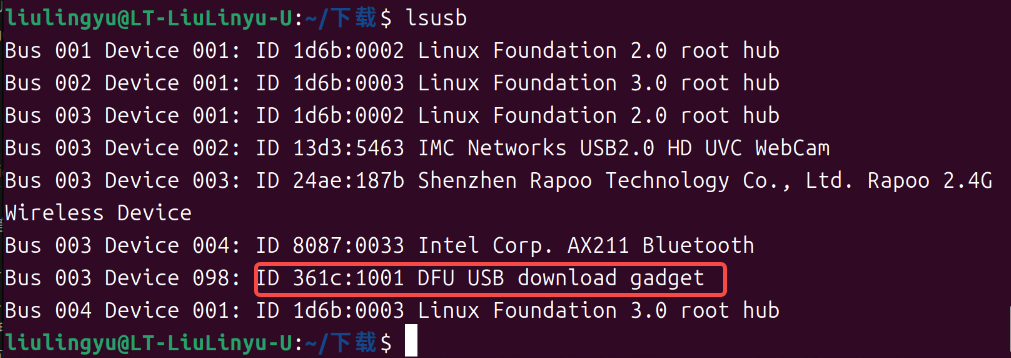
Run:
lsusb
If you see:
DFU USB download gadget
flashing mode has been entered successfully.
Windows
Windows has no
lsusbcommand, and Device Manager may not correctly show the device due to driver issues.Use Titan directly to confirm whether the device is recognized.
Q: What should be done if Titan cannot recognize the device?
If Titan cannot scan the device:
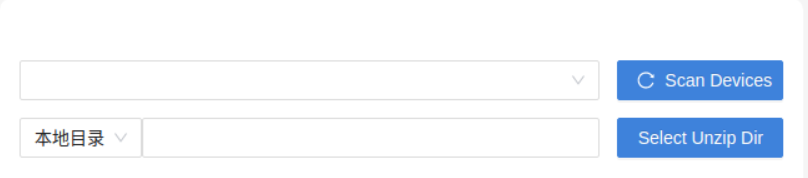
Check the following in order:
- Re-enter flashing mode.
- Switch to a different USB port on the computer (a port connected directly to the motherboard is recommended).
- Switch to a different USB cable that supports data transfer.
- If the device still cannot be recognized, contact customer support.
Q: How is the correct image selected?
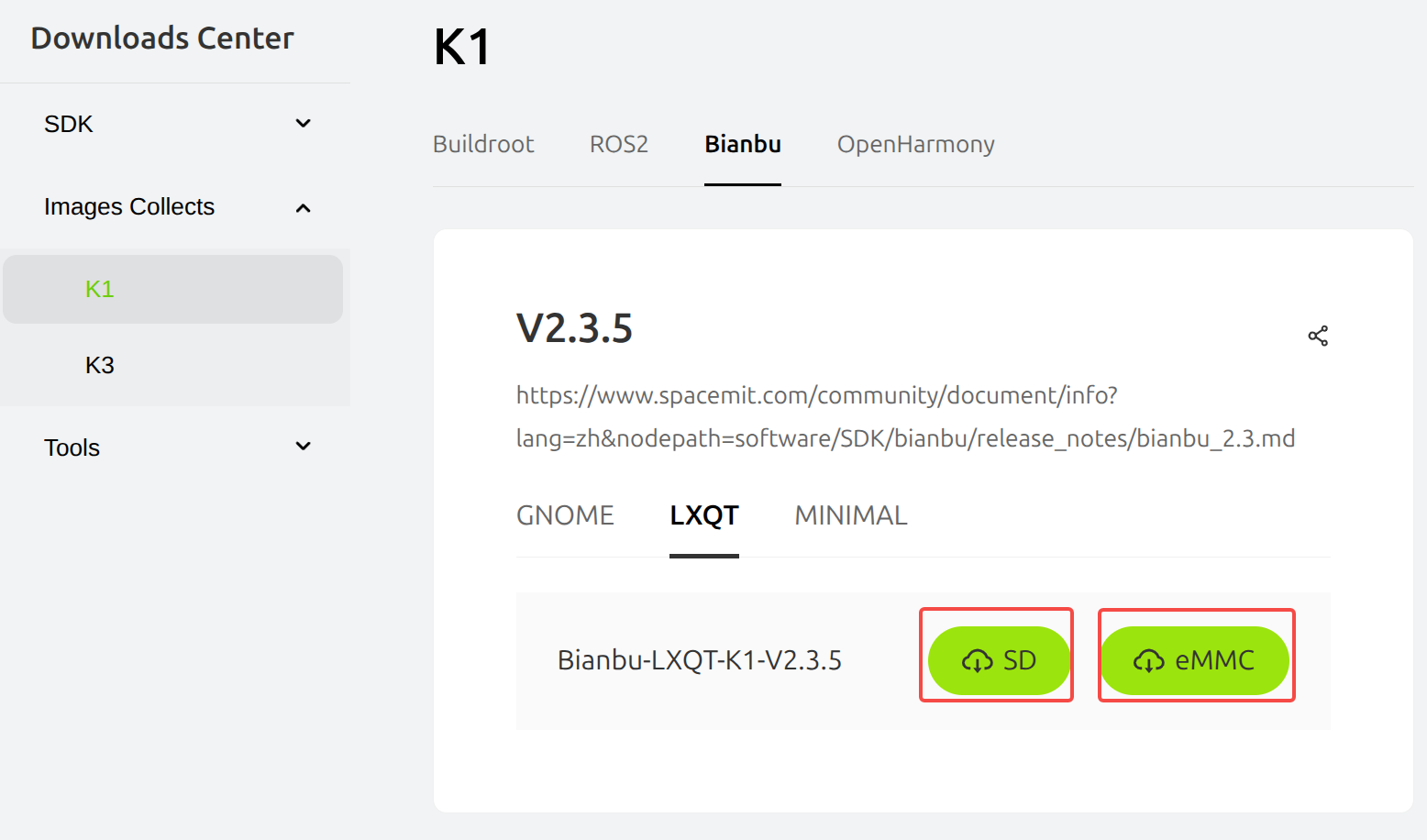
MUSE Pi Pro supports two storage mediums:
| Storage Type | Image to Use |
|---|---|
| eMMC (default) | eMMC image |
| Micro SD card | .img image |
Confirm the storage medium as follows:
- Check the label on the back of the development board or the product manual.
- Check whether an SD card is installed.
- If the storage medium cannot be confirmed, select the eMMC image.
Download URL:
https://www.spacemit.com/community/resources-download/Images%20Collects/K1/Bianbu
Q: What should be done if "Device does not exist" is displayed after clicking "Start Flashing"?
Cause
The USB connection has been interrupted, typically because:
- The USB cable is loose.
- The USB cable was unplugged.
- The board exited flashing mode.
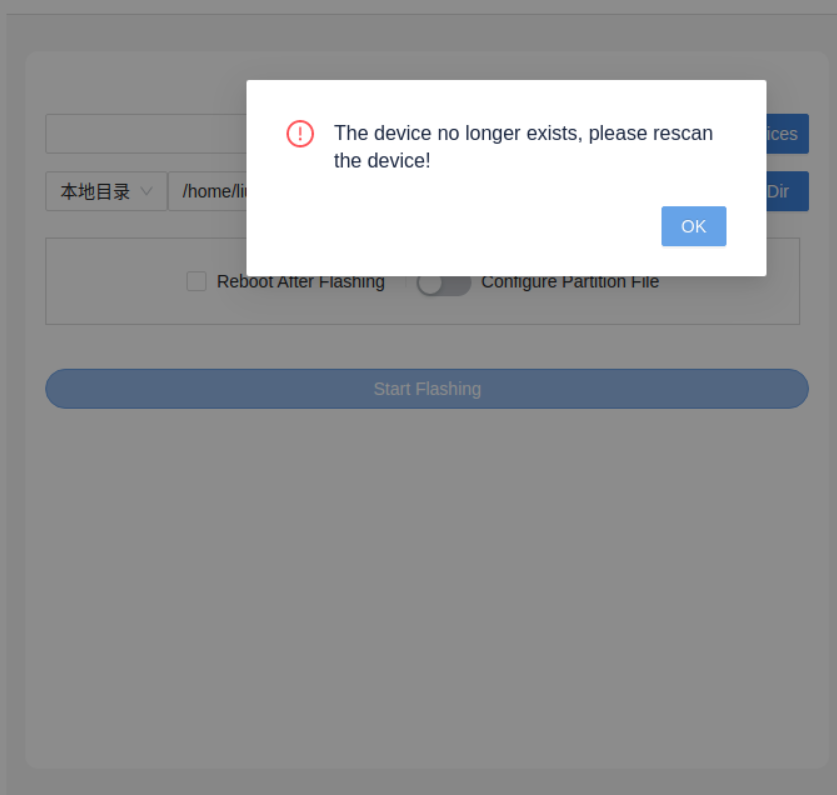
Solution
- Check that the USB cable is securely connected.
- Re-enter flashing mode.
- In Titan, click Refresh Device or Scan Device.
- After the device is recognized, start flashing immediately and avoid touching the USB cable.
Q: What should be done if flashing fails immediately after clicking "Start Flashing"?
Cause
The USB connection was interrupted right after flashing started.
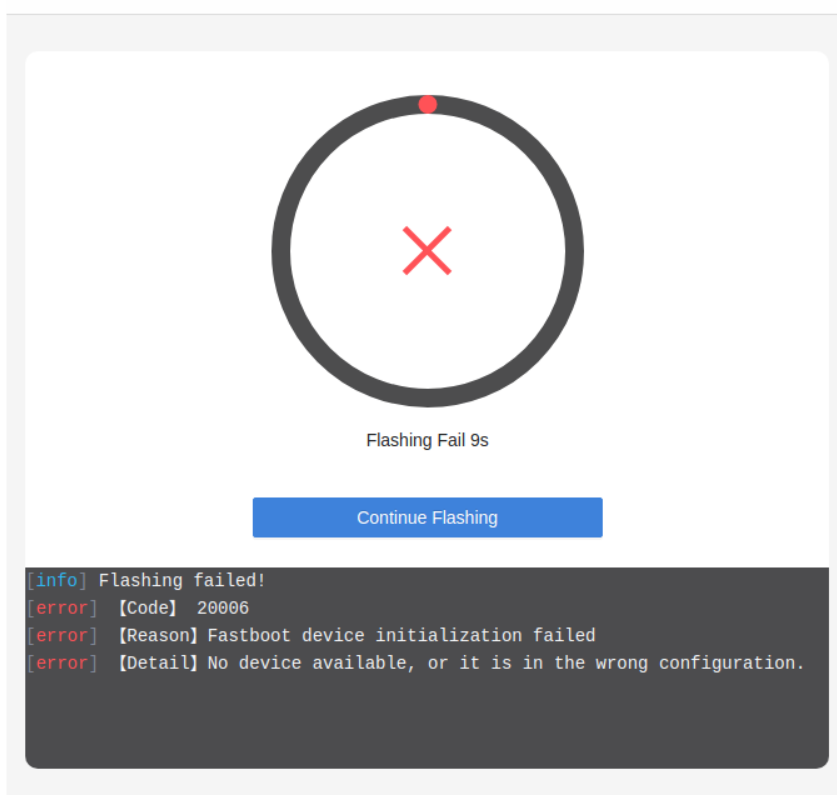
Solution
- Check that the USB cable is securely connected.
- Re-enter flashing mode.
- Re-scan the device.
- Avoid moving the board or the USB cable during flashing.
Q: What should be done if a write failure is reported during flashing?
Cause
Poor USB contact.
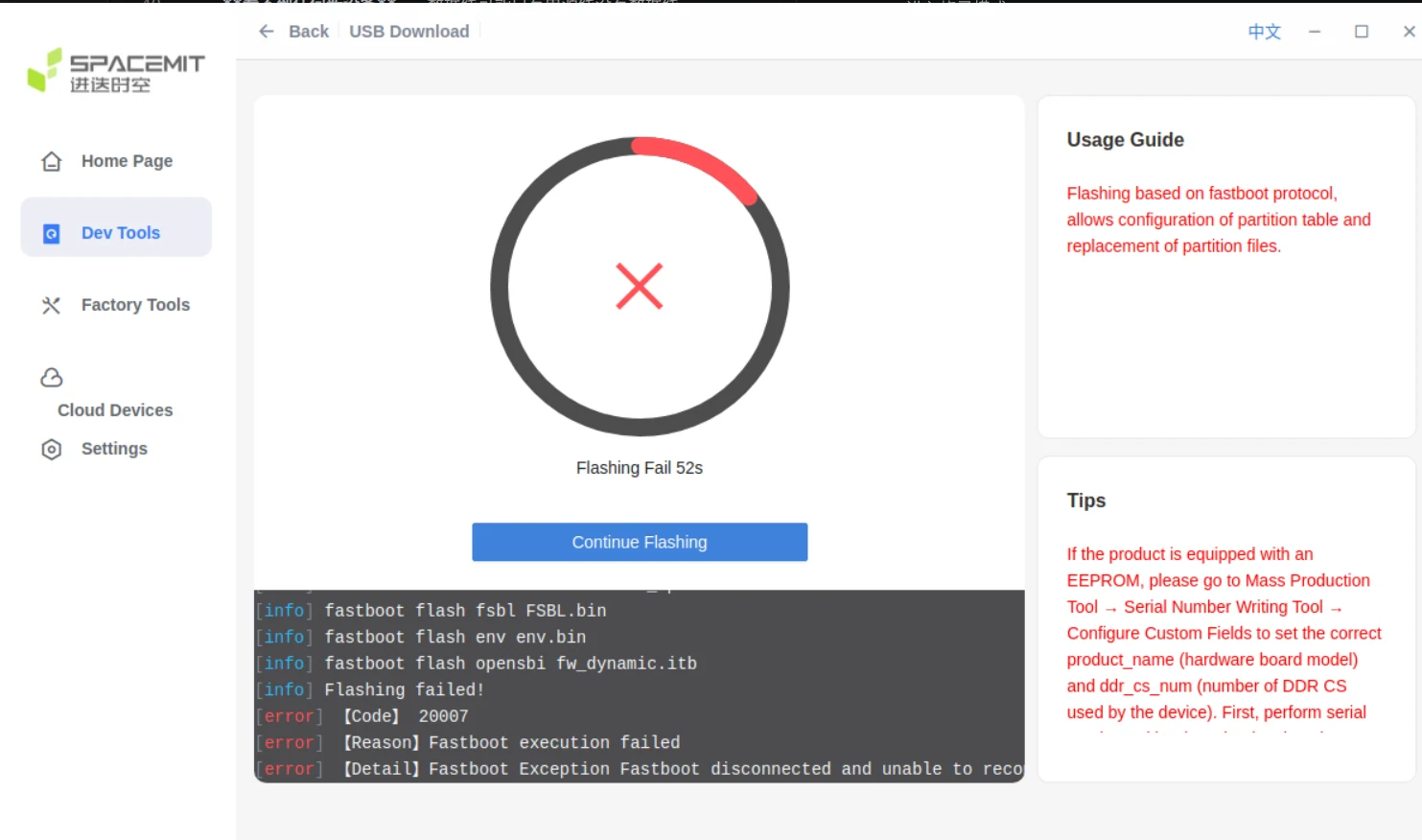
Solution
Unplug and reconnect the USB cable, making sure both ends are securely connected.
Q: What should be done if "Write failed" is reported without detailed error information?
Cause
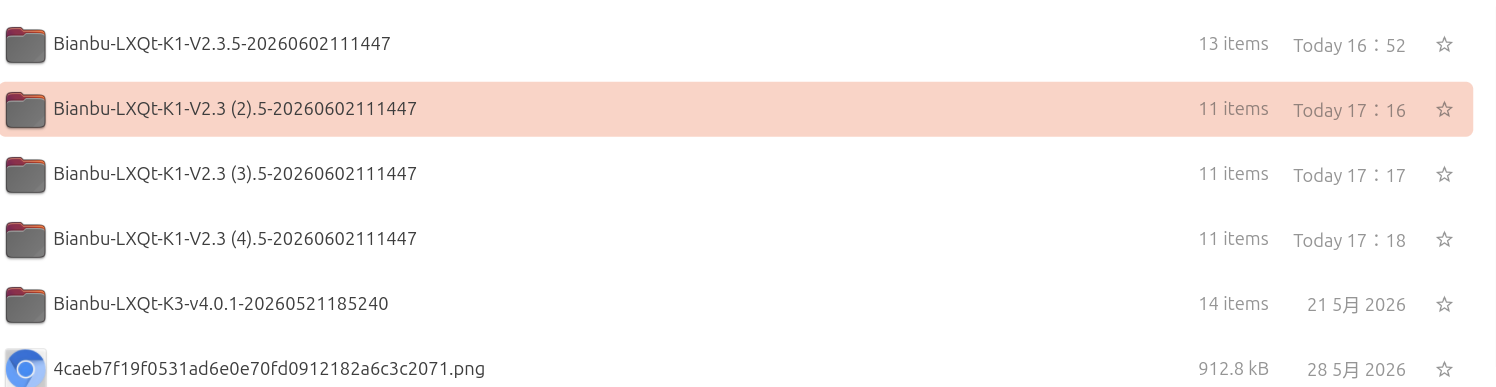
The image file path contains spaces or special characters, such as:
- Spaces
()
Incorrect example:
D:\Program Files (x86)\images\firmware.zip
Solution
Move the image to a directory without spaces or special characters, then select it again.
Correct example:

Q: What should be done if the USB port supplies no power, the MIPI screen is blank, or the system operates abnormally after flashing succeeds?
If any of the following issues occur after a successful flash:
- The USB port does not provide power.
- The MIPI screen shows nothing.
- The system fails to boot normally.
- Some hardware functions behave abnormally.
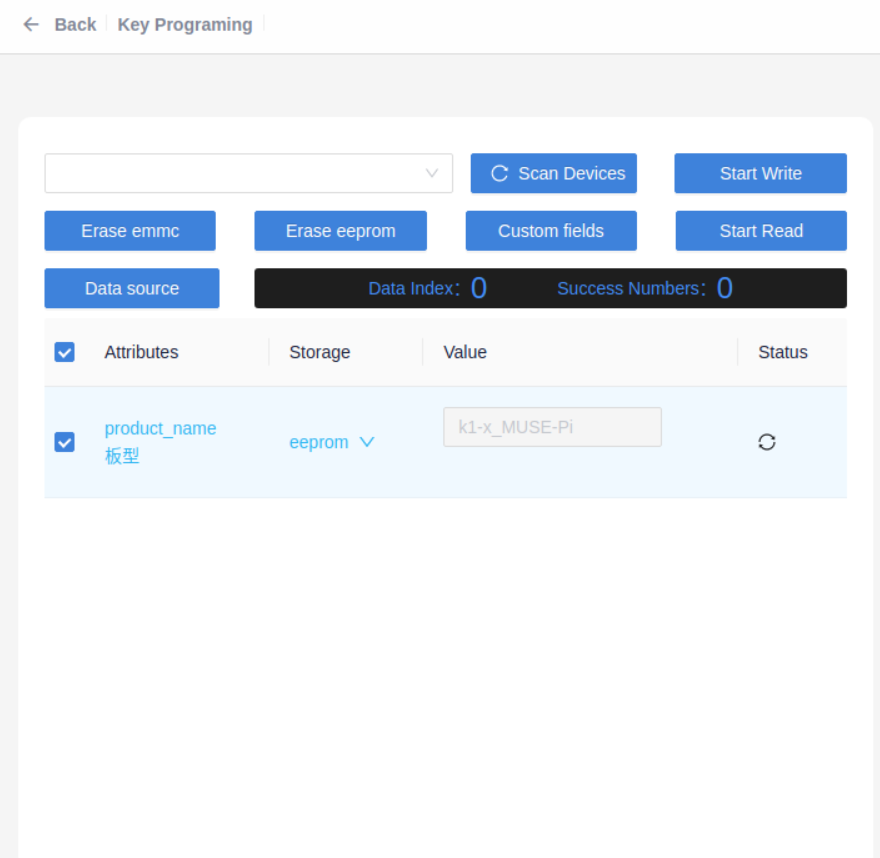
This is usually caused by an incorrect board model configuration.
Incorrect example:
The actual development board model is MUSE-Pi-Pro, but MUSE-Pi was selected during ID programming.
Note
Configuring the board model is not recommended unless necessary.
Q: How is an incorrect board model configuration recovered?
Step 1: Re-enter flashing mode
Refer to "How is flashing mode entered?"
Step 2: Read the device information
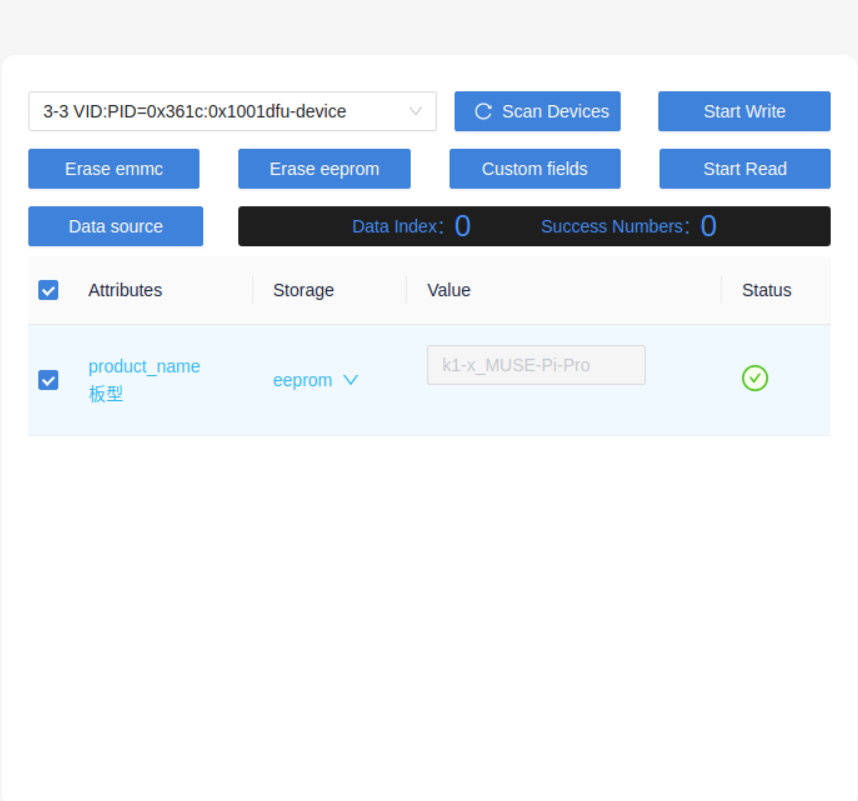
In Titan, click Read.
Titan interface successful read example:
Serial communication interface successful read example:

If reading fails on Linux:
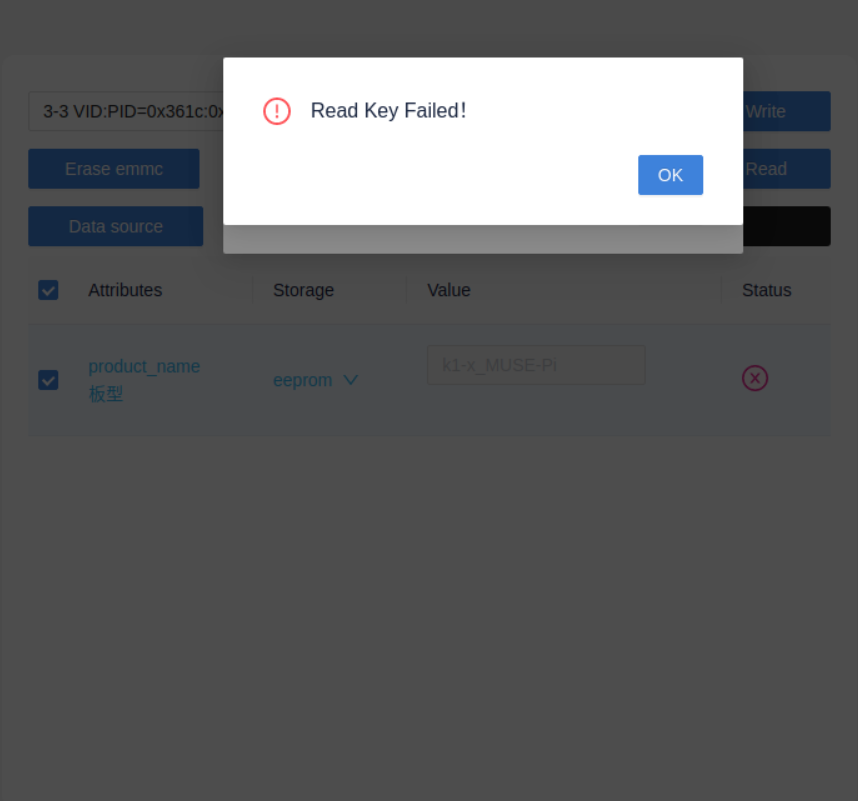
This is usually due to insufficient USB permissions.
Run:
cd ~/path-to-titan-tool
sudo ./titantools_for_linux-2.2.0-Rc.AppImage --no-sandbox
Restart Titan and read again.
Step 3: Write the device information
Enter the correct:
- Development board model.
- Storage medium.
If unsure, contact customer support.
Titan interface successful write example:
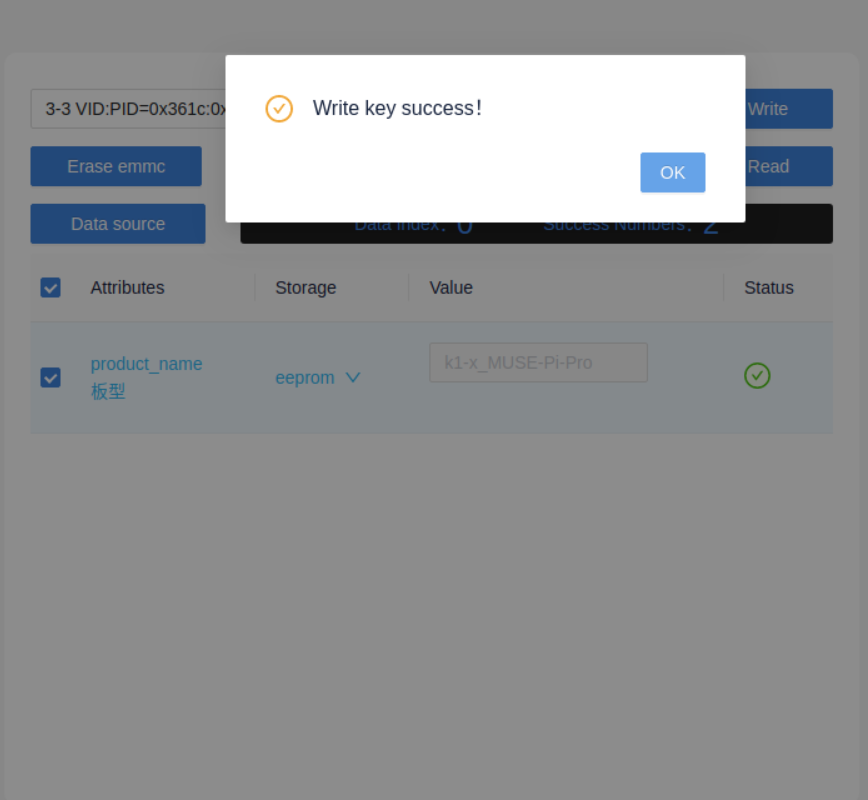
Serial communication interface successful write example:

Note
Do not plug or unplug the USB cable while reading or writing device information.
Step 4: Verify recovery
Confirm that the following functions have returned to normal:
- The USB port provides power normally.
- The MIPI screen displays correctly.
- The system boots normally.
If the issue persists, contact customer support.
WiFi
Q: Must an antenna be connected before using WiFi?
Yes, it is required.
Without an antenna connected, the following issues may occur:
- WiFi networks cannot be detected.
- Extremely weak WiFi signal.
- Unstable connections.
- Frequent disconnections.
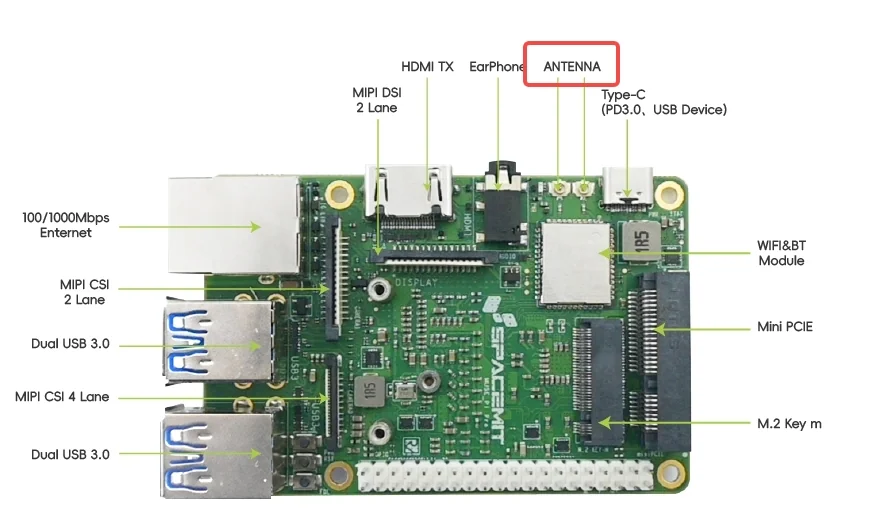
The antenna connector is located at the ANTENNA marking on the development board.
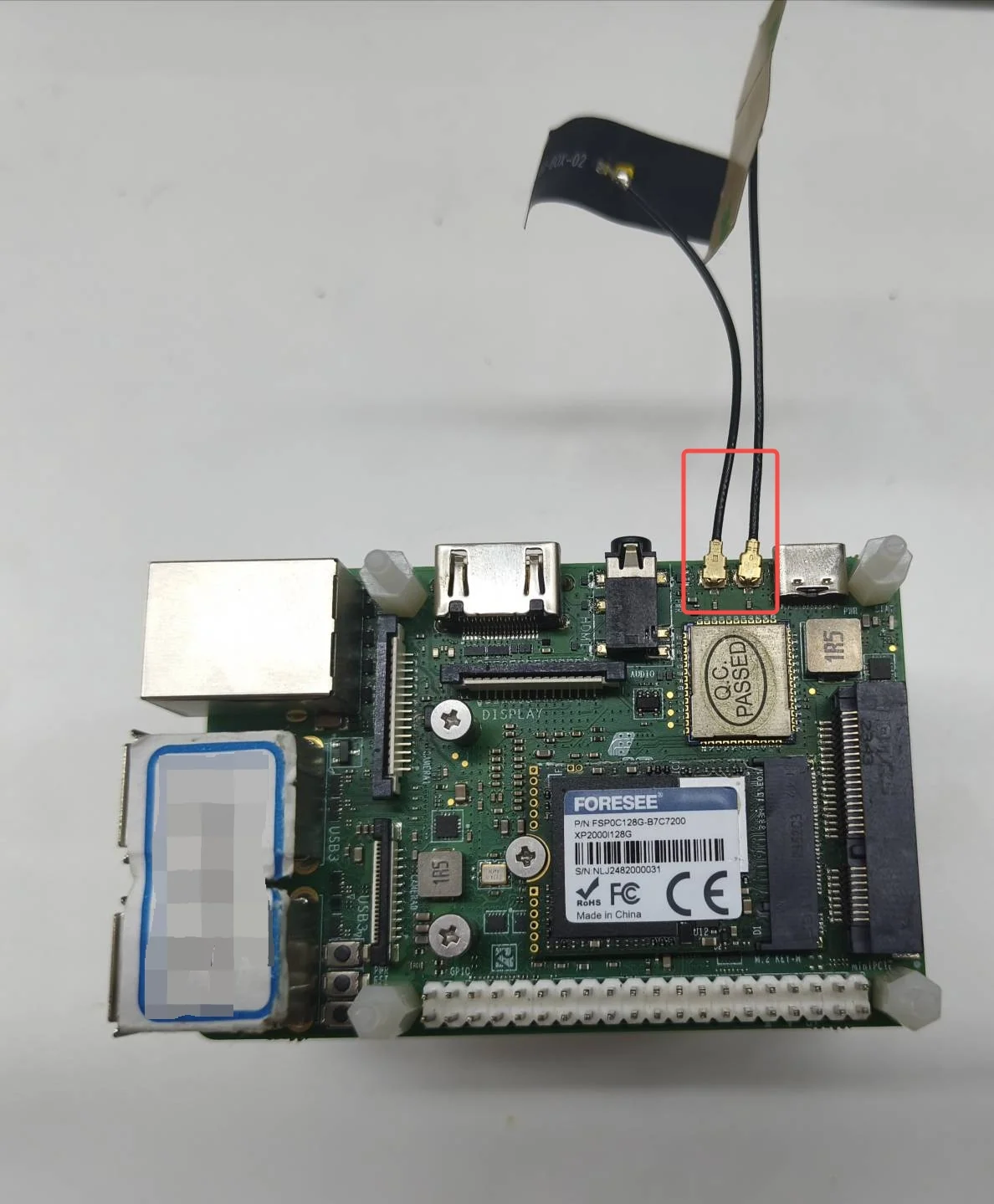
If an antenna is not available, use a wired network connection instead.