Initial Setup and Sessions
This section explains what happens the first time you power on the system and how user sessions work. The startup wizard guides you through basic configuration, including language, location, keyboard layout, and user account setup. After completing the wizard, the system reboots and displays the login screen.
Startup Wizard (Initial Setup)
The startup wizard runs automatically on first boot and walks you through the required configuration steps in order.
Step 1: Language Settings
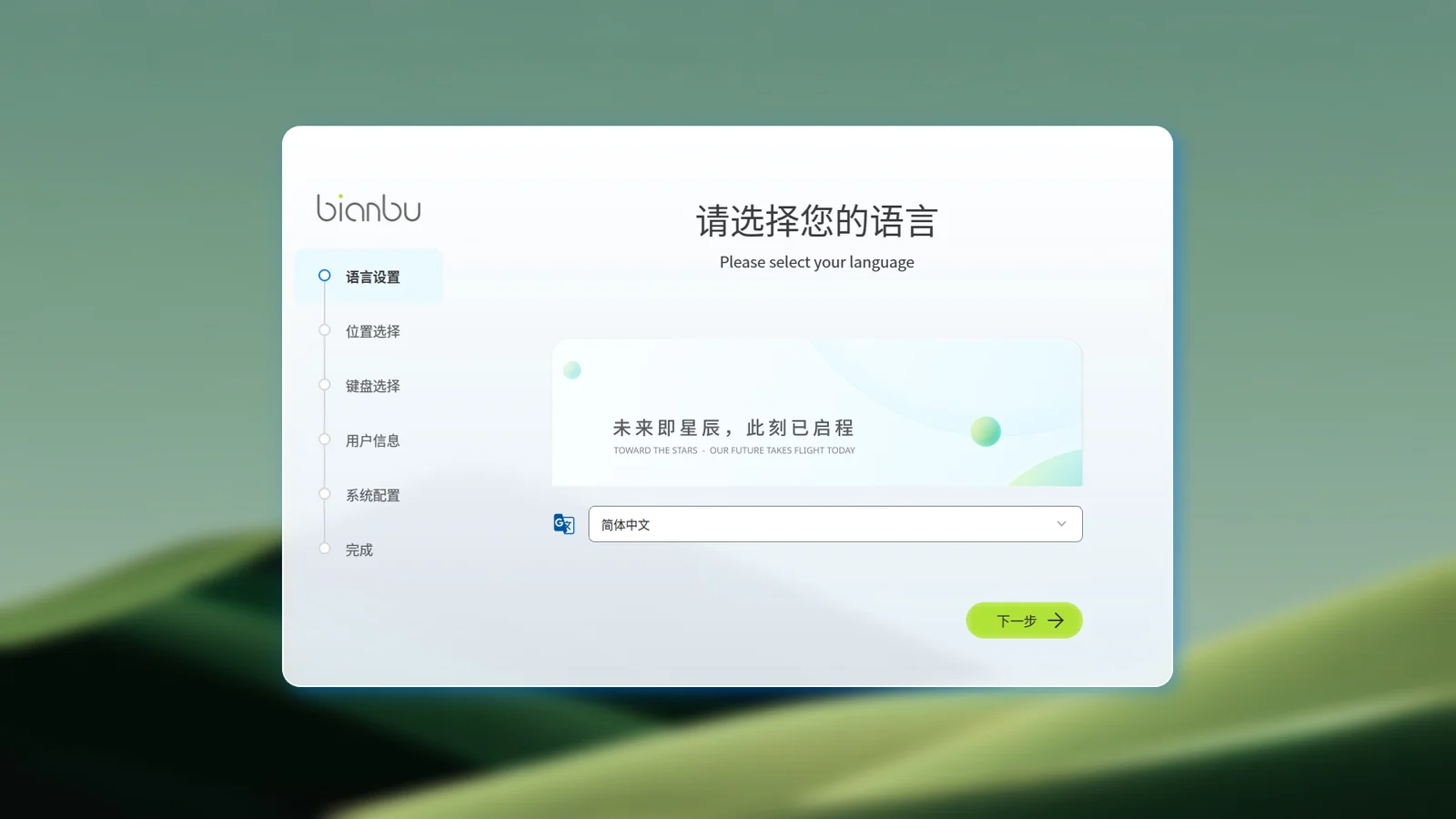
The startup wizard is displayed in Simplified Chinese by default. You can change the language on the Language Settings page.
Open the Language List to see the available options. Currently, the system supports:
- Simplified Chinese
- American English
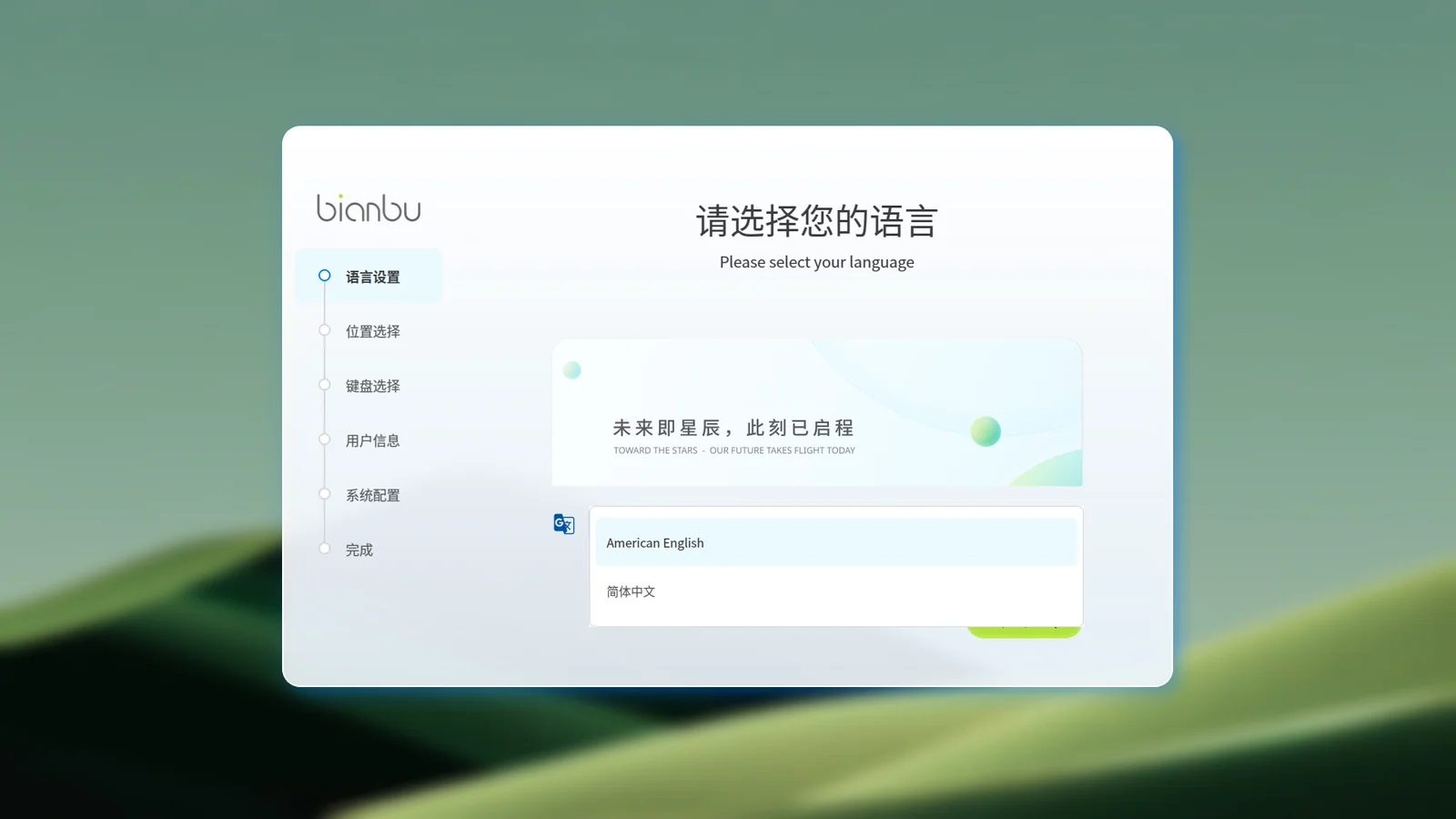
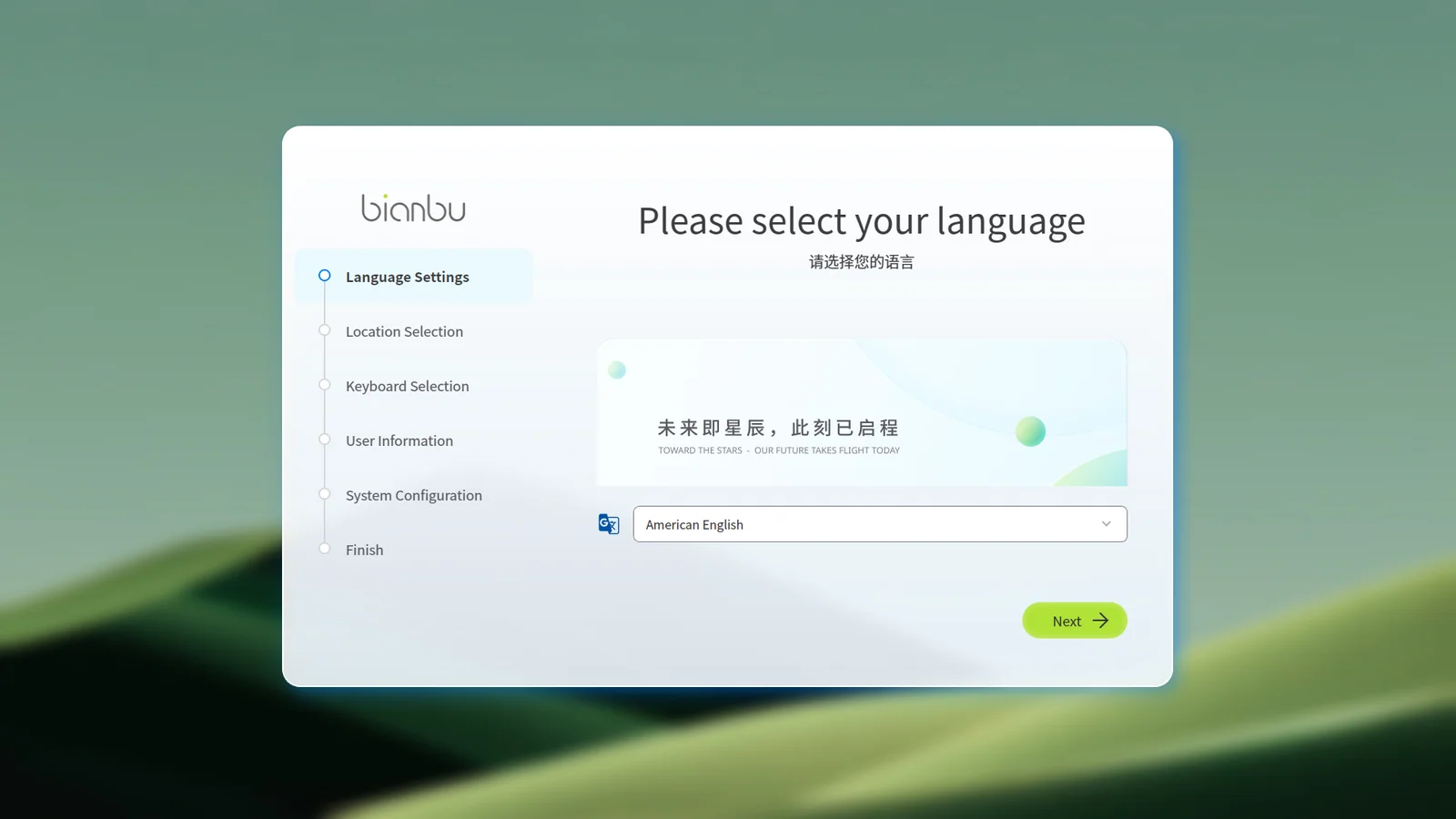
After you select a language, the wizard reloads and immediately applies the new language. The selected language will also be used as the system language after setup is complete.
Step 2: Location and Time Zone
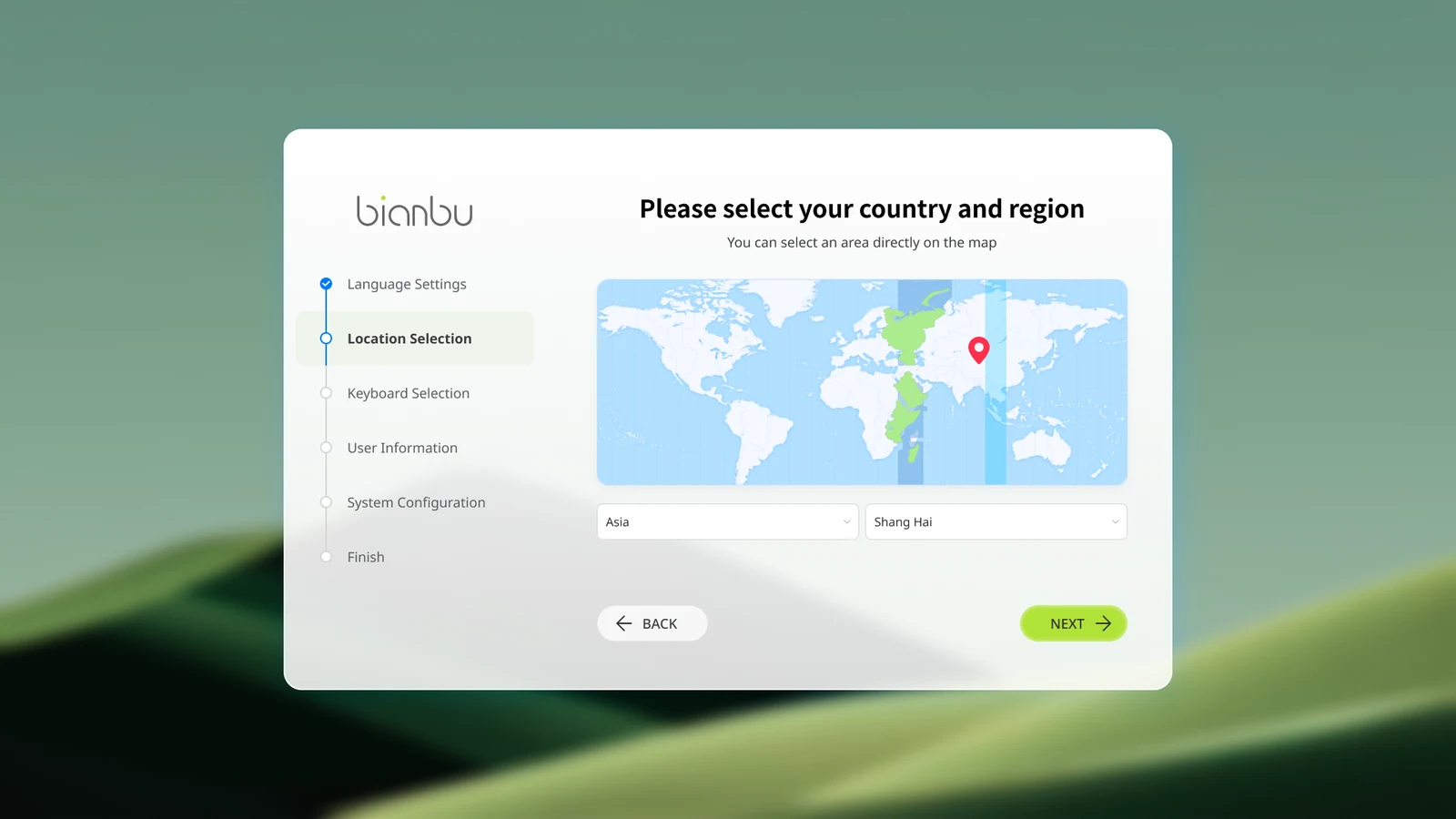
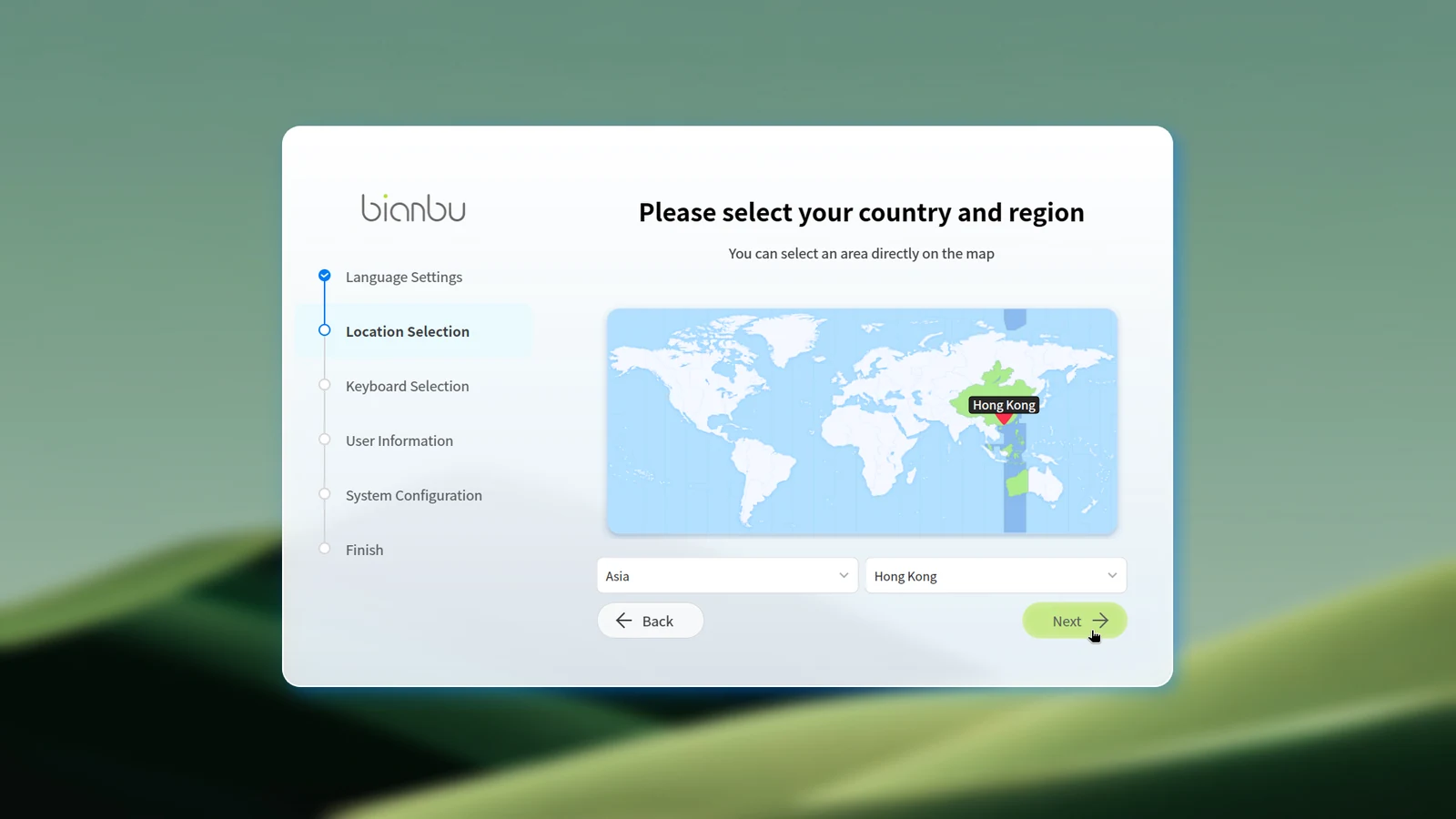
On the Location Selection page, choose your region and city.
- If the system is connected to the network, the time zone is detected automatically.
- If no network is available, the default region is Asia/Shanghai.
The selected location affects regional formats such as time, numbers, and currency.
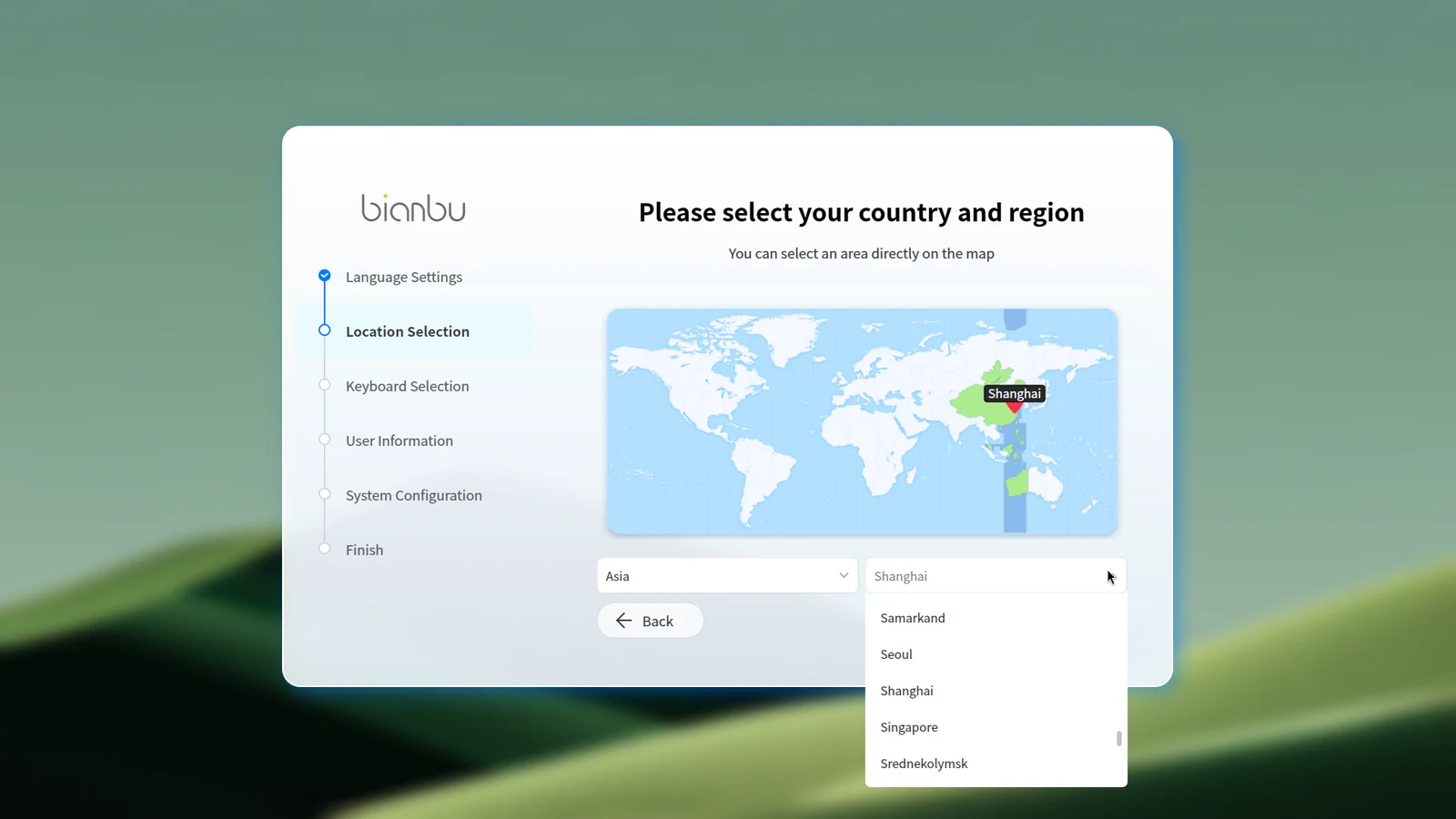
You can select your location in two ways:
- Choose from the Region List
- Click directly on the Time Zone Map
Step 3: Keyboard Layout
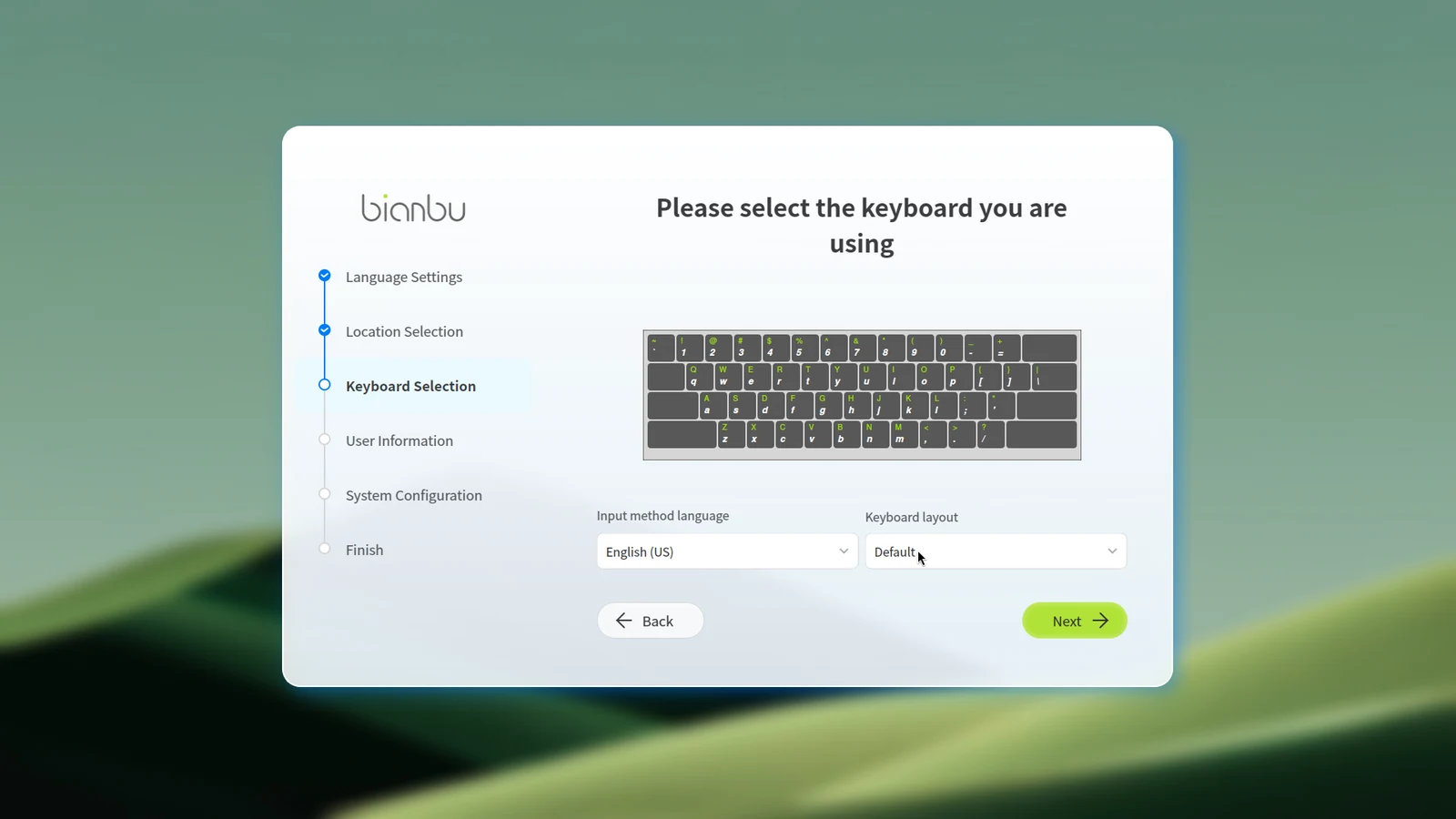
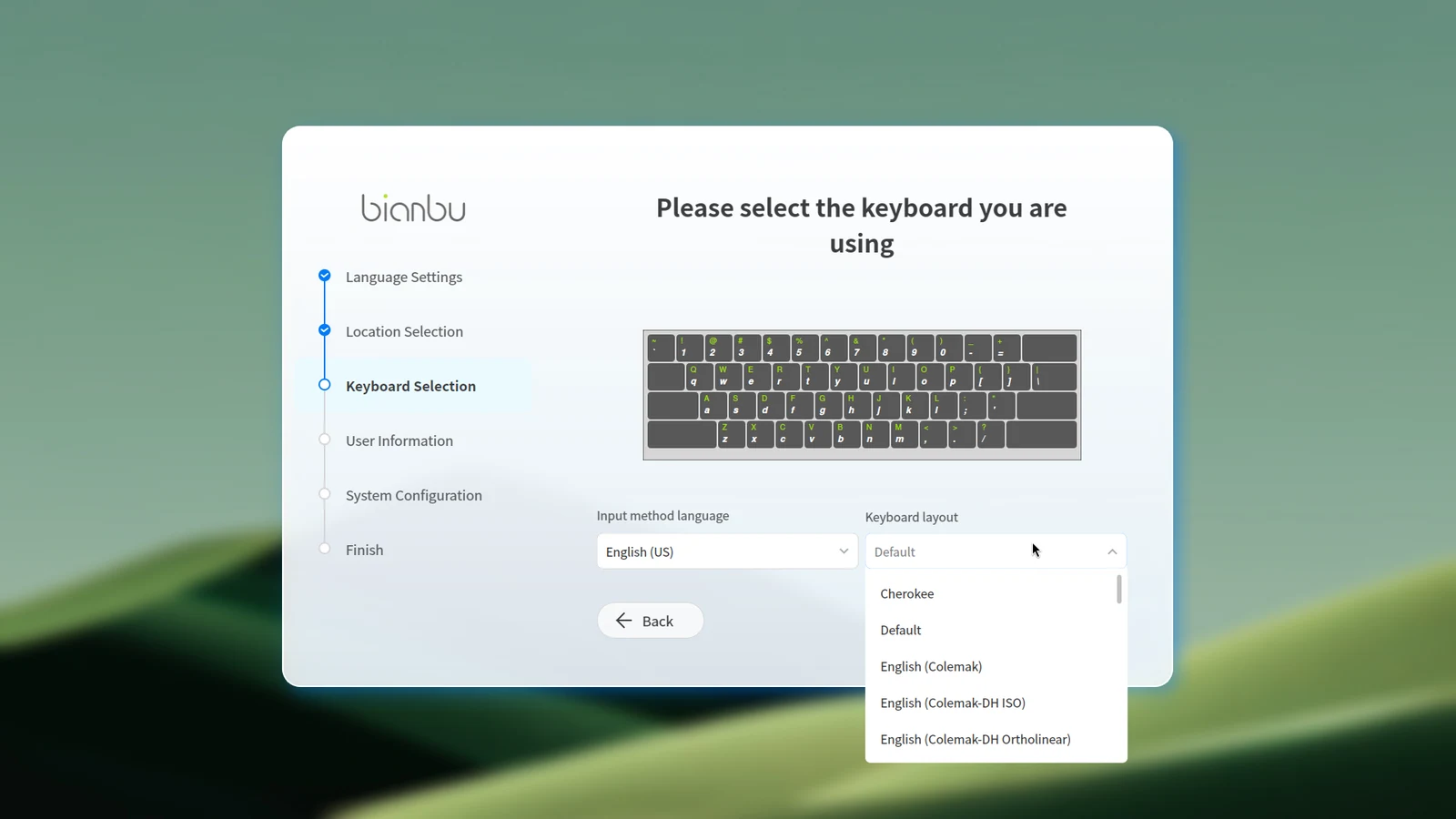
Select a keyboard layout that matches your physical keyboard.
- By default, the system uses the standard layout for the selected language.
- If you need a specific variant, expand the keyboard list and choose the appropriate option.
Step 4: User Account Information
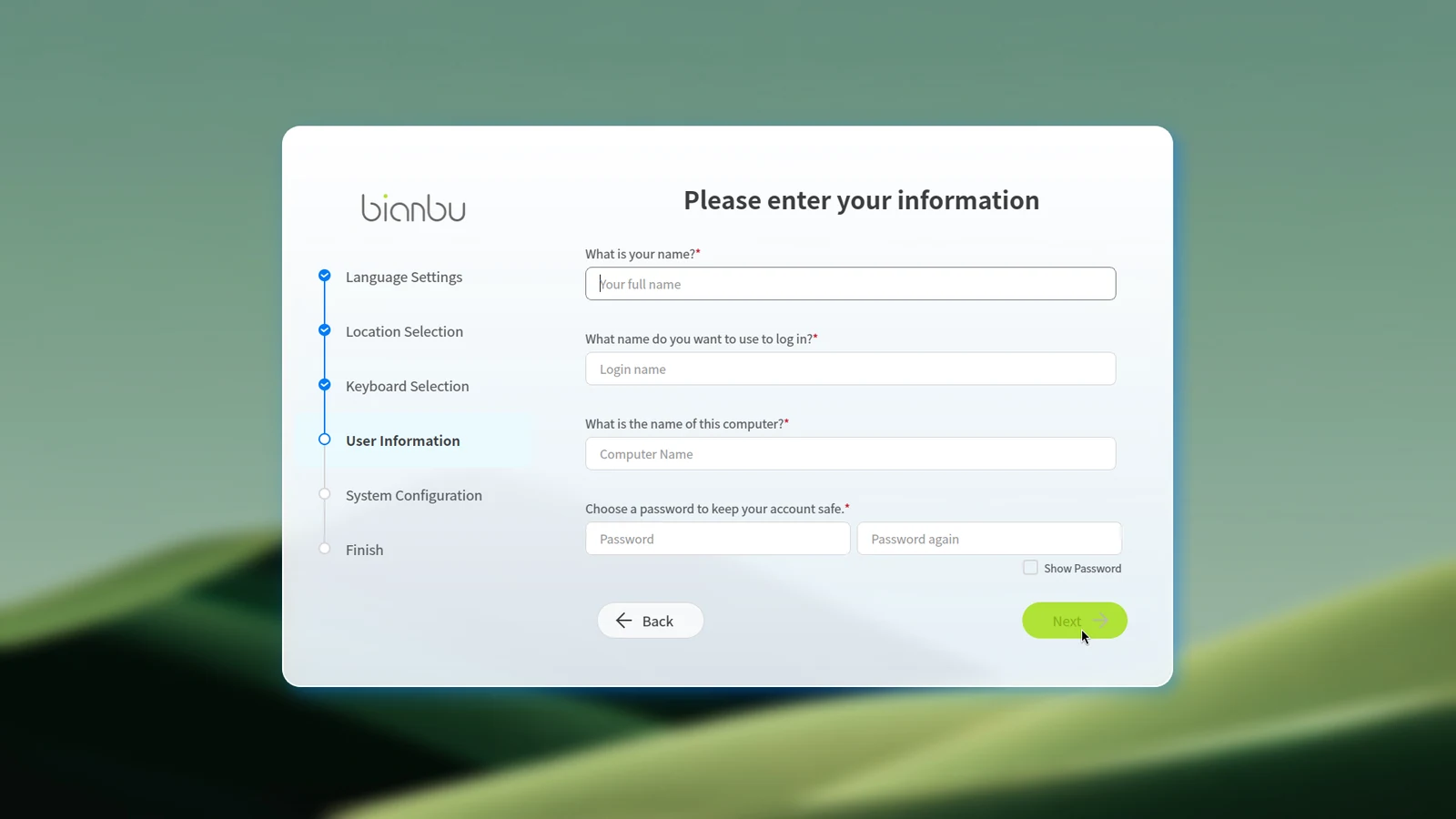
On the User Information page, enter the following details:
- Full Name
- Username
- Computer Name
- Password
Please review all information carefully before continuing.
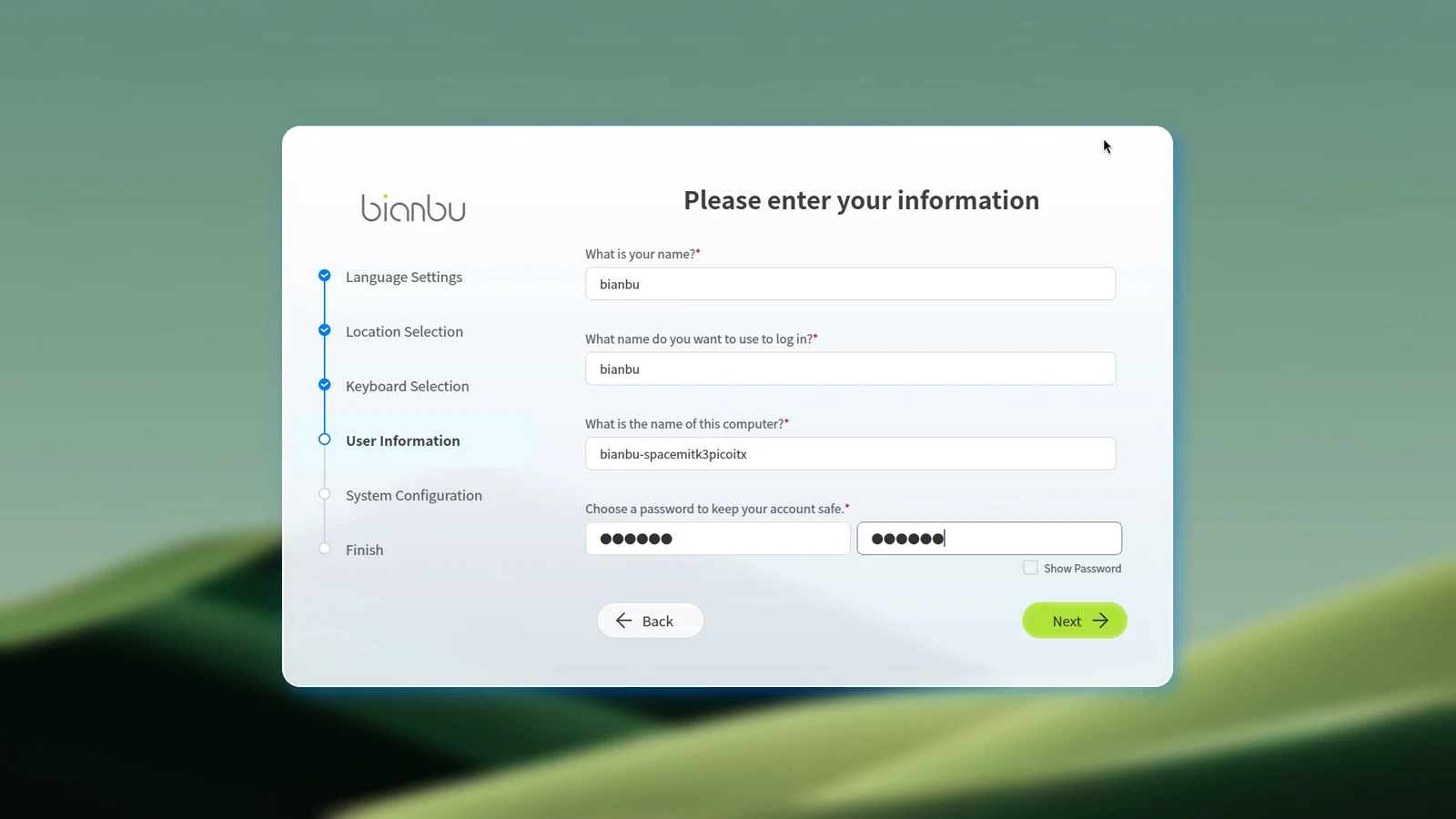
Recommendations:
- Use only lowercase letters and numbers for the username.
- The password must be at least 6 characters long.
You can proceed only after all fields pass validation.
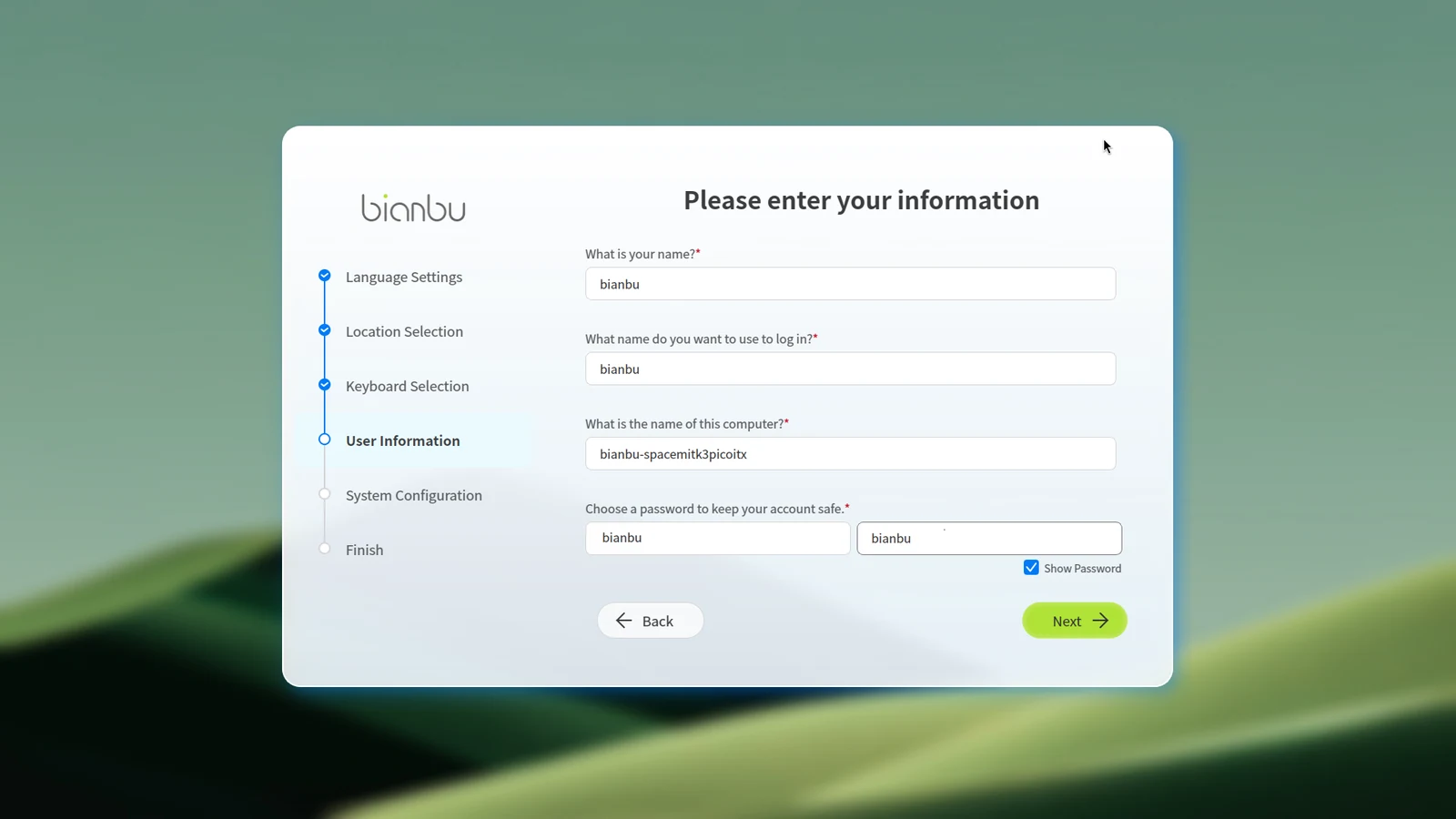
Use Show Password to confirm that your password is entered correctly.
Step 5: Apply Configuration
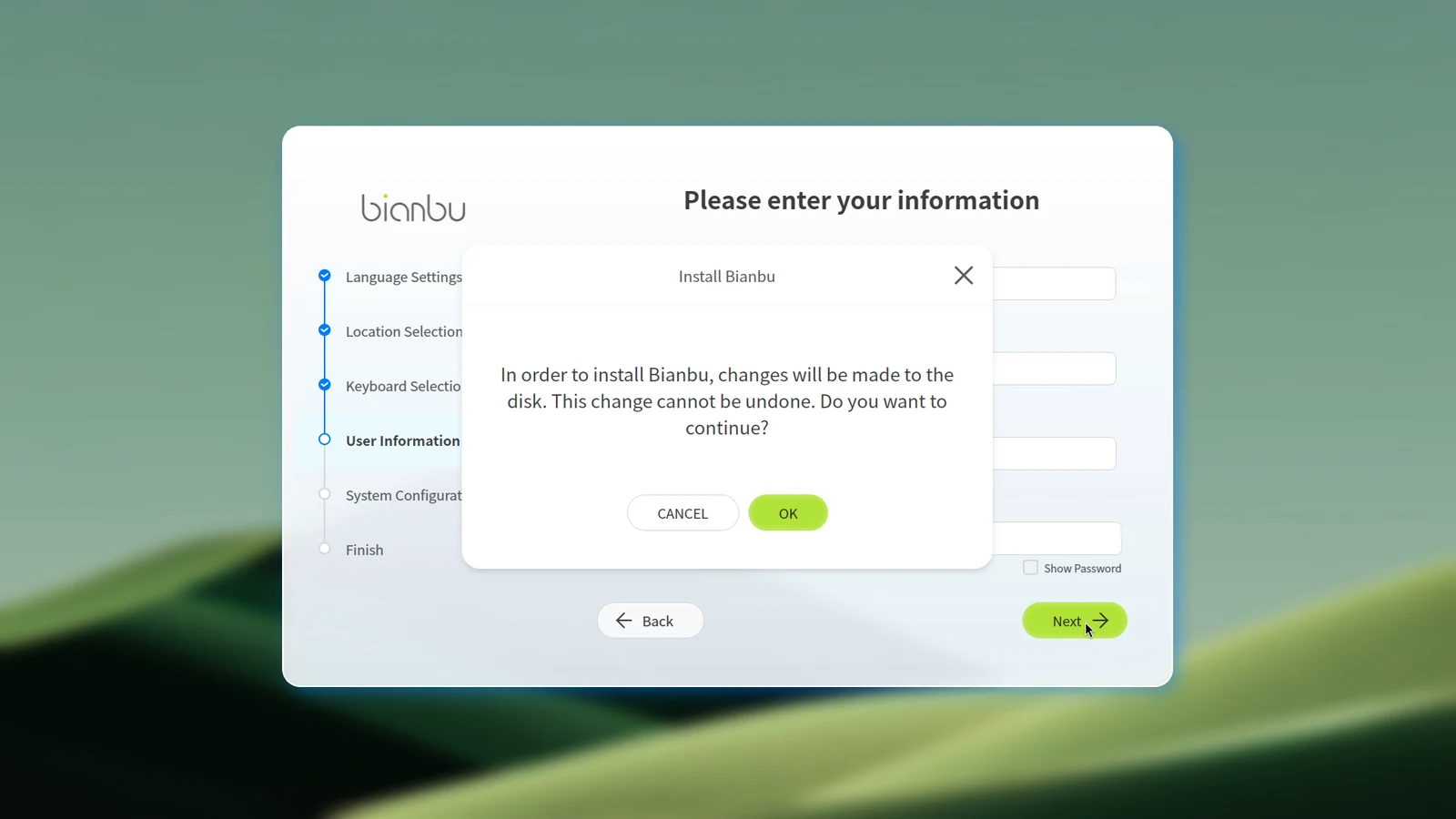
Before applying the settings, the system displays a confirmation dialog. Once you continue, the configuration process cannot be interrupted.
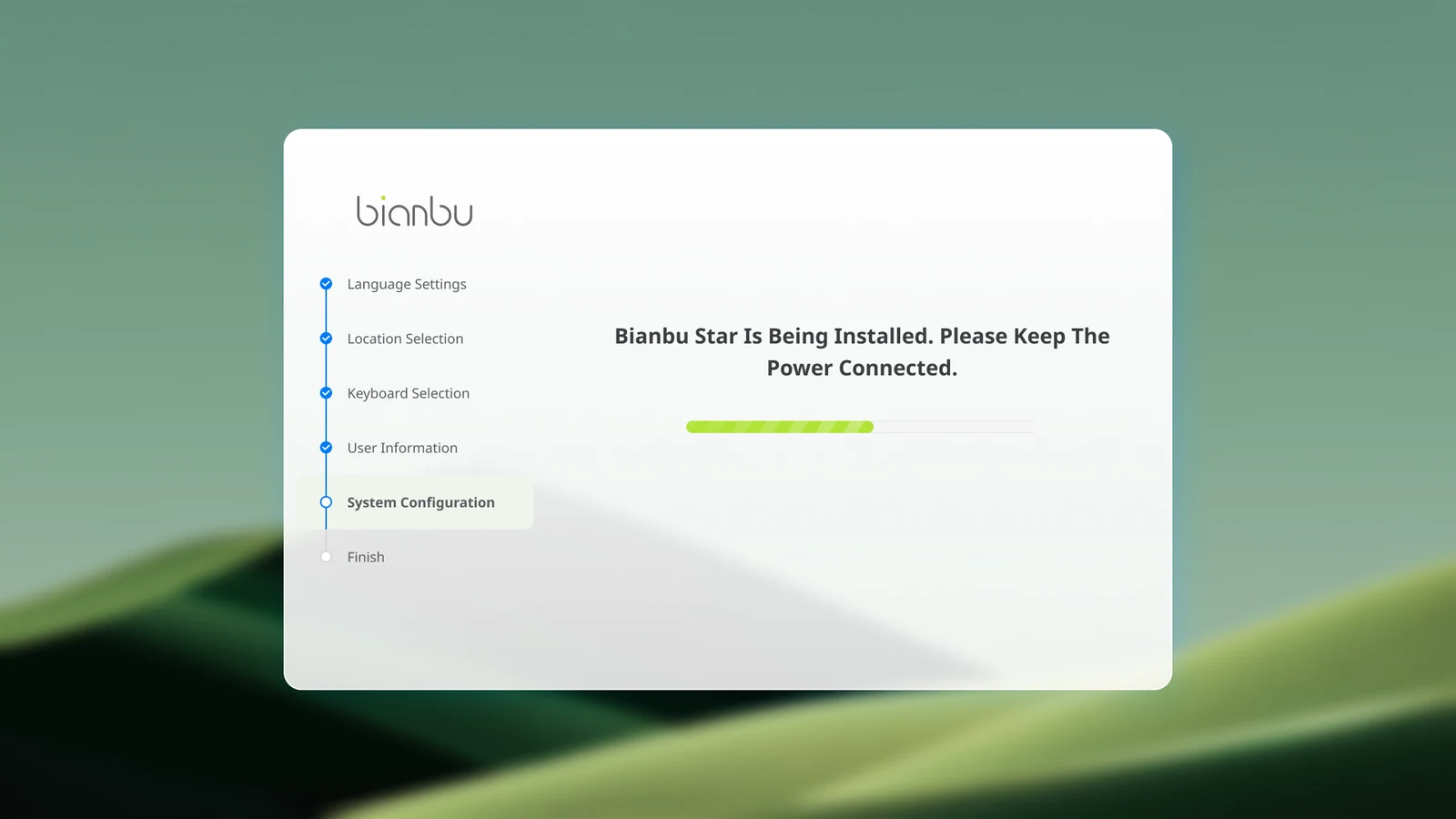
The system writes the configuration and prepares the environment. Do not power off the device during this process.
Completing the Setup
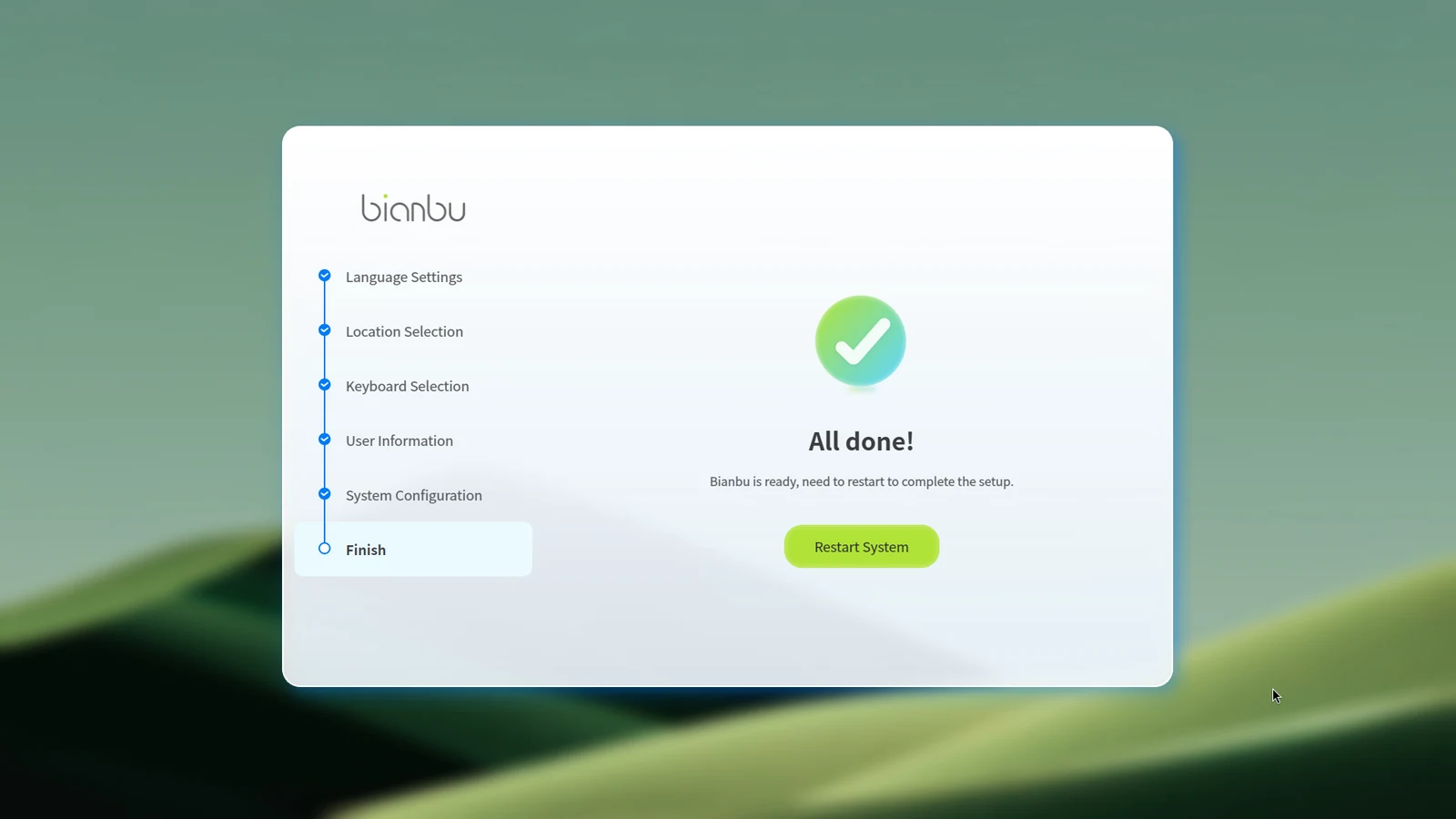
When the setup is finished, select Restart System. After reboot, the following settings take effect:
- Language: System and application interface language
- Location / Time Zone: Regional settings for time, numbers, and currency
- Keyboard Layout: Correct input mapping for your keyboard
- User Account: Created user account and computer name
User Sessions
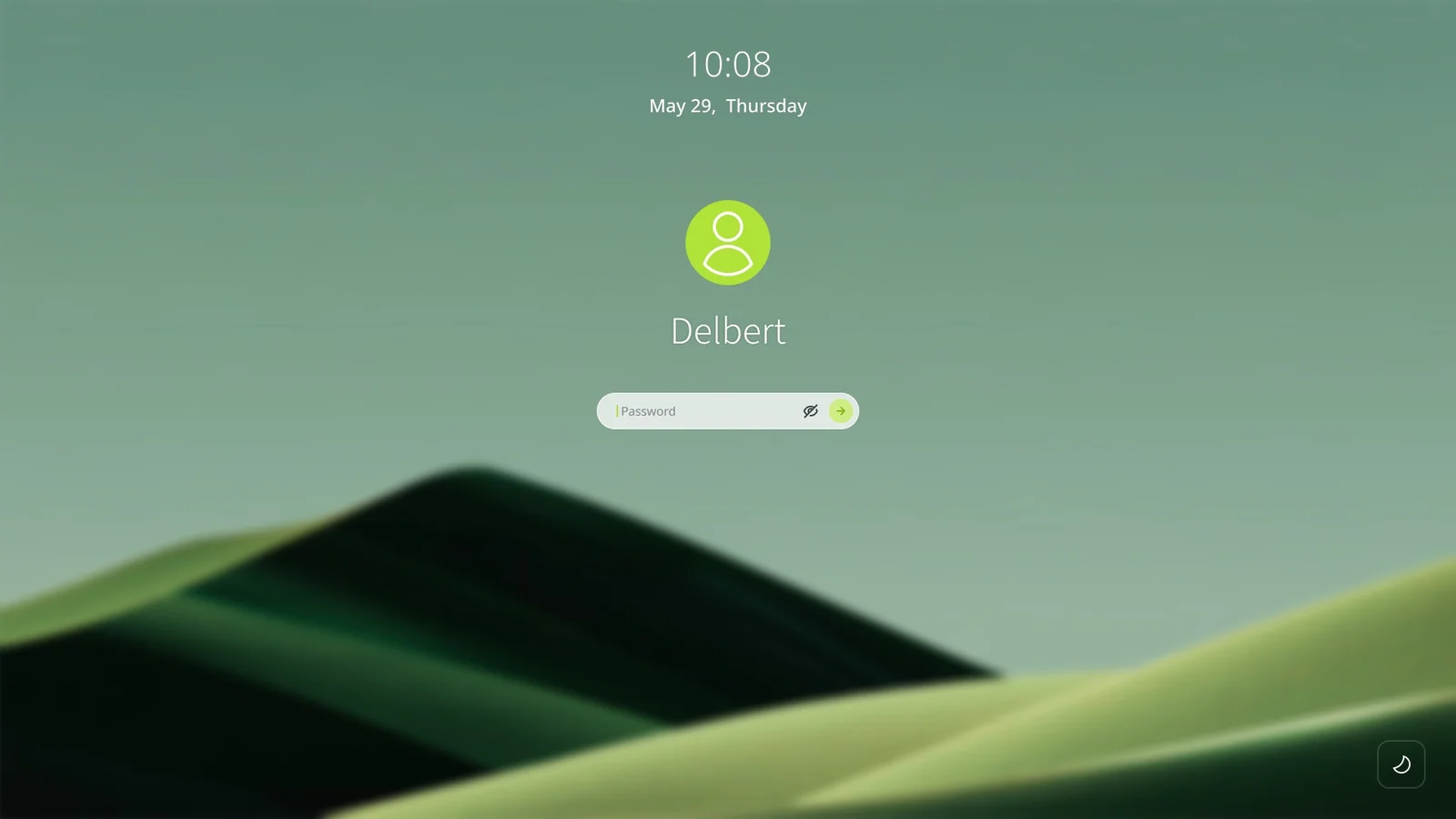
After the system restarts, the login screen appears. Log in using the username and password created during setup.
On the first login, the system may take a short time to initialize user-specific settings — this is normal.

The login screen provides the following actions:
- Suspend
- Restart
- Power Off
- Switch User
Logging In as a Specific User
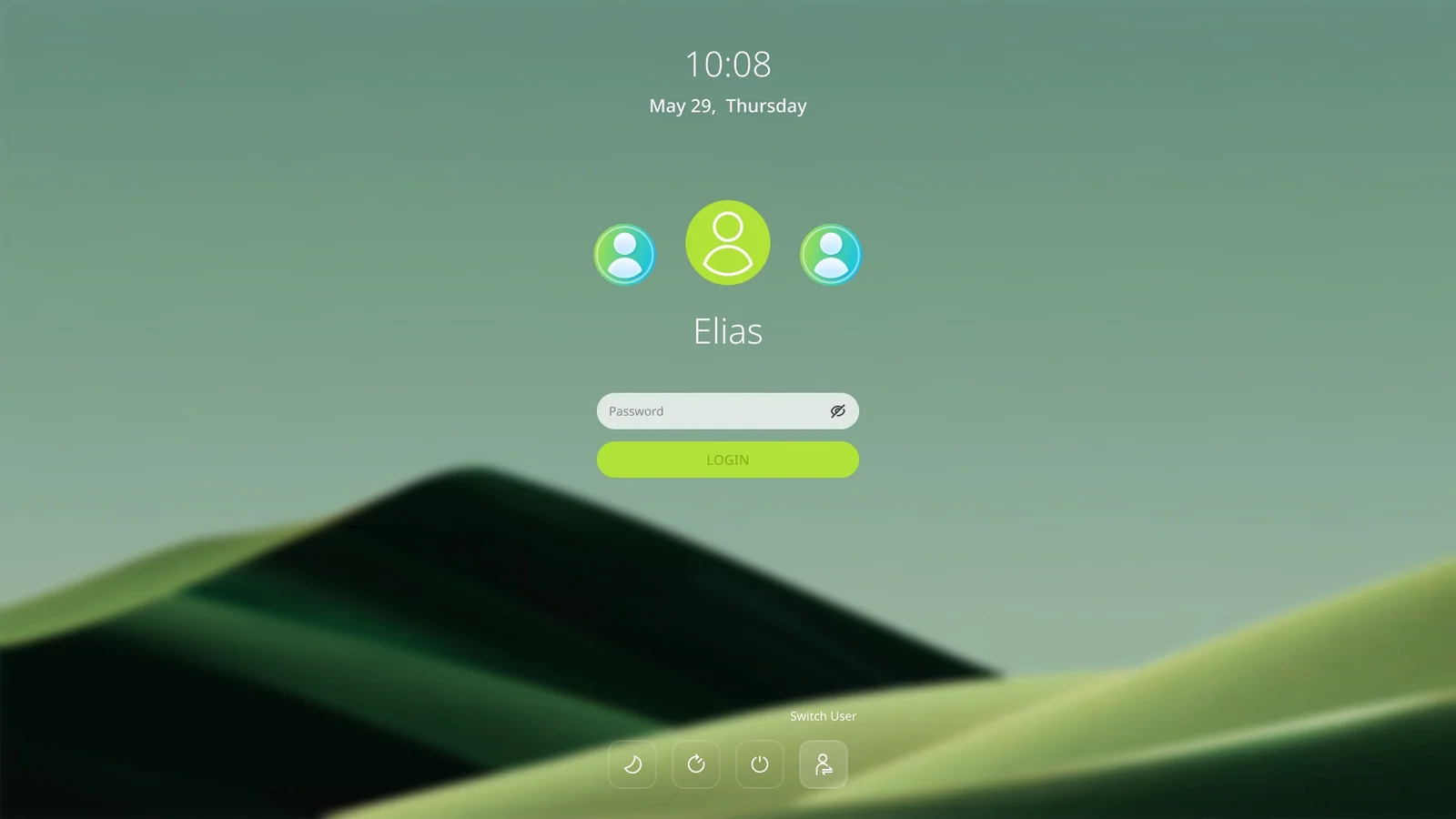
If multiple user accounts exist, multiple user avatars are shown. Click an avatar to select a user, then enter the corresponding password.
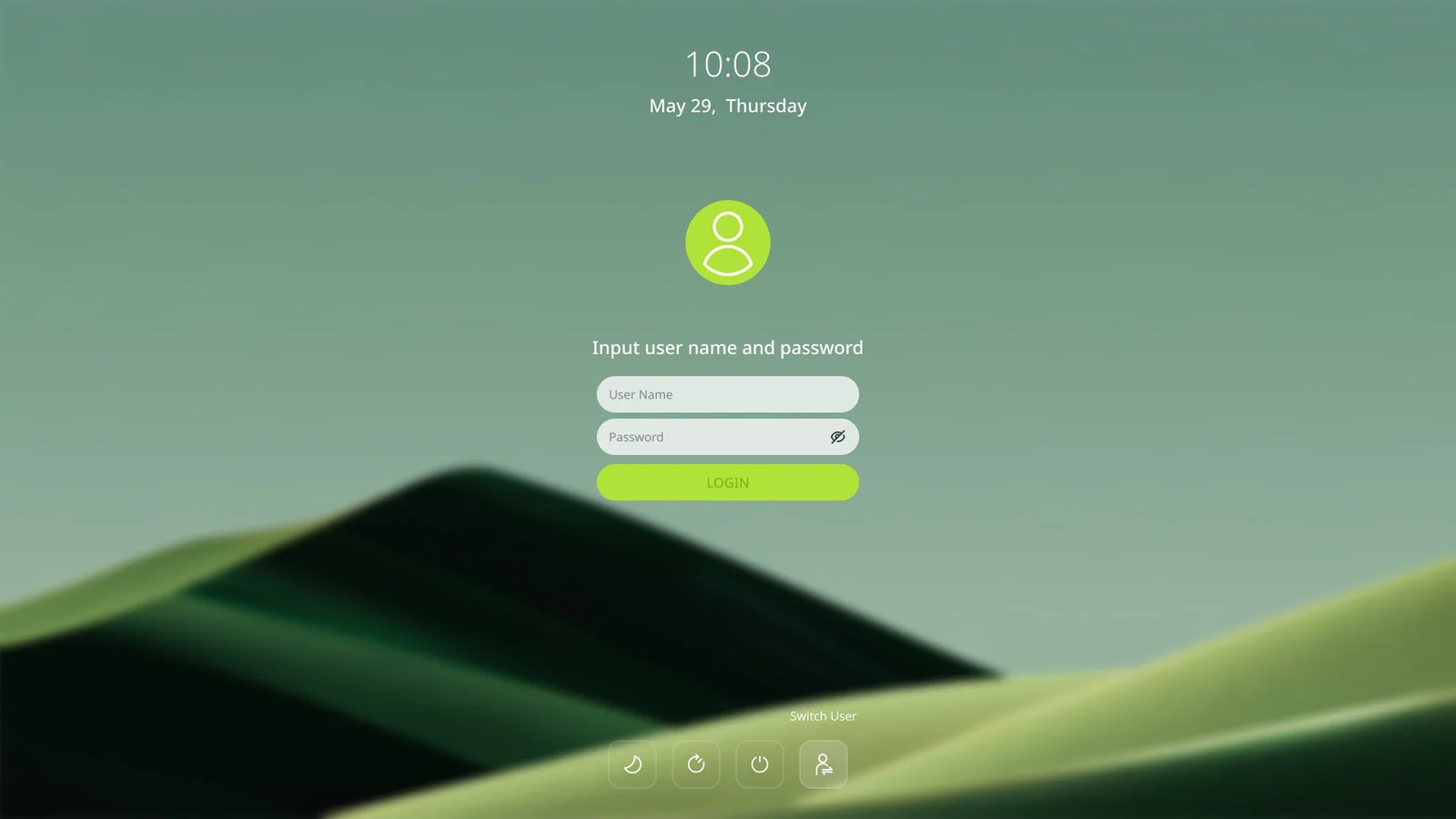
You can also log in by manually specifying a username. Select Switch User, then enter the username and password on the login page.