USB Gadget Developer Guide
Application scope: SpacemiT Linux 6.1, SpacemiT Linux 6.6
Linux USB Gadget API Framework
Overview
The USB Linux Gadget function enables the development board to act as a USB peripheral and connect to a USB host via the USB interface.
Such as making the development board act as a USB mass storage device, USB Ethernet adapter, USB serial port, and other devices.
When we connect a mobile phone to a PC via USB for data transfer, ADB debugging, network sharing, and other functions, these features are implemented based on the Linux USB Gadget subsystem.
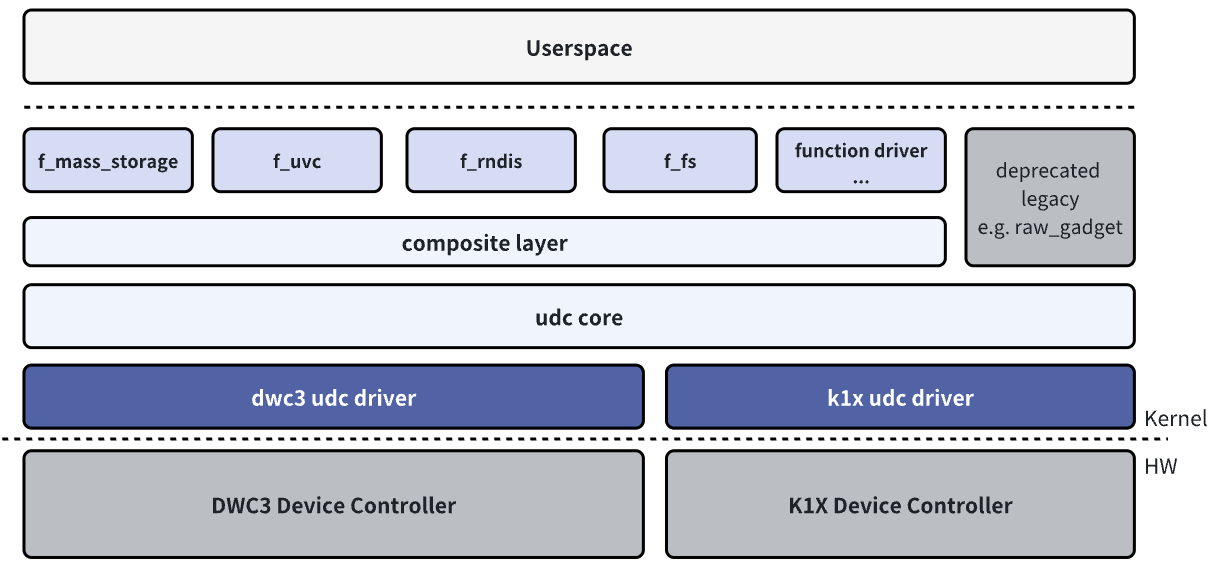
The USB Device role driver can be divided into the following layers:
- USB Device Controller Driver: This is the USB Device role controller driver layer, responsible for initializing the controller and performing low-level data transmission and reception operations.
- UDC Core: This is the core layer, responsible for abstracting the USB Device hierarchy and URB-based transfers, and providing interfaces for upper and lower layers.
- Composite Layer: To enable a single Linux device to act as a USB Gadget and easily support multiple interfaces so that one physical device can function as a multi-function USB peripheral,the Linux USB Gadget framework implements the Composite Driver layer based on the USB 2.0 ECN Interface Association Descriptor (IAD).This allows the upper layer to only implement function drivers, which users can freely combine to create a multi-function device. The Composite layer supports configuration from userspace via configfs, as well as hardcoded combinations of Functions in legacy drivers. In the following sections, we will describe only the configfs‑based configuration method; the legacy drivers are no longer recommended.
- Function Driver: This is the USB device functionality layer, responsible for implementing USB function drivers, and interfacing with other kernel frameworks (such as HID, UVC, Storage, etc.).
- Configfs API: Configfs is a subsystem in the Linux kernel that allows users to configure kernel functions by creating, editing directory structures and files. In the USB Gadget API framework, users mainly configure function drivers and USB protocol‑related metadata by operating the directory structure and attribute files under the usb_gadget subdirectory of configfs (omitted in the diagram).For more information, refer to the kernel documentation Linux USB gadget configured through configfs。
- Userspace: Most of the USB gadget functions rely on userspace layer configuration or API interaction with other Linux subsystems. For examples, the Ethernet gadget requires users to configure the network, while the mass storage gadget requires users to configure the block device or file system (components of these subsystems are omitted from the diagram). Some USB gadget functions also require userspace layer to work properly, such as ADB (Android Debug Bridge) function and MTP function, etc.
These layers form the framework of USB subsystem in the Linux system, ensuring the normal operation and data transmission of the USB module system.
Kernel Documentation References:
- Linux USB gadget configured through configfs | The Linux Kernel documentation:This document briefly introduces how to configure the USB gadget using configfs.
- Linux USB Gadget Testing | The Linux Kernel documentation:This document describes the configfs attributes of each function and outlines test methods.
Kernel menuconfig Configuration
Only Linux USB Gadget‑related configuration is covered here. For board-level DTS and USB IP driver configuration, please refer to the USB section in the BSP Peripheral Driver Development Documentation.
First, enable the USB_CONFIGFS configuration so that users can use Configfs to activate function drivers.
Once enabled, the configuration options for various Function Drivers prefixed with USB_CONFIGFS will be displayed under the submenu of USB_CONFIGFS for enabling.
Location:
  -> Device Drivers
    -> USB support (USB_SUPPORT)
        -> USB Gadget Support (USB_GADGET)
        -> USB Gadget functions configurable through configfs (USB_CONFIGFS)
            -> Abstract Control Model (CDC ACM) (CONFIG_USB_F_ACM)
            -> Network Control Model (CONFIG_USB_F_NCM)
            -> RNDIS (CONFIG_USB_F_RNDIS)
            -> Mass storage (CONFIG_USB_F_MASS_STORAGE)
            -> Function filesystem (FunctionFS) (CONFIG_USB_F_FS)
            -> USB Webcam function (CONFIG_USB_F_UVC)
            -> HID function (CONFIG_USB_F_HID)
            -> USB Gadget Target Fabric (CONFIG_USB_F_TCM)
Only some frequently used menucofig in Function Driver are listed here. When enabling these options, make sure to also enable their corresponding Depends on menuconfig entries.
For more detailespecific drivers, please check the help information in the menuconfig or documents prefixed with u_in the kernel directory drivers/usb/gadget/function/.
Files prefixed with u_ in the directory are utility files that serve the function drivers prefixed with f_.
If users need to debug the userspace layer and kernel together, please enable the following kernel configuration options. Once enabled, additional print logs will be generated, facilitating the identification of error causes and troubleshooting. These options are disabled by default:
CONFIG_USB_GADGET_DEBUG=y
CONFIG_USB_GADGET_VERBOSE=y
CONFIG_USB_GADGET_DEBUG_FILES=y
CONFIG_USB_GADGET_DEBUG_FS=y
Users may explore other related menuconfig options on their own, such as those available under USB Gadget precomposed configurations.
Function drivers configured automatically at boot use the first UDC by default, but offer less flexibility and debugging convenience compared to configuration via configfs API.
It is generally not recommended to enable this option, as it will prevent the built-in ADB service (which auto-starts at boot) in the Bianbu system from working properly.
FunctionFS
If users need to develop a USB Gadget function driver with custom endpoint configurations and protocols beyond the existing kernel functions, please base the development on FunctionFS.
This section introduces FunctionFS. Unlike other function drivers that implement fixed, specific functions, FunctionFS provides a flexible User mode file system API mechanism that allows users to define custom USB protocols. With the FunctionFS driver, users can implement function drivers at the userspace layer, and supply USB descriptors, endpoint configurations, and data transfer logic through user-space applications. The familiar ADB (Android Debug Bridge) and MTP (Media Transfer Protocol) on mobile phones are both implemented based on FunctionFS.
The kernel provides a simple bulk transfer demo. The source file is located in the tools/usb/ffs-aio-example directory of the kernel source code. Based on the working demo, users can customize and modify it to implement custom protocol transfer.
This document introduces the ADB function, MTP function, and the user-defined protocol demo based on FunctionFS.
USB Gadget Function Configuration
For detailed and specific configFS configuration, please refer to the kernel documentation references mentioned in the overview.
This document is mainly explained based on the configuration script scripts/gadget-setup.sh provided by the SpacemiT usb-gadget repository. Please swith to the latest release branch to ensure you obtain the most up-to-date content.
Before reading further chapters of this document, please open the source code of the latest gadget-setup.sh script and refer to it alongside the document for easier understanding.
The script adopts a modular approach to configure multiple functions. The configfs configuration for each function is divided into _config,_link,_unlink,_clean. The main role of this repository is to help users get the demo up and running quickly.
For detailed and specific ConfigFS configuration, please refer to the script code. Content can be extracted or removed as needed for customized development.
Overview
Executing the gadget-setup.sh script in the development board's system completes the configuration of USB functions. For basic usage instructions, run the command gadget-setup.sh help to view them.
The gadget instance name configured by the gadget-setup.sh script is spacemit. The VID/PID, serial number, and USB manufacturer and product name strings are all configured in the script gadget-setup.sh. Users may customize and modify them as needed (note that these must be purchased and assigned by USB-IF).
Each gadget instance under /sys/kernel/config/usb_gadget is bound to a UDC when enabled. After configuring specific functions via the script, check ConfigFS to confirm the corresponding UDC is bound:
# Example:Use the K1 USB 3.0 controller as the UDC.
/sys/kernel/config # cat usb_gadget/spacemit/UDC
c0a00000.dwc3
Note: ADB is pre-installed in both Buildroot and Bianbu systems, and is loaded on the first UDC by default (the controller for K1's download USB0 port).
If the first UDC is occupied when running the script, run the following command to stop the system ADB service and free up the UDC:
# Buildroot
~ # /etc/init.d/S50adb-setup stop
# Bianbu use systemctl stop adbd service
~ # systemctl stop adbd
gadget-setup checks UDC occupation status on execution. If the target UDC is occupied (detected via scan), it prints: ERROR: Your udc is occupied by...
~ # gadget-setup ncm
gadget-setup: Selected function ncm
....
gadget-setup: We are now trying to echo c0a00000.dwc3 to UDC......
gadget-setup: ERROR: Your udc is occupied by: /sys/kernel/config/usb_gadget/g1/UDC
gadget-setup: ERROR: configfs preserved, run gadget-setup resume after conflict resolved
UVC (USB Video Class)
Related references
Configuration to be enabled: CONFIG_USB_F_UVC
The UVC function enables the development board to act as a camera, and relies on the application program uvc-gadget-new to provide data sources. The source code of this program can be downloaded from the SpacemiT usb-gadget repository. Compile and redevelop the source code as needed.
Introduction to Frame Format and USB Bandwidth:
The UVC protocol uses isochronous transfer in USB. Since the USB Bus must guarantee stable bandwidth allocation for isochronous transfers, and must also reserve bandwidth for other non-isochronous devices, isochronous transfers cannot occupy the entire Bus bandwidth, so there is a maximum available bandwidth limit.
For USB2.0 HighSpeed, the maximum bandwidth for isochronous transfers can be adjusted via streaming_maxpacket in configfs. Vaild options: 1024 , 2048 , 3072 . These determine the maximum data that can be transmitted per USB microframe for the isochronous transfer. The corresponding maximum bandwidths are 7.8125MBps, 15.625MBps, 23.4375MBps respectively.
The maximum bandwidth for isochronous transfers in USB3.0 SuperSpeed is 351.5625 MBps. It can be adjusted via streaming_maxpacket and streaming_maxburst in configfs. The valid range for streaming_maxburst is 1 to 15.
Configurable parameters in configfs affecting maximum bandwidth:
streaming_interval:ConfigurebIntervalin the isochronous transfer endpoint descriptor, 1..255. The smaller the value, the larger the maximum bandwidth.streaming_maxpacket:ConfigurewMaxPacketSizein the isochronous transfer endpoint descriptor. Valid values are 1024, 2048, and 3072. The larger the value, the greater the bandwidth.streaming_maxburst:Configure bMaxBurst in the isochronous transfer endpoint descriptor, 1..15. The larger the value, the greater the maximum bandwidth. Only valid for USB3.0.
The bandwidth requirements for common YUV formats are provided here. Since MJPEG uses compression, its bandwidth requirement is much lower than that of YUV, allowing full HD and 4K video to be transmitted even over USB2.0.
| Format( YUV) | Width | Height | Frame Rate | Bandwidth (MBps) |
|---|---|---|---|---|
| 240p@30 | 480 | 240 | 30 | 6.591796875 |
| 360p@15 | 360 | 640 | 15 | 6.591796875 |
| 360p@30 | 360 | 640 | 30 | 13.18359375 |
| 720p@10 | 720 | 1280 | 10 | 17.578125 |
| 640p@30 | 640 | 640 | 30 | 23.4375 |
| 720p@15 | 720 | 1280 | 15 | 26.3671875 |
| 360p@60 | 360 | 640 | 60 | 26.3671875 |
| 720p@15 | 720 | 1280 | 15 | 26.3671875 |
| 480p@60 | 480 | 640 | 60 | 35.15625 |
| 720p@30 | 720 | 1280 | 30 | 52.734375 |
| 1080p@15 | 1080 | 1920 | 15 | 59.32617188 |
| 720p@60 | 720 | 1280 | 60 | 105.46875 |
| 1080p@30 | 1080 | 1920 | 30 | 118.6523438 |
| 1080p@60 | 1080 | 1920 | 60 | 237.3046875 |
| 4k@30 | 3840 | 2160 | 20 | 316.40625 |
First, we will explain the configuration method of the test pattern Demo:
The development board acts as a USB Device, and two methods are available for UVC configuration:
-
Use the dedicated UVC script (recommended). It supports more UVC configurations and allows users to customize resolutions easily (For details and usage of more parameters, please refer to the script source file.). Independent USB PID:
uvc-gadget-setup.sh startuvc-gadget-new spacemit_webcam/functions/uvc.0 -
Use the composite gadget script, which has built-in common resolutions and supports simultaneous use of UVC and other functions.
gadget-setup.sh uvcuvc-gadget-new spacemit/functions/uvc.0
Users can also customize the gadget-setup script according to actual product requirements.
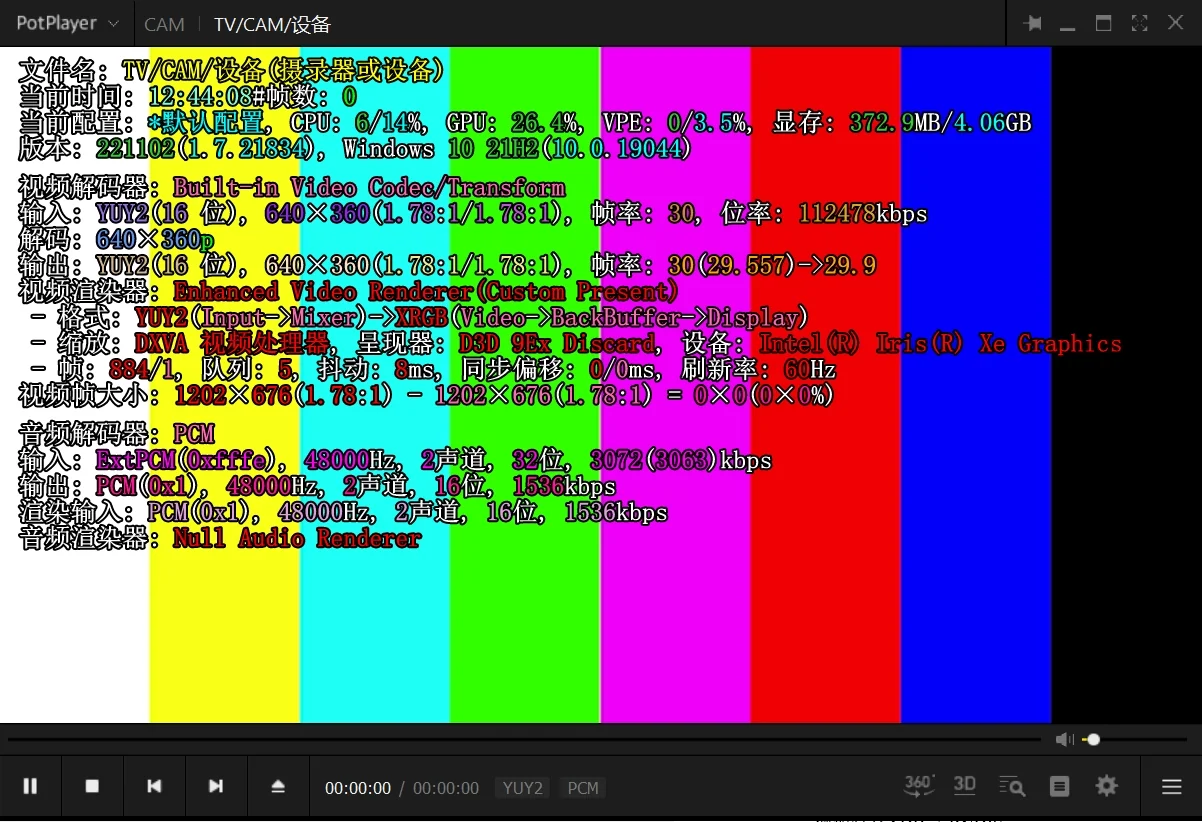
Then connect the device to the PC, open a common camera application (such as PotPlayer and Amcap on Windows, guvcview on Linux), and the color pattern will be displayed:
Next, we will explain how to route the real camera video stream to the UVC gadget through the V4L2 framework. The video data flow is illustrated in the ASCII diagram below::
+------------------+       +------------------+
|  Source Camera   |       |  Linux System    |
|  (MIPI/USB)      |       |                  |
|  +------------+  |       |  +------------+  |
|  | Sensor     |  |       |  | V4L2       |  |
|  |            |--+-------+->| Framework  |  |
|  +------------+  |       |  +------+-----+  |
+------------------+       |         |        |
                           |  +------v-----+  |
                           |  | App        |  |
                           |  |            |  |
                           |  | uvc-gadget-new|
                           |  +------+-----+  |    +------------------+
                           |         |        |    |  PC Host         |
                           |  +------v-----+  |    |                  |
                           |  | USB UVC    |  |    |  +------------+  |
                           |  | Gadget driver |    |  | Camera App |  |
                           |  +------+-----+  |    |  +------------+  |
                           +---------|--------+    +------|-----------+
                                     |                    |
                                     |       USB Cable    |
                                     +--------------------+
                                         Act As a Camera
First, the resolution in the configuration must match the V4L2 data specifications of the source camera, with the key matching items including frame format (including encoding format, image size, frame rate) and data buffer size.
Users need to register the actual parameters of the source camera in the setup_custom_profile() function of the uvc-gadget-setup.sh script,
referring to the existing registration method.
Then, run the following commands:
uvc-gadget-setup.sh start custom
uvc-gadget-new spacemit_webcam/functions/uvc.0 -d /dev/videoX
Note: Replace the X in videoX with the number of the first video device node corresponding to the user's actual camera on the K1 development board, e.g., video17.
Upon successful operation, launch the camera application on the host computer, select the corresponding frame format (must be a format supported by the physical camera), and the video stream will be rendered using default parameters.
In most cases, users will find that the size of the V4L2 data buffer of the source Camera is inconsistent with the default value of dwMaxVideoFrameSize configured in the USB Gadget script, which will trigger the following error:
/dev/video17: buffer 0 too small (460800 bytes required, 256000 bytes available).
Failed to import buffers on sink: Invalid argument (22)
This is mainly due to the flexibility of compressed encoding formats such as MJPG, which causes the value of the dwMaxVideoFrameSize parameter to vary depending on the camera model and specific frame format.
At this stage, it is necessary to document the actual data size of the available – 256000 in this scenario (460800 represents the script-generated default value derived from the specific frame format).
Then, edit the ~/.uvcg_config configuration file to map the frame format corresponding to the target encoding + resolution (the format must have been configured in the script) to the custom dwMaxVideoFrameBufferSize parameter,
and fill in 256000 (the value from the error reported above):
~ # cat ~/.uvcg_config
# .uvcg_config for spacemit-uvcg, config line format:
#     <format:[mjpeg]> <width> <height> <dwMaxVideoFrameBufferSize>
# e.g. mjpeg 640 360 251733
mjpeg 1280 720 25600
This logic is implemented in the add_uvc_fmt_resolution() of the uvc-gadget-setup.sh script.
Taking this scenario as an example, the value 25600 will ultimately be written into the configuration property file at the following path:
/sys/kernel/config/usb_gadget/spacemit_webcam/functions/uvc.0/streaming/mjpeg/m/720p/dwMaxVideoFrameBufferSize
After the configuration is completed, re-execute the startup script and UVC APP commands mentioned above.
The final mass production solution can be adapted by customizing scripts, while the primary purpose of uvc-gadget-setup is to provide a script that facilitates repeated debugging.
UAC (USB Audio Class)
Related references
Configurations to be enabled: CONFIG_USB_F_UAC1, CONFIG_USB_F_UAC2
The UAC function enables the development board to act as a sound card. At the upper layer, audio management requires the alsa-utils application, and debugging is recommended to be conducted in the Bianbu environment.
The kernel contains two drivers: UAC 1.0 and UAC 2.0.
From the perspective of the USB specification, UAC2.0 is mainly optimized in terms of sampling precision, maximum bandwidth, control interface, and clock synchronization. For more details, please refer to the reference materials provided above.
From a compatibility perspective, the UAC 1.0 and UAC 2.0 Gadget implementations currently supported by the Linux kernel exhibit inconsistent compatibility across different platforms and functions.
For example, on Windows, UAC2.0 has compatibility issues and does not support volume control; macOS and Linux offer better compatibility.
The configurations mentioned below are all based on the connection relationship shown in the following figure:
ALSA Audio Device -----> K1 Development Board ----USB----> Linux/Windows PC
                            (UAC Gadget)                      USB Host
The ALSA Audio Device can use the development board’s interface to connect to analog headphones, USB headphones (with recording support), or other audio devices.
First, install alsa-utils on the development board’s Bianbu system:
- In the Bianbu system, the
alsa-utilspackage can be installed via apt. - Within the Buildroot build system, ensure that the
BR2_PACKAGE_ALSA_UTILSconfiguration option and all other relevant configuration entries are enabled.
The gadget-setup script has integrated the UAC function. First, execute the following command to launch the UAC Gadget according to your requirements:
# Use UAC 1.0
gadget-setup.sh uac1
# Use UAC 2.0
gadget-setup.sh uac2
After running the command, connect to the PC via USB, and the PC will detect the audio device.
-
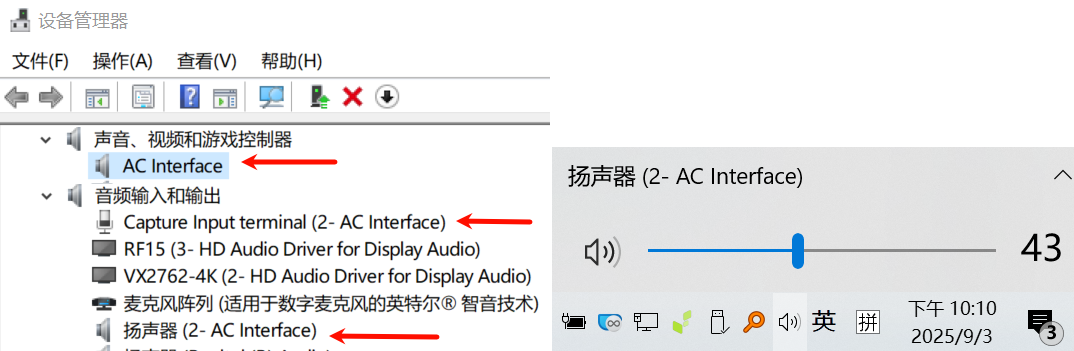
The device name of UAC1.0 on Windows 10 (version 21H2 is used in this document) is AC—Interface.
-
The device name of UAC2.0 on Windows 10 PC is Source/Sink.
-
On a Linux PC, the audio device name for UAC1.0/UAC2.0 is the Product String of the USB Gadget.
root@M1-MUSE-BOOK:~# aplay -l**** PLAYBACK Hardware Device List ****card 1: Device [SpacemiT Composite Device], device 0: USB Audio [USB Audio]subdevice: 0/1subdevice #0
Next, the main functions of the UAC Gadget are introduced separately: playback and recording.
Play audio from a Windows PC to the UAC gadget
-
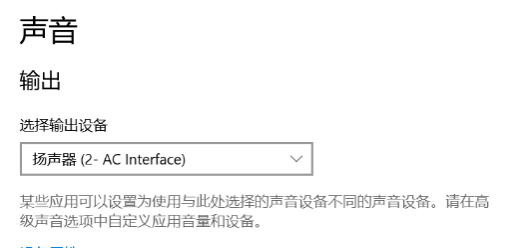
Find the volume icon on the taskbar, right-click to open Sound settings, and first set the playback device to our UAC Gadget (locate the device with the corresponding name as described above):
-
Execute the
aplay -landarecord -lcommands in the command line of the K1 development board acting as a UAC Gadget:root@spacemit-k1-x-deb1-board:~# aplay -l**** PLAYBACK 硬體裝置清單 ****card 0: C [H180 Plus (Type C)], device 0: USB Audio [USB Audio]子设备 : 0/1子设备 #0: subdevice #0card 1: sndes8326 [snd-es8326], device 0: i2s-dai0-ES8326 HiFi ES8326 HiFi-0 []子设备 : 1/1子设备 #0: subdevice #0card 2: UAC1Gadget [UAC1_Gadget], device 0: UAC1_PCM [UAC1_PCM]子设备 : 1/1子设备 #0: subdevice #0root@spacemit-k1-x-deb1-board:~# arecord -l**** CAPTURE 硬體裝置清單 ****card 0: C [H180 Plus (Type C)], device 0: USB Audio [USB Audio]子设备 : 1/1子设备 #0: subdevice #0card 1: sndes8326 [snd-es8326], device 0: i2s-dai0-ES8326 HiFi ES8326 HiFi-0 []子设备 : 1/1子设备 #0: subdevice #0card 2: UAC1Gadget [UAC1_Gadget], device 0: UAC1_PCM [UAC1_PCM]子设备 : 0/1子设备 #0: subdevice #0Record the numbers for card x and device y here. We will use these numbers to create recording and playback pipelines later; for example, "2.0" here refers to our UAC1Gaghet audio device, and "0.0" refers to our headphone device.
-
Execute the following command on the K1 development board to record audio from "2,0" (the UAC1Gadget device) and play it to "0,0" (the H180 Plus headphone):
arecord -f dat -t raw -D hw:2,0 | aplay -f dat -D hw:0,0Errors may occur::
root@spacemit-k1-x-deb1-board:~# arecord -f dat -t raw -D hw:2,0 | aplay -f dat -D hw:0,0arecord: main:834: aplay: main:834: 音乐打开错误: 设备或资源忙音乐打开错误: 设备或资源忙This issue occurs because the implementation details of the interaction between the current UAC Gadget driver and ALSA result in a mismatch in the status of the audio device.
We can use the following steps to acoid this issue. Windows will operate the device to put the audio device on the Gadget side into the Capture state:
(1)After switching the playback device, first start playing audio on the corresponding device (e.g., the device for UAC1 is AC-Interface), then re-execute the relevant commands on the K1 development board.
(2) If errors still occur when running the above command after performing step (1), first switch to another sound card, play audio, and then switch back to the target device (e.g., the device corresponding to UAC1 is AC-Interface).
Execute the command again at this point, and the K1 development board will normally start recording audio from the
hw:2,0device (UAC1Gadget) and playing it to thehw:0,0device (H180 Plus headphone):root@spacemit-k1-x-deb1-board:~# arecord -f dat -t raw -D hw:2,0 | aplay -f dat -D hw:0,0正在录音 原始資料 'stdin' : Signed 16 bit Little Endian, 频率 48000Hz, Stereo正在播放 原始資料 'stdin' : Signed 16 bit Little Endian, 频率 48000Hz, Stereo
Play audio from Linux PC to UAC Gadget:
The graphical interfaces of different distributions of Linux desktop systems are inconsistent. This section briefly introduces how to play audio from a Linux PC to the K1 development board via the command line and listen to it through another headphone device on the K1 development board:
-
Locate the UAC device emulated by the K1 development board by executing the
aplay -lcommand (for example, it is hw:1,0 in this case).root@mbook:~# aplay -l**** PLAYBACK Hardware Device List ****card 1: Device [SpacemiT Composite Device], device 0: USB Audio [USB Audio]subdevice: 0/1subdevice #0 -
Download a wav-format audio file and rename it to test.wav.
-
Do not bind the UAC device emulated by the K1 development board in the system GUI, otherwise an error will occur.
-
On a Linux PC, use the aplay command to play the test.wav file to the UAC Gadget device:
root@mbook:~# aplay test.wav -c 2 -r 48000 -D plughw:1,0 -
Execute the following command on the K1 development board to record audio from "2,0" (the UAC1Gadget device) and play it to the "0,0" device listed by the aplay -l command:
arecord -f dat -t raw -D hw:2,0 | aplay -f dat -D hw:0,0
Record audio from the UAC gadget on Windows PC
-
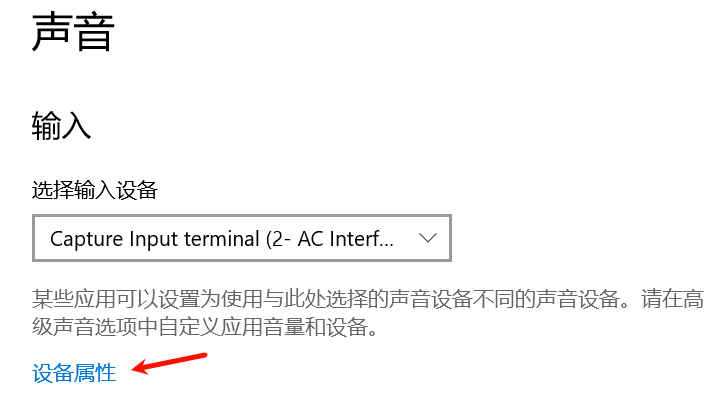
Find the volume icon on the taskbar, right-click to open Sound settings, and set the recording device to our UAC Gadget first (find the device with the corresponding name as described above):
-
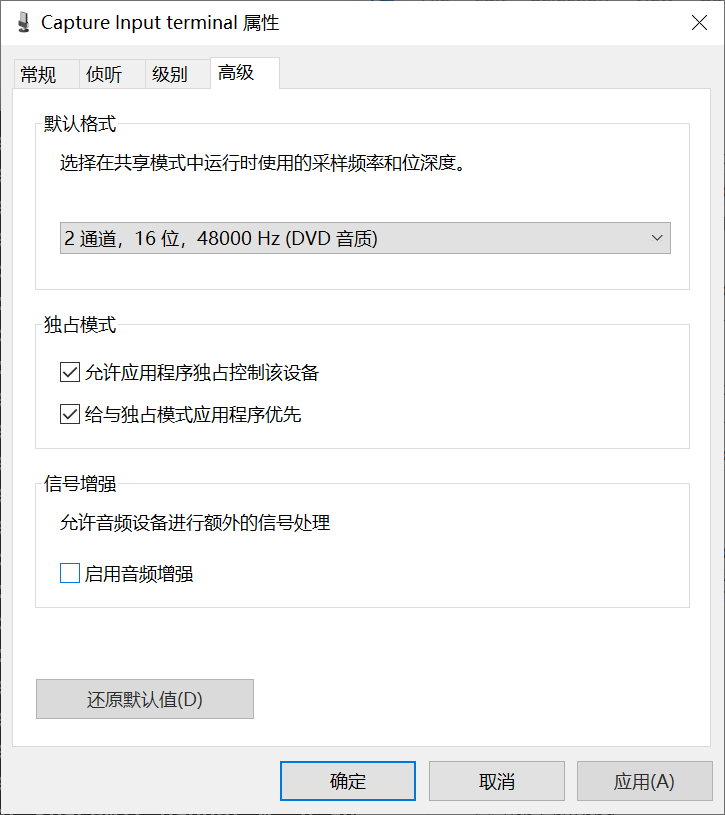
You must go this path in the Windows settins page from step 1: Device properties -> More device properties -> Advanced -> Signal enhancements and uncheck "Enable audio enhancement".
-
Download a
wavaudio file and rename it to test.wav. -
Execute the following command on the K1 development board to play the audio (
hw:2,0needs to be replaced with the corresponding UAC1Gadget found in the output of the aplay -l command).root@spacemit-k1-x-deb1-board:~/ffs# aplay test.wav -c 2 -r 48000 -D plughw:2,0正在播放 WAVE 'test.wav' : Signed 16 bit Little Endian, 频率 48000Hz, StereoIf an error occurs:"aplay: pcm_write:2146: 写入错误:输入 / 输出错误",you can try opening the Windows Sound Recorder first, starting the recording, and then returning to the K1 development board to execute the aplay playback command.
-
Open the Windows recording software and start recording.
-
If the recorded audio is abnormal, please check whether the Audio Enhancements in Windows is disabled.
Record audio from UAC gadget on Linux PC
This function is operated via the Linux PC graphical user interface in a similar way to the steps on a Windows PC.
Unlike Windows, where you need to disable the Audio Enhancements feature, on a Linux PC you should pay attention to the recording volume level.
For some Linux distributions, the recording volume should be set to 50 for normal levels. Values above 50 will amplify the audio, which may cause distortion in the audio data sent by the UAC gadget.
The command steps for recording audio into a WAV file using the arecord command-line on Linux are as follows:
-
Locate the card and device ID of the UAC device emulated by the K1 development board using
arecord -l. -
Do not bind the UAC device emulated by the K1 development board in the system GUI, otherwise an error will occur.
-
Execute the arecord command to record audio to the record.wav file:
arecord -f dat -c 2 -D hw:1,0 -t wav -d 20 record.wavExplain the meaning of the parameters:
-f datis a commonly used format abbreviation (you can view the help documentation with arecord -h).-D hw:1,0needs to be replaced with the corresponding values of the device found in the first step.-d 20means recording for 20 seconds.
-
Execute the command on the K1 development board to start playing audio (the values of the specific parameters need to refer to the previous descriptions — in particular, hw:2,0 must be replaced with the value corresponding to the actual UAC1Gadget):
root@spacemit-k1-x-deb1-board:~/ffs# aplay test.wav -c 2 -r 48000 -D plughw:2,0正在播放 WAVE 'test.wav' : Signed 16 bit Little Endian, 频率 48000Hz, Stereo
Parameter Configuration and Secondary Development
The UAC has several configurable parameters, part of which are configured in the script.
Users can refer to documents such as the UAC specification, script source code, and Linux USB Gadget Testing - UAC2 for secondary development.
ACM (CDC-ACM: Communication Device Class - Abstract Control Model)
Configuration to be enabled: CONFIG_USB_F_ACM
ACM is a type of USB serial protocol. It allows the development board to act as a serial device, emulate a serial port, and perform serial Tx/Rx data transmission.
After enabling the ACM function, a TTY device node will be created at the userspace layer. When the host enumerates the development board, the board will be enumerated as a serial device. The two sides can communicate by operating the serial device node.
It is also very easy to use: run the gadget script to launch the serial port gadget, then
gadget-setup.sh acm
On the gadget board’s Linux system, a block device node named ttyGS* will be created under /dev, typically /dev/ttyGS0.
On Linux, tools such as picocom and minicom, or the command-line echo/cat commands can be used. On a Linux PC, the generated device nodes are usually prefixed with
/dev/ttyACM*。
On Windows, you can use common serial tools such as SecureCRT and WindTerm for communication. The corresponding COM port number can be viewed in Device Manager or via USBTreeView
ADB (Android Debug Bridge)
Configurations to be enabled: CONFIG_USB_F_FS, CONFIG_NET and related network configurations (upper-layer applications depend on the network).
Android Debug Bridge (ADB) is a versatile command-line tool that enables you to communicate with a device. You can use ADB Shell to run various commands on the device, such as uploading and downloading files, restarting the device, entering flash mode, etc. ADB supports both USB transmission and network transmission.
The general-purpose script gadget-setup.sh integrates the ADB function and is implemented based on FunctionFS.
Additionally, the upper-layer application adbd is required for normal operation.
In Buildroot, the compilation of the adbd service program can be enabled via BR2_PACKAGE_ANDROID_TOOLS_ADBD
In the Bianbu system, the android-tools package can be installed using the apt command-line tool.
Note: Bianbu / Buildroot have ADB functionality integrated by default, and gadget-setup.sh cannot be used simultaneously with the system-integrated version.
You can find different usb gadget instances by checking the directories in /sys/kernel/config/usb_gadget.
The following describes the steps to configure the ADB function using the gadget-setup.sh script:
# Configure adb
gadget-setup.sh adb
# Stop adb
gadget-setup.sh stop
Brief Introduction to ADB Usage:
ADB packages can be downloaded by PC from official channels via platform-tools. After downloading and unzipping the package, add the bin directory to the system's PATH environment variable.
Basic ADB Commands:
# Push files from the PC to the development board:
adb push C:/xxx.yyy /home/bianbu/
# Pull files from the development board to the PC:
adb pull /home/bianbu/remote_file C:/
# Enter fastboot mode:
adb reboot fastboot
The ADB command-line tool on the Ubuntu (Linux) PC may report the following errors:
$ adb devices
List of devices attached
735ec889dec8 no permissions(user in plugdev group;are your udev rules wrong?);see [http://developer.android.com/tools/device.html]usb:3-3.3 transport_id:1
The solution is to edit /etc/udev/rules.d/51-android.rules,and add ythe following line:
$ sudo vi /etc/udev/rules.d/51-android.rules
SUBSYSTEM=="usb", ATTR{idVendor}=="361c", ATTR{idProduct}=="0008", MODE="0666", GROUP="plugdev"
Then reload the udev rule:
sudo udevadm control --reload-rules
On Windows, the ADB driver for the SpacemiT development board is installed automatically when you install the titan flashing tool.
MTP (Media Transfer Protocol)
Related USB Spec:
Configuration to be enabled: CONFIG_USB_F_FS。
MTP stands for Media Transfer Protocol, currently maintained by the USB-IF. It is widely used for file transfer between mobile phones, cameras, and computers. For example, accessing photos on a phone after connecting it to a computer via USB uses MTP.
In contrast to Mass Storage, where the phone cannot access the file system on the corresponding block device or image once it is mounted, MTP allows both the phone and the PC to access the file system simultaneously, making usage more convenient.
As mentioned earlier, the MTP function is also implemented based on FunctionFS, so a userspace layer service program is required. We will use umtp-responder as our service daemon. It is a lightweight MTP server that can be used directly on development boards with both Buildroot and Bianbu:
- For Buildroot, simply enable compilation via
CONFIG_BR2_PACKAGE_UMTPRDto use it; - On Desktop systems, you can install the umtp-responder package via apt and use it directly;
- For other operating systems, you can build it from the source code on GitHub. For other operating systems, you can build it from the source code on GitHub.
The MTP function configuration based on umtp-responder is already integrated in gadget-setup.sh. After completing the installation following the steps above, execute:
gadget-setup.sh mtp
to bring up the MTP function.
We use a Windows PC as the host for this example. MTP supports driver-free operation, so the corresponding portable device will appear in Windows Device Manager and File Explorer. The product name configured in the default script is SpacemiT Technologies:
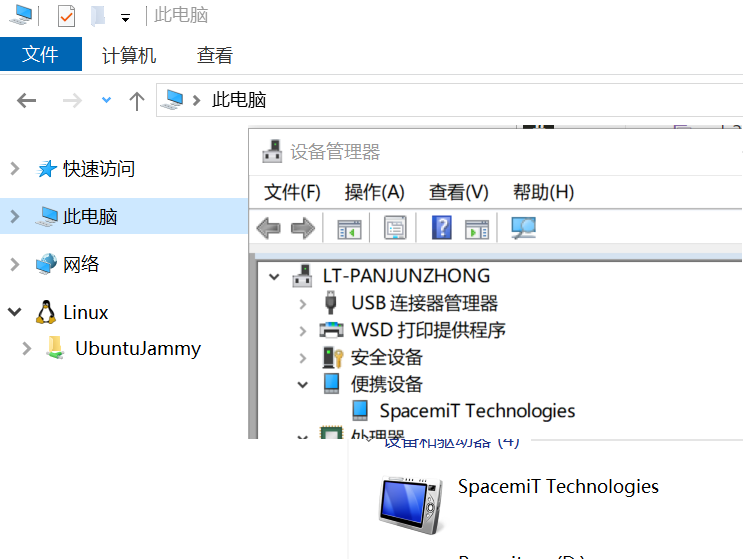
The same applies to other operating systems (macOS, Linux distributions).
MTP supports mounting multiple storage objects, and each object can be configured with a local path, name, and read/write permissions. umtp-responder is configured in /etc/umtprd/umtprd.conf:
storage "/var/lib/umtp" "shared folder" "rw"
# storage "/home/USER/foo"  "home folder" "rw"
# storage "/www"            "www folder" "ro,notmounted"
The script configures a shared directory by default,
The local path on the development board is /var/lib/umtp, named shared folder (this name is independently configurable from the actual local path; for example, a camera folder can be named DCIM), mounted with read/write permissions,
and the available capacity corresponds to the capacity of the mounted device for the local path on the development board.
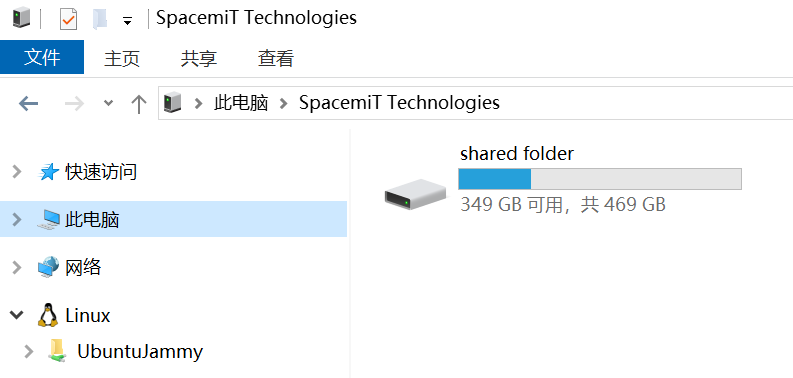
In contrast to Mass Storage, where only one party can exclusively occupy a block device or image, the MTP protocol is much more convenient and flexible: When a PC reads from or writes to this directory, the updates can be observed in real time on the development board itself, and vice versa.
Users often have customization requirements for MTP Gadget parameters. Please refer to the following materials to understand how to customize them:
- How to configure
umtp-responderin thegadget-setup.shscript. - The
READMEof theumtp-responderproject. - The default configuration file for
umtp-responderafter installation is/etc/umtprd/umtprd.conf, where you can customize the product name and configure the local storage paths (and their permissions) accessible to the PC. - MTP protocol design specification。
Mass Storage (BOT Protocol, f_mass_storage)
Related USB Spec:
Configuration to be enabled: CONFIG_USB_F_MASS_STORAGE
The development board acts as a USB device. BOT (Bulk Only Transport) is the underlying protocol.
It suppots mounting an image or device node, in which case the device node will be unavailable to other applications.
By default, the ramdisk is set to FAT32 format. If you’re using Bianbu, install this tool first: sudo apt install dosfstools. For other systems, make sure the mkdosfs command is available.
To set the specific storage capacity, check how it’s implemented in the script.
gadget-setup.sh msc:< 镜像或设备节点 >
# For example
gadget-setup.sh msc:/dev/nvme0n1

# Use ramdisk
gadget-setup.sh msc
Mass Storage ( Supports UASP + BOT Protocol, f_tcm)
Related USB Spec:
Configurations to be enabled: CONFIG_USB_F_TCM, CONFIG_TARGET_CORE, CONFIG_TCM_IBLOCK, CONFIG_TCM_FILEIO
The development board acts as a USB device. UASP(USB Attached SCSI Protocol) improves transmission efficiency. It supports mounting an exclusive image or device node, in which case the device node will become unavailable to other applications. A ramdisk has no file system by default when used.
gadget-setup.sh uas:< 镜像或设备节点 >
# For example
gadget-setup.sh uas:/dev/nvme0n1

# Use ramdisk
gadget-setup.sh uas
RNDIS (Remote Network Driver Interface Specification)
Configurations to be enabled: Network subsystem-related configurations such as CONFIG_USB_F_RNDIS and CONFIG_NET.
Acts as a network device. RNDIS is a proprietary protocol of Microsoft. Reference from Microsoft's official documentation:
Run the following command to bring up the rndis gadget:
gadget-setup.sh rndis
Additionally, the latest version of the script adds a shortcut function to run the DHCP server, which depends on busybox udhcpd (CONFIG_UDHCPD needs to be enabled when building busybox from source). Simply execute the following command:
gadget-setup.sh dhcp
It will automatically configure an IP address for the network device, and support assigning an IP address to the PC via the DHCP protocol. Refer to the script implementation for specific details.
PC Shares Internet with the Development Board
This section describes how to share the Windows PC’s internet access with a development board that has no direct network connection, only an RNDIS USB Gadget connection, enabling the development board to access the internet.
-
Execute the command:
gadget-setup rndis -
Open Network and Sharing Center in Windows.
-
Open the network connection that has Internet access (such as Wi‑Fi or Ethernet).
-
Right click and select Properties.
-
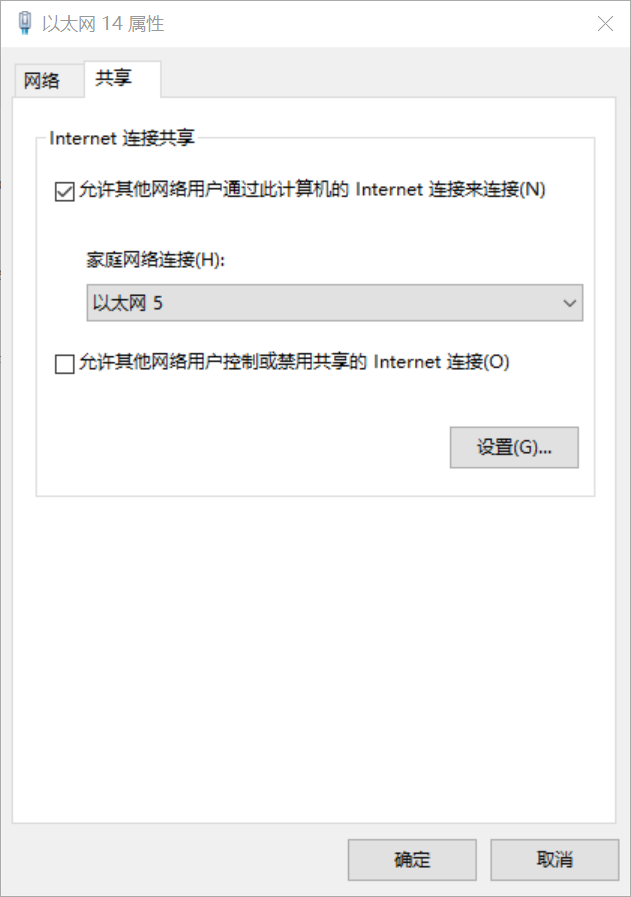
Click the Sharing, then check Allow other network users to connect through this computer’s Internet connection.
-
From the Home networking connection dropdown, select your RNDIS device. (In the example, Ethernet 5 is the USB development board’s RNDIS device, and Ethernet 14 is the Wi‑Fi/Ethernet connection to the Internet.):
-
Click OK.
-
On the development board, run udhcpc -i usb0 to obtain the IP address assigned by Windows.
Windows can also use a network bridge. Please refer to the official Windows documentation for details.
For a Linux PC, the graphical interfaces vary, so they are not covered here. However, Linux offers very flexible network configuration; refer to tutorials on Linux network command-line tools for details.
NCM (CDC-NCM: Communication Device Class - Network Control Model)
Related USB Spec:
Configurations to be enabled: Network subsystem-related configurations, such as CONFIG_USB_F_NCM, CONFIG_NET.
Unlike RNDIS, which is maintained by Microsoft, NCM is a network protocol maintained by the USB-IF.It is supported by major operating systems including Linux, Windows 11, and macOS. Note: The current NCM driver implementation in Windows 10 is not fully compatible with the NCM gadget in Linux 6.6. Microsoft fixed this issue in Windows 11.
gadget-setup.sh ncm
Additionally, the latest version of the script adds a shortcut function to run the DHCP server, which depends on busybox udhcpd. Execute the following command:
gadget-setup.sh dhcp
It will automatically configure an IP address for the network device and support assigning an IP address to the PC via the DHCP protocol. For specific details, refer to the script implementation.
For those who need to enable the development board to share internet access from Windows, refer to the section "PC Shares Internet with the Development Board" in the RNDIS section, but change the command in the first step to ncm instead of rndis.
HID (Human Interface Device)
Configuration to be enabled: CONFIG_USB_F_HID
USB HID Related Documents:
- Introduction to the HID Class Protocol
- HID Usage Page keycode Reference Table
- USB-IF Report Desc Generation Tool
HID refers to human interface devices. HID Gadget is typically used to emulate keyboards, mice, game controllers, and volume/ media control devices. Sometimes, the driver-free feature of HID is also leveraged to transmit small volumes of data.
gadget-setup.sh hid
A notable aspect of the script is the report format, which is defined by REPORT_DESC in the script. Users can locate it via global search and make modifications as needed.
Configuring the specific report format requires a thorough understanding of the HID protocol. For more detailed information, refer to the relevant kernel documentation and specification documents.
After executing the script, the gadget side will generate the /dev/hidg0 device node. Users can subsequently communicate with the host computer via this node. For example, if you want to send emulated mouse and keyboard data, you’ll need to write that data to this node, and the data you write has to follow the format defined in the HID report_desc.
For details on the keyboard and mouse emulation scenario, please refer to this kernel document。However, note that the first section of this document describes the traditional approach based on g_hid. Our current implementation uses the configfs configuration method (starting from the section Configuration with configfs). Users may refer to the report_desc in the first step. The document implements a data-reporting app called hid_gadget_test. Run it on the gadget side, then input the relevant content. The gadget will then report the required keyboard and mouse input data to the host.
Additionally, the easiest IO test method uses Python and cat/hexdump (incomplete HID report format processing/parsing):
-
Here is an example where the PC sends data and the Device receives it: on the Linux system of the development board, open a character device node and read from it. In the Shell, we demonstrate continuously reading data using cat, then parsing and printing the data via hexdump:
cat /dev/hidg0 | hexdump -C -
Sending "hello world" from a Windows PC via Python (driver-free): First install the required dependencies for Python:
pip install hidapi # Windows/Linux Compatible -
Sending "hello world"from a PC to a device via the HID protocol Python:
import hid"""Note: This code runs on PC"""# Locate custom HID devicedevice = hid.device()# Open a device by Vendor ID and Product IDvendor_id = 0x361c # SpacemiTproduct_id = 0x0007 # Product IDdevice.open(vendor_id, product_id)# Set non-blocking mode (optional)device.set_nonblocking(1)# Prepare the data (A report ID must be added at the beginning, tipically 0x00)message = b"/x00" + b"hello world".ljust(63, b"/x00") # Total length: 64 Bytes# Send datadevice.write(message)print(" 已发送 : hello world")# Receive the response (if any)data = device.read(64)if data:print(f" 收到响应 : {bytes(data[1:]).decode('ascii').strip()}")#Skip the report ID# Close the devicedevice.close() -
After executing the PC script, the actual test screenshot is as follows (gadget side):

FFS Demo (FunctionFS)
This describes how to successfully run the FunctionFS demo:
SpacemiT has provided a modified version of the app based on the simple device_app located in the tools/usb/ffs-aio-example directory of the kernel source code:
- Add a WINUSB driver-free operating system descriptor based on WCID, enabling Windows to directly bind the WINUSB driver for rapid userspace-layer verification.
- Improve printing and add readable data.
This code is released on Gitee | SpacemiT Buildroot SDK / usb-gadget
After cloning the repository to the K1 development board running the bianbu/ubuntu system (to simplify the verification process, the cross-compilation method is not introduced here for the time being), you can successfully run the ffs demo by following the steps below.
-
First, install the libaio-dev package on Bianbu OS, then execute the following command:
sudo apt update && apt install libaio-dev -
Compile the device service application and execute the following commands in sequence:
makemake installAfter the commands are executed, the binary file named demod will be added to the /usr/bin/ directory.
-
Bring up the gadget device. Since the adb ffs service built into the Bianbu system occupies UDC resources, you need to stop this service first and execute the following command:
systemctl stop adbdThen run command to bring up ffs-demo gadget:
bash ffs-setup.sh start -
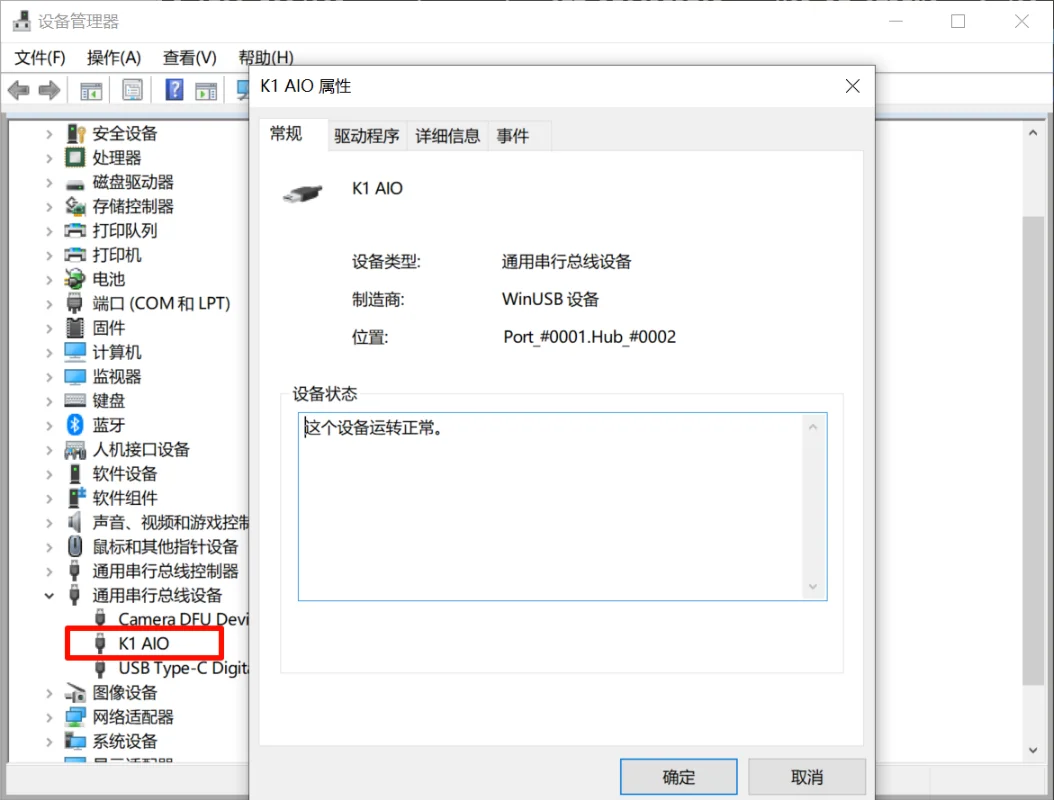
Connect the USB cable to the PC host. A new USB device named "K1 AIO" will appear. On a Windows PC, you can check it in Device Manager; On a Linux PC, you can check it with the lsusb.
-
When connected to a Linux host, you can use the host_app located in the tools/usb/ffs-aio-example/ directory to communicate with this ffs bulk transfer demo gadget device. The specific process is straightforward: (1) Modify the PID and VID in host_app to match those in ffs-setup.sh. (2) Then install the libaio-dev dependency on the Linux Host PC. (3) Compile after execution (details omitted here).
-
When connected to a Windows host, you can use a user-mode application based on WINUSB and libusb (e.g., the host_demo.py Python script) for communication.
This briefly introduces the host_demo.py Python script, which is not restricted to any specific operating system. Here, we take Windows as an example:(a) If pyusb is not installed, you need to execute the
pip install pyusbcommand first to install it.(b) Install the libusb for the Windows system (available for download from https://libusb.info/);
(c) Replace the path to the libusb backend in the Python script with the actual path to libusb-1.0.dll;
(d) Use python3 to run this script.
#### host side execution output ####C:/ffs-demo> python ./host_demo.pySending: b'hello world'Received: AIO#### device ( K1 )side execution output ####ev=out; ret=11submit: out, last out: hello worldev=in; ret=8192submit: in -
Clean up the gadget device and restore the adb service built into the Bianbu system, then execute the following command:
bash ffs-setup.sh stop# Use systemctl start adbd to restore bianbu's built-in adb service.
USB Composite Device
As mentioned earlier, to enable a single Linux terminal to easily support multiple interfaces when acting as a Gadget (thus allowing a single physical device to function as a multi-function USB peripheral), the Linux USB Gadget framework has implemented a Composite Driver middle layer based on the USB 2.0 ECN Interface Association Descriptor (IAD). This means that the upper layer only needs to implement function drivers, and users can freely combine these functions to form a multi-function device.
The gadget-setup.sh script already provides support for enumerating as multiple USB Functions simultaneously; simply separate multiple functions with a comma:
For example: rndis + adb:
gadget-setup.sh rndis,adb
It should be noted that in gadget-setup.sh, the order in which multiple functions are added is fixed—it does not follow the order of the comma-separated list of functions. Therefore, the endpoint numbers are also determined by the fixed order in the script. If users need to specify the order of endpoint numbers, they can directly customize and modify the script.
Implementation Logic:The glink() function in the gadget-setup.sh script calls the link configuration of each function separately, adding the configuration to the config.
Ultimately, the kernel driver allocates endpoint numbers in sequence according to the order of these link calls for multiple functions, for example:
ln -s /sys/kernel/config/usb_gadget/spacemit/functions/rndis.0 /sys/kernel/config/usb_gadget/spacemit/configs/c.1
ln -s /sys/kernel/config/usb_gadget/spacemit/functions/ncm.0 /sys/kernel/config/usb_gadget/spacemit/configs/c.1
In this case, endpoint numbers are first allocated to the endpoints of the rndis interface, followed by the allocation of endpoint numbers to the endpoints of the ncm interface.
If the gadget-setup script is used, users can adjust the order of arrangement in the glink() function to control the order of endpoint number allocation:
glink()
{
 [ $MSC  = okay ] && msc_link
 [ $UAS  = okay ] && uas_link
 [ $RNDIS  = okay ] && rndis_link
 [ $NCM  = okay ] && ncm_link
 [ $ADB  = okay ] && adb_link
 [ $MTP  = okay ] && adb_link
 [ $FFS  = okay ] && ffs_link
 [ $UVC  = okay ] && uvc_link
 [ $HID  = okay ] && hid_link
 [ $ACM  = okay ] && hid_link
}
If a self-developed script is used, simply adjust the order in which functions are linked to the configs/c.1 directory according to requirements.
User-Specified Selection of a Specific UDC
Since the current handware platform may have multiple USB controllers (udc) that support device mode, the available udcs can be viewed using the following command:
~ # ls /sys/class/udc/
c0900100.udc   c0980100.udc1  c0a00000.dwc3
The default script selects the first UDC in the /sys/class/udc/ directory.
Users can specify a specific udc via environment variable, for example:
# Select the second udc
USB_UDC_IDX=2 gadget-setup.sh ...
USB_UDC_IDX=2 uvc-gadget-setup.sh ...
# Select c0a00000.dwc3
USB_UDC=c0a00000.dwc3 gadget-setup.sh ...
USB_UDC=c0a00000.dwc3 uvc-gadget-setup.sh ...
Where ... omits other parameters of the script.