USB Signal Quality Test Guide
USB 2.0 Test Guide
The complete USB 2.0 electrical signal quality test content can be found on USB 2.0 Electrical Compliance Specification | USB-IF Document Library.
Main test items:
- Eye Diagram
- Signal Rate
- Rise and Fall Time
- Monotonicity Test
and other test items.
The specific test procedures shall follow the guidelines provided by the corresponding test instrument (oscilloscope) or test laboratory. This section describes how to generate the required test waveforms using the K1 USB controller.
The USB 2.0 test pattern options are listed below (for details, refer to USB 2.0 Spec Section 7.1.20):
- Test SE0 NAK
- Test J
- Test K
- Test Packet
- Test Force Enable
When testing signal quality such as rise/fall time, eye diagram, jitter, and other dynamic waveform specifications, the Test Packet test pattern shall be used. For the specific test packet structure, refer to USB 2.0 Specification Section 7.1.20.
USB 2.0 Device Signal Quality Test Guide
In Device mode, the test waveform can be generated using either of the following two methods. Either method may be selected according to the test environment.
- The test waveform is configured by the host using the xHCI Electrical Test Tool: Install the USB-IF standard test tool xHCI Electrical Test Tool on the host, and implement it by sending the control packet Set Feature(Test Packet) to the device.
- Configuration of K1 is performed via Linux DebugFS:The controller is directly operated and configured on the Device side, and on the K1 SDK, configuration is implemented through the linux debugfs nodes.
K1 USB2.0 OTG Controller Device Mode Test
Before testing, ensure that the USB2.0 OTG controller is operating in Device mode. Currently, both Buildroot and Bianbu boot up the USB2.0 OTG controller as a USB ADB device on startup.
If a special firmware is used, the configuration can be performed using the gadget-setup.sh script:
USB_UDC=c0900100.udc gadget-setup.sh adb
For detailed information about this script, please refer to the USB Gadget Developer Guide .
Host Configuration of Test Waveform via xHCL Electrical Test Tool
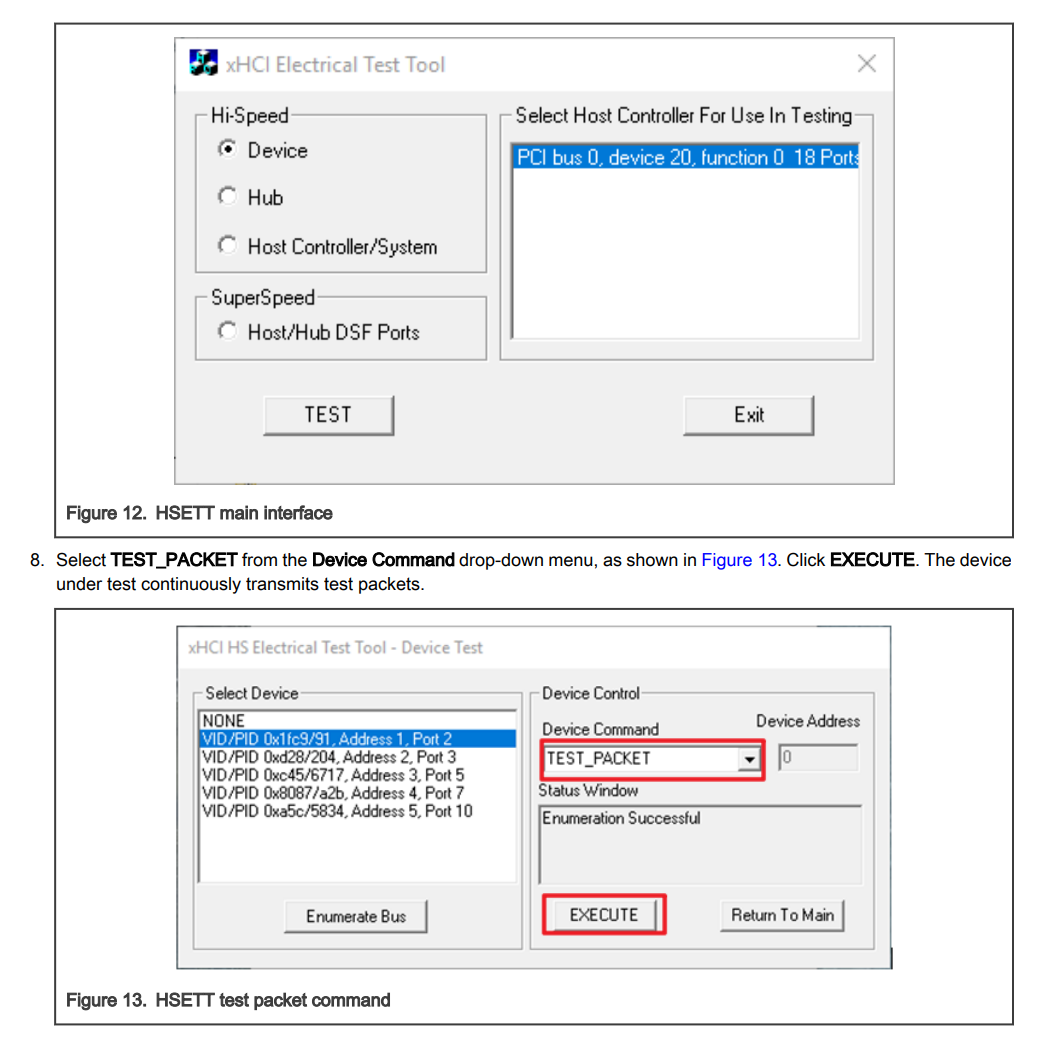
Connect the USB2.0 OTG port of the K1 development board (USB0_DP/USB0_DN in the schematic) to the host with the xHCI Electrical Test Tool installed via a USB cable and test fixture. As shown in the figure, select the device with VID/PID 0x361c/..., choose the TEST_PACKET option under Device Command, and click EXECUTE. The K1 USB2.0 OTG controller will then start transmitting the test waveform.
K1 Configuration via Linux DebugFS
Note: Support for the USB2.0 OTG controller DebugFS described in this section is only available in newer versions of the SpacemiT kernel.
When the USB2.0 OTG controller of the K1 development board is in Device mode, the test waveform can be configured by directly operating the controller via Linux DebugFS nodes. The specific operations are as follows:
-
Ensure the development board is powered on and has entered the system. The path to the DebugFS node corresponding to the USB2.0 OTG controller is
/sys/kernel/debug/usb/c0900100.udc/. -
Enter test mode and transmit the test waveform:
echo test_packet > /sys/kernel/debug/usb/c0900100.udc/testmode#Other options: test_j, test_k, test_se0_nak, test_force_enable -
Check the current high-speed test mode status:
cat /sys/kernel/debug/usb/c0900100.udc/testmode -
Exit test mode and restore the normal operating status:
echo none > /sys/kernel/debug/usb/c0900100.udc/testmode
During operation, connect the USB2.0 OTG port of the development board to the test fixture using a USB cable. After executing the above commands, the corresponding test waveform can be observed on the test fixture.
K1 USB3.0 DRD Controller Device Mode (HighSpeed Connection) Testing
This test applies only to development boards / product boards that are designed to use the USB3.0 DRD controller in Device mode, or boards that support manual switching to Device mode. For details, refer to USB General Developer Guide .
During testing, ensure the USB3.0 DRD controller operates in Device mode. Also, make sure the test fixture and cables support a maximum of USB2.0 High‑Speed instead of USB3.0 SuperSpeed.
The gadget-setup.sh script can be used to configure the USB3.0 DRD controller to enter Device operating mode:
USB_UDC=c0a00000.dwc3 gadget-setup.sh hid
For detailed information about this script, refer to the USB Gadget Developer Guide.
Host Configuration of Test Waveform via xHCI Electrical Test Tool
Connect the USB3.0 DRD port of the K1 development board (USB2_DP/USB2_DN in the schematic) to the host with the xHCI Electrical Test Tool installed, using a USB cable and test fixture. As shown in the figure, select the device with VID/PID 0x361c/..., choose the TEST_PACKET option under Device Command, and click EXECUTE. The K1 USB3.0 DRD controller will then transmit the test waveform.
Configuration via Linux DebugFS
When the USB3.0 DRD controller of the K1 development board is in Device mode, the USB 2.0 HighSpeed test waveform can be configured by directly operating the controller via Linux DebugFS nodes. The specific operations are as follows:
-
Ensure the development board is powered on and has entered the system. The path to the DebugFS node corresponding to the USB3.0 DRD controller is
/sys/kernel/debug/usb/c0a00000.dwc3/. -
Enter test mode and transmit the test waveform:
echo test_force_enable > /sys/kernel/debug/usb/c0a00000.dwc3/testmodeecho test_packet > /sys/kernel/debug/usb/c0a00000.dwc3/testmode# Other options: test_j, test_k, test_se0_nak -
Check the current status of the Highspeed test mode:
cat /sys/kernel/debug/usb/c0a00000.dwc3/testmode -
Exit test mode and restore the normal operating status:
echo none > /sys/kernel/debug/usb/c0a00000.dwc3/testmode
During the operation, connect the USB3.0 DRD port of the development board to the test fixture using a USB cable. After executing the above commands, the corresponding test waveform can be observed on the test fixture.
USB 2.0 Host Signal Quality Test Guide
In Host mode, configuration is only supported via application layer tools, which are compatible with all USB 2.0 ports of the Host.
Users only need to find the bus number, device number, and port number of the corresponding port. Whether it is a port directly from the controller roothub or a downstream HUB port, the corresponding port can be configured to transmit test waveforms.
Testing requires the use of the command-line porttest tool, and the source code for this tool is provided in Appendix - porttest Source Code.
Usage of porttest:
./porttest /dev/bus/usb/《 Bus 号码》/《 Dev 号码》 《端口号》 《测试 PATTERN 代号》
# e.g.:
# ./porttest /dev/bus/usb/001/001 1 4
# The test PATTERN codes are as follows:
# - Reserved: 0
# - Test_J: 1
# - Test_K: 2
# - Test_SE0_NAK: 3
# - Test_Packet: 4
This waveform is typically selected for eye diagram testing and other related tests.
# - Test_Force_Enable: 5
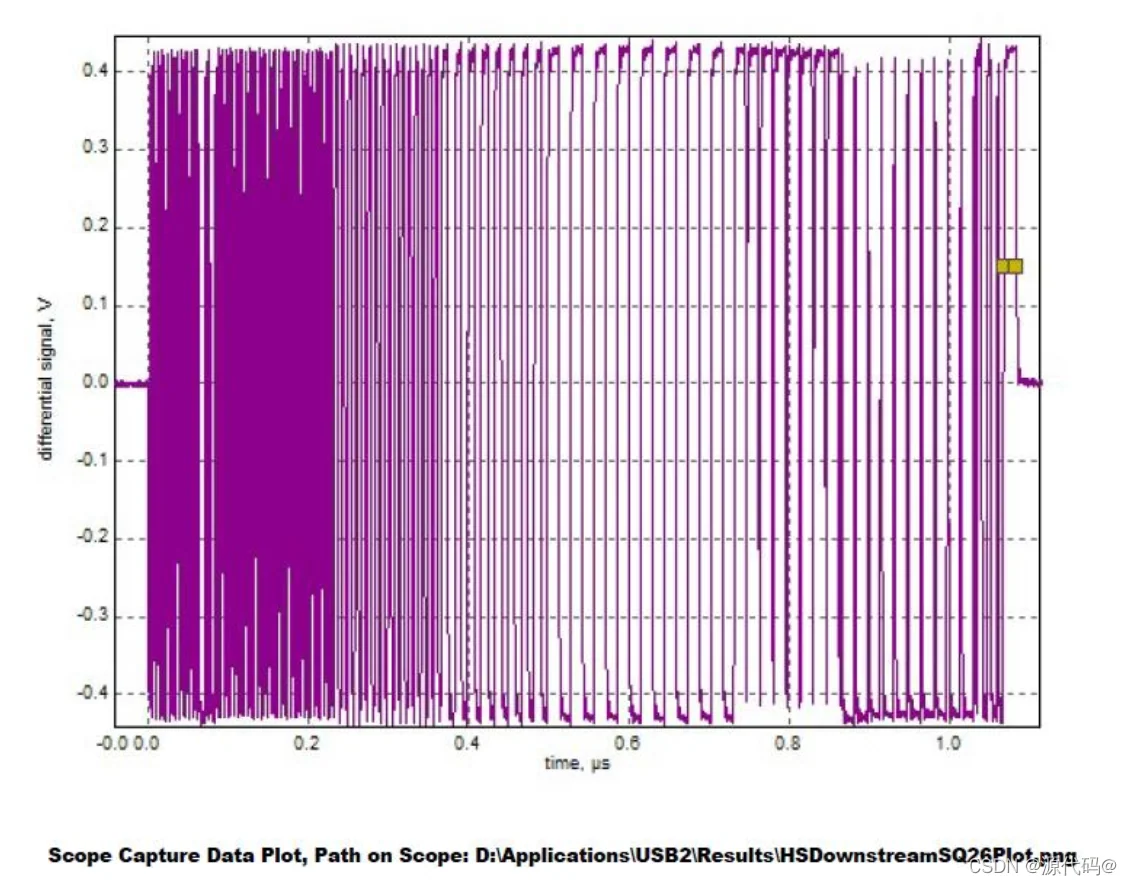
If the Test Packet option is executed for a specific port, the corresponding port will start transmitting Test Packets at this time.
The test waveform observed on the oscilloscope is shown in the figure below:
K1 USB2.0 OTG Controller Host Mode Test
-
First, set the external port of the USB2.0 OTG controller (USB0_DN/USB0_DP in the schematic) to Host mode. Configure according to the actual port type of the design (for example, a Type‑C port requires a Type-C to Host adapter).
Manual switching scheme – forced entry method:
echo host > /sys/class/usb_role/mv-otg-role-switch/role -
Locate the device path of the RootHub Port for the controller in Host mode.
First, execute the command:
cat /sys/kernel/debug/usb/devicesIn the output:
~ # cat /sys/kernel/debug/usb/devicesT: Bus=01 Lev=00 Prnt=00 Port=00 Cnt=00 Dev#= 1 Spd=480 MxCh= 1B: Alloc= 0/800 us ( 0%), #Int= 0, #Iso= 0D: Ver= 2.00 Cls=09(hub ) Sub=00 Prot=01 MxPS=64 #Cfgs= 1P: Vendor=1d6b ProdID=0002 Rev= 6.01S: Manufacturer=Linux 6.1.15+ ehci_hcdS: Product=Spacemit EHCIS: SerialNumber=mv-ehciC:* #Ifs= 1 Cfg#= 1 Atr=e0 MxPwr= 0mAI:* If#= 0 Alt= 0 #EPs= 1 Cls=09(hub ) Sub=00 Prot=00 Driver=hubE: Ad=81(I) Atr=03(Int.) MxPS= 4 Ivl=256msLocate the section where
SerialNumber=mv-ehciis present. Record the Bus and Dev#= values in the first line starting with T: Bus.... For example, in this case:T: Bus=01 Lev=00 Prnt=00 Port=00 Cnt=00 Dev#= 1 Spd=480 MxCh= 1# Here is 01 , 1 -
Execute the command to enter Test Packet mode:
porttest /dev/bus/usb/< 上一步中得到的 Bus 序号 >/< 上一步中得到的 Dev# 序号 > 1 4# Here, 1 refers to the first port of the roothub. All roothubs on K1 have only one port.For example (Please follow the complete steps in this section to determine the final command – do NOT run the command in the example directly!):
~ # porttest /dev/bus/usb/001/001 1 4Setting port 1 to test mode 4 (Test_Packet)Test mode successful
K1 USB2.0 HOST ONLY Controller Host Mode Test
-
Locate the device path of the RootHub Port for this controller in Host mode.
First, execute the command:
cat /sys/kernel/debug/usb/devicesIn the output:
~ # cat /sys/kernel/debug/usb/devicesT: Bus=02 Lev=00 Prnt=00 Port=00 Cnt=00 Dev#= 1 Spd=480 MxCh= 1B: Alloc= 0/800 us ( 0%), #Int= 0, #Iso= 0D: Ver= 2.00 Cls=09(hub ) Sub=00 Prot=01 MxPS=64 #Cfgs= 1P: Vendor=1d6b ProdID=0002 Rev= 6.01S: Manufacturer=Linux 6.1.15+ ehci_hcdS: Product=Spacemit EHCIS: SerialNumber=mv-ehci1C:* #Ifs= 1 Cfg#= 1 Atr=e0 MxPwr= 0mAI:* If#= 0 Alt= 0 #EPs= 1 Cls=09(hub ) Sub=00 Prot=00 Driver=hubE: Ad=81(I) Atr=03(Int.) MxPS= 4 Ivl=256msLocate the section where
SerialNumber=mv-ehci1is present. Record the numbers follwing Bus= and Dev#= in the first line starting with T: Bus.... For example, in this case:T: Bus=02 Lev=00 Prnt=00 Port=00 Cnt=00 Dev#= 1 Spd=480 MxCh= 1# Here is 02 , 1 -
Execute the command to enter Test Packet mode:
porttest /dev/bus/usb/< 上一步中得到的 Bus 序号 >/< 上一步中得到的 Dev# 序号 > 1 4# Here, 1 refers to the first port of the roothub.For example (Please follow the complete steps in this section to determine the final command – do NOT run the command in the example directly!):
~ # porttest /dev/bus/usb/001/001 1 4Setting port 1 to test mode 4 (Test_Packet)Test mode successful
K1 USB3.0 DRD Controller Host Mood( HighSpeed Connection)Test
-
First, set the USB3.0 DRD to Host mode (USB2_DN/DP in the schematic).
To force entry in DRD mode:
echo host > /sys/kernel/debug/usb/c0a00000.dwc3/mode -
Locate the device path of the Roothub Port for this controller in Host mode.
First, execute the command:
cat /sys/kernel/debug/usb/devicesIn the output:
~ # cat /sys/kernel/debug/usb/devicesT: Bus=03 Lev=00 Prnt=00 Port=00 Cnt=00 Dev#= 1 Spd=480 MxCh= 1B: Alloc= 0/800 us ( 0%), #Int= 0, #Iso= 0D: Ver= 2.00 Cls=09(hub ) Sub=00 Prot=01 MxPS=64 #Cfgs= 1P: Vendor=1d6b ProdID=0002 Rev= 6.01S: Manufacturer=Linux 6.1.15+ xhci-hcdS: Product=xHCI Host ControllerS: SerialNumber=xhci-hcd.2.autoC:* #Ifs= 1 Cfg#= 1 Atr=e0 MxPwr= 0mAI:* If#= 0 Alt= 0 #EPs= 1 Cls=09(hub ) Sub=00 Prot=00 Driver=hubE: Ad=81(I) Atr=03(Int.) MxPS= 4 Ivl=256msLocate the section where
Product=xHCI Host Controlleris specified, and ensure that the first line starting with T in this section containsSpd=480.Record the numbers after Bus= and Dev#= in the first line starting with T: Bus..... For example:
T: Bus=03 Lev=00 Prnt=00 Port=00 Cnt=00 Dev#= 1 Spd=480 MxCh= 1# Here is 03 , 1 -
Execute the command to enter Test Packet mode:
porttest /dev/bus/usb/< 上一步中得到的 Bus 序号 >/< 上一步中得到的 Dev# 序号 > 1 4# The 1 here refers to the first port of the roothub. All roothubs on K1 have only one port.For example (Please follow the complete steps in this section to determine the final command – do NOT run the command in the example directly!):
~ # porttest /dev/bus/usb/003/001 1 4Setting port 1 to test mode 4 (Test_Packet)Test mode successful
K1 Development Board Other USB 2.0 HUB Port Signal Test
During the final product testing, it is necessary to test the outermost USB ports of the development board. For some solutions, the outermost USB ports are extended via a USB HUB. In such cases, you need to enable their test mode and configure them using the porttest program as well.
You can refer to the method above – simply replace the corresponding information of Vendor, ProdID, Manufacturer, and Product that you look up with the information of the HUB you want to test, then find the corresponding Bus number and Device number.
Here we further explain how to use lsusb (not applicable to buildroot, as the 1susb included with buildroot is a simplified version) to find the corresponding Bus number and Dev number.
Take the K1 development board bpi-banana-f3 as an example. A VIA Labs VL817 USB 3.0 is integrated on the USB 3.0 DRD controller. Since USB 3.0 uses a dual-bus architecture, it also includes a USB 2.0 HUB.
First, execute the lsusb -tv command:
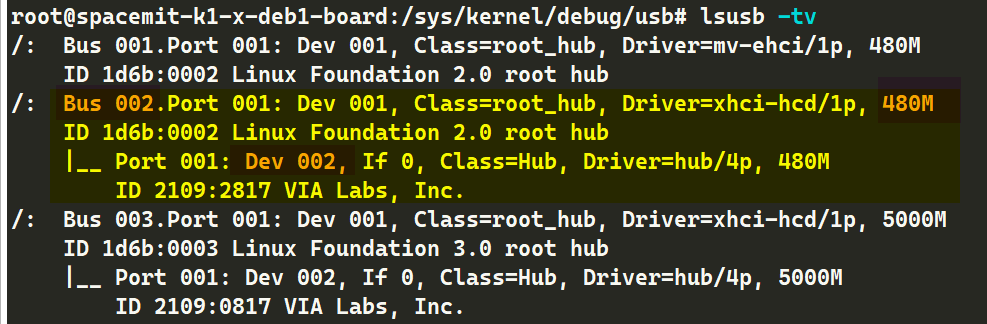
As shown in the orange-highlighted area in the figure, we find a 480M Hub device with the product description VIA Labs, Inc.
Record the bus number (Bus XX, here it is 002) and device number (Dev xx, here it is 002) of the hub to be tested, and save them for later use.
Also note that the 4 in Driver=hub/4p means it has 4 ports. During testing, you need to run the corresponding commands in sequence to configure port number 1-4 to send test waveforms. 。
Subsequently, according to the actual situation, execute the porttest command with the correct parameters:
./porttest /dev/bus/usb/《 Bus 号码》/《 Dev 号码》 《端口号》 《测试 PATTERN 代号, 4 为眼图包》
# e.g.:
# ./porttest /dev/bus/usb/001/001 1 4
USB-IF USB 2.0 Product Compliance Test Introduction
Refer to: https://www.usb.org/usb2
For USB 2.0 products, in addition to signal quality tests, USB-IF also specifies other tests: functional tests and interoperability tests.
These tests are collectively referred to as the USB 2.0 Compliance Test.
The USB 2.0 Compliance Test is intended for USB peripheral devices, such as HUBs, USB flash drives, and other USB peripherals.
USB 2.0 peripheral products based on the Linux Gadget driver developed using the K1 development board also qualify as USB 2.0 products. To use the USB trademark, they must pass the USB 2.0 Compliance Test and obtain certification from USB-IF.
Functional
The functional test phrase is executed using USB30CV, an official tool from the USB-IF.
This tool performs routine tests in accordance with the requirements specified in Chapter 9 of the USB 2.0 Specification.
In addition, for any product implementing a USB standard class, the tool will also execute the corresponding class tests.
USB30CV only supports Windows PC and requires a standard xHCL-compliant host controller.
Download the USB30CV package from the official website:https://www.usb.org/document-library/usb3cv.
*Note: The older tool is USB20CV, which relies on an EHCI controller on the host PC.Newer Windows PCs mostly use xHCI, so USB30CV is sufficient for testing.
Electrical
Approved USB 2.0 oscilloscope vendors:
- Keysight
- Rohde & Schwarz
- Tektronix
- Teledyne LeCroy
The electrical test phase of the compliance program focuses on the physical layer and requires the use of various tools.
For High speed signal quality testing, USB-IF only accepts test data captured using approved signal quality test fixtures.
In addition, USB-IF only accepts USB 2.0 signal quality analysis reports generated by its official tool USBET.
For other electrical tests, refer to the Low/Full-speed electrical test specification of USB-IF and the USB 2.0 Electrical test specification. In addition, contact the approved oscilloscope vendors to obtain the relevent test fixtures and test method instructions. Third party laboratories are usually engaged to assist with the testing.
The USB 2.0 Electrical Compliance Test Specification is available for download in the USB‑IF Document Library.
Interoperability
The interoperability test phase of the compliance program focuses on verifying the interoperability between the device under test and known-good USB products.
USB 2.0 and USB 3.2 use the same standard for interoperability test methods. Related tools and documentation xHCI Interoperability Test Procedures For Peripherals, Hubs and Hosts.
USB 3.0 Test Guide
USB 3.0 testing requires USB-IF certified high-speed oscilloscopes, along with corresponding test fixtures and instruments.
These vary by equipment vendor. Please refer to the documentation and operating procedures provided by the respective test vendors.
This section only briefly describes how to configure the USB 3.0 PHY on the K1 into test mode.
USB 3.0 Device Tx Signal Quality Test Guide
First, launch the gadget-setup script (refer to the USB Gadget Developer Guide) to bring up the device, then connect the test fixture.
USB_UDC=c0a00000.dwc3 gadget-setup hid
On the test fixture peer (host) side, use the standard method specified in USB 3.0 SuperSpeed LTSSM (refer to USB 3.0 Spec Section 7.5.5):
Connect SSTX+ and SSTX-to the Rx Termination, causing the Device-side LTSSM to enter the LFPS Polling state.
At this point, the host test component does not respond, and the timeout of the first Polling.LFPS sent by the Device causes the Device state machine to enter Compliance Mode.
Check the DebugFS at this time—the USB 3.0 Link State will have entered Compliance Mode:
cat /sys/kernel/debug/usb/c0a00000.dwc3/link_state
Compliance
Subsequently, the peer side sends Ping.LFPS to the next pattern.
USB 3.0 Host Tx Signal Quality Test Guide
The peer side of the test fixture uses the standard method specified in USB 3.0 SuperSpeed LTSSM (Refer to USB 3.0 Spec 7.5.5):
Connect SSTX+ and SSTX- to the Rx Termination to put the LTSSM of the host port into the LFPS Polling state.
At this point, the host test component does not respond. The timeout of the first Polling.LFPS sent by the host port causes the host port state machine to enter Compliance Mode.
Subsequently, the peer sends Ping.LFPS to switch to the next pattern.
In addition, the tx-compliance script on the K1 can be used to configure and force entry into Compliance Mode.
-
Execute the command to enter cp0 pattern
~ # tx-compliance.sh cp0XHCI and DWC3 Register Info:GUSB3PIPECTL0_BASE_ADDRESS: 0xc0a0c2c0PORTSC_BASE_ADDRESS: 0xc0a00420XHCI_PORTSC1_ADDRESS: 0xc0a00430Initializing CP0 pattern...Before clearing bit 9 at address 0xc0a00420:0x0A0002A0Clearing bit 9 at address 0xc0a00420After clearing bit 9 at address 0xc0a00420:0x0A000080Before clearing bit 9 at address 0xc0a00430:0x0A0002A0Clearing bit 9 at address 0xc0a00430After clearing bit 9 at address 0xc0a00430:0x0A000080Setting bit 30 at address 0xc0a0c2c0Powered-off Not-connected Disabled Link:Disabled PortSpeed:0 Change: Wake: WCE WOEPowered-off Not-connected Disabled Link:Compliance mode PortSpeed:0 Change: Wake: WCE WOE -
Execute the cpmmand to switch the pattern:
tx-compliance toggle
USB 3.0 Rx Signal Quality Test Guide
Rx Compliance Test places the link into Loopback mode.
The entry method is similar to the Tx signal quality test described above, and also follows the standard method defined in the specification.
During the Polling.Configuration phase of link training, if the USB 3.0 controller detects that the Loopback bit in the T2 pattern is set, it will automatically configure the USB 3.0 link to enter Loopback Mode (refer to Sections 7.5.10 and 7.5.11 of the USB 3.0 specification for details).
USB-IF USB 3.0 Product Compliance Test Introduction
Refer to: https://www.usb.org/usb-32
For USB 3.0 products, in addition to electrical and signal quality tests, USB-IF also specifies other tests: functional testing, interoperability testing, and link-layer testing.
Functional
The functional testing phrase is executed using USB30CV, an official tool from the USB-IF.
This tool performs routine tests in accordance with the requirements specified in Chapter 9 of the USB 3.0 Specification.
In addition, for any product implementing USB standard classes, the tool will also execute the corresponding class-specific tests.
The USB30CV tool is only supported on Windows PCs and requires the host to be equipped with a controller compliant with the standard xHCI Specification.
The USB30CV software package is available for download from the official USB-IF website at: https://www.usb.org/document-library/usb3cv。
Link Test
Electrical
Approved USB 3.0 oscilloscope vendors:
- Anritsu
- Keysight
- Rohde & Schwarz
- Tektronix
- Teledyne LeCroy
The electrical test phase of the compliance program focuses on the physical layer and requires various tools.
For high-speed signal quality testing, USB-IF only accepts test data captured with approved signal quality test fixtures.
In addition, USB-IF only accepts USB 3.0 signal quality analysis reports generated by its official tool USBET.
For other electrical tests, refer to the following USB-IF specifications:
- The Electrical Compliance Test Specification for SuperSpeed USB 10 Gbps Rev. 1.0
- The Electrical Compliance Test Specification for SuperSpeed USB Rev. 1.0a
Contact approved oscilloscope vendors for relevant test fixtures and test method documentation. Testing is typically performed with the assistance of third-party laboratories.
Interoperability
The interoperability test phase of the compliance program focuses on verifying interoperability between the device under test and known-good USB products.
Related tools and documentation xHCI Interoperability Test Procedures For Peripherals, Hubs and Hosts
Appendix
porttest source code
Push the source code to Bianbu, then open the directory where the file is located in the terminal and execute:
gcc porttest.c -o porttest --static
Generate the target file: porttest。
/* porttest -- put a USB hub port into TEST mode */
/* To build:  gcc -o porttest porttest.c */

#include <stdio.h>
#include <stdlib.h>
#include <unistd.h>
#include <fcntl.h>
#include <errno.h>
#include <sys/ioctl.h>

#include <linux/usbdevice_fs.h>
#include <linux/usb/ch9.h>

#define USB_MAXCHILDREN         31

#include <linux/usb/ch11.h>

char *mode_names[] = {
        "Reserved",             /* 0 */
        "Test_J",               /* 1 */
        "Test_K",               /* 2 */
        "Test_SE0_NAK",         /* 3 */
        "Test_Packet",          /* 4 */
        "Test_Force_Enable",    /* 5 */
        /* Remaining values are reserved */
};
#define MAX_TEST_MODE           5

int main(int argc, char **argv)
{
        const char *filename;
        int portnum, testmode;
        int fd;
        int rc;
        struct usbdevfs_ctrltransfer ctl;

        if (argc != 4) {
                fprintf(stderr, "Usage: porttest device-filename portnum testmode\n");
                return 1;
        }
        filename = argv[1];

        portnum = atoi(argv[2]);
        if (portnum <= 0 || portnum > USB_MAXCHILDREN) {
                fprintf(stderr, "Invalid port number: %d\n", portnum);
                return 1;
        }

        testmode = atoi(argv[3]);
        if (testmode <= 0 || testmode > MAX_TEST_MODE) {
                fprintf(stderr, "Invalid test mode: %d\n", testmode);
                return 1;
        }

        fd = open(filename, O_WRONLY);
        if (fd < 0) {
                perror("Error opening device file");
                return 1;
        }

        printf("Setting port %d to test mode %d (%s)\n", portnum, testmode,
                        mode_names[testmode]);

        ctl.bRequestType = USB_DIR_OUT | USB_RT_PORT;
        ctl.bRequest = USB_REQ_SET_FEATURE;
        ctl.wValue = USB_PORT_FEAT_TEST;
        ctl.wIndex = (testmode << 8) | portnum;
        ctl.wLength = 0;

        rc = ioctl(fd, USBDEVFS_CONTROL, &ctl);
        if (rc < 0) {
                perror("Error in ioctl");
                return 1;
        }
        printf("Test mode successful\n");

        close(fd);
        return 0;
}
tx-compliance script
#!/bin/sh
# filename: tx-compliance
# ./tx-compliance cp0 : enter compliance mode, switch to cp0 pattern。
# ./tx-compliance : toggle test pattern
# run with root user

echo "Check IF you are are host mode!"
echo "current mode(should be host):"
cat /sys/kernel/debug/usb/c0a00000.dwc3/mode

GUSB3PIPECTL0_BASE_ADDRESS="0xc0a0c2c0"
PORTSC_BASE_ADDRESS="0xc0a00420"
XHCI_PORTSC1_ADDRESS="0xc0a00430"
GUSB3PIPECTL0_PATTERN_BIT=30

echo "XHCI and DWC3 Register Info:"
printf "GUSB3PIPECTL0_BASE_ADDRESS: 0x%x\n" $GUSB3PIPECTL0_BASE_ADDRESS
printf "PORTSC_BASE_ADDRESS: 0x%x\n" $PORTSC_BASE_ADDRESS
printf "XHCI_PORTSC1_ADDRESS: 0x%x\n" $XHCI_PORTSC1_ADDRESS
printf "GUSB3PIPECTL0_PATTERN_BIT: %d\n" $GUSB3PIPECTL0_PATTERN_BIT
echo ""

clear_bit() {
    local address="$1"
    local bit="$2"
    printf "Before clearing bit %d at address %#x:\n" "$bit" "$address"
    busybox devmem $address 32

    local value=$(busybox devmem $address 32)
    local cleared_value=$((value & ~(1 << bit)))
    printf "Clearing bit %d at address %#x\n" "$bit" "$address"
    busybox devmem $address 32 $cleared_value

    printf "After clearing bit %d at address %#x:\n" "$bit" "$address"
    busybox devmem $address 32
}

set_bit() {
    local address="$1"
    local bit="$2"
    printf "Setting bit %d at address %#x\n" "$bit" "$address"

    local value=$(busybox devmem $address 32)
    local set_value=$((value | (1 << bit)))
    busybox devmem $address 32 $set_value

    printf "After setting bit %d at address %#x:\n" "$bit" "$address"
    busybox devmem $address 32
}

initialize_cp0_pattern() {
    clear_bit $PORTSC_BASE_ADDRESS 9
    clear_bit $XHCI_PORTSC1_ADDRESS 9
    set_bit $GUSB3PIPECTL0_BASE_ADDRESS $GUSB3PIPECTL0_PATTERN_BIT
    cat /sys/kernel/debug/usb/xhci/xhci-hcd.*.auto/ports/port*/portsc
}

toggle_pattern() {
    clear_bit $GUSB3PIPECTL0_BASE_ADDRESS $GUSB3PIPECTL0_PATTERN_BIT
    sleep 1
    set_bit $GUSB3PIPECTL0_BASE_ADDRESS $GUSB3PIPECTL0_PATTERN_BIT
    cat /sys/kernel/debug/usb/xhci/xhci-hcd.*.auto/ports/port*/portsc
}

case "$1" in
    "cp0")
        echo "Initializing CP0 pattern..."
        initialize_cp0_pattern
        ;;
    "toggle")
        echo "Toggling pattern..."
        toggle_pattern
        ;;
    *)
        echo "Usage: $0 {cp0|toggle}"
        exit 1
        ;;
esac

exit 0