Graphics Driver Framework
Overall Framework
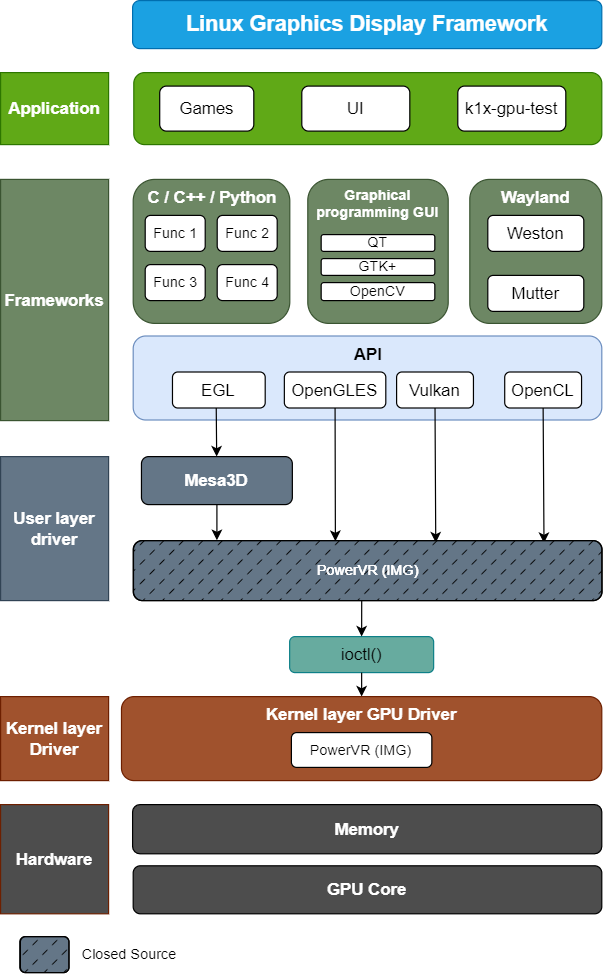
Driver Solutions
The K3 platform supports two mutually exclusive PowerVR GPU solutions:
- Proprietary Solution (Recommended): Offers superior performance and full functionality, including support for DVFS and thermal control.
- Open-Source Solution: Based on Mesa and open-source kernel drivers. Kernel version 6.12 or later and Mesa version 26.1 or later are required.
Proprietary Driver Solution
Kernel Configuration
Enter the Linux kernel source directory and enable PowerVR Rogue in the configuration:
CONFIG_POWERVR_ROGUE=y # Enable PowerVR Rogue
You can also enable it through make menuconfig under Device Drivers -> Graphics support -> Direct Rendering Manager:
<*>   PowerVR GPU
<*>     PowerVR GPU DVFS
<*>       PowerVR GPU Thermal
< >     null drm disp
Device Tree (DTS) configuration:
imggpu: imggpu@cac00000 {
    compatible = "img,rgx";
    interrupt-names = "rgxirq";
    interrupt-parent = <&saplic>;
    interrupts = <75 IRQ_TYPE_LEVEL_HIGH>;
    reg = <0x0 0xcac00000 0x0 0x80000>;
    reg-names = "rgxregs";
    power-domains = <&power K3_PMU_GPU_PWR_DOMAIN>;
    clocks = <&syscon_apmu CLK_APMU_GPU>;
    clock-names = "clk_rgx";
    resets = <&syscon_apmu RESET_APMU_GPU>;
    #cooling-cells = <2>;
    thermal-zone = "thermal_gpu";
    status = "okay";
};
PVR DDK Configuration
Due to licensing issues, the DDK (Device Development Kit) for the PVR GPU cannot be provided directly.
The user-space closed-source components are provided as shared libraries (.so) that expose OpenGL ES, Vulkan, and OpenCL APIs.
Buildroot
Enable it in the configuration file when building Buildroot:
BR2_PACKAGE_IMG_GPU_POWERVR=y
Or enable it manually through make menuconfig:
External options -> Bianbu config -> img-gpu-powervr
[*] rtk hciattach
    *** spacemit mpp package ***
-*- spacemit mpp
[*] img-gpu-powervr # Enable img-gpu-powervr
    Output option (Wayland)  --->
[ ]   install examples
Bianbu
The closed-source GPU components are provided as .so shared libraries in the img-gpu-powervr deb package:
sudo apt install img-gpu-powervr
Note: The GPU driver includes both a kernel-space driver and a user-space driver. Their versions must match; otherwise, GPU functions may not work properly.
To check the version:
# Check the kernel-level driver
➜  ~ journalctl -b | grep "Initialized pvr"
[drm] Initialized pvr 24.2.6603887 for cac00000.imggpu on minor 0 # Version 24.2

# Check the user-level driver
➜  ~ dpkg -s img-gpu-powervr
Package: img-gpu-powervr
Status: install ok installed
Priority: optional
Section: graphics
Installed-Size: 70314
Maintainer: bianbu <bo.deng@spacemit.com>
Architecture: all
Version: 24.2-6603887bb1 # Version 24.2
Mesa3D
Mesa3D provides the OpenGL ES API and the hardware-accelerated rendering implementation.
Buildroot
Enable the following options in the configuration file:
Symbol: BR2_PACKAGE_MESA3D [=y]
Symbol: BR2_PACKAGE_MESA3D_DRIVER [=y]
Symbol: BR2_PACKAGE_MESA3D_GALLIUM_DRIVER [=y]
Symbol: BR2_PACKAGE_MESA3D_GALLIUM_DRIVER_PVR [=y]
Symbol: BR2_PACKAGE_MESA3D_GBM [=y]
Symbol: BR2_PACKAGE_MESA3D_OPENGL_EGL [=y]
Or enable it manually through make menuconfig: Target packages -> Graphic libraries and applications -> mesa3d
-*-   Gallium pvr driver
*** Gallium VDPAU state tracker needs X.org and gallium drivers r300, r600, radeonsi or nouveau ***
*** Vulkan drivers ***
*** Off-screen Rendering ***
[ ]   OSMesa (Gallium) library
      *** OpenGL API Support ***
-*-   gbm
*** OpenGL GLX support needs X11 ***
-*-   OpenGL EGL
[ ]   OpenGL ES
Bianbu
Install the Mesa packages in the following order:
sudo apt install \
  libgl1-mesa-dev \
  libegl1-mesa \
  libegl1-mesa-dev \
  libglapi-mesa \
  libgbm1 \
  libgbm-dev \
  libegl-mesa0 \
  libgl1-mesa-dri \
  libgles2-mesa \
  libgles2-mesa-dev \
  libgl1-mesa-glx \
  libglx-mesa0 \
  libosmesa6 \
  libosmesa6-dev \
  libwayland-egl1-mesa \
  mesa-common-dev \
  libglvnd
Open-Source Driver Solution
Kernel Configuration
Kernel version 6.12 or later is required. Enable the PowerVR DRM driver in the configuration:
CONFIG_DRM_POWERVR=y # Enable PowerVR DRM driver
Or enable it through make menuconfig under Device Drivers -> Graphics support -> Direct Rendering Manager:
<*>   Imagination Technologies PowerVR (Series 6 and later) & IMG Graphics
< >   PowerVR GPU
< >   null drm disp
Adapting the K3 Platform
To adapt the SpacemiT K3 platform, make the following changes to the kernel driver:
index 571b56a11161..636f8ab3a54f 100644
--- a/arch/riscv/boot/dts/spacemit/k3.dtsi
+++ b/arch/riscv/boot/dts/spacemit/k3.dtsi
@@ -1659,7 +1659,7 @@ gmac_axi_setup: stmmac-axi-config {
                };

                imggpu: imggpu@cac00000 {
-                       compatible = "img,rgx";
+                       compatible = "img,img-rogue";
                        interrupt-names = "rgxirq";
                        interrupt-parent = <&saplic>;
                        interrupts = <75 IRQ_TYPE_LEVEL_HIGH>;
@@ -1667,11 +1667,12 @@ imggpu: imggpu@cac00000 {
                        reg-names = "rgxregs";
                        power-domains = <&power K3_PMU_GPU_PWR_DOMAIN>;
                        clocks = <&syscon_apmu CLK_APMU_GPU>;
-                       clock-names = "clk_rgx";
+                       clock-names = "core";
                        resets = <&syscon_apmu RESET_APMU_GPU>;
                        status = "okay";
+                       img,core-clock-rate-hz = <1228000000>;
                };
diff --git a/drivers/gpu/drm/imagination/pvr_device.c b/drivers/gpu/drm/imagination/pvr_device.c
index 78d6b8a0a450..8e490b3921f7 100644
--- a/drivers/gpu/drm/imagination/pvr_device.c
+++ b/drivers/gpu/drm/imagination/pvr_device.c
@@ -99,6 +99,9 @@ static int pvr_device_clk_init(struct pvr_device *pvr_dev)
        struct clk *core_clk;
        struct clk *sys_clk;
        struct clk *mem_clk;
+       struct device *dev = drm_dev->dev;
+       u32 core_clk_rate = PVR_CORE_CLK_RATE_HZ;
+       int err;

        core_clk = devm_clk_get(drm_dev->dev, "core");
        if (IS_ERR(core_clk))
@@ -115,6 +118,22 @@ static int pvr_device_clk_init(struct pvr_device *pvr_dev)
                return dev_err_probe(drm_dev->dev, PTR_ERR(mem_clk),
                                     "failed to get mem clock\n");

+       /* Optional: set core clock rate from device tree or fallback macro. */
+       if (!of_property_read_u32(dev->of_node, "img,core-clock-rate-hz", &core_clk_rate) &&
+           core_clk_rate > 0) {
+               err = clk_set_rate(core_clk, core_clk_rate);
+               if (err)
+                       return dev_err_probe(dev, err,
+                                            "failed to set core clock rate (%u Hz)\n",
+                                            core_clk_rate);
+       } else if (core_clk_rate > 0) {
+               err = clk_set_rate(core_clk, core_clk_rate);
+               if (err)
+                       return dev_err_probe(dev, err,
+                                            "failed to set core clock rate (%u Hz)\n",
+                                            core_clk_rate);
+       }
+
        pvr_dev->core_clk = core_clk;
        pvr_dev->sys_clk = sys_clk;
        pvr_dev->mem_clk = mem_clk;
diff --git a/drivers/gpu/drm/imagination/pvr_device.h b/drivers/gpu/drm/imagination/pvr_device.h
index ec53ff275541..419d4bbf2df2 100644
--- a/drivers/gpu/drm/imagination/pvr_device.h
+++ b/drivers/gpu/drm/imagination/pvr_device.h
@@ -68,6 +68,16 @@ struct pvr_device_data {
        const struct pvr_power_sequence_ops *pwr_ops;
 };

+#ifndef PVR_CORE_CLK_RATE_HZ
+#define PVR_CORE_CLK_RATE_HZ 1228 * 1000 * 1000U
+#endif
+
 /**
  * struct pvr_device - powervr-specific wrapper for &struct drm_device
  */
diff --git a/drivers/gpu/drm/imagination/pvr_drv.c b/drivers/gpu/drm/imagination/pvr_drv.c
index 916b40ced7eb..4306c182d99d 100644
--- a/drivers/gpu/drm/imagination/pvr_drv.c
+++ b/drivers/gpu/drm/imagination/pvr_drv.c
@@ -1532,4 +1534,5 @@ MODULE_LICENSE("Dual MIT/GPL");
 MODULE_IMPORT_NS("DMA_BUF");
 MODULE_FIRMWARE("powervr/rogue_33.15.11.3_v1.fw");
 MODULE_FIRMWARE("powervr/rogue_36.52.104.182_v1.fw");
+MODULE_FIRMWARE("powervr/rogue_36.56.104.183_v1.fw");
 MODULE_FIRMWARE("powervr/rogue_36.53.104.796_v1.fw");
Firmware file: Store the rogue_36.56.104.183_v1.fw firmware file in the /lib/firmware/powervr/ directory.
Mesa3D Configuration
Buildroot
The latest Mesa release already supports the IMG BXM-4-64 GPU. Download the Mesa source code, replace buildroot-k3/package-src/mesa, and then rebuild.
Bianbu
Ensure that the installed Mesa deb package version is 26.1.0 or later. For example:
sudo apt install libgl1-mesa-dev=26.1.0-2ubuntu1
Advanced Configurations of the Proprietary Driver
Note: This section applies only to the proprietary driver solution. The open-source driver does not support DVFS, thermal control, or BlobCache.
BlobCache Usage
GPU BlobCache is a caching mechanism used to store and reuse compiled GPU shader binaries. It improves performance by reducing redundant computation and data transfer overhead, thereby accelerating rendering.
Configuration method
Open the /etc/powervr.ini configuration file and set the following parameters to enable BlobCache:
[default]
EnableBlobCache=1 # Enable BlobCache feature

[mpv]
EnableWorkaroundMPVScreenTearing=1

[totem]
EnableWorkaroundMPVScreenTearing=1

[gst-launch-1.0]
EnableWorkaroundMPVScreenTearing=1
GPU DVFS
The GPU kernel driver on the K3 platform implements DVFS (Dynamic Voltage and Frequency Scaling) through the Linux devfreq framework. By default, it uses the simple_ondemand governor to adjust the GPU frequency dynamically based on GPU load. At the hardware level, only dynamic frequency scaling is supported.
The following frequency levels are supported and are configured through the OPP (Operating Performance Points) table in the DTS:
| Level | Frequency |
|---|---|
| 1 | 409 MHz |
| 2 | 491 MHz |
| 3 | 600 MHz |
| 4 | 614 MHz |
| 5 | 750 MHz |
| 6 | 819 MHz |
| 7 | 1000 MHz |
| 8 | 1228 MHz |
DTS configuration example (k3.dtsi):
imggpu: imggpu@cac00000 {
    /* ... other properties ... */
    clocks = <&syscon_apmu CLK_APMU_GPU>;
    clock-names = "clk_rgx";
    resets = <&syscon_apmu RESET_APMU_GPU>;
    #cooling-cells = <2>;
    thermal-zone = "thermal_gpu";
    operating-points-v2 = <&imggpu_opp_table>;
    status = "okay";

    imggpu_opp_table: opp-table {
        compatible = "operating-points-v2";

        opp-409000000 {
            opp-hz = /bits/ 64 <409000000>;
            opp-microvolt = <800000>; /* Fixed value required by the OPP framework; only frequency scaling is actually supported. */
            clock-latency-ns = <100000>;
        };

        opp-614000000 {
            opp-hz = /bits/ 64 <614000000>;
            opp-microvolt = <900000>;
            clock-latency-ns = <100000>;
        };

        opp-819000000 {
            opp-hz = /bits/ 64 <819000000>;
            opp-microvolt = <900000>;
            clock-latency-ns = <100000>;
        };

        opp-1000000000 {
            opp-hz = /bits/ 64 <1000000000>;
            opp-microvolt = <950000>;
            clock-latency-ns = <100000>;
        };

        opp-1228000000 {
            opp-hz = /bits/ 64 <1228000000>;
            opp-microvolt = <950000>;
            clock-latency-ns = <100000>;
        };
    };
};
The frequency levels can be customized by modifying the OPP table in the DTS.
DVFS Debugging
You can view and adjust the GPU frequency via the devfreq node:
# View current frequency
cat /sys/class/devfreq/cac00000.imggpu/cur_freq

# View available frequencies
cat /sys/class/devfreq/cac00000.imggpu/available_frequencies

# View current governor
cat /sys/class/devfreq/cac00000.imggpu/governor

# View available governors
cat /sys/class/devfreq/cac00000.imggpu/available_governors

# Set minimum frequency to 819MHz
echo 819000000 > /sys/class/devfreq/cac00000.imggpu/min_freq

# Set maximum frequency to 1228MHz
echo 1228000000 > /sys/class/devfreq/cac00000.imggpu/max_freq
GPU Thermal Control
GPU thermal control on the K3 platform is implemented through the Linux thermal framework and the devfreq cooling mechanism. When the GPU temperature reaches a threshold, the system automatically reduces the GPU frequency to control temperature.
Thermal policies are configured through the thermal zone in the DTS, including multiple temperature thresholds and their corresponding frequency reduction mappings. The following example is based on k3_com260.dts:
| Level | Temperature Threshold | Hysteresis | Type | Frequency Reduction Level |
|---|---|---|---|---|
| gpu_alert0 | 65°C | 2°C | passive | cooling 0~1 |
| gpu_alert1 | 75°C | 2°C | passive | cooling 1~2 |
| gpu_alert2 | 85°C | 2°C | passive | cooling 2~3 |
| gpu_crit | 105°C | 2°C | critical | Shutdown GPU |
DTS configuration example (k3_com260.dts):
thermal_gpu {
    polling-delay = <1000>;
    polling-delay-passive = <500>;
    thermal-sensors = <&thermal 3>;

    trips {
        gpu_alert0: gpu-alert0 {
            temperature = <65000>;
            hysteresis = <2000>;
            type = "passive";
        };

        gpu_alert1: gpu-alert1 {
            temperature = <75000>;
            hysteresis = <2000>;
            type = "passive";
        };

        gpu_alert2: gpu-alert2 {
            temperature = <85000>;
            hysteresis = <2000>;
            type = "passive";
        };

        gpu_crit: gpu-crit {
            temperature = <105000>;
            hysteresis = <2000>;
            type = "critical";
        };
    };

    cooling-maps {
        map0 {
            trip = <&gpu_alert0>;
            cooling-device = <&imggpu 0 1>;
        };

        map1 {
            trip = <&gpu_alert1>;
            cooling-device = <&imggpu 1 2>;
        };

        map2 {
            trip = <&gpu_alert2>;
            cooling-device = <&imggpu 2 3>;
        };
    };
};
Note: Thermal thresholds may vary across board versions. For example, the thresholds in
k3_deb1.dtsare 80°C / 85°C / 90°C / 105°C (critical). Refer to the actual board DTS configuration for details.
Thermal Debugging
You can view GPU temperature and thermal status through the thermal node:
# Check current GPU temperature
cat /sys/class/thermal/thermal_zone*/type  # Find the zone corresponding to thermal_gpu
cat /sys/class/thermal/thermal_zone*/temp  # View temperature (unit: millidegrees Celsius)
GPU Node Debugging
By monitoring the GPU debug node, you can view the GPU runtime status in real time:
~ su
~ cd /sys/kernel/debug/pvr/
~ watch cat status (Press Ctrl + C to exit)
As shown below:
Every 2.0s: cat /sys/kernel/debug/pvr/status                bianbu-pc: Thu Mar 05 10:00:00 2026

Driver Status:   OK

Device ID: 0:128
Firmware Status: OK
Server Errors:   0
HWR Event Count: 0
CRR Event Count: 0
SLR Event Count: 0
WGP Error Count: 0
TRP Error Count: 0
FWF Event Count: 0
APM Event Count: 2026
GPU Utilisation: 0%
DM Utilisation:  VM0
           2D:   0%
         GEOM:   0%
           3D:   0%
          CDM:   0%
          RAY:   0%
        GEOM2:   0%