GStreamer Usage Guide
GStreamer
GStreamer is an open-source multimedia framework. Its plugin-based design allows plugins to be linked into predefined data stream pipelines.
Official Website: https://gstreamer.freedesktop.org
GStreamer Framework
By creating and linking elements, GStreamer builds pipelines that allow data streams to flow between elements and perform specific tasks such as media playback or audio recording.
GStreamer framework:
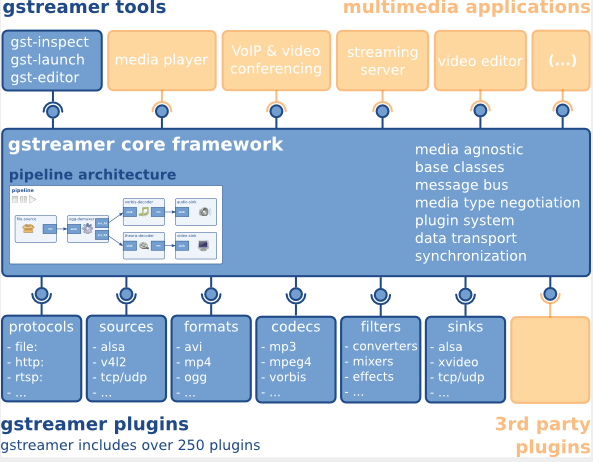
GStreamer Source Code Distribution Structure
The GStreamer source code is divided into multiple repositories by functional module, with each repository responsible for a specific area. A brief description of each repository is provided below:
| Repo | Functionality |
|---|---|
gstreamer | Core framework repository |
gst-plugins-base | Base plugin repository |
gst-plugins-good | Mature and stable plugins |
gst-plugins-bad | Plugins under development that may be unstable |
gst-plugins-ugly | Plugins with licensing restrictions that may be optional depending on local laws and regulations |
gst-libav | Codec plugins based on libav |
This structure keeps each repository relatively independent, while most components still rely on gstreamer and gst-plugins-base.
GStreamer Installation
Bianbu OS
Run the following commands to install GStreamer 1.0:
sudo apt-get update

sudo apt-get install gstreamer1.0-tools gstreamer1.0-alsa gstreamer1.0-plugins-base gstreamer1.0-plugins-good gstreamer1.0-plugins-bad gstreamer1.0-plugins-ugly gstreamer1.0-libav

sudo apt-get install libgstreamer1.0-dev libgstreamer-plugins-base1.0-dev libgstreamer-plugins-good1.0-dev libgstreamer-plugins-bad1.0-dev
Run the following command to check the GStreamer 1.0 version:
gst-inspect-1.0 --version
Buildroot
When compiling the system image, enable the integration options for GStreamer and related plugins. If the GStreamer package is already enabled in the system image, the related commands can be used directly. Otherwise, enable the corresponding package and rebuild the system image.
Configuration Examples:
BR2_PACKAGE_GSTREAMER1=y
BR2_PACKAGE_GST1_PLUGINS_BASE=y
BR2_PACKAGE_GST1_PLUGINS_GOOD=y
BR2_PACKAGE_GST1_PLUGINS_BAD=y
BR2_PACKAGE_GST1_PLUGINS_UGLY=y
BR2_PACKAGE_GST1_LIBAV=y
Note:
BR2_PACKAGE_GSTREAMER1: GStreamer framework packageBR2_PACKAGE_GST1_PLUGINS_BASE: Base plugin collectionBR2_PACKAGE_GST1_PLUGINS_GOOD: Mature and stable pluginsBR2_PACKAGE_GST1_PLUGINS_BAD: Platform-related or under-development plugins; SpacemiT-related plugins are typically included in this collectionBR2_PACKAGE_GST1_PLUGINS_UGLY: Plugin collection with licensing restrictionsBR2_PACKAGE_GST1_LIBAV: GStreamer plugins based on libav/FFmpeg
Run the following command to check the version of GStreamer-1.0:
gst-inspect-1.0 --version
GStreamer Plugins
Run the following command to inspect the default GStreamer plugins supported in the current Bianbu OS or Buildroot system:
gst-inspect-1.0
Running gst-inspect-1.0 with a specific plugin name displays detailed information about that plugin.
Video Decoder Plugins
A video decoder converts the source video format into a raw format that can be interpreted by the target sink, such as a display device. SpacemiT GStreamer provides the proprietary spacemitdec plugin for optimized results.
| Video Decoder | Package | Description | Bianbu OS(Y/N) | Buildroot(Y/N) |
|---|---|---|---|---|
| decodebin | gst-plugins-base | Autoplug and decode to raw media | Y | Y |
| spacemitdec | gst-plugins-bad | Decodes H264/H265/MJPEG/VP8/VP9/MPEG2/MPEG4 via MPP API | Y | Y |
| avdec_xxxx | gstreamer1.0-libav | ffmpeg plugin for GStreamer | Y | Y |
| mpeg2dec | gst-plugins-ugly | mpeg1 and mpeg2 video decoder | Y | N |
| openh264dec | gst-plugins-bad | OpenH264 video decoder | Y | N |
| jpegdec | gst-plugins-good | Decode images from JPEG format | Y | N |
| vp8dec | gst-plugins-good | On2 VP8 Decoder | Y | N |
| vp9dec | gst-plugins-good | On2 VP9 Decoder | Y | N |
Video Encoder Plugins
A video encoder converts raw data into an encoded video format such as H.264. SpacemiT GStreamer provides proprietary spacemit*enc plugins for optimized results.
| Video Encoder | Package | Description | Bianbu OS(Y/N) | Buildroot(Y/N) |
|---|---|---|---|---|
| encodebin | gst-plugins-base | Convenience encoding/muxing element | Y | N |
| spacemith264enc | gst-plugins-bad | Encodes H264 via MPP API | Y | Y |
| spacemith265enc | gst-plugins-bad | Encodes H265 via MPP API | Y | Y |
| spacemitmjpegenc | gst-plugins-bad | Encodes MJPEG via MPP API | Y | Y |
| spacemitmpegenc | gst-plugins-bad | Encodes MPEG2/MPEG4 via MPP API | Y | Y |
| spacemitvp8enc | gst-plugins-bad | Encodes vp8 via MPP API | Y | Y |
| spacemitvp9enc | gst-plugins-bad | Encodes vp9 via MPP API | Y | Y |
| avenc_xxxx | gstreamer1.0-libav | ffmpeg plugin for GStreamer | Y | Y |
| mpeg2enc | gst-plugins-ugly | mpeg2enc video encoder | Y | N |
| openh264enc | gst-plugins-bad | OpenH264 video encoder | Y | N |
| jpegenc | gst-plugins-good | JPEG image encoder | Y | N |
| vp8enc | gst-plugins-good | On2 VP8 Encoder | Y | N |
| vp9enc | gst-plugins-good | On2 VP9 Encoder | Y | N |
Video Sink Plugins
Video sink plugins display processed data through visual output. SpacemiT GStreamer optimizes plugins such as glimagesink, gtkglsink, and waylandsink for improved results.
| Video Sink | Package | Description | Bianbu OS(Y/N) | Buildroot(Y/N) |
|---|---|---|---|---|
| autovideosink | gst-plugins-good | Wrapper video sink for automatically detected videosink | Y | Y |
| glimagesink | gst-plugins-base | Infrastructure to process GL textures | Y | N |
| waylandsink | gst-plugins-bad | Output to wayland surface | Y | Y |
| gtkglsink | gst-plugins-good | A video sink that renders to a GtkWidget using OpenGL | Y | N |
| fpsdisplaysink | gst-plugins-bad | Video sink with current and average framerate | Y | N |
Demux Plugins
Demux plugins separate audio and video streams from container formats into elementary streams or raw data.
| Video Demux | Package | Description | Bianbu OS(Y/N) | Buildroot(Y/N) |
|---|---|---|---|---|
| qtdemux | gst-plugins-good | Demux a .mov/.mp4 file to raw data | Y | Y |
| matroskedemux | gst-plugins-good | Demux a .mkv file to raw data | Y | N |
| flvdemux | gst-plugins-good | Demux a .flv file to raw data | Y | N |
| avidemux | gst-plugins-good | Demux a .avi file to raw data | Y | Y |
Mux Plugins
Mux plugins package raw or elementary data into specific audio or video container formats.
| Video Mux | Package | Description | Bianbu OS(Y/N) | Buildroot(Y/N) |
|---|---|---|---|---|
| qtmux | gst-plugins-good | Mux a raw data to a .mov file | Y | Y |
| matroskemux | gst-plugins-good | Mux a raw data to a .mkv file | Y | N |
| flvmux | gst-plugins-good | Mux a raw data to a .flv file | Y | N |
| avimux | gst-plugins-good | Mux a raw data to a .avi file | Y | Y |
| mp4mux | gst-plugins-good | Mux a raw data to a .mp4 file | Y | Y |
Audio Plugins
Audio plugins process raw audio or specific audio formats such as WAV.
| Audio Plugin | Package | Description | Bianbu OS(Y/N) | Buildroot(Y/N) |
|---|---|---|---|---|
| mpg123audiodec | gst-plugins-good | MP3 decoding plugin based on the mpg123 library | Y | N |
| vorbisdec | gst-plugins-base | Decodes raw vorbis streams to float audio | Y | N |
| vorbisenc | gst-plugins-base | Encodes audio in Vorbis format | Y | N |
| alsasink | gst-plugins-base | Output to a sound card via ALSA | Y | N |
| pulsesink | gst-plugins-good | Plays audio to a PulseAudio server | Y | N |
Image Plugins
Image plugins process raw image data or specific image formats such as JPEG.
| Image Plugin | Package | Description | Bianbu OS(Y/N) | Buildroot(Y/N) |
|---|---|---|---|---|
| spacemitdec | gst-plugins-bad | Decodes H264/H265/MJPEG/VP8/VP9/MPEG2/MPEG4 via MPP API | Y | Y |
| spacemitmjpegenc | gst-plugins-bad | Encodes MJPEG via MPP API | Y | Y |
| imagefreeze | gst-plugins-good | Generates a still frame stream from an image | Y | N |
| jpegdec | gst-plugins-good | Decode images from JPEG format | Y | N |
| jpegenc | gst-plugins-good | JPEG image encoder | Y | N |
| pngdec | gst-plugins-good | Decode a png video frame to a raw image | Y | N |
| pngenc | gst-plugins-good | Encode a video frame to a .png image | Y | N |
Network Protocol Plugins
Network protocol plugins establish connections between devices.
| Payload/Depayload Plugins | Package | Description | Bianbu OS(Y/N) | Buildroot(Y/N) |
|---|---|---|---|---|
| udpsink | gst-plugins-good | Send data over the network via UDP | Y | Y |
| multiudpsink | gst-plugins-good | Send data over the network via UDP to one or multiple recipients | Y | Y |
| udpsrc | gst-plugins-good | Receive data over the network via UDP | Y | Y |
| tcpserversink | gst-plugins-base | Send data as a server over the network via TCP | Y | N |
| tcpclientsrc | gst-plugins-base | Receive data as a client over the network via TCP | Y | N |
| rtspsrc | gst-plugins-good | Receive data over the network via RTSP | Y | N |
Payload/Depayload Plugins
Payload plugins transmit data over a network, while depayload plugins are used in conjunction with them to receive and unpack the data.
| Network Plugins | Package | Description | Bianbu OS(Y/N) | Buildroot(Y/N) |
|---|---|---|---|---|
| gdppay | gst-plugins-bad | Payloads GStreamer Data Protocol buffers | Y | N |
| gdpdepay | gst-plugins-bad | Depayloads GStreamer Data Protocol buffers | Y | N |
| rtpvrawpay | gst-plugins-good | Payload raw video as RTP packets | Y | Y |
| rtpvrawdepay | gst-plugins-good | Extracts raw video as RTP packets | Y | Y |
| rtph264pay | gst-plugins-good | Payload-encode H264 video into RTP packets | Y | Y |
| rtph264depay | gst-plugins-good | Extracts H264 video from RTP packets | Y | Y |
| rtpmpapay | gst-plugins-good | Payload MPEG audio as RTP packets | Y | Y |
| rtpmpadepay | gst-plugins-good | Extracts MPEG audio from RTP packets | Y | Y |
| rtpjitterbuffer | gst-plugins-good | A buffer that deals with network jitter and other transmission faults | Y | Y |
GStreamer Basic Command
gst-launch-1.0
gst-launch-1.0: Used to initiate a pipeline to perform multimedia tasks, such as media playback and audio recording.
The following are common usage examples, mainly using GStreamer plugins adapted by SpacemiT:
Camera Application Scenario
UVC Camera
-
Information about a UVC camera can be obtained with the
v4l2-ctlcommand.v4l2-ctlis a tool provided byv4l-utilsand is used to view V4L2 device information, supported formats, and control options.Bianbu OS
Install it via
apt:sudo apt updatesudo apt install v4l-utilsBuildroot
When compiling the system image, enable the integration option for
v4l-utils. If the package is already enabled in the system image,v4l2-ctlcan be used directly. Otherwise, enable the corresponding package in the Buildroot configuration and rebuild the system image.Configuration Example:
BR2_PACKAGE_LIBV4L_UTILS=yThen verify it with the following command:
v4l2-ctl --versionCheck UVC camera device:
v4l2-ctl --list-devicesOutput of the example:
HD Pro Webcam C920 (usb-xhci-hcd.0.auto-1.3):/dev/video20/dev/video21/dev/media1View the formats, resolutions, and frame rates supported by the device:
v4l2-ctl -d /dev/video20 --list-formats-extThese commands retrieve the camera's supported pixel formats, resolutions, frame rates, and corresponding video capture node information.
-
The following examples use GStreamer to capture images from a UVC camera for display, discard, or file output. These examples use
/dev/video20as the video device to capture YUY2 images at 640x480 and 30 fps.-
Capture the image and send it to the display.
gst-launch-1.0 v4l2src device=/dev/video20 num-buffers=600 ! "video/x-raw,framerate=30/1,format=YUY2, width=640,height=480" ! videoconvert ! glsinkbin sink=gtkglsink -
Capture the image and send it to the display while showing frame rate.
gst-launch-1.0 v4l2src device=/dev/video20 num-buffers=600 ! "video/x-raw,framerate=30/1,format=YUY2,width=640,height=480" ! videoconvert ! fpsdisplaysink video-sink='glsinkbin sink='gtkglsink'' -
Capture the image and then discard it.
gst-launch-1.0 v4l2src device=/dev/video20 num-buffers=600 ! "video/x-raw,framerate=30/1,format=YUY2,width=640,height=480" ! fakesink -
Capture the image and save it to a file.
gst-launch-1.0 v4l2src device=/dev/video20 num-buffers=600 ! "video/x-raw,framerate=30/1,format=YUY2,width=640,height=480" ! filesink location=output.yuv
-
-
Using
/dev/video20as the UVC camera device, capture 600 frames of 480p JPEG images and decode them. The resolution and frame rate can be adjusted as needed, provided that the camera supports those output settings.-
Decode the image and send it to the display.
gst-launch-1.0 v4l2src device=/dev/video20 num-buffers=600 ! "image/jpeg,framerate=30/1,width=640,height=480" ! typefind ! spacemitdec ! waylandsink sync=0 render-rectangle="<0,0,1280,720>" -
Decode the image and re-encode it before saving it to a file.
gst-launch-1.0 v4l2src device=/dev/video20 num-buffers=600 ! "image/jpeg,framerate=30/1,width=640,height=480" ! typefind ! spacemitdec ! spacemith264enc ! filesink location=test.h264
-
Decoding Application Scenarios
-
Raw stream video decoding
-
h264 decoding and display
gst-launch-1.0 filesrc location=/root/compressed/h264/h264_w1280_h720_f30_r4_p1_8bit_300f_2112kb_high_cabac.264 ! h264parse ! spacemitdec ! queue ! waylandsink render-rectangle="<0,0,1280,720>" -
h265 decoding and display
gst-launch-1.0 filesrc location=/root/compressed/hevc/hevc_w1920_h1080_f25_r_p1_8bit_200f_1878kb_main.265 ! queue ! h265parse ! spacemitdec ! queue ! waylandsink render-rectangle="<0,0,1280,720>" -
vp8, vp9 decoding and display
gst-launch-1.0 filesrc location=/root/compressed/vp9/vp9_w1280_h720_f25_r_p1_8bit_120f_1996kb.ivf ! typefind ! ivfparse ! spacemitdec ! queue ! waylandsink render-rectangle="<0,0,1280,720>" -
mjpeg decoding and display
gst-launch-1.0 filesrc location=/root/compressed/mjpeg/mjpeg_w1280_h720_f_r_p1_8bit_120f_kb_yuv420.mjpeg ! typefind ! spacemitdec ! queue ! waylandsink render-rectangle="<0,0,1280,720>" -
mpeg2 decoding and display
gst-launch-1.0 filesrc location=/root/compressed/mpeg2/mpeg2_w1920_h1080_f30_r_p1_8bit_120f_6236kb_main.mpg ! mpegpsdemux ! mpegvideoparse ! spacemitdec ! queue ! waylandsink render-rectangle="<0,0,1280,720>" -
mpeg4 decoding and display
gst-launch-1.0 filesrc location=/root/compressed/mpeg4/mpeg4_w1280_h720_f_r_p1_8bit_120f_3429kb_simple.mpeg4 ! mpeg4videoparse ! spacemitdec ! queue ! waylandsink sync=0 render-rectangle="<0,0,1280,720>"
-
-
Container format video decoding
-
H.264/H.265/VP8/VP9/MJPEG/MPEG decoding and display
gst-launch-1.0 filesrc location=C079_1080P_AVC_AAC_8M_24F.mp4 ! qtdemux name=d d.video_0 ! queue ! **h264parse** ! spacemitdec ! queue ! waylandsink render-rectangle="<0,0,1280,720>"spacemitdecsupports multiple video formats. Use the appropriate parser for the input format, such ash264parsefor H.264 andh265parsefor H.265.
-
Encoding Application Scenarios
Test video source: NV12 format, 720p (1280×720), 25 fps
-
encoded as H.264
gst-launch-1.0 videotestsrc num-buffers=100 ! 'video/x-raw,format=NV12, width=1280, height=720, framerate=25/1' ! spacemith264enc ! filesink location=test.264Alternatively, use a YUV file as input:
gst-launch-1.0 filesrc location=nv12_720p_100f.yuv ! videoparse format=23 width=1280 height=720 framerate=30/1 ! spacemith264enc ! filesink location=test.264 -
encoded as H.265
gst-launch-1.0 videotestsrc num-buffers=100 ! 'video/x-raw,format=NV12, width=1280, height=720, framerate=25/1' ! spacemith265enc ! filesink location=test.265 -
encoded as VP9 (muxed in WebM)
gst-launch-1.0 -v videotestsrc num-buffers=1000 ! spacemitvp9enc ! webmmux ! filesink location=videotestsrc.webm//corresponding decoding command isgst-launch-1.0 -v filesrc location=videotestsrc.webm ! matroskademux ! vp9dec ! videoconvert ! videoscale ! autovideosink -
encoded as VP8 (muxed in WebM)
gst-launch-1.0 -v videotestsrc num-buffers=1000 ! spacemitvp8enc ! webmmux ! filesink location=videotestsrc.webm//corresponding decoding command isgst-launch-1.0 -v filesrc location=videotestsrc.webm ! matroskademux ! vp8dec ! videoconvert ! videoscale ! autovideosink -
encoded as MJPEG
gst-launch-1.0 videotestsrc num-buffers=100 ! 'video/x-raw,format=NV12, width=1280, height=720, framerate=25/1' ! spacemitmjpegenc ! filesink location=test.mjpeg
Mux/Demux Application Scenarios
Mux plugins (encapsulate streams into files)
- qtmux
Mux a camera JPEG stream into a
.movfile:
gst-launch-1.0 v4l2src device=/dev/video20 num-buffers=600 ! "image/jpeg,framerate=30/1,width=640,height=480" ! qtmux ! filesink location=video.mov
-
matroskamux
Mux MP3 audio into an.mkvfile:gst-launch-1.0 filesrc location=test.mp3 ! mpegaudioparse ! matroskamux ! filesink location=test.mkv -
mp4mux
Encode camera video as H.264 and mux it into an.mp4file:gst-launch-1.0 videotestsrc num-buffers=50 ! video/x-raw,format=NV12,width=1280,height=720,framerate=30/1 ! spacemith264enc ! h264parse ! mp4mux ! filesink location=video.mp4 -
flvmux
Merge audio and video into a.flvfile:gst-launch-1.0 filesrc location=/root/K001-MPEG-16bit-44.1kHz-CBR-192kbps-stereo.mp3 ! decodebin ! queue ! flvmux name=mux ! filesink location=test.flv filesrc location=../mp4/480p.mp4 ! decodebin ! queue ! mux. -
avimux
Generate a test video in.aviformat:gst-launch-1.0 videotestsrc num-buffers=100 ! 'video/x-raw,format=I420,width=640,height=480,framerate=30/1' ! avimux ! filesink location=test.avi
Demux plugins
-
qtdemux
gst-launch-1.0 filesrc location=test.mov ! qtdemux name=demux demux.audio_0 ! queue ! decodebin ! audioconvert ! audioresample ! autoaudiosink demux.video_0 ! queue ! decodebin ! videoconvert ! videoscale ! autovideosink//If the video source contains only video, use the following command to perform demuxing:gst-launch-1.0 filesrc location=video.mov ! qtdemux name=demux demux.video_0 ! queue ! decodebin ! videoconvert ! videoscale ! autovideosink -
matroskademux
gst-launch-1.0 -v filesrc location=/path/to/mkv ! matroskademux ! vorbisdec ! audioconvert ! audioresample ! autoaudiosink -
flvdemux
gst-launch-1.0 -v filesrc location=/path/to/flv ! flvdemux ! audioconvert ! autoaudiosink -
avidemux
gst-launch-1.0 filesrc location=test.avi ! avidemux name=demux demux.audio_00 ! decodebin ! audioconvert ! audioresample ! autoaudiosink demux.video_00 ! queue ! decodebin ! videoconvert ! videoscale ! autovideosink
Audio Application Scenarios
This section describes basic GStreamer pipelines for audio output.
-
Audio Playback
Audio playback refers to playing an audio stream in its corresponding format. The pipeline below uses the
audiotestsrcplugin to output standard audio to the headphone jack.gst-launch-1.0 audiotestsrc wave=5 ! alsasink device=plughw:1 -
Audio decoding
- play mp3 format file
gst-launch-1.0 filesrc location=test.mp3 ! mpegaudioparse ! mpg123audiodec! audioconvert ! audioresample ! autoaudiosink- Play ogg vorbis format file
gst-launch-1.0 -v filesrc location=test.ogg ! oggdemux ! vorbisdec ! audioconvert ! audioresample ! autoaudiosink -
Audio format conversion
Audio conversion refers to converting one audio file format to another, such as converting
.wavto.aac.gst-launch-1.0 -v autoaudiosrc ! audioconvert ! vorbisenc ! oggmux ! filesink location=alsasrc.ogg
Image Application Scenarios
This section describes basic GStreamer pipelines for image output.
- Image output
Image output includes displaying an image file on the target screen or another output device.
-
Display PNG image
gst-launch-1.0 -v filesrc location=some.png ! decodebin ! videoconvert ! imagefreeze ! autovideosink -
Display JPEG image
gst-launch-1.0 -v filesrc location=<output_image>.jpeg ! jpegdec ! imagefreeze ! videoconvert ! autovideosink -
Image capture For image capture, images can be acquired from the camera.
-
JPG format
gst-launch-1.0 v4l2src num-buffers=1 ! jpegenc ! filesink location=capture.jpg -
PNG format
gst-launch-1.0 v4l2src num-buffers=1 ! pngenc ! filesink location=capture.png -
JPEG format
gst-launch-1.0 v4l2src num-buffers=1 ! jpegenc ! filesink location=capture.jpeg
-
Transcoding Application Scenarios
This section describes how to configure and run basic transcoding pipelines.
-
Video transcoding Transcode MJPEG data from camera output into an MKV file:
gst-launch-1.0 v4l2src device=/dev/video20 ! jpegparse ! spacemitdec ! queue ! videoconvert ! spacemith264enc ! h264parse ! matroskamux ! filesink location=out.mkv
Video Streaming Scenarios
RTSP
-
Download the source code Visit https://github.com/GStreamer/gst-rtsp-server and switch to the 1.18 branch.
-
Compile and install
-
Start the RTSP server Run the following command on the server side to start the RTSP server and publish the video stream:
./test-launch "( videotestsrc is-live=true ! video/x-raw,format=NV12,width=1280,height=720,framerate=30/1 ! spacemith264enc ! rtph264pay name=pay0 pt=96 )"To use a real camera as input, replace
videotestsrcwithv4l2src, for example:./test-launch "( v4l2src device=/dev/video20 ! image/jpeg,framerate=30/1,width=640,height=480 ! jpegparse ! spacemitdec ! spacemith264enc ! rtph264pay name=pay0 pt=96 )" -
Connect the client to the RTSP server to start video playback
Video Composition Scenarios
-
Multichannel data mixing and output
gst-launch-1.0 videotestsrc ! video/x-raw,width=1280,height=720 ! tee name=testsrc ! queue ! compositor name=comp sink_0::xpos=0 sink_0::ypos=0 \sink_1::xpos=100 sink_1::ypos=100 sink_1::width=200 sink_1::height=200 \sink_2::xpos=300 sink_2::ypos=300 sink_2::width=100 sink_2::height=200 \sink_3::xpos=400 sink_3::ypos=600 sink_3::width=100 sink_3::height=100 ! videoconvert ! autovideosink testsrc. ! queue ! comp.sink_1 testsrc. ! queue ! comp.sink_2 testsrc. ! queue ! comp.sink_3 -
Dual-camera mixing and output
gst-launch-1.0 -v compositor name=comp sink_0::xpos=0 sink_0::ypos=0 sink_0::width=640 sink_0::height=480 sink_1::xpos=0 sink_1::ypos=480 sink_1::width=640 sink_1::height=480 ! autovideosink v4l2src device=/dev/video20 ! video/x-raw,width=640,height=480 ! comp.sink_0 v4l2src device=/dev/video22 ! video/x-raw,width=640,height=480 ! comp.sink_1
Gstreamer Debugging
This section introduces common GStreamer debugging tools and their usage scenarios.
Use the GStreamer logging system
When a pipeline encounters errors or behaves unexpectedly, GStreamer's built-in logging system is the primary debugging tool. Analyzing key information in the logs helps identify issues quickly.
GST_DEBUG
The GStreamer framework and its plugins provide different log levels that include timestamps, process IDs, thread IDs, message types, source code line numbers, function names, element information, and corresponding log messages. For example:
$ GST_DEBUG=2 gst-launch-1.0 playbin uri=file:///x.mp3Setting pipeline to PAUSED ...
0:00:00.014898047 47333      0x2159d80 WARN                 filesrc gstfilesrc.c:530:gst_file_src_start:<source> error: No such file "/x.mp3"
...
The corresponding log information can be retrieved by setting the GST_DEBUG environment variable and specifying the desired log level at runtime. Because GStreamer logs can be highly detailed, enabling full logging may affect system performance. GStreamer therefore provides eight distinct log levels with increasing detail.
- Level 0: No log output
- Level 1: ERROR messages
- Level 2: WARNING messages
- Level 3: FIXME messages
- Level 4: INFO messages
- Level 5: DEBUG messages
- Level 6: LOG messages
- Level 7: TRACE messages
- Level 8: MEMDUMP messages, the highest log level
If GST_DEBUG is set to a specific level, all log messages at or below that level are output. For example, GST_DEBUG=2 displays ERROR and WARNING messages.
These settings apply when all modules use the same level. To set levels for specific plugins individually, use the format module_name:level. For example:
GST_DEBUG=2,audiotestsrc:6 indicates that the global level is set to 2, while the audiotestsrc element is set to level 6.
In this case, the value of GST_DEBUG consists of module_name:level pairs separated by commas. A default log level for all unspecified modules can be added at the beginning, and the * wildcard is also supported.
The value of GST_DEBUG supports the following features:
- A default level can be set at the beginning, and unspecified modules use that level.
- Multiple module settings can be separated by commas.
- The
*wildcard can be used for pattern matching.
Example:
GST_DEBUG=2,audio*:6 — All modules starting with audio use level 6, and all other modules use level 2.
Equivalent syntax:
GST_DEBUG=*:2 has the same effect as GST_DEBUG=2, meaning all modules use level 2.
GST_DEBUG_FILE
During debugging, log output is often saved to a file for later analysis. Set the GST_DEBUG_FILE environment variable to specify the log file path, and GStreamer automatically writes debug information to that file.
GST_DEBUG=2 GST_DEBUG_FILE=pipeline.log GST_DEBUG=5 gst-launch-1.0 audiotestsrc ! autoaudiosink
Use Graphviz tools
When a pipeline becomes complex, it is important to verify whether it is running as expected and identify which elements are being used, especially when using playbin or uridecodebin. GStreamer provides a feature that exports the current state of all elements and their interconnections to a .dot file, which can then be converted into an image using Graphviz.
To generate .dot files, set the GST_DEBUG_DUMP_DOT_DIR environment variable to specify the output directory. gst-launch-1.0 generates a .dot file for each pipeline state. For example, the following command generates the pipeline graph when playbin plays a network file:
$ GST_DEBUG_DUMP_DOT_DIR=. gst-launch-1.0 playbin uri=https://www.freedesktop.org/software/gstreamer-sdk/data/media/sintel_trailer-480p.webm
$ ls *.dot
0.00.00.013715494-gst-launch.NULL_READY.dot
0.00.00.170999259-gst-launch.PAUSED_PLAYING.dot
0.00.07.642049256-gst-launch.PAUSED_READY.dot
0.00.00.162033239-gst-launch.READY_PAUSED.dot
0.00.07.606477348-gst-launch.PLAYING_PAUSED.dot

$ apt-get install graphviz
$ dot 0.00.00.170999259-gst-launch.PAUSED_PLAYING.dot -Tpng -o play.png
The generated play.png is shown below. Results vary depending on the installed plugins:

Note: In custom applications, setting only the GST_DEBUG_DUMP_DOT_DIR environment variable is insufficient. To generate .dot files, call GST_DEBUG_BIN_TO_DOT_FILE() or GST_DEBUG_BIN_TO_DOT_FILE_WITH_TS() in the application code to output pipeline structure information.
Other Debugging Methods
The following methods are commonly used to debug GStreamer display and decoding issues in embedded environments.
-
Run the preview by specifying the Wayland display environment
-
Buildroot Run the command through the serial port to enable preview. Add
WAYLAND_DISPLAY=wayland-1 XDG_RUNTIME_DIR=/root/before the GStreamer command. For example:WAYLAND_DISPLAY=wayland-1 XDG_RUNTIME_DIR=/root/ gst-launch-1.0 videotestsrc is-live=true ! video/x-raw,width=1280,height=720,framerate=30/1 ! waylandsink sync=0 render-rectangle="<0,0,1280,720>" -
Bianbu OS Run the command through the serial port to enable preview. Log in to the desktop first, then add
WAYLAND_DISPLAY=wayland-0 XDG_RUNTIME_DIR=/run/user/1000before the GStreamer command. For example:WAYLAND_DISPLAY=wayland-0 XDG_RUNTIME_DIR=/run/user/1000 gst-launch-1.0 filesrc location=/root/3840x2160_24bits_30fps_266p.h265 ! h265parse ! spacemitdec ! fpsdisplaysink video-sink='glsinkbin sink='gtkglsink sync=0''
-
-
Troubleshooting decoding issues: rule out source stream abnormalities
When decoding fails with dedicated hardware decoder plugins such as
spacemitdec, first confirm whether the source stream itself is valid. The recommended troubleshooting order is as follows:- Use a general GStreamer decoder plugin instead of the SpacemiT decoder plugin for debugging.
- Use
ffplayto decode the source stream and check for issues. - Use the built-in MPP test tools to decode the source stream and check for issues. Refer to SpacemiT MPP for decoder test procedures using the provided tools.