2.5 C++ Usage Guide
Introduction
Purpose
This document provides a complete guide for C++ development on native SpacemiT RISC-V64 hardware. It covers environment setup, compilation, library usage, and platform-specific optimization and debugging for RISC-V64.
Goals:
- Quickly set up and validate a C++ development environment.
- Compile, run, and debug C++ applications on RISC-V64.
- Provide RISC-V64-specific compilation flags, ISA optimizations, and troubleshooting.
- Establish a foundation for HPC, systems programming, AI, and robotics development.
Supported Environments
This guide applies to Linux distributions running on SpacemiT RISC-V64 processors. Recommended systems include:
- ROS2_LXQT (recommended)
- Ubuntu RISC-V (24.04 or newer)
- Other RISC-V64 Linux distributions (Fedora, openEuler RISC-V, Arch RISC-V, etc.)
Requirements:
- Build tools available through the package manager (
g++,make,cmake) - Standard C library (glibc or musl) and C++ standard library (libstdc++)
- Internet access for package installation (
apt,dnf,pacman, etc.)
Environment Setup
Compilers
GCC/G++ (ROS2_LXQT)
-
Status: Stable support on ROS2_LXQT and other Bianbu systems
-
Install:
sudo apt updatesudo apt install build-essential g++ gcc -
Key Flags:
-O2/-O3/-Ofast→ optimization level-march=rv64gc→ base RISC-V ISA-march=rv64gcv→ enable vector extension (RVV)
Clang/LLVM Support
-
Supported in mainline, but some optimizations are less mature than GCC
-
Install:
sudo apt install clang -
Use
clang++as a drop-in replacement forg++.
Verify Installation
g++ --version
clang++ --version
Ensure that the output includes riscv64 or the correct version.
Standard Libraries
libstdc++
-
libstdc++is the default C++ standard library implementation for GCC. It is typically installed alongsideg++on RISC-V distributions. -
Verification:
dpkg -L libstdc++6
glibc
-
glibc: ROS2_LXQT uses glibc as its standard C library implementation.
-
Check Version:
ldd --version
Standard Development Paths
- System standard paths:
/usr/include//usr/lib/riscv64-linux-gnu/(libraries)/usr/include/c++/<version>/(C++ headers)
Build Tools
make
-
The most common build automation tool
-
Installation:
sudo apt install make
cmake
-
Cross-platform build system generator
-
Installation:
sudo apt install cmake
ninja
-
High-performance build system, often used with CMake (
cmake -G Ninja) -
Installation:
sudo apt install ninja-build
Debugging & Performance Tools
gdb
-
GNU Debugger — fully supported on ROS2_LXQT
-
Install:
sudo apt install gdb -
Common commands:
break,run,next,print,info registers
perf
-
Linux performance analysis tool — monitors CPU instructions, cache usage, branch prediction, etc.
-
Install:
sudo apt install linux-tools-common linux-tools-$(uname -r) -
Verify installation:
perf stat ls -
Documentation: Perf Usage Guide
C++ Basic Usage
Hello World Program
This simple C++ example helps verify your compiler and environment are working correctly.
#include <iostream>

int main() {
    std::cout << "Hello, SpacemiT RISC-V64!" << std::endl;
    return 0;
}
Compile & Run
On ROS2_LXQT, compile with GCC:
g++ hello.cpp -o hello
./hello
Expected output:
Hello, SpacemiT RISC-V64!
Note: If you get g++: command not found, make sure GCC/G++ is installed and available in your $PATH.
Language Standard Selection
The C++ language standard determines which features and libraries you can use. Here's what works well on ROS2_LXQT:
-std=c++11: Basic modern C++ (lambdas, smart pointers)-std=c++14: Enhanced lambdas and generic programming improvements-std=c++17: Structured bindings, if-init statements, and the filesystem library-std=c++20: Concepts, coroutines, and the ranges library-std=c++23: Latest standard (some features may still be under compiler implementation)
Example:
g++ -std=c++17 hello.cpp -o hello
Note: Support for newer standards (C++20/23) depends on your GCC/Clang version. Older distributions may have limited support.
Compilation Optimization
Compiler optimization affects both program performance and binary size. You can choose different options based on your specific needs.
Common Optimization Levels
| Option | Description |
|---|---|
-O0 | No optimization. Easier for debugging. |
-O2 | Balanced optimization. Good trade-off between speed and size. |
-O3 | Aggressive optimization. May increase code size but can improve performance. |
-Ofast | Very aggressive optimization. Ignores strict standard compliance. |
RISC-V Specific Options
-march=rv64gcEnables RISC-V 64-bit with base integer, compressed, floating-point, and atomic instructions.-march=rv64gcvAdds support for vector extension (RVV).
Link-Time Optimization (LTO)
-flto (Link-Time Optimization)
Performs extra optimization during the linking stage across the entire program.
Example:
g++ -O3 -march=rv64gc -flto hello.cpp -o hello
Tip: Aggressive optimizations (-O3, -Ofast, -flto) can sometimes change program behavior or make debugging harder.
For debugging, stick with -O0.
Common Compilation Errors & Solutions
When developing C++ programs on SpacemiT RISC-V64, you might encounter these common compilation errors:
g++: command not found
Cause: GCC/G++ is not installed on your system. Solution:
sudo apt update
sudo apt install build-essential g++
error: unrecognized command line option '-march=...'
Cause: Your current GCC version doesn't support the specified RISC-V instruction set extension.
Solution:
- Check supported
-marchoptions:
riscv64-linux-gnu-g++ -march=rv64g -E -v -
- Use the default instruction set provided by the distribution (e.g.,
-march=rv64gc). - If needed, upgrade GCC or install the official RISC-V toolchain.
undefined reference to 'std::...'
Cause: C++ standard library is not linked correctly, or header/library paths are mismatched.
Solution:
- Verify
libstdc++is installed:
dpkg -L libstdc++6
- Check if the compiler is using the correct standard library path:
g++ -v hello.cpp
Standard Compatibility Errors
Example:
error: 'concept' requires C++20
Cause: Using language features that require a newer standard than your compiler's default.
Solution:
- Specify the correct language standard:
g++ -std=c++20 hello.cpp -o hello
- If your compiler is too old and does not support the required standard, upgrade GCC or Clang.
Unexpected Behavior After Optimization
Example: Program crashes or produces incorrect output after compiling with -Ofast.
Cause: -Ofast relaxes strict standard compliance, which can affect floating-point math or undefined behavior.
Solution:
- For debugging, use
-O0or-O2. - Carefully check for issues such as invalid pointers, array overflows, or uninitialized variables.
Tips (Common Issues)
- Always check your compiler version and platform ISA support when errors occur.
- Remember that RISC-V64 behavior may differ slightly from x86 in some optimizations and library functions.
- For complex projects, use CMake or a Makefile to manage compile options and ensure consistent standards and optimization levels.
RISC-V64 Features & Optimization
Instruction Set Extensions
The performance and capabilities of RISC-V64 platforms depend heavily on which instruction set extensions are enabled.
Common Extensions
-
RV64G (
-march=rv64gc)- Base integer instructions (I)
- Atomic instructions (A)
- Floating-point instructions (F/D)
- Compressed instructions (C)
- This is the most common general-purpose combination and is suitable for most applications.
-
Vector Extension (RVV)
- Enabled with
vflag:-march=rv64gcv - Supports SIMD-style vector operations, ideal for matrix operations, AI inference, and other high-performance computing tasks
- Important: Both the hardware and toolchain must support RVV.
- Enabled with
Compiler Flag Example
g++ -march=rv64gcv -O3 vec_test.cpp -o vec_test
-O3: Aggressive optimization-march=rv64gcv: Enables general-purpose + compressed + vector extensions
RVV Test Example
Before using RVV, make sure your GCC version is 14 or newer. Run this script to check and upgrade automatically:
GCC_MAJOR=$(gcc -dumpfullversion | cut -d. -f1)

if [ "$GCC_MAJOR" -lt 14 ]; then
    echo "Current GCC version is $GCC_MAJOR, which is less than 14. Installing gcc-14 and g++-14..."

    sudo apt install -y gcc-14 g++-14

    # Set up update-alternatives
    sudo update-alternatives --install /usr/bin/gcc gcc /usr/bin/gcc-14 100
    sudo update-alternatives --install /usr/bin/g++ g++ /usr/bin/g++-14 100
    sudo update-alternatives --set gcc /usr/bin/gcc-14
    sudo update-alternatives --set g++ /usr/bin/g++-14

    sudo update-alternatives --install /usr/bin/riscv64-linux-gnu-gcc riscv64-linux-gnu-gcc /usr/bin/riscv64-linux-gnu-gcc-14 100
    sudo update-alternatives --install /usr/bin/riscv64-linux-gnu-g++ riscv64-linux-gnu-g++ /usr/bin/riscv64-linux-gnu-g++-14 100
    sudo update-alternatives --set riscv64-linux-gnu-gcc /usr/bin/riscv64-linux-gnu-gcc-14
    sudo update-alternatives --set riscv64-linux-gnu-g++ /usr/bin/riscv64-linux-gnu-g++-14

    echo "✅ switched to version 14"
else
    echo "✅ Current GCC version is $GCC_MAJOR, already ≥ 14. No change needed."
fi
Test program
#include <stdio.h>

#if !defined(__riscv) || !defined(__riscv_v)
#error "RISC-V or vector extension(RVV) is not supported by the compiler"
#endif

#if !defined(__THEAD_VERSION__) && defined(__riscv_v_intrinsic) && __riscv_v_intrinsic < 12000
#error "Wrong intrinsics version, v0.12 or higher is required for gcc or clang"
#endif

#include <riscv_vector.h>

#ifdef __THEAD_VERSION__
int test()
{
    const float src[] = { 0.0f, 0.0f, 0.0f, 0.0f };
    uint64_t ptr[2] = {0x0908060504020100, 0xFFFFFFFF0E0D0C0A};
    vuint8m1_t a = vreinterpret_v_u64m1_u8m1(vle64_v_u64m1(ptr, 2));
    vfloat32m1_t val = vle32_v_f32m1((const float*)(src), 4);
    return (int)vfmv_f_s_f32m1_f32(val);
}
#else
int test()
{
    const float src[] = { 0.0f, 0.0f, 0.0f, 0.0f };
    uint64_t ptr[2] = {0x0908060504020100, 0xFFFFFFFF0E0D0C0A};
    vuint8m1_t a = __riscv_vreinterpret_v_u64m1_u8m1(__riscv_vle64_v_u64m1(ptr, 2));
    vfloat32m1_t val = __riscv_vle32_v_f32m1((const float*)(src), 4);
    return (int)__riscv_vfmv_f_s_f32m1_f32(val);
}
#endif

int main()
{
  printf("%d\n", test());
  return 0;
}
Save the code above as cpu_rvv.cpp.
Compile with:
g++ -march=rv64gcv -mabi=lp64d cpu_rvv.cpp -o cpu_rvv
Disassemble to verify RVV instructions:
objdump -d cpu_rvv | grep '^ *[0-9a-f]*:.*v'
Example output:
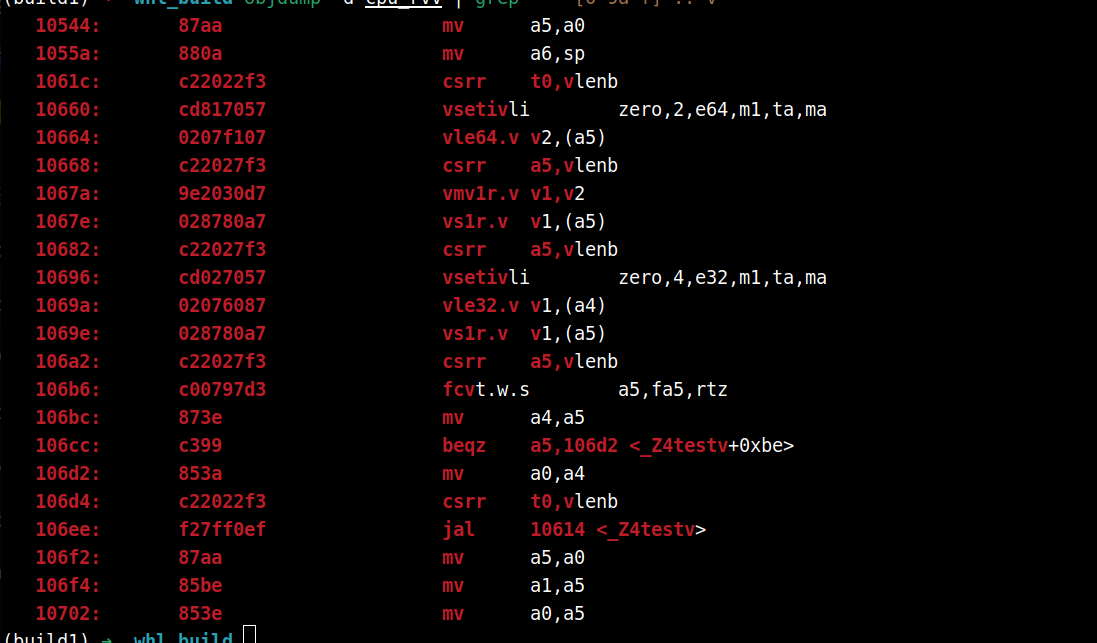
If you see instructions containing .v, the program is using RVV successfully.
Project Management
When developing C++ on ROS2_LXQT, using the right build system helps you manage source files, dependencies, and compiler options efficiently. The most common build tools are Makefile and CMake.
Makefile Examples
Single-File Project
Makefile
# Variable definitions for compiler and flags
CXX = g++
CXXFLAGS = -O2 -march=rv64gc -std=c++17
TARGET = hello
SRCS = hello.cpp

# Default target
all: $(TARGET)

# Link target
$(TARGET): $(SRCS)
 $(CXX) $(CXXFLAGS) $^ -o $@

# Cleanup build outputs
clean:
 rm -f $(TARGET)
Explanation:
$^: all dependency files$@: target file nameCXXFLAGS: contains the optimization level, language standard, and RISC-V-specific flags
Usage:
make        # Build
make clean  # Remove generated files
Multi-File Project
CXX = g++
CXXFLAGS = -O2 -march=rv64gc -std=c++17
TARGET = my_app
SRCS = main.cpp utils.cpp
OBJS = $(SRCS:.cpp=.o)

all: $(TARGET)

$(TARGET): $(OBJS)
 $(CXX) $(CXXFLAGS) $^ -o $@

%.o: %.cpp
 $(CXX) $(CXXFLAGS) -c $< -o $@

clean:
 rm -f $(OBJS) $(TARGET)
Tip: Makefile automatically handles header file dependencies, making incremental builds efficient.
CMake Examples
CMake is a cross-platform build system that works better for larger or multi-directory projects.
Single-File Project
CMakeLists.txt
cmake_minimum_required(VERSION 3.16)
project(HelloRISCVDemo CXX)

set(CMAKE_CXX_STANDARD 17)
set(CMAKE_CXX_FLAGS "-O2 -march=rv64gc")

add_executable(hello hello.cpp)
Build commands:
mkdir build && cd build
cmake ..
make
./hello
Multi-Directory Project
Directory structure:
my_app/
├── CMakeLists.txt
├── src/
│   ├── main.cpp
│   └── utils.cpp
└── include/
    └── utils.h
Top-level CMakeLists.txt
cmake_minimum_required(VERSION 3.16)
project(MyApp CXX)

set(CMAKE_CXX_STANDARD 17)
set(CMAKE_CXX_FLAGS "-O2 -march=rv64gc")

add_subdirectory(src)
include_directories(include)
src/CMakeLists.txt
add_executable(my_app main.cpp utils.cpp)
Build (same as before):
cmake ..
make
Using pkg-config with CMake
When linking against external libraries (e.g., glib, SDL2):
find_package(PkgConfig REQUIRED)
pkg_check_modules(GLIB REQUIRED glib-2.0)
include_directories(${GLIB_INCLUDE_DIRS})
link_directories(${GLIB_LIBRARY_DIRS})
add_executable(my_app main.cpp)
target_link_libraries(my_app ${GLIB_LIBRARIES})
CMake Tips
- CMake works across platforms, making it easy to switch between RISC-V64 and x86 builds.
- Use
pkg-configto manage third-party library dependencies.
Common Libraries
The examples in this section use g++ directly for compilation.
In real projects, you can also use CMake or other build systems to manage the compilation process.
System Libraries
pthread
Example code (pthread_test.cpp):
#include <pthread.h>
#include <iostream>

void* thread_func(void* arg) {
    std::cout << "Hello from thread!" << std::endl;
    return nullptr;
}

int main() {
    pthread_t tid;
    pthread_create(&tid, nullptr, thread_func, nullptr);
    pthread_join(tid, nullptr);
}
Compile & Run:
g++ -std=c++17 -O2 -march=rv64gc pthread_test.cpp -o pthread_test -lpthread
./pthread_test
dlopen / dlsym
Example code (dl_test.cpp):
#include <dlfcn.h>
#include <iostream>

int main() {
    void* handle = dlopen("libm.so", RTLD_LAZY);
    if (!handle) { std::cerr << dlerror(); return 1; }
    double (*cos_func)(double) = (double(*)(double))dlsym(handle, "cos");
    std::cout << cos_func(0.0) << std::endl;
    dlclose(handle);
}
Compile & Run:
g++ -std=c++17 -O2 -march=rv64gc dl_test.cpp -o dl_test -ldl
./dl_test
Math / Scientific Computing Libraries
OpenBLAS
Install:
sudo apt install libopenblas-dev
Example code (blas_test.cpp):
#include <cblas.h>
#include <iostream>

int main() {
    double A[4] = {1,2,3,4};
    double B[4] = {5,6,7,8};
    double C[4];
    cblas_dgemm(CblasRowMajor, CblasNoTrans, CblasNoTrans, 2, 2, 2, 1.0, A, 2, B, 2, 0.0, C, 2);
    std::cout << "C[0] = " << C[0] << std::endl;
}
Compile & Run:
g++ -std=c++17 -O3 -march=rv64gcv blas_test.cpp -o blas_test -lopenblas
./blas_test
Eigen
Install:
sudo apt install libeigen3-dev
Example code (eigen_test.cpp):
#include <Eigen/Dense>
#include <iostream>

int main() {
    Eigen::Matrix2d A;
    A << 1,2,3,4;
    std::cout << A << std::endl;
}
Compile & Run:
g++ -std=c++17 -O2 -march=rv64gc -I/usr/include/eigen3 eigen_test.cpp -o eigen_test
./eigen_test
Note: Eigen is a header-only library, so no additional linking is required.
Networking & System Programming
POSIX Socket
Example code (socket_test.cpp):
#include <sys/socket.h>
#include <netinet/in.h>
#include <iostream>

int main() {
    int sock = socket(AF_INET, SOCK_STREAM, 0);
    if (sock < 0) std::cerr << "Socket creation failed" << std::endl;
    else std::cout << "Socket created successfully" << std::endl;
}
Compile & Run:
g++ -std=c++17 -O2 -march=rv64gc socket_test.cpp -o socket_test
./socket_test
Boost (Asio Example)
Install:
sudo apt install libboost-system-dev libboost-thread-dev
Example code (boost_test.cpp):
#include <boost/asio.hpp>
#include <iostream>

int main() {
    boost::asio::io_context io;
    std::cout << "Boost Asio io_context created" << std::endl;
}
Compile & Run:
g++ -std=c++17 -O2 -march=rv64gc boost_test.cpp -o boost_test -lboost_system -pthread
./boost_test
Graphics & GUI
Qt5
Install:
sudo apt install qtbase5-dev
Example code (qt_test.cpp):
#include <QApplication>
#include <QPushButton>

int main(int argc, char** argv) {
    QApplication app(argc, argv);
    QPushButton button("Hello RISC-V Qt");
    button.show();
    return app.exec();
}
Compile & Run:
Note: This requires a physical display connection and will not work over SSH.
g++ -std=c++17 -O2 -march=rv64gc qt_test.cpp -o qt_test $(pkg-config --cflags --libs Qt5Widgets)
./qt_test
SDL2
Example code (sdl_test.cpp):
#include <SDL2/SDL.h>
#include <iostream>

int main() {
    if (SDL_Init(SDL_INIT_VIDEO) != 0) {
        std::cerr << "SDL_Init Error: " << SDL_GetError() << std::endl;
        return 1;
    }
    std::cout << "SDL initialized successfully" << std::endl;
    SDL_Quit();
}
Compile & Run:
Note: Requires physical display connection. Won't work over SSH.
g++ -std=c++17 -O2 -march=rv64gc sdl_test.cpp -o sdl_test $(sdl2-config --cflags --libs)
./sdl_test
Additional Usage Examples
GPIO Control in C/C++
For pin definitions, refer to: Pinout Reference
This example uses the lgpio C library for GPIO operations. For more details, refer to the official documentation.
Install Dependencies
sudo apt install liblgpio-dev python3-gpiozero
Controlling an LED
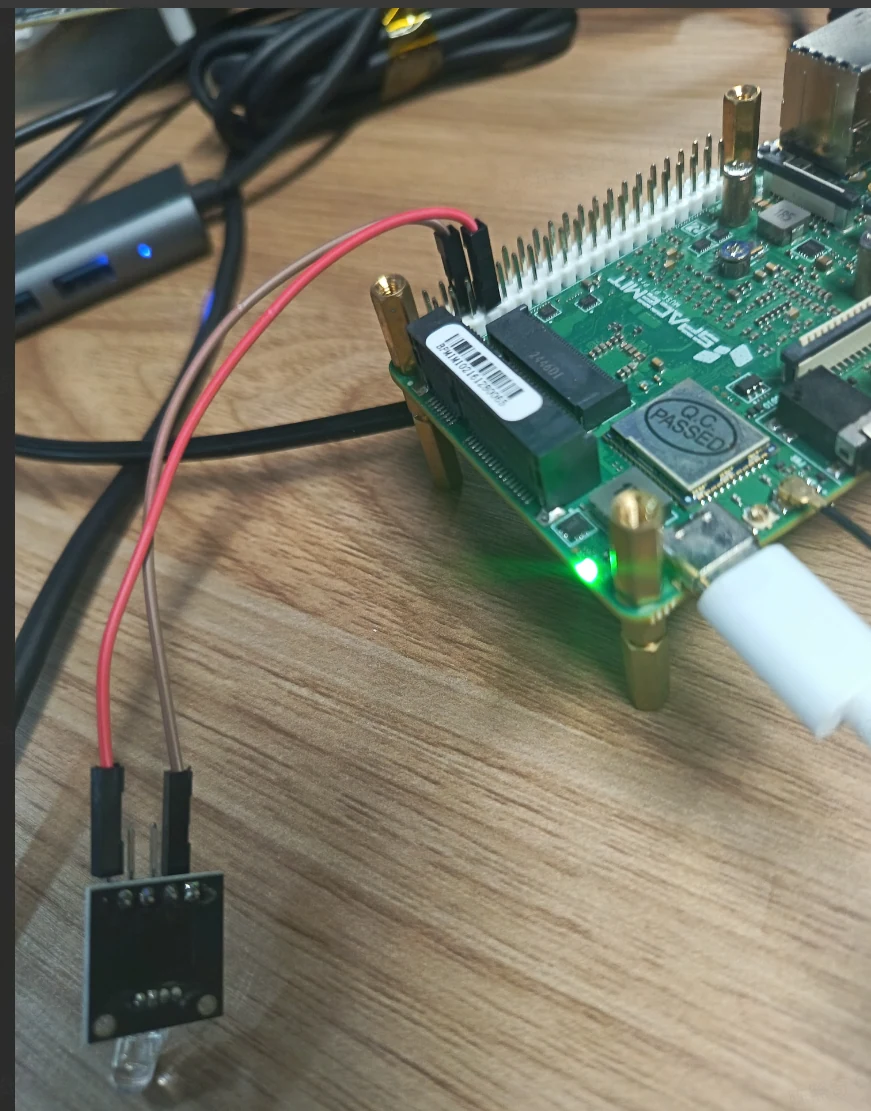
Hardware Connection (Using pin 70 on the SpacemiT MUSE Pi development board):
Example Code
#include <stdio.h>
#include <unistd.h>
#include <lgpio.h>

int main(void)
{
    int h;           // Chip handle
    int line = 70;   // GPIO pin number to control
    int lh;          // Line handle
    int i;

    // Open /dev/gpiochip0
    h = lgGpiochipOpen(0);
    if (h < 0)
    {
        printf("Failed to open gpiochip0: %d\n", h);
        return 1;
    }

    // Claim GPIO70 as output
    lh = lgGpioClaimOutput(h, 0, line, 0); // Initial state: low
    if (lh < 0)
    {
        printf("Failed to claim GPIO%d as output: %d\n", line, lh);
        lgGpiochipClose(h);
        return 1;
    }

    // Blink LED 10 times
    for (i = 0; i < 10; i++)
    {
        lgGpioWrite(h, line, 1); // Set high
        usleep(500000);          // Delay 0.5 seconds
        lgGpioWrite(h, line, 0); // Set low
        usleep(500000);
    }

    // Release GPIO resources
    lgGpioFree(h, line);
    lgGpiochipClose(h);

    return 0;
}
Save the file as blink.c.
Compile
gcc -o blink blink.c -llgpio
Run the Program
./blink