7.2 perf + FlameGraph Tutorial
Tool Overview
perf
perf is a performance analysis tool built into the Linux kernel. It can sample and analyze the runtime performance of systems or applications. Its core functions include:
- Sampling CPU usage and call stacks
- Identifying hot functions and locating performance bottlenecks
- Analyzing system calls, context switches, and cache hit rates
Official Documentation: perf wiki
FlameGraph
FlameGraph is a performance visualization method proposed by Brendan Gregg. It provides an intuitive display of CPU consumption by function calls.
Visual Characteristics:
- X-axis: Proportion of CPU time occupied by functions (wider = more consumption)
- Y-axis: Call stack hierarchy (entry function at bottom, call chain moving upward)
- Block width: Indicates function execution time or CPU consumption
Preparation
Install perf
On most Linux distributions, perf is provided with the kernel. Install using:
sudo apt update
sudo apt install linux-tools-common linux-tools-$(uname -r)
Verify installation with:
perf --version
After installation, adjust kernel configuration to allow perf sampling:
sudo sh -c 'echo "kernel.perf_event_paranoid=-1" >> /etc/sysctl.conf'
sudo sysctl -p
Install FlameGraph
FlameGraph is a Perl toolkit written by Brendan Gregg for visualizing perf sampling data.
git clone https://github.com/brendangregg/FlameGraph.git
cd FlameGraph
Key scripts include:
stackcollapse-perf.pl: Collapses raw perf stack informationflamegraph.pl: Generates SVG flame graphsdifffolded.pl: Compares two profiles to produce a difference flame graph
Collecting Data with perf
System-wide Sampling
Use the following command to monitor system or application CPU usage in real time and display call stacks:
perf top --call-graph fractal
⚠️ On RISC-V,
perf listmay not show all fully supported hardware events. Use-eto specify supported events (see Bianbu docs).
Single Command Performance Analysis
Runs ls -lt with performance statistics.
sudo perf stat ls -lt
Program-level Sampling
For a target program my_program, use the following command to collect samples:
perf record -F 99 -a -g -e hw-event ./my_program
Parameter explanation:
-F 99: Sampling frequency, 99 Hz is typical-a: Global sampling (without it, only the current process is analyzed)-g: Collect call stacks-e hw-event: Sampling event; replace this with a supported hardware event../my_program: Program to run.
After sampling, a perf.data file is generated. View the report with:
sudo perf report --call-graph none
Example: Fork Test Program
Create fork.c with:
#include <stdio.h>
#include <unistd.h>
#include <sys/wait.h>

void test_little() { for(int i=0,j;i<30000000;i++) j=i; }
void test_mmedium() { for(int i=0,j;i<60000000;i++) j=i; }
void test_high() { for(int i=0,j;i<90000000;i++) j=i; }
void test_hi() { for(int i=0,j;i<120000000;i++) j=i; }

int main() {
    int pid, result;
    for(int i=0;i<2;i++) {
        result=fork();
        if(result>0)
            printf("i=%d parent=%d current=%d child=%d\n", i, getppid(), getpid(), result);
        else
            printf("i=%d child parent=%d current=%d\n", i, getppid(), getpid());

        if(i==0) { test_little(); sleep(1); }
        else { test_mmedium(); sleep(1); }
    }
    pid=wait(NULL); test_high(); printf("pid=%d wait=%d\n", getpid(), pid);
    sleep(1);
    pid=wait(NULL); test_hi(); printf("pid=%d wait=%d\n", getpid(), pid);
    return 0;
}
Compile:
gcc fork.c -o fork -g -O0
Run sampling:
sudo perf record -F 99 -a -g -e cpu-clock ./fork
-e cpu-clockspecifies collection of CPU clock events, recording a sample for each CPU clock tick.- This is a software event compatible with most platforms, including RISC-V, and does not rely on specific hardware performance counters.
View report:
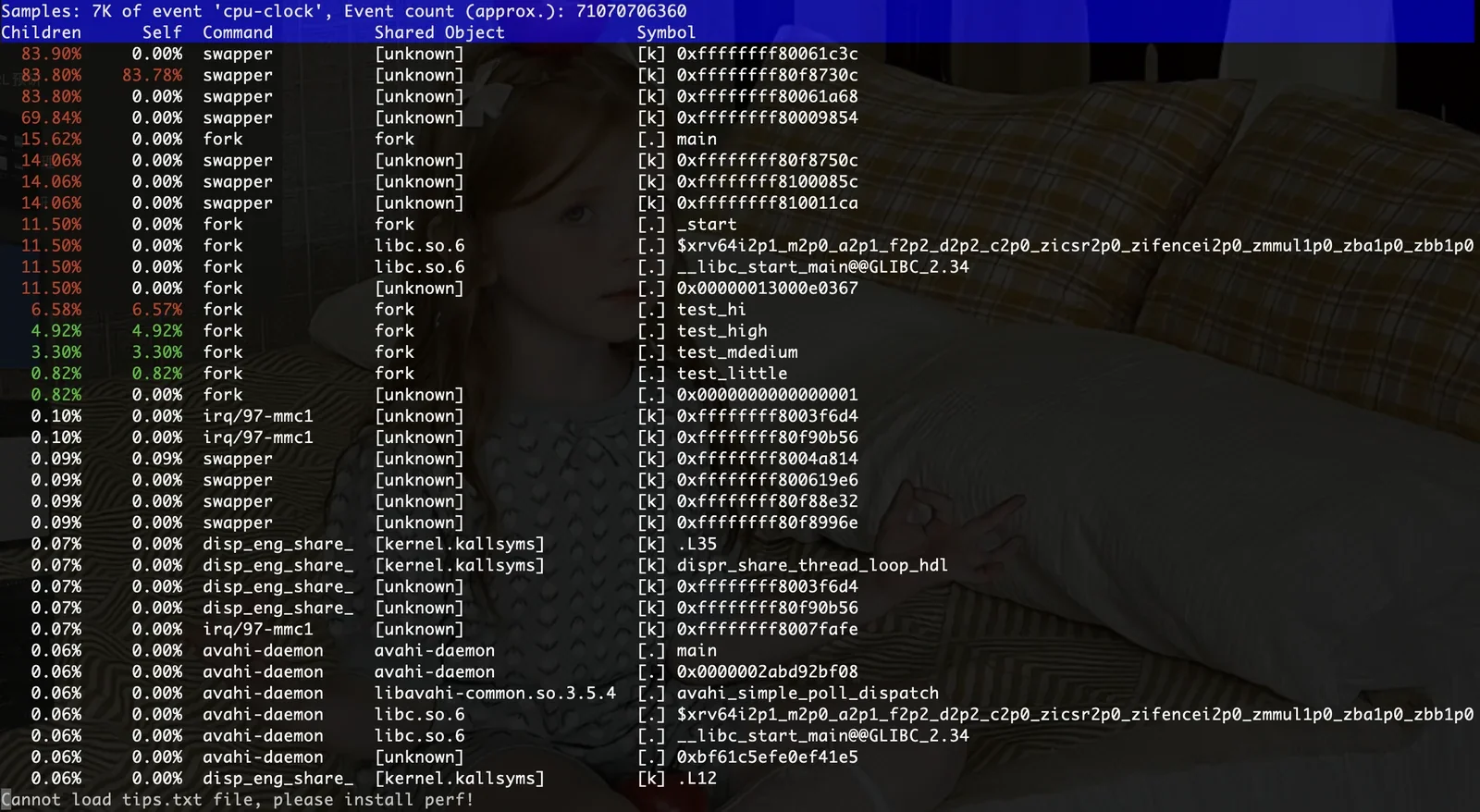
sudo perf report --call-graph none
Output example:
Sampling a Running Process
For a target process with PID 1234:
sudo perf record -F 99 -g -p 1234
Press Ctrl+C to stop collection.
Generating Flame Graphs
Generate Readable Call Stacks
perf script > out.perf
Collapse Call Stacks
./FlameGraph/stackcollapse-perf.pl out.perf > out.folded
Generate Flame Graph
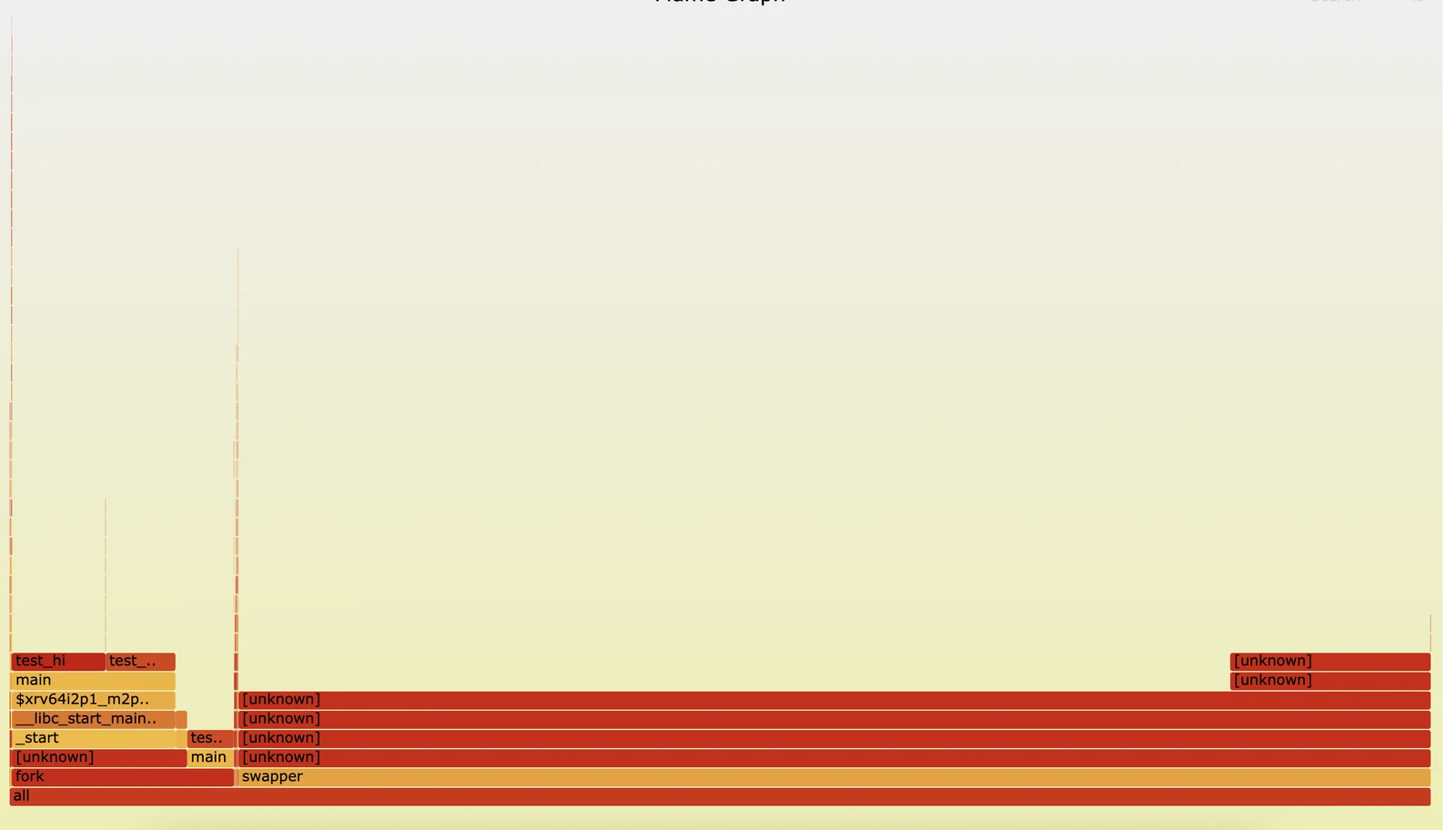
./FlameGraph/flamegraph.pl out.folded > flame.svg
Open flame.svg in a browser for interactive viewing.
For this example, the generated flame graph appears as:
Interpreting Flame Graphs
- X-axis: Proportion of CPU time occupied by functions (wider = more time-consuming).
- Y-axis: Call stack hierarchy (entry function at bottom, call chain moving upward).
- Each block: Represents a function.
- Hotspot code: Wide blocks indicate high CPU time consumption, candidates for optimization
Examples:
- Wide blocks at the bottom → function itself is CPU-heavy
- Wide blocks near the top → function is frequently called (hot path)
Differential Flame Graphs
Differential flame graphs compare performance before and after optimization.
-
Collect data before and after optimization:
perf script > before.perfperf script > after.perf -
Collapse stacks:
./FlameGraph/stackcollapse-perf.pl before.perf > before.folded./FlameGraph/stackcollapse-perf.pl after.perf > after.folded -
Generate differential flame graph:
./FlameGraph/difffolded.pl before.folded after.folded | ./FlameGraph/flamegraph.pl > diff.svg
Color meaning after optimization:
- Red → increased time consumption
- Blue → reduced time consumption
Common Issues
-
Function names not resolved (symbol resolution needed) If the flame graph only shows memory addresses instead of function names, install the debug symbols package:
sudo apt install libc6-dbg -
Kernel functions show up without names Installing the kernel debug symbols package
linux-image-$(uname -r)-dbgsymis required. -
High sampling frequency impacts performance: It is recommended to use
-F 99or-F 199. Higher values may add too much overhead and affect the results.