FAQ
Installation and Drivers
Q: Why does "Service not started" appear when SpacemiT Studio is first launched?
Click the message, then select Download & install driver in the driver installation wizard. Download and install the driver package for the current platform. For details, see Quick Start: Driver Installation.
Q: Why does "Service not started" still appear after installing the driver?
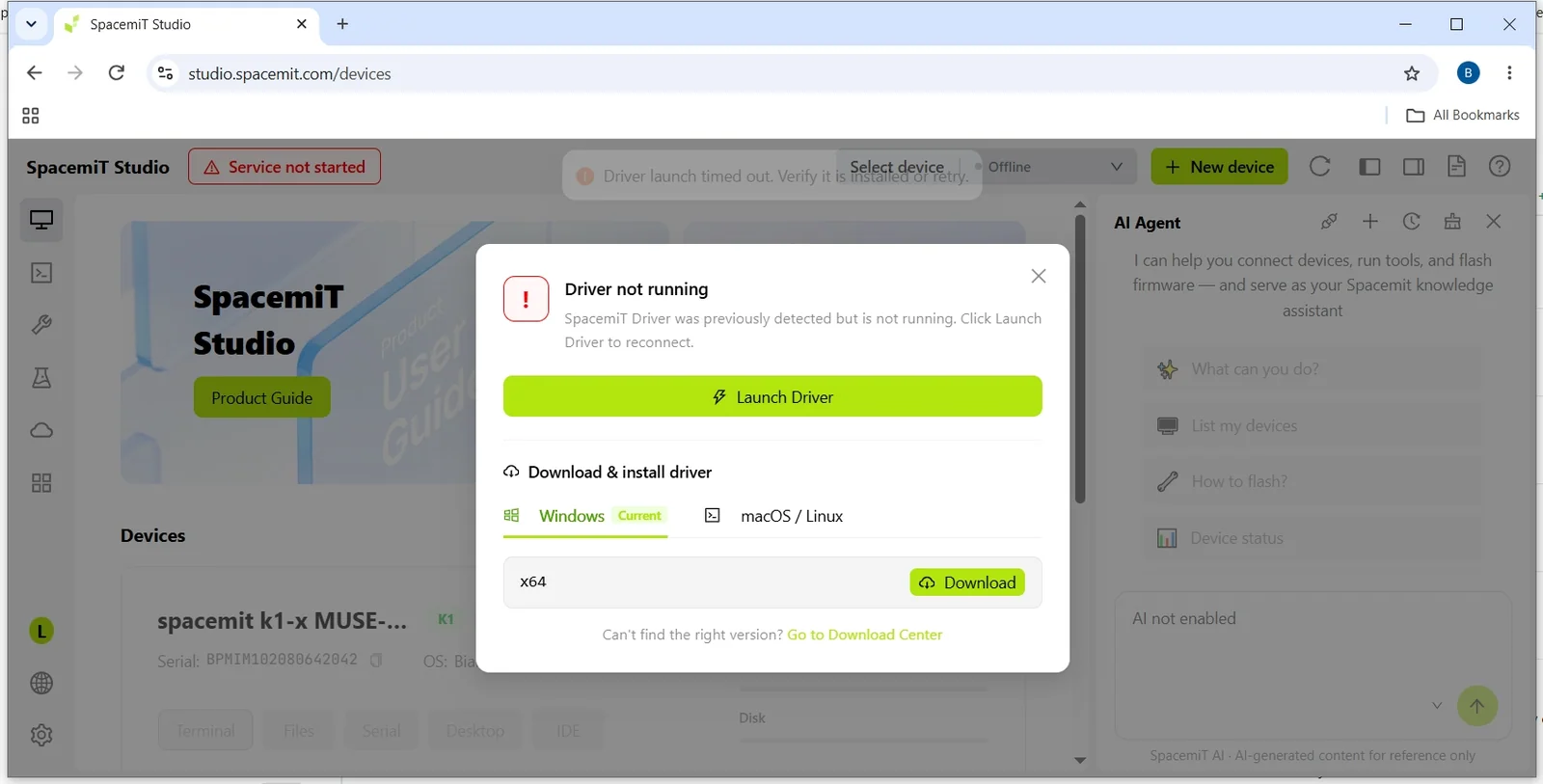
In Chrome, this issue occurs when the "Apps on device" permission is disabled. Enable the permission as follows:
- Click the site information icon to the left of the address bar
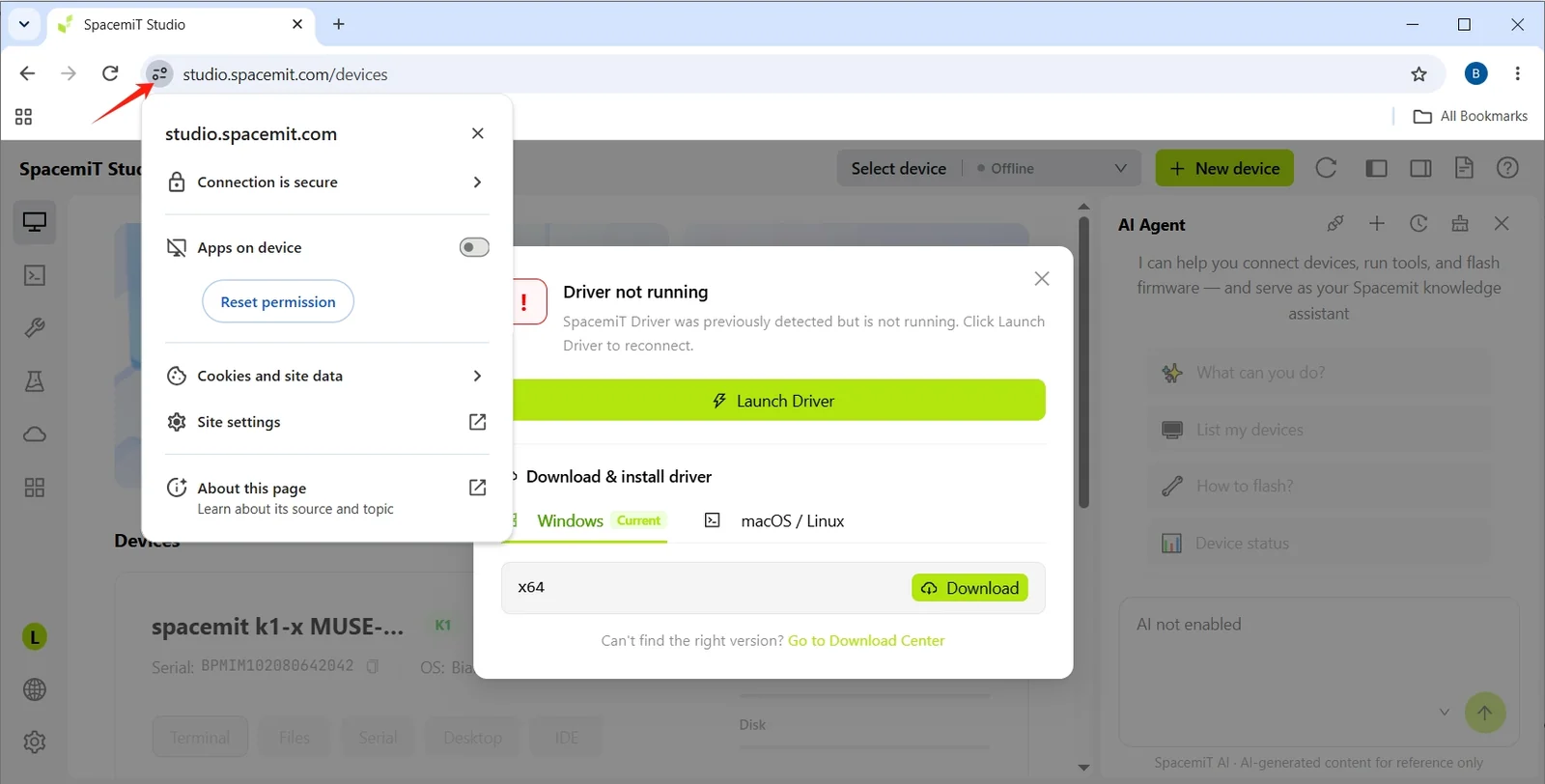
- In the pop-up menu, find the "Apps on device" permission item
- Toggle the switch to enabled (blue)
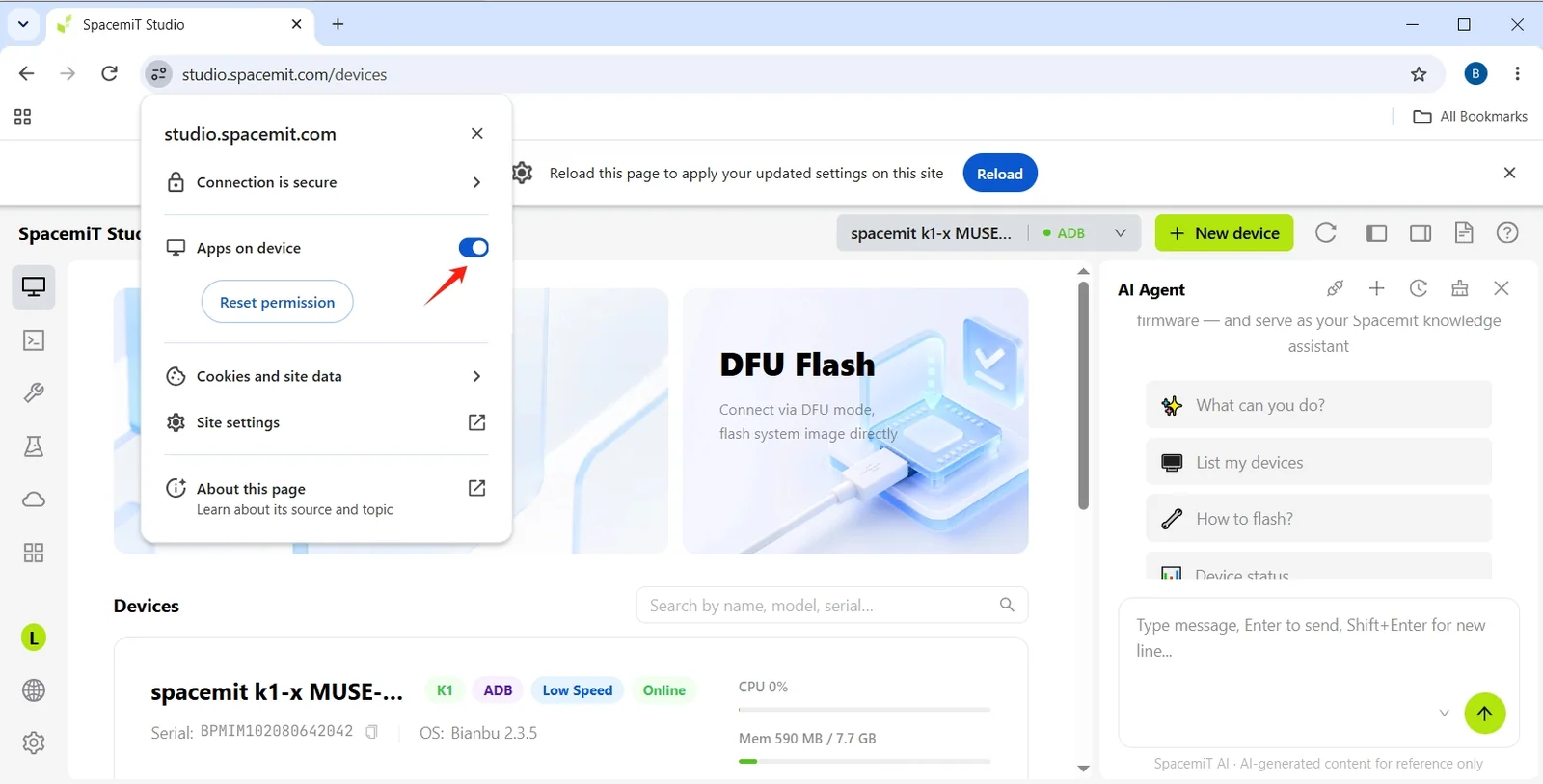
- Refresh the page to reconnect Studio to the device-side application
If the permission item is not displayed, click Site settings to open the detailed permissions page.
Q: Why isn't my device detected after installing the driver?
- Windows: Check Device Manager for any devices with a yellow warning icon. Try updating or reinstalling the driver.
- Linux: Ensure your user account has permission to access USB devices (you may need to join the
dialoutorplugdevgroup). - macOS: Verify that the driver is allowed to run under System Settings > Privacy & Security.
Account and Sign-in
Q: Why didn't I receive the verification code during registration?
- Phone registration: Verify that the phone number is correct and not already registered. Also check whether SMS messages are being blocked.
- Email registration: Check your spam or junk folder and verify that the email address is correct.
Q: I forgot my password. What should I do?
On the sign-in page, click Forgot Password and reset your password using your registered phone number or email address.
Device Connection
Q: Why is the device list empty after connecting via USB?
- Ensure the USB cable supports data transfer (not a charging-only cable).
- Make sure the device is powered on and in the correct mode.
- On Windows, verify that the device driver is installed correctly in Device Manager.
- Try a different USB port or reconnect the device.
Q: Why does my SSH connection time out or fail?
- Make sure the device and host computer are on the same network (use
pingto verify connectivity). - Verify that the SSH service is running on the device (
systemctl status sshafter logging in through the serial console). - Check that the IP address, port (default: 22), username, and password are correct.
- Ensure that the firewall is not blocking SSH traffic.
Q: Why can't I connect using ADB?
- Verify that the device is connected via USB and has been detected.
- Make sure ADB debugging is enabled on the device.
- Click the ADB button in the Terminal panel to reconnect.
Flashing
Q: How do I recover from an interrupted flashing process?
Put the device back into flashing mode, select the image again, and restart the flashing process. Restarting the flashing process overwrites incomplete data from the previous attempt.
Q: Why won't my device boot after flashing?
- Verify that the image matches your device model (for example, do not flash a K3 image onto a K1 device).
- Ensure that the image download completed successfully.
- Try flashing the latest image.
- Check that the device hardware (such as the power supply and storage) is functioning properly.
Q: My device won't boot after accidentally flashing a K3 image onto a K1 device (or vice versa). What should I do?
K1 and K3 series devices use different processor architectures and hardware configurations, so their images are not compatible. If you flash an incompatible image, the device will fail to boot.
Solution: Flash the correct image that matches your device model to restore normal operation. For example:
- K1 devices (MUSE Pi Pro, MUSE Pi, etc.) require K1 series images
- K3 devices (CoM260 Kit, Pico-ITX, etc.) require K3 series images
Always verify that the device model matches the image type before flashing.
Q: Why did the image download fail or stop unexpectedly?
- Check that your network connection is stable.
- Try downloading again from a different network.
- If the problem persists, download the image manually and import it using Upload Local Image.
Q: Why do image download requests fail in Firefox on Linux when downloading multiple images simultaneously?
On Linux, Firefox's HTTP/2 implementation may have compatibility issues with the local service (https://127.0.0.1), causing requests to fail when multiple images are downloaded simultaneously.
Temporary workaround:
- Enter
about:configin the Firefox address bar. - Search for
network.http.http2.enabled. - Set the preference to
false. - Restart Firefox.
Q: Why isn't my SD card detected, or why does formatting fail?
- Ensure the SD card is properly inserted into the card reader.
- Verify that the SD card has sufficient capacity for the image.
- Try another SD card or card reader.
- On Windows, check whether the SD card appears in Disk Management.
- Try formatting the SD card as FAT32 before flashing.
Q: Why does flashing fail after configuring partitions?
- Verify that the partition configuration file is valid.
- Ensure that the total partition size does not exceed the device's storage capacity.
- Clear Configure Partitions to use the default partition layout.
Terminal and File Management
Q: Why can't I enter commands after connecting to the terminal?
- Verify that the device is online.
- Press Enter to wake up the terminal.
- If using a serial terminal, reconnect to the device.
Q: Why do file uploads or downloads fail?
- Ensure that the device has sufficient storage space.
- Verify that you have permission to access the target directory (you may need
sudoprivileges). - For large files, check that the network connection is stable.
- Try transferring the files in smaller batches or as a compressed archive.
Q: Why is the File Manager empty or unable to refresh?
- Verify that the device is connected.
- Ensure that the current user has read permission for the target directory.
- Try switching to another directory (such as
/homeor/tmp) and then switch back.
General
Q: How do I change the display language?
Click the language icon in the lower-left corner, or go to Settings > Language to switch between Chinese and English.
Q: How do I clear the image cache to free disk space?
Go to Settings, then click Clear next to Image Directory or Extraction Directory. Any cleared images must be downloaded again before they can be used.
Q: How do I switch between multiple connected devices?
- Select the target device from the Device drop-down list in the top toolbar.
- Or select the target device from the Device Management page.
Q: What should I do if I can't resolve my issue?
- View the device operation log (Device Management > Activity) to collect diagnostic information.
- Submit feedback using Feedback in the top toolbar.