SpacemiT AI Assistant
Note: This feature is under development.
Important: Install the driver before using the AI Assistant. Otherwise, errors may occur.
Overview
The SpacemiT AI Assistant is a conversational AI development assistant integrated into SpacemiT Studio. Built on SpacemiT documentation and a preset skill library, it supports code assistance, troubleshooting, and edge AI application development.
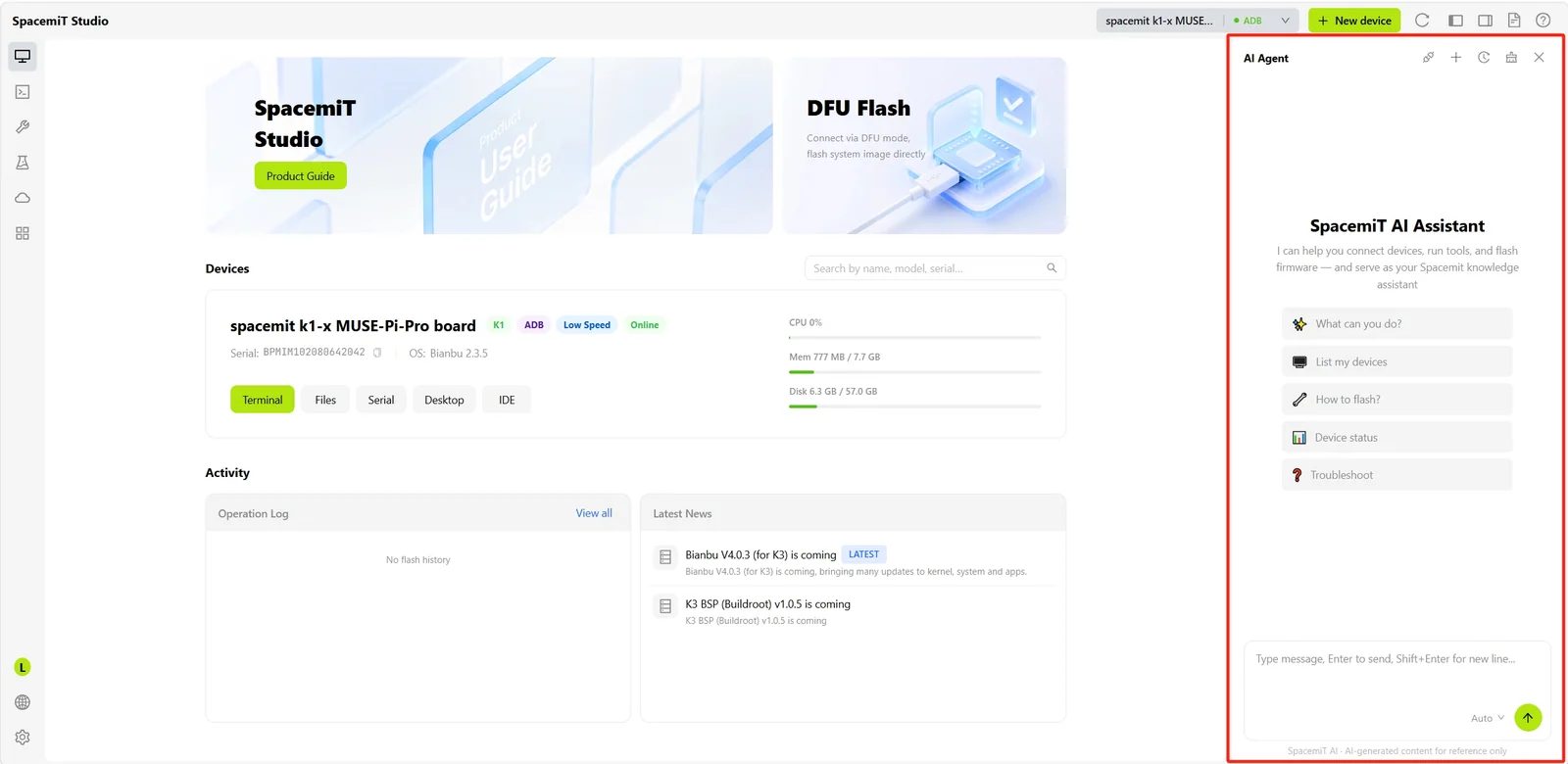
Toolbar
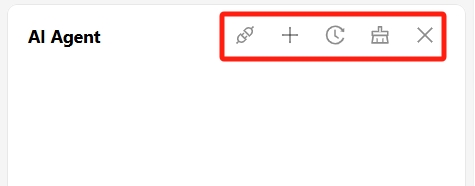
The toolbar at the top of the AI Assistant panel provides the following actions, from left to right:
- Skills: Manages installed AI skills. Skills can be enabled, disabled, or added.
- New Session (+): Starts a new conversation session.
- Session History: Displays the list of previous sessions. Select a session to resume it.
- Clear Conversation: Clears all messages in the current session.
- Collapse Panel: Hides the AI Assistant panel.
Skills
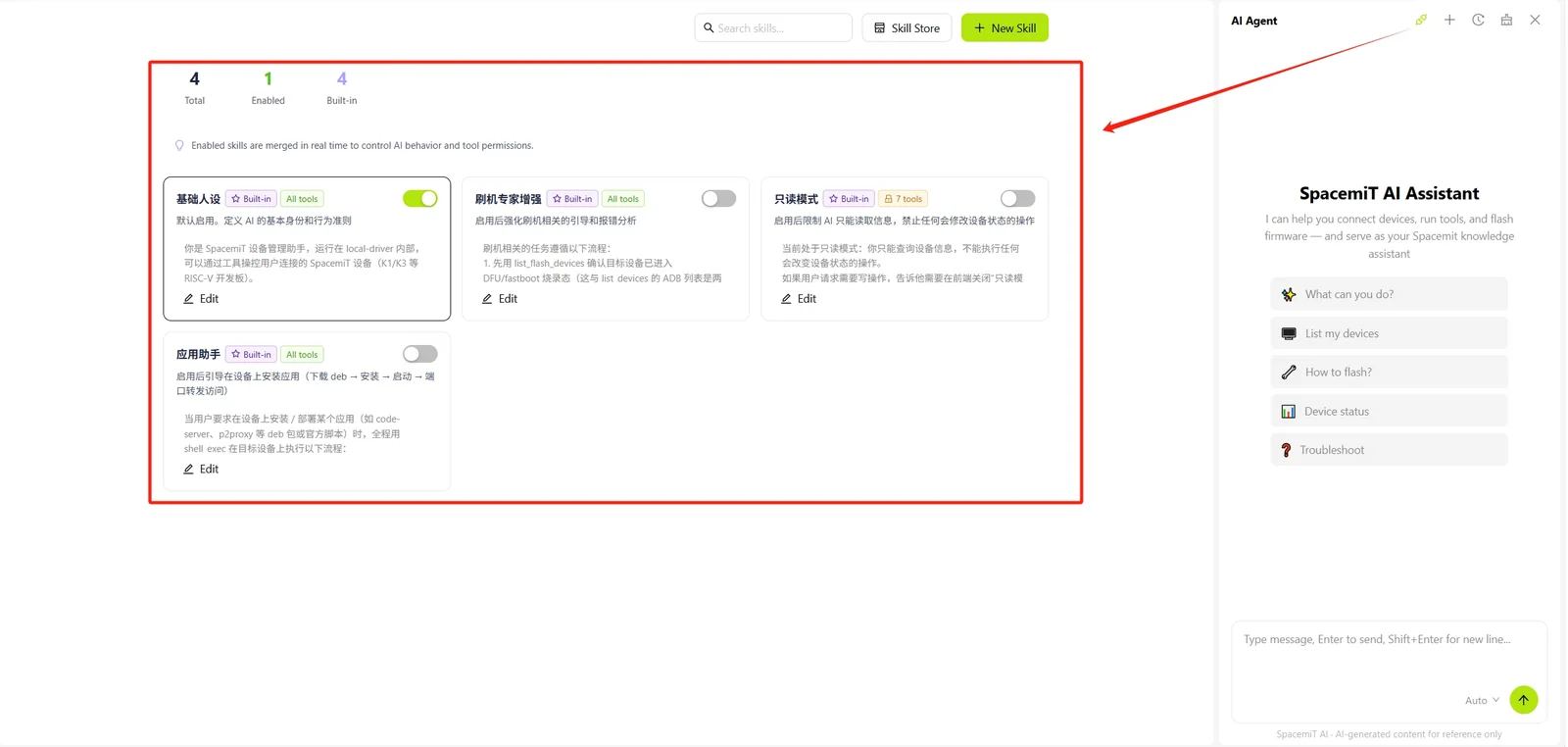
A skill is a functional extension module for the AI Assistant. Each skill corresponds to a specific knowledge base or task capability. The Skills screen shows the following:
- Total, Enabled, and Built-in counts.
- A card for each skill, showing its name, tags (such as Built-in or All Tools), a description, and an enable/disable toggle.
- An Edit link on each card to modify the skill.
Built-in skills include:
- Basic Persona: Enabled by default. Defines the AI assistant's core identity and behavior guidelines.
- Flashing Expert Enhancement: When enabled, strengthens guidance and error analysis for flashing-related tasks.
- Read-only Mode: When enabled, restricts the AI assistant to read-only operations and blocks any action that would change device state.
Skill Store
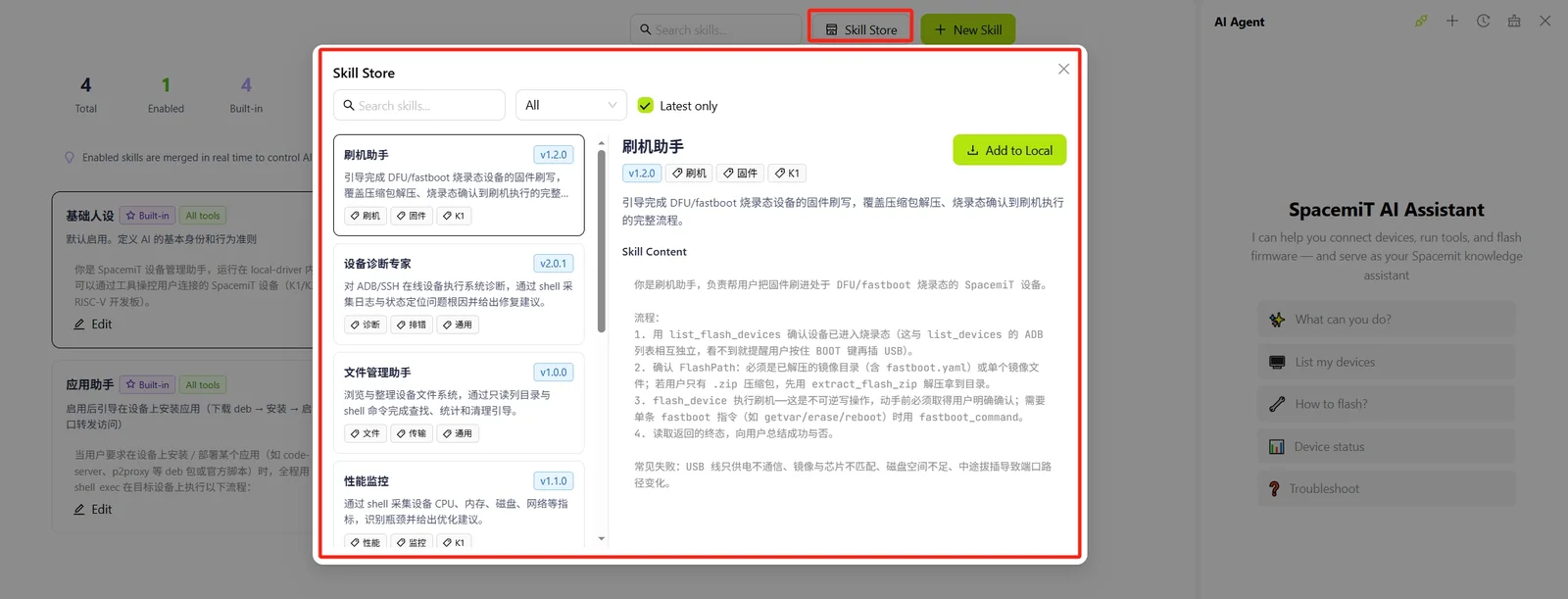
Click Skill Store to open the list of available skills, displayed as installable skill cards. Each card shows the skill name, version, tags, a description, and an Add to Local button. The skill list can be filtered by category and searched by keyword.
Example skills available in the Skill Store include Flashing Assistant, Device Diagnostics Expert, File Manager, and Performance Monitor.
Create a New Skill
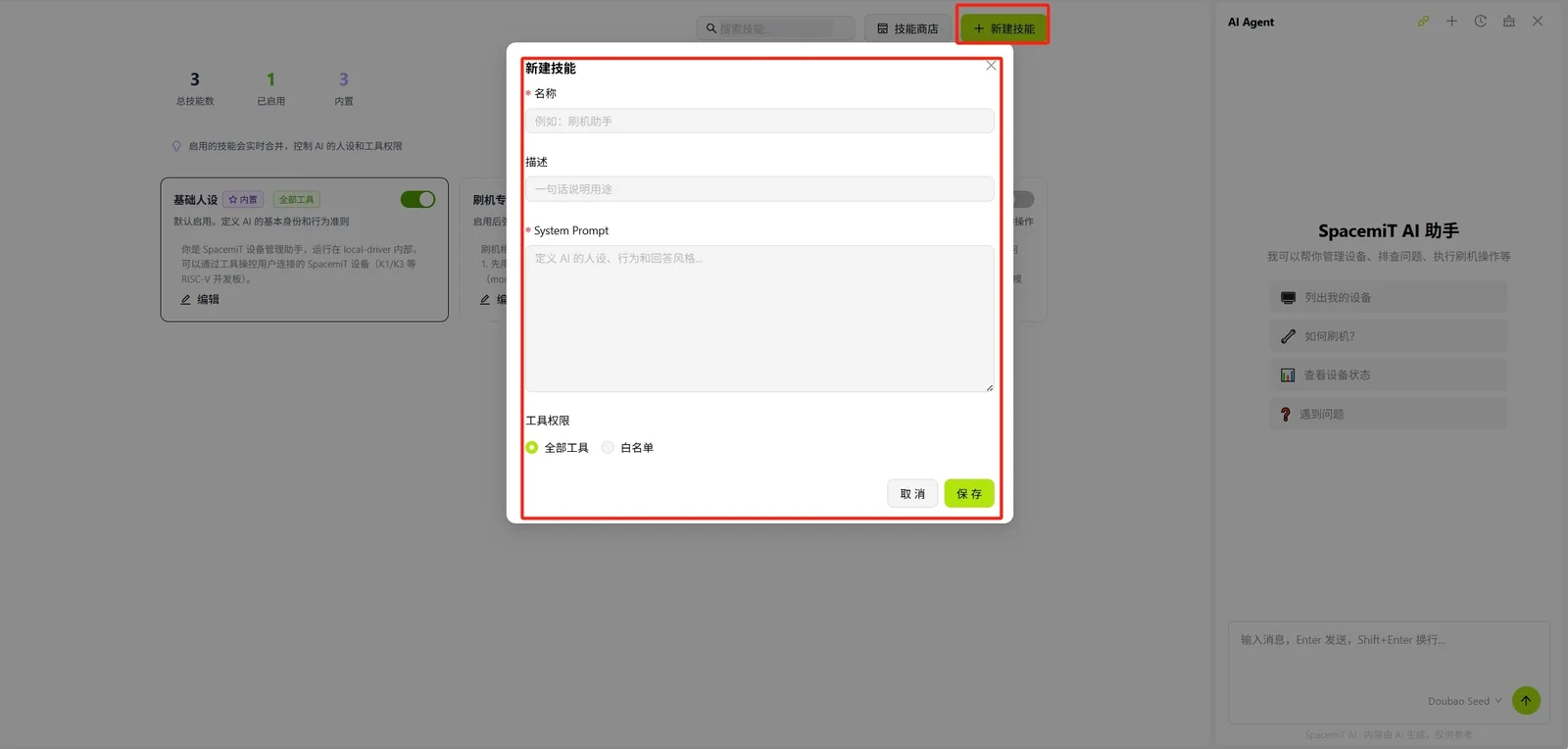
Click New Skill to open the skill creation form, which includes the following fields:
- Name: The unique identifier for the skill.
- Description: A description of the skill's functionality.
- System Prompt: The system prompt that defines the AI's persona, behavior, and response style for the skill.
- Tool Permissions: Choose All Tools to grant the skill access to every available tool, or Whitelist to restrict it to a selected subset.
After completing the form, click Save to create the custom skill, or Cancel to discard it.