Flash Tools
DFU Flash
Writes a system image directly to the device's onboard storage in USB DFU mode. Suitable for installing or updating the system on a single device.
Prerequisites
- The SpacemiT Studio driver for the target platform is installed. See Quick Start.
- The device is connected to the computer via a USB cable.
- The device has entered flashing mode.
The procedure for entering flashing mode differs by model. Refer to the applicable user guide:
| Series | Model | User Guide |
|---|---|---|
| K1 | MUSE Pi Pro | User Guide |
| K1 | MUSE Pi | User Guide |
| K1 | MUSE Book | User Guide |
| K1 | MUSE Paper | User Guide |
| K3 | CoM260 Kit | User Guide |
| K3 | Pico-ITX | User Guide |
Procedure
-
Go to Development Tools → DFU Flash.

-
The tool automatically detects connected devices in flashing mode. If the device is not detected, verify that it meets the prerequisites.
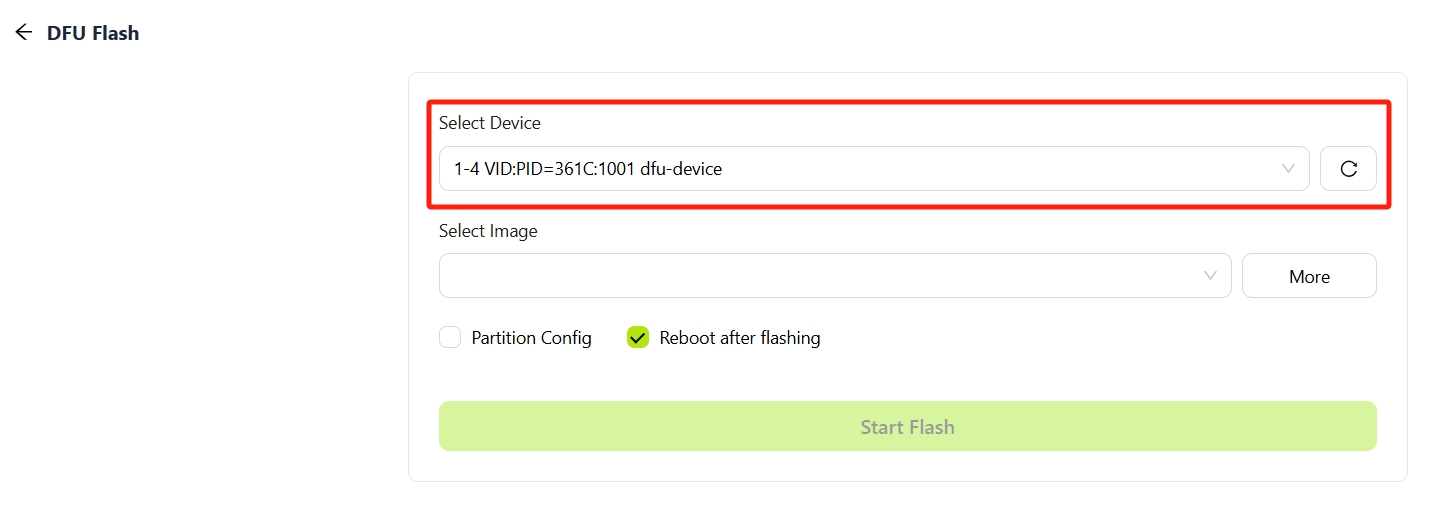
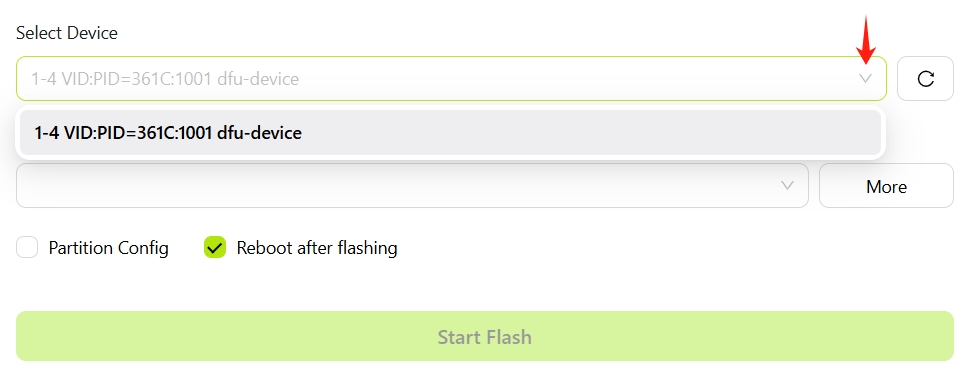
If multiple devices are connected, use the Select Device drop-down to choose the target device.
-
Select and download a system image.
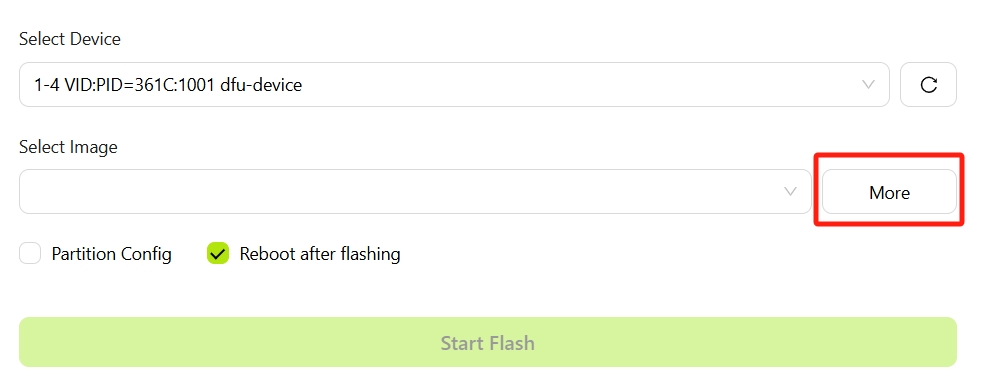
Click More to open the image library.
In the image library, select the target image:
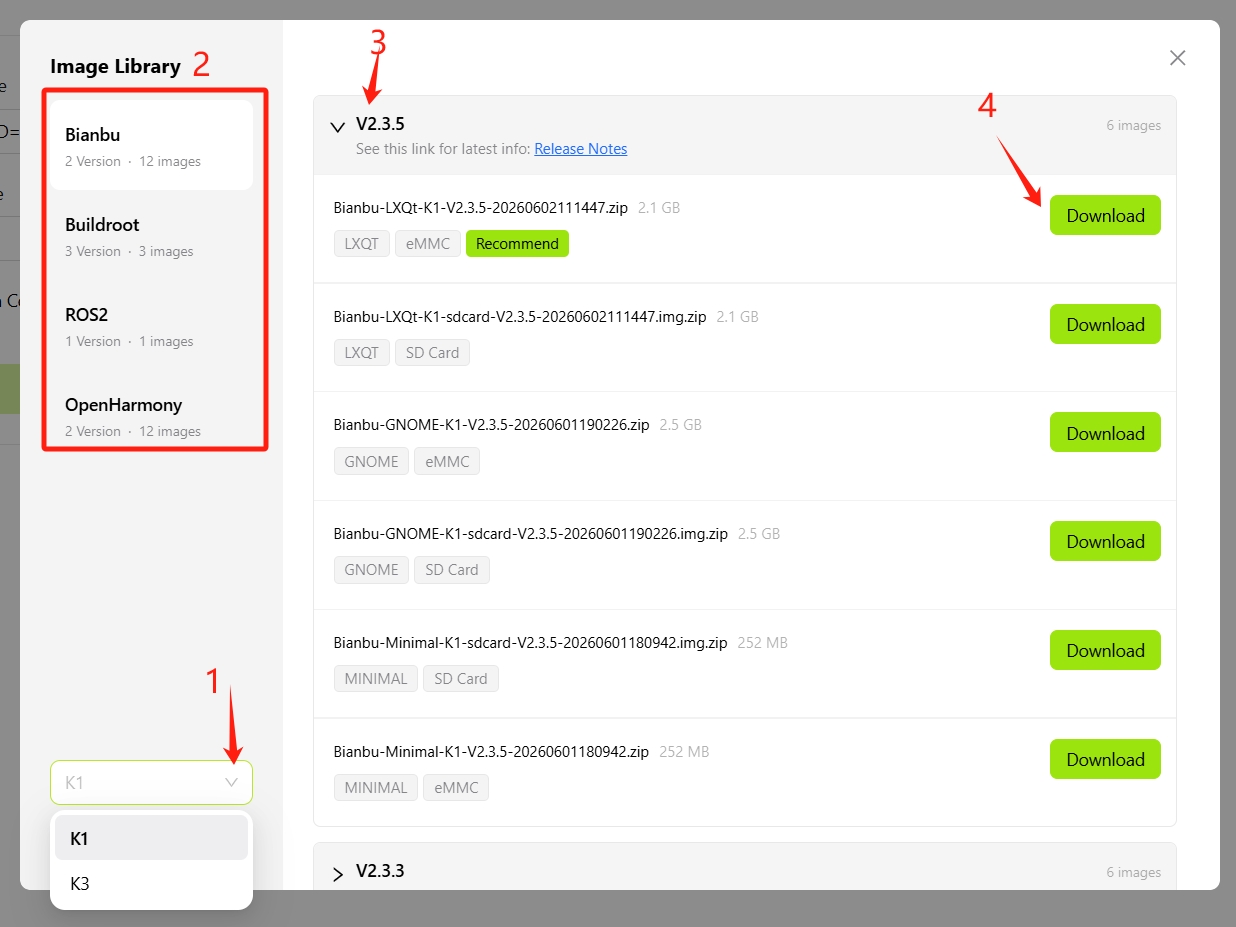
(1) Select the board series (K1 or K3).
(2) Select the target OS (Bianbu, Buildroot, ROS2, or OpenHarmony).
(3) Select the OS version.
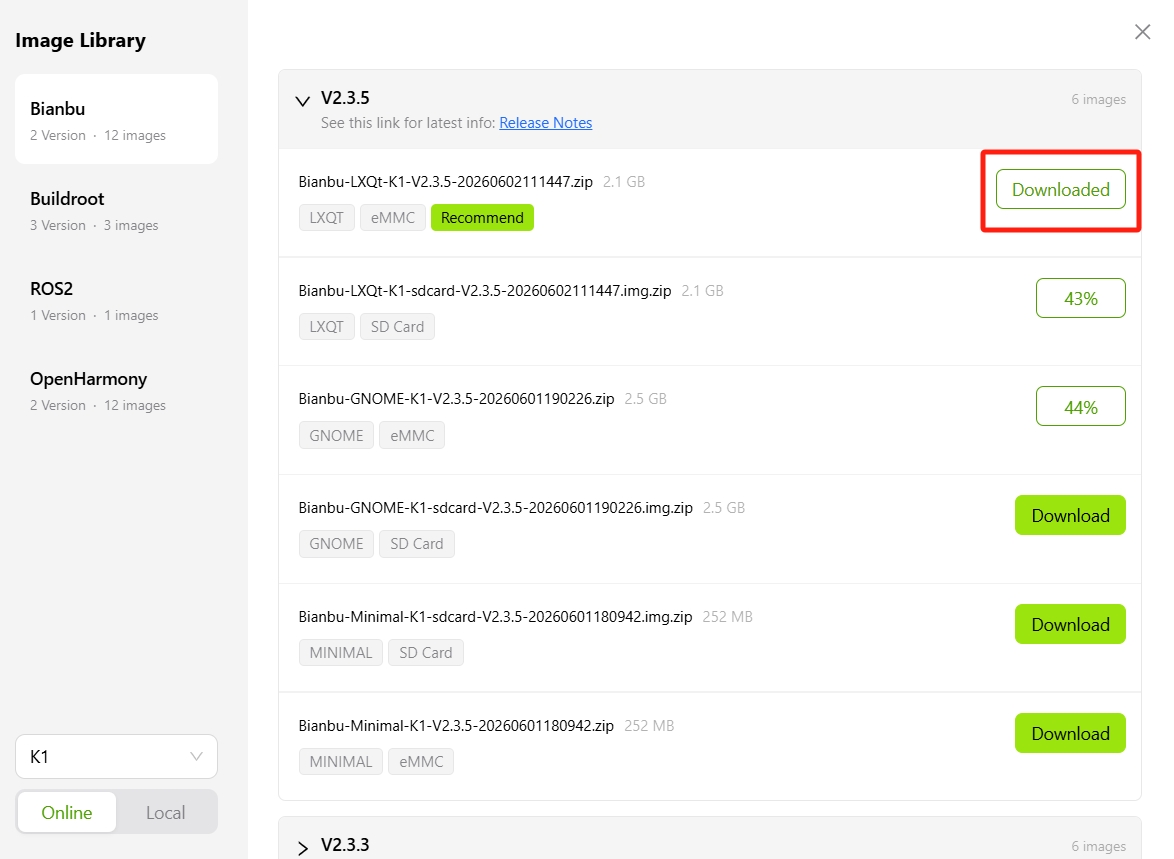
(4) Select a specific image and click Download.Image download in progress:
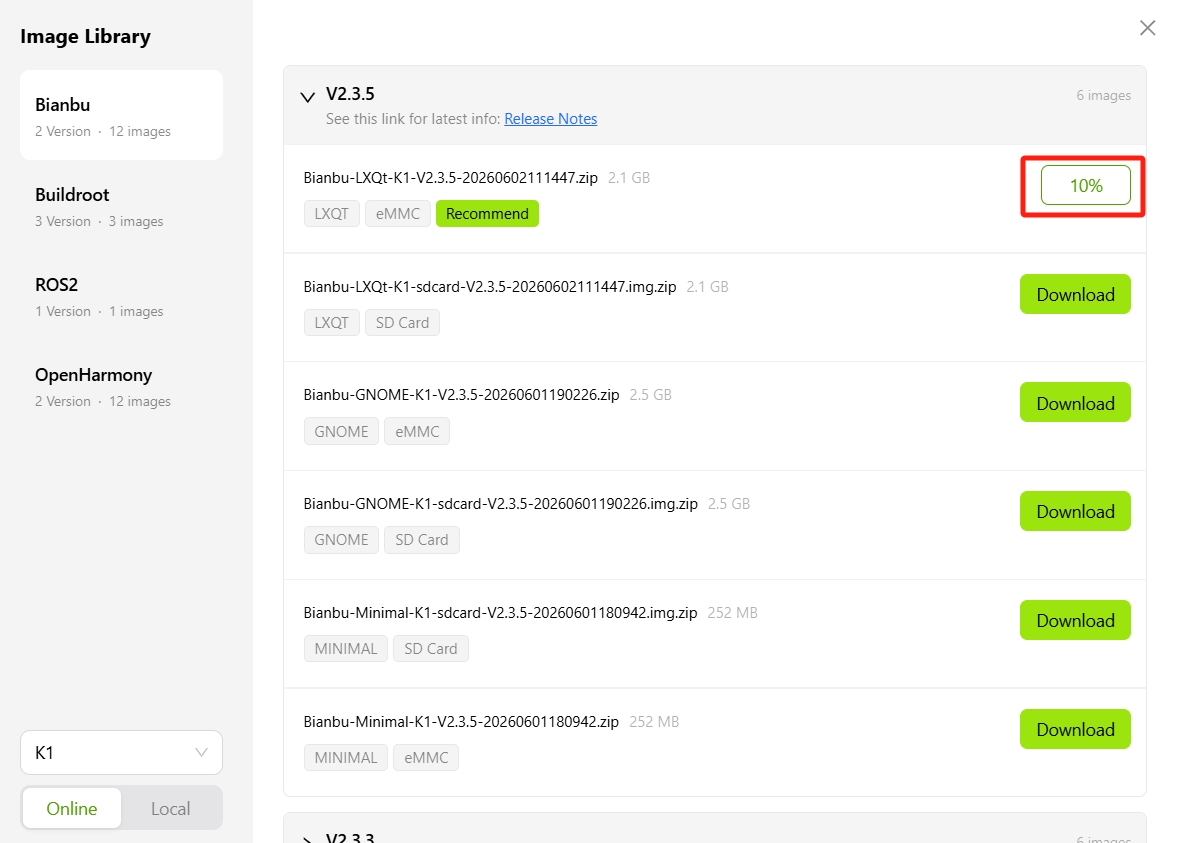
Image download complete:
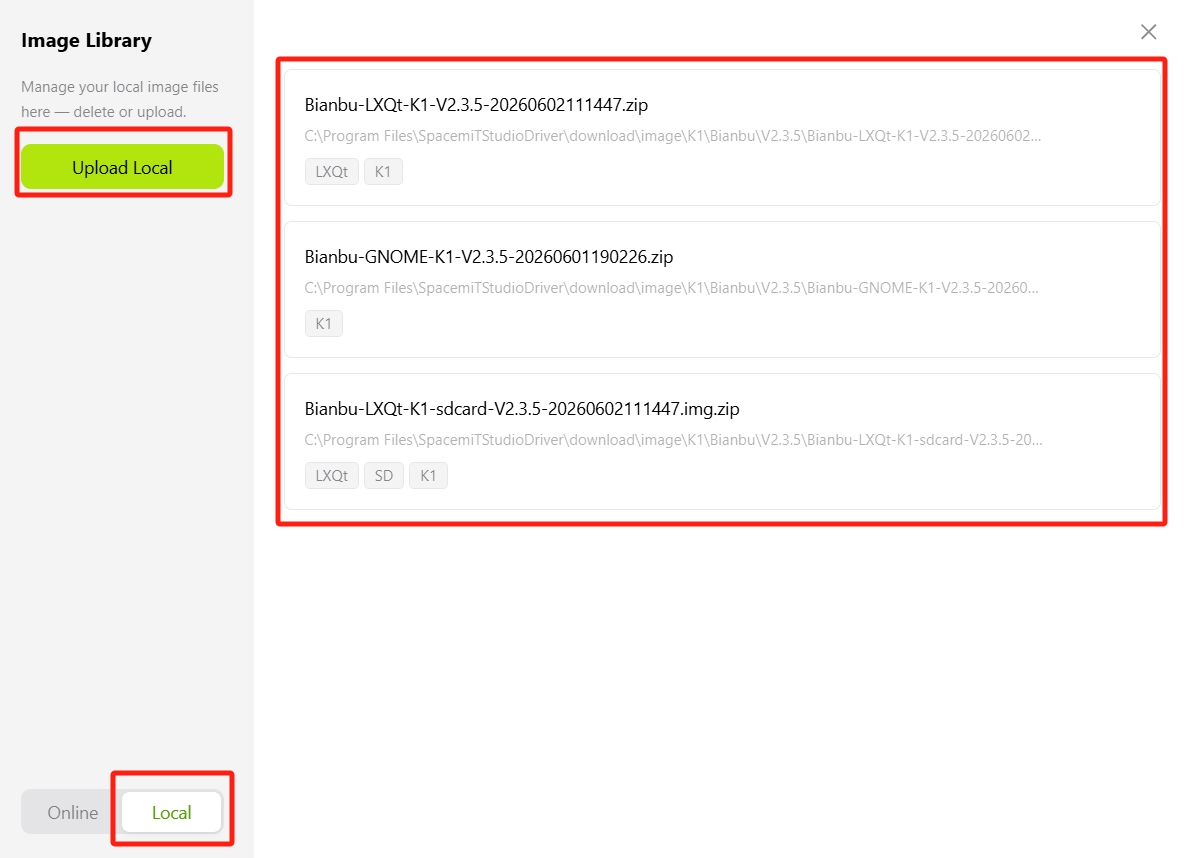
Click Local to view previously downloaded images. To use an image file already on the computer, click Upload Local Image:
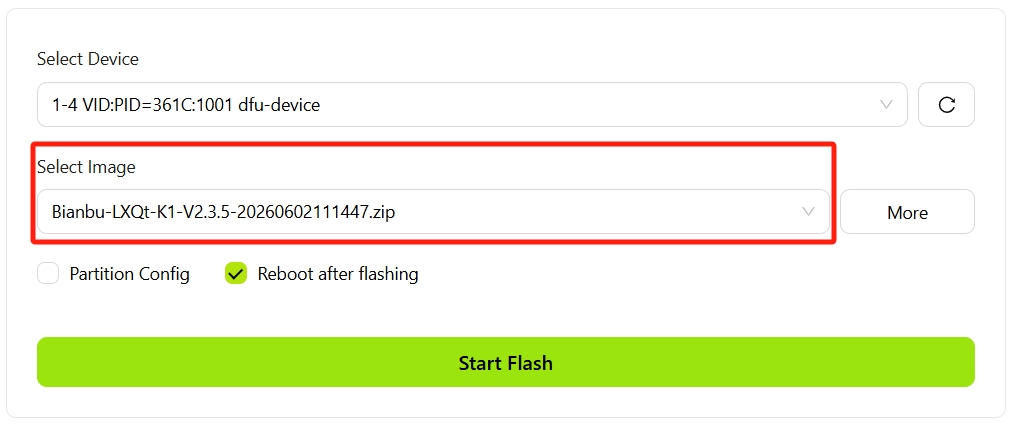
Return to the DFU Flash screen and select the downloaded image from the Select Image drop-down:
-
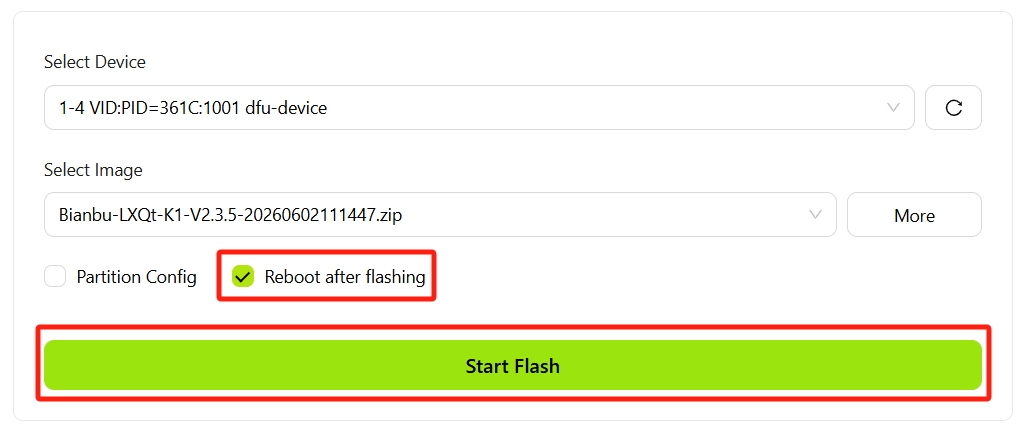
Click Start Flash.
Confirm the settings (Reboot after flashing is selected by default), then click Start Flash.
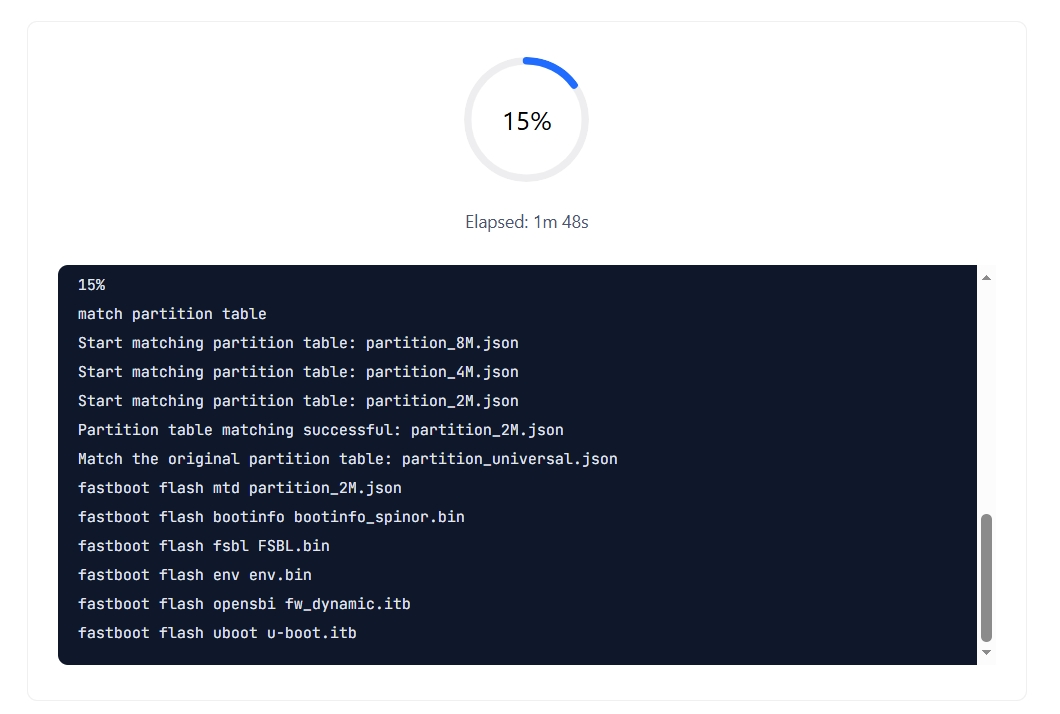
Flashing begins and progress is displayed:
-
Wait for flashing to complete.
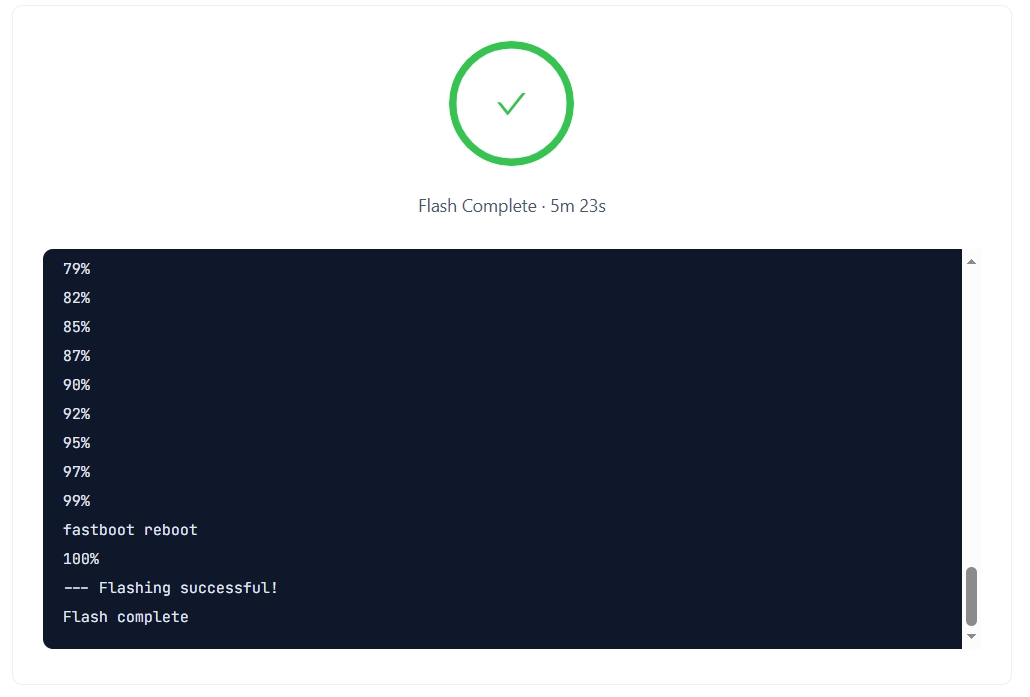
If flashing succeeds and Reboot after flashing is selected, the device restarts automatically.
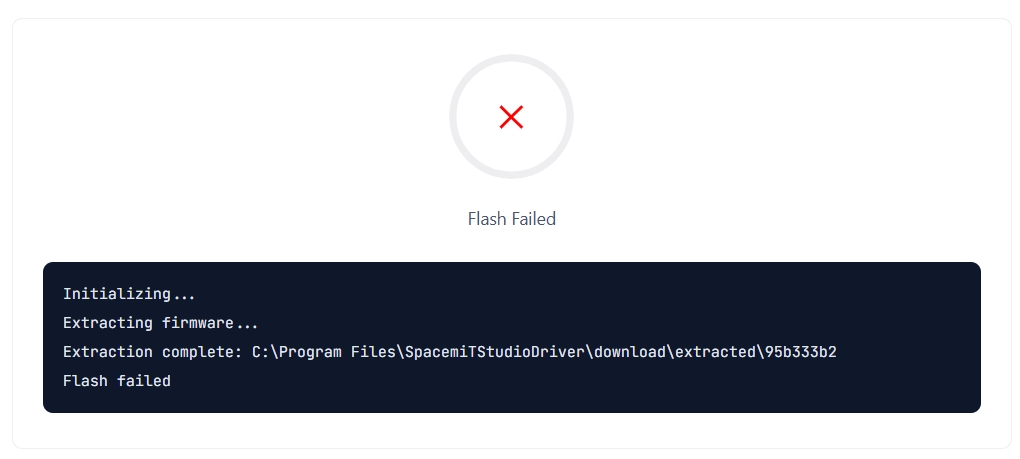
If flashing fails, an error message is displayed:
Advanced Options: Configure Partitions
To use custom partition configuration files, select Partitions Config:
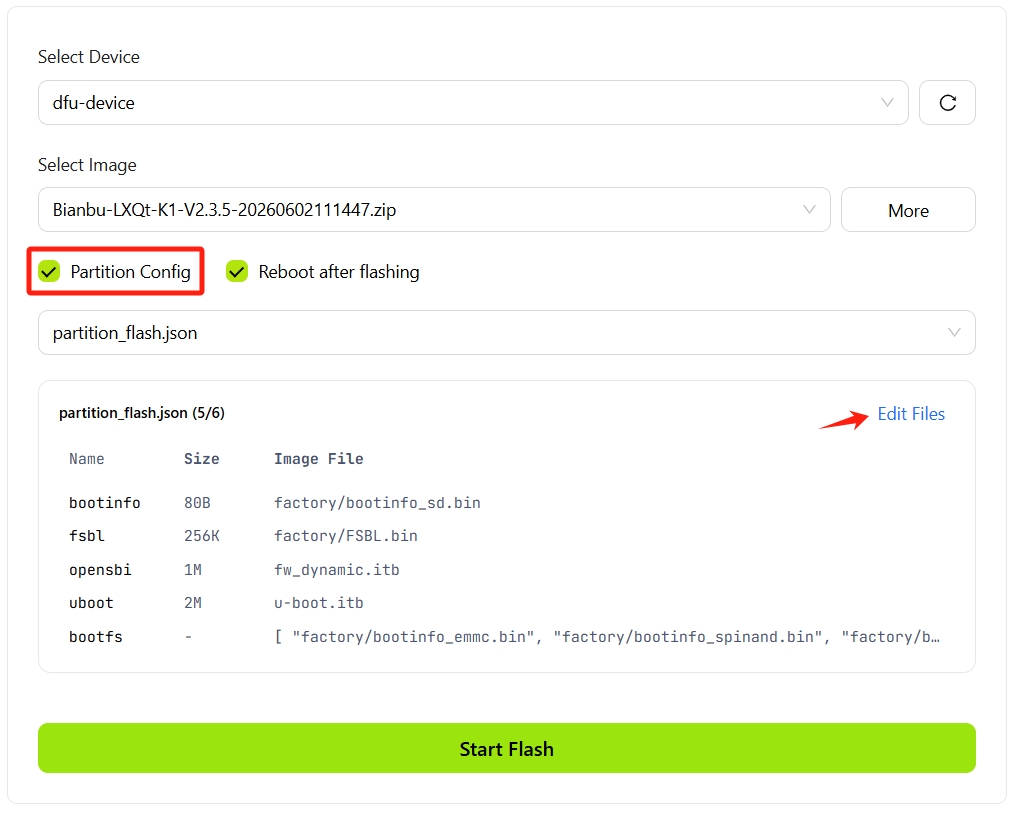
Click Edit Files to open Partition Files:
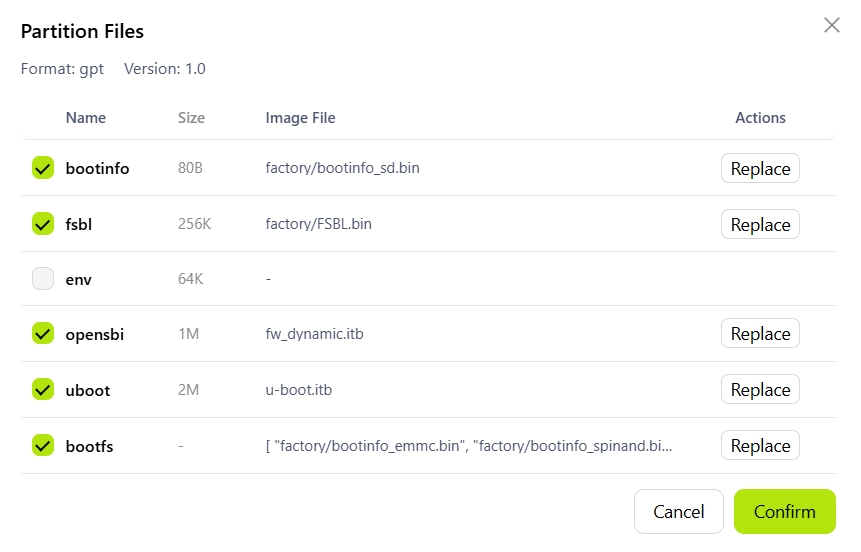
In Partition Files, add, remove, or modify partition configuration files. Click Confirm to return to the DFU Flash screen.
SD Card Boot
Writes a system image to an SD card, allowing the device to boot from the card. Suitable for debugging a single device or evaluating a new OS without modifying the device's onboard storage.
SD Card Boot Prerequisites
- The SD card is inserted into a card reader connected to the computer.
- The SD card capacity is greater than or equal to the image size.
SD Card Boot Procedure
-
Go to Development Tools → SD Card Boot.
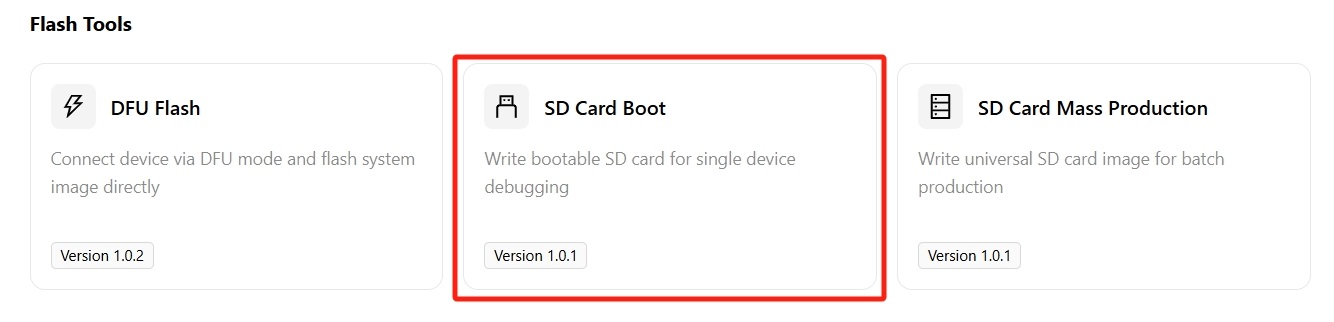
-
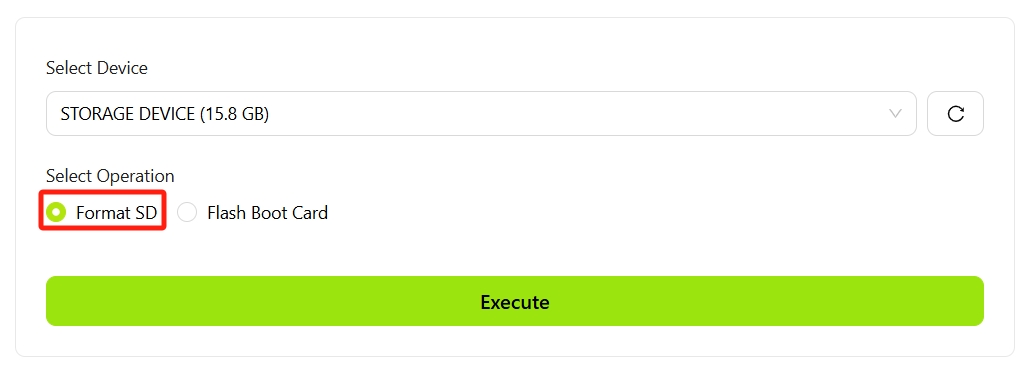
Select the target SD card from the Select Device drop-down.
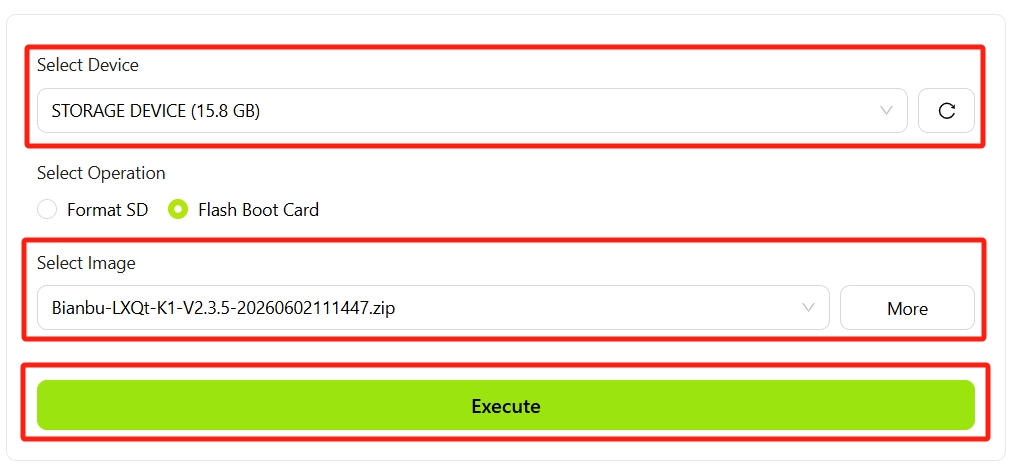
If the list is empty, confirm the SD card is inserted and click the refresh button ⟳ to re-detect.
-
Flash Boot Card is selected by default under Select Operation.
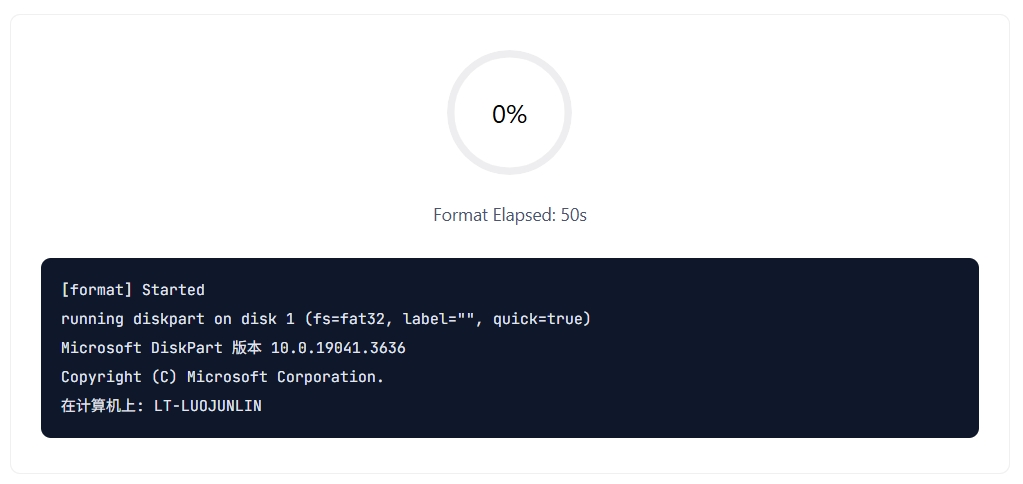
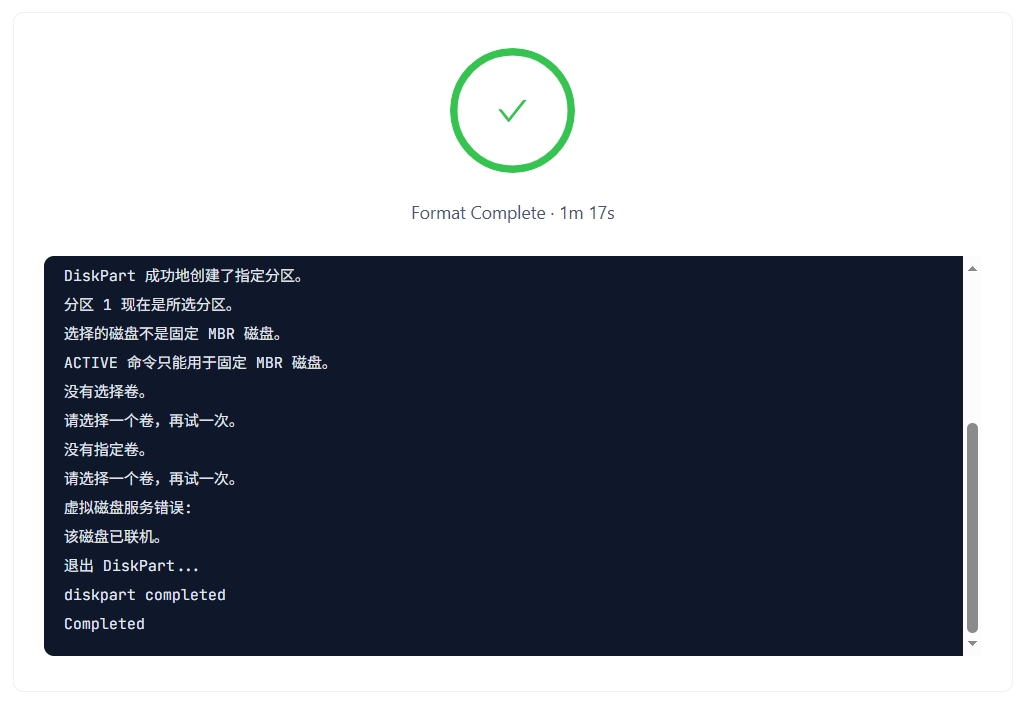
Optional: Select Format SD to format the SD card only, without writing an image.
-
Select the target image.
- If no image has been downloaded, click More to browse and download one.
- If an image is already available, select it from the Select Image drop-down.
-
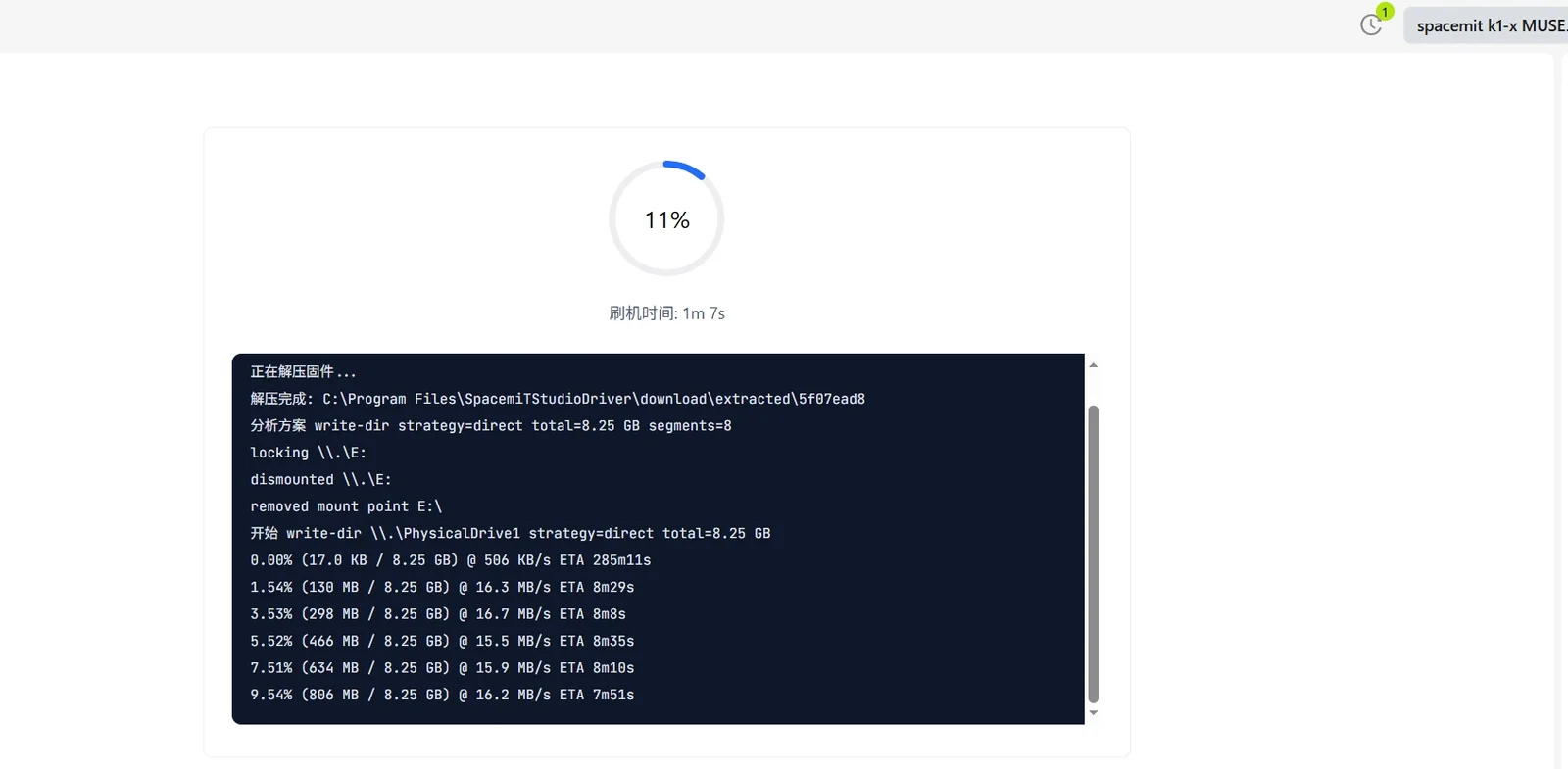
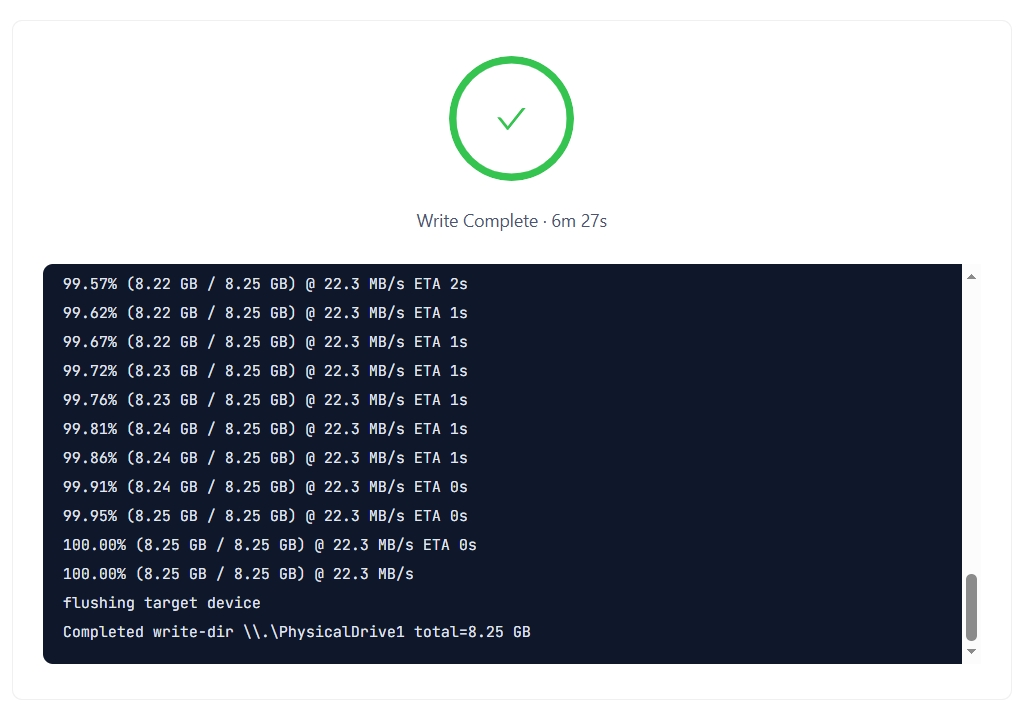
Click Execute and wait for the image write to complete.
Writing the boot card:
Boot card creation complete:
-
After writing is complete, insert the SD card into the device and power on to boot from the SD card.
SD Card Mass Production
Creates SD cards for mass production. After a production image is written to an SD card and the card is inserted into a target device, powering on the device automatically installs the system to onboard storage without manual intervention.
SD Card Mass Production Prerequisites
- The SD card is inserted into a card reader connected to the computer.
- The SD card capacity is greater than or equal to the image size.
SD Card Mass Production Procedure
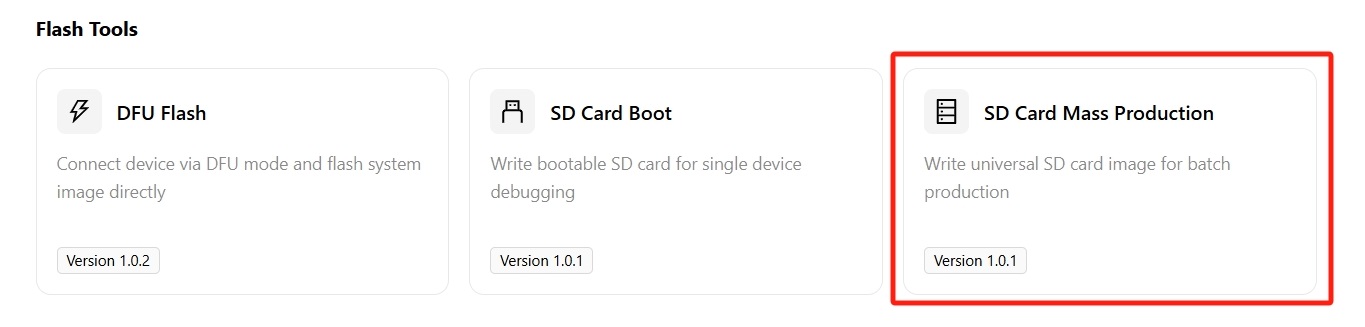
The procedure is the same as SD Card Boot, with the following differences:
- In step 1, go to Development Tools → SD Card Mass Production.
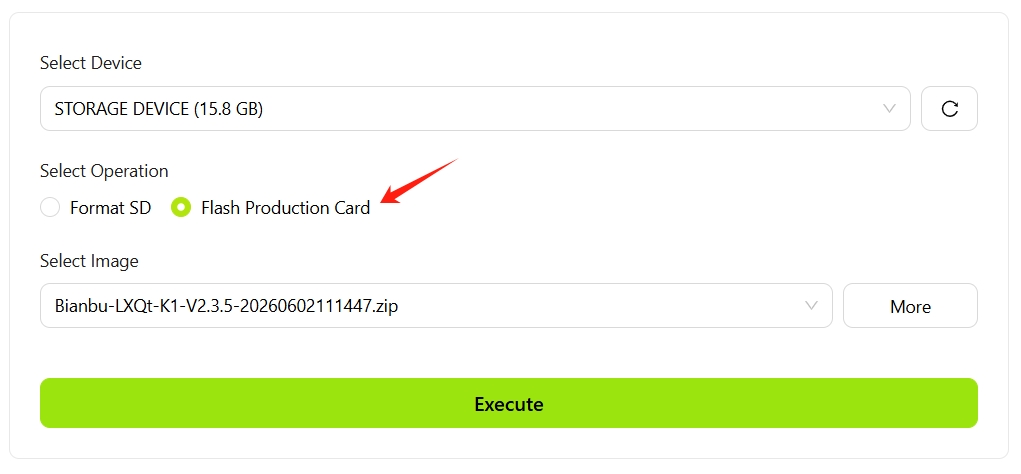
- In step 3 under Select Operation, select Flash Mass Production Card.
- After step 6, insert the SD card into a target device. On power-up, the device automatically writes the system from the SD card to onboard storage.
Comparison: SD Card Boot vs. Mass Production
| SD Card Boot | SD Card Mass Production | |
|---|---|---|
| System storage location | SD card | Device onboard storage |
| Behavior after SD card removal | Cannot boot | Operates normally |
| Typical use case | Debugging, evaluation | Mass production |
Writing Tool
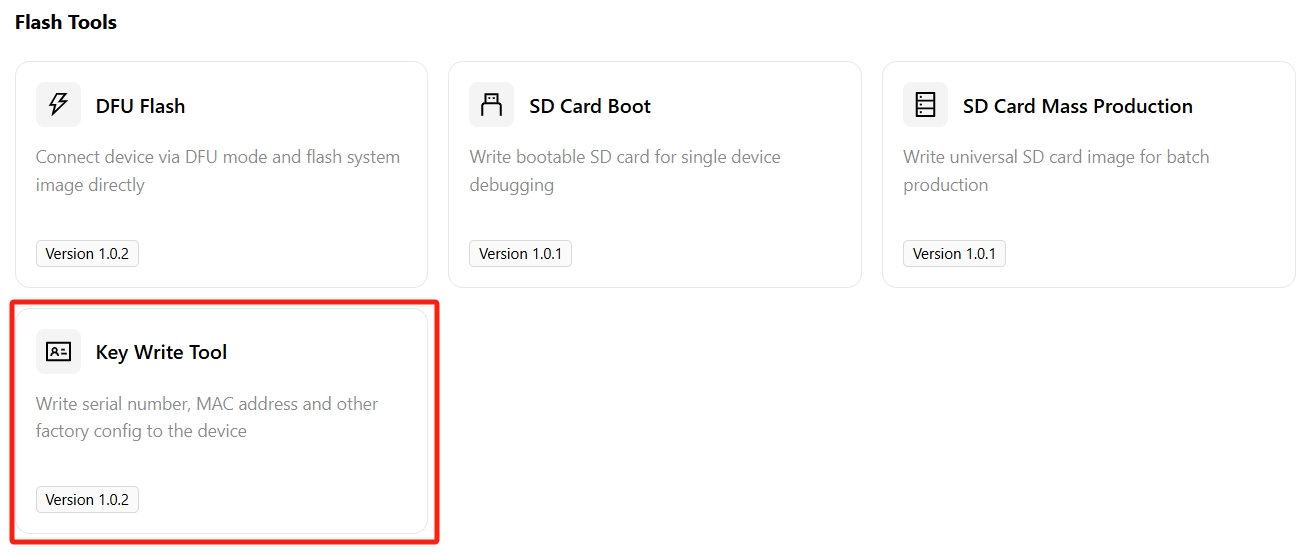
Writes factory configuration information, such as serial numbers and MAC addresses, to a device. Use it for production-line configuration or to verify information on an individual device.
Writing Tool Procedure
-
Go to Development Tools → Key Writing Tool.
-
Select the target device.
In the Select Device drop-down list, select the device to configure.
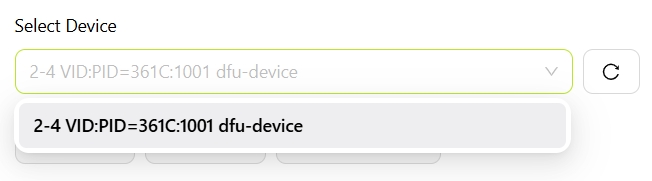
If the list is empty, confirm that the device is connected and in flashing mode, then click the refresh button ⟳ on the right to scan again.
-
(Optional) Configure fields.
To customize the fields displayed in the table, click Configure Fields to open the field configuration panel. In the panel, you can:
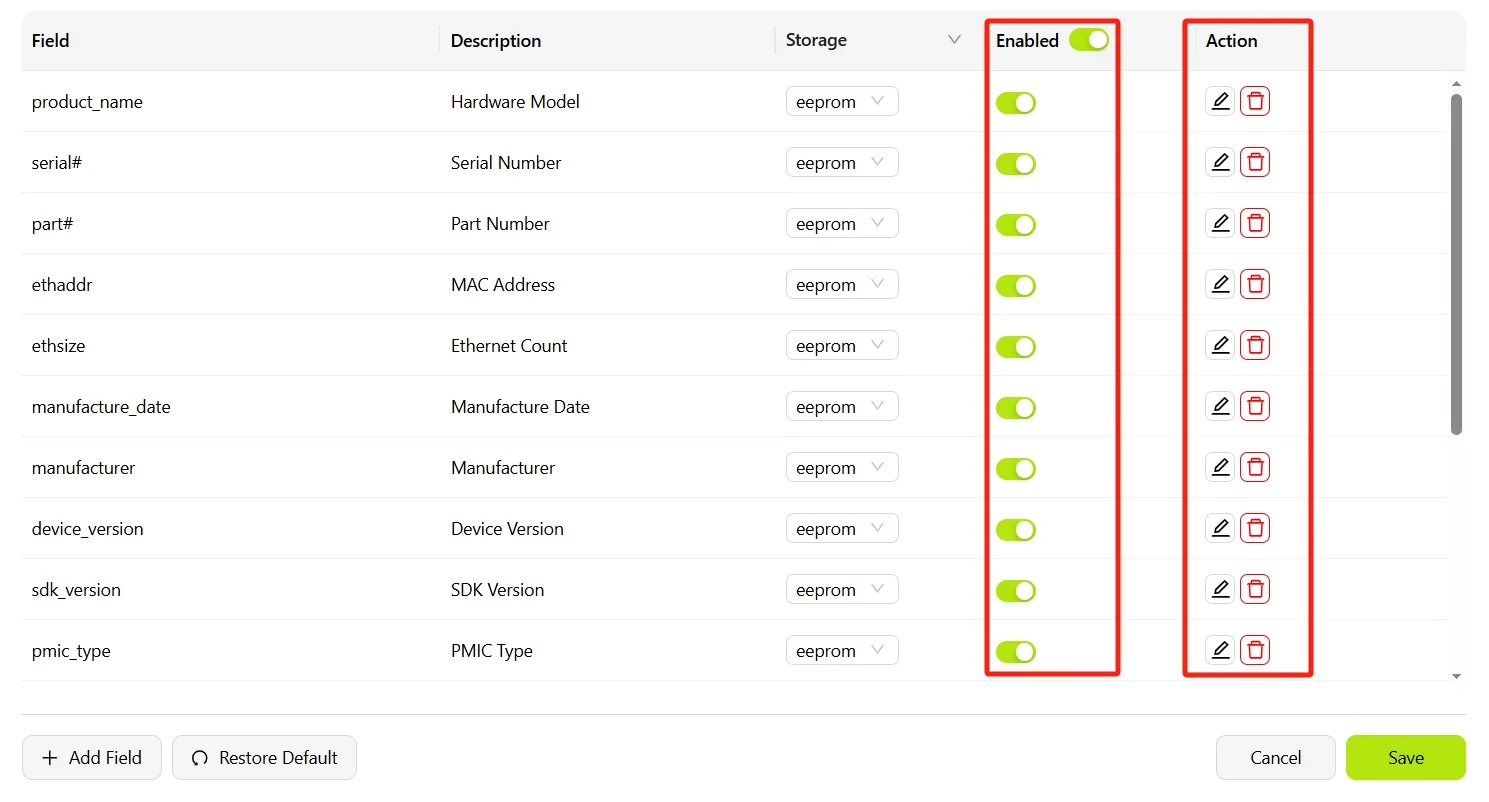
- Use the Enabled switch to control whether a field is shown in the table.
- Click the edit icon ✎ to change a field's description or storage medium.
- Click the delete icon 🗑 icon to remove a field.
- Click Add Field to add a custom field.
- Click Restore Default to restore the default field list.
Click Save to apply the changes, or Cancel to discard them.
-
Read the current device configuration.
Click Start Reading. The tool reads all configuration fields from the device and fills the table.
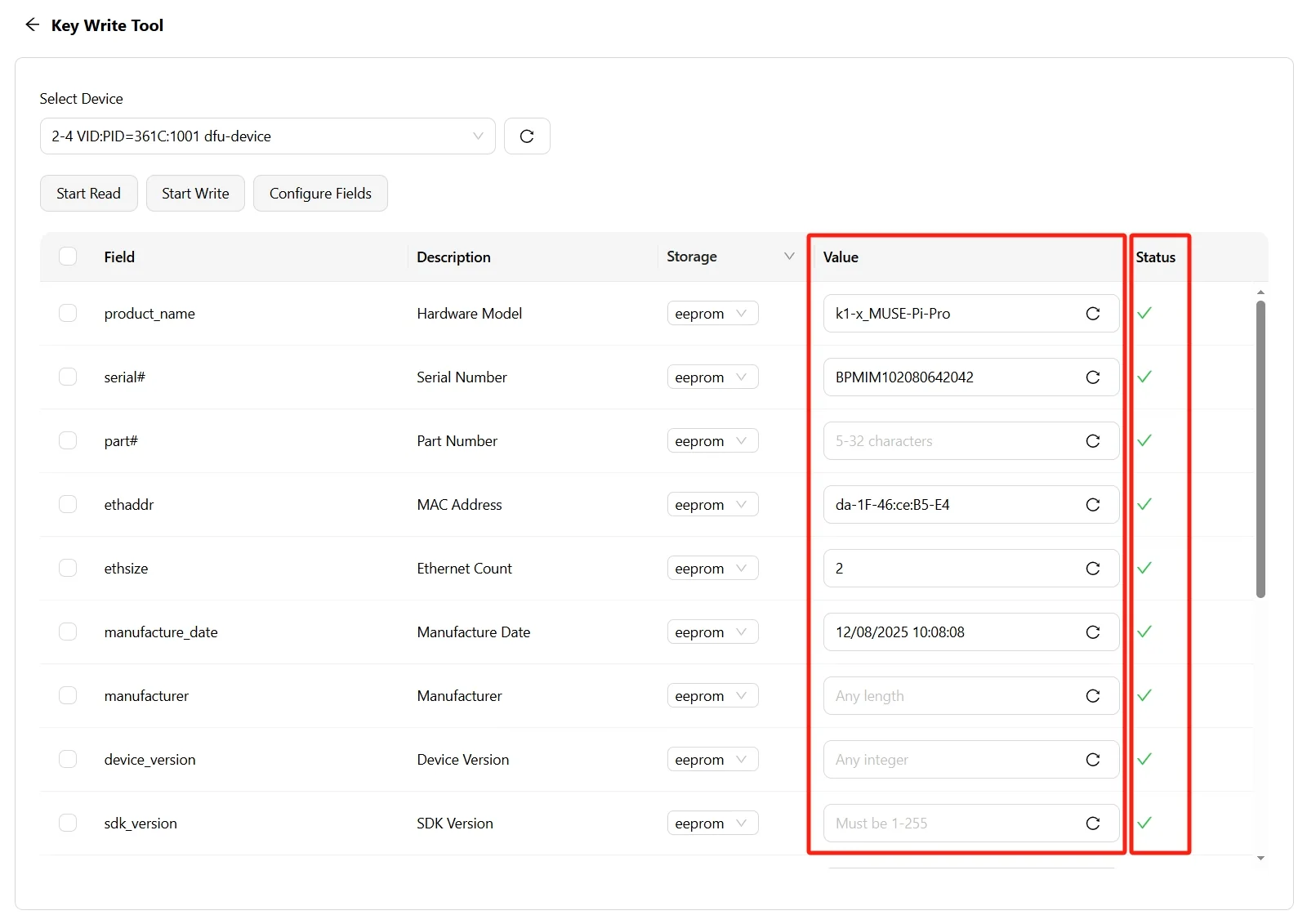
After the read operation completes, the table displays the following columns:
- Property: Technical identifier for the field, such as
product_nameorserial#. - Description: Readable description of the field.
- Storage Medium: Storage location;
eepromis the default. - Value: Current value stored on the device.
- Status: Result of the read operation, showing success (✓) or failure (✗).
Common fields include the hardware board model, device serial number, MAC address, and manufacturing date. The refresh button ⟳ beside each field reads that field again.
- Property: Technical identifier for the field, such as
-
Edit and write configuration.
Edit the required values in the Value column, select the check box for each field to write, then click Start Writing.
After the write operation completes, the Status column shows the result for each field.
After writing, click Start Reading again to verify that the configuration was written correctly.