Remote Device Sharing
Remote Device Sharing lets you access SpacemiT Studio and connected devices on another computer — no public IP or port forwarding needed.
How It Works
Think of it like this: Computer A (the one with your devices) starts a proxy service, and Computer B (your remote computer) connects to it through your account.
Setup Guide
Step 1: Start the Proxy on Computer A (Host)
-
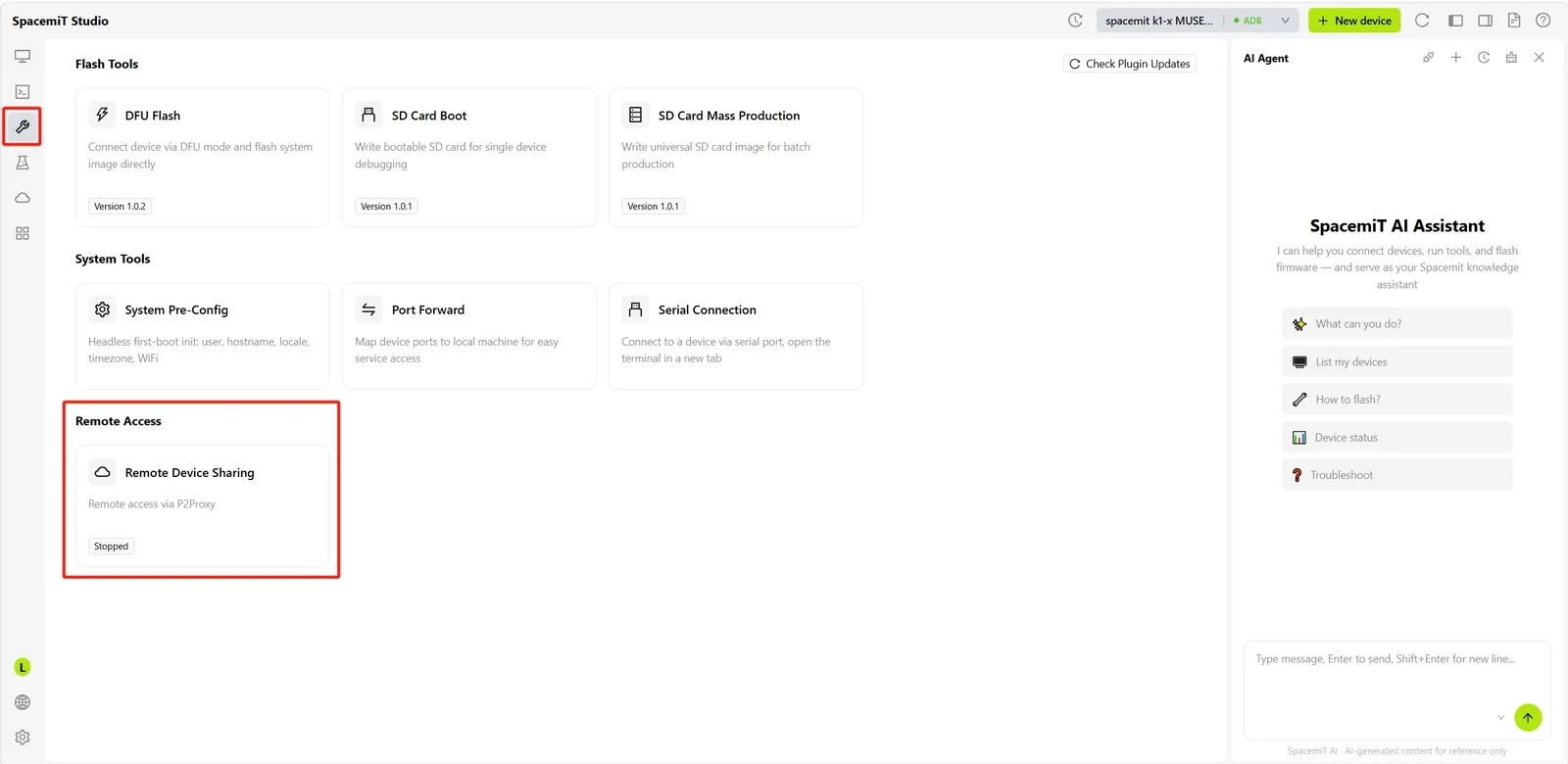
Open the Development Tools page and find the Remote Access section
-
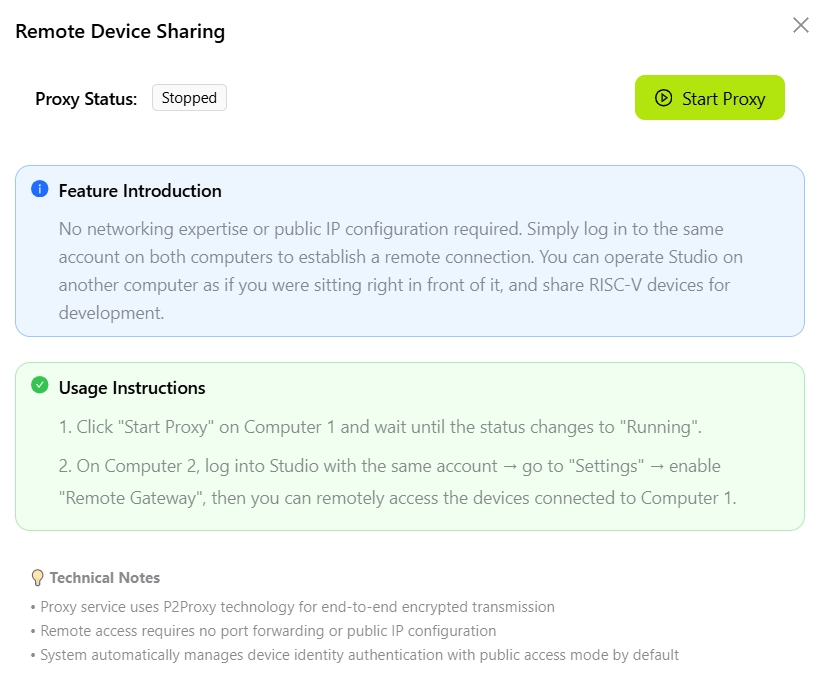
Click the Remote Device Sharing card to open the settings dialog
-
Click Start Proxy
-
Wait for the status to change to Running
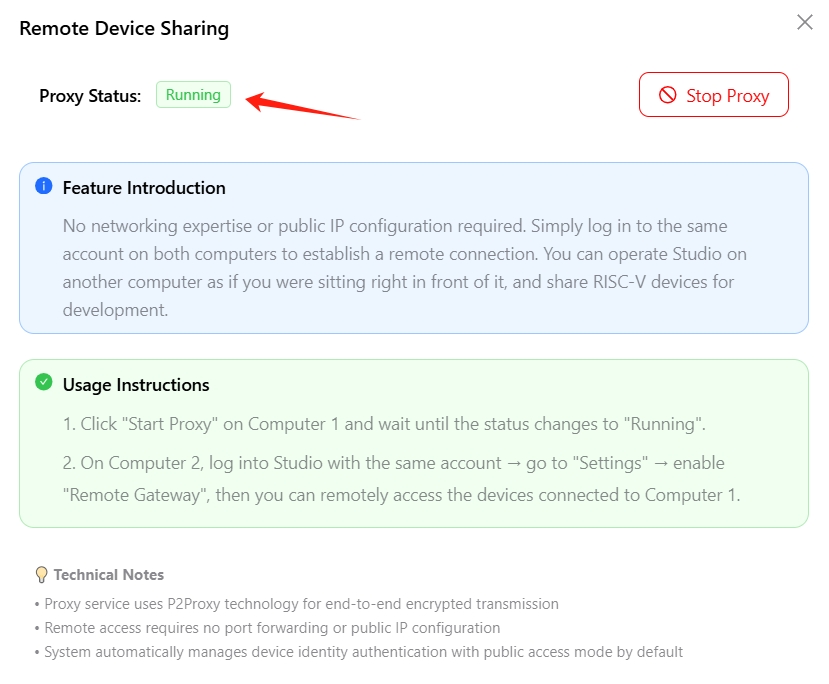
The Remote Device Sharing card status will also update to Running
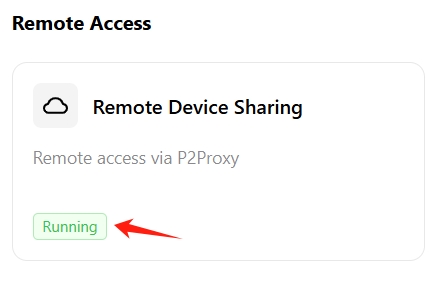
Computer A is now ready to accept remote connections.
Step 2: Connect from Computer B (Remote)
-
Open SpacemiT Studio on Computer B
-
Log in using the same account as Computer A
-
Click the Settings icon (lower-left corner)
-
Find Enable remote gateway and turn it on

-
You're connected! You can now access Studio and devices on Computer A
Troubleshooting
Connection fails?
- Make sure both computers are logged into the same account
- Check that the proxy status on Computer A shows "Running"
- Verify both computers have internet access
Slow connection?
- Check your network speed and latency
- Try restarting the proxy service on Computer A