System Tools
System Preconfiguration
A headless initialization tool that presets system parameters before the device's first boot. Basic configuration can be completed without a monitor or keyboard.
Procedure
-
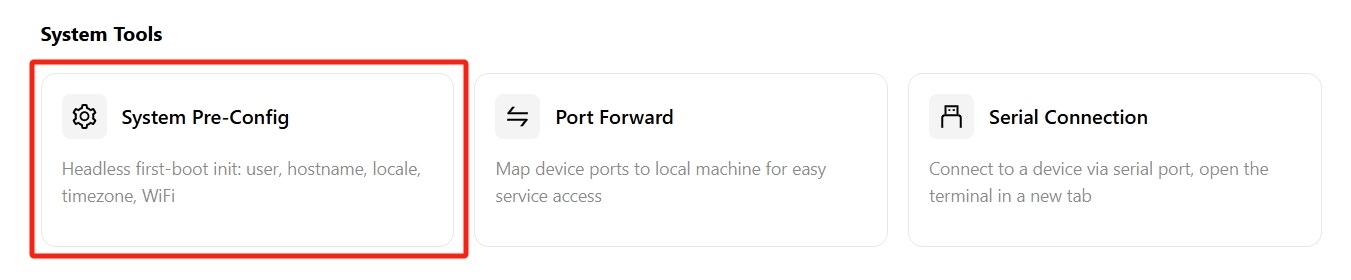
Go to Development Tools → System Preconfiguration.
-
Specify the configuration fields to preset:
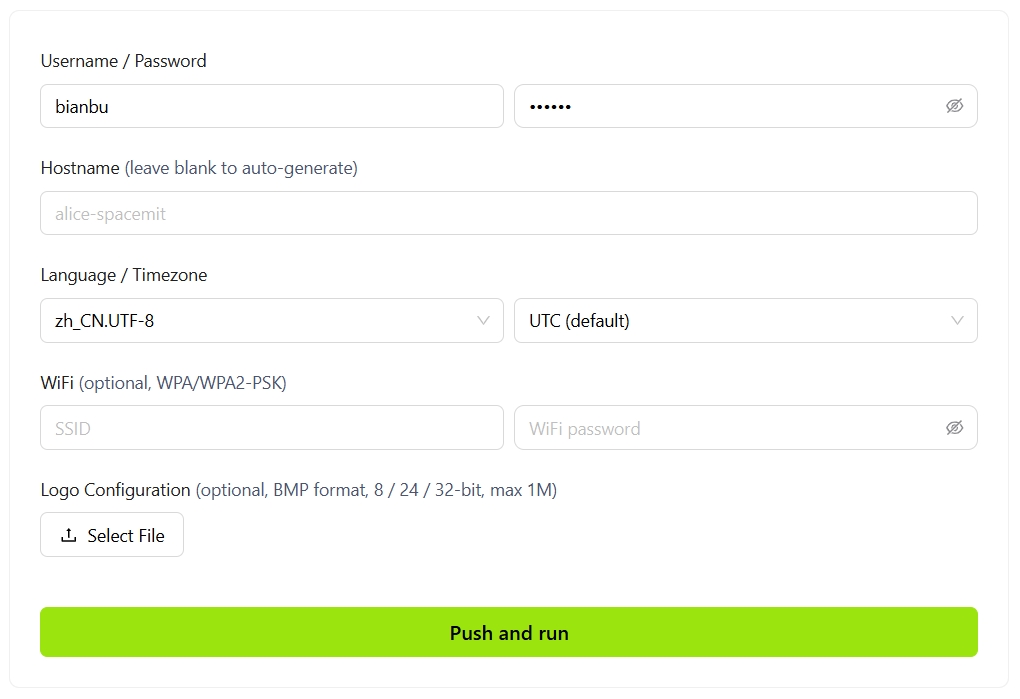
- Username / Password: Sets the system login credentials.
- Hostname: A custom device name. If left blank, the hostname is generated automatically.
- Language / Timezone: The system display language and timezone. The timezone defaults to UTC.
- WiFi: Optional. Enter the SSID and password (WPA/WPA2-PSK supported) to connect automatically on first boot.
- Logo Configuration: Upload a logo image to display during device boot. Only BMP format is supported, with 8/24/32-bit color depth and a maximum size of 1MB.
-
Click Push and Run. The configuration is written to the connected device and applied automatically on first boot.
Port Forwarding
Maps a device port to the local machine, enabling access to services running on the device from a local browser or tool.
Use Cases
- Accessing web services on the device (such as HTTP/HTTPS applications)
- Debugging development services on the device, such as Node.js or Flask
- Connecting to services on the device, such as Jupyter, MySQL, or Redis
Port Forwarding Procedure
-
Ensure the device is connected and appears in the Current Device panel.
-
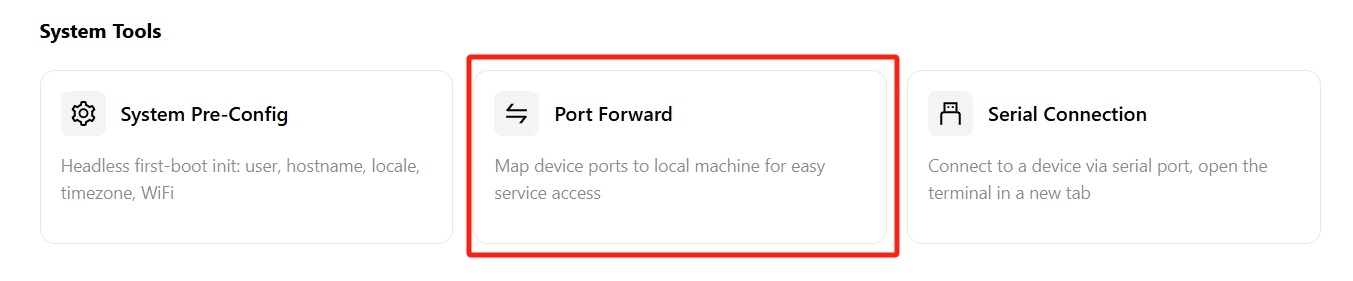
Go to Development Tools → Port Forward.
-
Fill in the forwarding rule in the New Forward panel:
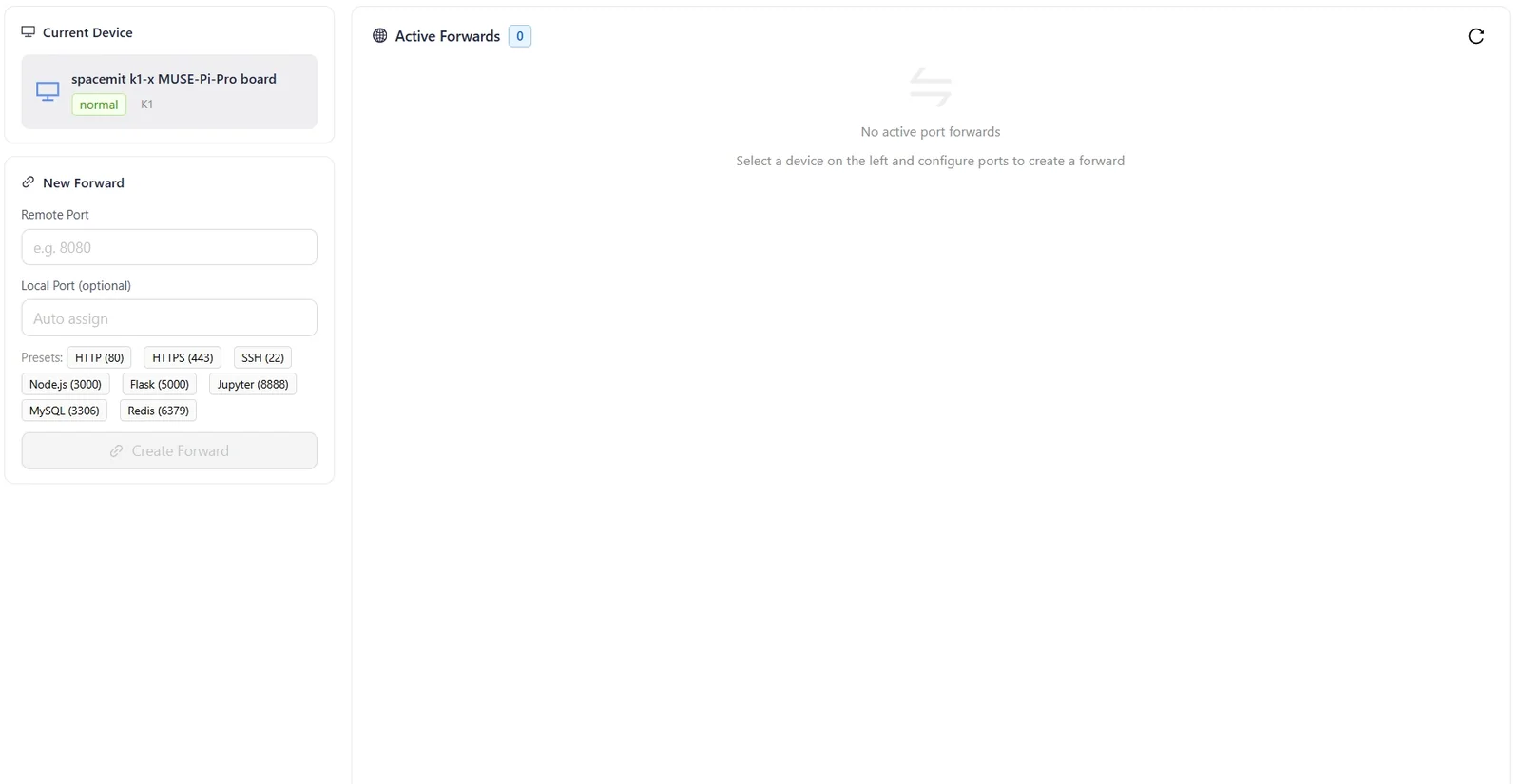
- Remote Port: The device port number to forward (for example, 8080).
- Local Port: The local port number to map. If left blank, a port is assigned automatically. Common ports can also be selected using shortcut tags: HTTP (80), HTTPS (443), SSH (22), Node.js (3000), Flask (5000), Jupyter (8888), MySQL (3306), and Redis (6379).
-
Click Create Forward.
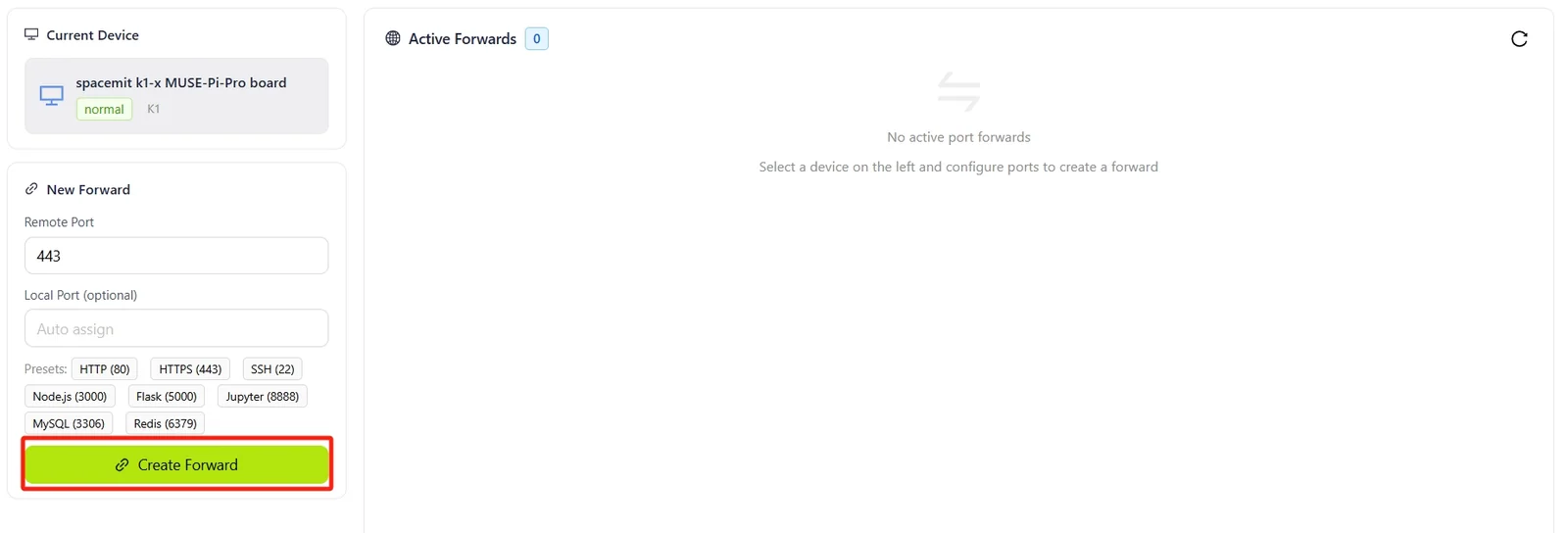
-
After the forward is created, it appears in the Active Forwards list on the right. Access the device service at
localhost:<local port>.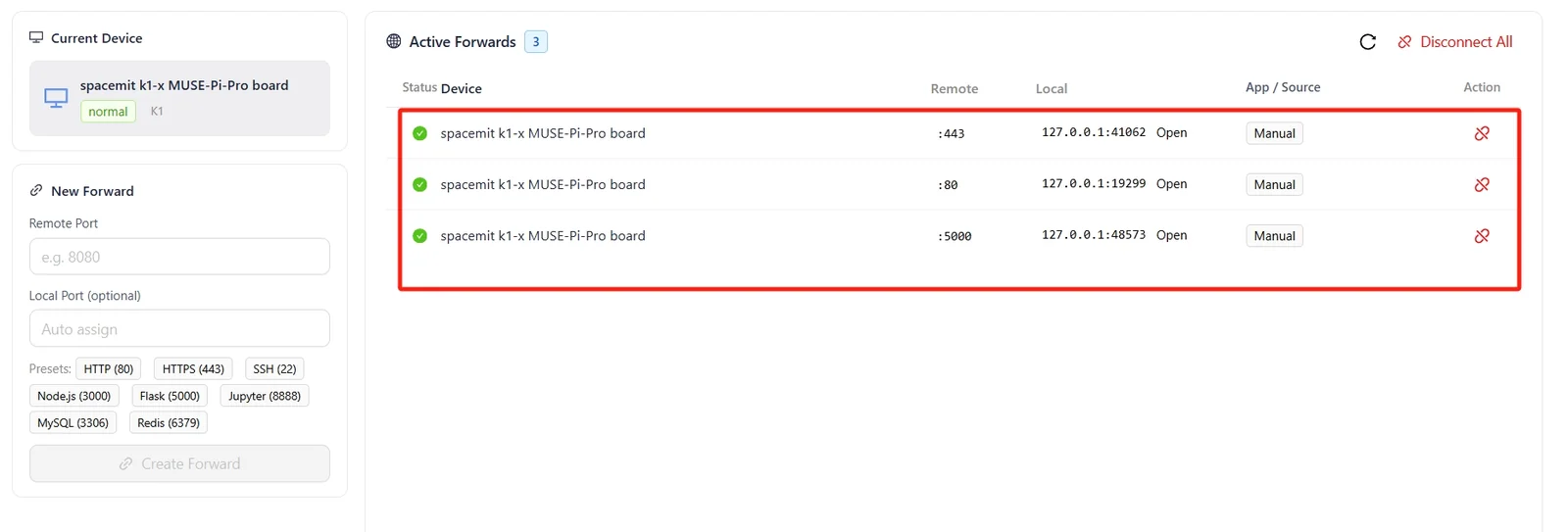
Serial Connection
Enables command-line interaction and system debugging through a serial connection to the device.
Serial Connection Use Cases
- Viewing device boot logs and performing system debugging
- Controlling the device in environments without network access
- Bootloader interaction and low-level system configuration
- Embedded development and driver debugging
Serial Connection Procedure
-
Ensure the device is connected to the computer over a serial connection.
-
Go to Development Tools → Serial Connection.
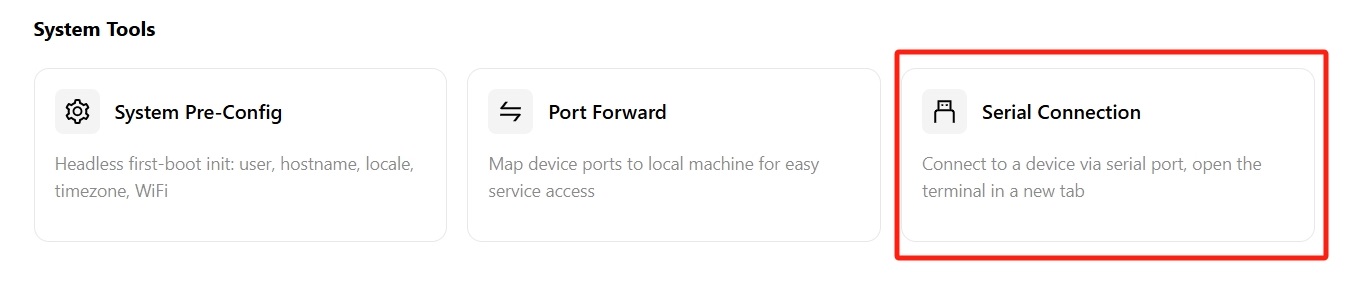
-
Configure the serial parameters:
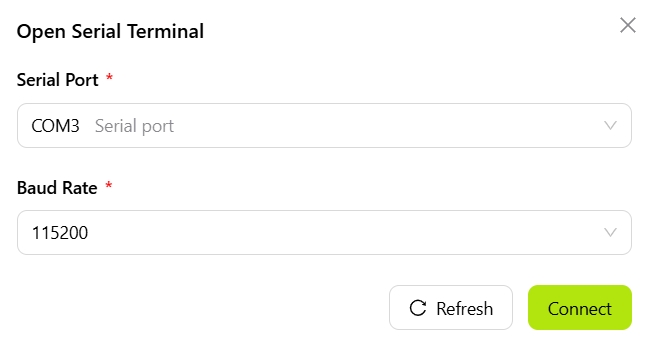
- Serial Port: Select the serial port corresponding to the device (for example, COM3 or /dev/ttyUSB0).
- Baud Rate: Sets the communication speed. The common value is 115200.
-
Click Connect. After the connection is established, interact with the device through the terminal window.