Device Management
Overview
The Device Management panel centrally manages all connected development boards. It supports simultaneous connection of multiple devices, status monitoring, and quick switching.
Supported Devices
| Series | Models |
|---|---|
| K1 | MUSE Pi Pro, MUSE Pi, MUSE Book, MUSE Paper |
| K3 | CoM260 Kit, Pico-ITX |
Device Connection
The following connection methods are supported:
| Connection Method | Use Case | Description |
|---|---|---|
| USB | Flashing and local debugging | Direct USB cable connection; no configuration required |
| SSH | Daily development and file synchronization | Remote network connection; the device must be connected to a network |
Before Connection
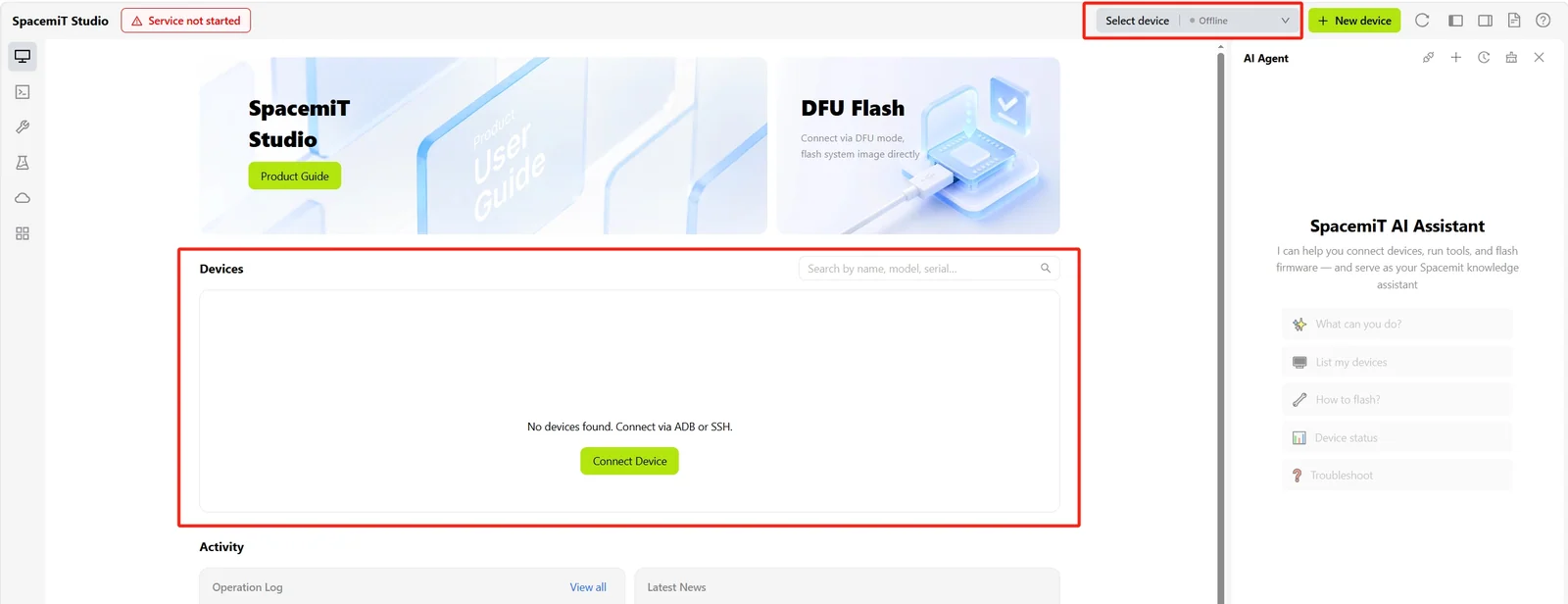
When no device is connected, the home page displays an empty state:
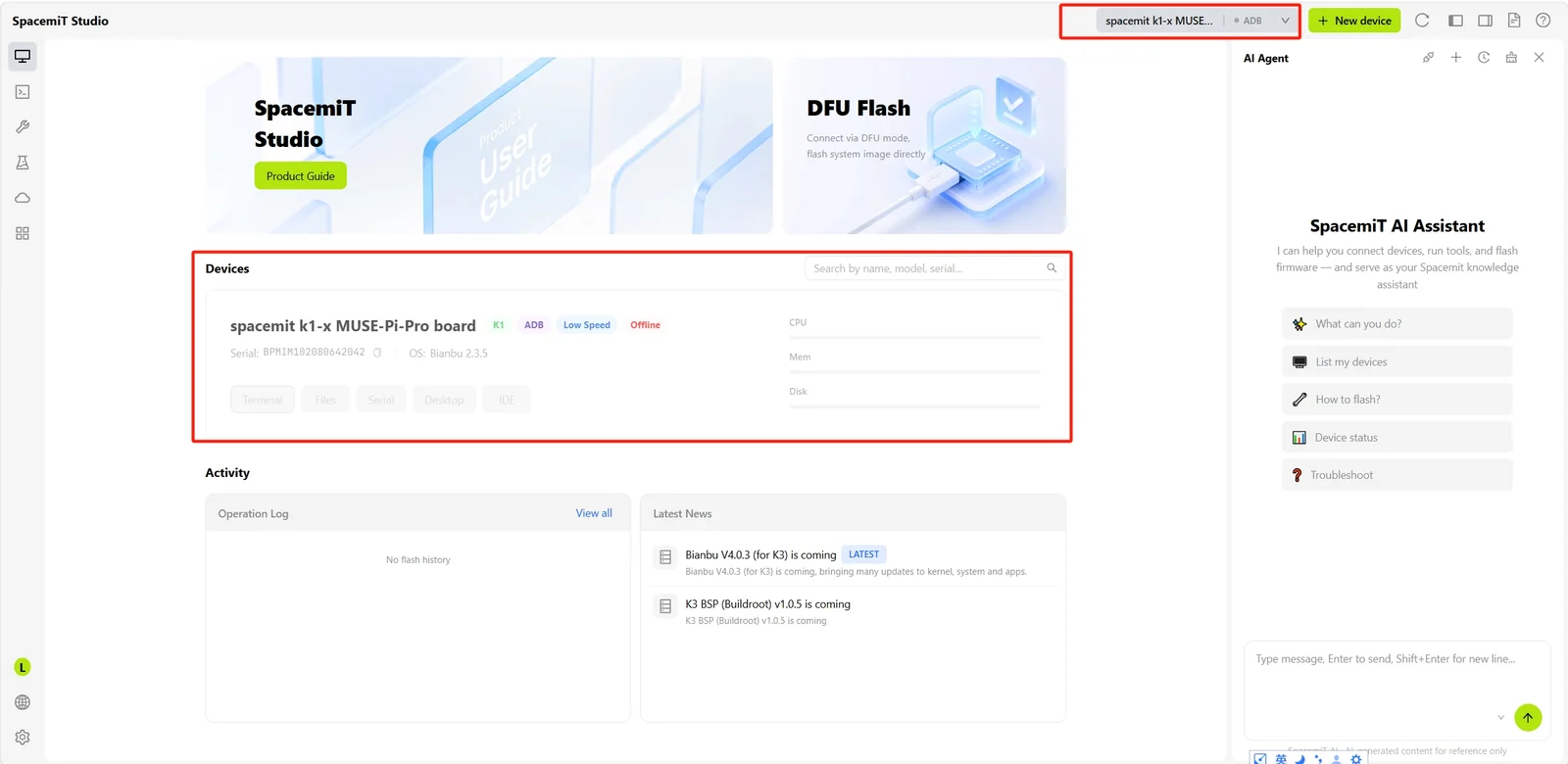
Alternatively, a device that was previously connected may be displayed as offline:
Successful Connection
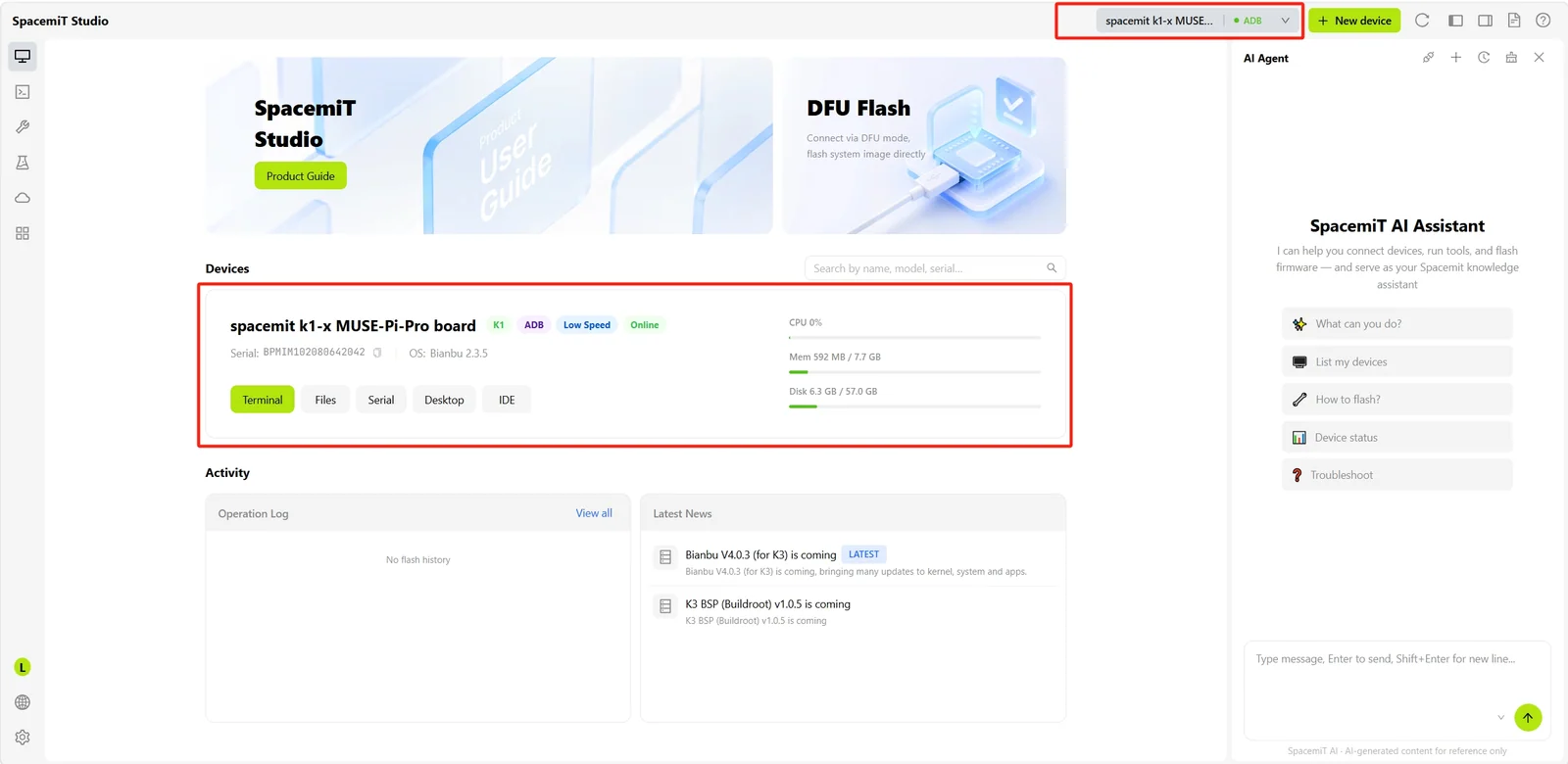
After a device is connected successfully, the home page displays detailed information about the current device:
Device Operations

Device Information
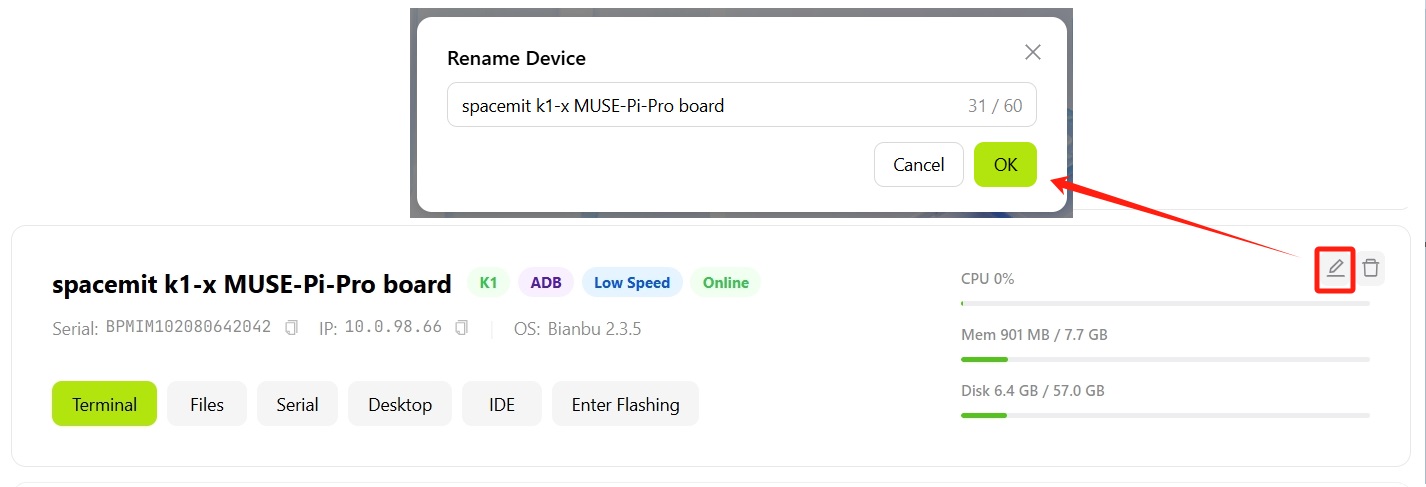
After a device is connected successfully, the following information is available:
- Device series and serial number
- Device IP address (for remote access)
- Currently installed operating system, such as Bianbu
- Device connection method, such as ADB
- Online/offline status
- CPU utilization, in real time
- Used memory / total memory
- Used storage / total storage
Quick Actions
The bottom of the device panel provides shortcut buttons for common operations:
- Terminal: Opens a terminal session for the device
- Files: Opens device file management
- Serial Connection: Communicates with the device over a serial connection for low-level debugging and log viewing
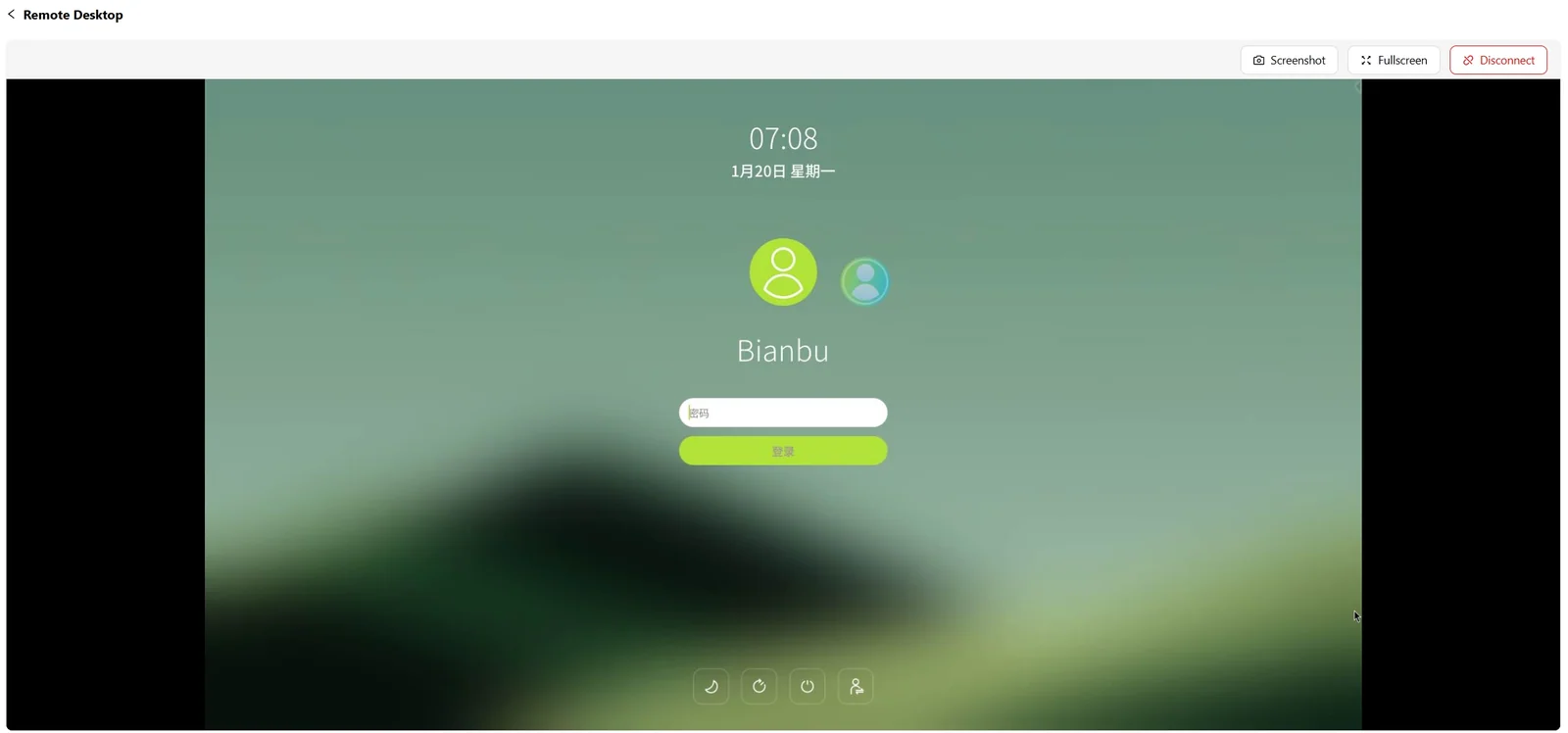
- Desktop: Accesses the device graphical interface through VNC/RDP
- IDE: Opens the device integrated development environment in Studio
- Enter Flash (ADB devices only): One-click operation to put the device into flash mode without manually pressing hardware buttons or executing commands, enabling quick firmware flashing
Rename Device
Connected devices can be assigned custom names to distinguish them when managing multiple devices:
New Device
To add a device, click + New Device and follow the instructions in the Connect Your Device dialog to complete the connection. At the bottom of the dialog, select a connection method: Cloud, SSH, or USB.
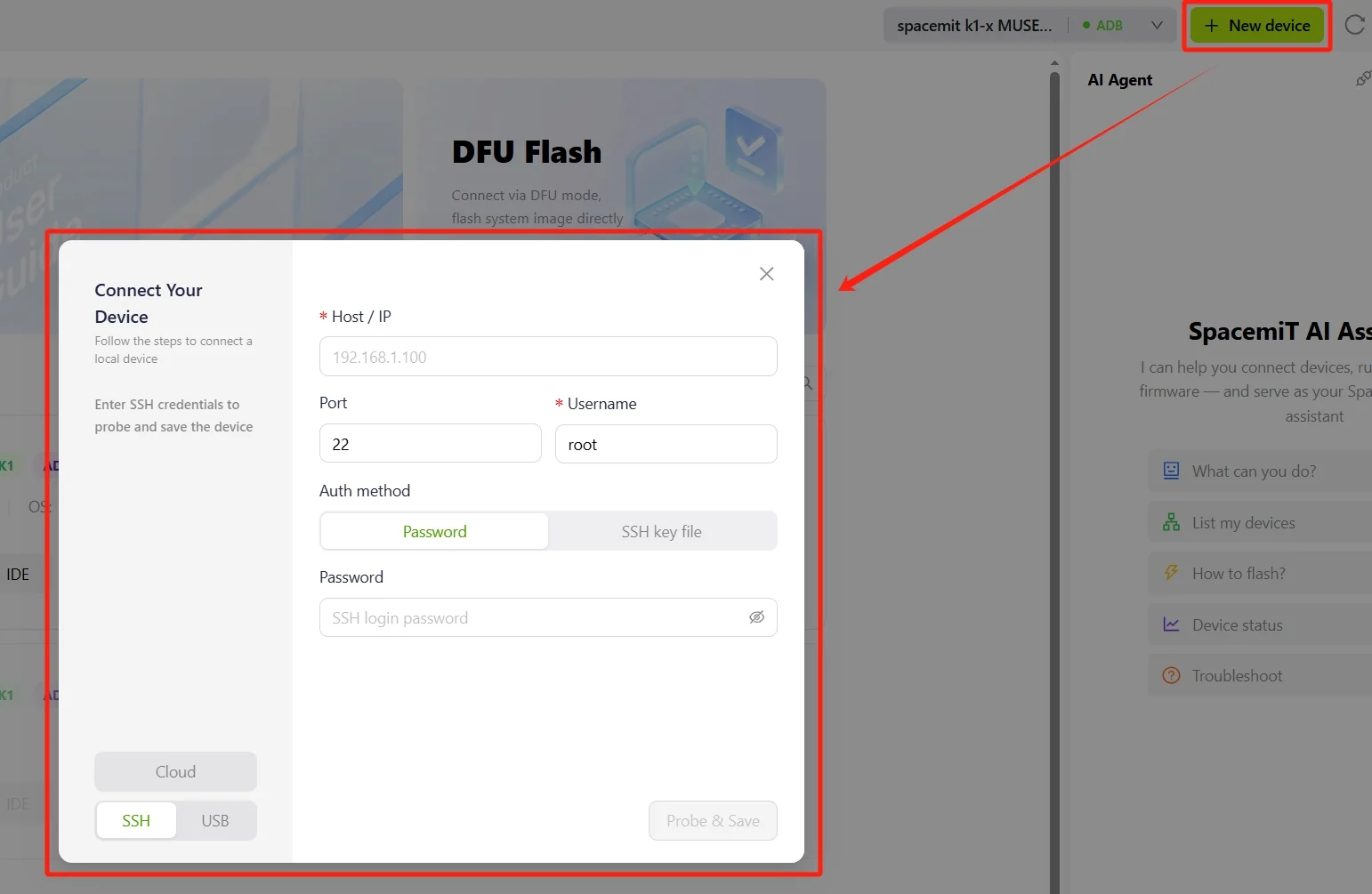
Newly added devices appear in the Device list.
Activity
The Activity page consolidates two types of information:
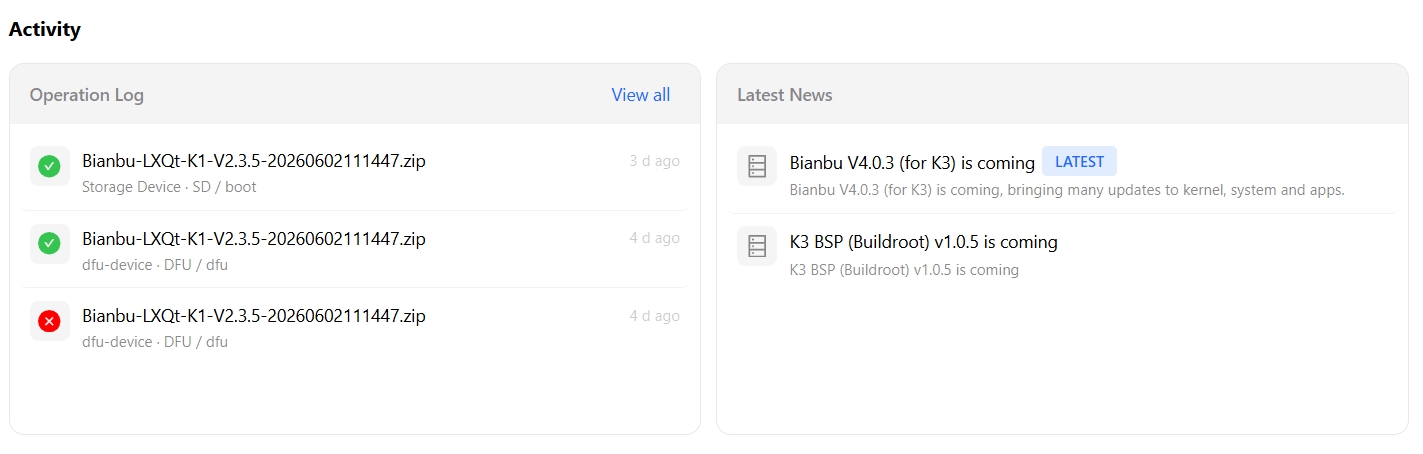
- Operation Log: Historical operation logs for the current device, including package name, operation method, execution time, and success/failure status. Click View All in the upper-right corner to expand the complete history.
- Latest News: Platform-provided update information