Settings
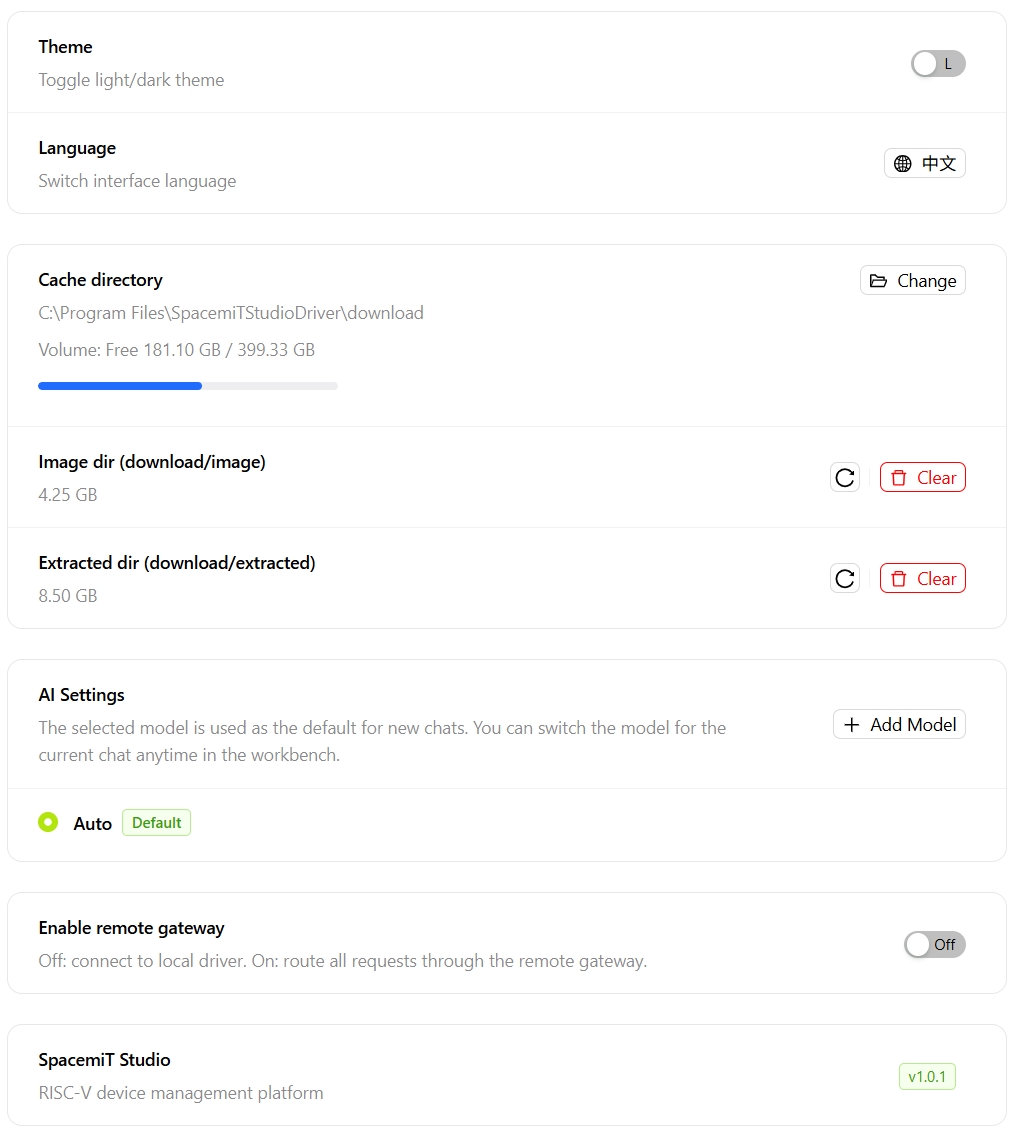
Click the ⚙️ icon to open the Settings page, where the appearance, cache, AI models, and Remote Device Sharing for SpacemiT Studio can be configured.
Appearance
- Theme Mode: Switches between light and dark themes.
- Language: Switches the interface language (Chinese/English).
Cache Management
- Cache Directory: Click Change to modify the default download and storage path. A non-system drive is recommended.
- Image Directory: Click Clear to delete downloaded raw image files. Deleted image files must be downloaded again before use.
- Extraction Directory: Click Clear to delete extracted files. Before clearing, verify that no active projects still depend on this directory.
AI Settings
- Add Model: Click + Add Model, fill in the following information, then click OK:
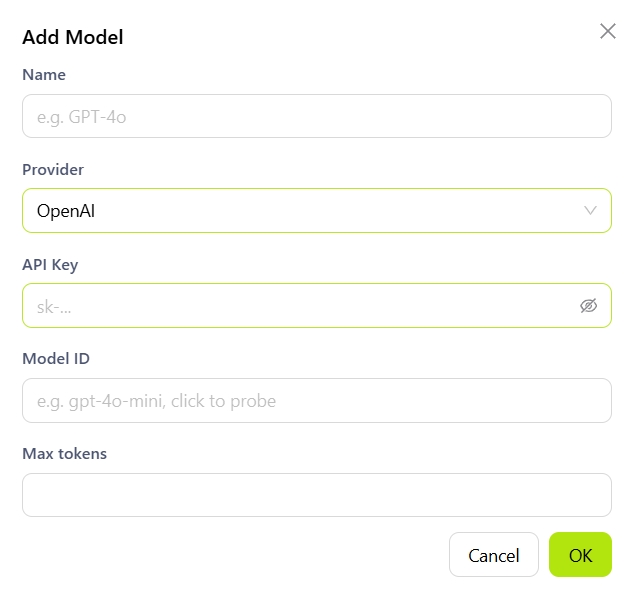
- Name: A custom display name for the model.
- Provider: The model service provider (such as OpenAI or ByteDance).
- API Key: The key used for authentication.
- Model ID: The identifier used to invoke the model (such as
gpt-4oordoubao-seed-1-6). - Max Tokens: The maximum number of tokens allowed per request. Leave blank to use the provider's default value.
Remote Device Sharing
The Remote Device Sharing feature allows users to remotely access SpacemiT Studio on other computers.

- Disabled (default): Access local devices only
- Enabled: When enabled, allows remote access to Studio and connected devices on other computers under the same account
Before using the Remote Device Sharing, the proxy service must be started on the host computer from the Development Tools -> Remote Access page.
About
Displays the current SpacemiT Studio version.