Flashing Tool User Manual
1. Download
Select the appropriate version based on your operating system:
| Resource | Platform | Architecture | Download |
|---|---|---|---|
| TITANTOOLS FOR WINDOWS (X86|X64) (INSTALLER) | WINDOWS | X86|X64 | Download |
| TITANTOOLS FOR LINUX X64 (64-BIT) (APPIMAGE) | LINUX | X64 | Download |
2. Installation
2.1 PC Requirements
- Operating System: Windows or Linux
- Storage: At least 10 GB free space on the C: drive (Windows) or in the Home directory (Linux)
2.2 Installing on Windows
The following steps use Windows 11 as an example.
-
Download the latest flashing tool: titantools_for_windows.exe.
-
Double-click the downloaded file titantools_for_windows_last to start the installer.
-
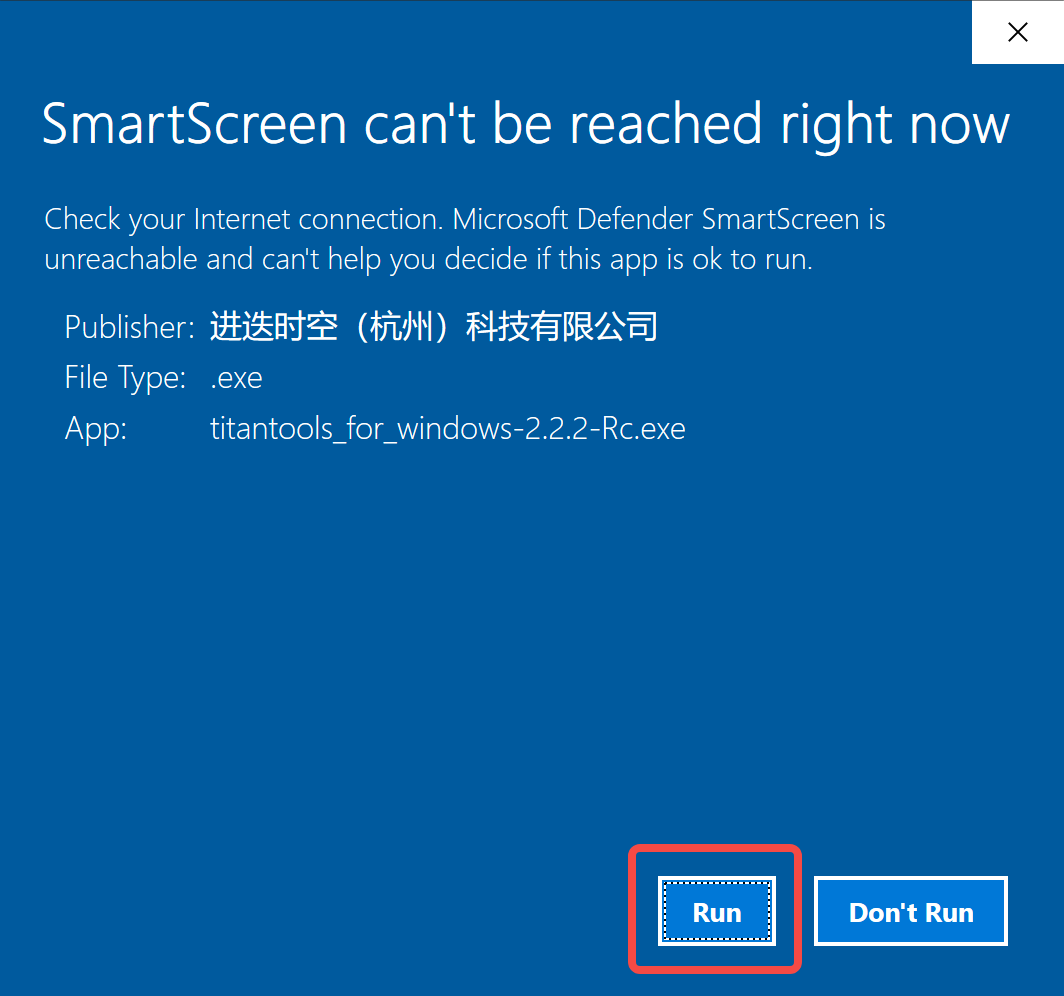
If Windows shows SmartScreen can't be reached right now, click Run.
-
Choose install location:
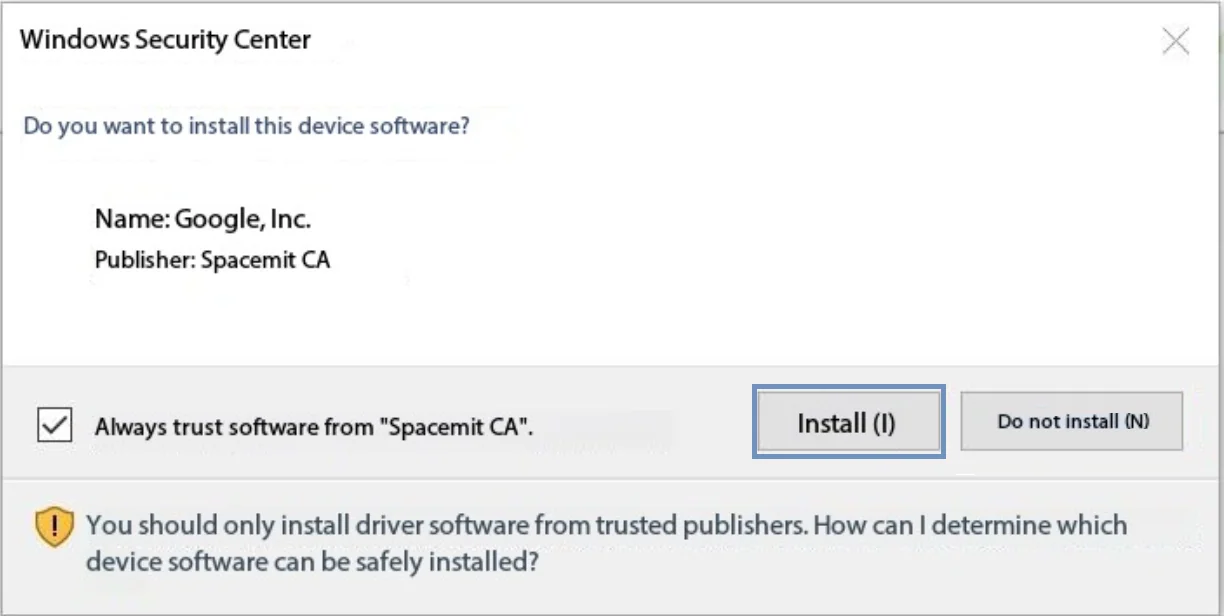
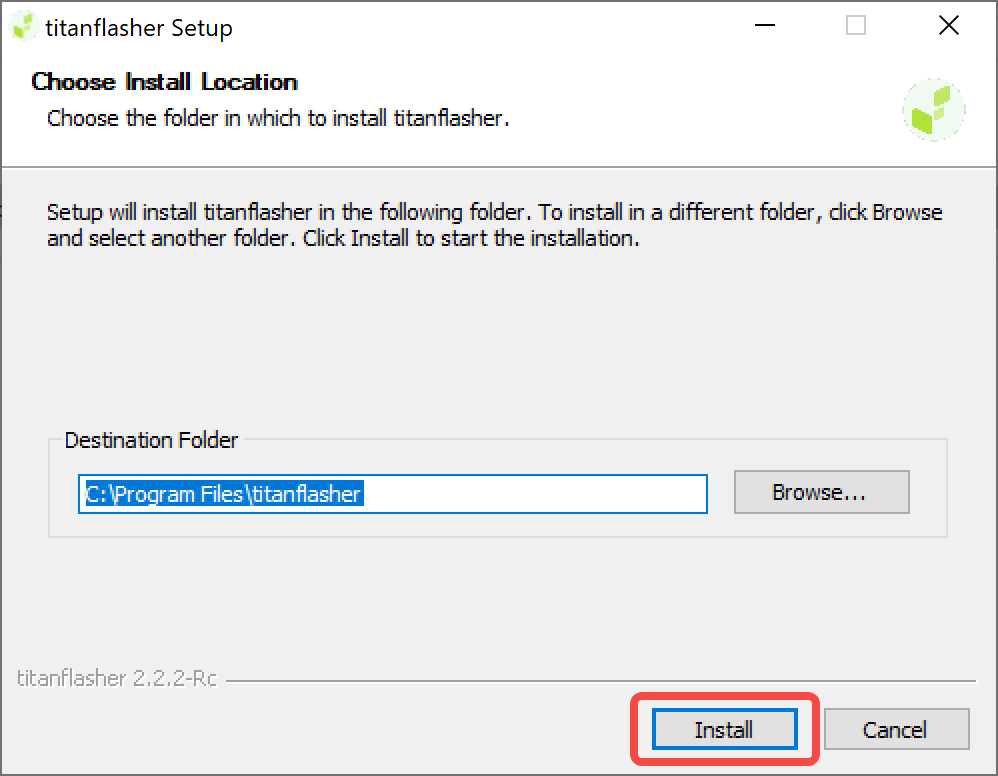
Click Install, Installer running:
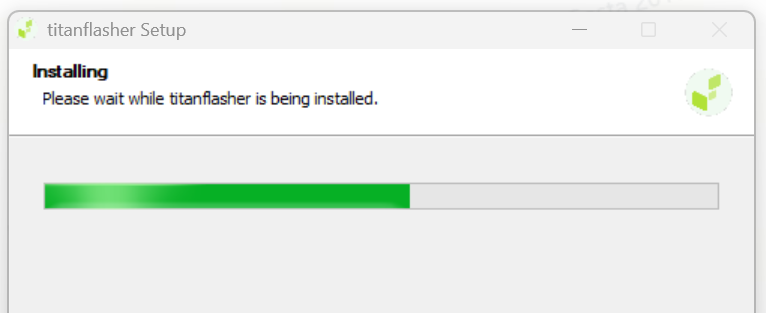
Once the installation is complete, Titanflasher can be launched by double-clicking its desktop icon.
2.3 Installing on Linux
The following steps use Ubuntu as an example.
- Download the latest AppImage package: titantools_for_linux.AppImage.
- Grant the file executable permission.
- Double-click the AppImage to run it — no installation is required.
Note: If the tool fails to start with the message
dlopen(): error loading libfuse.so.2
install the libfuse2 package using:
sudo apt install libfuse2
3. Entering Flashing Mode
The following uses the JDT Space product MUSE Pi as an example.
Device not powered on (powered off):
- Press and hold the Download (FDL) button.
- Plug in the power cable.
- Release the Download (FDL) button.
- Connect a USB data cable to the flashing USB connector. The device should now be detected.
Device already powered on (already connected to power):
- Press and hold the FDL button.
- Short-press the Reset button.
- Release the FDL button.
- Connect a USB data cable to the flashing USB connector. The device should now be detected.
The following uses MUSE Book as an example.
-
Activate Fastboot mode Use a SIM-eject pin to press and hold the Fastboot button hidden in the small hole on the right side of MUSE Book, then press the power button to start the device.
Note: Make sure the pin is fully inserted and held for more than 3 seconds.
-
Device connection Use the Type-C port near the screen (the dedicated OTG port) to connect the MUSE Book to the host computer.
4. Flashing Process
4.1 Tool Home Page
-
Open the flashing tool. If the system prompts “Allow this app from an unknown publisher to make changes to your device?”, choose Yes.
-
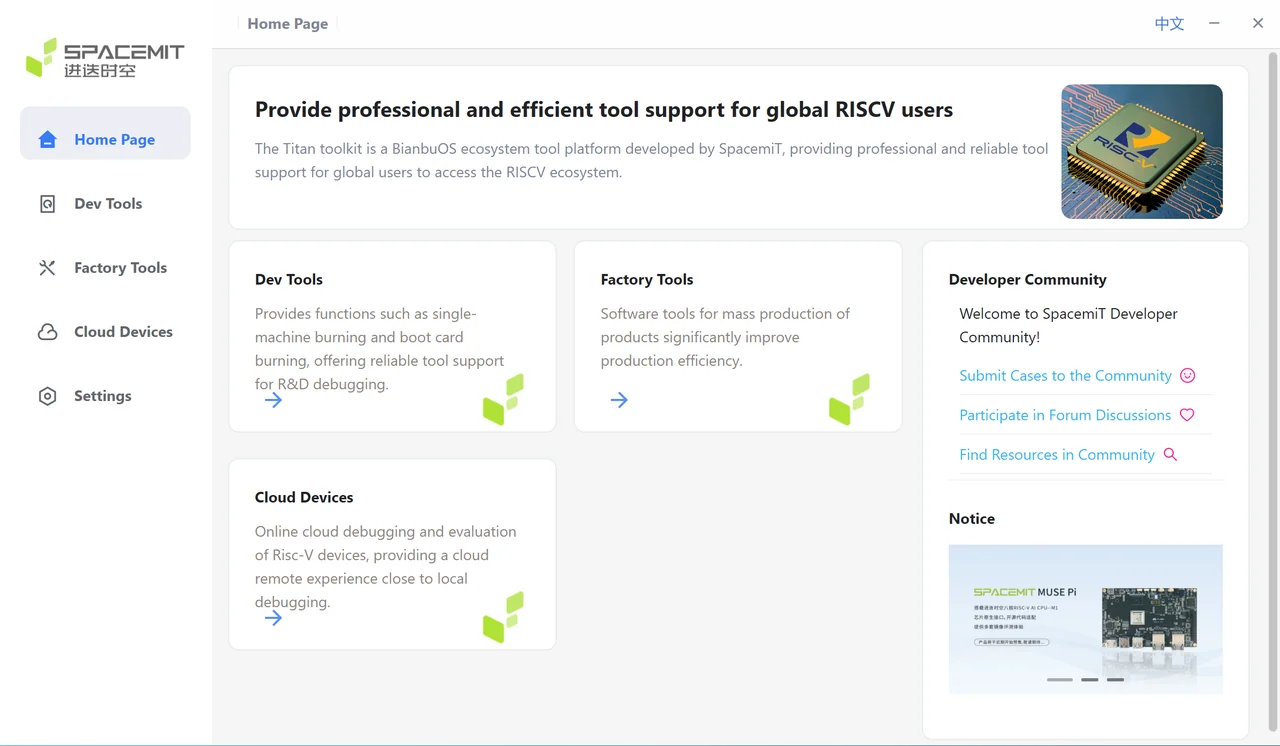
As shown below, the tool displays four main functional modules on the right:
- Development Tools: single-device flashing and SD-card boot
- Mass Production Tools: multi-device flashing, production SD card creation, and serial number writing
- Online Cloud Devices: remote device management
- Settings: tool updates and language selection
Click any module to enter the respective interface.
4.2 Development Tools
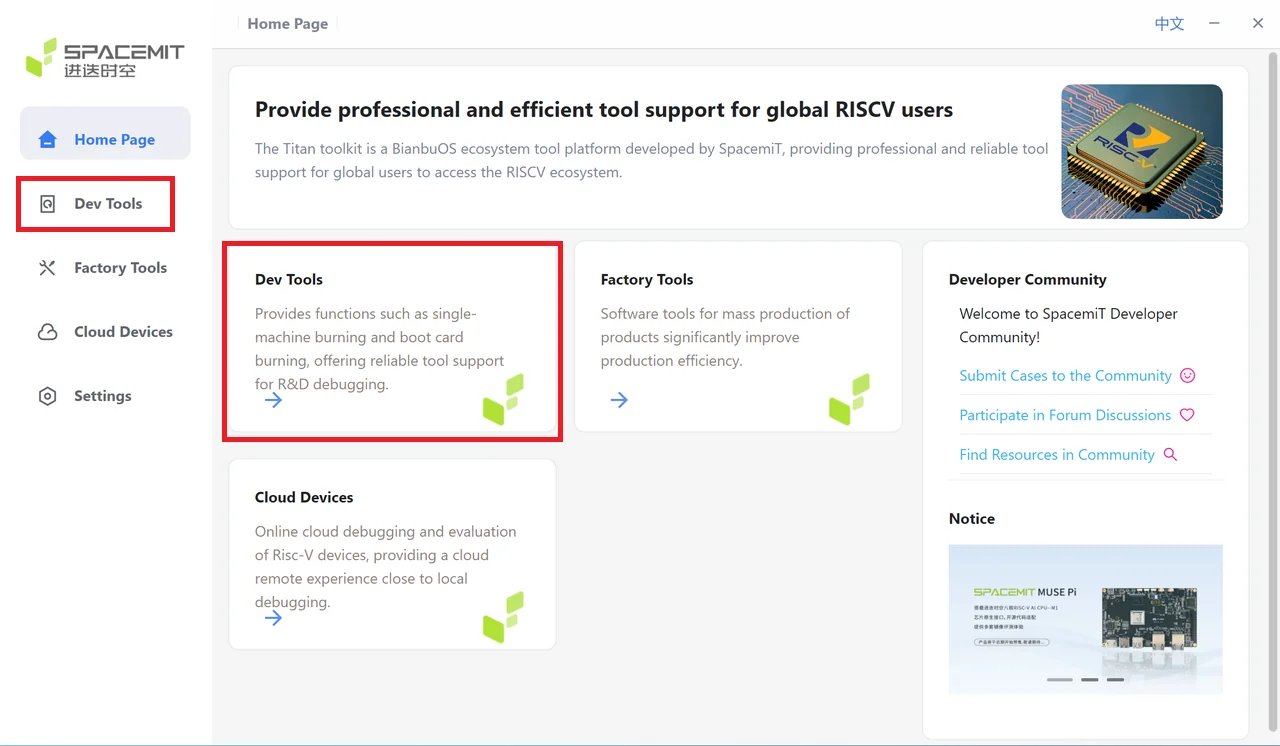
From the home page, click Development Tools to open the Development Tools page.
Single-Device Flashing
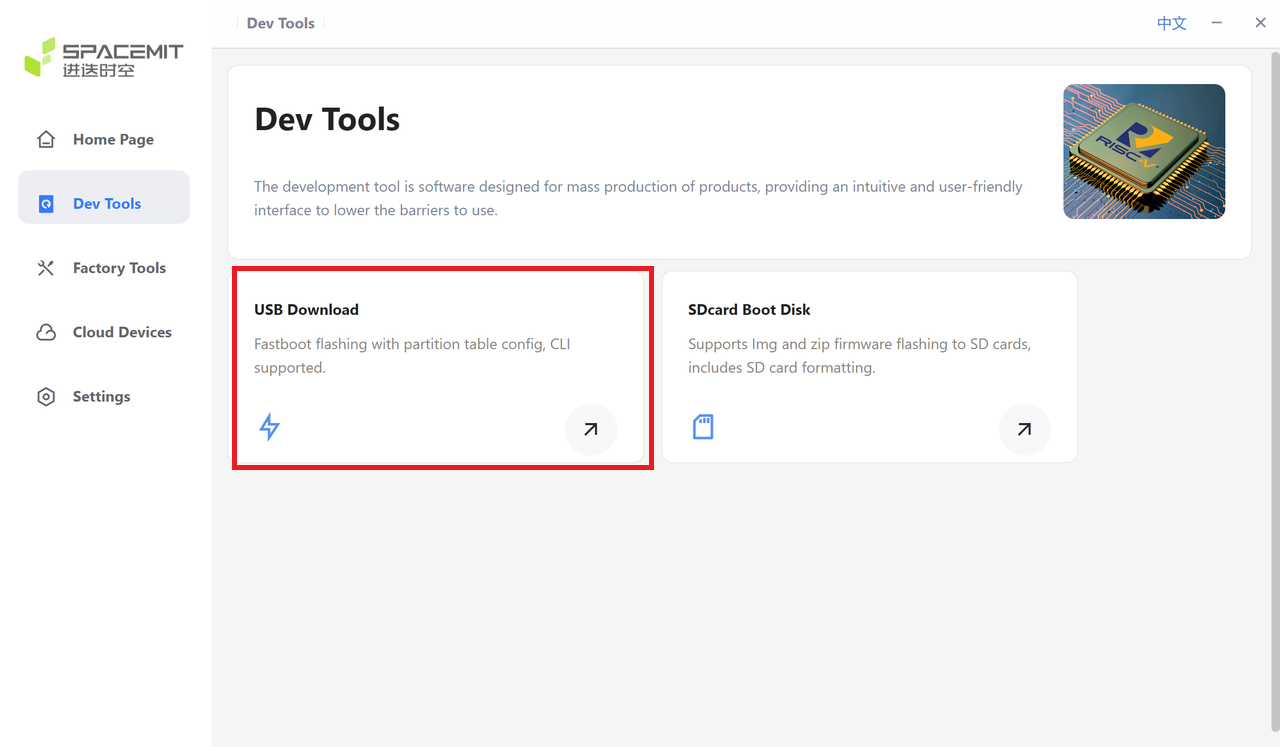
On the Development Tools page, two options are available: Single-Device Flashing and SD-Card Boot. Select USB Download.
The single-device flashing process is as follows:
-
Ensure the device has entered Flashing Mode.
Note: The device must enter flashing mode before scanning, otherwise it cannot be detected.
-
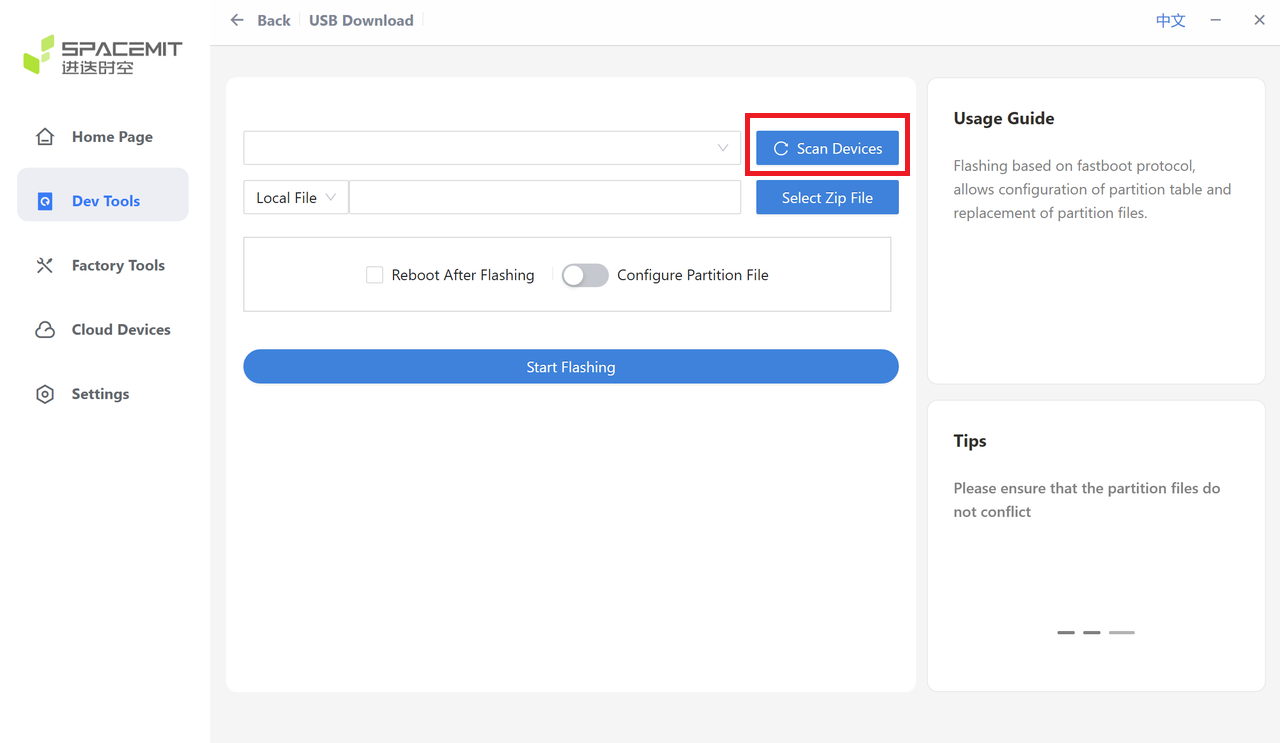
Click Scan Device and select the target device, as shown below.
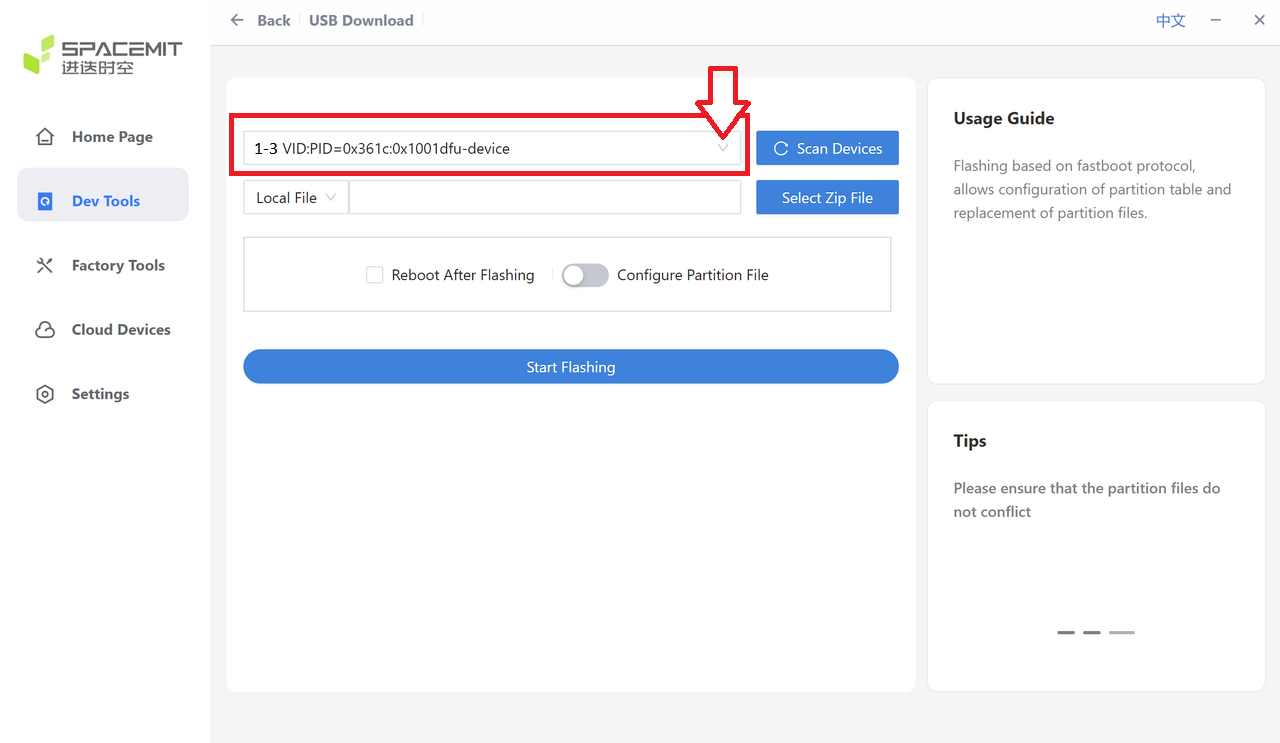
When the device is successfully detected, the device serial number appears.
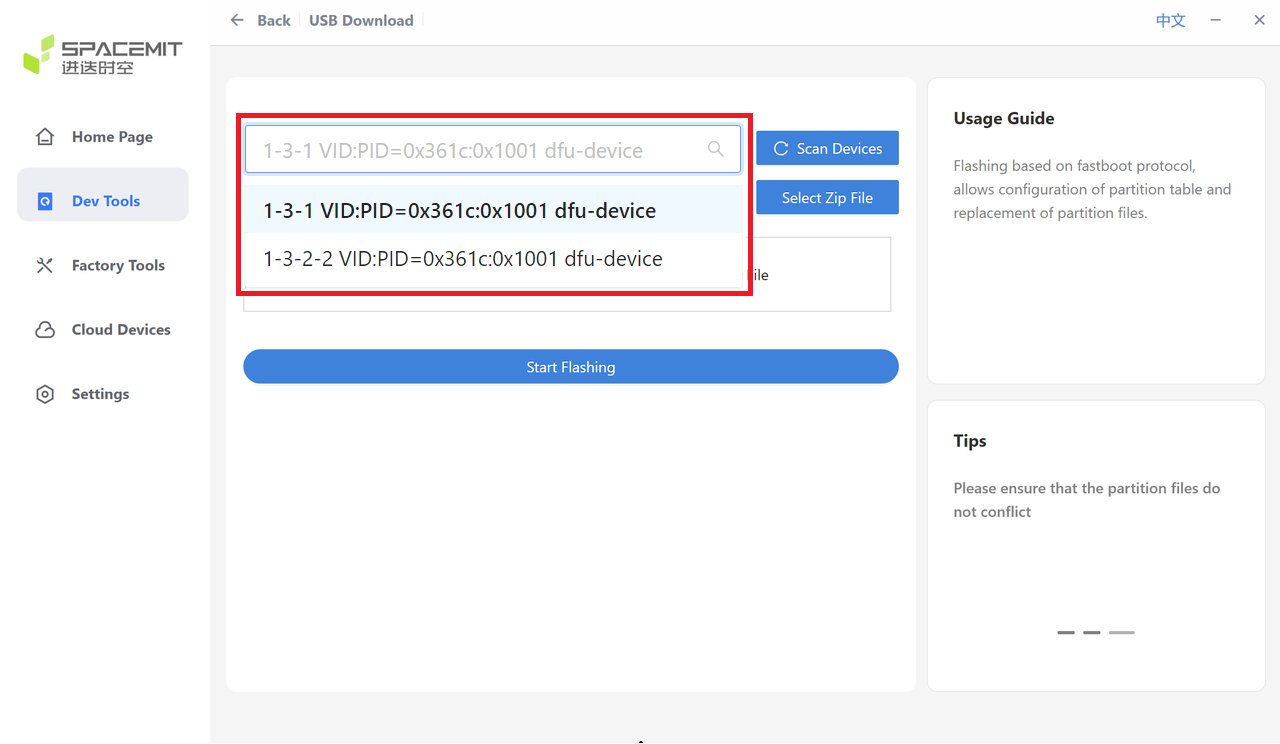
Note: If multiple devices are detected, use the drop-down list to select the target device.
-
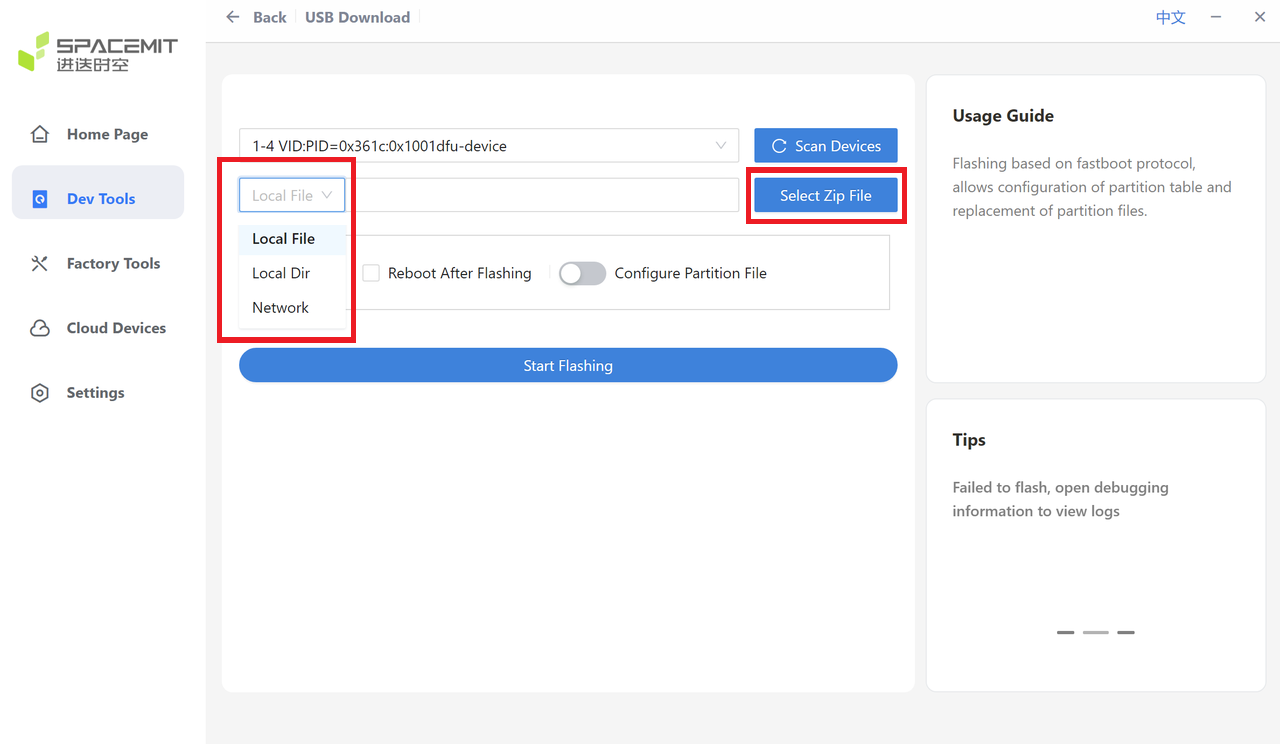
Select the flashing package (firmware file or extracted directory).
After selecting the device, choose the package source from the available options:
- local file
- local dir
- Network
-
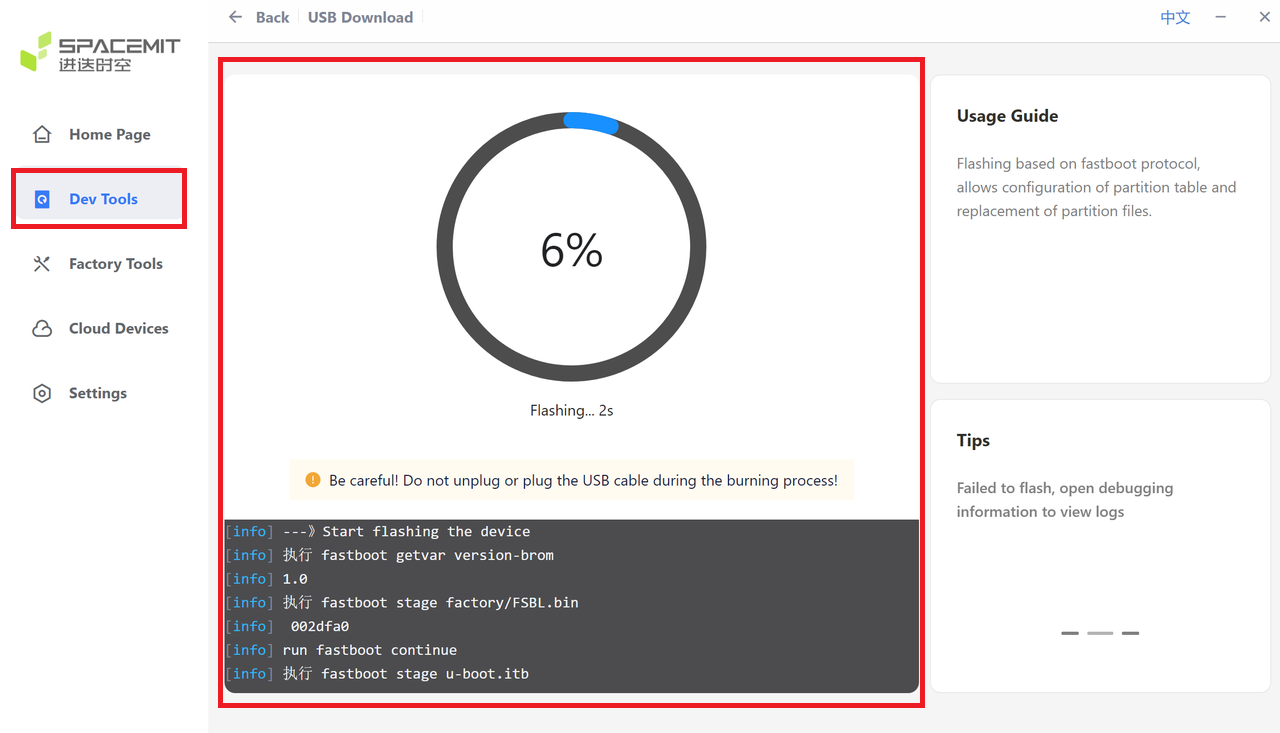
Click Start Flashing and wait for the process to complete.
After the flashing package is selected, the tool displays Extracting files.... Wait for the extraction to finish.
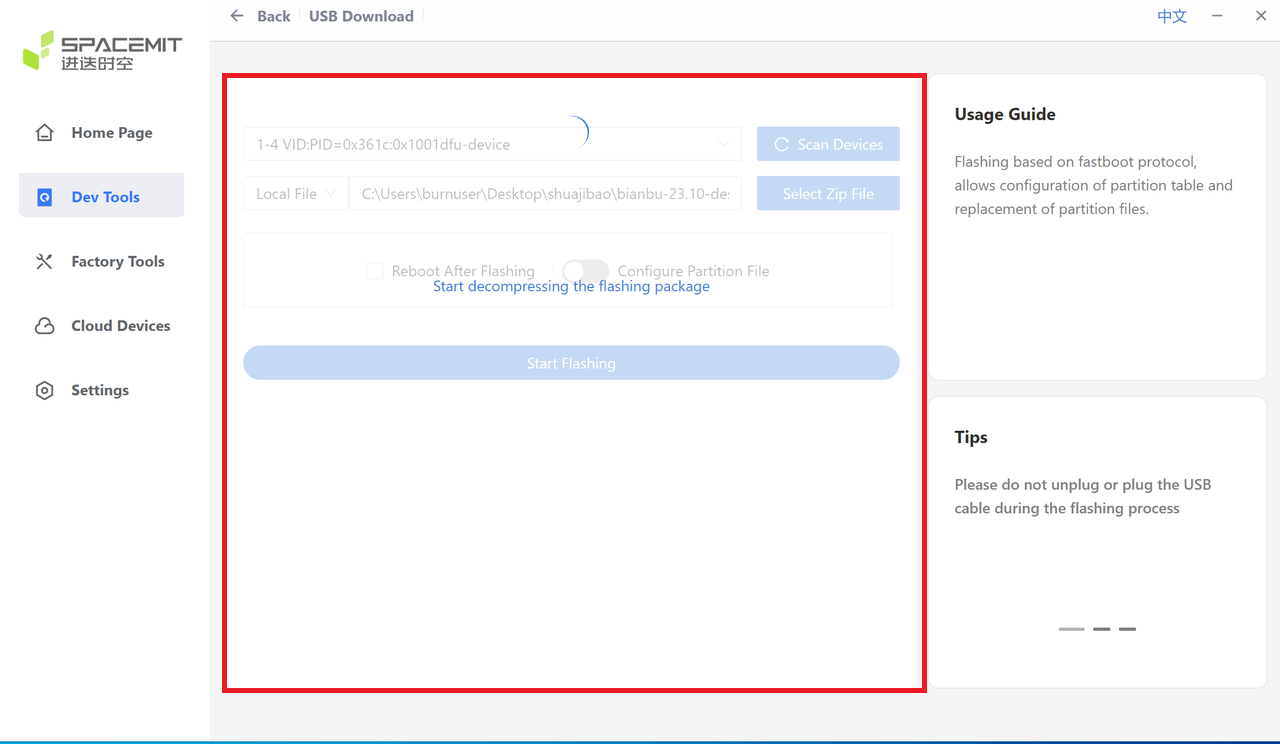
After extraction is complete, the firmware package name appears.
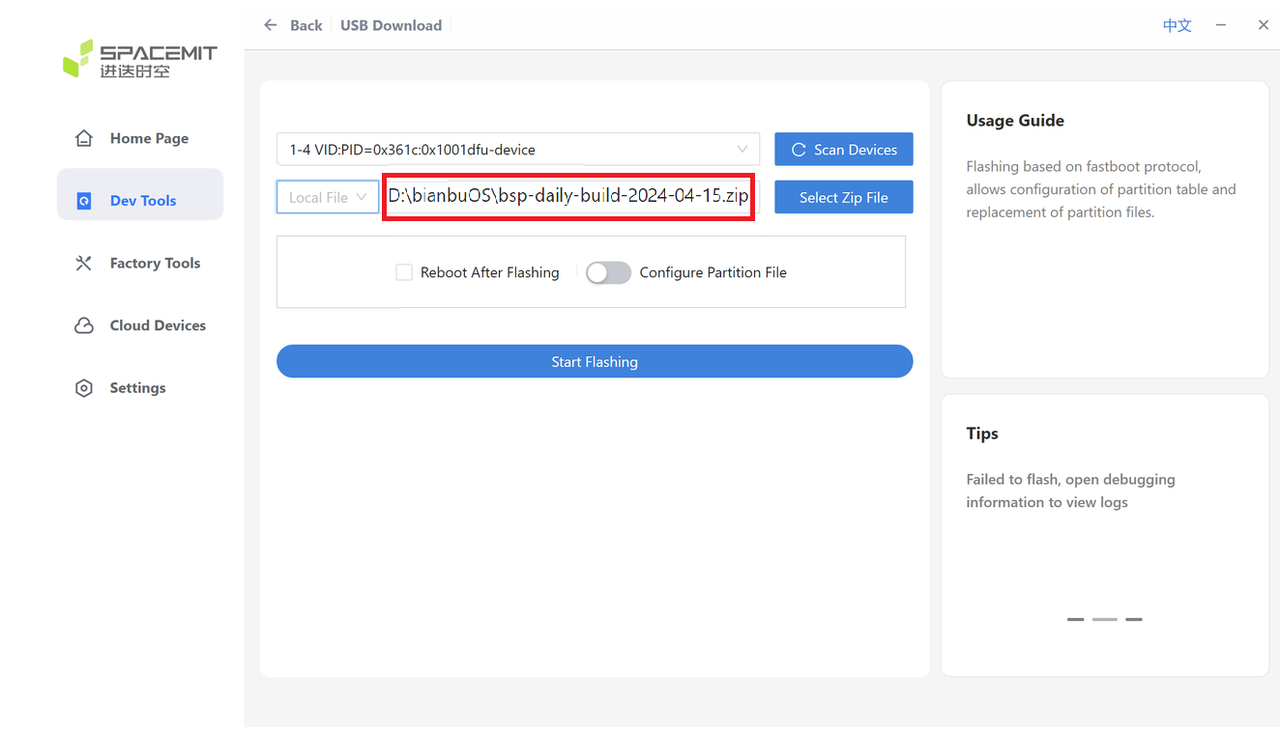
-
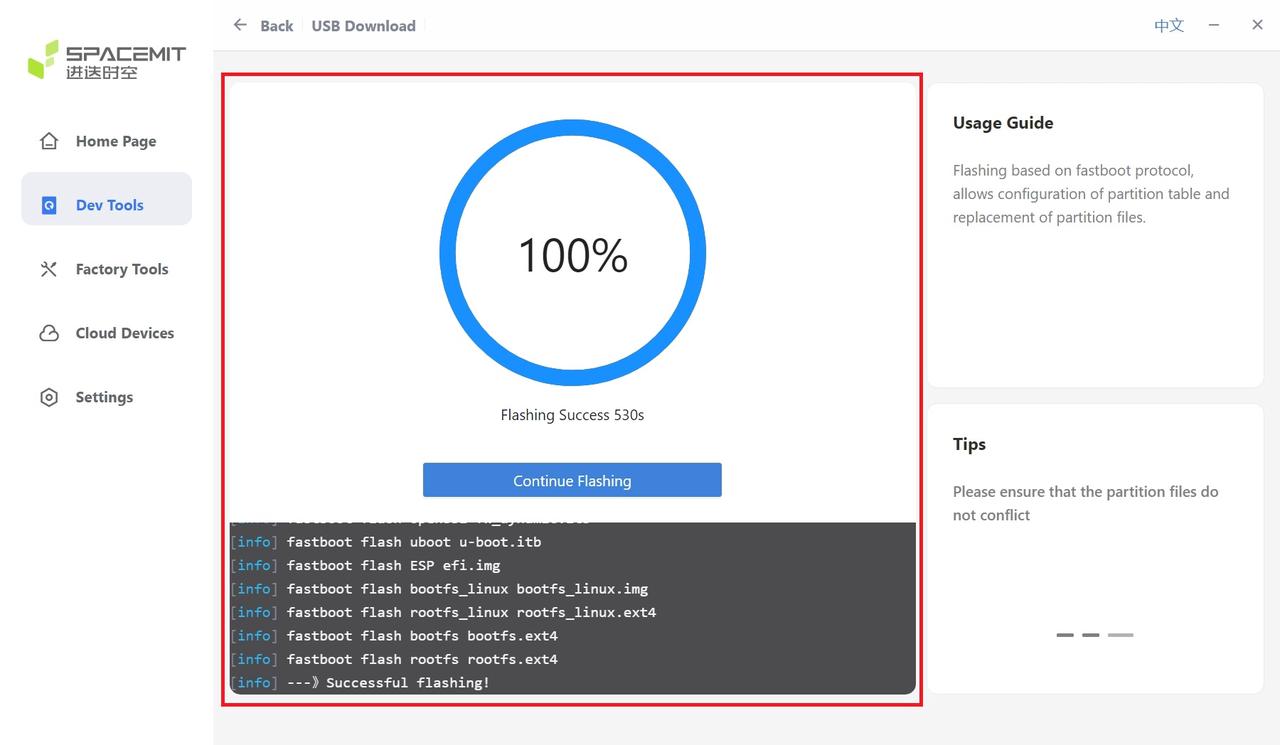
Reboot the device after flashing completes.
After flashing is complete, power on the device again to enter the system.
SD-Card Boot
Select SD-Card Boot under the Development Tools interface.
Note: Linux systems (e.g., Ubuntu) do not support the SD-Card Boot feature.
The SD-card boot process is as follows:
-
Insert an SD card and click Select SDCard Boot Disk
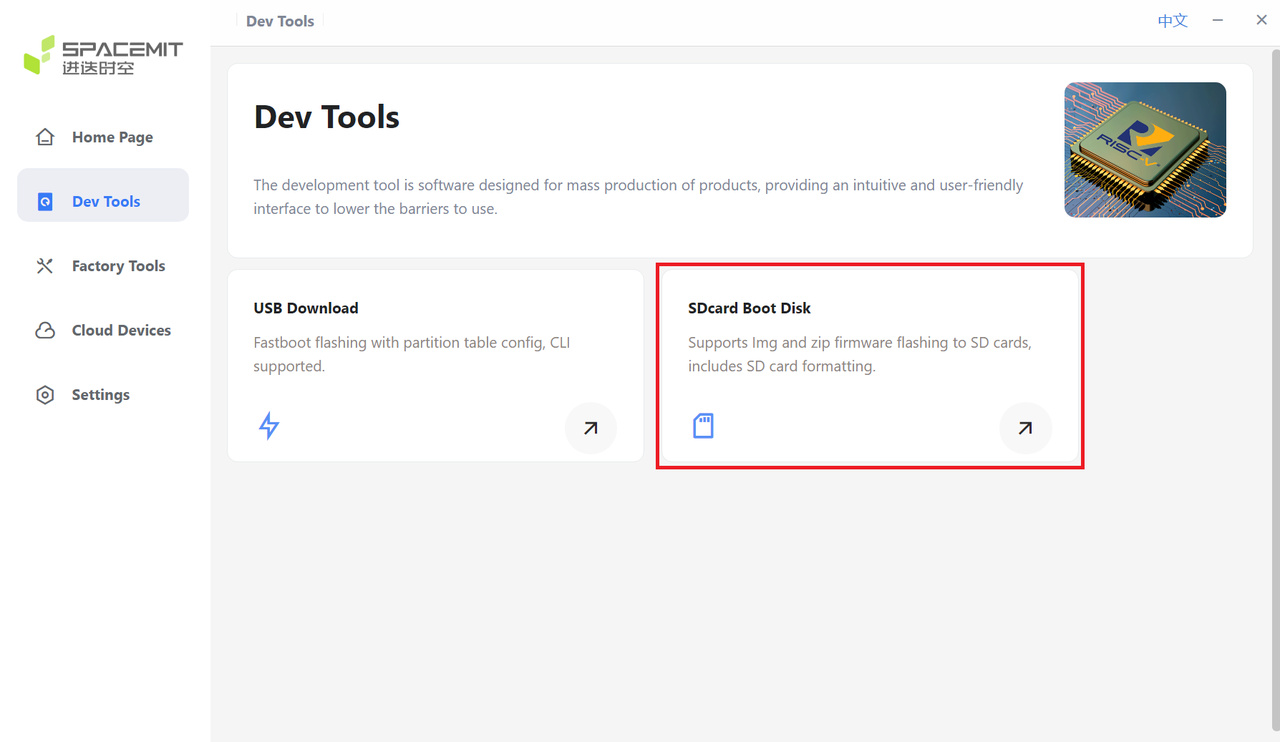
- A selection window appears. Select the target SD card.
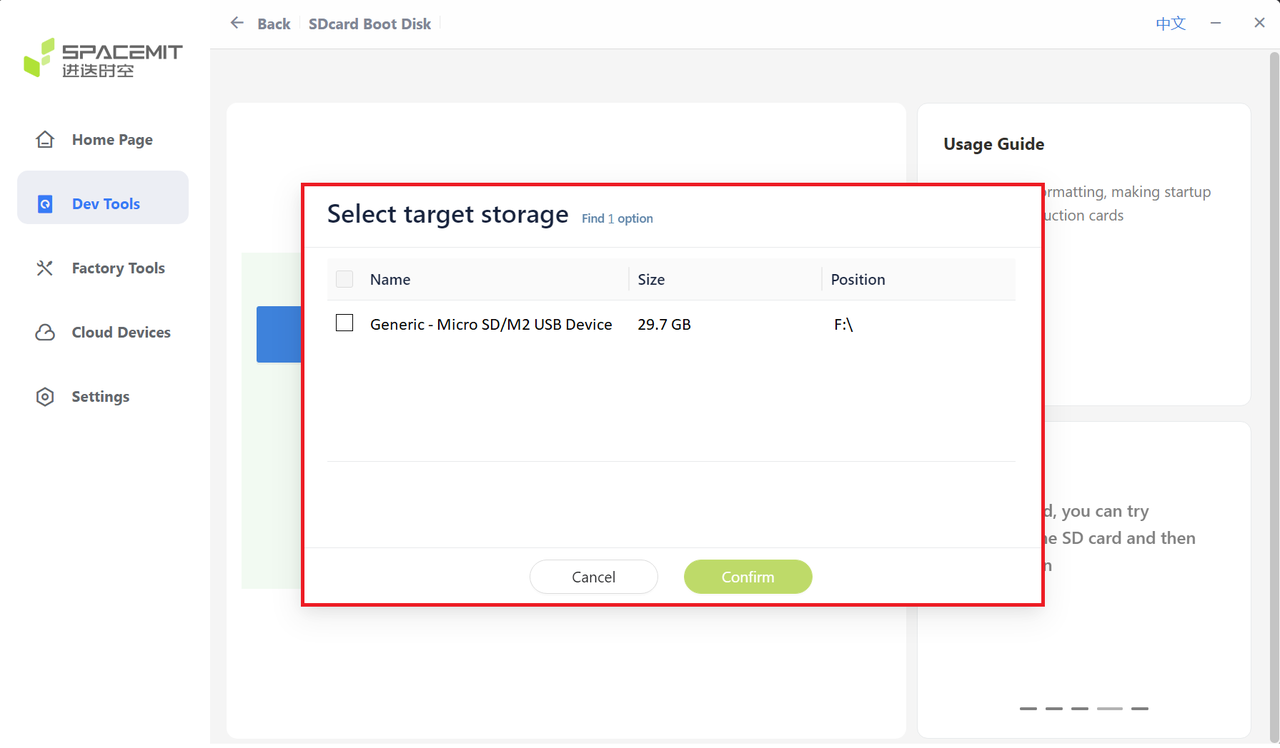
- After selection, the SD card name is displayed.
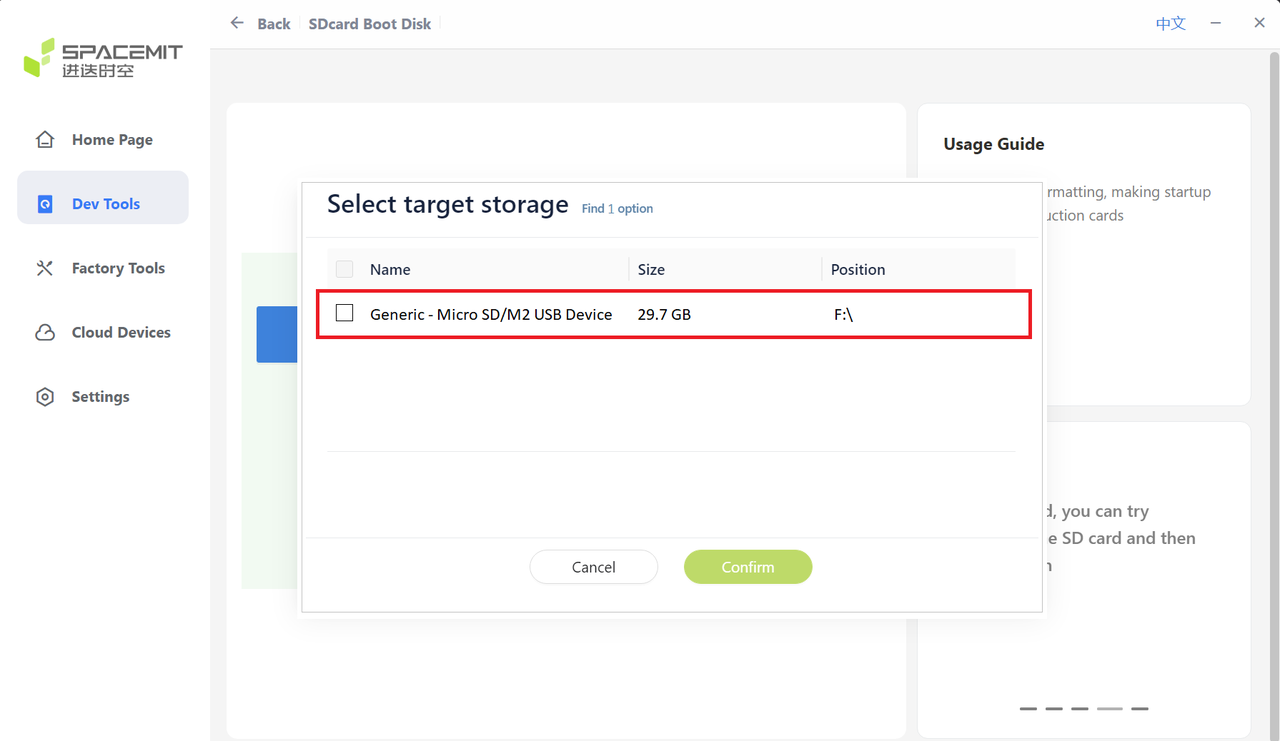
-
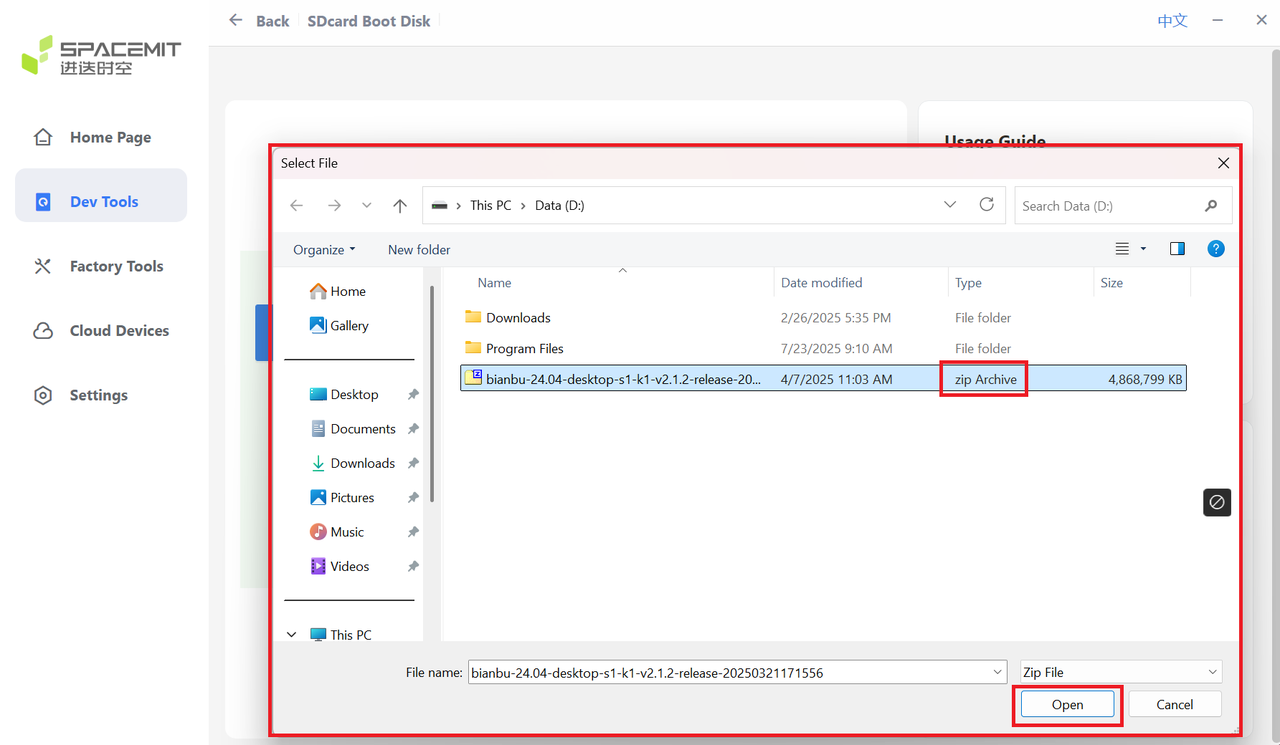
Select the flashing package path.
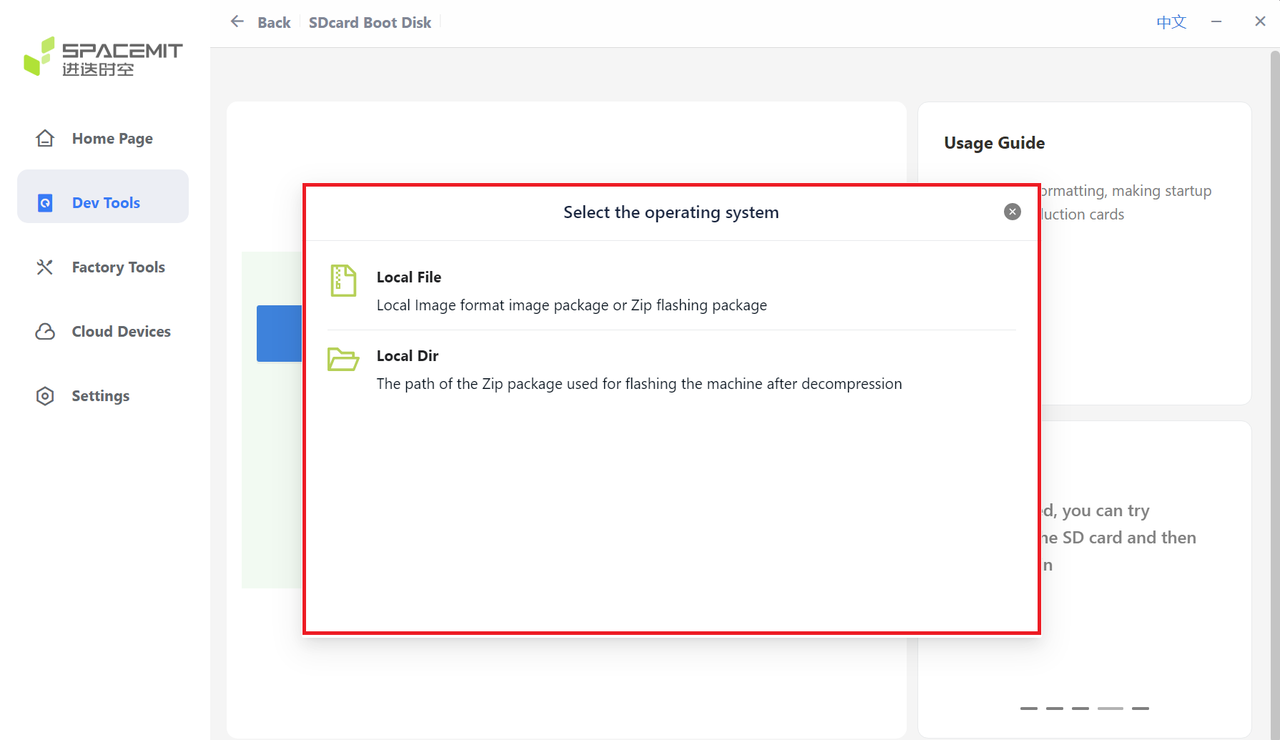
The selected package path is displayed as shown below:
-
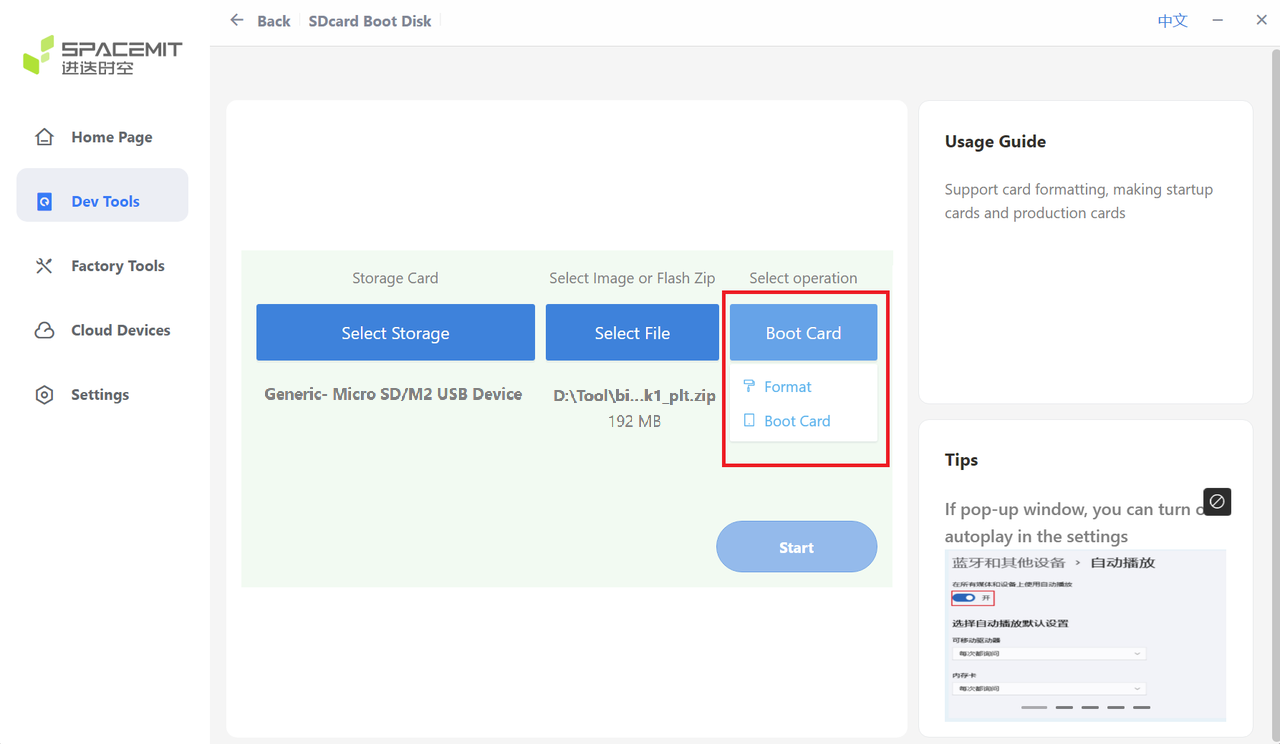
Select the operation type (default: Boot Card).
Note: Creating a boot card requires formatting the SD card. Back up important data in advance.
-
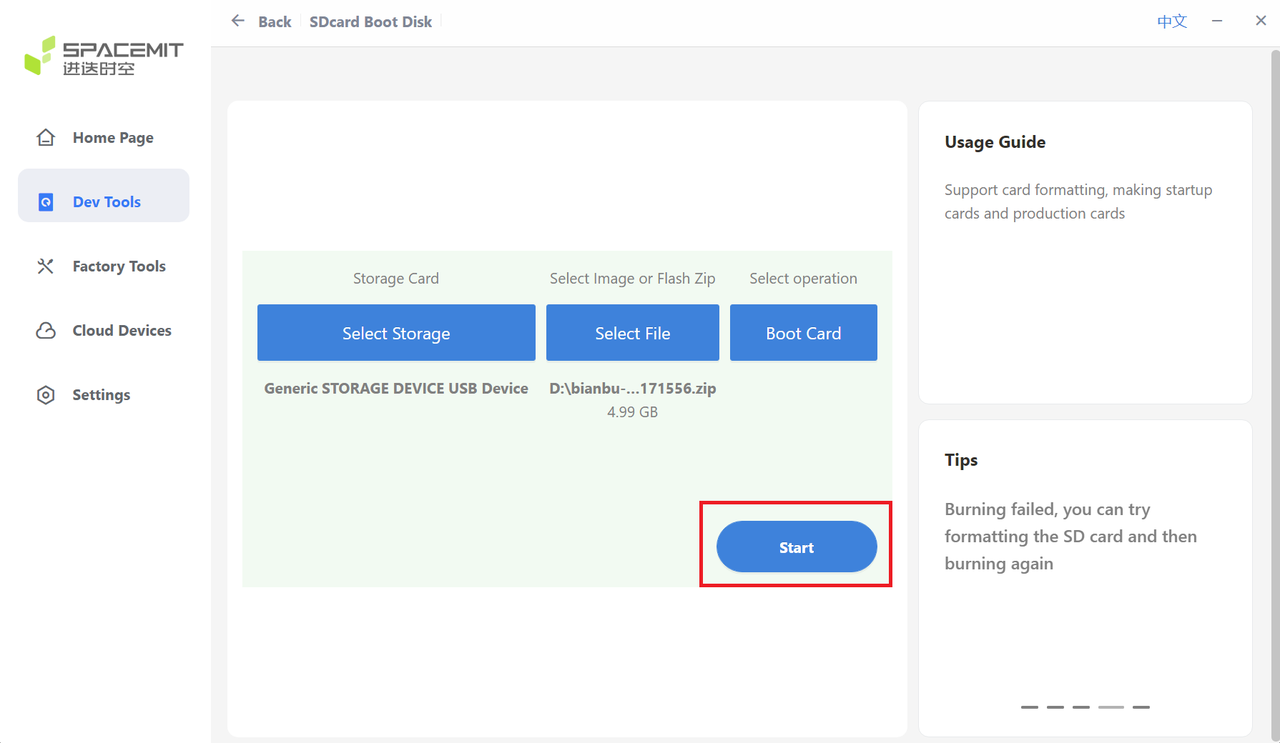
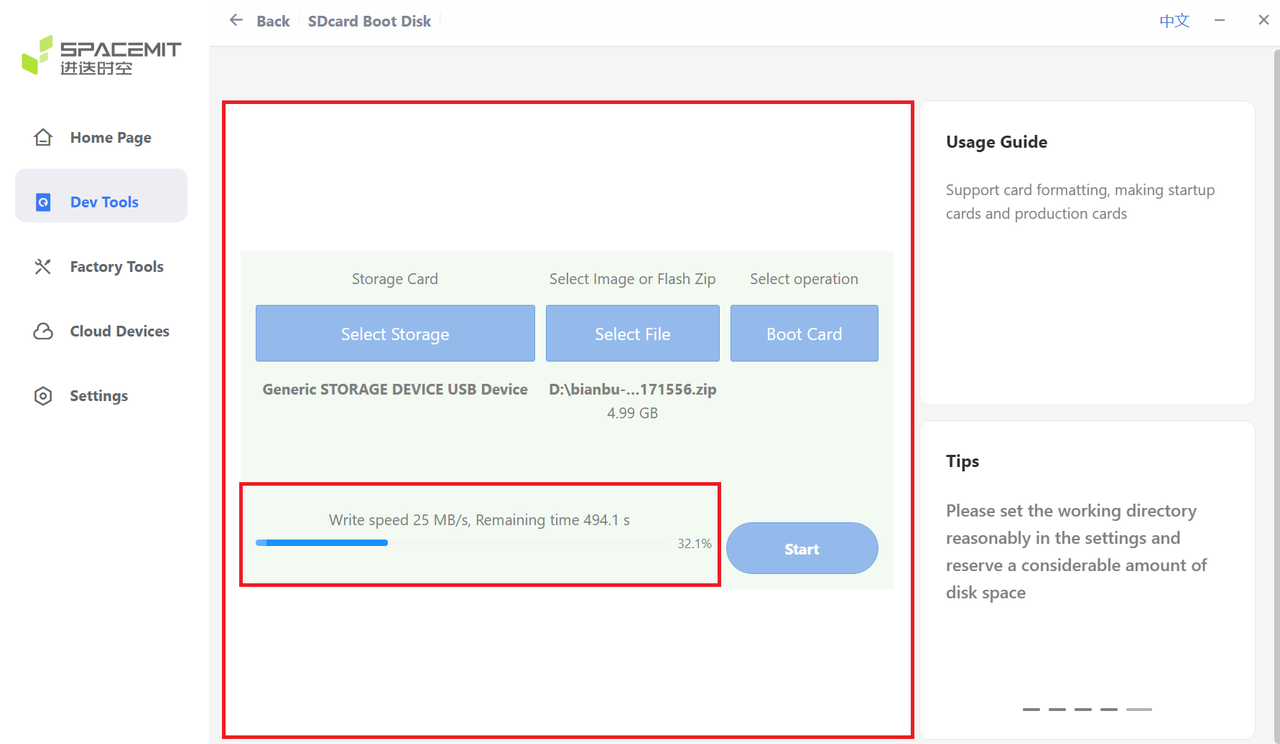
Click Start and wait for the process to finish.
Partition Configuration
-
Once the device and flashing firmware are selected, you may configure partition files if needed.
-
Enable partition configuration to open the selection window.
-
After selecting the partition files, the configuration appears as shown below.
Note: Partition names vary depending on the file. Ensure there are no conflicts.
5. Mass Production Tools
5.1 Multi-Device Flashing
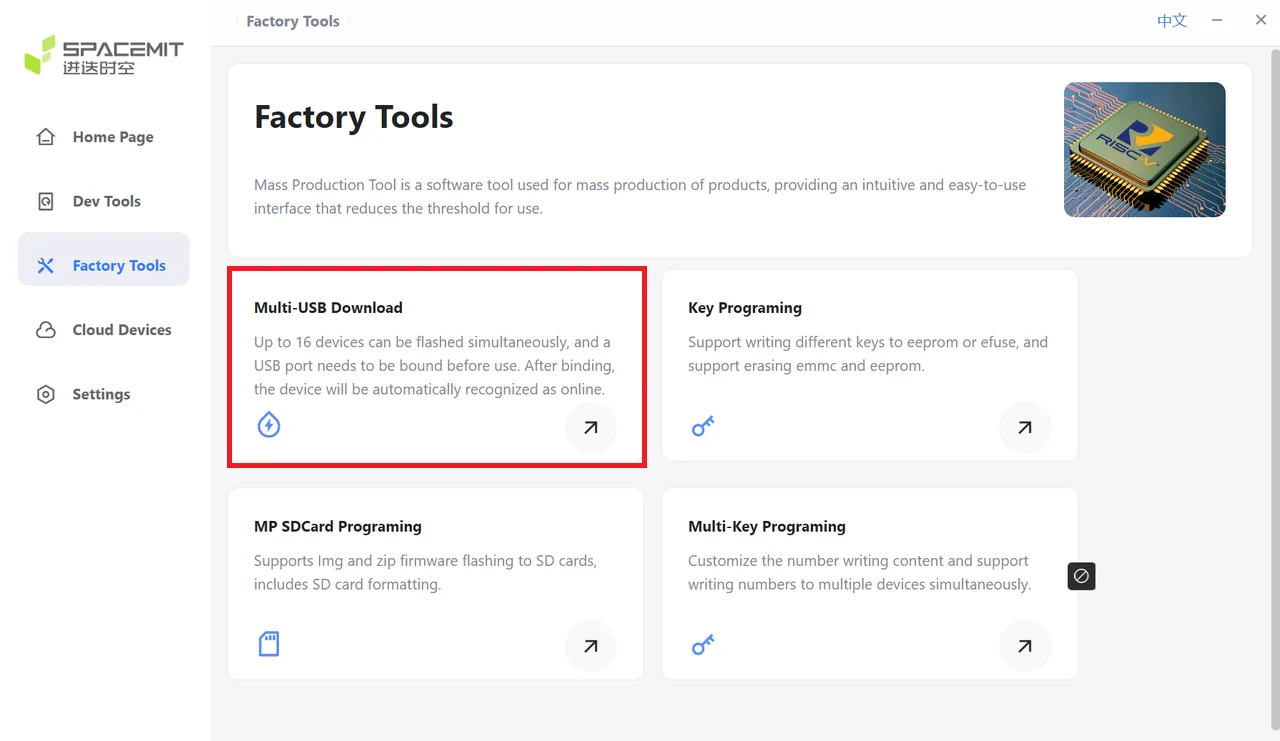
Click Multi-USB Download under Mass Production Tools.
Note: Multi-USB Download only supports zip files.
-
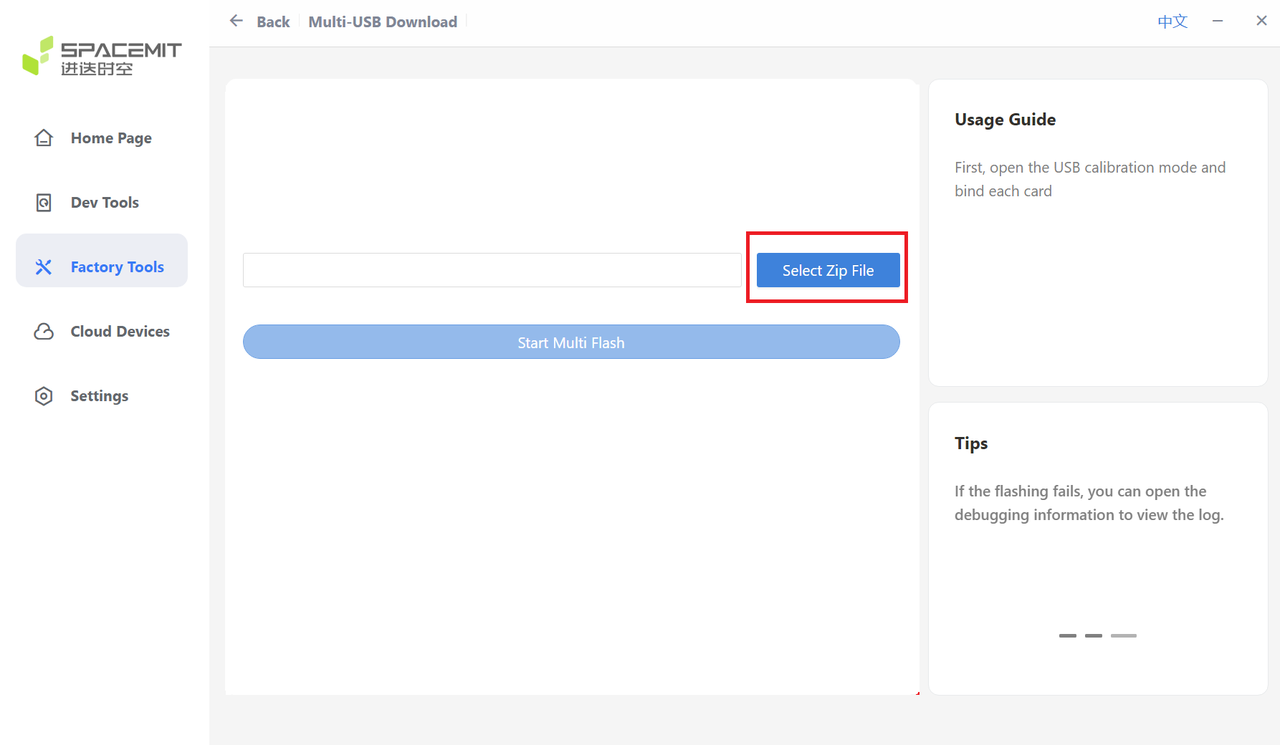
Click Select Zip File.
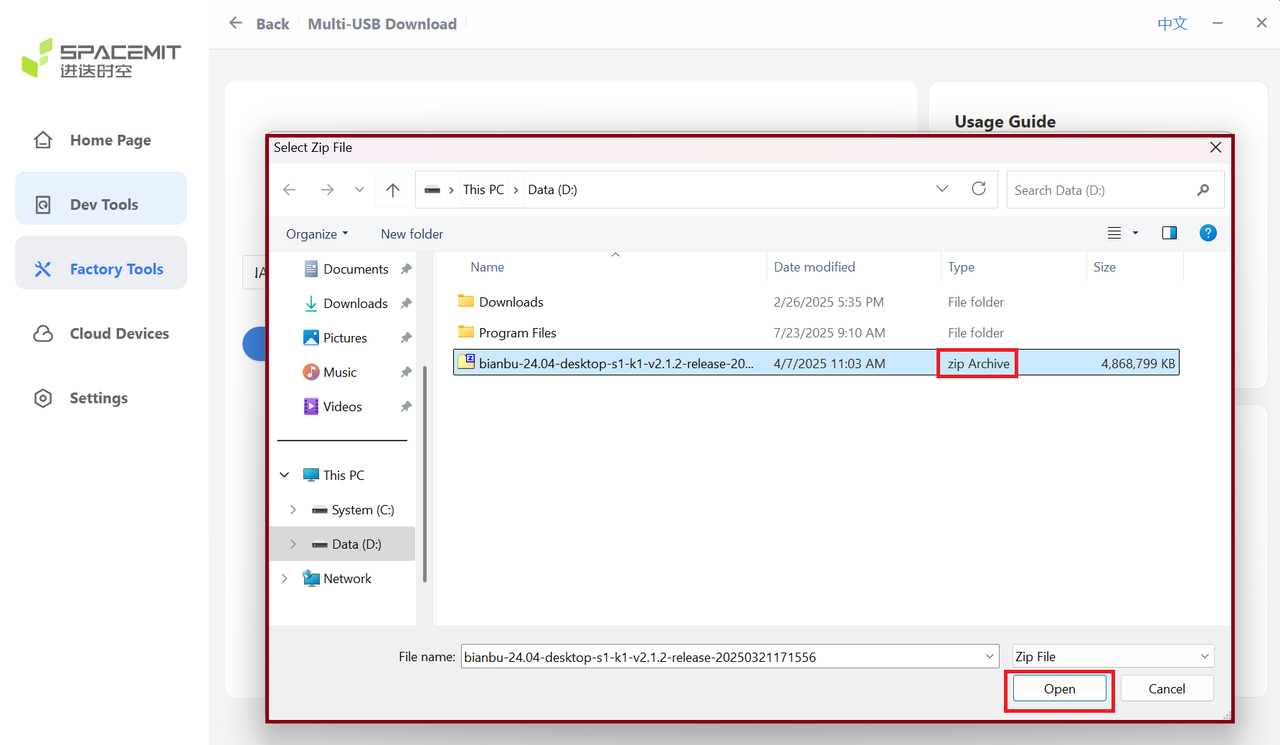
After extraction is complete, the file path appears as shown below:
-
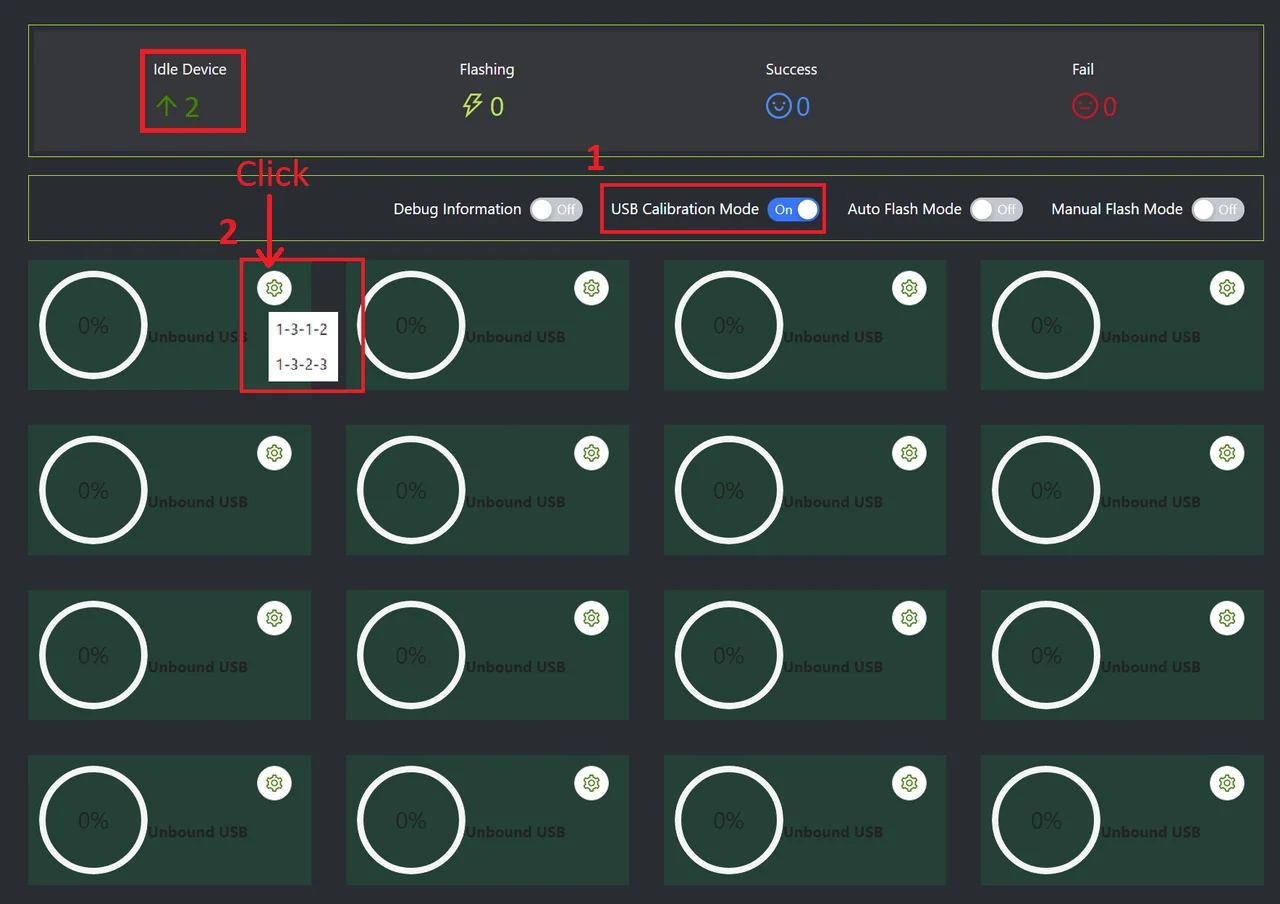
Enable USB calibration mode and bind the USB ports.
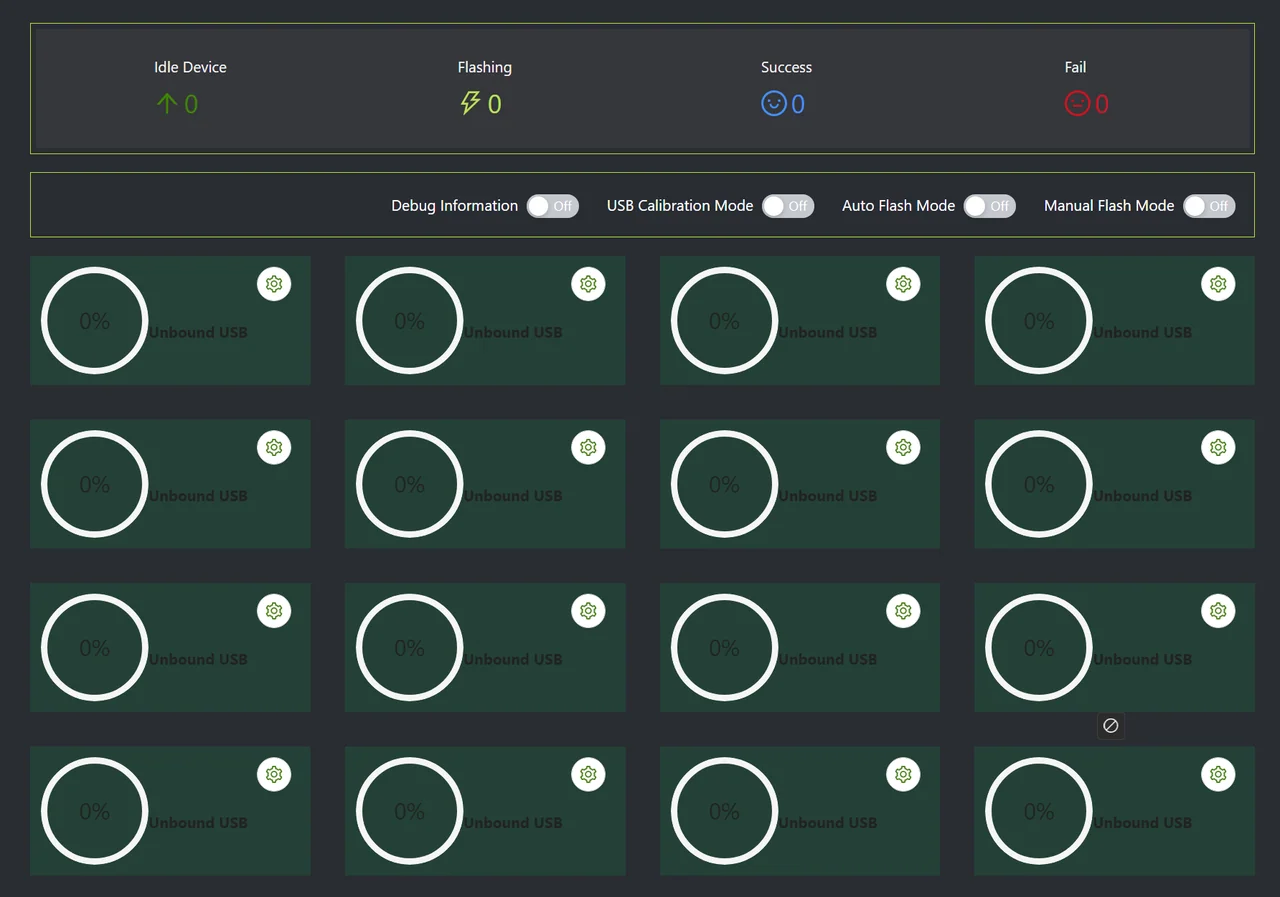
After binding is complete, the USB port number appears:
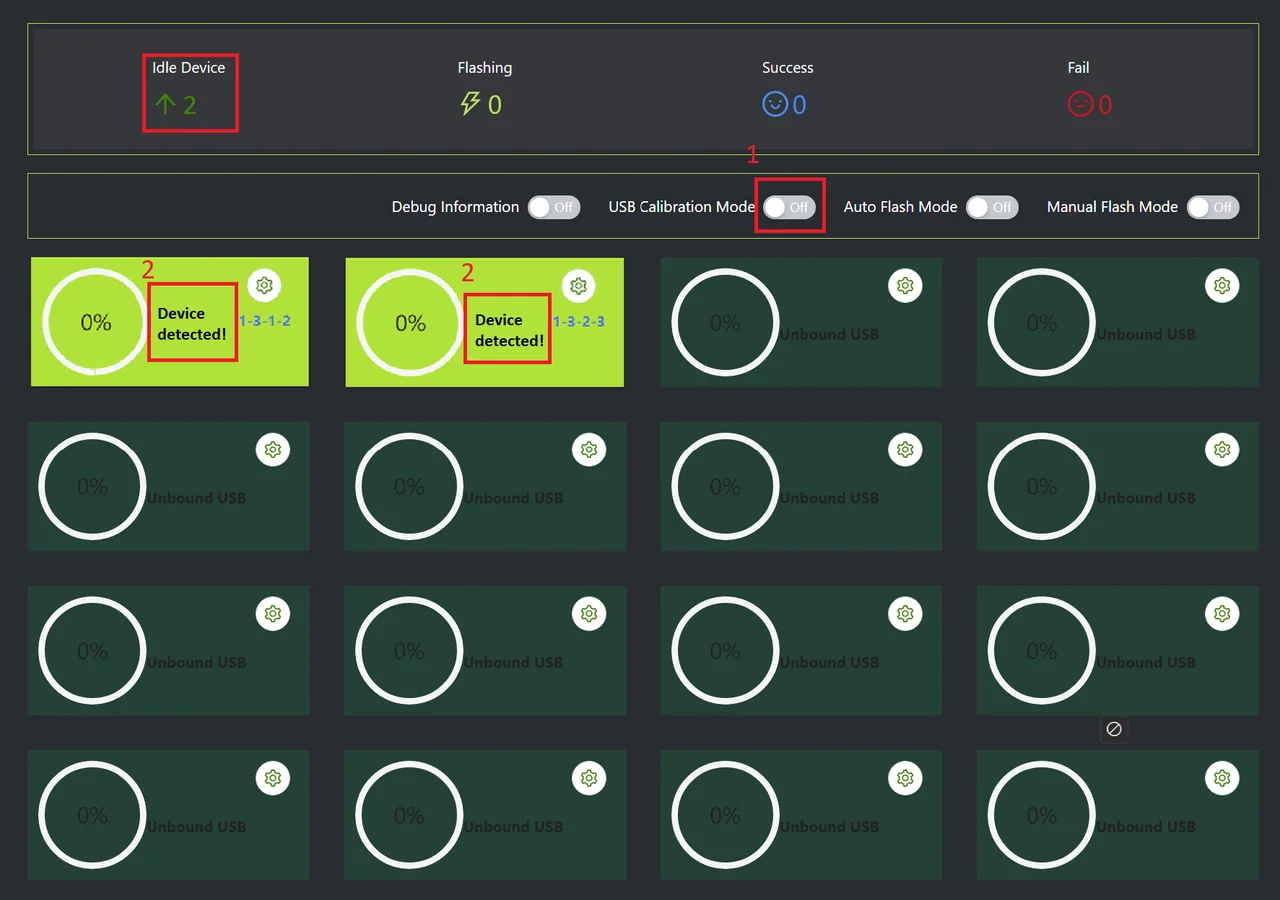
Disable USB calibration mode and wait for the device to be detected.
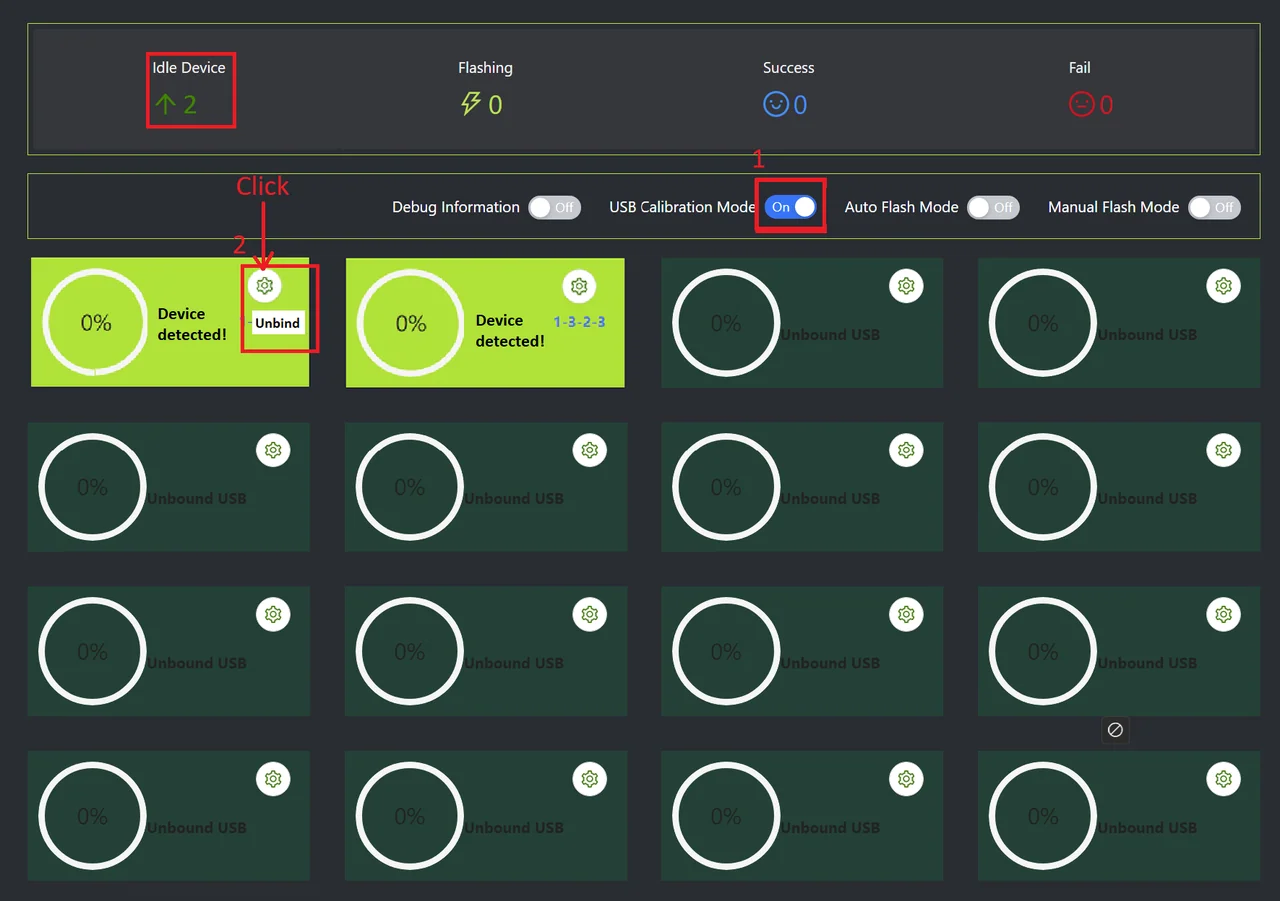
To unbind a port, re-enable calibration mode and click the corresponding button:
-
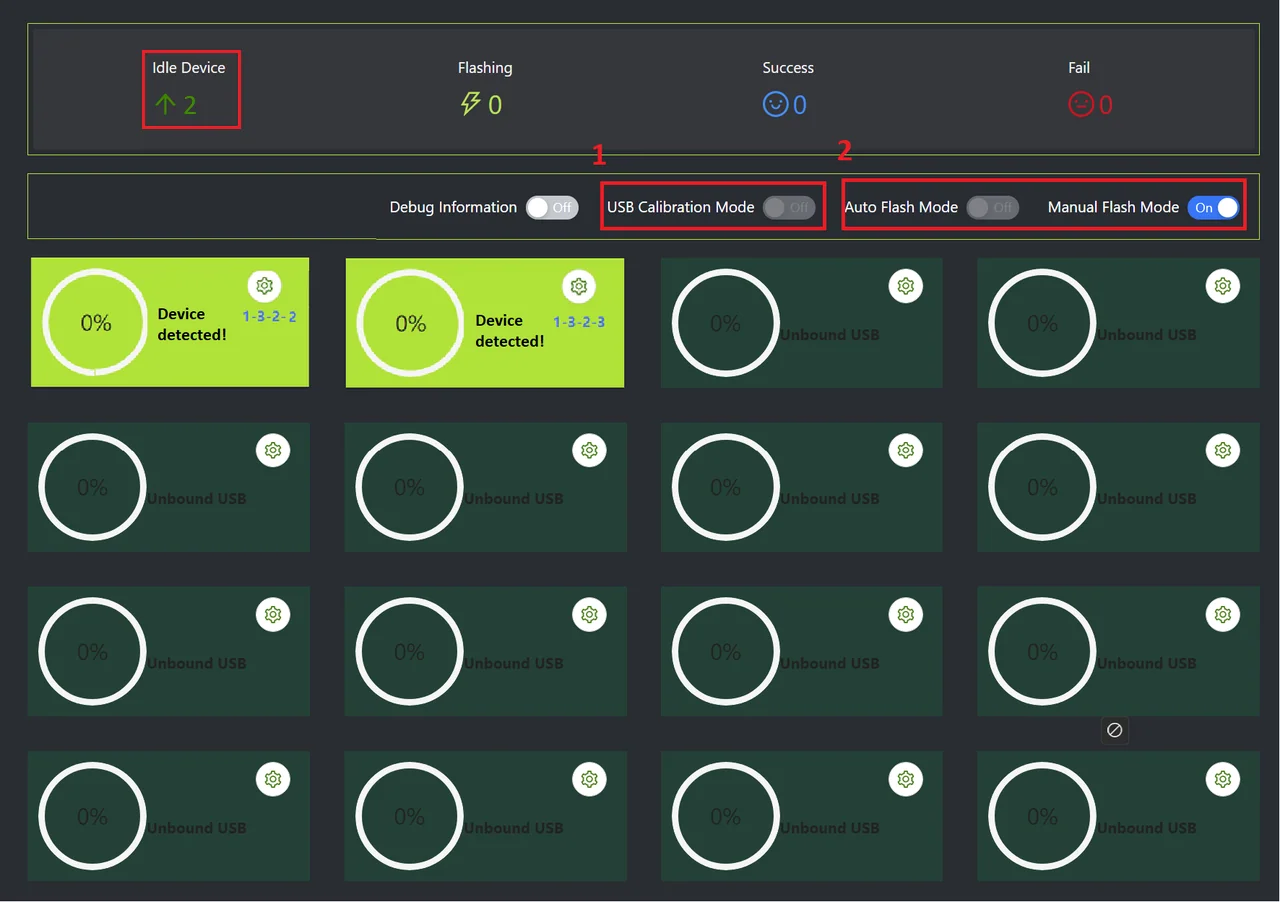
Choose automatic or manual flashing mode.
-
Once flashing completes, close the window.
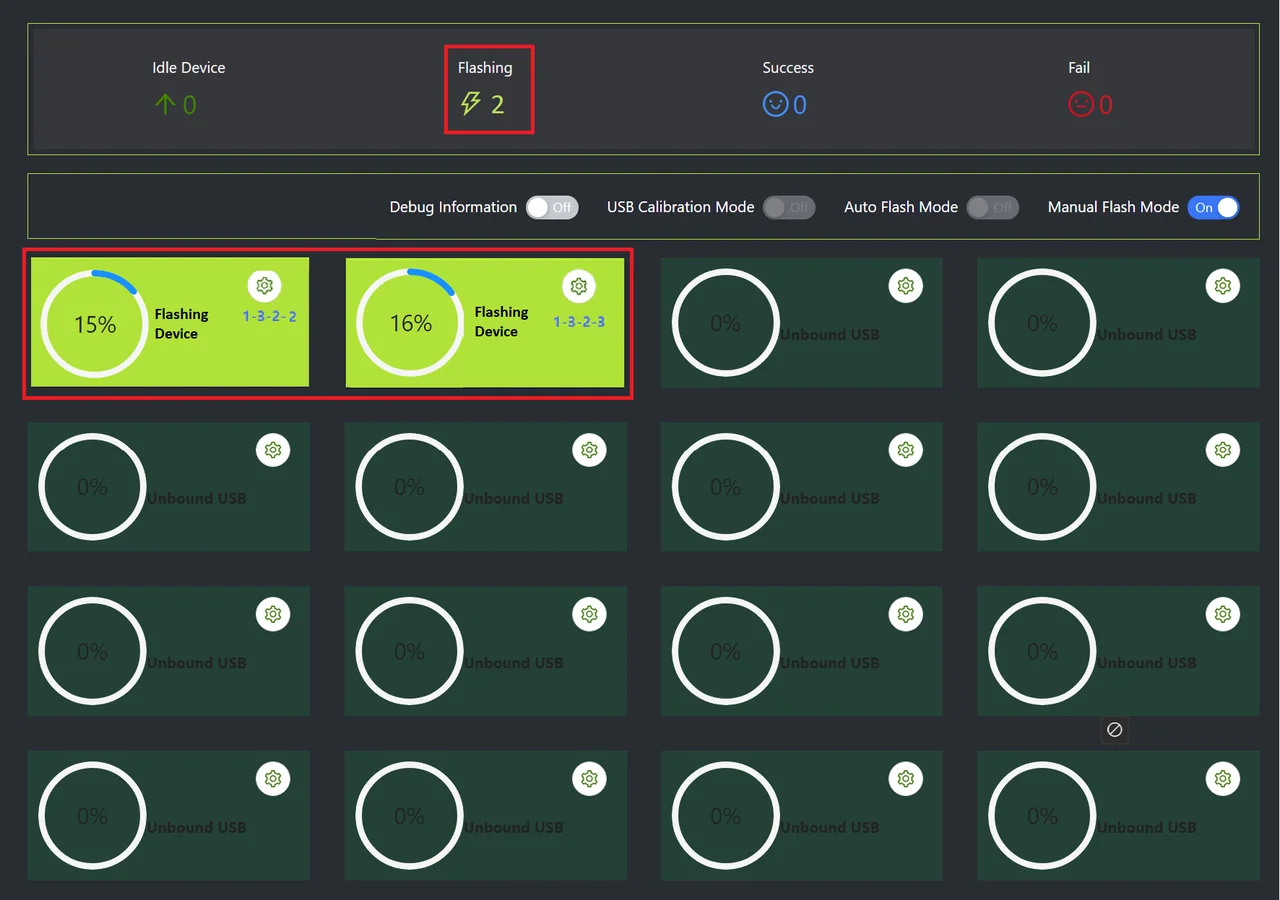
-
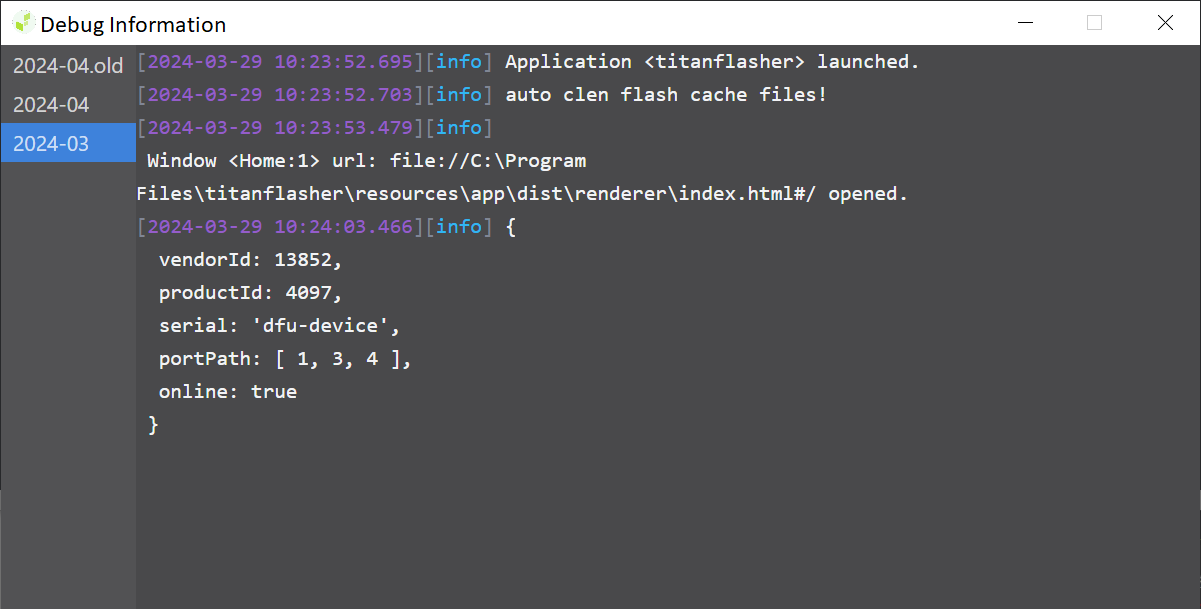
If debugging information is enabled, the following window appears.
5.2 Multi-SD Card Flashing
Note: Currently, this option is not supported on Linux systems, such as Ubuntu.
5.3 Serial Number Writer
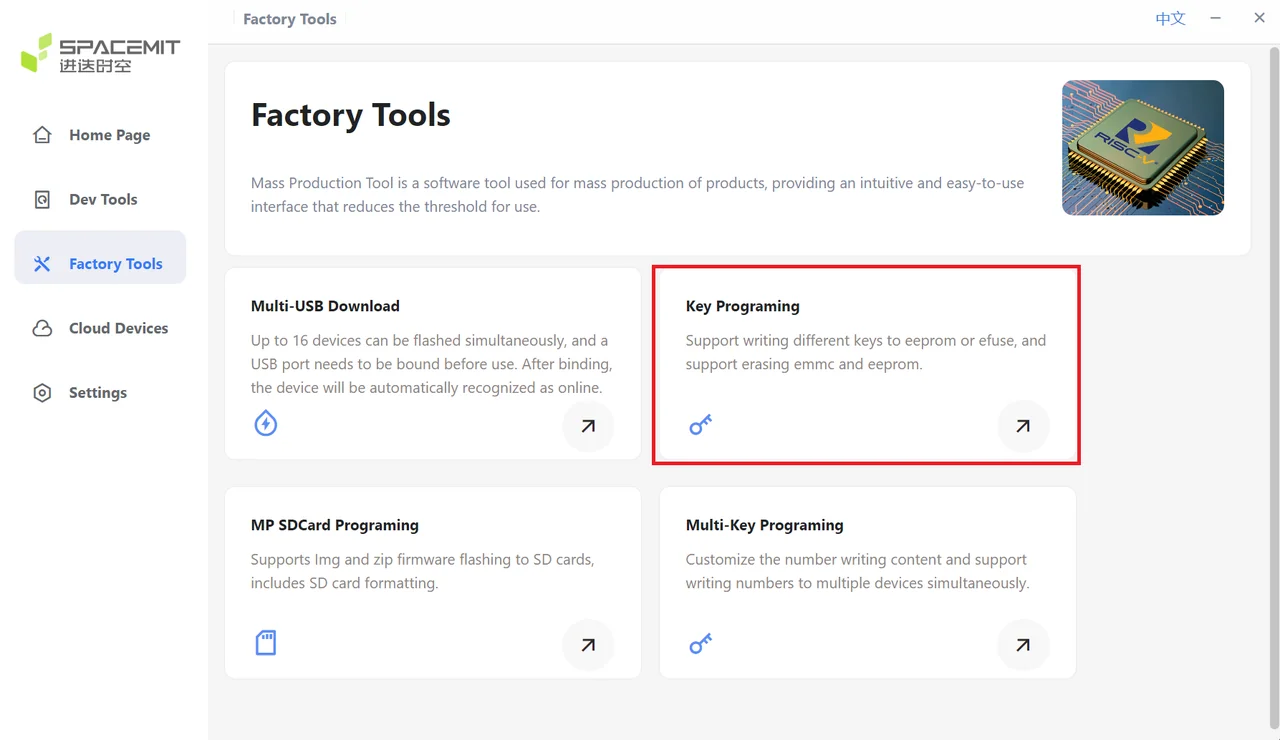
-
Under Mass Production Tools, select Key Programming.
-
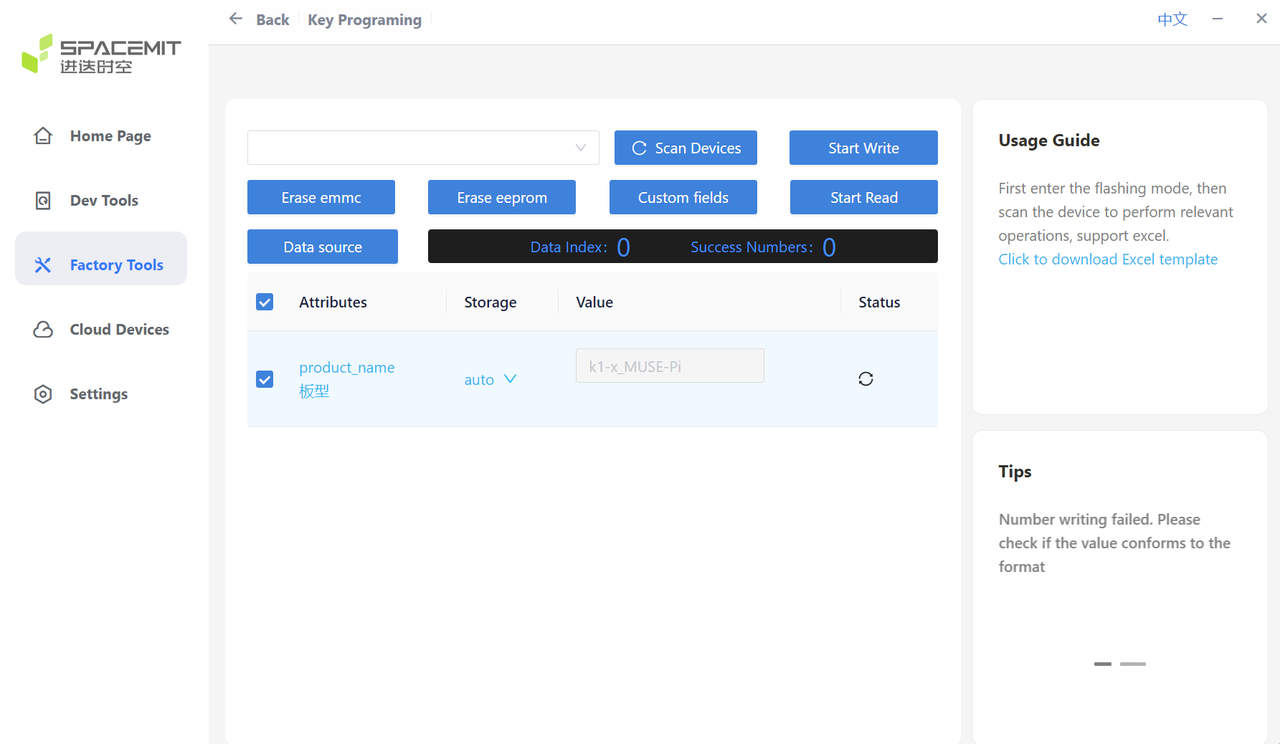
Click Scan Device to detect the device and display its serial number.
-
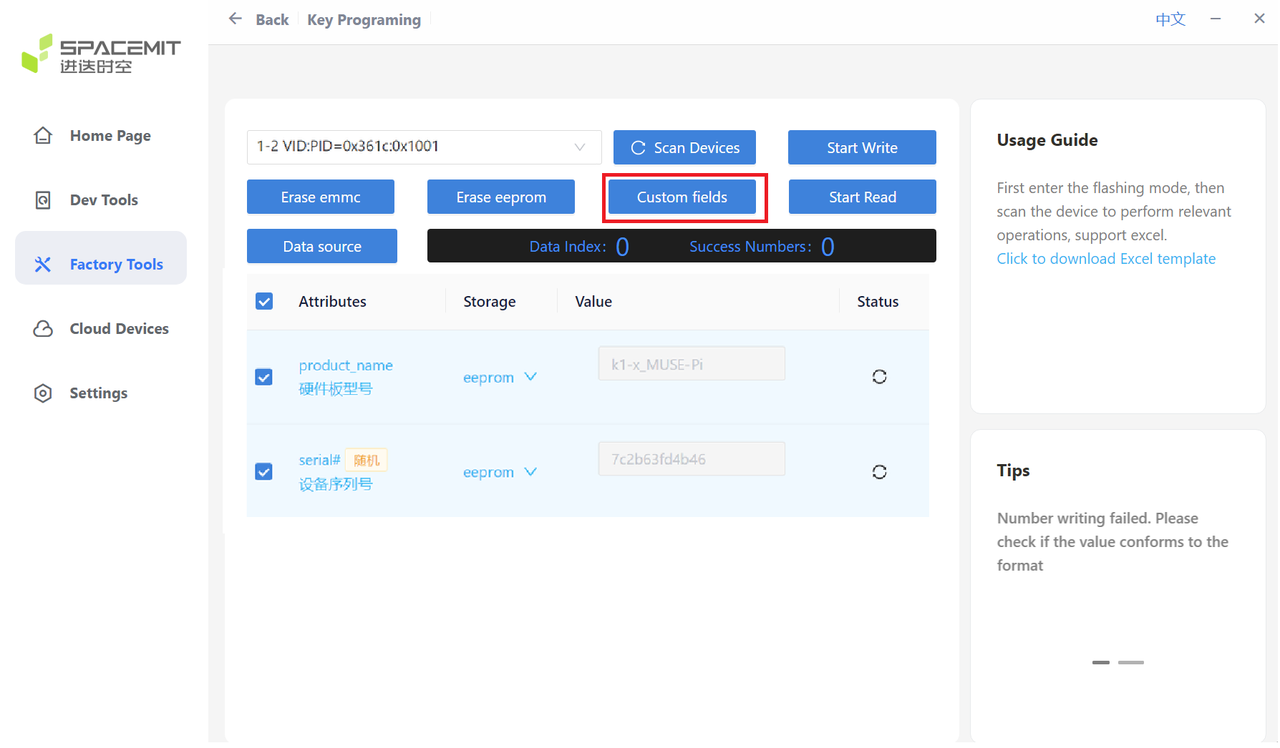
Click Configure fields.
-
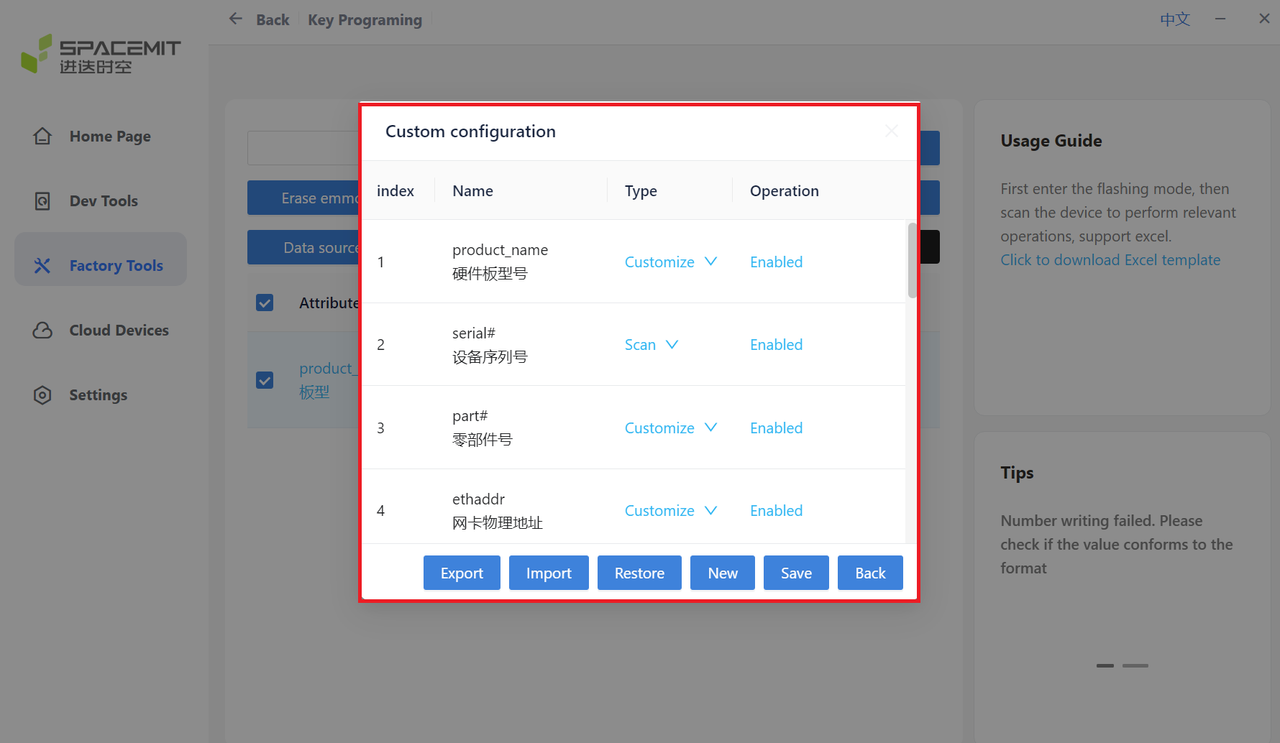
Enable the fields that need to be written; disable those not needed.
-
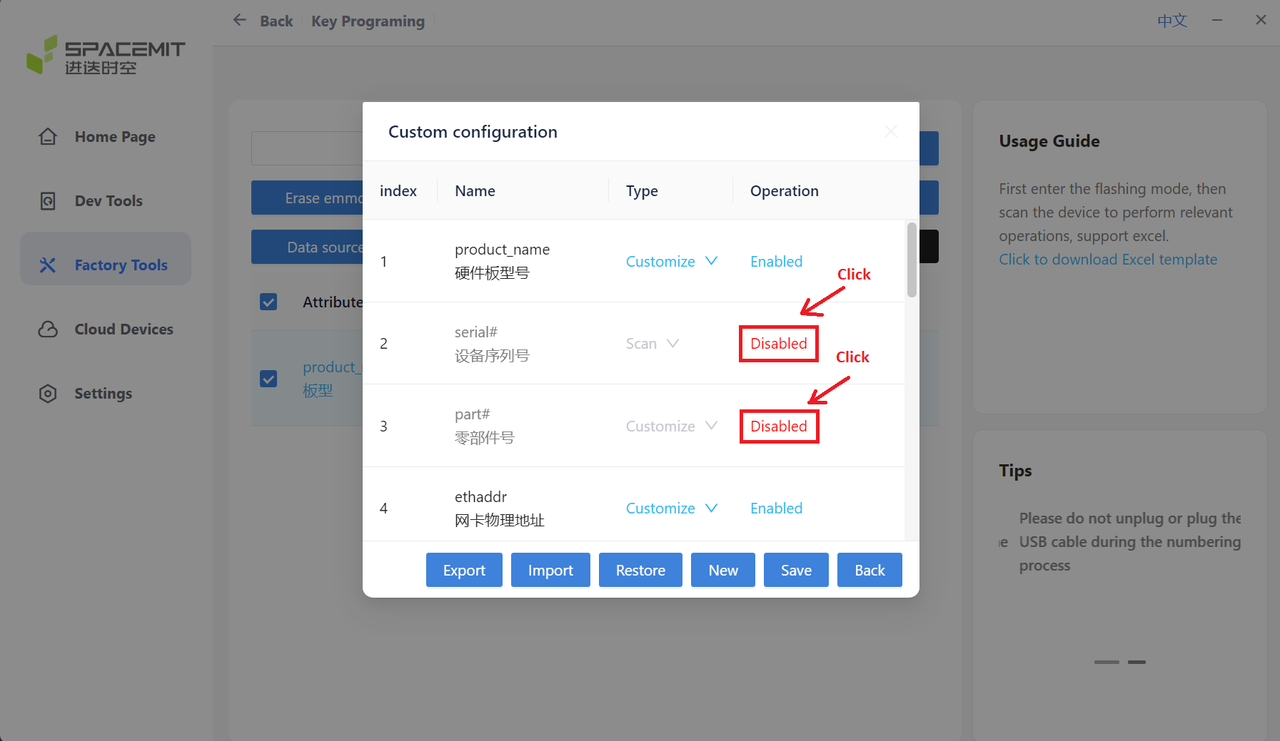
Choose Random or Custom.
-
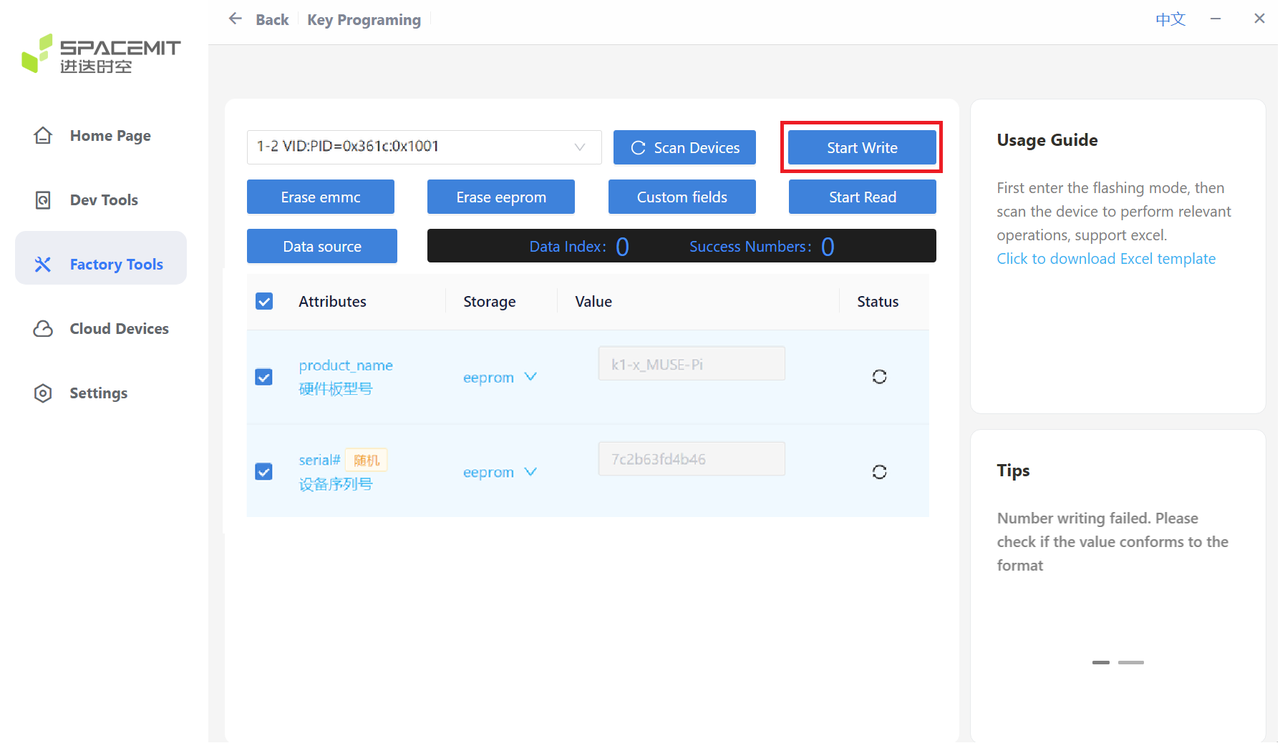
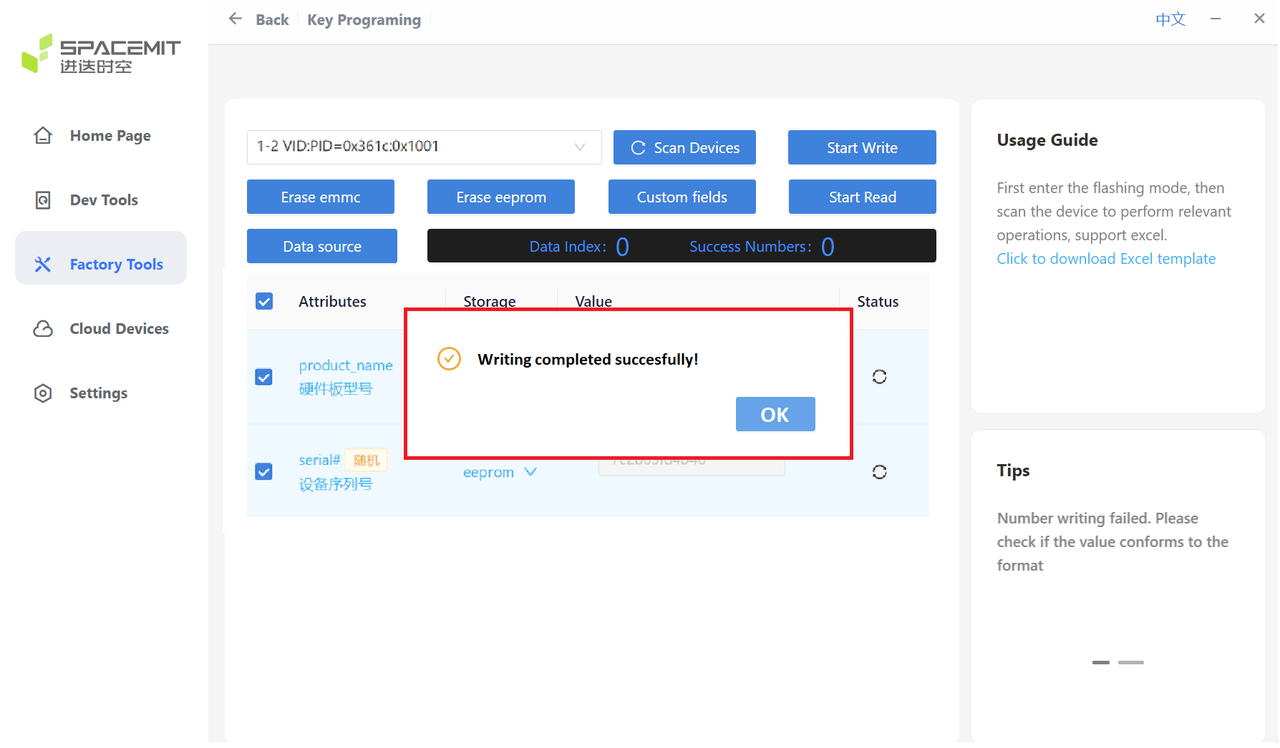
After configuration, click Start Write and wait for success.
6. Online Cloud Devices
This feature enables remote device management.
Click this option to open the login page:
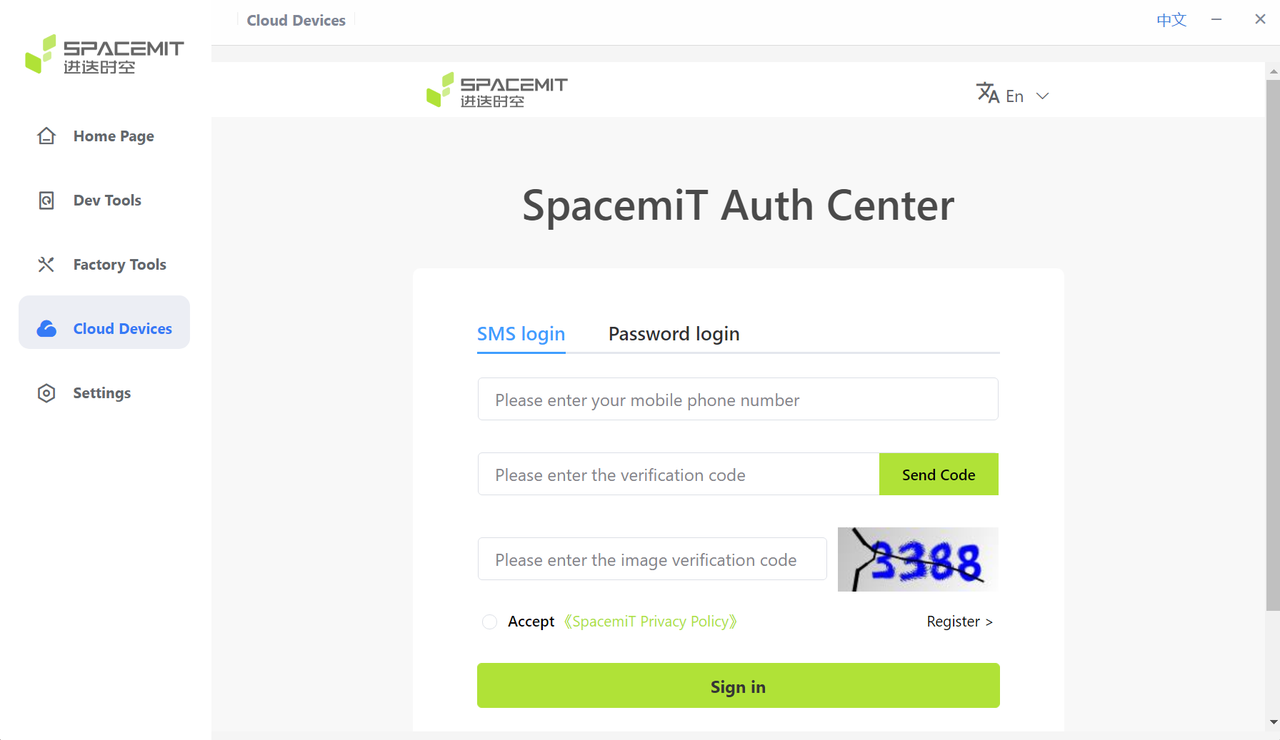
Note: This feature is under maintenance.
7. Settings
7.1 Basic Settings
Current Workspace
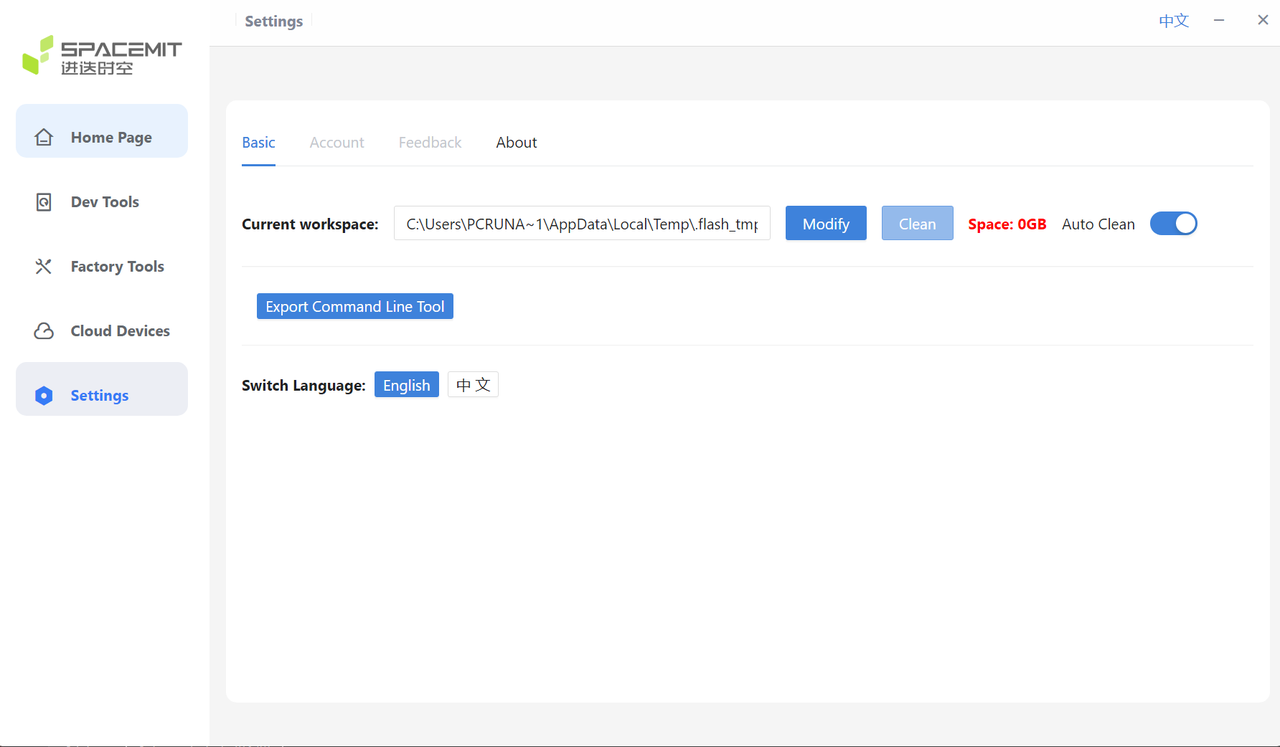
The highlighted area below shows the current workspace:
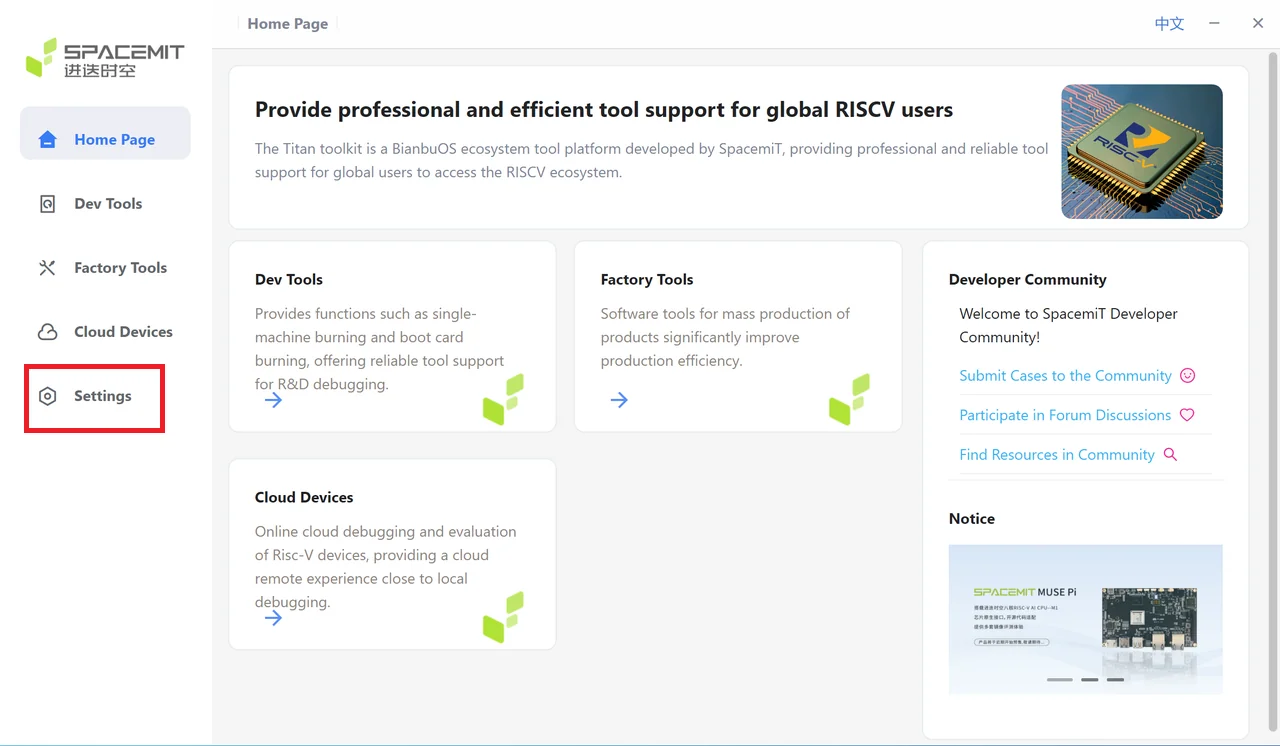
- To change the workspace, click Modify and select a new location.
Cleaning Workspace Storage
-
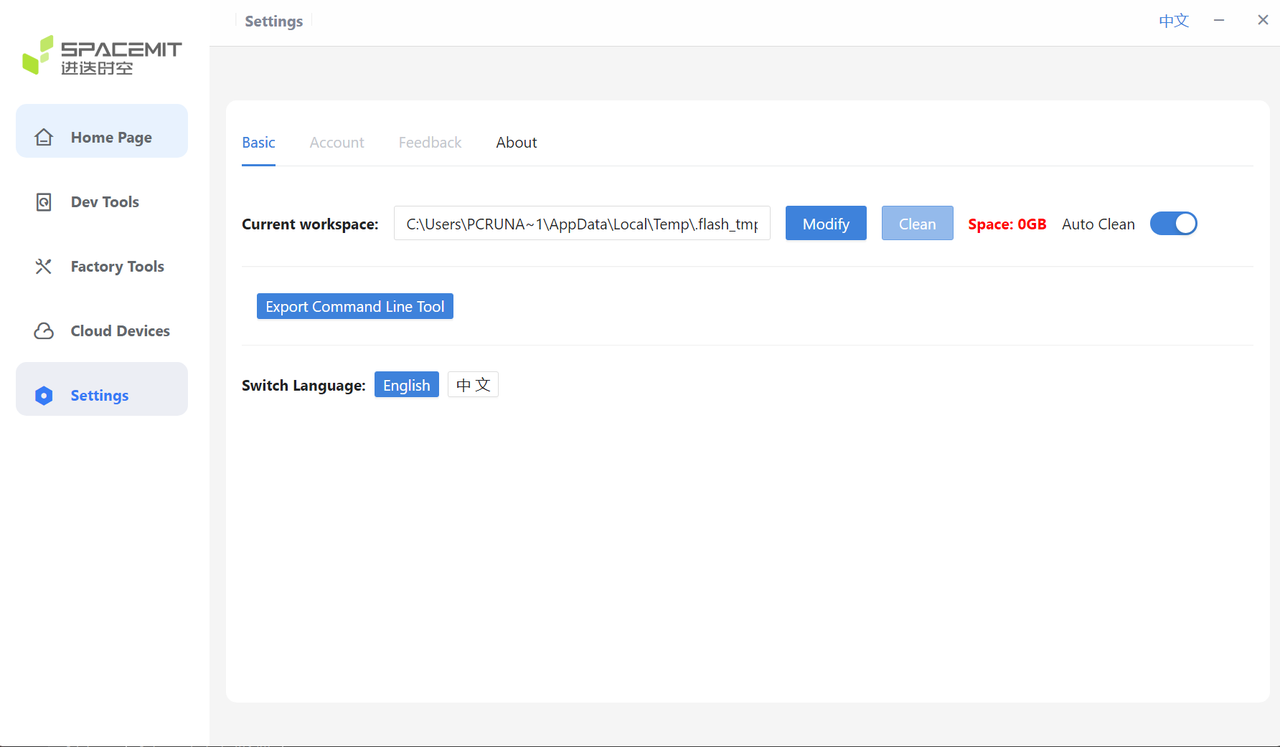
The highlighted area below displays the current storage usage of the workspace.
-
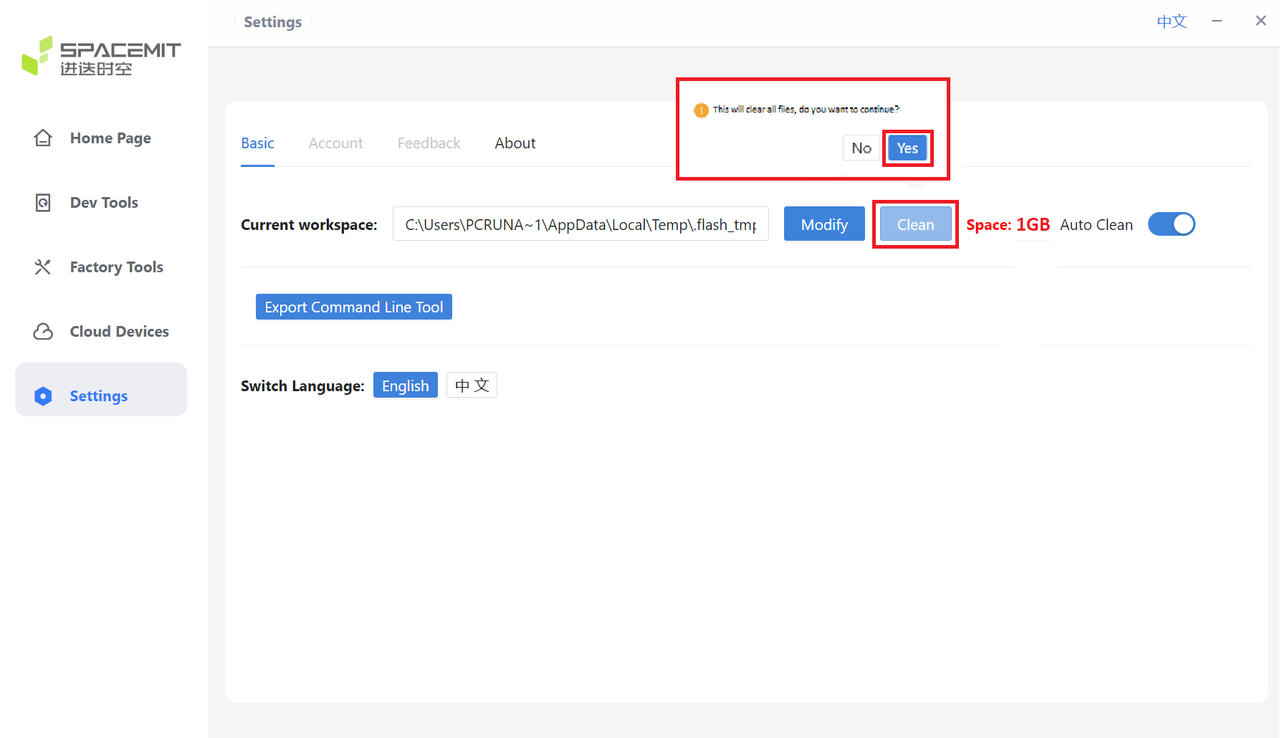
When you click Clean, a confirmation dialog appears. Click Yes to remove all files stored in the current workspace.
-
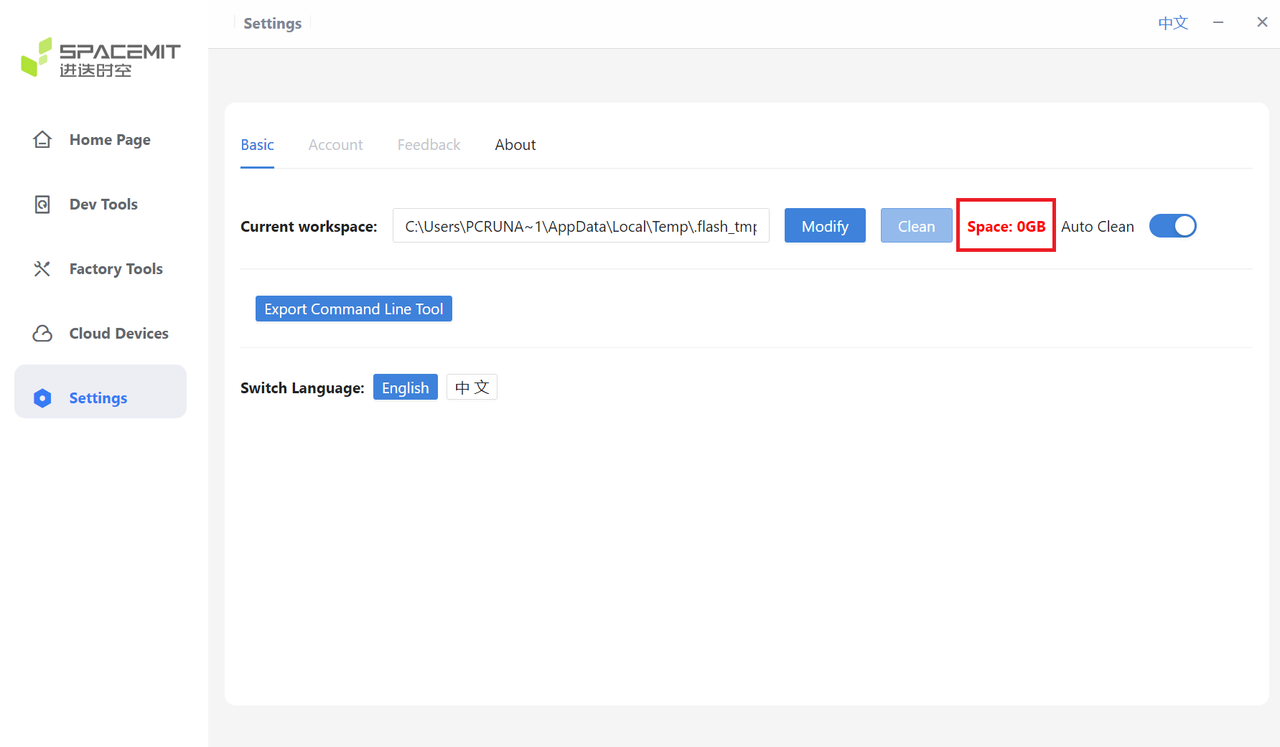
After cleaning, the workspace usage will show 0 GB.
Automatic Cleaning
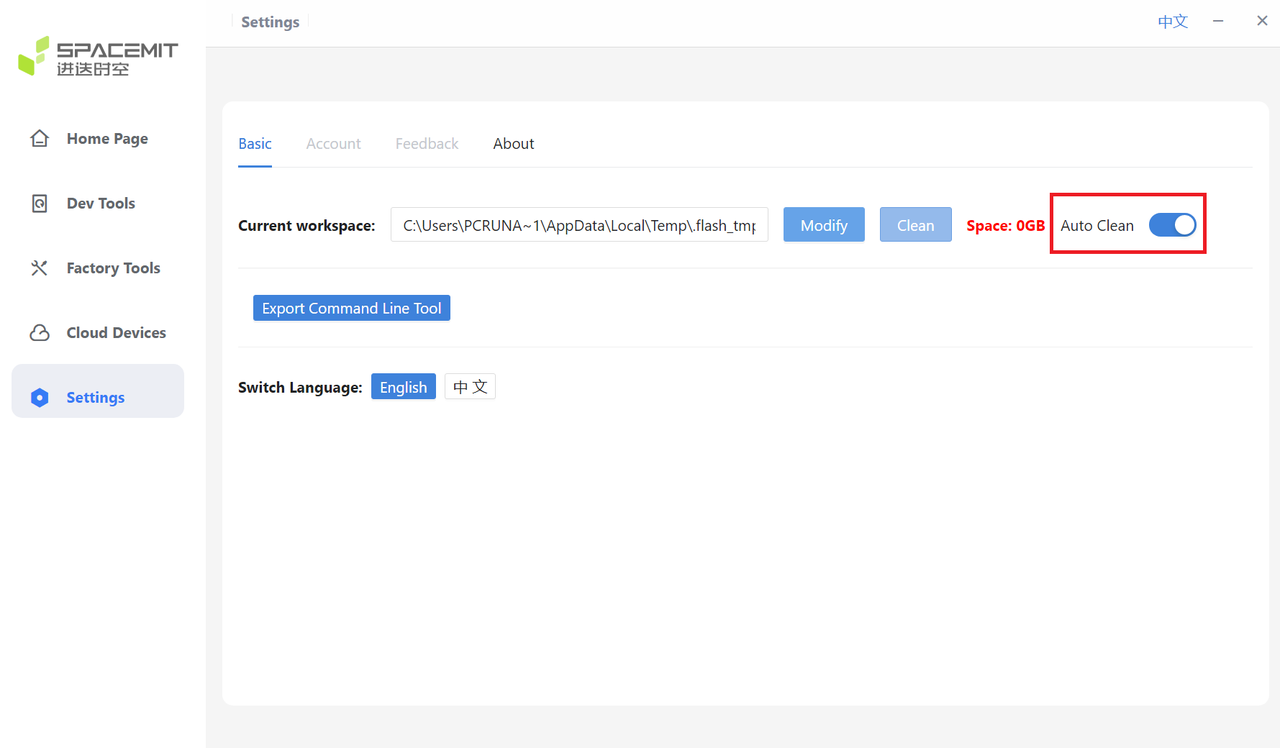
The Automatic Cleaning feature removes cached flashing files when the tool is closed.
- If this option is disabled, extracted flashing packages will remain in the workspace and may accumulate over time, consuming large amounts of disk space.
- When enabled, the tool automatically clears cached files on exit, preventing unnecessary disk usage.
Language Switching
Click English or 中文 to switch the tool’s display language.
7.2 About – Version Update
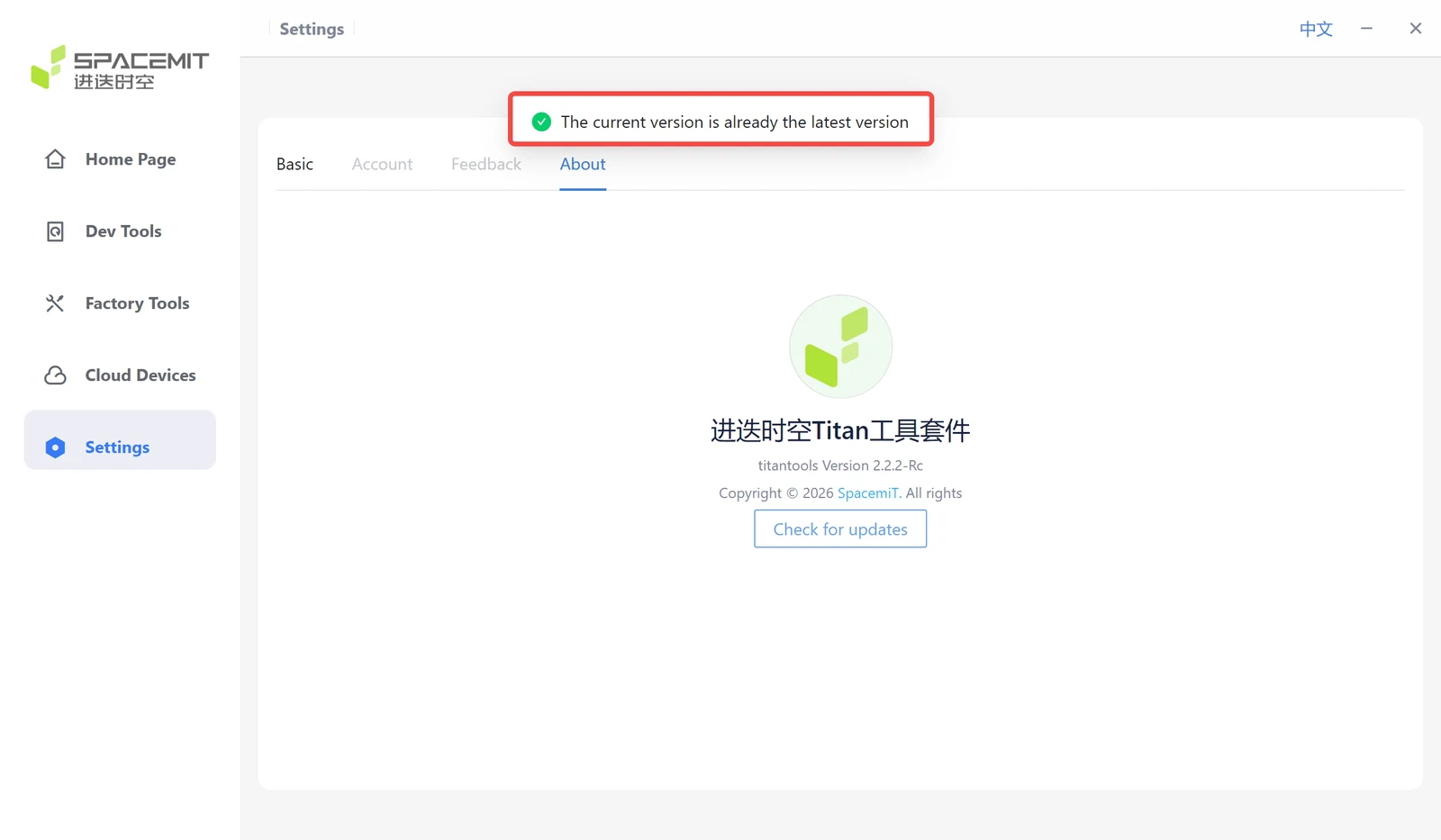
Click About to view the current version of the flashing tool suite.
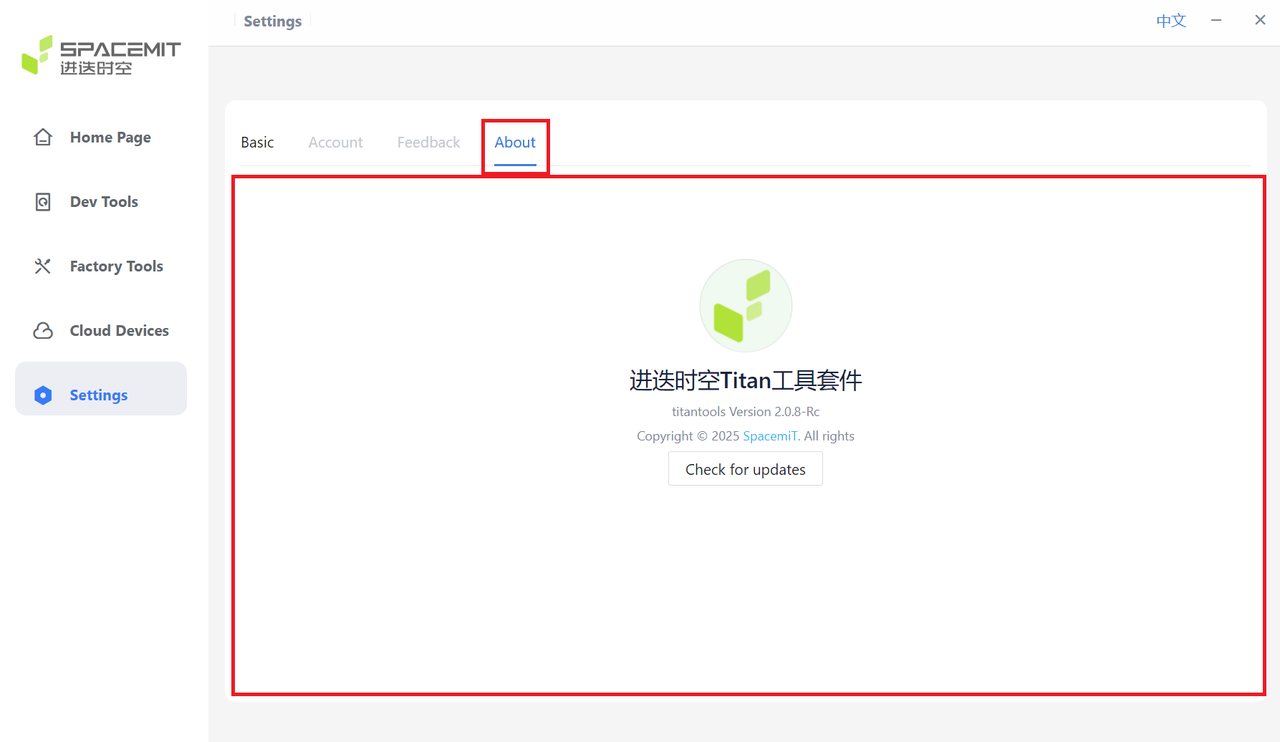
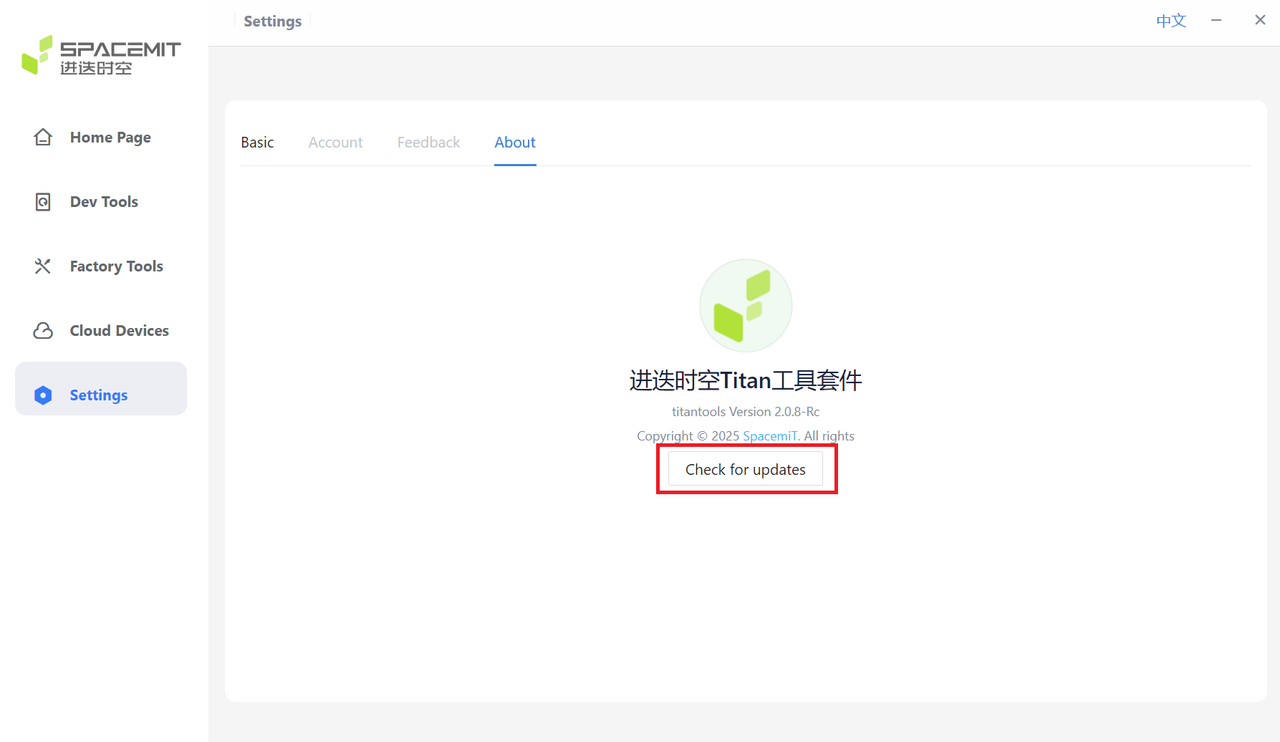
Click Check Update to verify whether the current version is up to date.
-
If an update is available, a message will appear: A new version is available. Please download the latest version!
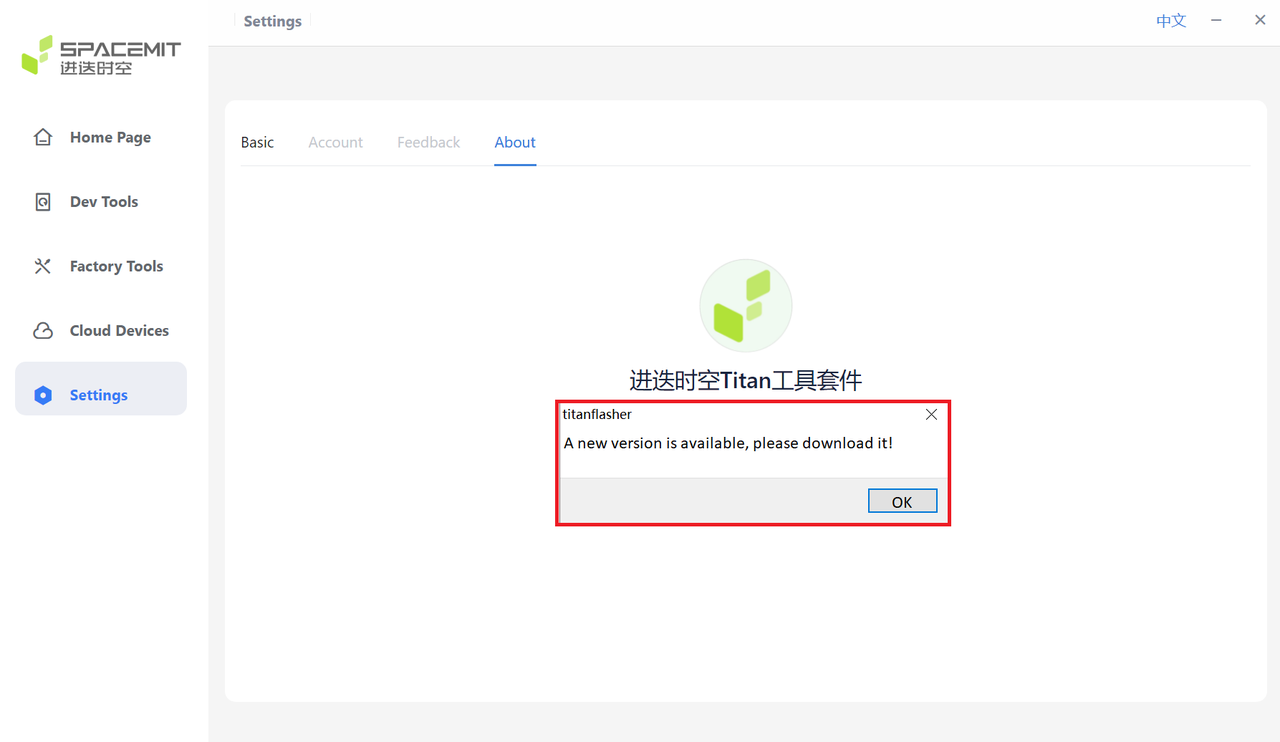
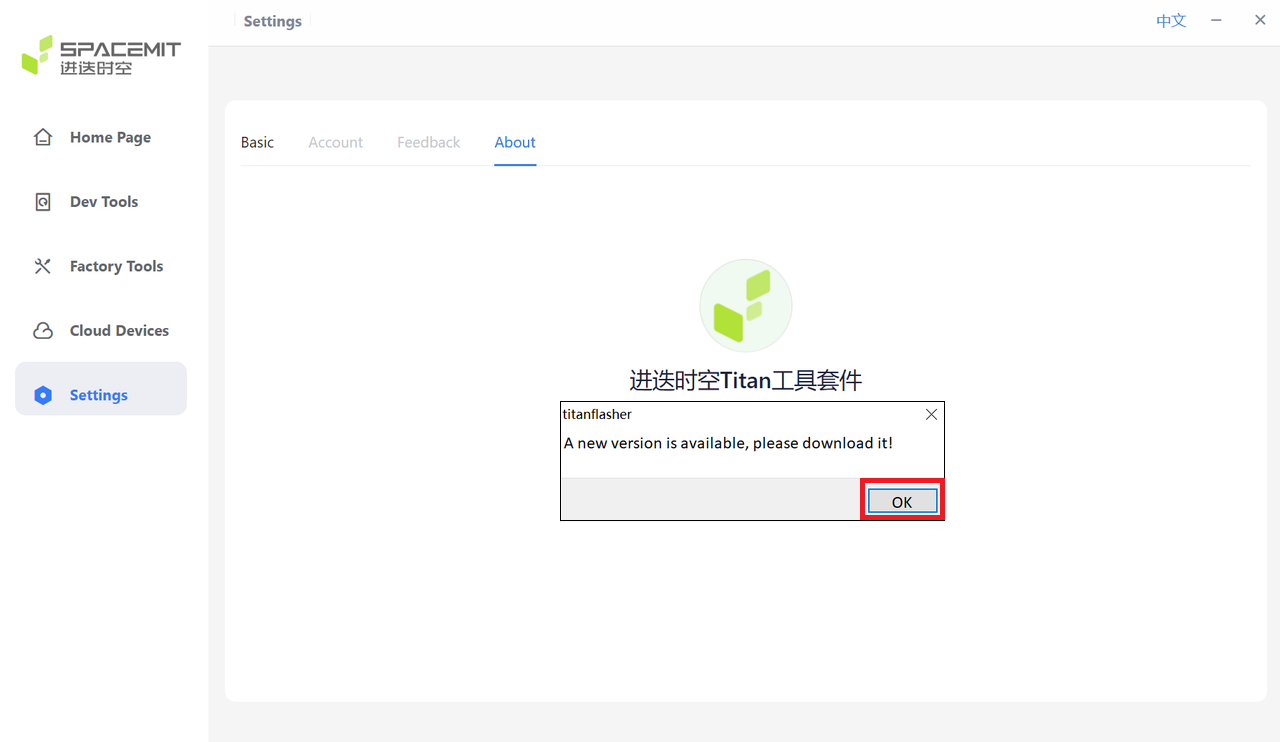
Click OK to start the update process.
-
If you are already using the latest version, the tool displays The current version is already the latest version.
8. Command-Line Flashing Tool (flashserver)
If the Titanflasher GUI is unavailable, or if users prefer a command-line-based flashing workflow, the flashserver tool can be used to perform firmware flashing operations.
flashserver provides a CLI-based flashing solution suitable for automated environments, remote terminals, and headless systems.
8.1 Obtaining flashserver
Method 1: Direct Download
Select the appropriate version for your operating system:
Method 2: Export from Titanflasher
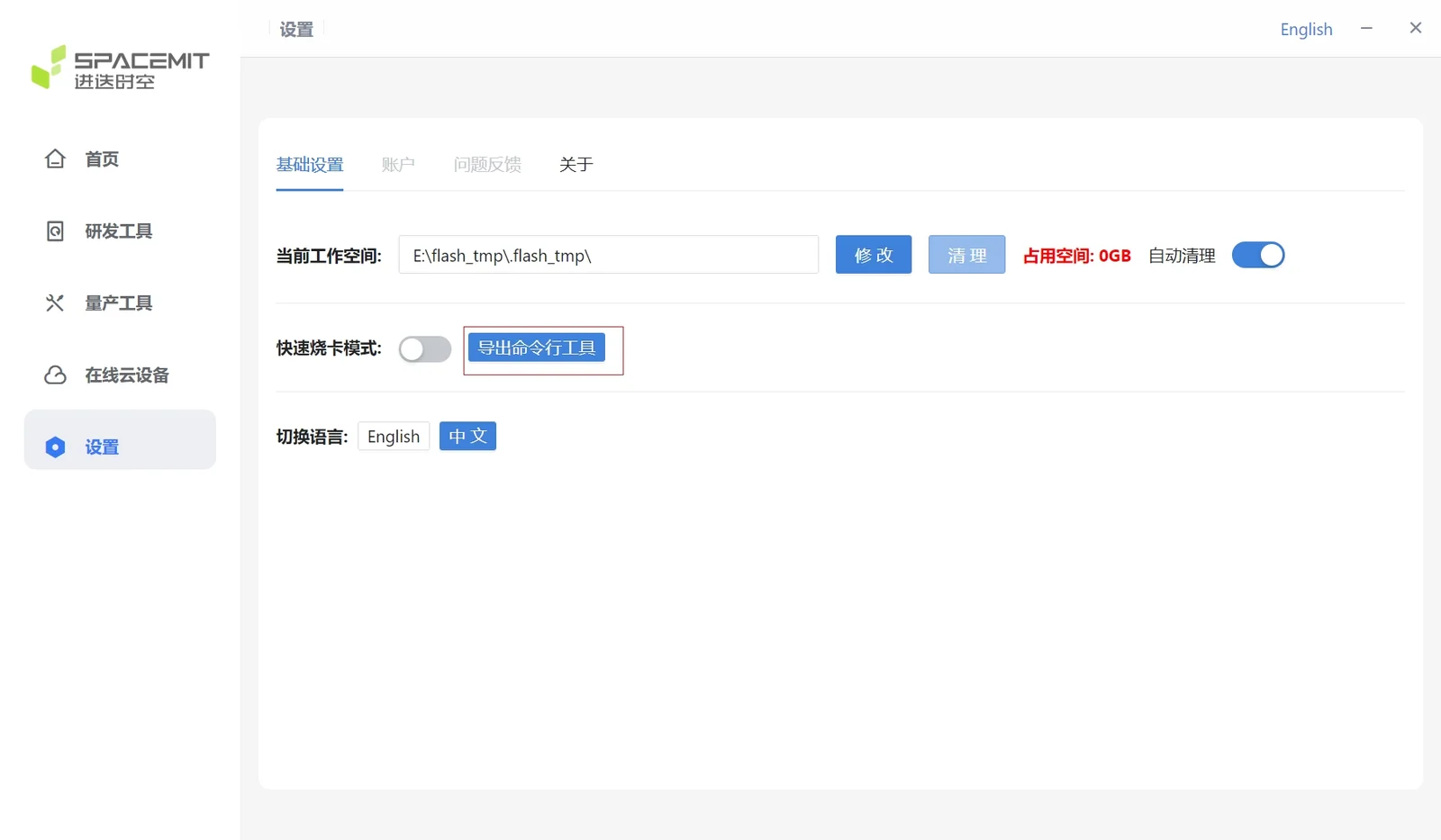
As shown below, open Settings in Titanflasher and click Export Command-Line Tool to obtain flashserver.
8.2 flashserver Flashing Procedure (Windows)
The flashserver workflow on macOS and Linux is generally the same as on Windows. You can follow the steps below as a reference.
-
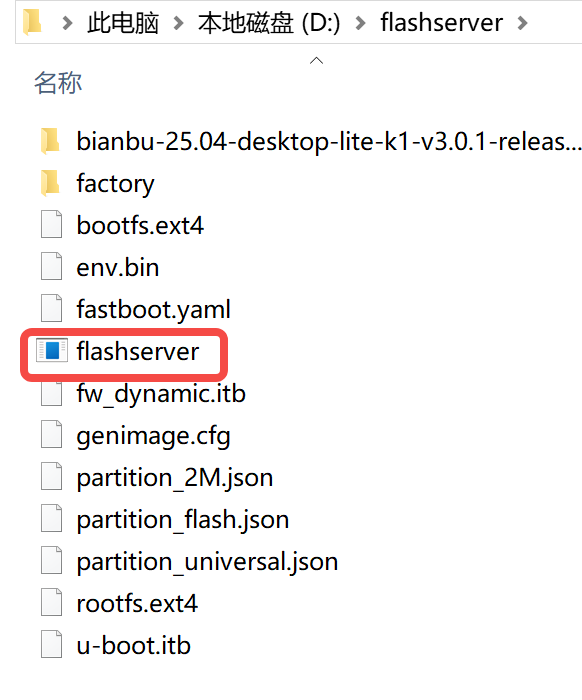
Place the downloaded flashserver executable in the flashing package directory, as shown below.
-
Connect the target development board or device.
For instructions on entering flashing mode, refer to the section Entering Flashing Mode.
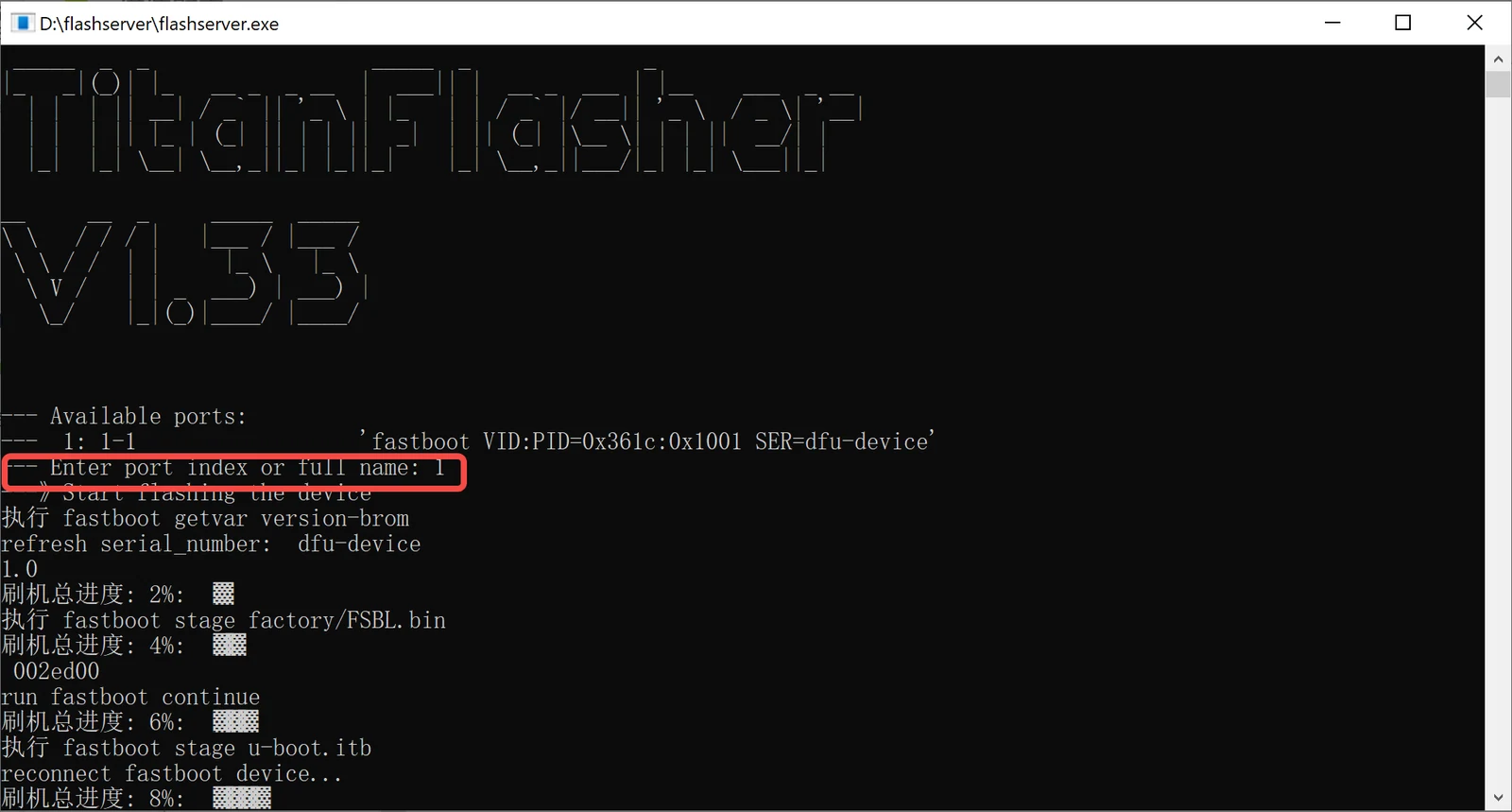
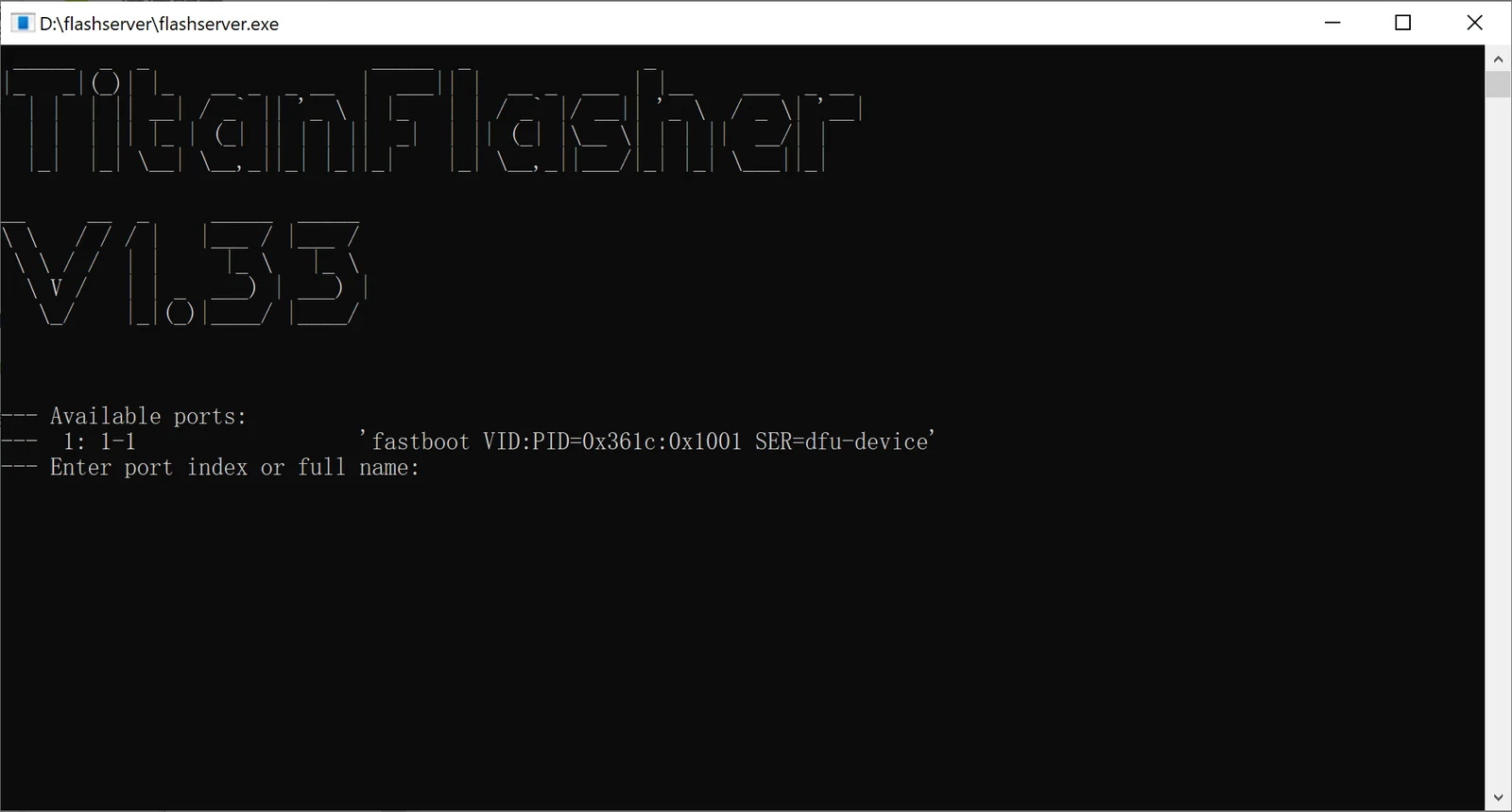
Double-click the flashserver executable to launch the tool. Once the device is successfully detected, the following command-line window appears.
-
At the prompt
--- Enter port index or full name:, enter the corresponding device number, for example1, to start flashing automatically.