VNC远程控制
VNC远程控制1、VNC Viewer1.1、VNC下载1.2、VNC 安装1.3、VNC使用2、系统设置(Jetson)2.1、开启桌面远程2.1.1、Sharing2.1.2、Remote Desktop2.1.3、Media Sharing2.1.4 Remote Login2.2、固定远程密码Passwords and Keys2.3、开机自启VNC桌面拓展管理3、VNC远程控制常见问题VNC远程显示重连重连现象解决方法VNC远程切换大小写
教程配置Ubuntu22.04系统自带的屏幕共享进行VNC远程。
Windows电脑需要提前下载和安装VNC Viewer且被远程设备和远程设备在同一局域网
1、VNC Viewer
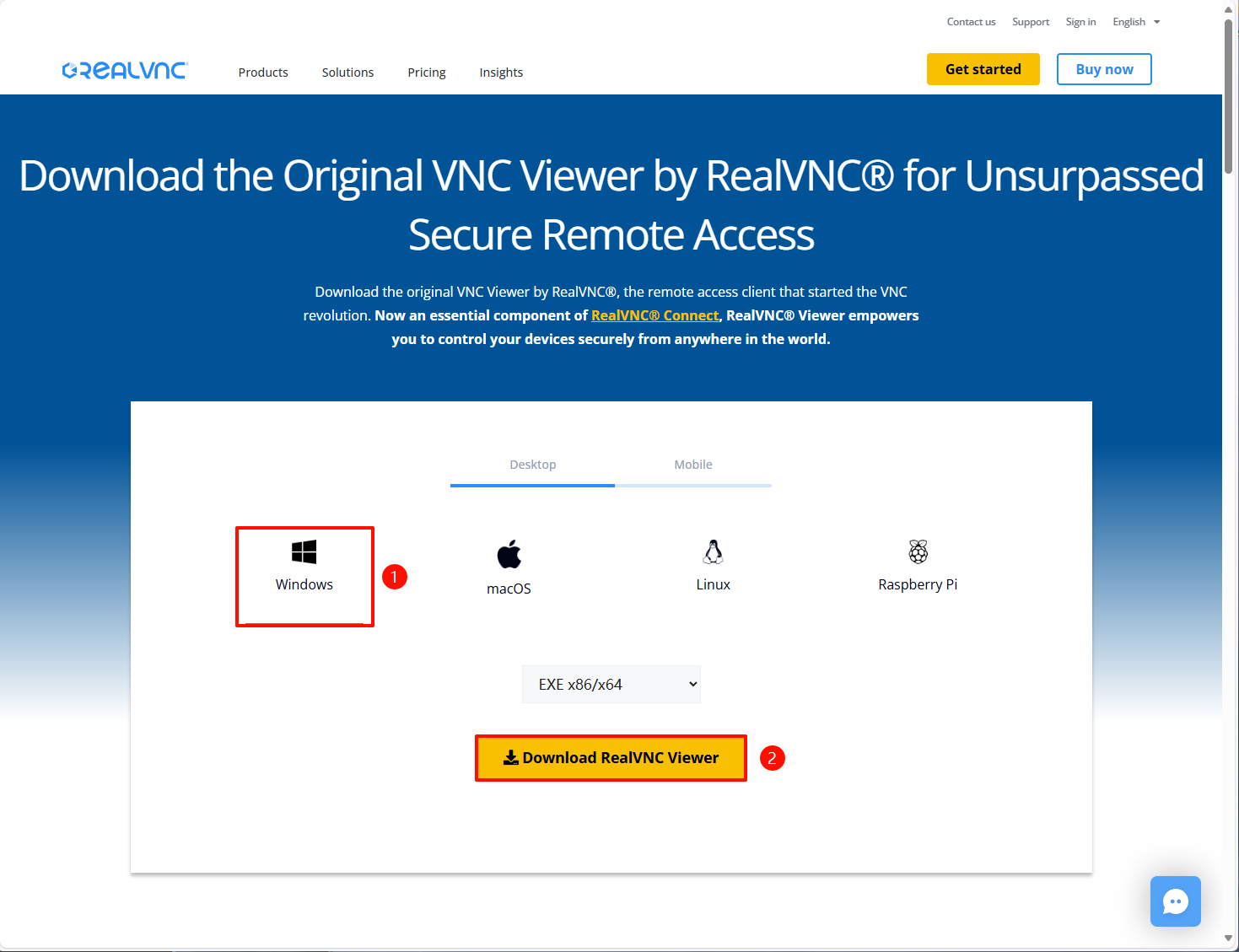
1.1、VNC下载
官网下载网址:https://www.realvnc.com/en/connect/download/viewer/
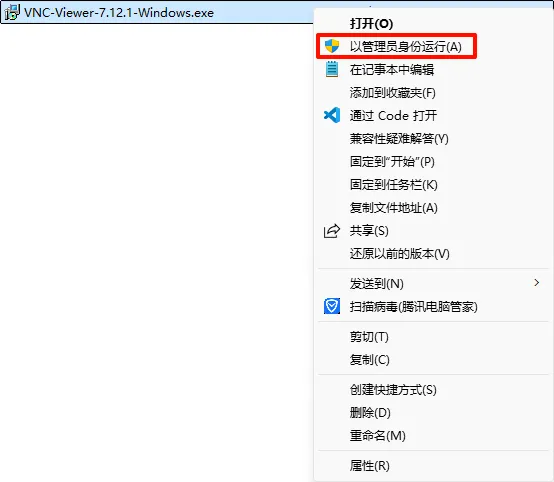
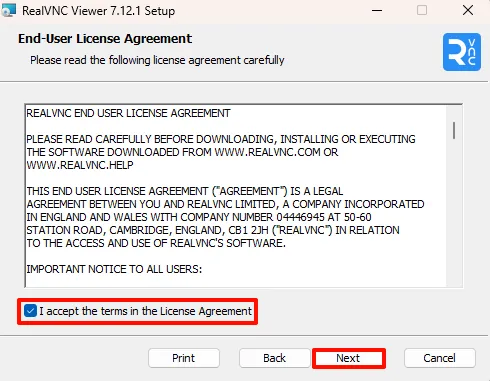
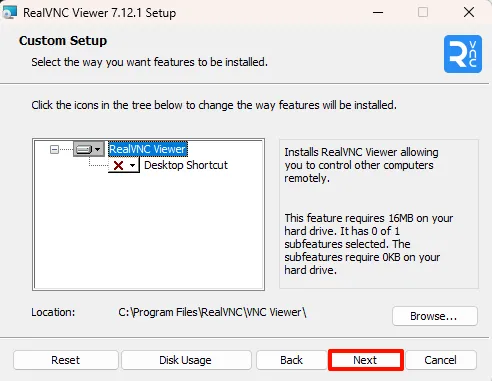
1.2、VNC 安装
以管理员身份运行VNC-Viewer-xxx.exe:




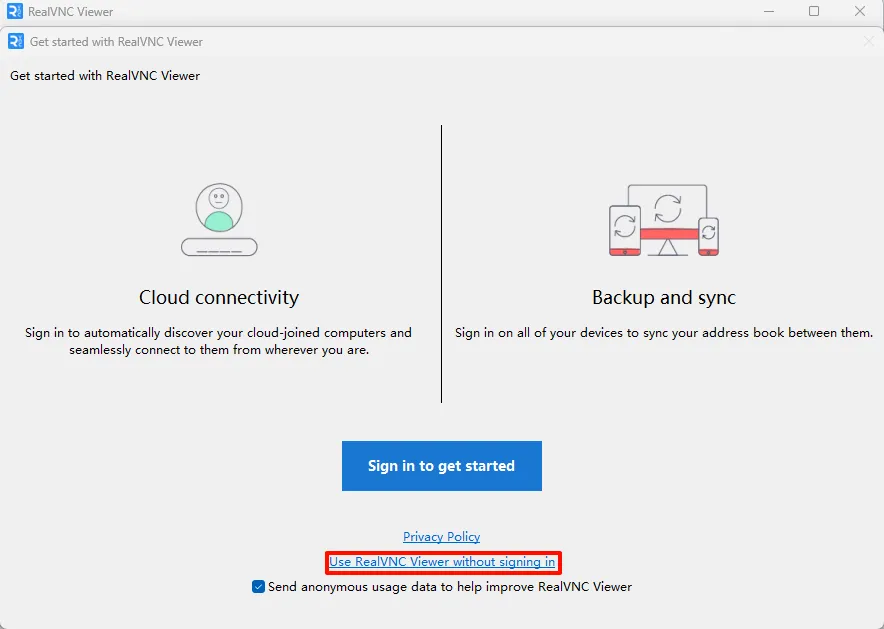
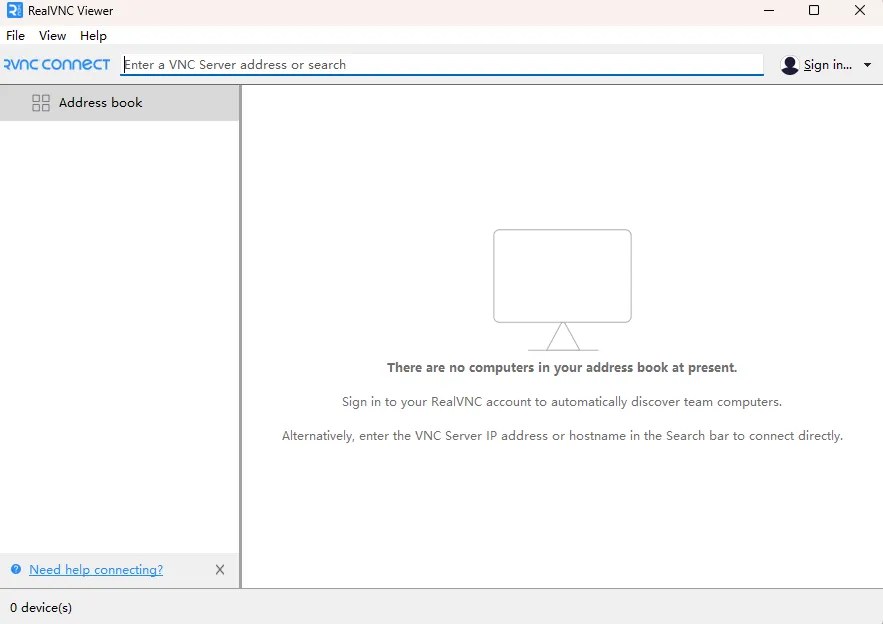
1.3、VNC使用
2、系统设置(Jetson)
2.1、开启桌面远程
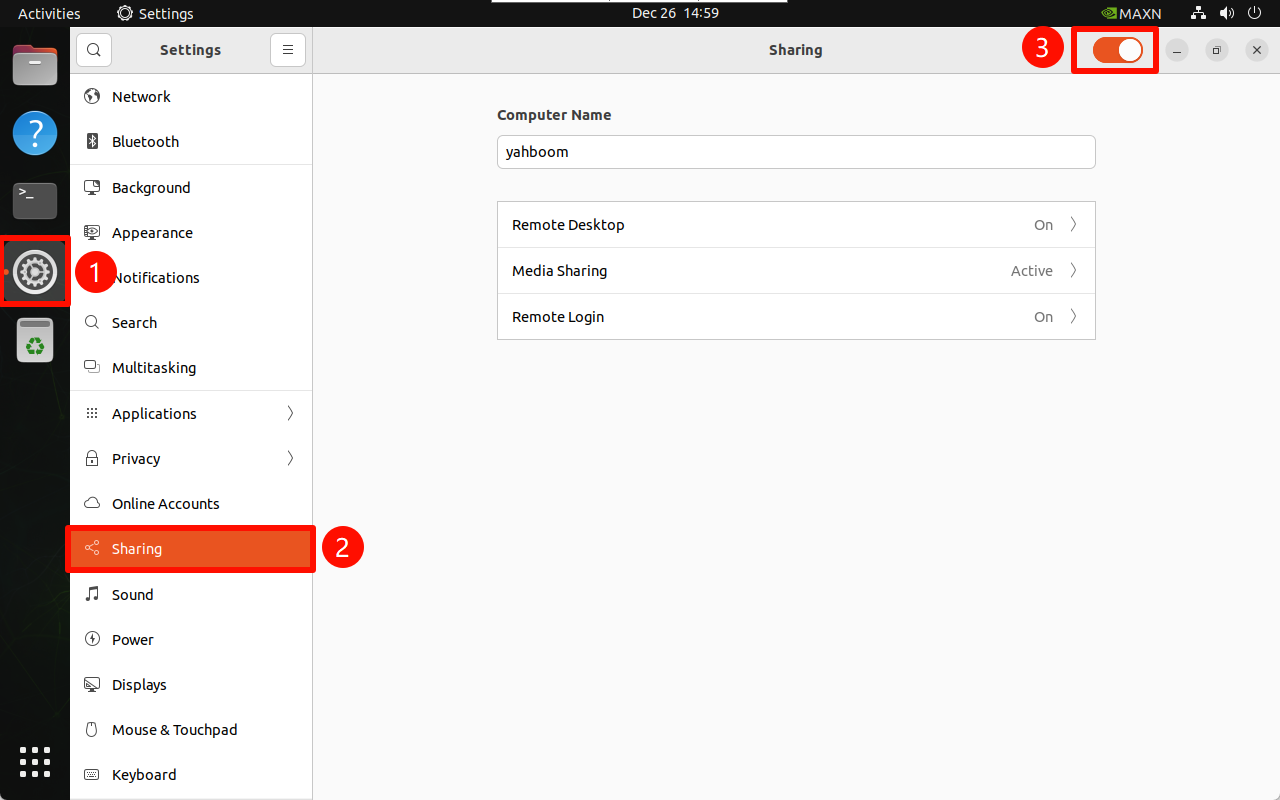
2.1.1、Sharing
Settings → Sharing
2.1.2、Remote Desktop
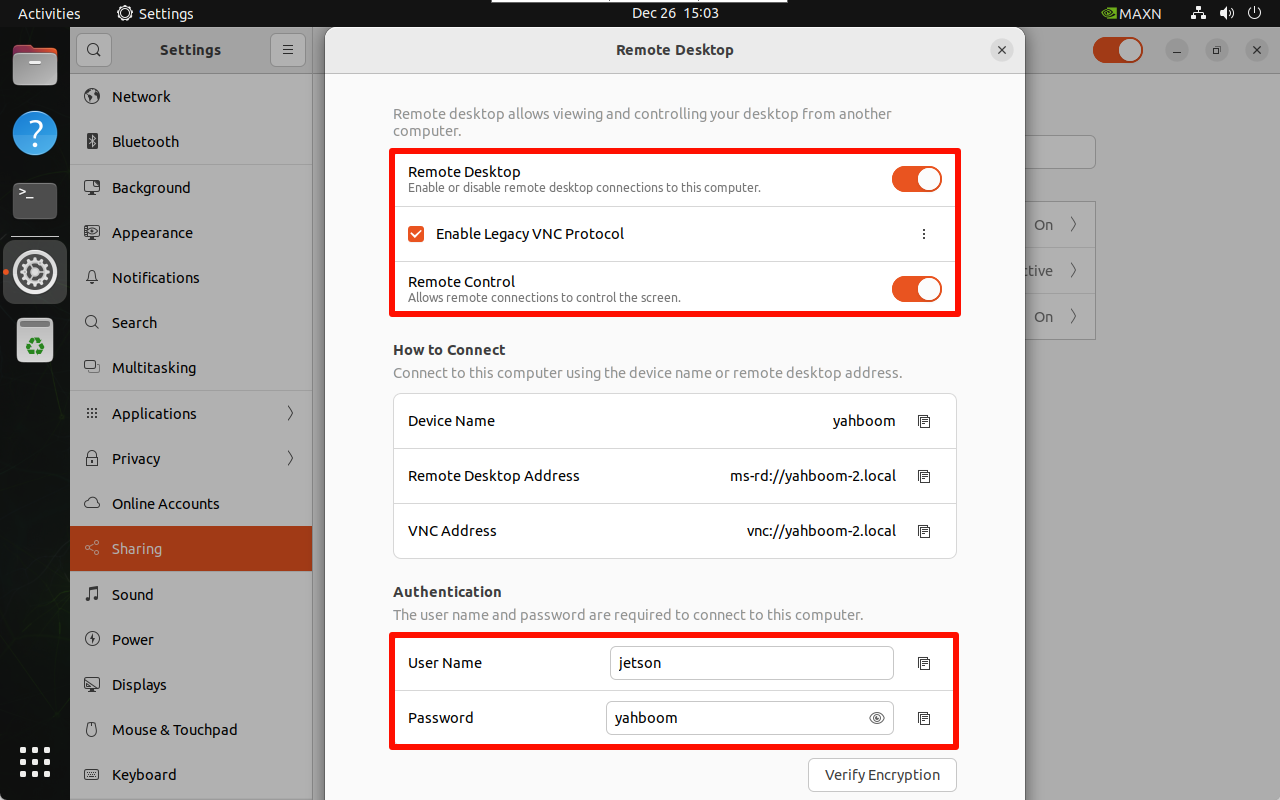
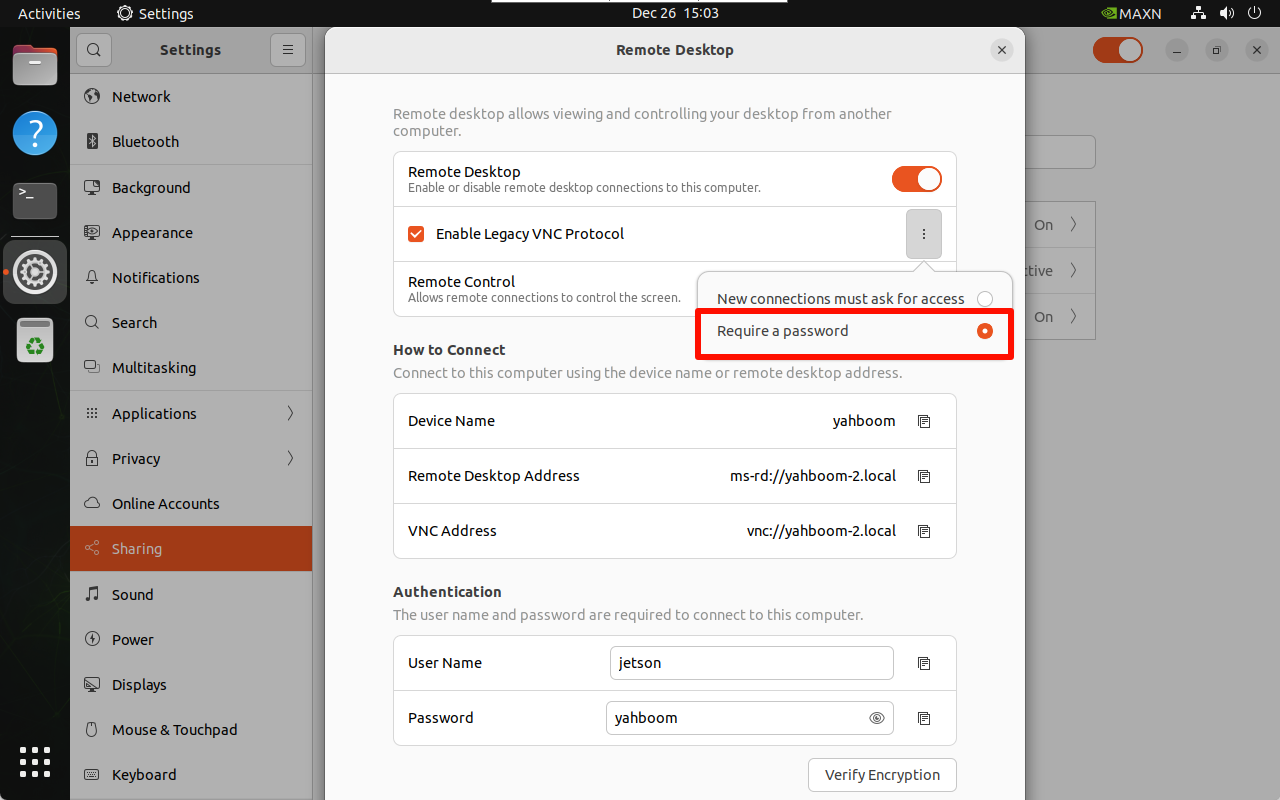
将远程桌面开关和使能传统VNC协议(需要勾选需要密码):访问密码可以自行修改!
2.1.3、Media Sharing
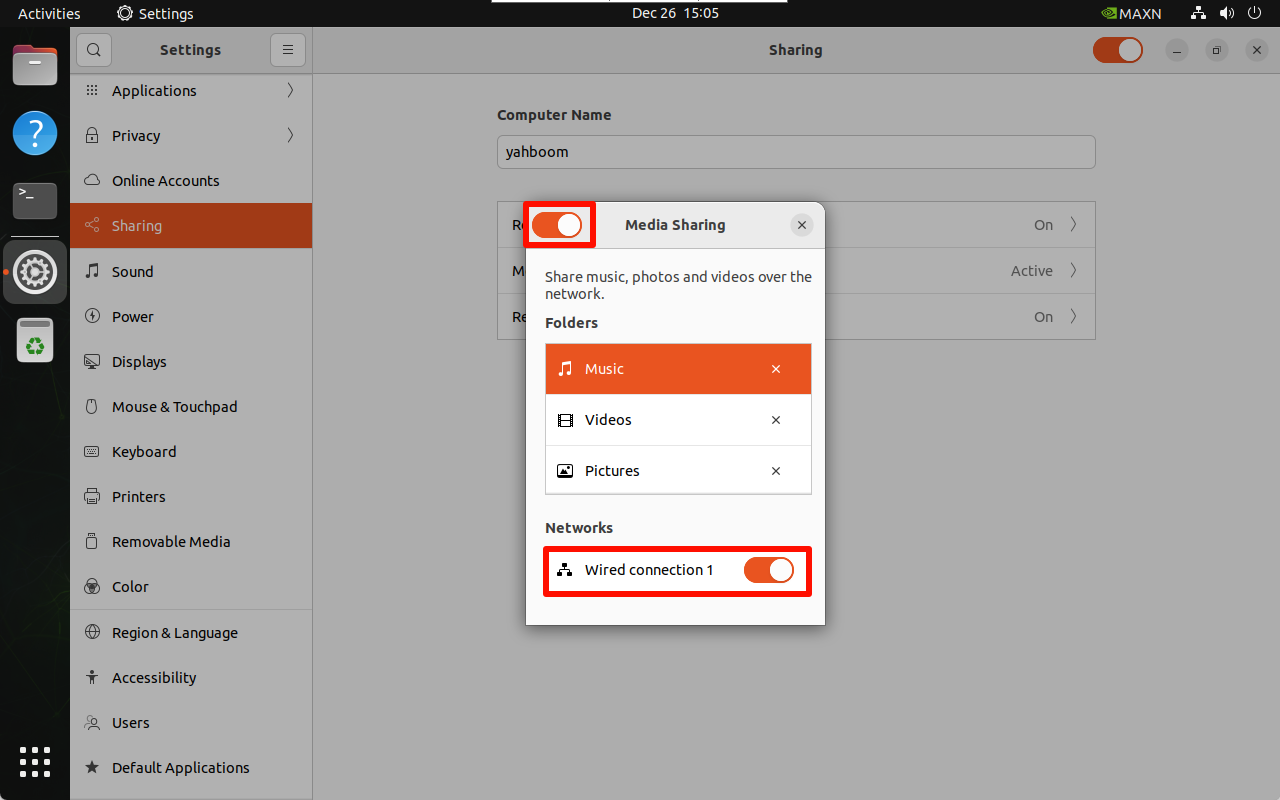
每次切换网络都需要检查该选项,将新网络的开关打开:
2.1.4 Remote Login
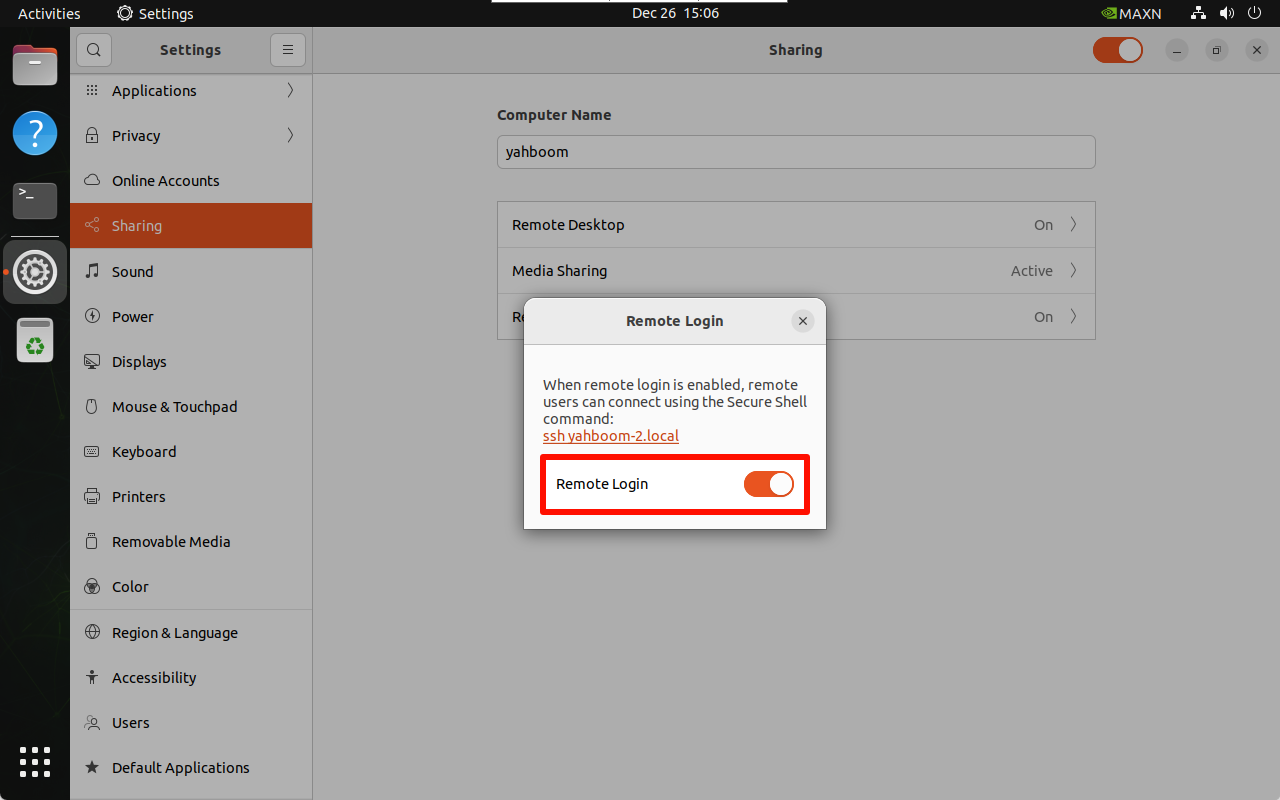
开启远程登录:
2.2、固定远程密码
只完成上面的设置就可以进行VNC远程,但是Jetson主板的访问密码每次重启都会变化,固定密码需要按照下面操作!
Passwords and Keys
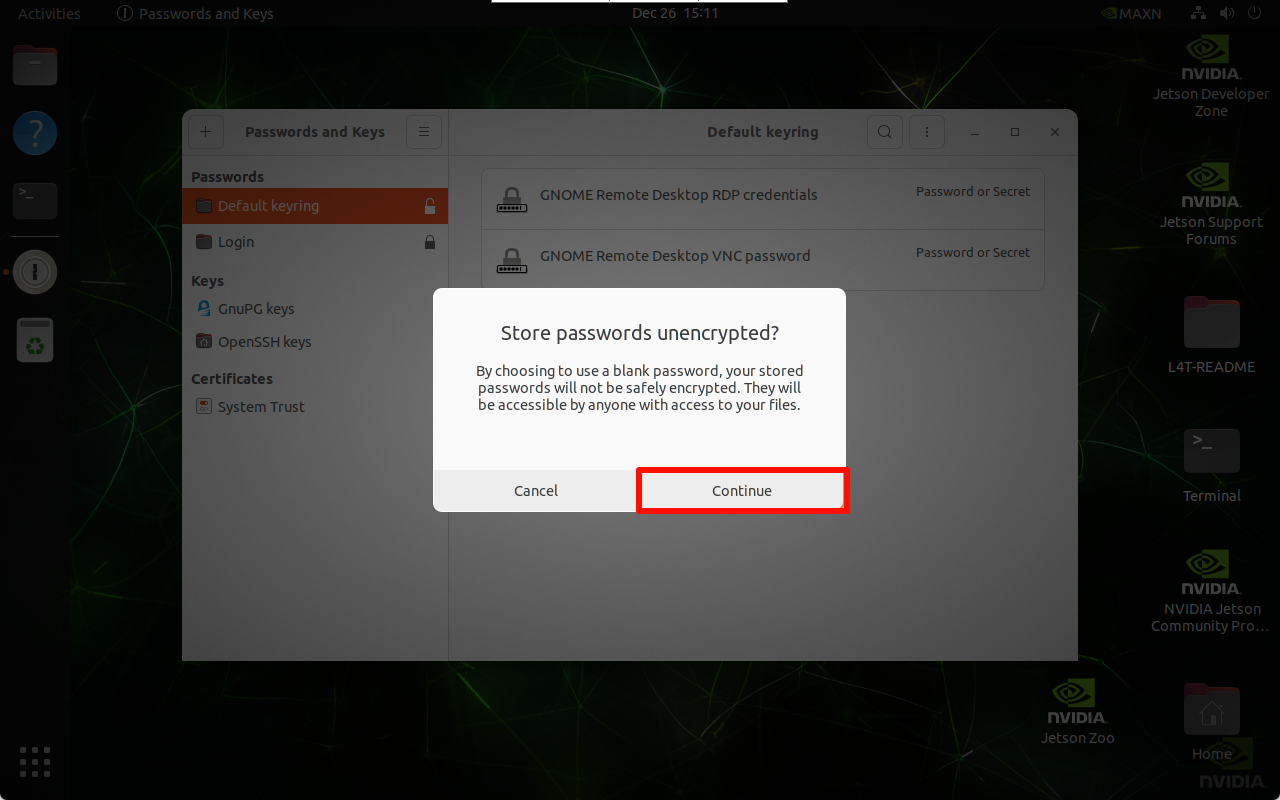
进入Passwords and Keys设置无密钥:
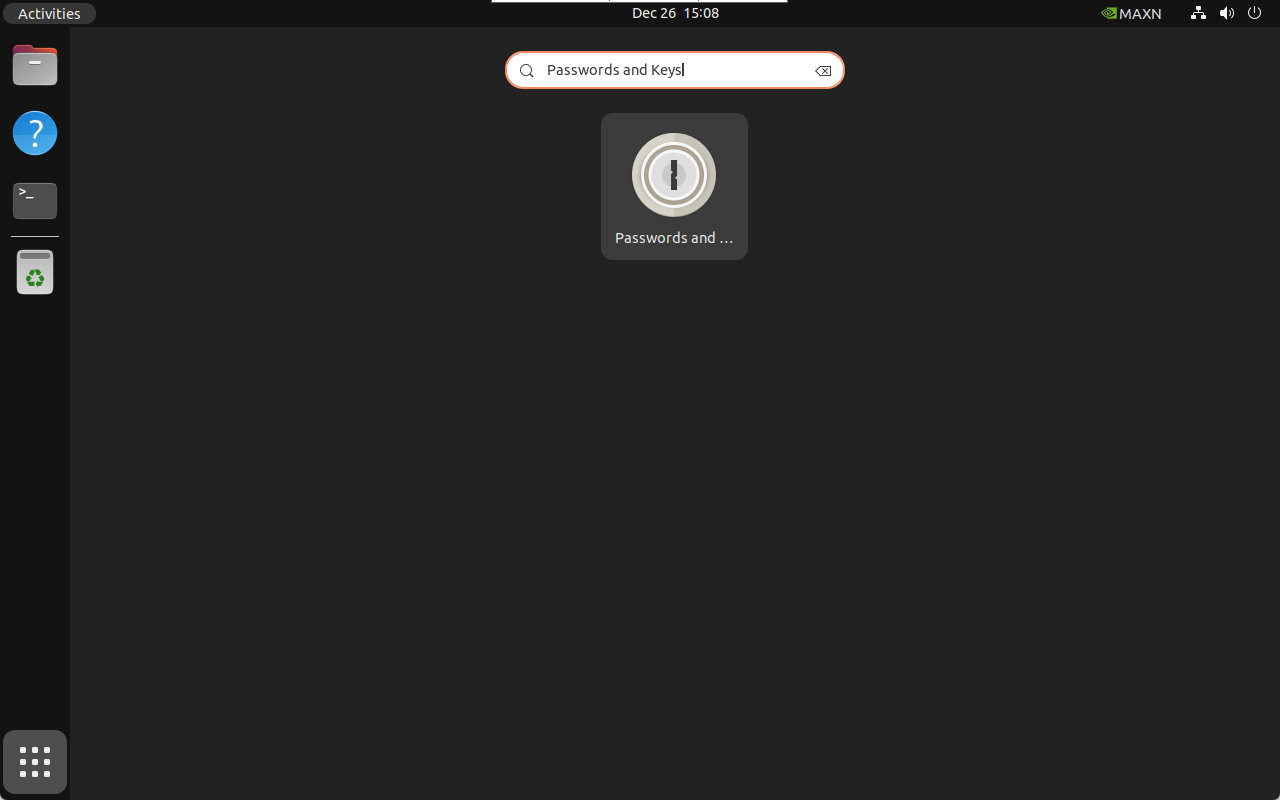
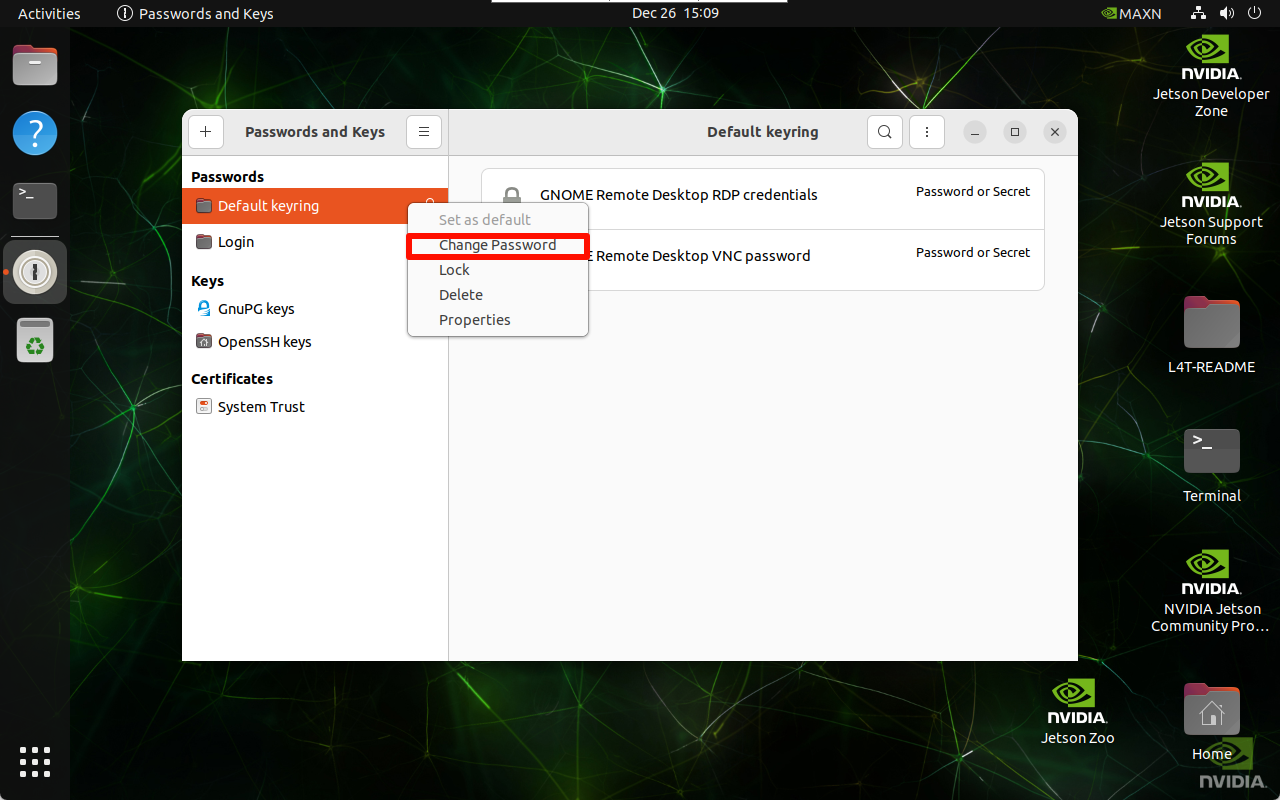
选择默认密钥进行密码修改:
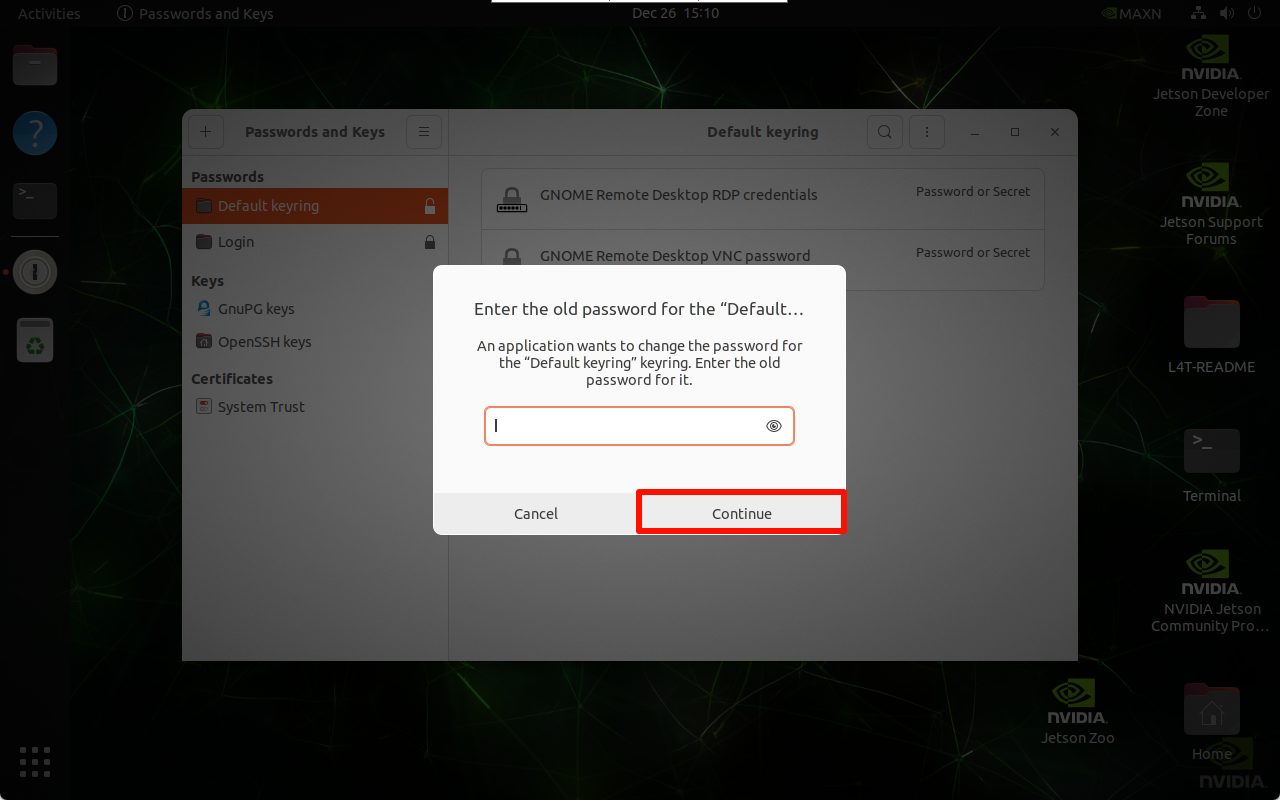
输入当前密码:
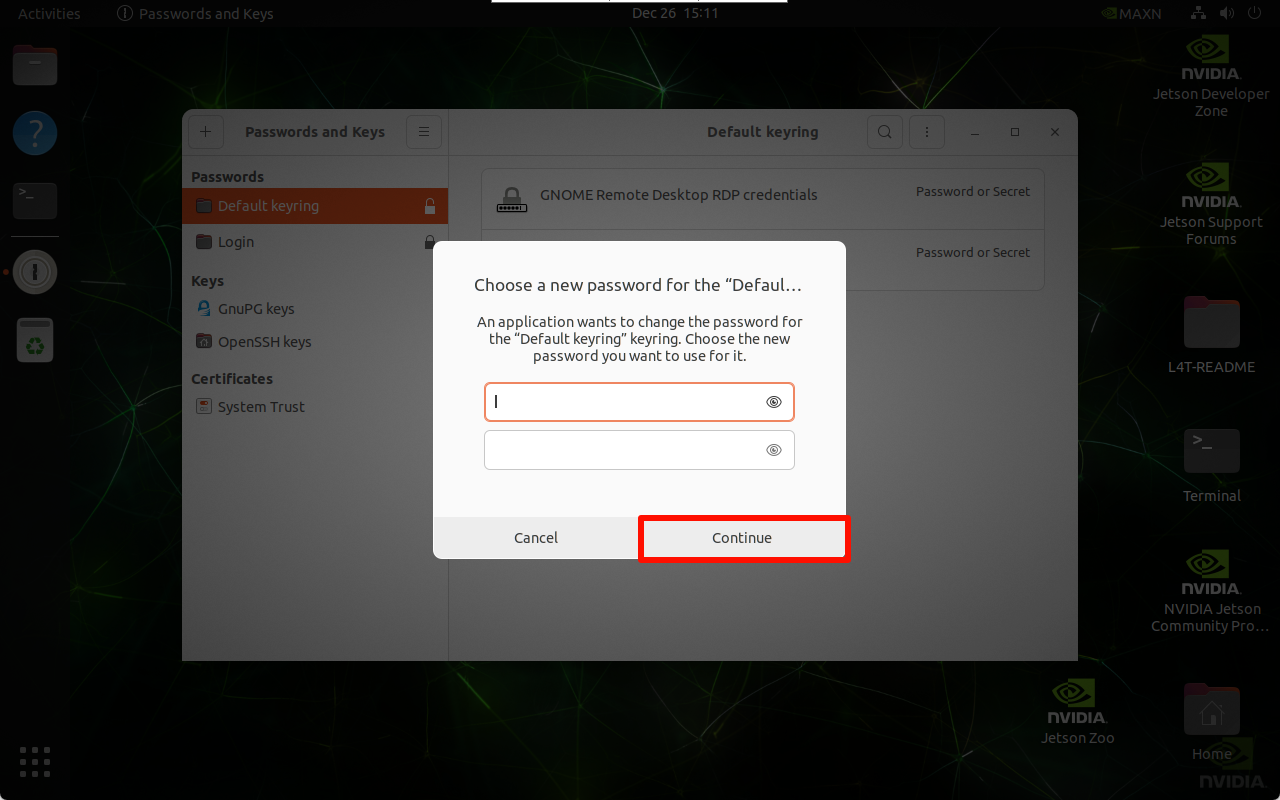
设置空密钥:不填写任何内容进行提交
2.3、开机自启VNC
完成上面操作后,Jetson主板锁屏后无法进行VNC远程,我们可以按照下面操作解决锁屏远程问题。
桌面拓展管理
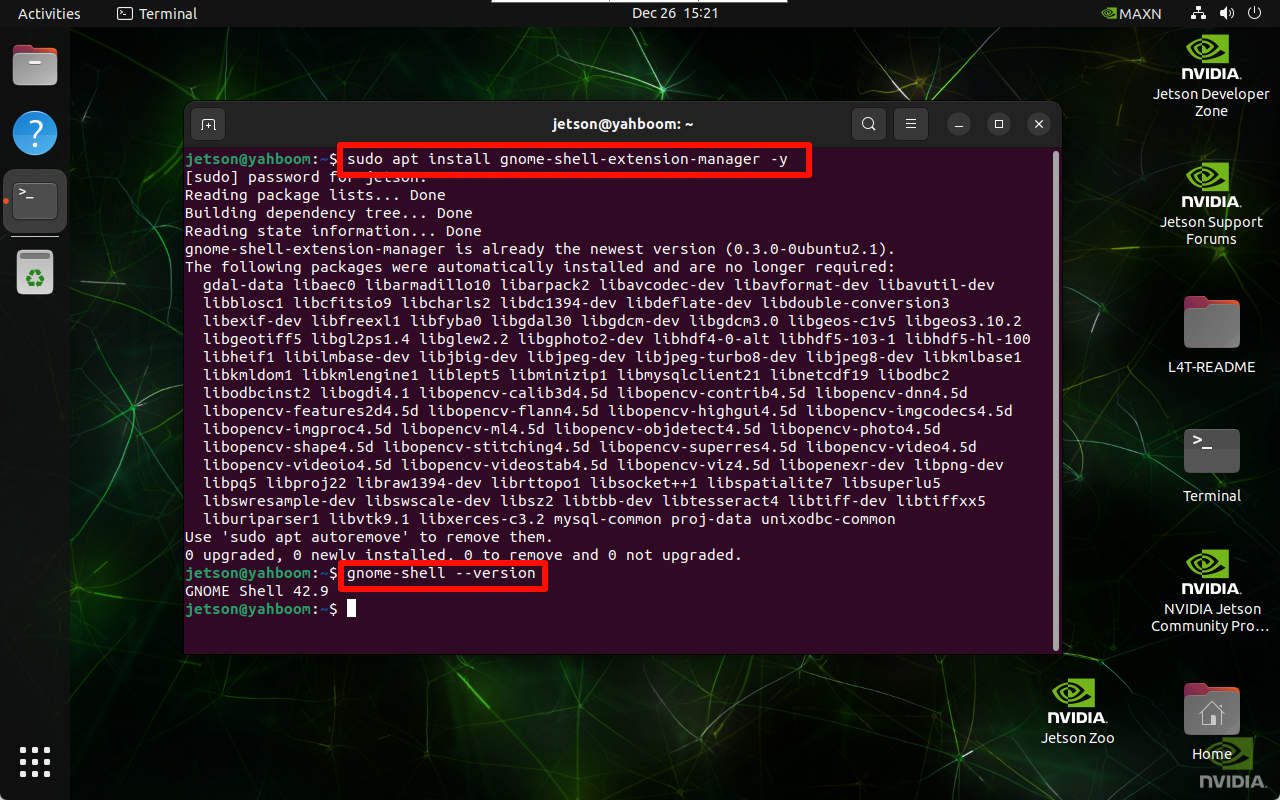
安装桌面拓展管理:
xxxxxxxxxx sudo apt install gnome-shell-extension-manager -y
获取gnome-shell版本号:
xxxxxxxxxx gnome-shell --version
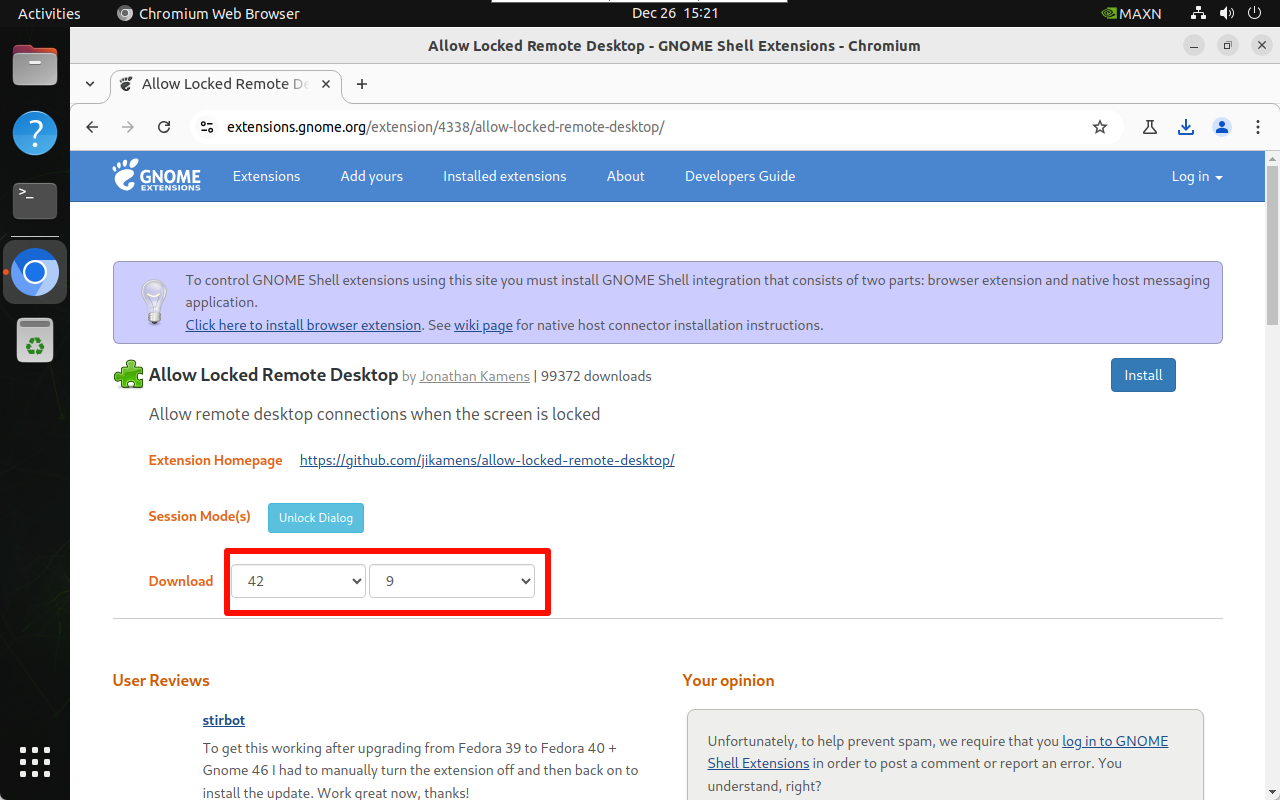
根据版本号下载允许锁屏下远程的插件:
xxxxxxxxxx 官网网址:https://extensions.gnome.org/extension/4338/allow-locked-remote-desktop/
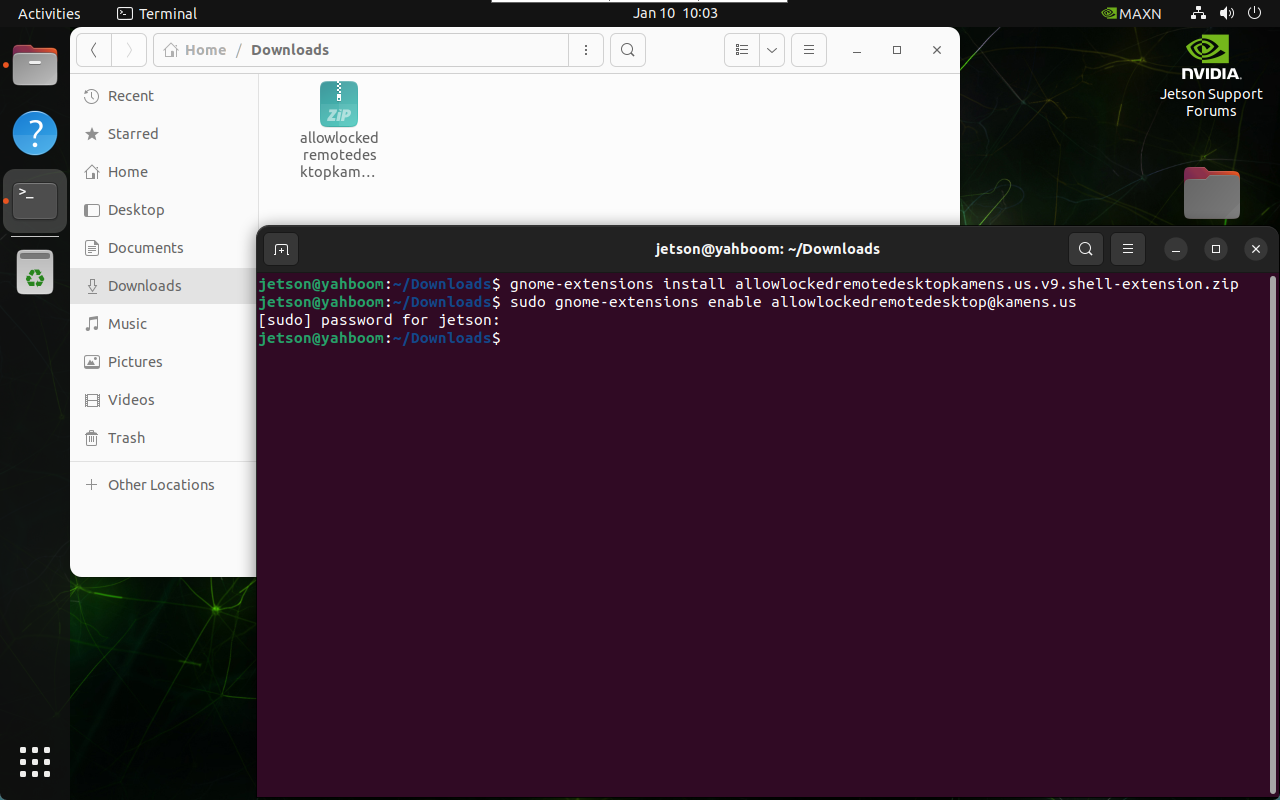
安装/使能插件:用户需进入文件所在位置安装
xxxxxxxxxx gnome-extensions install allowlockedremotedesktopkamens.us.v9.shell-extension.zip xxxxxxxxxx sudo gnome-extensions enable allowlockedremotedesktop@kamens.us
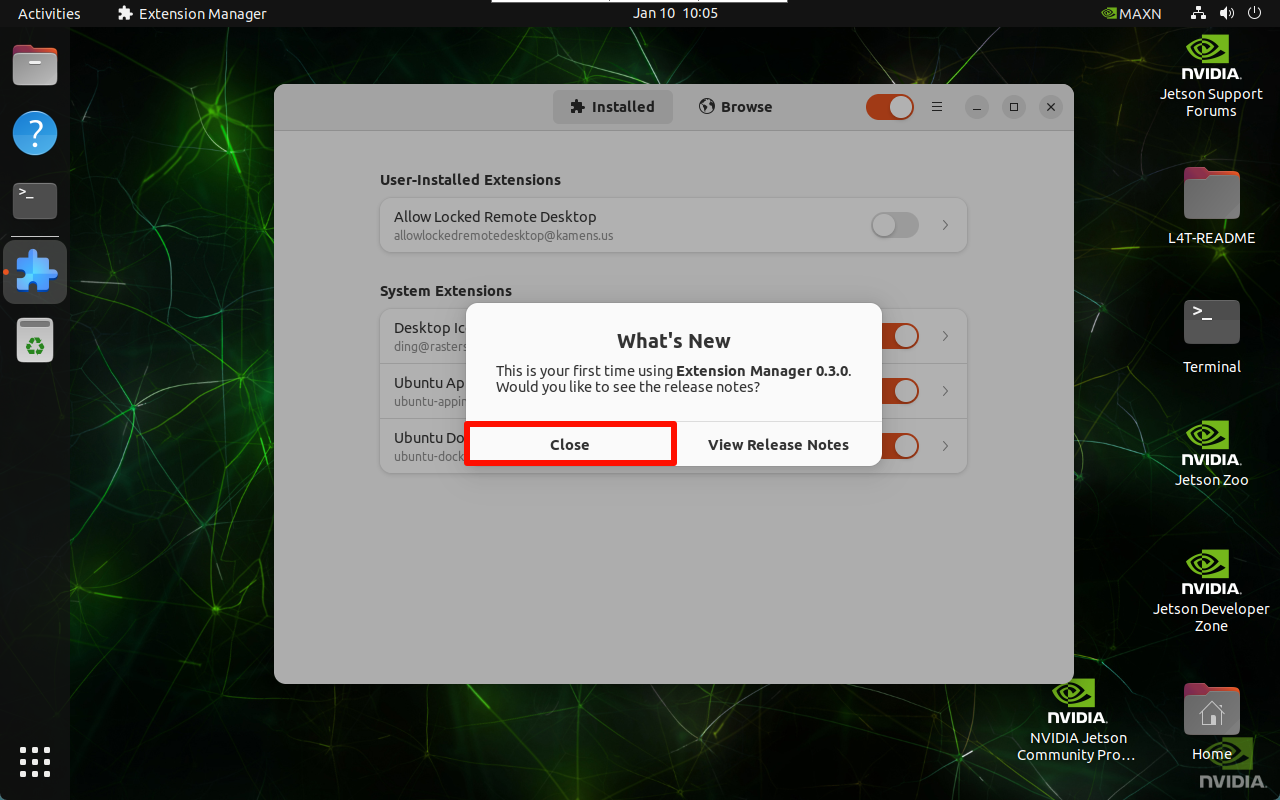
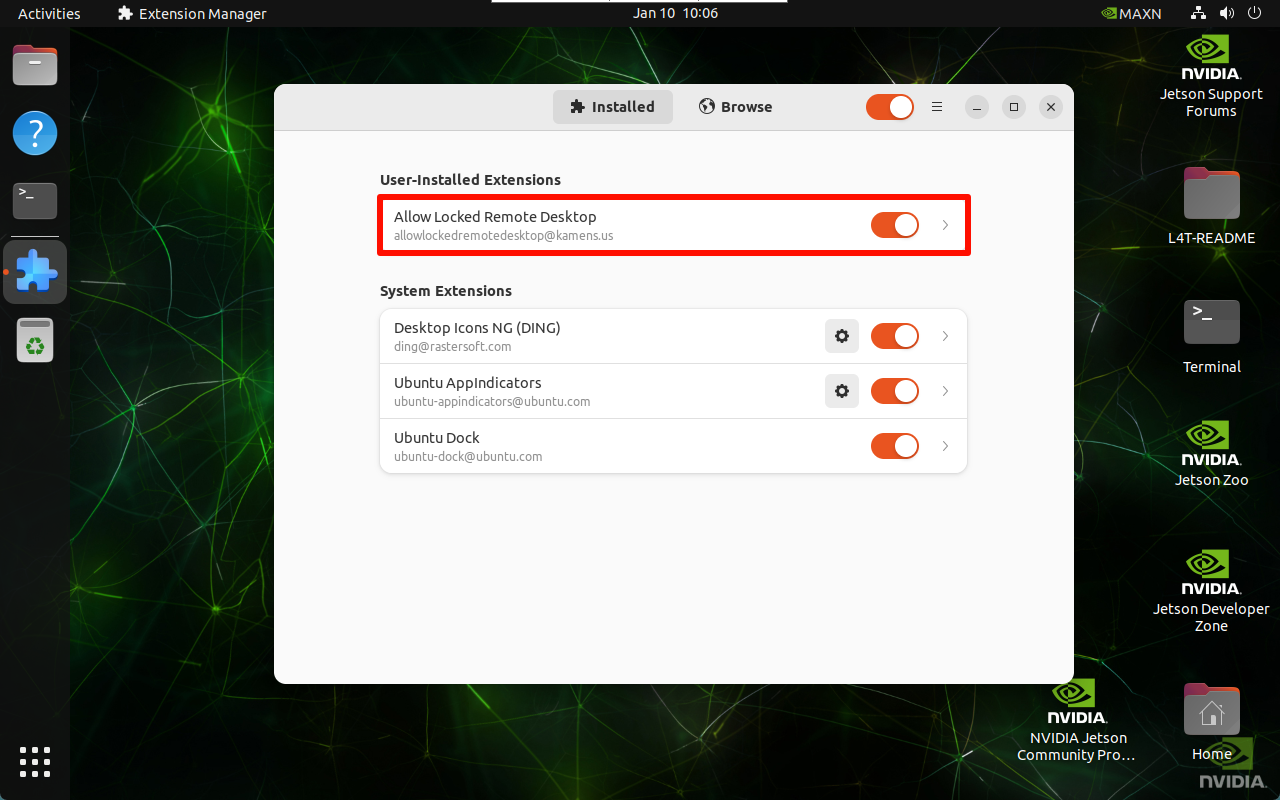
重启系统:打开Extension Manager开启对应功能(自行在Ubuntu系统应用中查找)
3、VNC远程控制
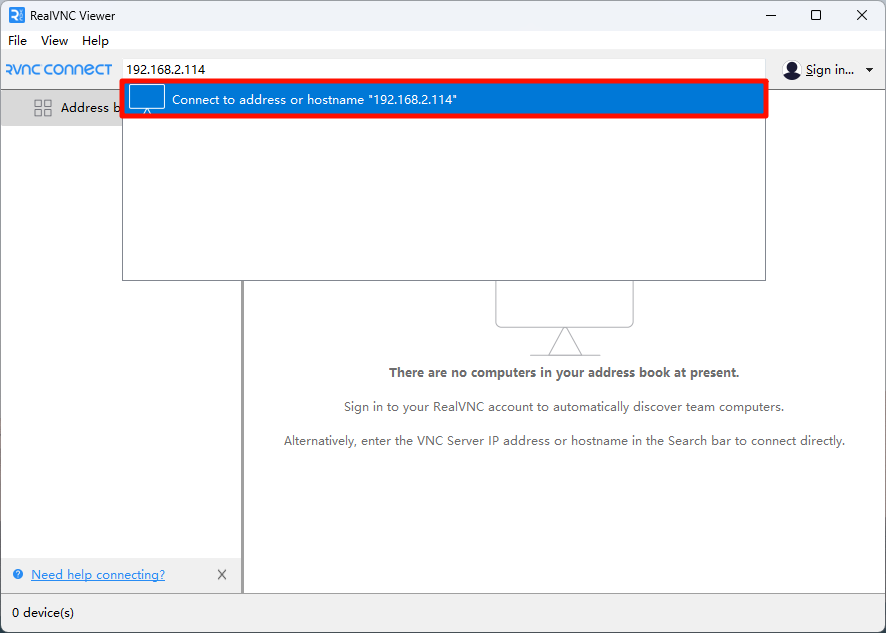
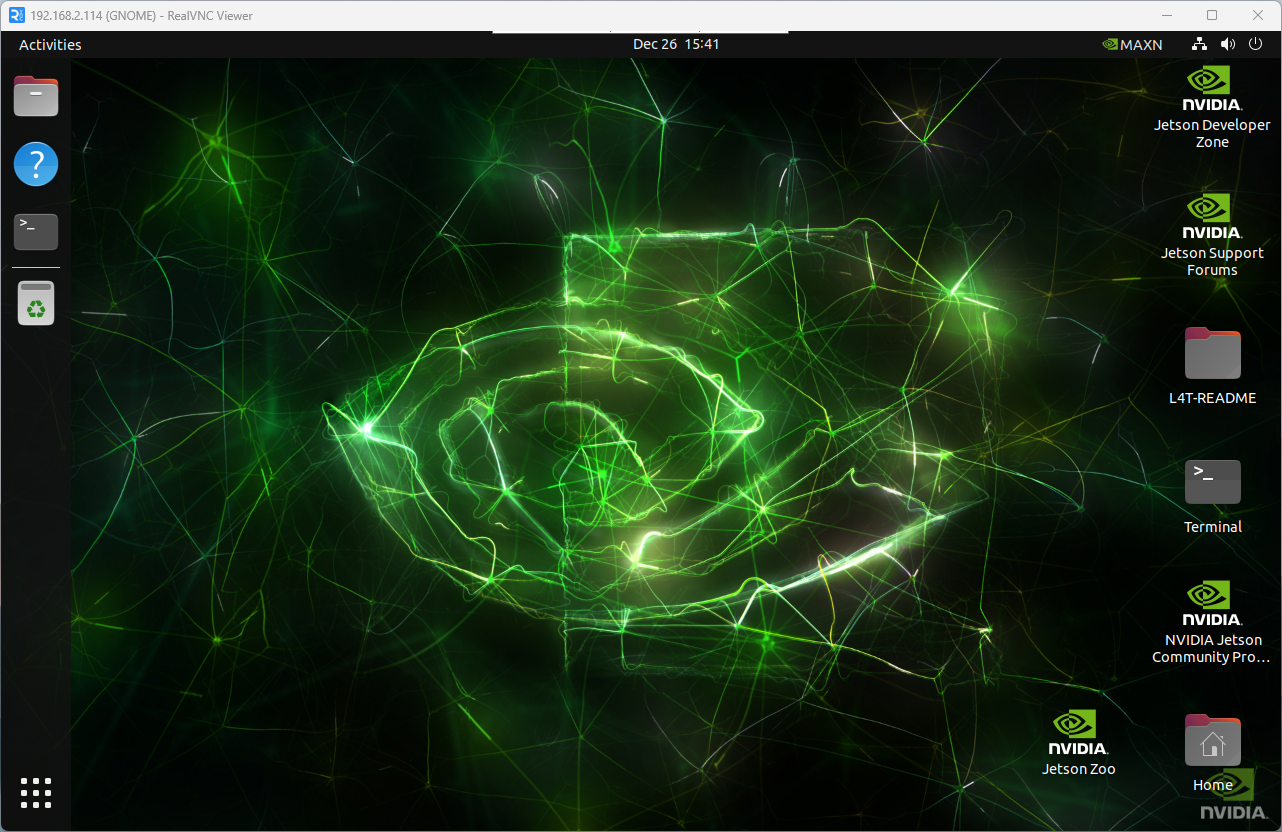
VNC Viewer输入主板IP:
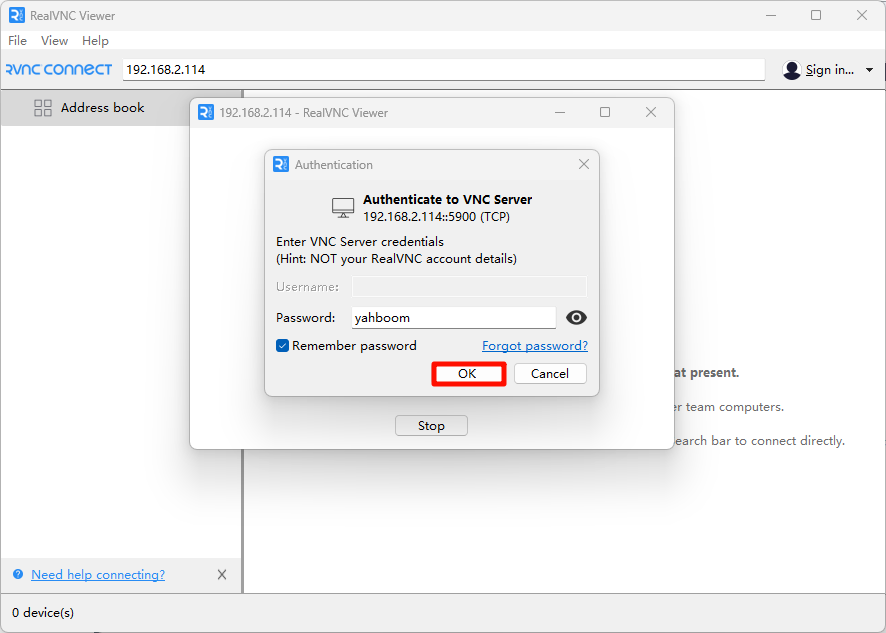
填写主板系统的密码:
常见问题
VNC远程显示重连
重连现象
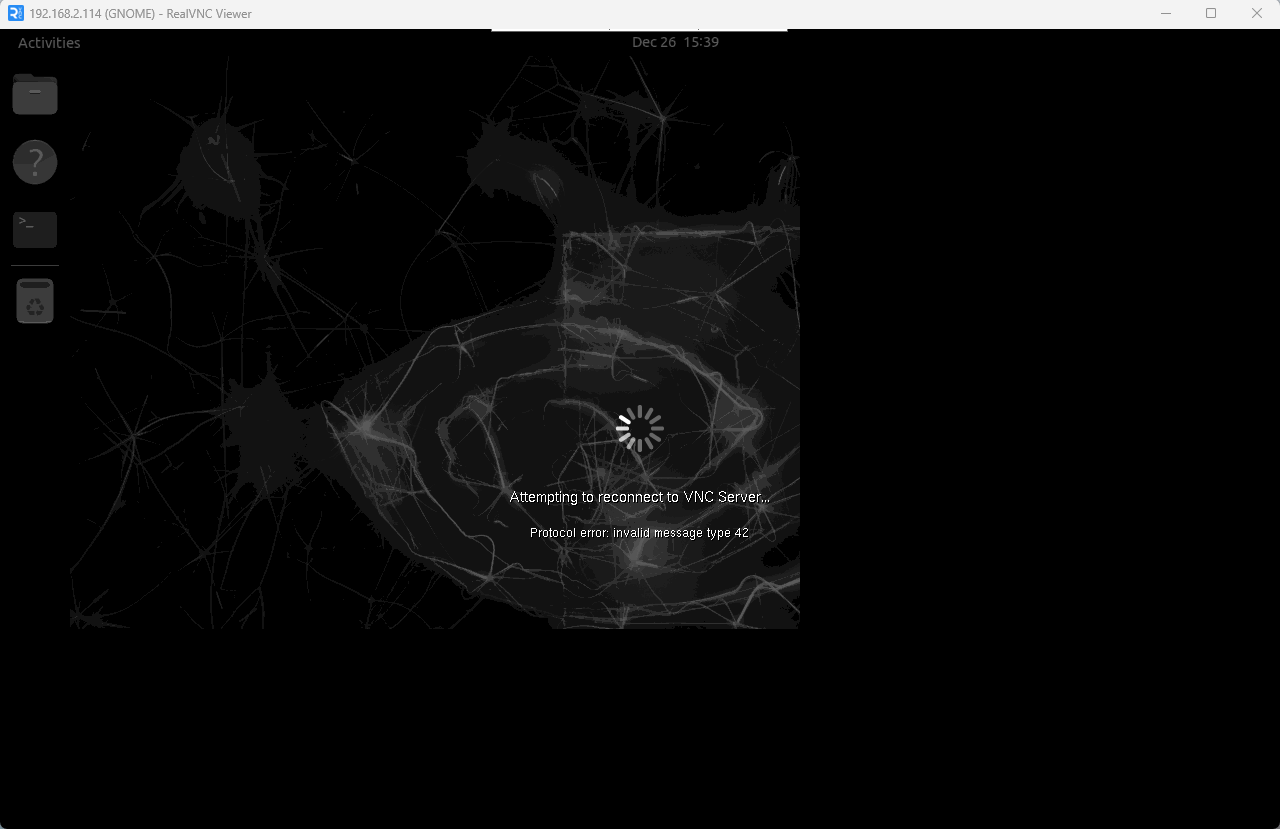
解决方法
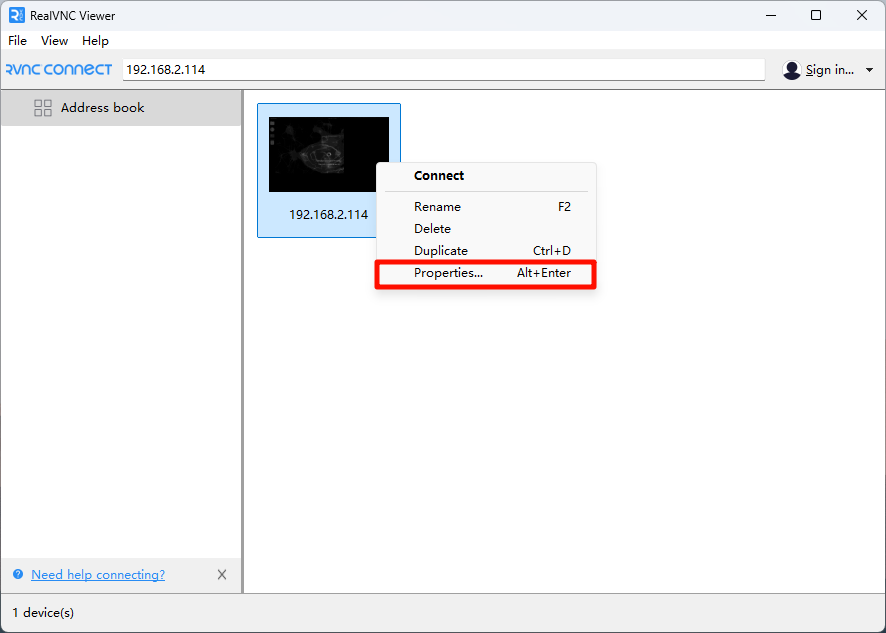
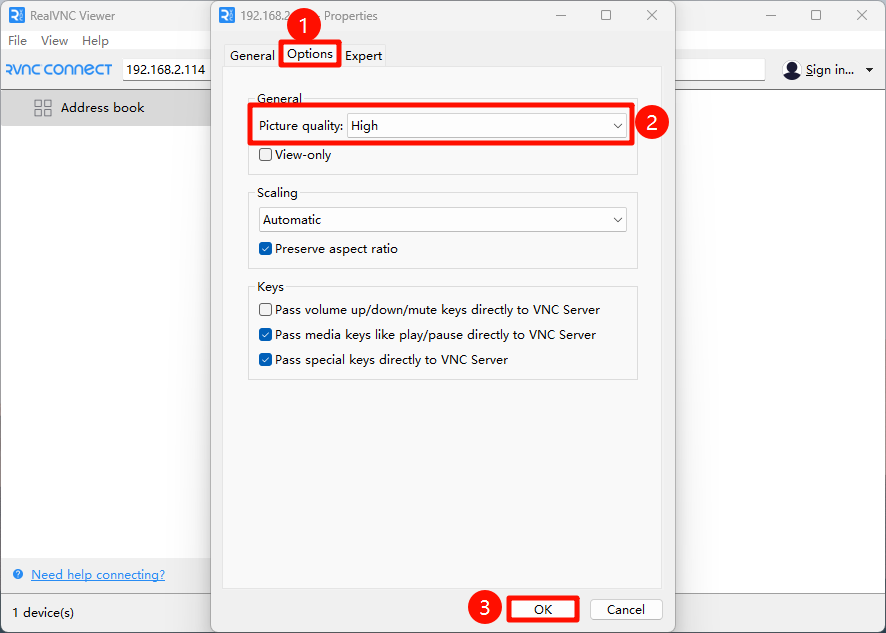
修改对应远程设备的选项 → 指定远程画质
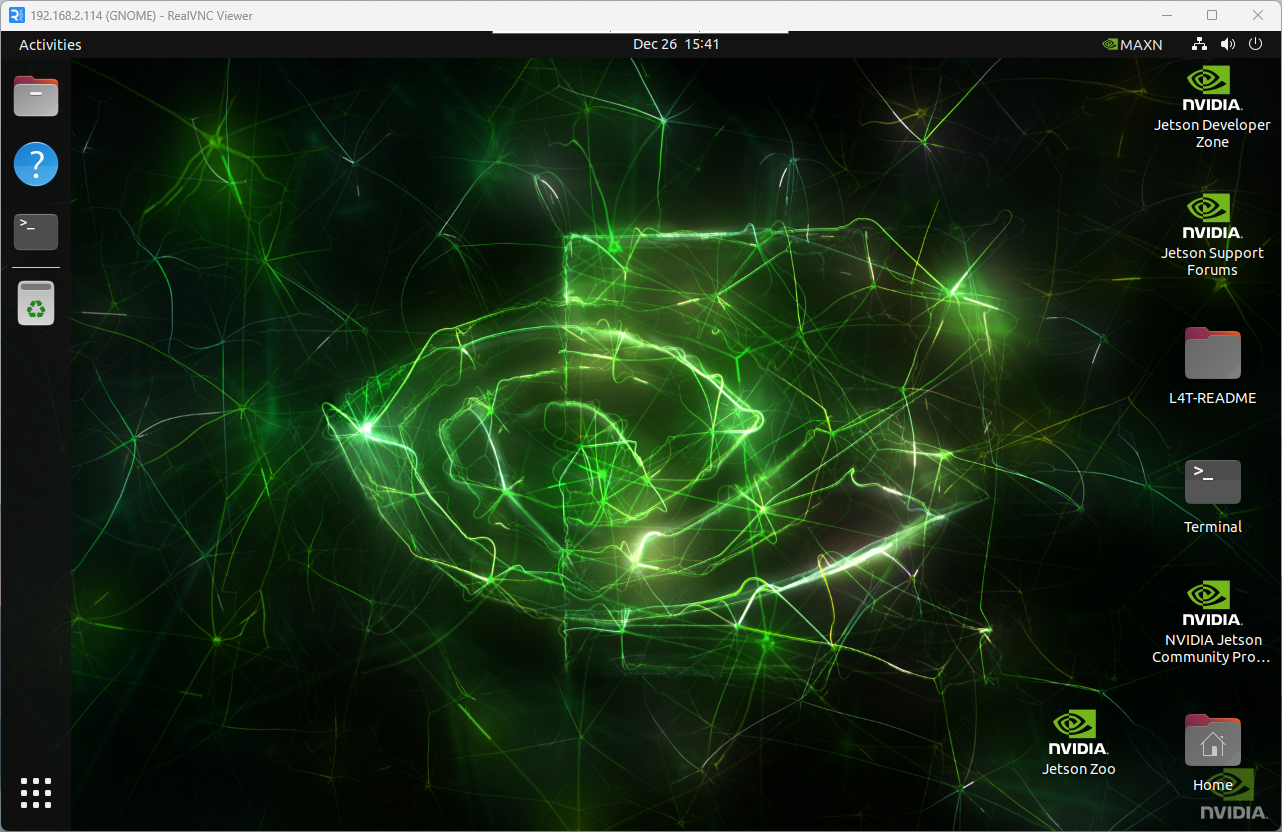
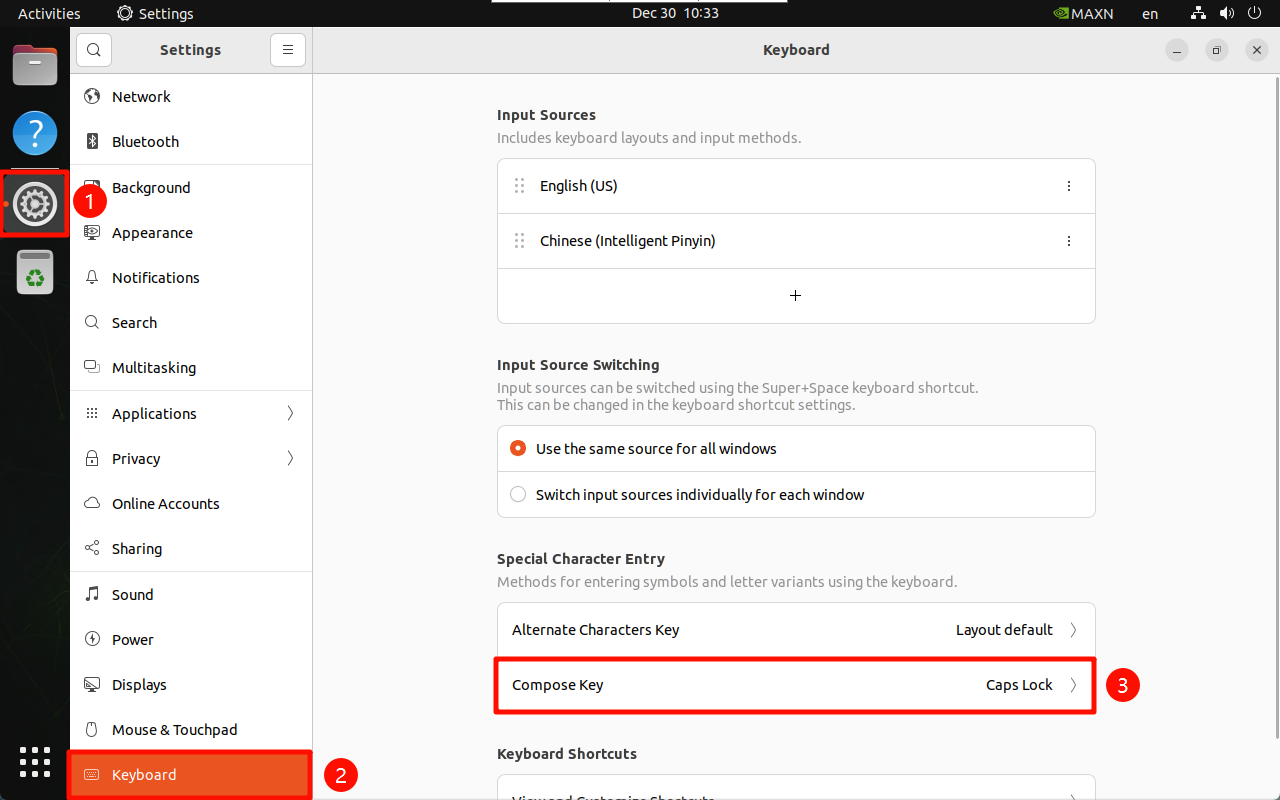
VNC远程切换大小写
进入Settings → Compose Key → Caps Lock:设置成Caps Lock就可以切换大小写输入